Best PDF Data Extraction Tools in 2026,
Tested and Compared
A PDF was never designed to give up its data. It was built to lock a page down so it looks identical everywhere — which is the opposite of what you need when you want the numbers inside it sitting in spreadsheet rows. That single fact explains why the same invoice copies cleanly out of one tool and lands as a single mashed-together column in another, and why "PDF to Excel" quietly means two different jobs depending on how your PDF was made. This is a technical-advisor comparison of ten tools for getting structured data out of PDFs — what each actually costs in June 2026, which kind of PDF it's built for, and where it honestly falls short.
Key Takeaways
- The $10 online converter and the developer cloud API choke on the very same messy scanned table — so price tells you almost nothing about which PDF tool will actually work.
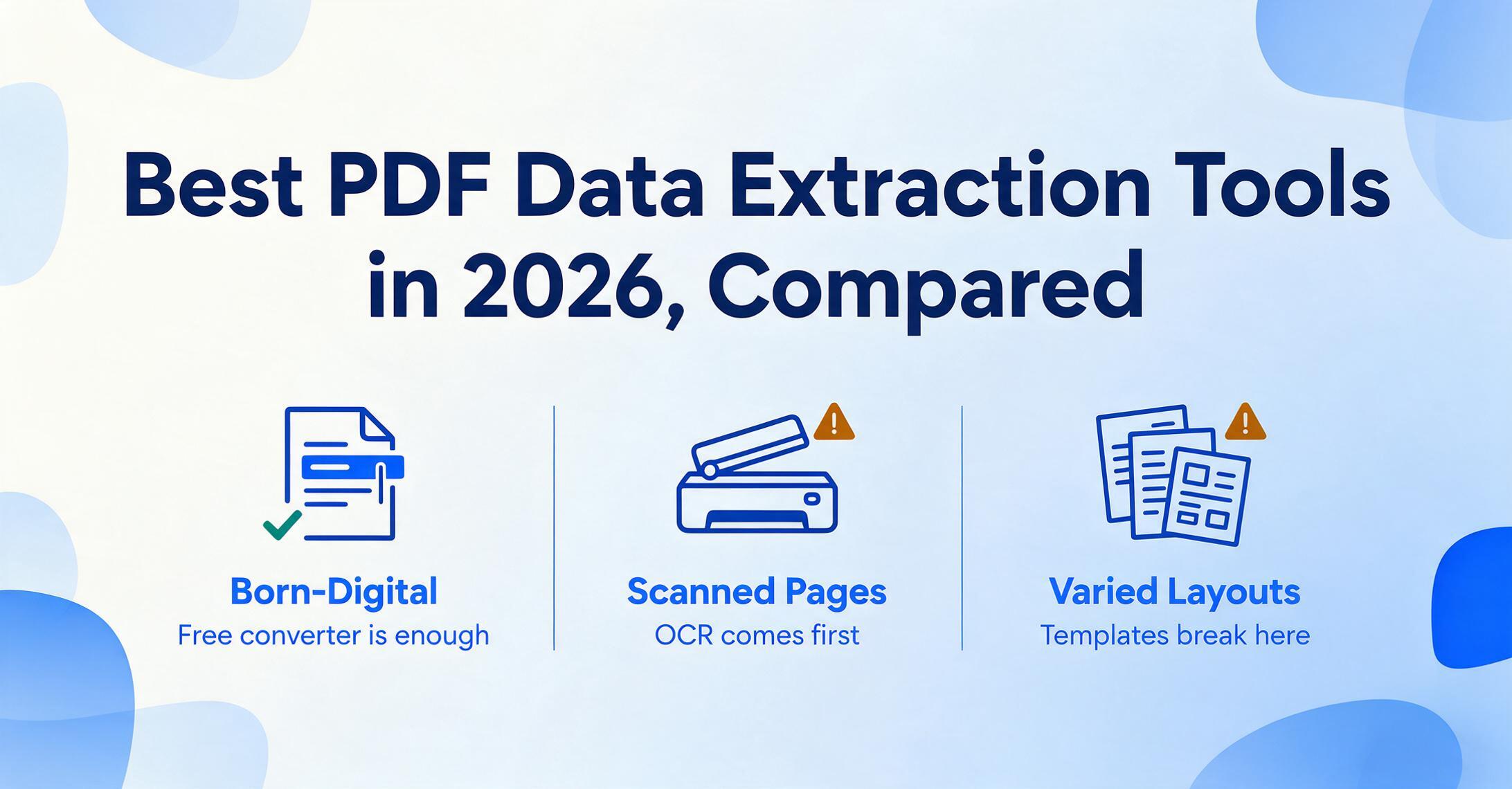
- The one question nobody's comparing decides everything: is your PDF born-digital (you can highlight the text) or scanned, where it's just a picture and needs OCR — turning the image of text back into real characters — before any data exists.
- Then ask the only other question that matters — do you want structured DATA into spreadsheet rows, or a converted DOCUMENT — and the right tool picks itself, no feature list required.
Why a PDF Won't Just Hand You Its Data
The reason PDF data extraction is hard is that PDF is a presentation format, not a data format. PDF is standardized as ISO 32000 — a fixed-layout format Adobe designed in the 1990s to make a page look the same on every screen and printer. To guarantee that, a PDF records the exact coordinates of every character: this glyph at this x/y position, in this font, at this size. It does not record that a row of numbers is a table, which value is the invoice total, or that two stacked figures belong in the same column. That structure — the part you actually want in Excel — isn't stored. A data-extraction tool has to infer it back from a cloud of positioned characters.
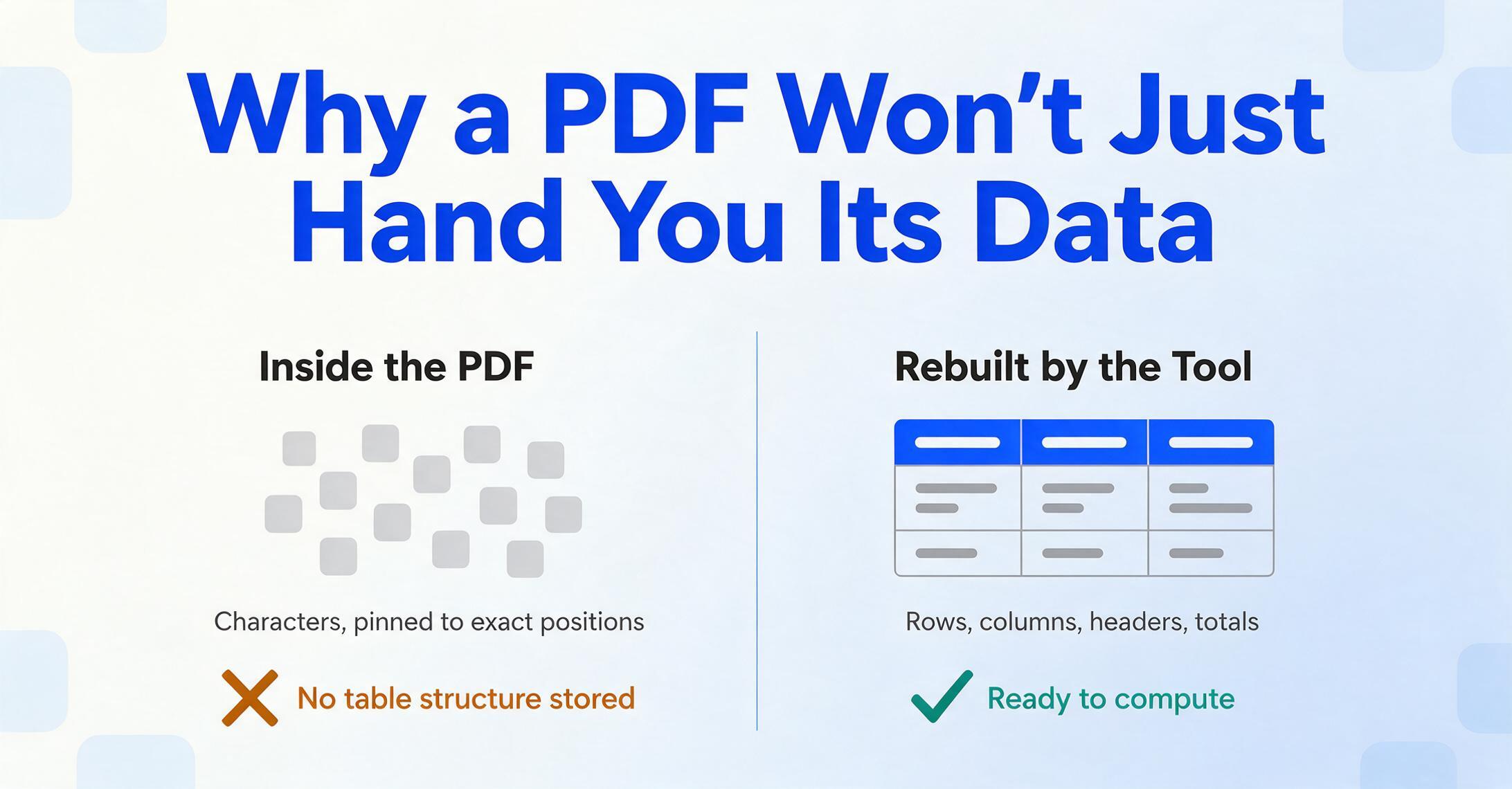
This is also why "get the data out of a PDF" and "convert the PDF to Word" are not the same task, even though they look alike. Converting to Word means rebuilding the document — the prose, headings, and layout — so a human can read and edit it. Extracting data means throwing the layout away and keeping only specific values, arranged into rows and columns you define, so a machine (or a spreadsheet) can compute on them. A tool can be excellent at one and useless at the other. If your real goal is an editable document rather than a dataset, you're on the wrong page — see our roundup of the best PDF-to-Word converters instead; this guide is strictly about pulling structured data into a spreadsheet.
A PDF stores where each character sits, not what the content means. "PDF to Word" rebuilds the document; "PDF data extraction" discards the layout and keeps only the values you want as rows. Different jobs, different tools — and price tells you almost nothing about which one a tool is good at.
The frustration users describe comes straight from that gap. One long-time Acrobat user on r/Acrobat found exports "breaks paragraphs down into strange text boxes, and everything shifts when I make edits"; another on r/pdf got output that "creates individual text boxes throughout the whole word document." When you're after data rather than a document, the same instability shows up as columns that merge, decimals that drift, and tables that arrive as one long string — because the tool reproduced coordinates instead of understanding the table. The tools that win at extraction are the ones that interpret the page before they copy anything off it.
Born-Digital vs Scanned PDFs: Why It Changes Which Tool You Need
Before you pick a tool, check which kind of PDF you have, because it splits the entire market in two. A born-digital PDF was created by software — exported from accounting software, generated by a billing system, printed-to-PDF from a browser — and it already contains a real text layer. The characters are inside the file; a tool only has to read them and rebuild the table structure. A scanned PDF (or a phone photo saved as a PDF) is the opposite: it's a flat image of a page, like a JPEG in a PDF wrapper. There are no characters inside it at all — only pixels that look like text to your eye.
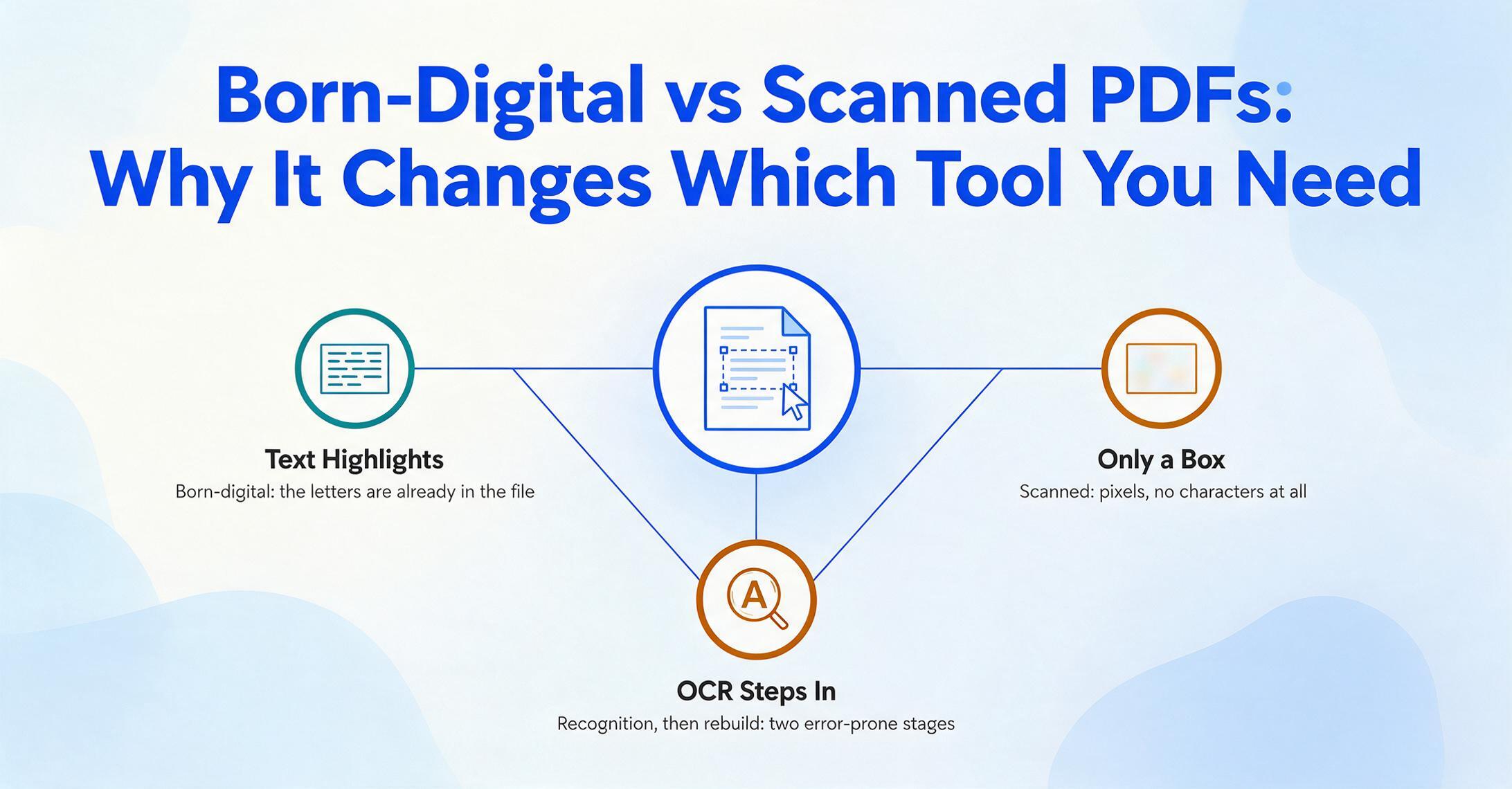
That's why scanned PDFs require OCR (Optical Character Recognition): the step that looks at the image, identifies shapes as letters and numbers, and produces real text before any extraction can happen. The distinction is about quality, not just speed. As the Open Preservation Foundation puts it, in a digitally-born document "the text is error-free, while in the case of OCR, the accuracy of the engine dictates the quality of the result." A scanned file therefore passes through two error-prone stages — recognizing characters, then reconstructing the table — so the tools that win on scans are the ones with the strongest OCR and the smartest structure reconstruction.
The quick test takes five seconds: open the PDF and try to select a line of text with your cursor. If the text highlights, it's born-digital, and even free converters can read it. If your cursor only draws a box over an image, it's scanned — and you need a tool with OCR built in, which rules out the free "convert" buttons on most online sites. If your files are scans bound for a spreadsheet, our walkthrough on turning a scanned PDF into Excel covers that specific path.
How We Picked and Tested
These ten tools made the list because they're the ones people actually search for, spanning every category the keyword covers — not because they're easy to praise. We grouped them by the job they're built for: built-in PDF tools for simple born-digital tables (Adobe Acrobat, SmallPDF), template and rule-based parsers for repeating layouts (Docparser, Parseur), template-free AI extractors that read any layout (ImageToTable.ai, Airparser), and the desktop OCR specialist plus developer-scale cloud APIs (ABBYY, Google Document AI, AWS Textract).
Each tool was judged on four things: how it extracts (mechanical copy, fixed template, or semantic AI, and whether it does OCR for scans), real pricing (the lowest published figure, not "starting from"), the PDF type it's built for (born-digital, scanned, or both; simple table or many varied layouts), and honest fit — where it genuinely wins and where it doesn't. Prices were taken from each vendor's public pricing page and are current as of Pricing checked June 2026; verify the latest figures before you buy, since vendors change tiers often.
One disclosure up front: ImageToTable.ai — the product this site belongs to — is one of the ten tools reviewed. We've placed it where it honestly fits (template-free extraction from born-digital or scanned PDFs, no-code, low entry price) and said plainly where Adobe or SmallPDF handles a simple born-digital table just as well, and where Google Document AI or AWS Textract is the smarter call for a developer pipeline. For a clean PDF with a single tidy table, you may not need any paid tool at all — and we say so below.
The 10 Best PDF Data Extraction Tools at a Glance
The table is the fast answer; the reviews below explain the trade-offs. "Starting Price" is the lowest published figure (annual billing where it's cheaper); usage-based tools show their per-page rate. "Pricing checked June 2026."
| Tool | Starting Price | Pricing Model | Best For | Key Limitation | Free Trial? |
|---|---|---|---|---|---|
| ImageToTable.ai | $9/mo (free tier) | Subscription + PAYG credits | Template-free PDF→table, born-digital or scanned; no-code | Not a developer API platform or full PDF editor | Free tier |
| Adobe Acrobat Pro | $19.99/mo (Std $14.99) | Subscription | Simple born-digital table export in a full PDF suite | Table→Excel export is basic; pricey for data-only | 7-day |
| SmallPDF | $10/mo (annual; $15 monthly) | Subscription (freemium) | Quick online PDF→Excel on clean born-digital tables | OCR (scanned) is Pro-only; basic table fidelity | 7-day + free tier |
| Docparser | $39/mo (annual $32.50) | Subscription (credits, template) | Rule-based parsing of fixed-layout PDFs at volume | A template per layout; breaks when the format changes | 14-day |
| Parseur | Free tier, then volume-based | Volume-based (per page) | Email + PDF parsing with an AI or template engine | Mailbox-centric workflow; paid tiers scale by volume | Free (20 pages/mo) |
| Airparser | $33/mo (annual) | Subscription (credits) | LLM parsing of PDFs to JSON without templates | Output is data-pipeline (JSON) oriented; credit caps | Free (20 credits/mo) |
| Nanonets | Free ($200 credits), then usage | Usage-based (per block run) | Enterprise AP/IDP workflows with ERP integration | Built for workflow scale; overkill for ad-hoc PDFs | $200 credits |
| ABBYY FineReader PDF | $99/yr (~$8.25/mo) | Subscription or perpetual | Desktop, accuracy-critical scanned OCR + tables | Windows-focused desktop, not a cloud/API pipeline | 7-day |
| Google Document AI | ~$1.50–$30 / 1,000 pages | Usage-based (per page) | Developer-scale cloud OCR and parsing pipelines | Requires GCP and code; not for non-technical users | Free tier (limited) |
| AWS Textract | $1.50–$50 / 1,000 pages | Usage-based (per page) | Developer-scale cloud table and forms extraction | Requires AWS and code; per-feature pricing complexity | 3-month free tier |
Two patterns stand out. First, price predicts almost nothing about extraction quality — the $10/month online tool and the developer cloud API both struggle on the same messy scanned table, because that's a structure problem, not a budget one. Second, the real fork is born-digital vs scanned, then simple-table vs many-varied-layouts: a clean single table needs almost nothing, while a stack of differently-formatted vendor PDFs is what separates template tools (which break) from semantic AI (which adapts). The reviews below follow exactly that order.
Built-In PDF Tools for Simple Born-Digital Tables: Adobe & SmallPDF
If your PDF was exported from software and holds one clean table, the tools you may already have are the right answer, and they're the cheapest. Both Adobe Acrobat and SmallPDF can push a born-digital table into Excel in seconds, with no setup — the catch is they work best on the easy case and wobble on scans and complex layouts.
Adobe Acrobat Pro
Acrobat is the editing-suite standard, and its "Export to Excel" handles a tidy born-digital table well. Adobe invented the format, so its OCR (Pro tier) and export are polished. Acrobat Standard starts at $14.99/month, but the OCR you need for scanned files sits in Acrobat Pro at $19.99/month. The honest limitation: Acrobat is a whole document suite, and its table-to-data export is competent rather than smart — multi-table pages and irregular layouts still need a cleanup pass, and you're paying for editing, signing, and redaction you may not want if data is all you're after.
Best for: professionals who already live in Acrobat and need the occasional clean table dropped into Excel. Not ideal for: high-volume or varied-layout extraction, or anyone who wants a data tool rather than a PDF editor. See the head-to-head in our Adobe Acrobat comparison. View Adobe Acrobat pricing →
SmallPDF
SmallPDF is the fast, browser-based option: a clean PDF-to-Excel converter inside a 30-tool online suite, with no install. The free tier handles a couple of documents a day; Pro is $10/month billed annually ($15 monthly), and converting scanned PDFs with OCR is a Pro-only feature. It's genuinely good on a simple born-digital table and adequate on a slightly busier one.
Best for: quick, occasional PDF-to-Excel jobs on clean files where you don't want to install or learn anything. Not ideal for: scanned documents on the free tier, batches of varied layouts, or any case where column fidelity has to be exact — online converters tend to introduce drift on complex tables. View SmallPDF pricing →
The honest takeaway for both: they nail the easy case and cost the least, so try them first. The moment your source is a scan, or you're feeding in many vendors' differently-shaped tables, you'll hit a ceiling — which is exactly where the next two categories earn their price.
Template & Rule-Based Parsers: Docparser & Parseur
Template parsers solve the volume problem for documents that always look the same. You set up rules once — "the invoice number lives here, the total lives there" — and the tool applies them to every matching file, which is powerful when one supplier sends the identical layout every week. The structural weakness is in the name: change the layout, add a vendor, and the template stops matching until someone rebuilds it.
Docparser
Docparser is the established rule-based parser, built around per-layout templates and zonal rules. Pricing starts at $39/month ($32.50 billed annually) for the Starter plan's 100 credits, where one credit is a document of up to five pages, and it exports to Excel, CSV, JSON, and Google Sheets. It's reliable and well-integrated — as long as your documents are consistent.
Best for: teams processing a steady stream of fixed-format PDFs (one vendor, one form) who can invest in setup once. Not ideal for: many varied layouts, frequently-changing formats, or non-technical users who don't want to maintain parsing rules. Compare approaches in our Docparser comparison. View Docparser pricing →
Parseur
Parseur started as an email parser and extends to PDFs, offering both a template engine and an AI engine. It's volume-priced with a genuinely useful free tier (20 pages/month), and paid plans scale by pages processed (1 page = 1 credit). The mailbox-centric model is a strength for document-by-email workflows and a quirk if you just want to upload files and get a spreadsheet.
Best for: automated pipelines where documents arrive by email and flow on to Sheets, Zapier, or a webhook. Not ideal for: users who want a simple upload-and-download spreadsheet tool without building a mailbox-and-integration flow. See where it lands in our Parseur comparison. View Parseur pricing →
Template-Free AI Extractors: ImageToTable.ai & Airparser
Template-free AI extractors exist to solve the exact problem template parsers can't: many documents that don't share a layout. Instead of matching positions, these tools read the page semantically — they understand what a value means, so the total is found whether it's top-right on one invoice and bottom-left on another. That's what makes them the natural fit when you're pulling data from PDFs that vary by vendor, format, or origin.
ImageToTable.ai
ImageToTable.ai takes the semantic route and is built for exactly this category. Rather than drawing zones or writing rules, you use Custom Column Extraction: you type the column names you want — "Invoice Number", "Date", "Total" — and the AI locates each value anywhere on the page by understanding what it means, not where it sits. The column names you enter become the headers of your output table. Because a vision large model reads the page, it handles born-digital and scanned PDFs in the same pass (OCR is built in), and its batch-first design merges many uploaded files into one Excel sheet — so a folder of differently-formatted vendor invoices comes out as one clean table. By the tool's own figures, it reaches up to 99% accuracy on printed tables and processes a page in 5–10 seconds versus roughly three minutes of manual entry.
Best for: no-code users and lean teams pulling structured data from varied or scanned PDFs into a spreadsheet, at the lowest entry price (free tier, then $9/month). Not ideal for: developers who want a raw API at cloud scale (Google or AWS fit better there), or anyone needing a full PDF-editing suite with signing and redaction. You can see the workflow on the PDF data extraction page or try it on a PDF-to-Excel conversion; it sits alongside the broader picks in our no-code document AI roundup. Try ImageToTable.ai free →
Airparser
Airparser is the developer-leaning AI extractor: an LLM-based parser that turns PDFs, scans, and emails into structured JSON without templates, with OCR and handwriting support. Pricing starts at $33/month (billed annually) for 100 credits, where one credit is one PDF page, plus a free 20-credit trial. It's clean and capable, with the output shaped for pipelines rather than spreadsheets.
Best for: technical users routing parsed JSON into Zapier, Make, n8n, or their own apps via API. Not ideal for: non-technical users who want a finished spreadsheet rather than JSON, or anyone processing large volumes on the entry credit cap. Details in our Airparser comparison. View Airparser pricing →
Desktop OCR & Developer-Scale Cloud: ABBYY, Google Document AI & AWS Textract
At the two ends of the spectrum sit the OCR specialist and the cloud APIs, and they serve very different buyers. ABBYY is desktop software for accuracy-critical scanned work; Google Document AI and AWS Textract are raw cloud engines for developers building extraction into a product. None of the three is a point-and-click spreadsheet tool — they're chosen for precision or scale, not convenience.
ABBYY FineReader PDF
ABBYY is the OCR specialist for scanned documents where accuracy is non-negotiable. Independent comparisons cite recognition accuracy around 99.8% across 198 languages — the strongest pure-OCR engine here — and FineReader includes table recognition for export to Excel. FineReader PDF Standard runs $99/year (about $8.25/month) or $16/month monthly; the Corporate tier adds batch automation.
Best for: multilingual scanned archives and contracts where character accuracy on poor scans is the whole job, processed on a desktop. Not ideal for: Mac-first users (Mac parity is limited), teams wanting a cloud/API workflow, or anyone whose files are born-digital (the OCR strength is wasted). Compare it in our ABBYY FineReader comparison. View ABBYY FineReader pricing →
Google Document AI
Google Document AI is a cloud OCR and document-parsing platform built for developers, priced per page: roughly $1.50 per 1,000 pages for plain OCR and around $30 per 1,000 pages for structured form parsing, with a limited free tier. It's powerful and scales effortlessly, but it lives inside Google Cloud and expects you to write code and wire up processors — there's no consumer-facing "upload and download" interface.
Best for: engineering teams embedding high-volume extraction into an application on Google Cloud. Not ideal for: non-technical users, one-off jobs, or anyone who wants a finished spreadsheet without building an integration. View Google Document AI pricing →
AWS Textract
AWS Textract is Amazon's equivalent cloud engine, with per-feature, per-page pricing: $1.50 per 1,000 pages to detect text, $15 per 1,000 to extract tables, and $50 per 1,000 for forms (key-value pairs), plus a three-month free tier. The granularity is a strength for tuning cost and a complexity for estimating it, and like Document AI it's an API you build against, not an app you open.
Best for: developers on AWS who need table or forms extraction inside a custom pipeline and can manage per-feature pricing. Not ideal for: non-technical users or small jobs where the setup cost dwarfs the work. See the practical view in our AWS Textract comparison. View AWS Textract pricing →
And the enterprise option worth naming: Nanonets sits above all of these as an end-to-end document-processing platform — it starts free with $200 in credits, then charges per workflow "block" (about $0.30 for a complex AI extraction step, roughly $2 to process an invoice end-to-end), with ERP integration, SOC 2, and HIPAA. It's genuinely strong for accounts-payable automation at scale, and genuinely overkill if you just need data out of a stack of PDFs. Read the detail in our Nanonets comparison, and view Nanonets pricing →
How to Choose: Match the Tool to Your PDF
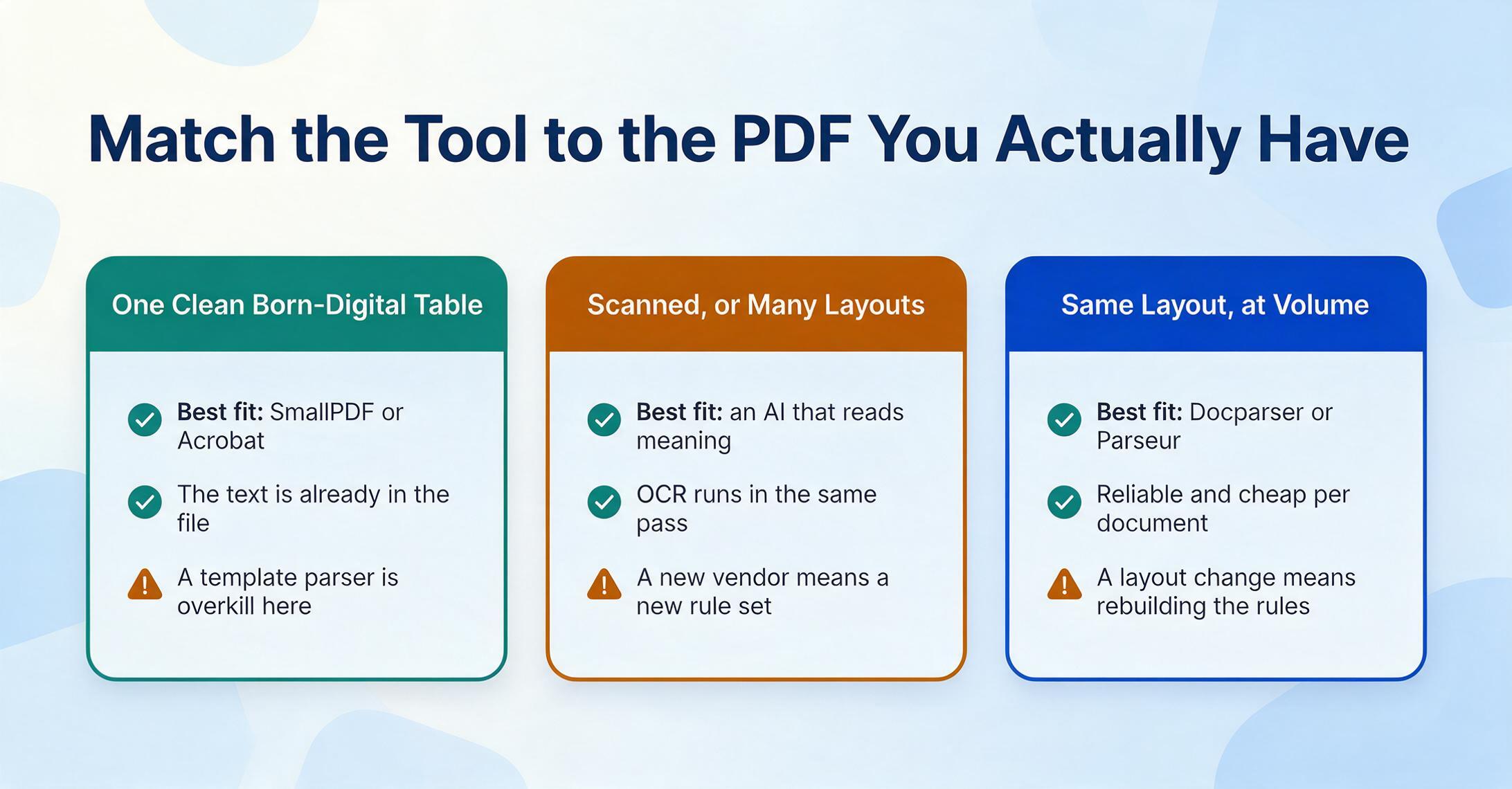
The right tool is the one that fits the PDF in front of you, not the one with the longest feature list. Four cases cover almost everyone.
One clean born-digital table, occasional use
Best fit: SmallPDF or Adobe Acrobat
The text is already in the file and the layout is simple, so a quick converter is fast and cheap. Try the free tier before paying for anything heavier.
Many vendors, varied or scanned layouts
Best fit: ImageToTable.ai or Airparser
Templates break here. A semantic AI extractor finds each value by meaning across layouts and does OCR for scans in the same pass. Test one real batch first.
Same layout, every time, at volume
Best fit: Docparser or Parseur
If one supplier sends an identical form repeatedly, a template parser is reliable and cheap per document. Accept that a layout change means rebuilding the rules.
Building extraction into software, at scale
Best fit: Google Document AI, AWS Textract, or Nanonets
For a developer pipeline or enterprise AP workflow, the cloud APIs and Nanonets scale and integrate. For accuracy-critical scans on a desktop, ABBYY.
One scope note before the FAQ: this guide is about getting structured data out of PDFs. If you need an editable document, see the PDF-to-Word converters roundup; if your sources are broader than PDFs — photos, screenshots, mixed scans — the wider data extraction software roundup and our document data extraction tools comparison cover those.
Frequently Asked Questions
How do I extract data from a PDF into Excel?
It depends on your PDF. If it's born-digital (you can highlight the text with your cursor) and has one clean table, a free or cheap converter like SmallPDF or Adobe Acrobat's "Export to Excel" works in seconds. If it's scanned, or you have many differently-formatted PDFs, you need a tool with OCR and semantic understanding — an AI extractor like ImageToTable.ai or Airparser reads each value by meaning and outputs a structured spreadsheet, while Google Document AI or AWS Textract do the same at developer scale via API.
Why does my PDF table land in one column when I copy it into Excel?
Because a PDF stores the position of each character, not the fact that those characters form a table. When you copy-paste, the data has no column structure to carry, so everything collapses into a single string or column. A real data-extraction tool rebuilds the table by interpreting the page — recognizing which values are rows, columns, and headers — instead of dumping characters in reading order. That reconstruction quality, not the price, is what separates the tools in this list.
Can AI extract data from a scanned PDF?
Yes, but it requires OCR — the step that turns the image of text into real characters before any data can be pulled out. A scanned PDF is just a picture of a page with no text inside, so a tool without OCR will return nothing usable. Vision-AI extractors (ImageToTable.ai), the OCR specialist (ABBYY), and the cloud APIs (Google Document AI, AWS Textract) all run OCR first; the AI tools then go a step further and structure the recognized text into the columns you asked for.
What's the difference between a PDF data extractor and a PDF-to-Word converter?
A PDF-to-Word converter rebuilds the whole document — prose, headings, and layout — so a person can read and edit it. A PDF data extractor throws the layout away and keeps only specific values, arranged into rows and columns you define, so a spreadsheet can compute on them. They're different jobs: a great converter can be useless for extraction, and vice versa. Choose by your end goal — an editable document, or a dataset.
Is there a free way to extract data from PDFs?
For a clean, born-digital PDF with a simple table, yes — SmallPDF and iLovePDF have free tiers, and Parseur (20 pages/month), Airparser (20 credits/month), and ImageToTable.ai all offer free allowances you can test on a real file. The limits appear with scanned documents (OCR is often gated to paid tiers) and with volume. For an occasional job the free tiers are genuinely enough; for ongoing work, price the lowest paid plan against the hours you'd spend re-keying.
Which PDF data extraction tool is most accurate?
On clean born-digital tables, most tools are accurate. The differences show on scans and varied layouts. ABBYY leads on raw OCR character accuracy (cited around 99.8%) for scanned archives; semantic AI tools tend to win on structure — correctly mapping values to the right columns across documents that don't share a layout. Accuracy also depends on your files, so the only reliable test is running your own hardest PDF through two or three candidates before committing.
The Bottom Line
The most useful thing to take from this comparison is that "PDF data extraction" isn't one problem — it's a few, and the right tool depends on which one you have. A clean born-digital table needs almost nothing; a stack of scanned, varied PDFs needs OCR plus semantic understanding; a developer pipeline needs an API; an enterprise AP team needs a workflow platform. Price won't tell you which side of those lines a tool sits on — how it handles structure will.
Don't buy on brand or price. Check your PDF first: can you select the text, and does every file share a layout? Born-digital and simple → a free converter. Scanned or varied → a semantic AI extractor that reads meaning, not coordinates. Same layout at volume → a template parser. Then test your hardest real file before you trust any of them.
If your PDFs keep arriving as merged columns and drifting decimals, the converter isn't the only variable — the kind of PDF and the way the tool reconstructs the table are. Take the one document that's been costing you the most re-keying, run it through a tool that reads the page by meaning, and see whether the cleanup step disappears. That's the difference worth testing on your own file. You can also pull the same structured data straight into a sheet with our Google Sheets extraction add-ons guide, or size options for a lean budget in the small-business roundup. Try it on your toughest PDF →
Disclosure: This guide is published by ImageToTable.ai, which is one of the ten tools reviewed above. We've aimed for a fair, technical assessment — including naming the cases where a free converter, a desktop OCR app, or a developer cloud API is the better choice. Competitor pricing was taken from each vendor's public pricing page and is current as of June 2026; verify the latest figures on each vendor's site before purchasing.