Best PDF to Editable Word Converters in 2026,
Tested and Compared
The real reason most PDF-to-Word conversions come out broken isn't the converter you chose — it's the PDF itself. A PDF doesn't store a document the way Word does; it stores a fixed picture of where each character sits on the page. Turning that back into an editable Word file means reverse-engineering the structure that was thrown away, and that single problem explains why the same file can convert cleanly in one tool and collapse into stray text boxes in another. This is a technical-advisor comparison of eight converters — what each actually costs in June 2026, which kind of PDF it handles, and where it quietly falls apart.
Key Takeaways
- Eight PDF-to-Word tools ranked here, priced from zero to twenty dollars a month, and not a single one guarantees your converted table won't shatter into a pile of floating text boxes you can't edit.
- Price and brand name predict nothing here because the conversion breaks upstream of the tool — almost every converter mechanically copies where the ink sits, while your Word file needs to know what the text is and where it belongs in reading order.
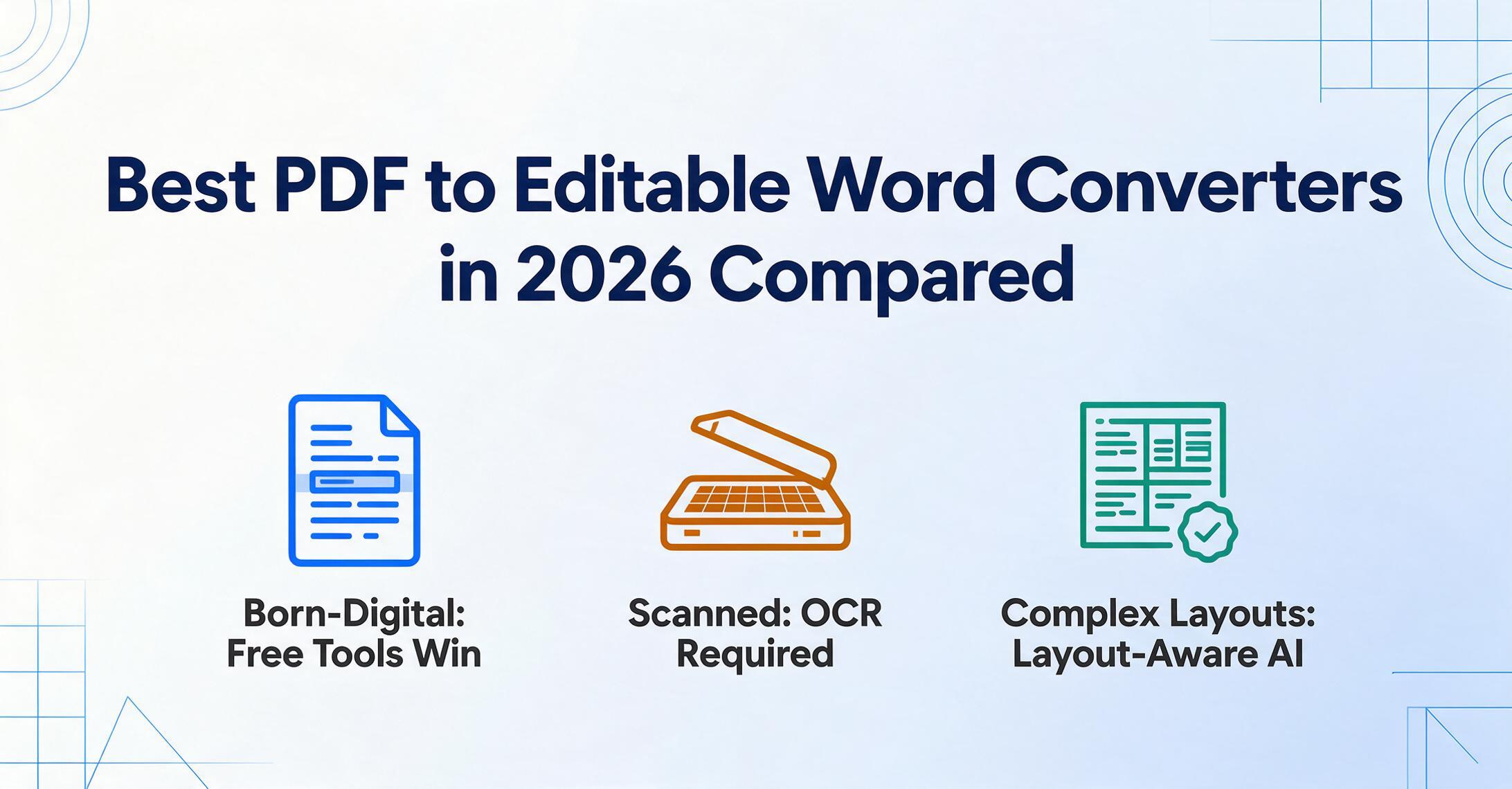
- The one question that picks the right converter: can you highlight text with your cursor in the PDF — a yes means any free online tool works perfectly, a no means you need a tool that rebuilds page layout instead of reproducing coordinates.
Why Most PDF-to-Word Conversions Come Out Broken
A PDF and a Word document are built on opposite assumptions, and conversion has to bridge that gap. PDF is standardized as ISO 32000 — a fixed-layout format Adobe designed in the 1990s to make a page look identical everywhere. To guarantee that, a PDF records the exact coordinates of every glyph: this character at this x/y position, in this font, at this size. It does not record that those characters form a heading, a paragraph, a table cell, or which column comes first in reading order. That information simply isn't there.
A Word document is the reverse. The modern .docx format is WordprocessingML, standardized as ISO/IEC 29500 (the OOXML family). It stores a flowing document model — paragraphs, styles, lists, real table grids — text that reflows when you edit it. So a converter can't just copy a PDF into a .docx; it has to look at a cloud of positioned characters and guess the structure back: where one paragraph ends, whether two blocks of text are side-by-side columns or one continuous flow, whether a grid of numbers is a table or just aligned text.
This guessing step is where converters diverge. A PDF stores where ink sits; a Word file stores what the content is. Every PDF-to-Word tool is reverse-engineering structure from coordinates — and the quality of that reconstruction, not the OCR, is what makes one tool's output editable and another's a mess of text boxes.
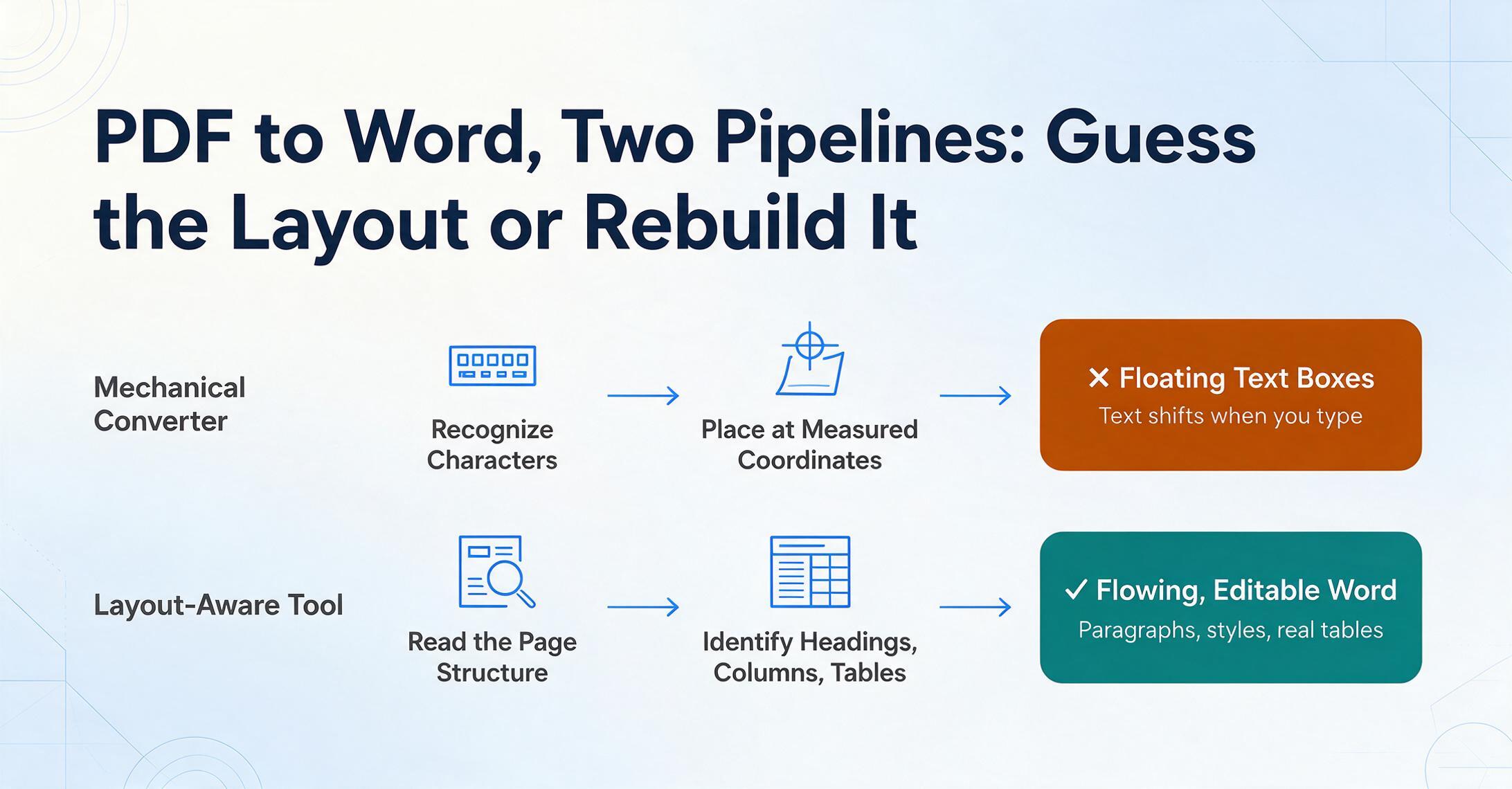
There are two broad ways tools do it. Mechanical converters recognize the characters and drop each block of text wherever its coordinates fell, often wrapping each block in its own floating text box to "preserve" the look. The page looks right at a glance, but it's uneditable — type one extra word and the layout shifts; columns land in the wrong reading order; section breaks multiply. Layout-aware conversion works the other way: it interprets the page structure first — this is a heading, these are two columns, this is a 4-column table — and then rebuilds a clean, flowing Word document. The difference is exactly what frustrated users describe. One long-time Acrobat user put it bluntly: exporting to Word "breaks paragraphs down into strange text boxes, and everything shifts when I make edits." Another, on r/pdf, found their export "creates individual text boxes throughout the whole word document for all my text."
Scanned PDF vs Born-Digital PDF: Only One Needs OCR
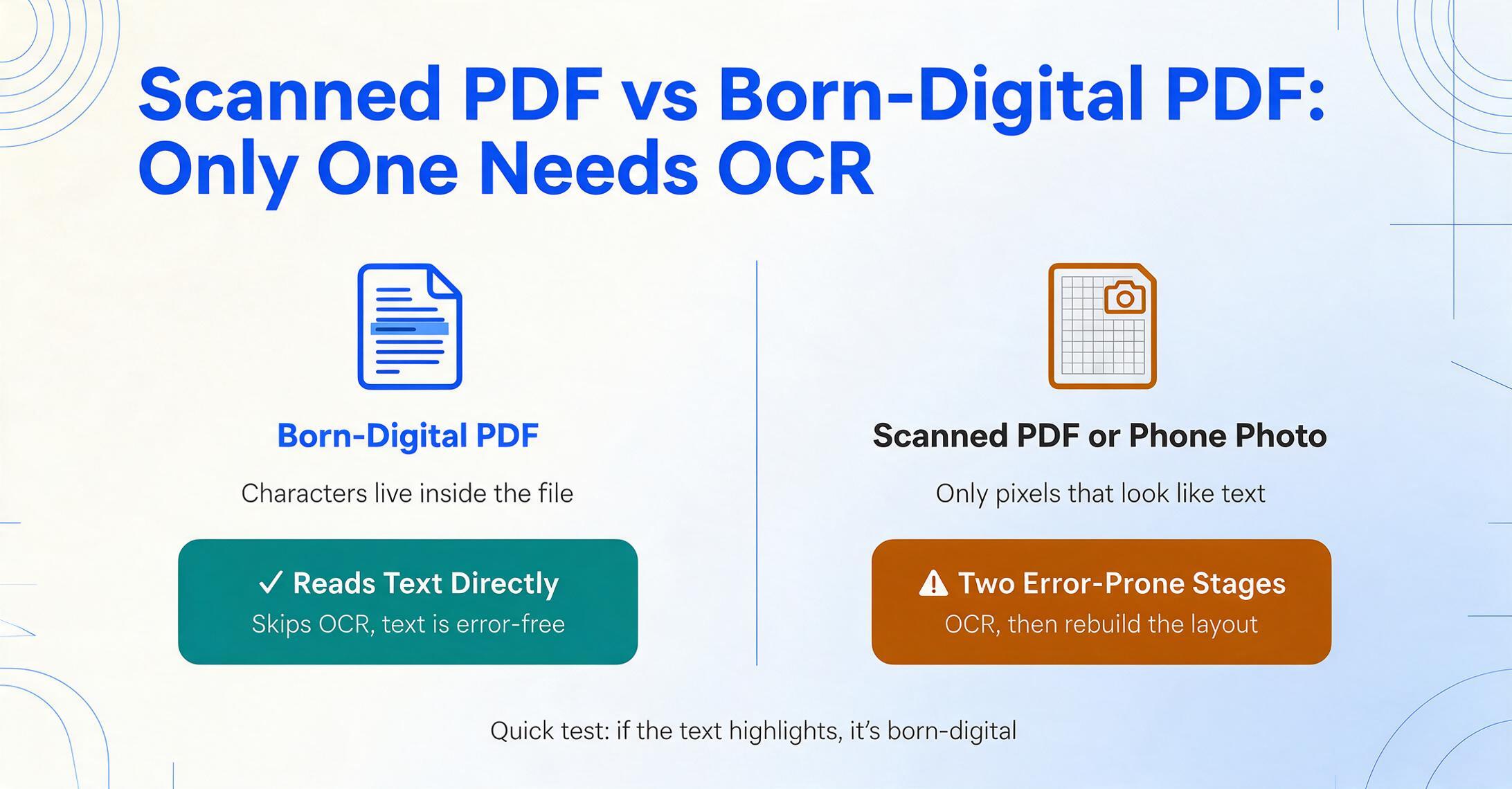
Before you pick a tool, check which kind of PDF you actually have, because it changes everything. A born-digital PDF was created by software — exported from Word, generated by an accounting system, printed-to-PDF — and it already contains a real text layer. The characters are right there inside the file; a converter just has to read them and rebuild the structure. A scanned PDF (or a phone photo saved as PDF) is the opposite: it's a flat image of a page, like a JPEG in a PDF wrapper. There are no characters inside it at all — only pixels that happen to look like text to a human eye.
That's why scanned PDFs require OCR (Optical Character Recognition): the step that looks at the image, identifies the shapes as letters and numbers, and produces actual editable text. A born-digital PDF skips OCR entirely. The distinction matters for quality, not just speed — as the Open Preservation Foundation notes, in a digitally-born document "the text is error-free, while in the case of OCR, the accuracy of the engine dictates the quality of the result." So a scanned file passes through two error-prone stages — recognizing the characters, then reconstructing the layout — which is why the tools that win on scanned documents are the ones with the strongest OCR and the smartest structure reconstruction.
A quick test: open the PDF and try to select a sentence with your cursor. If the text highlights, it's born-digital and almost any tool here will do. If your cursor only draws a box over an image, it's scanned — and you need a converter with OCR, which rules out the free "convert" buttons on most online tools and points you toward Adobe Acrobat Pro, ABBYY, or a layout-aware AI tool. (If your end goal is structured data rather than prose, the same scanned files can go straight to a spreadsheet — see our guide on turning a scanned PDF into Excel.)
How We Picked and Tested
These eight tools made the list because they're the ones readers actually search for plus the categories the keyword spans — not because they're easy to praise. We grouped them by the job they're built for: free online converters for clean PDFs (Smallpdf, iLovePDF), desktop PDF suites that do conversion among many other things (Adobe Acrobat, Nitro, Foxit, Wondershare PDFelement), the OCR specialist for scanned archives (ABBYY FineReader), and the layout-aware AI tool that rebuilds editable Word from complex or scanned pages (ImageToTable.ai's To-Word mode).
Each tool was judged on four things: how it converts (mechanical export vs layout-aware reconstruction, and whether it does OCR for scans), real pricing (the lowest published figure, not "starting from"), the PDF type it's built for (born-digital, scanned, or both), and honest fit — where it genuinely wins and where it doesn't. Prices were taken from each vendor's public pricing page or neutral review platforms and are current as of Pricing checked June 2026; verify the latest figures before buying.
One disclosure up front: ImageToTable.ai — the product this site belongs to — is one of the eight tools reviewed. We've placed it where it honestly fits (complex and scanned layouts, no-code, lowest entry price) and said plainly where Adobe Acrobat, Nitro, ABBYY, or even a free online tool is the smarter choice. For a clean, born-digital PDF, you do not need us — and we say so below.
The 8 Best PDF-to-Word Converters at a Glance
The table is the fast answer; the reviews below explain the trade-offs. The starting price is the lowest published monthly figure (annual billing where it's cheaper). "Pricing checked June 2026."
| Tool | Starting Price | Pricing Model | Best For | Key Limitation | Free Trial? |
|---|---|---|---|---|---|
| ImageToTable.ai (To-Word) | $9/mo (free tier) | Subscription + PAYG credits | Scanned & complex layouts; no-code | Not a full PDF-editing suite (no e-sign/redaction) | Free tier |
| Adobe Acrobat Pro | $19.99/mo (Std $14.99) | Subscription (annual, billed monthly) | All-round PDF standard; scanned OCR (Pro) | Priciest; complex layouts still need cleanup | 7-day + free web tool |
| Nitro PDF Pro | $15/user/mo (or ~$180 once) | Subscription or perpetual license | Windows-team Acrobat alternative | Windows-centric; recent price hikes | 14-day |
| Smallpdf | $10/mo (annual; $15 monthly) | Subscription (freemium) | Fast free born-digital PDF→Word online | Scanned OCR is Pro-only; free daily limits | 7-day + free tier |
| iLovePDF | $4/mo (annual; $9 monthly) | Subscription (freemium) | Cheapest quick online conversions | OCR (scanned) is Premium-only; basic layout | Free-forever tier |
| ABBYY FineReader PDF | $99/yr (~$8.25/mo) | Subscription or perpetual | Accuracy-critical scanned OCR; 198 languages | Windows-focused (Mac limited); desktop, not API | 7-day |
| Wondershare PDFelement | $79.99/yr (~$6.67/mo) | Subscription or perpetual ($129.99) | Budget Acrobat alternative; formatting | Slows on large files; OCR/AI in higher tiers | Trial (watermark, 2-page) |
| Foxit PDF Editor | $10.99/mo (annual) | Subscription or perpetual | Value desktop editor; MS Office-style UI | Mobile/AI in Editor+; less deep than Acrobat | 14-day |
Two things stand out. First, price tells you almost nothing about conversion quality here — the $4/month online tool and the $20/month desktop suite both struggle on the same scanned, multi-column page, because that's a structure problem, not a budget one. Second, the genuine fork is born-digital vs scanned: for a clean exported PDF, the cheapest tools are fine; for scans and complex layouts, you're paying for OCR strength and reconstruction quality. The reviews below are organized around exactly that split.
Free and Fast: Online Converters for Born-Digital PDFs
If your PDF was exported from software and you just need a quick editable copy, the free online converters are not a compromise — they're the right tool, and they're cheaper than everything else here. Both Smallpdf and iLovePDF convert born-digital PDFs to .docx in seconds, in the browser, with no install.
Smallpdf
Smallpdf is a 30-tool online PDF suite with a clean PDF-to-Word converter. One r/word thread praises that it "keeps text and tables structured during conversion, which helps reduce formatting issues." The free tier handles a couple of documents a day; the Pro plan is $10/month billed annually ($15 monthly), and crucially, converting scanned PDFs with OCR is a Pro-only feature.
Best for: quick, occasional conversion of clean born-digital PDFs, plus light editing, merging, and signing in one place. Not ideal for: heavy scanned-document workloads (OCR is gated behind Pro), or complex multi-column reports where any online converter tends to introduce text boxes. View Smallpdf pricing →
iLovePDF
iLovePDF is the budget pick: a free-forever tier covers basic conversions, and Premium unlocks unlimited processing, bigger files, and scanned-PDF OCR for about $4/month billed annually ($9 monthly, $48/year). The conversion engine is solid on simple layouts and the cheapest paid OCR in this roundup.
Best for: individuals who want the lowest possible price for routine PDF-to-Word jobs and don't mind a quick cleanup pass on the odd file. Not ideal for: intricate layouts or scan-heavy work where reconstruction quality matters more than price — its output is "good enough," not pixel-faithful. View iLovePDF pricing →
The honest takeaway for both: they're excellent at the easy case and adequate at the hard one. The moment your source is a scan or a designed multi-column document, you'll feel the ceiling — which is where the desktop suites and AI tools earn their cost.
The Desktop PDF Suites: Adobe Acrobat, Nitro, Foxit, and PDFelement
These four are full PDF editors that happen to convert to Word — you're buying a whole document toolkit (editing, signing, redaction, forms), with PDF-to-Word as one feature. If you work with PDFs daily, owning one of these makes sense regardless of the conversion question.
Adobe Acrobat Pro
Acrobat is the editing-suite standard, and for good reason: Adobe invented the PDF format, and its export and OCR are among the most polished available. Acrobat Standard starts at $14.99/month, but the OCR you need for scanned files sits in Acrobat Pro at $19.99/month (annual, billed monthly). Even so, Acrobat is honest about the limits — and so are its users. The format simply wasn't built for round-tripping, which is why even the best tool produces the occasional "jumbled" export on a heavily designed page.
Best for: professionals who live in PDFs and want one trusted tool for editing, OCR, signing, and conversion across desktop, web, and mobile. Not ideal for: anyone who only needs occasional conversion — you're paying for a suite — or who expects perfect fidelity on complex marketing layouts, where a cleanup pass is still likely. See the head-to-head in our Adobe Acrobat comparison. View Adobe Acrobat pricing →
Nitro PDF Pro
Nitro is the long-standing Acrobat alternative, with a Microsoft Office-style interface that Windows users adopt fast. It includes OCR and table-to-Excel extraction alongside PDF-to-Word. Pricing is flexible: a subscription at $15/user/month billed annually, or a one-time perpetual license around $180 for those who hate subscriptions (note the subscription rose from $11.24 to $15, per a recent TechRadar review).
Best for: Windows-based teams that want Acrobat-class conversion and editing with the option of a one-time purchase. Not ideal for: Mac-first or cross-platform shops (it's Windows-centric), or anyone needing only a handful of conversions a year. View Nitro PDF pricing →
Wondershare PDFelement
PDFelement is the value play, and it earns repeat recommendations from real users specifically on formatting. On r/MicrosoftWord, one user calls it "a great option for converting PDFs to Word while preserving formatting — it does a much better job than many free tools." It costs $79.99/year (~$6.67/month) or a $129.99 one-time perpetual license, both far below Acrobat.
Best for: budget-conscious individuals and small teams who want desktop-grade conversion and editing with formatting that survives the trip, without Adobe's price. Not ideal for: very large files (reviewers note performance dips) or users who want the deepest enterprise editing and compliance features — those still belong to Acrobat. View PDFelement pricing →
Foxit PDF Editor
Foxit delivers most of Acrobat's core editing and conversion at roughly half the price — $10.99/month billed annually ($129.99/year), with mobile and AI features in the Editor+ tier. The interface is clean and Office-like, and OCR is included for scanned files.
Best for: professionals and small businesses wanting a capable, affordable desktop editor with conversion, OCR, and annotation. Not ideal for: users who need the most advanced layout, comparison, and compliance depth, where Acrobat still leads. View Foxit PDF Editor pricing →
Built for Scanned Documents: ABBYY FineReader PDF
When your input is scanned and accuracy is non-negotiable, ABBYY FineReader is the specialist. ABBYY has built OCR for decades, and independent comparisons cite around 99.8% recognition accuracy across 198 languages — the strongest pure-OCR engine in this roundup. FineReader PDF Standard runs $99/year (about $8.25/month) or $16/month monthly; the Corporate tier adds document comparison and batch automation.
Best for: multilingual scanned archives, contracts, and books where character accuracy on poor scans is the whole job, and where on-premise desktop processing is preferred. Not ideal for: Mac-first users (Mac parity is limited), teams wanting a cloud/API workflow rather than desktop software, or anyone who needs only the occasional clean conversion — the OCR strength is wasted on born-digital files. Compare it directly in our ABBYY FineReader comparison. View ABBYY FineReader pricing →
ABBYY proves a point worth holding onto: world-class OCR gets the characters right, but recognizing text and rebuilding a clean editable layout are two different problems. That gap is exactly what the next tool is designed to close.
The Layout-Aware AI Approach: ImageToTable.ai's To-Word Mode
ImageToTable.ai takes a fundamentally different route to the same goal, and it's the genuine disruptor in this category. Most converters run the mechanical pipeline described earlier — recognize characters, drop them at their coordinates, hope the layout holds. ImageToTable.ai's To-Word mode uses a vision large model to read the page the way a person does: it interprets the structure first — this is a heading, these are two columns, this is a four-column table with merged cells, this is the reading order — and only then reconstructs an editable Word document from that understanding. You upload the file, click once, and download a .docx with the original layout, text, and tables rebuilt rather than approximated.
That semantic-first approach is where the difference shows up — not on simple pages, but exactly where mechanical tools fail. Because the model understands the page instead of measuring it, scanned files (it does the OCR inside the same pass), phone photos, mixed text-and-table reports, and multi-column layouts come through as clean, editable flow rather than a grid of floating text boxes. Converting a JPG to Word is the single-page version of that problem: the tool reads the photo as a page and rebuilds the structure, rather than pasting text at coordinates. It's the same vision engine that powers the tool's structured extraction, applied to rebuilding documents instead of spreadsheets. Pricing starts with a free tier, then $9/month (Basic), with pay-as-you-go credits that don't expire — the lowest entry point here, and the only one priced for trying a single hard document at no cost. You can see the workflow on our PDF to editable Word page, and the broader recognition engine on the AI OCR page.
The split that matters: mechanical converters reproduce where the ink was and call it conversion; layout-aware AI reconstructs what the document is and makes it editable. On a clean page you can't tell them apart — on a scanned, multi-column, table-heavy page, it's the whole result.
Where it honestly isn't the answer: ImageToTable.ai is a conversion-and-extraction tool, not a full PDF-editing suite — it has no e-signature, redaction, or form-building workflow, so if you need to live inside one PDF application all day, Acrobat, Nitro, Foxit, or PDFelement is the better home. And for a clean, born-digital PDF that just needs a quick editable copy, a free run through Smallpdf or iLovePDF is faster and cheaper than anything paid. The To-Word mode earns its place specifically when the layout is complex or the source is scanned — the cases where everything else introduces cleanup work. Scanned PDF to Word conversion is where that gap is widest, since the page has to be read as an image before any structure can be rebuilt. If your end goal is data rather than prose, our document data extraction tools roundup covers the structured-output side. Try ImageToTable.ai free →
How to Choose: Match the Tool to Your PDF
The right converter is the one that fits the PDF in front of you, not the one with the most features. Four common cases cover almost everyone.
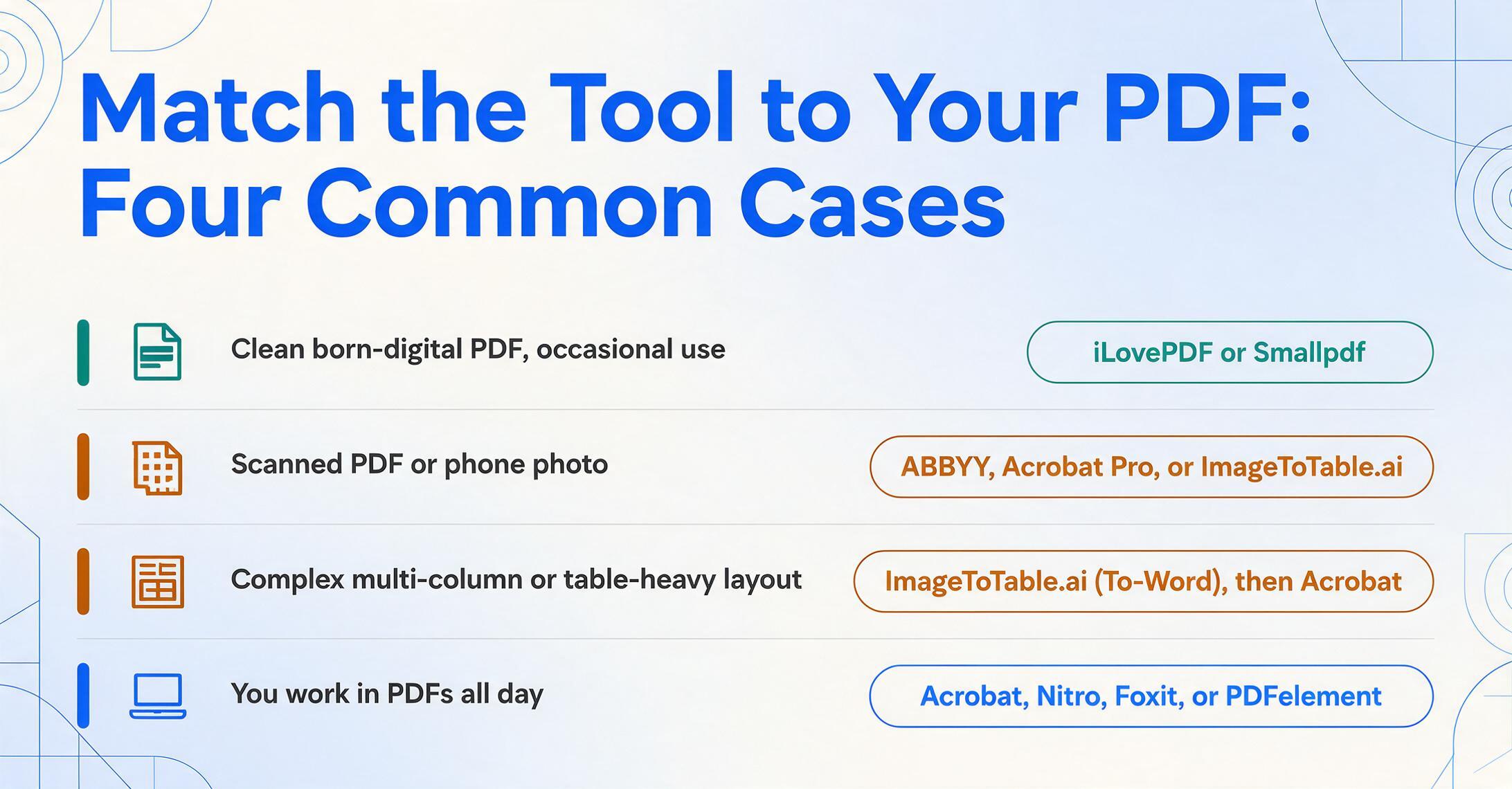
Clean born-digital PDF, occasional use
Best fit: iLovePDF or Smallpdf
The text is already inside the file, so a free online converter is fast, free, and perfectly adequate. Paying for a desktop suite here is overkill. Try the free tier first.
Scanned PDF or phone photo
Best fit: ImageToTable.ai (To-Word) or ABBYY / Acrobat Pro
You need OCR. Choose ABBYY for raw multilingual accuracy on archives, Acrobat Pro if you already own it, or ImageToTable.ai for layout-aware reconstruction at the lowest entry price.
Complex multi-column or table-heavy layout
Best fit: ImageToTable.ai (To-Word), then Acrobat
This is where mechanical converters produce text boxes. Layout-aware reconstruction holds up best; budget a cleanup pass with any tool. Test one real page before committing.
You work in PDFs all day
Best fit: Adobe Acrobat, Nitro, Foxit, or PDFelement
Buy the suite. Conversion is one feature among editing, signing, and OCR. Pick on price and platform: Acrobat (standard), PDFelement/Foxit (value), Nitro (Windows + perpetual option).
Frequently Asked Questions
What is the best free PDF to Word converter?
For born-digital PDFs (created by software, with selectable text), iLovePDF and Smallpdf both convert to editable Word free in the browser, and iLovePDF's free-forever tier is the cheapest route for routine jobs. For scanned PDFs, free conversion usually isn't enough — OCR is gated behind paid tiers on those tools, and you'll get better results from Adobe Acrobat Pro, ABBYY FineReader, or a layout-aware AI tool with a free tier like ImageToTable.ai.
Why does my PDF look wrong after converting to Word?
Because a PDF stores the position of each character, not the document's structure, the converter has to guess where paragraphs, columns, and tables are. Mechanical converters often wrap each text block in a floating text box to keep the look, which makes the file nearly uneditable — text shifts and columns land out of order the moment you type. Tools that interpret the page layout first (layout-aware AI, or Acrobat's better export) reconstruct a flowing document instead, which edits cleanly.
Can I convert a scanned PDF to an editable Word document?
Yes, but it requires OCR — the step that turns the image of text into real characters. A scanned PDF is just a picture of a page with no text inside it, so any tool without OCR will produce an uneditable image in Word. Use Adobe Acrobat Pro, ABBYY FineReader, Foxit, or a vision-AI tool like ImageToTable.ai's To-Word mode, all of which run OCR before rebuilding the document.
Which PDF to Word converter keeps formatting best?
On clean, simple PDFs, most tools keep formatting well. The differences appear on complex layouts and scans. Among users, Wondershare PDFelement is repeatedly cited for preserving formatting at a low price; Adobe Acrobat sets the desktop standard; and layout-aware AI (ImageToTable.ai's To-Word mode) tends to hold up best on multi-column and scanned pages because it rebuilds structure rather than copying coordinates. For any tool, expect a quick cleanup pass on heavily designed documents.
Is it better to buy Adobe Acrobat or use a cheaper alternative?
If PDFs are part of your daily work and you need editing, signing, redaction, and OCR in one place, Acrobat Pro ($19.99/month) is the trusted standard. If you mainly need conversion and editing at a lower cost, Wondershare PDFelement ($79.99/year) and Foxit ($10.99/month) offer most of the capability for far less, and Nitro adds a one-time-purchase option for Windows. If conversion is occasional, you may not need a suite at all.
What's the difference between a born-digital PDF and a scanned PDF?
A born-digital PDF was generated by software and contains a real, selectable text layer — conversion just reads it. A scanned PDF is an image of a page (often from a scanner or phone) with no text inside, so it needs OCR to become editable. The quick test: if you can highlight a sentence with your cursor, it's born-digital; if you only draw a box over an image, it's scanned.
The Bottom Line
The most useful thing to take from this comparison is that "PDF to Word" isn't one problem — it's two. Reading a born-digital PDF is easy and the free online tools nail it; rebuilding a scanned or complex page into a clean, editable document is hard, and that's where tools genuinely separate. Price won't tell you which side of that line a tool sits on; how it handles structure will.
Don't pick the cheapest converter or the most famous one — pick the one built for your PDF. Born-digital and simple? Use a free online tool. Scanned, multi-column, or table-heavy? Use a tool that rebuilds the layout instead of reproducing coordinates, and check the result before you trust it.
If your conversions keep coming back as a tangle of text boxes, the converter isn't the only variable — the kind of PDF and the way the tool reconstructs it are. Take the single document that's been giving you trouble, run it through a tool that reads layout instead of copying it, and see whether the cleanup step disappears. That's the difference worth testing on your own file. Try it on your toughest PDF →
Disclosure: This guide is published by ImageToTable.ai, which is one of the eight tools reviewed above. We've aimed for a fair, technical assessment — including naming the cases where competing tools, or a free converter, are the better choice. Competitor pricing was taken from public pricing pages and neutral review platforms and is current as of June 2026; verify the latest figures on each vendor's site before purchasing.