Extract Any Document into Structured Table — Specify Exactly What You Need.

Stop copying and pasting. Type what you need — invoice number, date, total — AI finds it in any document and gives you a ready-to-use spreadsheet. Also supports To Word for lossless layout restoration.

No More Manual Entry

No setup, no templates. AI reads by meaning, not position.

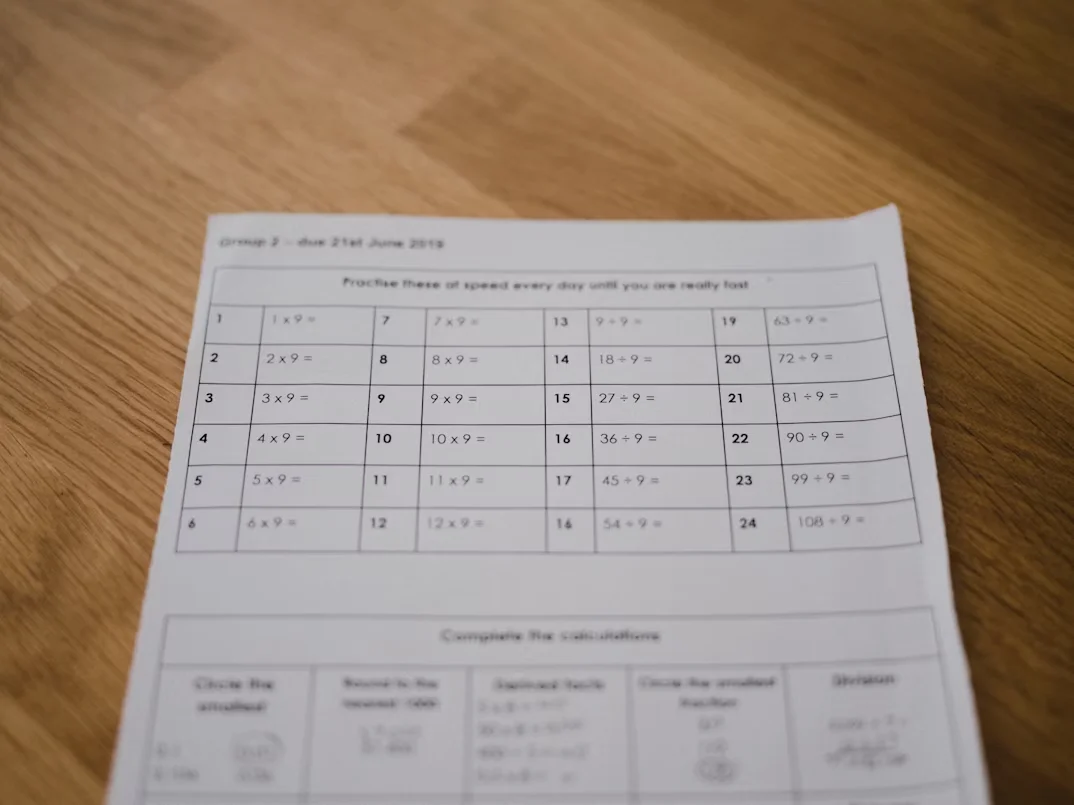
Handwriting & Scans

Handwriting, stamps, low-quality scans — works on real-world documents.

Any Document

Upload any invoice, receipt, or form. Get one spreadsheet back.

You Name the Data

You name the data you want. AI finds it — no matter the layout.

Works for Any Document, Any Industry

Define the columns you need — AI extracts matching data from any document into a structured table. From invoices and bank statements to handwritten forms and resumes.

Bank Statements

Stop manually copying transaction records. Define your columns and let AI pull every entry from any bank statement — PDF, screenshot, or scan.

e.g. Date / Description / Deposit / Withdrawal / Balance
  • Handles multi-page statements and merges all transactions into one table.
  • Works for credit card statements, payslips, and financial reports.
  • Export to Excel or CSV — ready for reconciliation or analysis.
Extract bank statement transactions to Excel
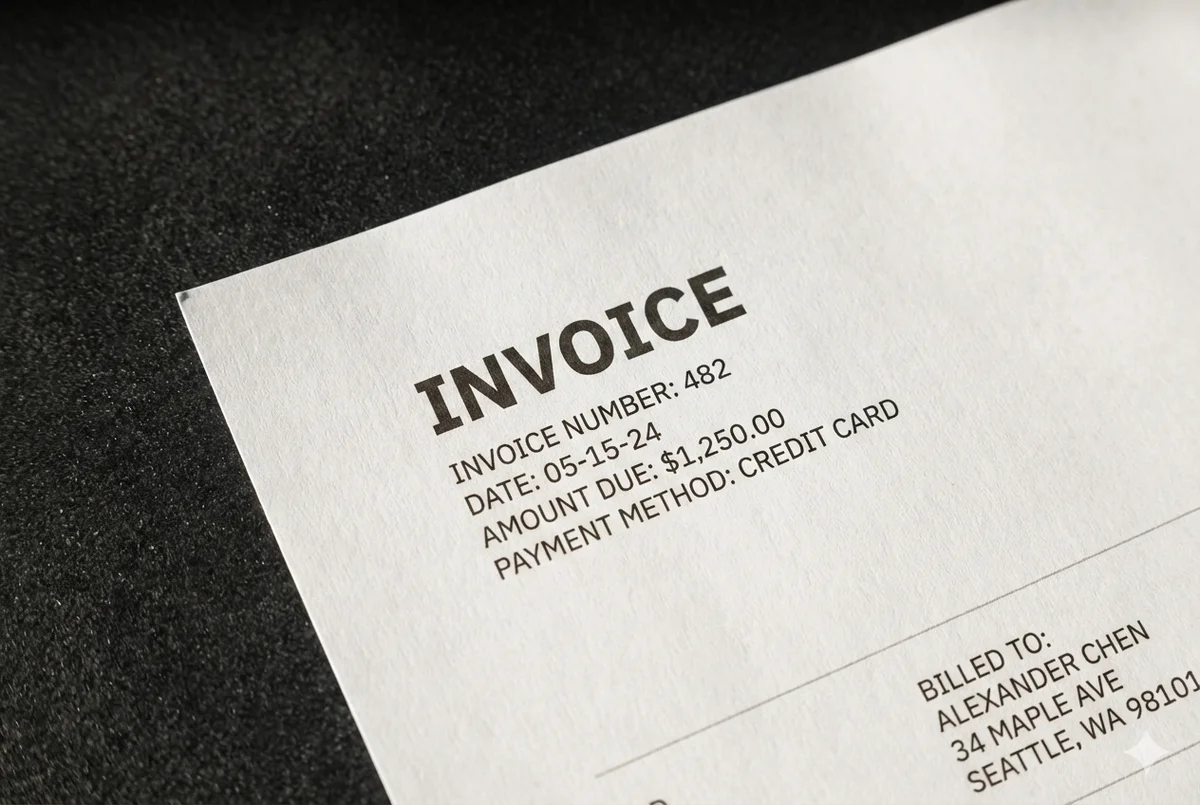
Extract invoice and receipt data to Excel

Invoices & Receipts

Upload a stack of invoices or receipts and extract exactly the fields you need — no template setup, no manual entry.

e.g. Vendor / Invoice No. / Date / Amount / Tax / Status
  • Works across different invoice layouts and formats — no fixed template needed.
  • Amounts, dates, and tax fields are automatically standardized on output.
  • Export to Excel, CSV, or JSON for direct ERP or accounting integration.

Resume Screening

Turn a pile of resumes into a structured comparison table in one go. Define the fields that matter to you — AI extracts them from every CV automatically.

e.g. Name / Email / Years of Exp. / Current Role / Skills / Education
  • Batch process dozens of resumes — all merged into one Excel sheet for easy comparison.
  • Can also extract profile photos — useful for candidate shortlisting and record keeping.
  • Works with PDF, image, and scanned CVs regardless of layout or design.
Batch resume screening to Excel
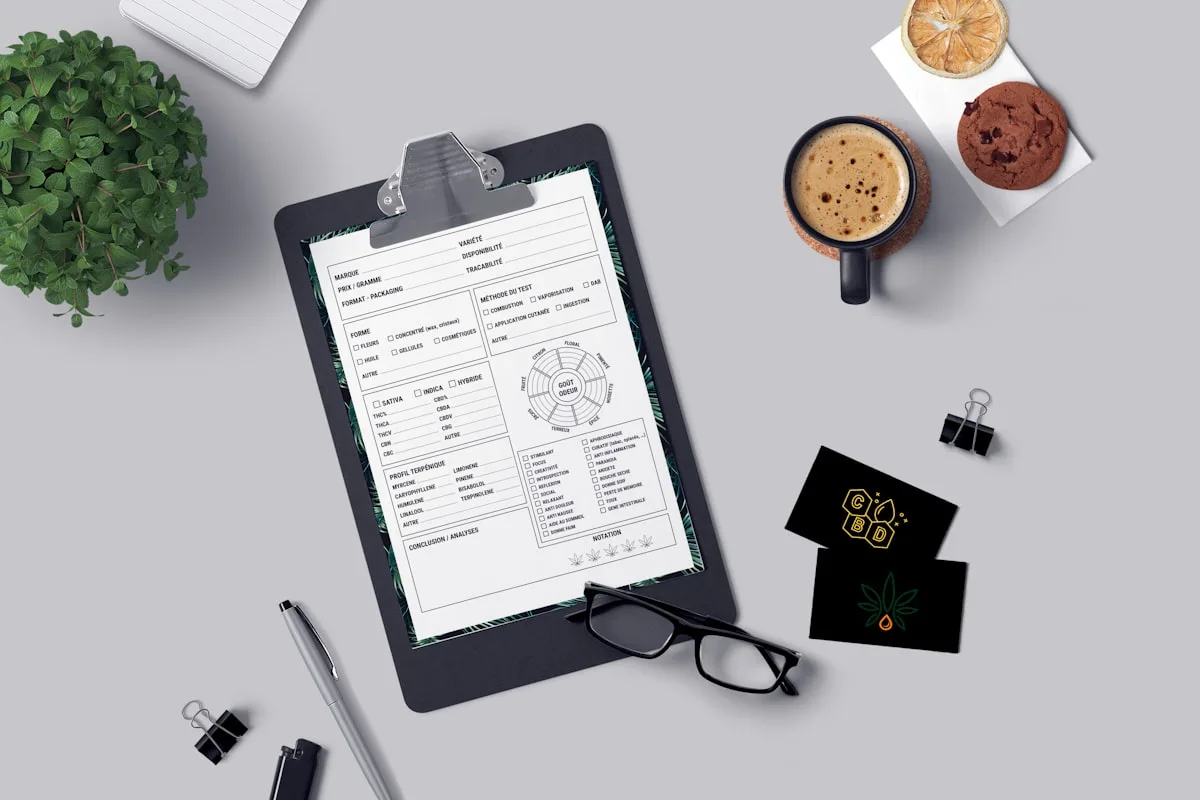
Handwriting and form data extraction

Handwriting & Forms

Paper forms, survey sheets, handwritten records — define the fields you need and AI digitizes them into a clean, structured table.

e.g. Patient Name / Date / Symptoms / Doctor / Prescription
  • Accurately reads messy handwriting, cursive script, and low-quality scans.
  • Recognizes checkboxes, stamps, and signatures — not just plain text.
  • Ideal for medical records, field surveys, registration forms, and historical archives.

Everything You Need to Stop Manual Entry

From defining what to extract, to cleaning the output — every step of your document workflow, handled.

Define Your Columns

Type the column names you want — AI extracts matching data from any document and builds the table with your exact headers.

Reads Anything

Printed text, messy handwriting, stamps, checkboxes, signatures — accurately recognized regardless of document quality or format.

Batch & Merge

Upload multiple files at once — AI extracts the same columns from each and merges everything into a single, unified table.

Clean Output, Ready to Use

Dates, amounts, and IDs are automatically standardized and formatted on export — no manual cleanup needed after.

Layout to Word

Need to keep the original layout? Convert any document to a fully editable Word file with the formatting perfectly preserved.

Any Format In, Any Format Out

Accepts PDF, JPG, PNG, WebP, and screenshots. Exports to Excel, CSV, JSON, or Word — plug into any workflow directly.

Calculate & Infer, Not Just Copy

Need a line total or tax computed on the fly? Write the math right into your column name. Need a category the document never printed? AI infers it from context — both happen in the same pass as extraction.

Verify at a Glance

Click any extracted cell and see exactly where that value came from on the original document — no re-reading the whole file to confirm the AI got it right.

Up and Running in 3 Steps

No training, no templates, no setup. Just upload and define what you need.

1

Upload Your Document

Drop in any image, PDF, or screenshot. Supports printed text, handwriting, scans, and mixed-content documents.

2

Define Your Columns

Type the column names you want to extract — like Vendor, Date, Amount. Your column names become the exact headers of your table. Or skip this step and let AI auto-detect the structure.

3

Export & Use

Download your structured Excel, CSV, or JSON — data cleaned and formatted, ready to use with no manual rework.

Need to keep the original layout instead?

Switch to To Word mode — upload any document and get a fully editable Word file with the original formatting perfectly preserved. No column setup needed.

3 Ways to Get Documents In

Not everyone doing the uploading is the same person doing the reviewing. Pick whichever fits how your documents actually arrive.

Direct Upload

Drag files straight in yourself — the fastest path when you're the one holding the documents and want results right away.

Collection Link

Share a link so clients, vendors, or coworkers can submit files themselves — no account needed on their end, and everything lands in one place for you to process.

Email Inbox

Forward or CC a dedicated address and attachments (or the email itself) get picked up automatically — good for invoices and receipts that already arrive by email.

Still Entering Data by Hand? There's a Better Way to Move Data Out of Documents

Whether you're copying by hand or relying on traditional OCR tools, the result is the same — slow, error-prone, and hard to scale.

Core CapabilityManual Entry & Traditional OCRImageToTable.ai
Processing Speed
~3 minutes per page on average
5–10 seconds per page
Setup Required
Traditional OCR needs templates and zone configuration
Zero setup — upload and go
Custom Field Extraction
Find, select, and copy each field manually
Type your column names — AI extracts and fills them automatically
Cross-document Merging
Process one by one, paste into a spreadsheet manually
Batch upload — all files merged into one table automatically
Handwriting & Scans
Traditional OCR struggles — requires heavy manual correction
Accurately reads handwriting, cursive, and low-quality scans
Forms & Checkboxes
Traditional OCR ignores non-text elements entirely
Detects ticked boxes, radio buttons, and form structure
Data Cleaning
Inconsistent formats — dates, amounts need manual standardization
Auto-standardized on export — ready to use immediately
Layout Preservation
Copied content loses formatting and structure
Original layout restored to fully editable Word
Output Format
Plain text or fixed format — limited flexibility
Excel, CSV, JSON, or Word — your choice

Already in Google Sheets?
Bring AI Extraction Into Your Spreadsheet

Install our add-on from the Workspace Marketplace — same AI engine that powers the web app, now inside the spreadsheet you already work in. Extract data from any document directly into your cells.

Sheets Add-on

The same AI extraction engine, now embedded as a Google Sheets sidebar. Define the columns you want, upload a batch of documents, and extracted data lands directly in your active sheet — no copy-pasting, no tab switching, no re-uploading.

e.g. Upload 50 invoices → Vendor / Date / Amount / Tax → one unified table
  • Save your column templates. Define extraction rules once — reuse them on any batch for consistent output without re-configuring.
  • No tab switching, no re-uploading. Upload from the sidebar, results land in your active sheet — your workflow never leaves Google Sheets.
  • Results where your team already works. Your spreadsheet is already shared — extracted data appears right there. No file exports, no email attachments needed.
Google Workspace
ImageToTable.ai
A
B
C
D
1
Vendor
Date
Amount
Status
2
ACME Corp
05/12/2026
$3,450
Paid
3
Globex Inc
05/13/2026
$1,280
Pending
4
Initech LLC
05/14/2026
$9,200
Paid
5
Vehement
05/15/2026
$2,640
Paid
6
Umbrella Co
05/16/2026
$6,170
Pending
7
Stark Ind
05/17/2026
$12,500
Paid
8
Oscorp
05/18/2026
$4,890
Paid

Already Built a Workflow?
Skip the UI Entirely

A public REST API lets teams call extraction directly from their own pipeline — no browser involved.

Built for Real Pipelines

Upload a document, kick off processing, and pull back structured JSON — the same three calls whether you're wiring it into a nightly cron job, a serverless function, or your own internal tool.

  • Clean JSON responses. Structured field/value data, not a spreadsheet file — ready to feed straight into your own database or app.
  • Webhooks for completion. Register a callback URL and get notified the moment a batch finishes — no polling loop required.
  • Idempotency keys, cursor pagination, per-code docs. The kind of details you'd expect from an API meant to be depended on, not bolted on.
Read the API documentation
curl
# 1. Upload a document
curl -X POST https://imagetotable.ai/api/v1/documents \
  -H "Authorization: Bearer $API_KEY" \
  -F "[email protected]"

# 2. Process it
curl -X POST https://imagetotable.ai/api/v1/batches/{batch}/process \
  -H "Authorization: Bearer $API_KEY"

# 3. Pull the results
curl https://imagetotable.ai/api/v1/batches/{batch}/results \
  -H "Authorization: Bearer $API_KEY"

{
  "vendor": "ACME Corp",
  "date": "2026-05-12",
  "amount": "3450.00"
}

Try 5 sample images, get Excel in 30s

Not sure? Send us your fields and try smart extraction now.

Frequently Asked Questions

Everything you need to know before you get started.

How does the column name extraction work?

Type the column names you want in the input field — for example, Vendor, Date, Amount, Tax. AI will locate and extract the matching data from your document and fill it into the table. The column names you enter become the exact headers of your final Excel output. No templates, no configuration — just describe what you need.

What if I don't know what columns to define?

You don't have to define anything. Skip the column input and let AI automatically analyze your document, identify the key fields, and generate a structured table on its own. This is a good starting point — you can review what AI detected and refine your column names from there for future extractions.

Can it handle handwriting and low-quality scans?

Yes. Powered by vision large models, the AI understands content semantically rather than just scanning pixels. It accurately reads messy handwriting, cursive script, and low-quality scans. It also recognizes non-text elements like checkboxes, stamps, and signatures that traditional OCR tools typically miss.

Is my data safe?

Yes. All file transfers are encrypted via HTTPS, and your documents are stored with encryption at rest. Guest uploads are permanently deleted within 24 hours. Logged-in users can configure automatic deletion of uploaded files at any time. Your data is never used for model training — what you upload stays yours.

What formats can I upload and export?

You can upload PDF, JPG, PNG, WebP, AVIF, and webpage screenshots. For output, you can export to Excel (XLSX), CSV, JSON, or Word — whichever fits your workflow best.

Is it free to use?

Yes — there's a daily free quota so you can try the full feature set without any commitment. Once you exceed the free quota, pricing is pay-as-you-go with no subscription required. You only pay for what you actually convert.

How do I know the extracted data is accurate?

Click any extracted cell and it highlights exactly where that value came from on the original document, so you can confirm it at a glance instead of re-reading the whole file. For documents where accuracy really matters, Review Mode adds a second, more thorough pass with this same source-highlighting turned on for every field.

Can I use this from Google Sheets?

Yes. The official Google Sheets Add-on runs the same AI extraction engine as the web app inside a sidebar — upload documents, define your columns, and results land directly in your active sheet. No exporting files or copy-pasting between tabs.

Is there an API?

Yes. A public REST API is available on paid plans for uploading documents, triggering processing, and pulling back structured JSON results — plus webhooks so your system gets notified when a batch finishes instead of having to poll. See the API documentation for details.

Is this better than traditional OCR?

Traditional OCR just recognizes characters on a page — it can't tell a subtotal from a total, or match handwriting to the right form field. This uses vision-capable AI models that understand document structure and context, so it correctly interprets messy layouts, handwriting, and non-standard formats that trip up OCR-only tools, and extracts exactly the fields you name instead of dumping raw text you have to clean up yourself.

Can it extract data from invoices, receipts, and other business documents?

Yes. It's used for invoices, receipts, bank statements, purchase orders, packing slips, timesheets, contracts, and dozens of other document types — any document with data you need pulled out, whether it's printed, handwritten, or a phone screenshot.

📮 contact email: [email protected]