10 Document Workflow Automation Examples
Without Templates
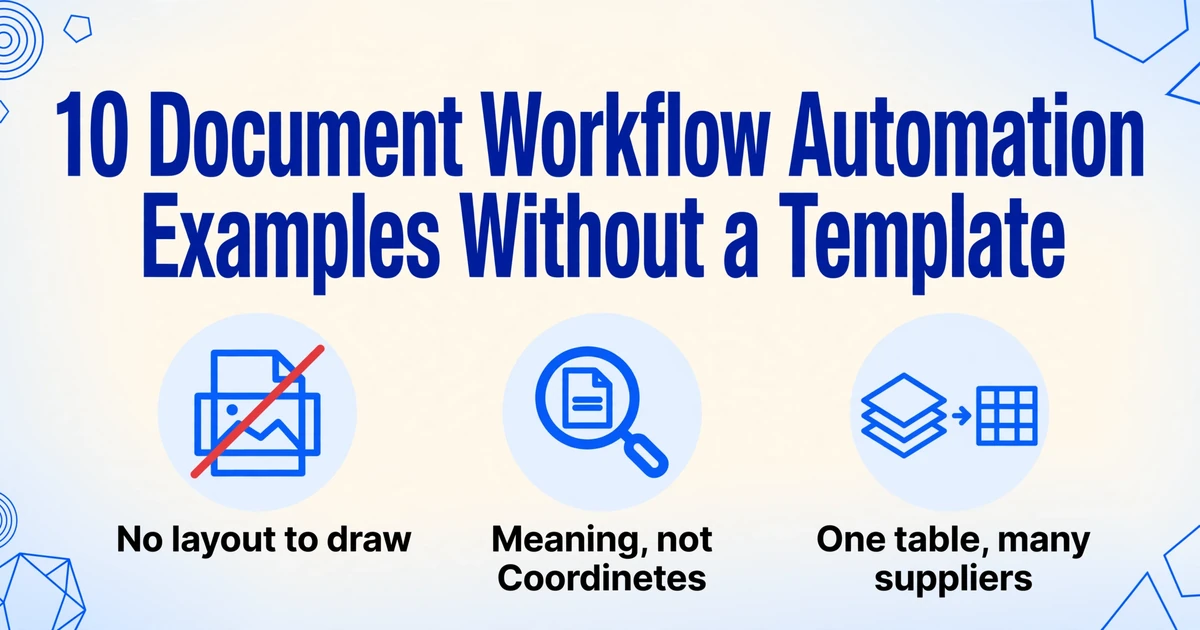
Most document workflow automation examples start with a document you create: a proposal assembled from a CRM record, a contract sent for signature. The documents that take up an operations team's afternoon arrive from outside as pictures. A supplier emails a PDF invoice. A driver leaves a packing slip at the dock. A customer sends one remittance advice covering six invoices. None of the ten automations below needs a saved parser per supplier, which is what "template" means in most extraction tools: a map of where each field sits on one company's page.
Key Takeaways
- Move one field on a supplier invoice and the old template still returns a row, with the total sitting in the tax field.
- 18.4% of invoices leave the straight path, and the template that missed them never threw an error.
- Run 20 to 30 documents through the extraction step and count the rows that needed a correction before adding any trigger.
Why a Template per Supplier Fails Before the Workflow Does
A parser built for one supplier's layout is a bet that the layout will not change, and suppliers change layouts without telling anyone. In a template-based tool, someone opens a sample invoice, draws a box around each field, then saves the map. The fortieth supplier means the fortieth map. Then a supplier adds a logo or moves the remit-to block. The parse still runs. It returns a total in the tax field, or a blank where the PO number used to be.
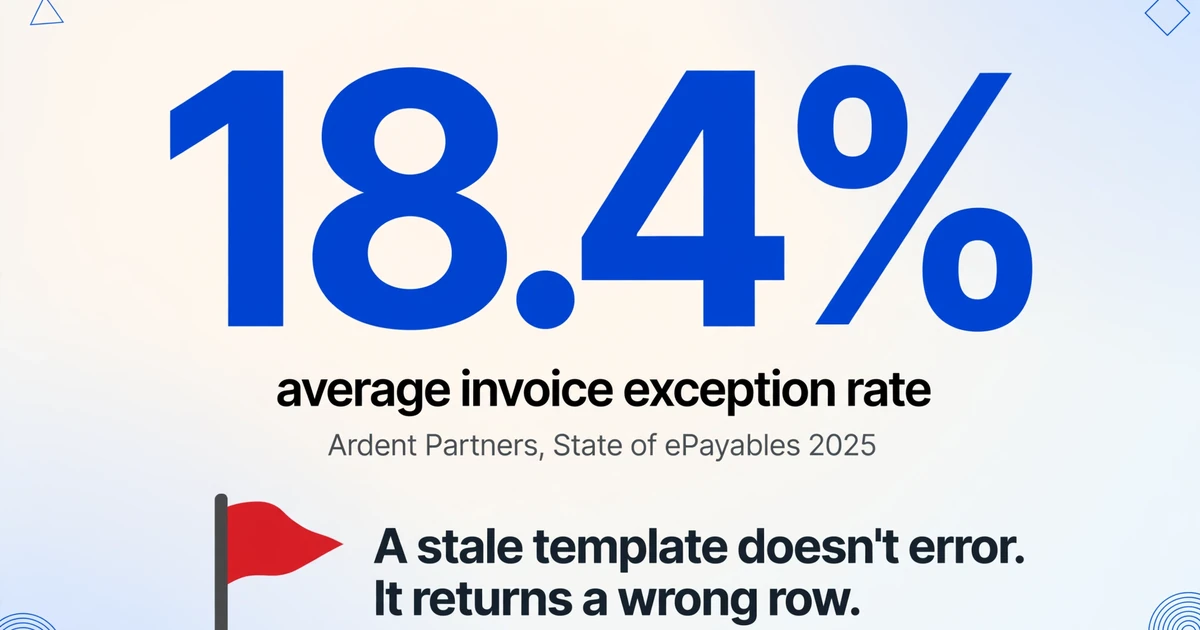
Ardent Partners' State of ePayables 2025 puts the average invoice exception rate at 18.4%, with an average cycle time of 8.2 days across 204 AP teams (Ardent Partners). APQC puts the cross-industry median at $6.00 to process one invoice, across 5,846 organizations (APQC). Roughly one invoice in five leaves the straight path. The labor bill arrives either way, and the person who catches the miss is rarely the one who built the workflow.
A bookkeeper in r/Accounting named the same seam: "Watch vendor name matching and duplicate invoices most closely, that's where these setups usually slip" (r/Accounting).
A template that no longer matches does not throw an error. It produces a row, and a wrong row travels through the rest of the workflow unnoticed.
That is why the recipes below are defined by their output columns.
The Shape All Ten Automations Share
Every one of these ten document workflow automations is a repeatable path from a file arriving to a row someone acts on, and each has the same five parts. Only one part is about reading the document. Get the other four right and the document step becomes replaceable.
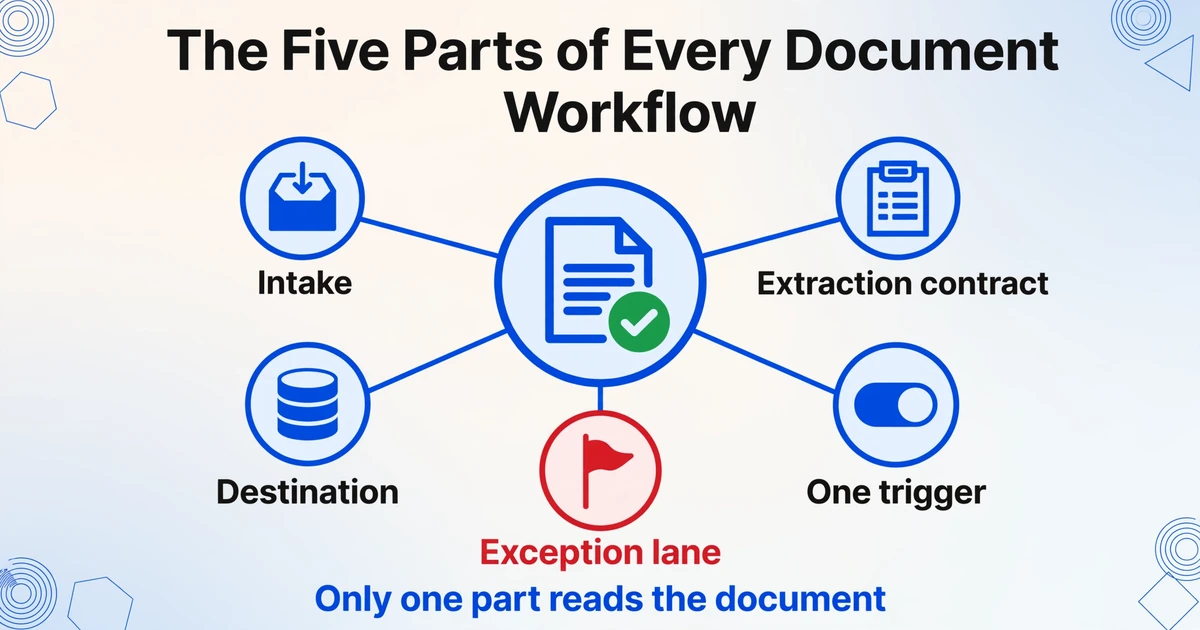
- Intake. The channel the file arrives through: a shared inbox, a forwarded email, a collection link, a phone photo.
- Extraction contract. The columns you will accept, plus a control column. Document Type is inferred from fixed options, and review mode traces any cell back to its source page.
- Destination. The table that already exists: a sheet, an Airtable base, the bill list you import into QuickBooks.
- One trigger. A single column the downstream tool watches.
Total mismatch = Yes.Approved = No. - Exception lane. Where a row goes when a field is blank or two values disagree. Skip it and the problem stays inside the row.
The extraction contract is the part worth getting right. With Custom Column Extraction, you type the column names you want, such as "Invoice Number", "Due Date" and "Total", and the AI locates each value by meaning. Nothing is matched against a saved layout, so an unseen design still lands in the same columns. The names you type become the output headers. That is the step ImageToTable.ai handles: type the columns, upload a batch, get one table back.
A single batch can hold files from forty suppliers and still produce one table, one row per document. Printed-table accuracy runs up to 99%, and a page processes in 5 to 10 seconds against roughly 3 minutes of manual keying. For the mechanics, see batch-processing documents without writing code.
The template you maintain is the output schema. Nothing else needs rebuilding when a supplier redesigns their invoice.
Five Automations Where Money Arrives With the Document
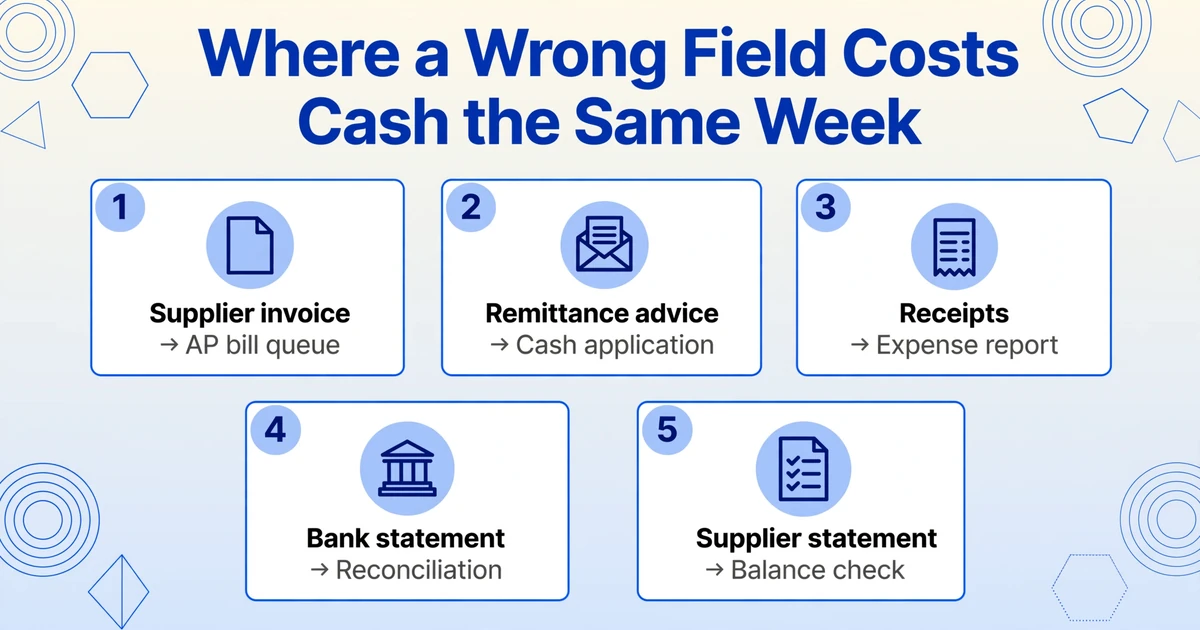
Money documents share one property: a wrong field costs cash in the same week, which makes them the right place to start. Each of these five already has an owner in most companies.
1. Supplier invoice to the AP bill queue
Document: a PDF or phone photo emailed by the supplier. Columns: Vendor Name, Invoice Number, Invoice Date, Due Date, Currency, Subtotal, Tax, Total, PO Number, Payment Terms. Lands in: the bill list the AP clerk imports into QuickBooks, Xero or NetSuite.
Where it breaks: the same invoice arrives twice, once forwarded by the department that ordered and once from the supplier, with an altered number. Check Vendor + Invoice Number + Amount in the destination; extraction has no dedup step. The batch version is in batch invoice extraction.
2. Remittance advice to cash application
Document: a remittance PDF or email listing the invoices a payment covers. Columns: Customer, Payment Date, Payment Amount, Invoice Numbers Listed, Amount Applied, Discount Taken, Short Pay Reason. Lands in: the accounts receivable sheet or an accounting import.
Where it breaks: one payment covers many invoices, and a deduction means the applied total will not match the invoice total. If the row holds only the header amount, the AR clerk reopens the PDF to split the cash. Carry the invoice numbers as a column.
3. Receipts to the expense report
Document: phone photos, e-receipts, paper scans from the team. Columns: Merchant, Date, Total, Currency, Tax, Card Last 4, Category (fixed options), Employee. Lands in: the expense sheet that feeds Expensify, Ramp or the bookkeeper; the employee submits, the office manager chases.
Where it breaks: the printed total may exclude a card tip, foreign receipts carry a local amount and a card amount, and the same dinner gets submitted twice. Category is inferred: name it with options and the AI chooses one.
4. Bank statement to the reconciliation worksheet
Document: a monthly statement, four to twelve pages and sometimes password protected. Columns: Account Number, Statement Period, Opening Balance, Closing Balance, Total Deposits, Total Withdrawals. Lands in: one row per account per month in the reconciliation workbook the staff accountant closes.
Where it breaks: balances sit on page one and transactions on page six, so a row per page splits one statement into six. Multi-Page Merge groups pages by a shared reference such as the account number. The row carries the statement balances; the transaction detail stays in the source PDF for the reconciliation itself. Encrypted statements that arrive by email need the password saved in the inbox settings first.
5. Supplier statement of account to a vendor balance check
Document: the monthly statement listing every open invoice. Columns: Supplier, Statement Date, Closing Balance, Invoice Count, Oldest Invoice Date, Amount Overdue. Lands in: the AP aging sheet AP reviews beside your ledger balance.
Where it breaks: the statement includes invoices you already paid or never received, so the balances disagree for reasons that are not extraction errors. The row makes the disagreement visible; AP still chases the invoice.
Five Automations Where the Document Describes Goods, People, or Obligations
These documents do not move cash directly. They move inventory, commitments and people, and their errors surface weeks later, when the trail is cold.
6. Order confirmation to the procurement tracker
Document: the supplier's confirmation, as a PDF or pasted into the email body. Columns: Supplier, Their Order Reference, Your PO Number, Confirmed Quantity, Unit of Measure, Confirmed Unit Price, Promised Ship Date, Backorder Quantity. Lands in: the PO tracker the buyer compares against the original order.
Where it breaks: suppliers confirm in their own pack sizes. Ten boxes of twelve is 120 units, and the row says 10. The number is correct and the inventory is wrong. Make unit of measure a column.
7. Packing slip to the goods receipt
Document: the paper slip that arrives with the delivery, signed by whoever accepted it. Columns: PO Number, Delivery Date, Item Code, Quantity Delivered, Quantity Backordered, Carrier, Damaged (yes/no). Lands in: the inventory receipt the receiving clerk owns and the three-way match reads.
Where it breaks: the short quantity is handwritten in the margin and nowhere else, and a second pallet arrives the next day on its own slip. Two rows for one purchase order is normal, so the match has to sum them before it decides the order is short.
8. Contract to the renewal register
Document: the signed agreement, plus amendments that arrive later as separate files. Columns: Counterparty, Contract Type, Start Date, End Date, Renewal Term, Notice Period, Auto-Renew (yes/no), Governing Law, Contract Value. Lands in: the contract tracker owned by whoever signs renewals, with a calendar reminder on the notice date.
Where it breaks: an amendment moves the end date or the notice window and the register still holds the original. Evergreen clauses make this expensive: a 60-day notice period means the reminder has to fire 90 days out, not on the end date.
9. Supplier onboarding packet to the vendor master
Document: a W-9 or W-8, a certificate of insurance, a business license, a bank letter. Columns: Legal Name, DBA, Tax ID Type, Tax ID, Entity Type, Remit Address, COI Expiry, Additional Insured (yes/no), Bank Account Last 4. Lands in: the vendor master the controller owns, with expiry dates copied to a compliance calendar.
Where it breaks: the legal name on the W-9 differs from the name printed on invoices, so the accounting system creates a second vendor record and the duplicate problem starts there. A certificate of insurance also expires quietly.
10. Timesheet to payroll or client billing
Document: a scanned or photographed weekly sheet, sometimes one per crew. Columns: Worker Name, Week Ending, Regular Hours, Overtime Hours, Job Code, Billable (yes/no), Approver Name, Approved (yes/no). Lands in: the payroll import or the client invoice lines, depending on whether payroll or the project manager bills the hours.
Where it breaks: a missing signature is invisible in a row of numbers, and handwritten corrections override printed hours. Overtime rules vary by jurisdiction and the sheet does not state them, so the calculation belongs downstream with the payroll provider.
Where Extraction Ends and the Automation Begins
The extraction step ends with a row, and the automation begins with a rule that reads that row. Keeping the two separate stops a document problem from becoming a workflow rebuild.
Spreadsheet-native. The Google Sheets add-on appends rows to the active sheet, and formulas, filters and conditional formatting do the rest. Nothing is charged per action.
Automation platforms. Zapier, Make, Power Automate and n8n connect apps and act on fields. Where a document-reading step exists, it is a built-in model or an app connection inside the platform, and the fields it returns are what the rest of the workflow acts on. There is no native app for ImageToTable.ai in Zapier, Make or Power Automate, so the connection is a webhook from the v1 API (send a file, get structured JSON back) or a watched export. Zapier's free plan allows two-step Zaps and 100 tasks a month, with multi-step Zaps from $19.99 a month (Zapier pricing), so a check written as a column is cheaper than the same check as a filter step.
System import. Export CSV or XLSX shaped for the import template your accounting system expects. The trade-offs against programmatic delivery are in API versus no-code document extraction.
The intake channel decides how much runs without you. Email Inbox gives an account a dedicated address: attachments land in the queue, auto-process binds to a template, a whitelist keeps unrelated mail out, saved passwords unlock encrypted statements, and intake can be body only or attachments and body. Collection Link covers people who will not create an account: they open a link, enter a code, and upload. The email path is in pulling data from an email and its attachments.
A practitioner who published an n8n pipeline for pushing invoices into Xero listed the gaps himself: no deduplication against existing contacts, no mapping of line items to the chart of accounts, and no support for invoices in the email body (r/xero). The pipeline ran; the three things that decide whether the books are right were still open.
The tool that reads the document and the tool that acts on the row are two different purchases. Most failures happen in the contract between them.
What Stays Manual
Four jobs should stay with a person, and an automation that pretends otherwise loses trust the first time it is wrong.
Duplicate and vendor identity matching. An AP manager in r/Accounting described paying the same vendor twice: once through a direct invoice entry, again when the same expense came through another department with an altered invoice number. The ERP only checks exact matches, so it was caught weeks later at reconciliation (r/Accounting). Extraction hands you clean key fields. The matching belongs in the destination: a COUNTIF against the bill list, a lookup that maps trading names to one vendor ID, or the duplicate check inside your AP system.
Coding and approval. Choosing the GL account, cost center and sign-off is policy. The tool can read a PO number and compute the difference between a printed total and a stated bill amount. It does not approve an invoice or post a journal.
Bank detail changes. A supplier email that changes remittance details is the oldest fraud pattern in accounts payable. Keep it on a phone call to a number you already have.
Exception judgment. A short pay, a missing page, a credit note that never arrived: someone decides whether to accept the difference or chase it. The automation's job is to put that row where the person will see it.
FAQ
Do I need Zapier or Make to run these automations?
No. Most of the ten run on a spreadsheet and the import template your accounting system already accepts. Those platforms become useful when a row has to trigger something outside the sheet. There is no native connector; the link is a webhook from the v1 API or a watched export.
Can it read an invoice that is written in the email body with no attachment?
Yes, if the Email Inbox is set to body only or to attachments and body together. The default reads real attachments and ignores the body, which misses the SaaS invoices and utility notices that paste line items into the message.
How do I stop the same invoice being paid twice?
Put the check in the destination. Extraction gives you vendor name, invoice number, amount and date, normalized so they can be compared. It does not run a duplicate match. A COUNTIF on Vendor plus Invoice Number plus Amount, or the duplicate control inside your AP system, is what catches a resubmission.
Which of the ten should a small team start with?
Start with the workflow where someone already maintains a list that another person reads every week, usually supplier invoices or employee receipts. Run 20 to 30 documents through the extraction step, count the rows that needed a correction, and use that as your baseline. Adding the trigger before you know the exception rate only automates the errors.
Does it post directly into QuickBooks or Xero?
No. It produces XLSX, CSV or JSON, and the rows go in through an import template, an AP tool, or your own code through the API. Keeping the handoff explicit is what lets a bookkeeper review the batch before anything reaches the ledger.
Start With the Workflow That Already Has a Spreadsheet
The automation most likely to survive is the one whose output somebody already reads. If nobody reads the output today, a new workflow only gives errors a quieter place to sit. Pick the list that already exists, put a batch through the extraction step, and count how many rows need a second look. That count says more about whether the workflow is ready for a trigger than any diagram will.
The rows that need a second look tell you what belongs in the exception lane.