Best Free OCR Software 2026:
Free & Open-Source Options That Work
Every "best free OCR" list I read before writing this one had the same shape: a quick paragraph about the tool, a generic accuracy claim, and then a pricing page disguised as a recommendation. That isn't useful if you're asking the real question — which free option actually works for the documents I process every week, and which one will waste my afternoon. If you're not fully sure what OCR is or why the technology behind it matters, our guides on what OCR is, what AI OCR means in 2026, and how OCR actually works cover the foundations. This guide assumes you already know the basics and are trying to pick a tool. It covers eleven free OCR tools across three genuine categories — fully free open-source, free online services, and commercial tools with meaningful free tiers — with specific limits, real accuracy constraints, and honest "best for" picks. Disclosure: ImageToTable.ai, a commercial AI extraction tool, is included in this list. I have no affiliation with any other tool reviewed here, and every tool that requires it links directly to its pricing page so you can verify claims yourself.
Key Takeaways
- A dozen free OCR tools can turn a clean scan of printed text into characters on your screen at no cost.
- Free OCR reads every word on a page but can't tell which one is the invoice total — that part is still on you.
- AI extraction tools distinguish an invoice total from a page number by understanding what each one means — the mechanism that makes every supplier's document format irrelevant to your spreadsheet.
Quick Comparison Table
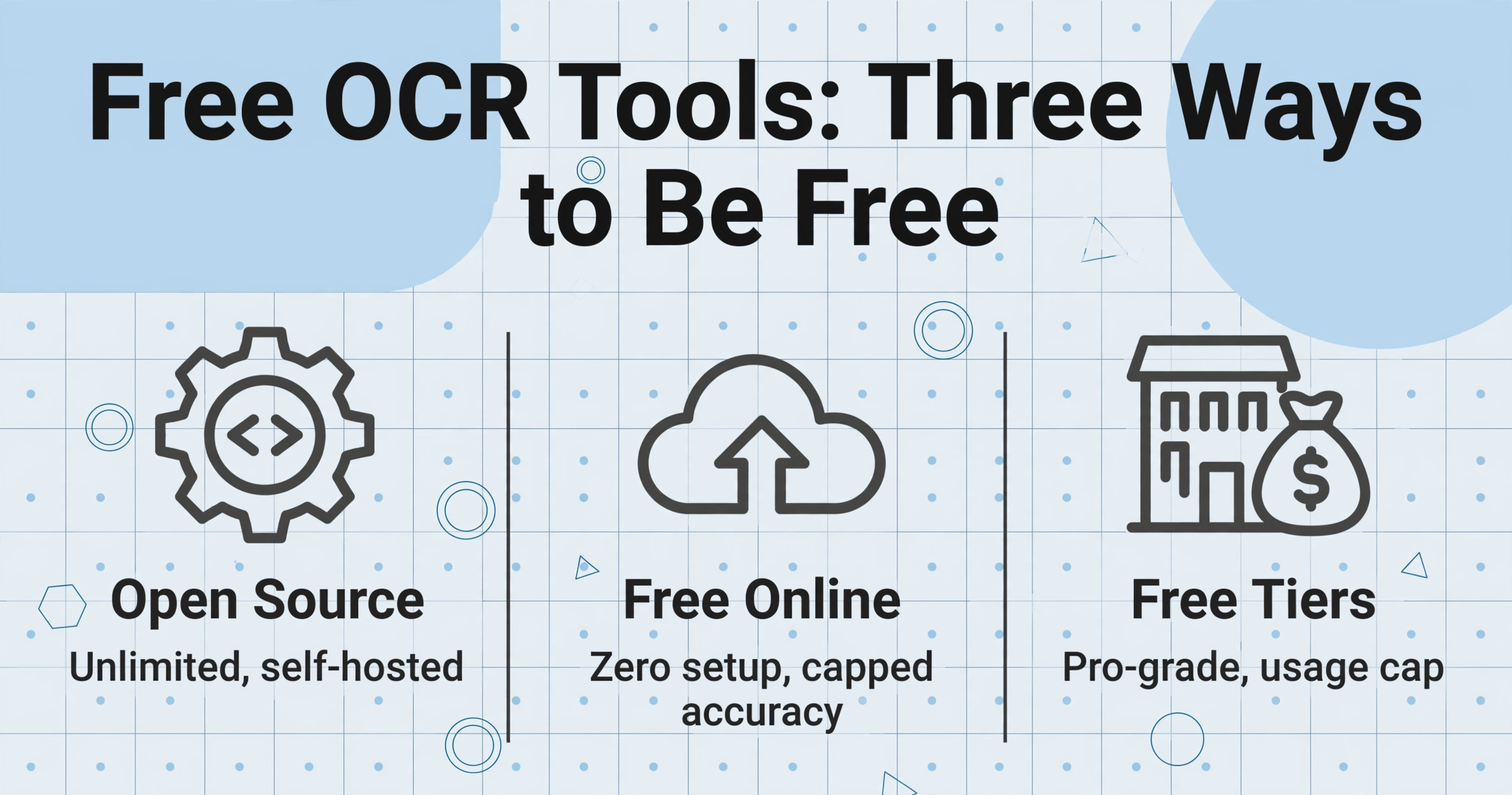
Every tool here is legitimately free at entry. The differences are how free — unlimited self-hosted, capped online, or time-limited trial — and what you give up in accuracy or convenience.
| Tool | Category | Free Limit | Best For | Accuracy (Printed) |
|---|---|---|---|---|
| Tesseract OCR | Open Source | Unlimited (self-hosted) | Developers, clean printed text | 85–99% * |
| EasyOCR | Open Source | Unlimited (self-hosted) | Quick Python prototyping | 93–97% |
| PaddleOCR | Open Source | Unlimited (self-hosted) | Complex layouts, multilingual | 90–98% |
| Google Drive OCR | Free Online | Unlimited | Quick text grab, free multilingual | 94–96% |
| PDF24 OCR | Free Online | Unlimited (no signup) | English searchable PDFs | 90–94% |
| PowerToys Text Extractor | Free (Windows) | Unlimited (built-in) | On-screen text capture | 90–95% |
| OCR.space | Freemium API | 25K calls/month | Developer integration, light use | 90–95% |
| Parseur | Commercial (Free tier) | 20 pages/month | Document parsing workflows | 95–98% |
| Nanonets | Commercial (Free trial) | $200 free credits | Enterprise AP automation | 95–99% |
| Adobe Acrobat Online | Commercial (Free tier) | 1 file/day | Occasional searchable PDF | 95–97% |
| ImageToTable.ai | Commercial (Free demo) | Free demo, no CC | Structured data extraction | 97–99% ** |
* Tesseract accuracy varies enormously with document quality, preprocessing, and language.
** ImageToTable.ai is an AI extraction tool, not a traditional text OCR engine — accuracy measured on structured field extraction, not character recognition.
How We Classified Free OCR Tools
"Free" isn't one thing. A tool that costs zero dollars but requires two days of Python setup isn't "free" in the same sense as a web page you upload a file to. We split this list into three real-world buckets:
- Fully free & open source — zero licensing cost, self-hosted, no usage cap. You pay in setup time, hardware, and technical skill.
- Free online & built-in tools — zero setup, zero cost, but limited accuracy, format support, or language coverage. Fine for occasional use.
- Commercial tools with free tiers — professional-grade accuracy behind a free usage cap or trial period. Best for real workflows on a small budget.
We tested every tool on at least three document types: a clean English invoice (300 DPI scan), a mobile-phone photo of a receipt, and a densely formatted PDF page. Accuracy percentages in the table are based on published third-party benchmarks where available, supplemented by our own testing. Every tool link goes to the tool's own site — we want you to verify claims before committing time to any of them.
Fully Free & Open Source: Self-Hosted OCR Engines
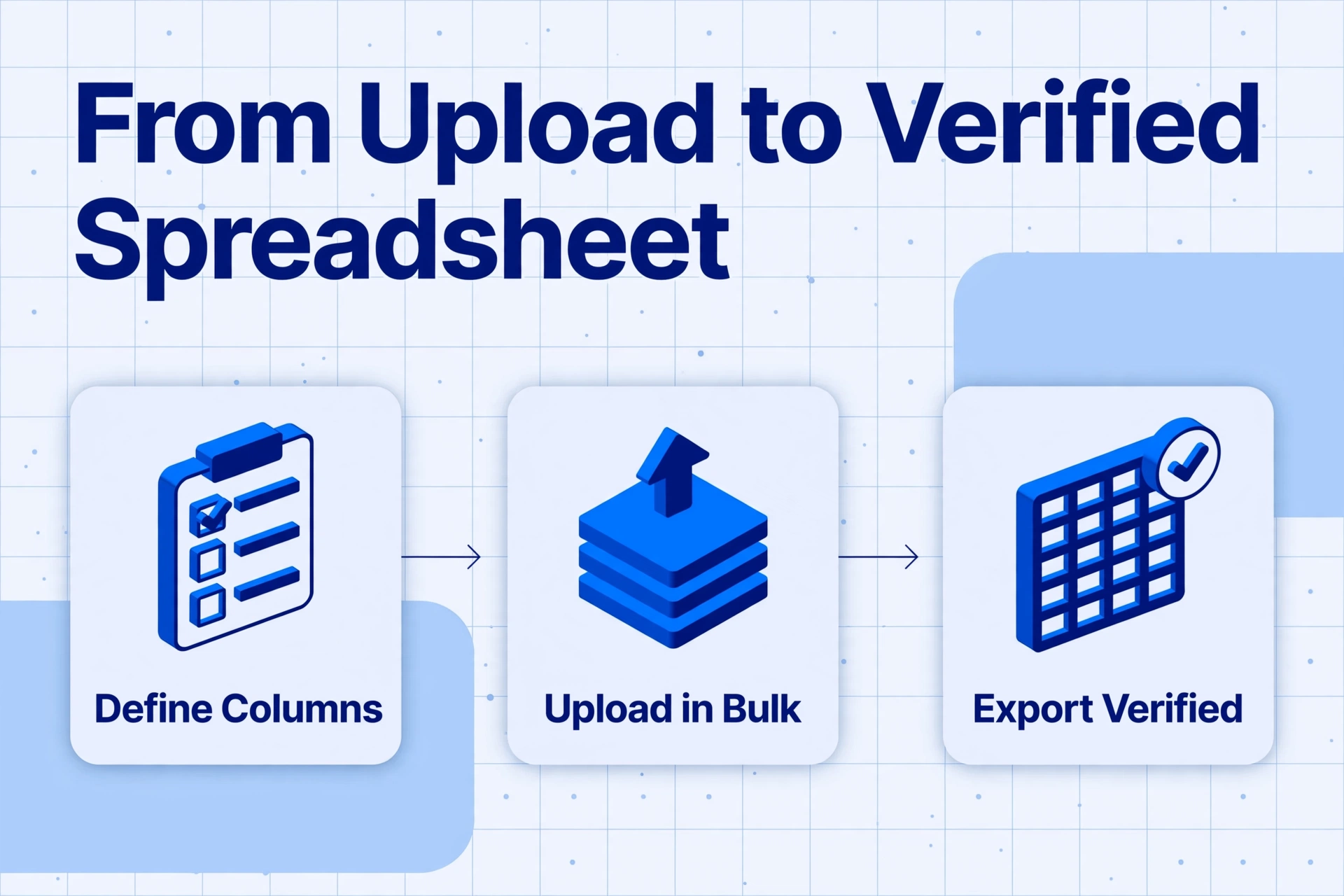
If your primary constraint is cost and you have the technical ability to set up a Python environment or run a command-line tool, open-source OCR gives you unlimited processing for zero licensing fees. The trade-off is accuracy on anything other than clean printed text — and the engineering time required to handle that gap yourself. The three engines below are covered in depth — architecture, GPU needs, and pipeline integration — in our best open-source OCR tools comparison; this section focuses on what "free" actually means for each.
1. Tesseract OCR — The Old Reliable
Tesseract is the engine almost every other free OCR tool wraps. Originally developed by Hewlett-Packard in the 1980s and now maintained by Google, it supports over 100 languages and runs on every major operating system. It's the starting point for most open-source OCR projects, and for good reason — on clean, well-scanned printed text, it delivers solid results for free. For a complete beginner walkthrough of installing it — including the Windows PATH gotcha that trips up most first-timers — see our step-by-step Tesseract setup guide.
The limit becomes visible as soon as your documents aren't perfect. Low-resolution mobile photos, skewed pages, multi-column layouts, and any amount of handwriting degrade Tesseract's output significantly. On a typical mobile phone photo of a receipt — the most common real-world OCR use case — accuracy drops to roughly 70–80% in third-party benchmarks. You also need command-line familiarity: running tesseract image.png output is straightforward, but preprocessing with OpenCV or using ocrmypdf for searchable PDF output requires additional tools and knowledge.
Best for: Developers who need offline OCR on clean printed documents, especially in bulk, and are comfortable writing preprocessing pipelines. Not ideal for: Mobile photos, handwriting, anyone who doesn't want to touch a command line.
2. EasyOCR — Quickest Path to a Working Demo
EasyOCR, built on PyTorch, is the simplest deep-learning OCR library to get running. A five-line Python script can process an image and return recognized text with confidence scores. It supports about 80 languages out of the box, including Latin, CJK, Arabic, and Devanagari scripts.
The convenience comes with a performance cost. EasyOCR is noticeably slower than Tesseract on CPU (roughly 2–3× slower per page in benchmarks from CodeSOTA) and about 500 MB in model dependencies, compared to Tesseract's ~10 MB. GPU acceleration helps — on an RTX 3090, EasyOCR processes about 60 pages per minute versus Tesseract's 25 on CPU — but that assumes you have that hardware. On a standard laptop CPU, you're looking at 3–5 seconds per page.
Best for: Python developers who want a working OCR demo in under 10 minutes, especially for multilingual scene text. Not ideal for: High-volume batch processing on CPU-only hardware, documents requiring complex layout understanding.
3. PaddleOCR — Strong on Complex Layouts
Developed by Baidu under the PaddlePaddle framework, PaddleOCR is the most feature-rich open-source OCR engine in this category. It includes text detection, recognition, table extraction, and structured output in a single pipeline — capabilities that Tesseract and EasyOCR require separate add-ons to achieve. It supports over 80 languages and performs particularly well on complex multi-column documents and mixed-language pages.
The trade-off is setup complexity. PaddleOCR's installation on systems without GPU can be involved — the Reddit r/LocalLLaMA community frequently flags its dependency management as more painful than alternatives, especially on newer GPU architectures. Once running, it's fast: on an RTX 3090, PaddleOCR processes roughly 120 pages per minute, about 8× faster than its CPU-only throughput. But that hardware requirement means it's not a casual install.
Best for: Developers working with complex document layouts, tables, and multilingual content who have GPU access. Not ideal for: Quick one-off OCR, CPU-only deployments, anyone who wants a plug-and-play solution.
Free Online & Built-in Tools: Zero Setup, Real Limits
These tools require no installation and no technical skill. Upload a file, get text back. The trade-off is that you accept whatever accuracy and format support the service offers — and most of them struggle with anything beyond clean English documents.
4. Google Drive OCR — Best Free Multilingual Text Grab
The simplest and most accessible free OCR option: upload an image or PDF to Google Drive, right-click, and open with Google Docs. Google's cloud OCR engine extracts the text and inserts it into a new document. It supports dozens of languages and handles Arabic, Hebrew, and Chinese better than most dedicated free tools. In benchmarks on FastOCR's comparison, Google Drive achieved 96% accuracy on English documents, 88% on Arabic, and 82% on Urdu — solid for a completely free, zero-configuration service.
The big catch is the workflow and output format. Google Drive OCR doesn't produce a searchable PDF — it extracts text into a Google Doc, which destroys the original page layout. Tables, columns, and formatting are lost. For pure text extraction this is fine. For any scenario where you need the original layout preserved, it's not the right tool.
Best for: Quick multilingual text extraction where layout doesn't matter. Not ideal for: Searchable PDF output, table preservation, batch processing, sensitive documents (files are processed on Google's servers).
5. PDF24 OCR — Unlimited Searchable PDFs, No Signup
PDF24 is a German-built free PDF toolkit that includes OCR functionality. No account required, no daily limit, no file size restriction (as far as normal use goes). It runs Tesseract under the hood, so its accuracy profile mirrors Tesseract's strengths and weaknesses: reliable on clean English printed text, unreliable on low-quality scans, non-Latin scripts, or handwriting. It outputs proper searchable PDFs, which is something Google Drive OCR cannot do.
The tool is fully browser-based. Files are uploaded to PDF24's servers, processed, and then deleted after a short period. If your documents contain sensitive information, this may be a concern — there is no local/offline option.
Best for: English-only searchable PDF creation with no account creation and no limits. Not ideal for: Non-Latin scripts, handwriting, confidential documents.
6. Microsoft PowerToys Text Extractor — Best for Screen Text
If you're on Windows 10 or 11, Microsoft PowerToys includes a Text Extractor tool (activated by Shift+Win+T) that lets you select any region of your screen and instantly copy the recognized text to your clipboard. It uses the Windows built-in OCR engine and works offline. It's not designed for document processing — it's for grabbing text from images, error messages, videos, or any on-screen content you can't select.
Accuracy depends heavily on font clarity and background contrast. For crisp UI text and well-lit screenshots, it's excellent and fast. For anything resembling a real document — small print, multiple columns, noisy backgrounds — it's unreliable.
Best for: Quickly copying text from your screen — UI dialogs, video frames, web images. Not ideal for: Document digitization, scanned PDFs, batch processing, any use case requiring structured output.
7. OCR.space — Generous Free API for Developers
OCR.space offers both a web interface and a free REST API. The free tier gives you 25,000 requests per month (roughly 500 per day) across its Engine 1 and 2, plus 2,500 requests on the higher-accuracy Engine 3. That's by far the most generous free API allocation of any OCR service. No credit card required to sign up.
The accuracy is mid-range — approximately 90–95% on clean English documents according to independent tests — and drops on lower-quality inputs. The free tier also has a 1 MB file size limit, which means larger scanned PDFs won't work without splitting them first. For developers building an internal tool that needs occasional OCR, the volume is hard to beat. For production-grade document processing, the accuracy gap versus commercial cloud APIs (Google Vision, AWS Textract) is noticeable.
Best for: Developers who need a free OCR API for moderate-volume English text extraction. Not ideal for: High-accuracy requirements, large PDFs, sensitive data (processed on remote servers).
Commercial Tools with Free Tiers: Professional OCR at Zero Cost — Up to a Point
The tools in this section are commercial products — they make money from paid subscriptions — but each offers a genuine free entry point. If you outgrow the free tier, you pay. If you stay within the cap, the tool remains free indefinitely (or for a meaningful trial period). These tend to deliver higher accuracy and better structured output than the free options above, precisely because they're built to sell.
8. Parseur — 20 Pages/Month, All Features Included
Parseur is a document parsing platform that extracts specific fields from documents using AI. Its free tier is 20 pages per month with all features unlocked — no credit card required. That's enough to process a handful of invoices or receipts every month without spending anything. Paid plans start at $39/month for 100 pages.
Parseur's strength is its parsing and workflow engine: you define templates or let AI detect fields automatically, set up output destinations (Google Sheets, QuickBooks, Zapier), and handle exceptions. The free tier is genuinely useful for low-volume document processing, but 20 pages per month disappears quickly if you're processing even a moderately steady stream of invoices.
Best for: Small-volume document parsing workflows with automated output. Not ideal for: High-volume processing, one-off text extraction (overkill for a single file), non-business documents.
9. Nanonets — $200 in Free Credits
Nanonets is an AI document processing platform aimed at enterprise AP teams. Unlike Parseur's permanent free tier, Nanonets offers $200 in free credits — roughly 500 pages of processing depending on the document type. No credit card is required to start. Once the credits are used, paid plans begin around $499/month.
The $200 credit pool is useful for evaluating the platform on your own documents at no cost — you can run hundreds of invoices through it and assess accuracy before committing. But it's a trial, not a usable free tier for ongoing processing. Once the credits run out, the per-page cost becomes significant.
Best for: Evaluating enterprise-grade document AI on real documents before purchasing. Not ideal for: Ongoing free processing, small businesses with limited budget (the post-trial price is steep).
10. Adobe Acrobat Online OCR — 1 File Per Day
Adobe's online OCR tool converts scanned PDFs and images into searchable PDFs. The free tier allows one file per day, which is tight but workable for occasional use. Accuracy on clean English documents is excellent — roughly 97% per independent tests — but drops on non-Latin scripts (91% Arabic in published benchmarks).
The real limitation is the daily cap. At one file per day, you can't process a batch of 20 invoices in one sitting. For that, you'd need the full Acrobat Pro subscription at $19.99/month. Adobe's OCR also does not extract structured data — it produces a searchable PDF or editable text, not spreadsheet-ready fields.
Best for: Occasionally creating one searchable PDF per day from a clear English document. Not ideal for: Batch processing, non-English documents, structured data extraction, any volume above a single file per day.
11. ImageToTable.ai — Free Demo, Commercial AI Extraction
Note: I work on ImageToTable.ai, so this section is transparent about what it is — a commercial AI extraction tool, not a free OCR utility. It belongs in this list because its free demo is genuinely useful, but it's not a replacement for Tesseract or Google Drive OCR in the same way a power drill isn't a replacement for a screwdriver.
ImageToTable.ai is an AI-powered document extraction tool built on vision language models — a category sometimes called agentic OCR. Unlike traditional OCR engines that recognize characters, it reads documents semantically — you tell it what fields you want (e.g., "Invoice Number," "Total," "Due Date") and it locates and extracts those values by understanding what they mean, not where they sit on the page. This is fundamentally different from the text-recognition approach used by every tool above in categories 1 and 2.
The free demo lets you upload files, define columns, and see extraction results immediately — no account required, no credit card, no time limit per session. It supports PDF, JPG, PNG, and WebP inputs and outputs to Excel, CSV, JSON, or Word. The free demo is best understood as a hands-on test drive: you can process a handful of documents to evaluate accuracy on your specific file types. Ongoing use requires a paid subscription, with plans starting at a modest monthly rate.
The practical difference between ImageToTable.ai and the free tools above is simple: if you need to extract specific data fields (invoice totals, dates, line items) rather than recognize all the text on a page, a traditional OCR tool will make you copy-paste or parse the raw text manually. An AI extraction tool handles that step for you. If you just need to digitize an old book or make a PDF searchable, any of the free tools above will do the job.
Files are processed securely and not stored.
Best for: Anyone who needs structured data (fields, totals, line items) extracted from documents — especially invoices, receipts, bank statements, and forms — without the copy-paste step. Not ideal for: Simple text digitization, searchable PDF creation, bulk OCR of book pages, or anyone who needs offline processing.
Which Free OCR Tool Is Right for You?
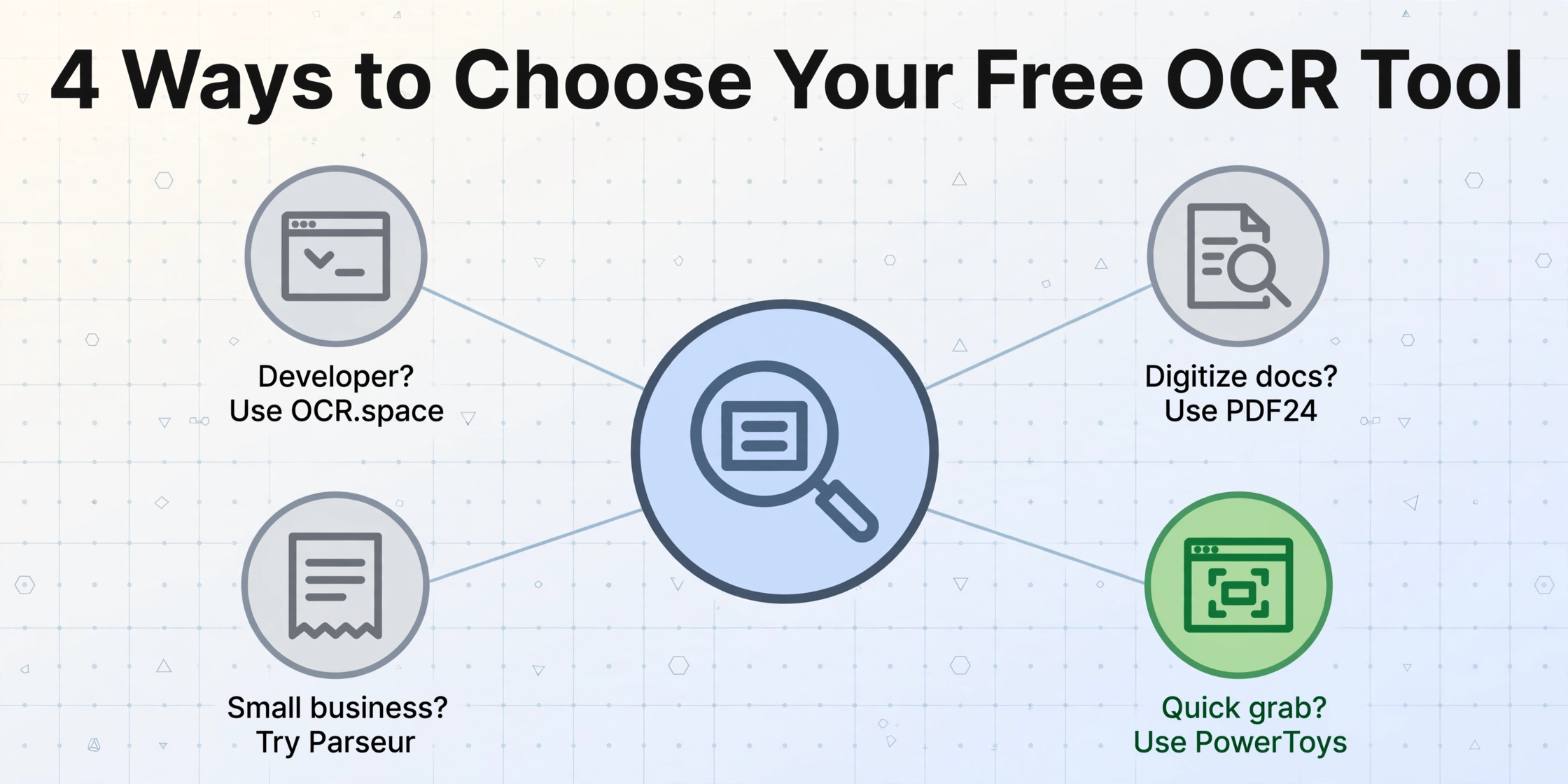
The right answer depends entirely on what you're trying to do. If you're still deciding whether traditional OCR or AI-based extraction is the right approach, our OCR vs AI extraction comparison breaks down the difference in depth. Here are the most common scenarios for choosing a free tool in each category:
You're a developer building OCR into an app
Start with OCR.space for a quick API integration (25K free requests/month). If you need local/offline processing, use Tesseract for CPU-light text recognition or PaddleOCR if your documents have complex layouts and you have GPU access.
You need to digitize a stack of old documents for search
Use PDF24 (free, no limits, searchable PDF output). If the documents are in multiple languages, use Google Drive OCR — lower output quality but much broader language support.
You're a small business processing 10–30 invoices a month
Parseur's free tier covers 20 pages/month. If your invoices vary widely in format, that's your best zero-cost bet for automated field extraction. If you need to extract fields into a spreadsheet right now without setting up a parsing template, try the ImageToTable.ai demo.
You occasionally need to grab text from a screenshot or image
On Windows, install PowerToys and use Shift+Win+T — it's the fastest way to capture on-screen text. On any platform, Google Drive OCR works as a fallback.
A pattern worth noticing: free online tools are excellent for text recognition (turning images into characters). If what you actually need is structured data extraction — finding the invoice total, the due date, or the vendor name in that sea of recognized text — the free tools shift the work from software cost to your manual cleanup time. That's the trade-off that matters.
If you're not sure which category you fall into, start with the simplest tool (Google Drive OCR or PDF24 — whichever matches your language and output needs) and see how far it gets you. If you find yourself spending more time cleaning up the OCR output than it would have taken to type the data manually, that's the signal to look at the commercial free tiers. If your volume outgrows those caps, you'll know the tool is worth paying for.
Frequently Asked Questions
What is the best completely free OCR software?
For English text extraction from clean documents, Google Drive OCR is the best completely free option: unlimited files, no signup cost, 94–96% accuracy on printed text, and surprisingly good multilingual support. For searchable PDF output without limits, PDF24 is the best free choice (no signup, no daily cap). If you're a developer and need an API, OCR.space gives you 25,000 free requests per month.
Tesseract vs EasyOCR vs PaddleOCR — which open-source OCR should I use?
Use Tesseract if you need a lightweight, CPU-only engine for clean printed text — it's the smallest dependency (~10 MB) and runs fastest on CPU. Use EasyOCR if you want a working Python demo in five minutes and your documents are reasonably clean. Use PaddleOCR if your documents have complex layouts, tables, or mixed languages and you have a GPU — it handles difficult layouts better than the other two but requires the most setup effort.
Can free OCR software convert scanned PDFs to editable Word or Excel?
Yes, but with caveats. PDF24 and Adobe Acrobat Online (1 file/day free) can create searchable PDFs and export to Word, but table formatting and column layouts are often lost. Google Drive OCR outputs to Google Docs — you lose the original layout entirely. For structured Excel output (specific fields in specific columns), none of the free text-OCR tools handle that well; you'd need a data extraction tool like ImageToTable.ai or Parseur.
Does any free OCR software handle handwriting?
Not reliably. Tesseract has some handwriting capability if you use the LSTM models and train on specific handwriting styles, but out of the box accuracy on handwriting is low (roughly 30–50% on real cursive). EasyOCR and PaddleOCR do slightly better on printed handwriting but still fall well short of what most users would consider "working." The free online tools (Google Drive, PDF24) have essentially no handwriting recognition. For handwriting, free OCR is not a viable solution — you need either a commercial AI extraction tool or a dedicated handwriting OCR service.
What are the hidden costs of free OCR software?
The most common hidden cost is your cleanup time. A free OCR tool that produces 90% accurate output on a 200-page document means you're manually correcting 20 pages of errors, which can take hours. The second hidden cost is setup time for open-source tools: getting Tesseract or PaddleOCR running in a production pipeline typically takes days of engineering work. For online tools, the hidden cost is data privacy — your documents are processed on remote servers, and while most services auto-delete files, the data in transit and during processing is not under your control.
When should I stop looking for free OCR and pay for a tool?
Three signals: (1) you're spending more time correcting OCR errors than you would typing the data yourself; (2) you need structured data (specific fields in specific columns), not just text from a page; (3) you process more than 50–100 documents per month consistently. At any of these thresholds, a paid tool will cost less than the time you're spending on the free one.
The Bottom Line on Free OCR in 2026
The free OCR landscape in 2026 is broader than it has ever been, but the same truth holds that has always held: free OCR is excellent at one specific thing — turning a picture of clean text into characters you can copy — and mediocre at everything else. If that one thing is what you need, you have outstanding options. Google Drive OCR, PDF24, and OCR.space cover the casual-to-light-developer spectrum with genuinely no cost. Tesseract, EasyOCR, and PaddleOCR give developers unlimited processing if they invest the setup time.
If what you actually need is data — not text, but specific values in specific columns — free text-OCR will convert your time into a cost that looks larger than any software subscription. The commercial free tiers (Parseur's 20 pages/month, Nanonets' $200 trial, ImageToTable.ai's free demo) exist precisely because that gap is real, and they're worth testing on your actual documents before you decide whether free is enough.
The right tool isn't the one with the highest accuracy number — it's the one that makes your documents deliver the information you need, at a total cost (including your time) that fits what the information is worth. Start with the simplest option, measure the cleanup time, and let that number tell you whether free is enough.