How to Set Up Tesseract OCR
A Beginner's Guide to Installation & Common Pitfalls
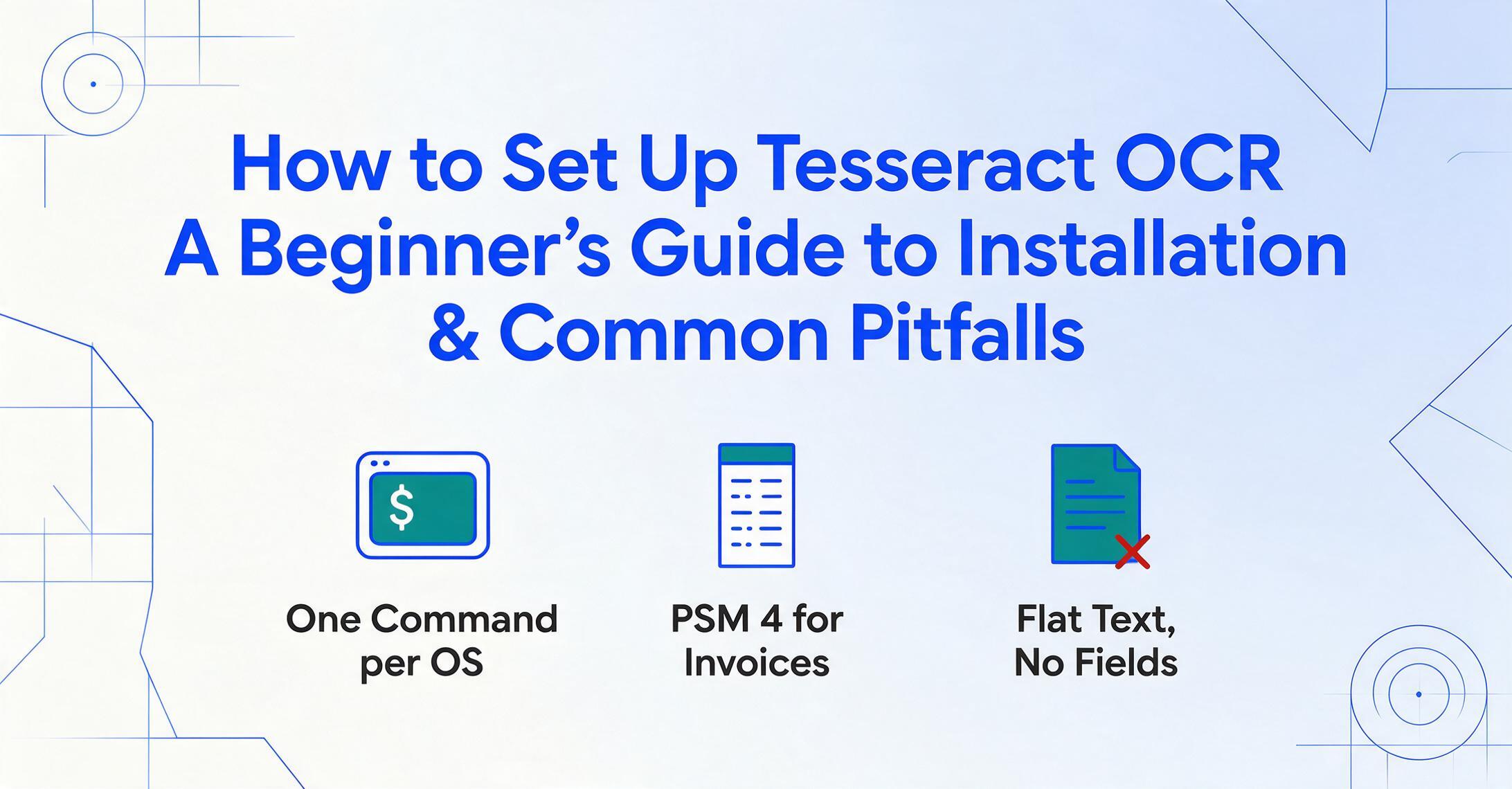
Tesseract is the most widely used open-source OCR engine in the world — free, 100+ languages, and it runs on anything. But getting it installed and producing usable output on your first try involves a few steps that the GitHub README glosses over. This guide covers exactly that: installation, your first extraction, a cheat-sheet of the commands you'll actually reach for, and the three pitfalls that trip up most beginners.
Key Takeaways
- Tesseract — the world's most-used open-source OCR engine — is free, runs on 100+ languages, and hits 95–99% accuracy on clean scans. But on its default settings, phone photos and receipts often return garbled words, merged lines, or the infamous "Empty page!!"
- Three fixable mistakes account for roughly 80% of beginner problems — and none of them are "the engine is bad." The single highest-impact fix is changing the PSM mode: a receipt that returns garbage with PSM 3 ("fully automatic") can produce clean, readable output with one flag (
--psm 4). - Every Tesseract user eventually hits the same wall: the invoice number, date, total, and line items are all there as characters, but the tool has no idea which is which. For named fields that land in the right spreadsheet column, you need a layer that reads document semantics, not just characters.
What Tesseract OCR Is (and Isn't)
Tesseract is an open-source optical character recognition engine originally developed at Hewlett-Packard in the 1980s and maintained by Google since 2006. It takes an image of text — a scanned document, a photo of a page — and returns the text it finds, character by character.
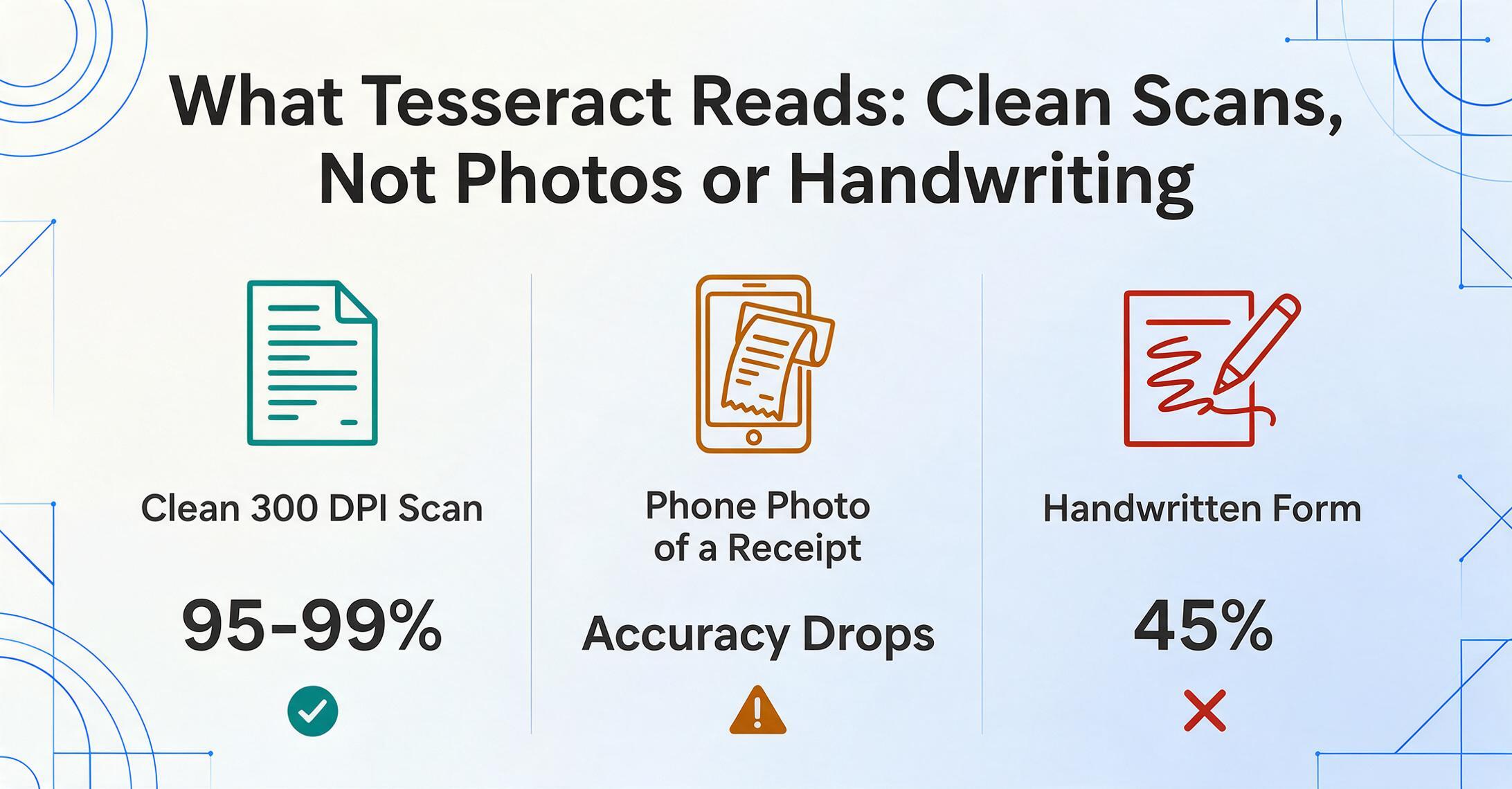
It does one thing well: character recognition on clean printed text. Give it a 300 DPI scan of a typed page, and it will return the words with 95-99% accuracy. Give it a phone photo of a receipt, and accuracy drops. Give it a handwritten form, and it becomes essentially unusable.
Understanding this boundary matters because most beginners blame "bad OCR" for what is actually the right tool being applied to the wrong problem. Tesseract reads characters. It does not understand document structure — it does not know which number is the invoice total versus a line-item subtotal, it does not recognize tables, and it has no concept of semantic fields. That flat text output is a feature, not a bug. For a deeper look at how Tesseract compares to modern AI extraction, see our what is OCR explainer and the best open-source OCR tools comparison.
Tesseract is distributed under the Apache 2.0 license — free to use, modify, and redistribute.
Installation: Three Operating Systems, One Command Each
Tesseract does not ship with a GUI installer wizard (unless you count the Windows NSIS installer). You install it through your system's package manager on Linux and macOS, or through a third-party installer on Windows. The key: install both the engine and the language data you need.
The table below covers the primary installation method for each OS. After install, always verify with tesseract --version.
| OS | Install Command | Extra Language Data |
|---|---|---|
| Ubuntu/Debian Linux | sudo apt install tesseract-ocr | sudo apt install tesseract-ocr-deu (German), tesseract-ocr-fra (French), etc. |
| macOS (Homebrew) | brew install tesseract | brew install tesseract-lang (all languages at once) |
| Windows | Download from UB Mannheim (64-bit installer) | Select languages during installation, or download .traineddata files into C:\Program Files\Tesseract-OCR\tessdata\ |
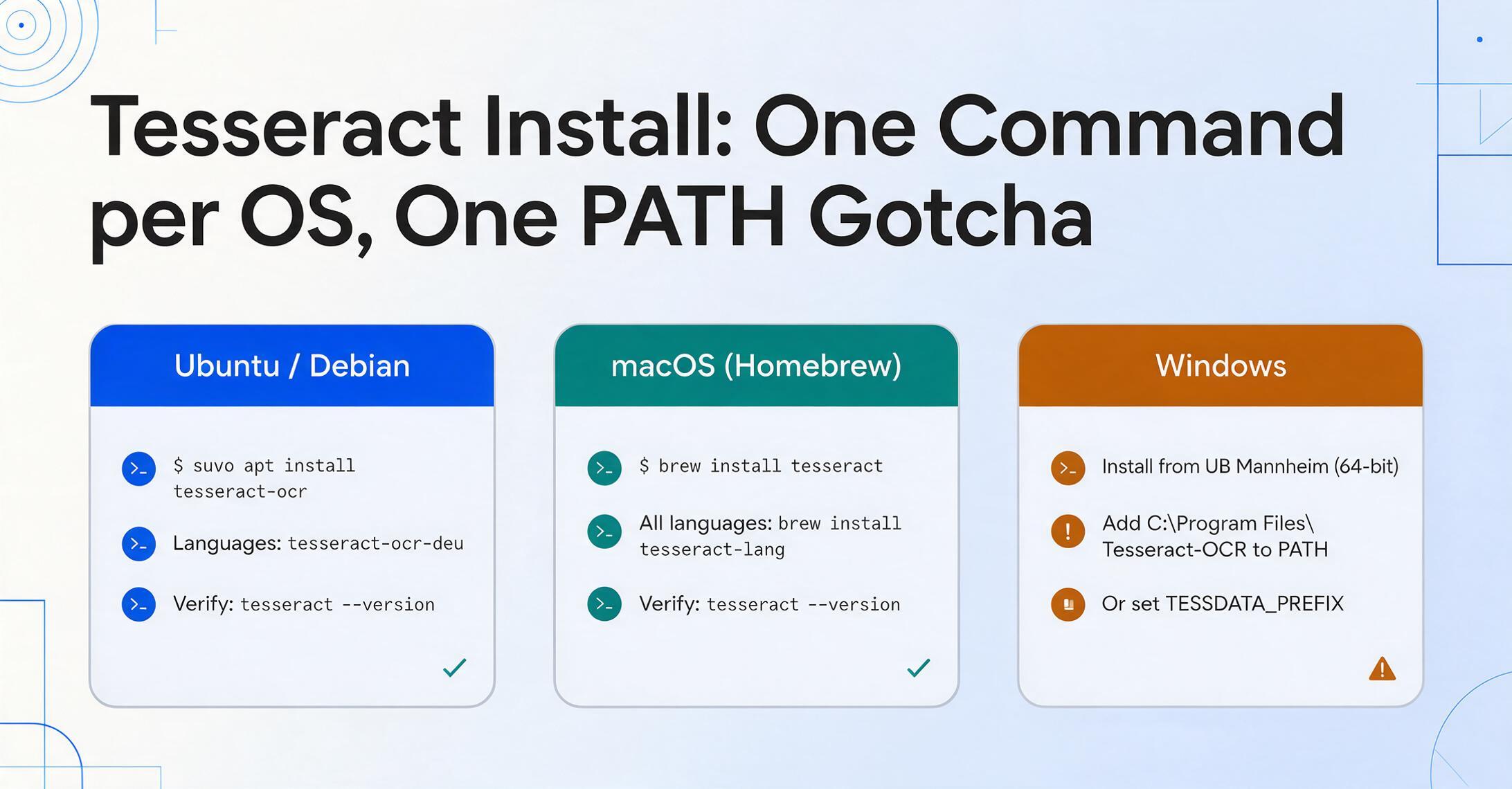
One important detail on Windows: the installer does not add Tesseract to your system PATH automatically in some versions. You will need to add the installation directory (typically C:\Program Files\Tesseract-OCR) to your system PATH, or set the TESSDATA_PREFIX environment variable pointing to the tessdata folder. This is the single most common source of beginner errors, and we cover it in detail in the pitfalls section below.
Your First Extraction: Python + pytesseract
Tesseract can be used from the command line directly, but most developers will want to call it from Python. The pytesseract library provides a clean Python wrapper around the Tesseract binary.
Install the Python package:
pip install pytesseract pillowFind an image with clear printed text — a typed letter, a scanned document page, or a clean receipt photo — and save it as sample.png in your working directory. Then run:
from PIL import Image
import pytesseract

img = Image.open('sample.png')
text = pytesseract.image_to_string(img)
print(text)
If everything is installed correctly, you should see the extracted text printed to your terminal. If you get TesseractNotFoundError: tesseract is not installed or it's not in your PATH, jump to the pitfalls section below — that is pitfall #1 and the fix is straightforward.
On Windows, you may also need to tell pytesseract where the Tesseract executable lives:
import pytesseract
pytesseract.pytesseract.tesseract_cmd = r'C:\Program Files\Tesseract-OCR\tesseract.exe'
What to expect from your first extraction: On a clean high-resolution document, you will get accurate text with reasonable line breaks. On a low-quality photo or a document with complex layout, you will see garbled words, merged lines, and missing characters. This is not a bug — Tesseract needs clean input to produce clean output. Image preprocessing (thresholding, deskewing, denoising) is often required for real-world documents.
5 Commands You'll Actually Use
Tesseract's command-line interface has dozens of options. In practice, you will use only a handful on a regular basis. Here is the cheat sheet:
Basic Text Extraction
tesseract scan.png stdoutPrints extracted text directly to the terminal. Replace stdout with output to save to output.txt.
Specify a Language
tesseract scan.png stdout -l deuUse the -l flag with a 3-letter ISO code. Multiple languages: -l eng+deu+fra. Without this flag, Tesseract defaults to English only.
Page Segmentation Mode (PSM)
tesseract receipt.png stdout --psm 4The most impactful tuning parameter. PSM 4 assumes a single column of text (great for invoices). PSM 6 assumes a uniform block. PSM 7 treats the image as a single line. When tables come out garbled, PSM is usually the fix.
Searchable PDF Output
tesseract scan.png output pdfCreates a PDF with a text layer over the original image. Useful for archiving scanned documents while keeping them searchable. You can combine it with -l and --psm as needed.
Batch Process All Images in a Folder
for file in *.jpg; do tesseract "$file" "${file%.jpg}"; doneProcesses every JPG in the current directory, producing one .txt file per image. Change the extension from .jpg to .png or whatever your files use. On Windows PowerShell, the equivalent is: Get-ChildItem *.jpg | ForEach-Object { tesseract $_.Name $_.BaseName }.
Understanding PSM Modes: The One Setting That Matters Most
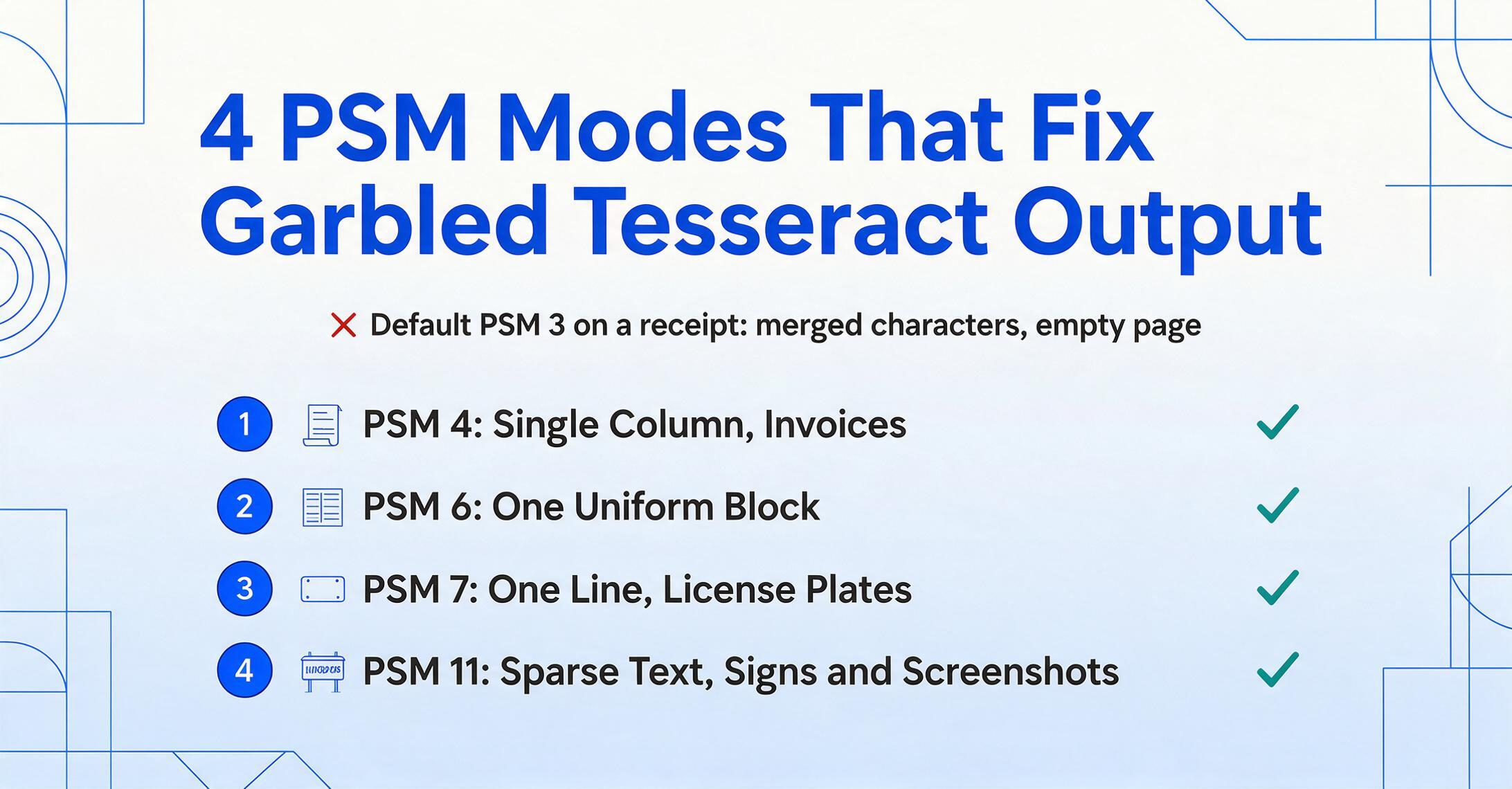
Tesseract offers 14 page segmentation modes (PSM 0–13). The default is PSM 3 — fully automatic page segmentation. For many real-world documents, the automatic mode guesses wrong, and changing it is the single highest-impact adjustment you can make.
Here is a practical guide to the modes you will actually use:
| PSM | What It Does | When to Use It |
|---|---|---|
3 | Fully automatic page segmentation (default) | Simple pages with a single block of text and clear layout. Works for letters, articles, and straightforward documents. |
4 | Assume a single column of text of variable sizes | Invoice and form sweet spot. Invoices typically have a single column of data with varying font sizes for headers vs. line items. PSM 4 keeps rows together. |
6 | Assume a single uniform block of text | When the entire image is one continuous paragraph. PSM 6 is stricter than 4 — it assumes uniform font and line spacing throughout. |
7 | Treat the image as a single text line | License plates, barcode numbers, single-line document fields. PSM 7 tells Tesseract "there is exactly one line of text — read it." |
11 | Sparse text — find as much text as possible, no order | Documents with text scattered across the page — signs, screenshots with overlaid text, mixed-content images where layout is not important. |
The easiest way to develop intuition for PSM modes is to take one image and run it through each mode, comparing the output. A receipt that returns garbage with PSM 3 often returns clean, readable output with PSM 4. The wrong PSM mode is the most common reason beginners conclude "Tesseract doesn't work" when it actually works fine — it is just using the wrong layout assumption.
For a deeper guide on image preprocessing that improves Tesseract output, see our article on how to improve OCR accuracy.
Language Packs: Adding Support Beyond English
Tesseract supports over 100 languages, but English is the only language included by default in the basic installation. Additional languages are distributed as .traineddata files that you place in Tesseract's tessdata directory.
There are three official repositories of traineddata files, and choosing the right one matters:
tessdata_fast— LSTM-based models optimized for speed. Approximately 2-3x faster thantessdata_bestwith minimal accuracy loss. Recommended for most users.tessdata_best— The most accurate LSTM models. Approximately 2-3x slower. Use when accuracy is critical and processing speed is not a constraint.tessdata(legacy) — Includes both the legacy engine models and LSTM models. Required if you want to use OEM modes 0 or 2 (legacy engine).
To add a language manually, download the .traineddata file from the tessdata_fast repository and place it in your tessdata directory:
# Linux default tessdata location
sudo cp ~/Downloads/deu.traineddata /usr/share/tesseract-ocr/5/tessdata/

# macOS (Homebrew default)
cp ~/Downloads/deu.traineddata /opt/homebrew/share/tessdata/

# Windows
# Copy to C:\Program Files\Tesseract-OCR\tessdata\
On Ubuntu/Debian, the easier method is to install the language package directly: sudo apt install tesseract-ocr-deu for German, tesseract-ocr-fra for French, and so on. On macOS, brew install tesseract-lang installs all available language packs at once.
3 Most Common Pitfalls (and How to Fix Them)
Having set up Tesseract across a range of environments, these three issues account for roughly 80% of beginner problems.
TesseractNotFoundError / "tesseract is not in your PATH"
This is the most Googled Tesseract error for a reason. The Tesseract binary (the installed engine) is either not installed or not findable by your system.
Diagnosis: Open a terminal and run tesseract --version. If you get "command not found," Tesseract is not on your PATH.
Fix (Linux/macOS): The package manager installs to a standard path that is usually already in your PATH. If not, export PATH=$PATH:/usr/bin/tesseract or reinstall via the package manager.
Fix (Windows): Add the Tesseract installation directory to your system PATH (System Properties → Environment Variables → edit PATH → add C:\Program Files\Tesseract-OCR). Alternatively, set it in your Python script: pytesseract.pytesseract.tesseract_cmd = r'C:\Program Files\Tesseract-OCR\tesseract.exe'.
"Empty Page" or Garbage Output — Wrong PSM Mode
You run Tesseract on a receipt or invoice, and the output is a wall of merged characters, or worse — "Empty page!!"
Diagnosis: The default PSM 3 assumes a full-page text layout. A receipt is typically a narrow single column. Tesseract tries to detect columns and lines, gets confused, and either merges everything or gives up.
Fix: Try PSM 4 (--psm 4) for single-column documents, PSM 6 for uniform blocks, or PSM 7 for single lines. If you are extracting a specific region, crop the image to that region first, then try PSM 6 or 7.
A Reddit user in r/learnpython put it bluntly: "Most people skip the preprocessing step and then wonder why their accuracy sucks." On phone photos, adding a thresholding step (converting to pure black-and-white) often makes the difference between useless output and usable text.
No Image Preprocessing — Raw Phone Photos Give Bad Results
Tesseract was designed for scanned documents — flat, even lighting, 300 DPI, straight alignment. A phone photo introduces perspective distortion, shadows, uneven lighting, and page curvature. Tesseract handles none of these well.
Diagnosis: If your text has missing characters, random symbols, or words run together on a phone photo but works fine on a scan, your image needs preprocessing.
Fix: Add a preprocessing step using OpenCV or Pillow: convert to grayscale, apply thresholding (Otsu's or adaptive), and deskew if the page is rotated. Here is the minimum viable preprocessing pipeline:
from PIL import Image, ImageEnhance, ImageFilter
import pytesseract

img = Image.open('sample.jpg')
# Convert to grayscale and enhance contrast
img = img.convert('L')
enhancer = ImageEnhance.Contrast(img)
img = enhancer.enhance(2.0)
# Apply threshold
img = img.point(lambda x: 0 if x < 140 else 255)
text = pytesseract.image_to_string(img, config='--psm 4')
This three-line preprocessing block resolves the majority of "bad OCR" complaints on real-world documents. For a deeper dive, the official ImproveQuality guide covers additional techniques like border removal, denoising, and rotation correction.
When Tesseract Isn't Enough
Tesseract is excellent at what it does: converting images of printed text into machine-readable characters at zero marginal cost. But if your workflow requires structured data — extracting the invoice number, date, total, and line items as named fields in a spreadsheet — Tesseract stops being the right tool at the point where the text comes out of the engine.
Every Tesseract user eventually hits this wall: you have the text, but you still need to parse, label, and structure it. A table from an invoice comes out as a sequential wall of characters with no row-column relationship. The line items and prices are there, but they are indistinguishable from the header and footer text. Turning that flat text output into structured data requires either extensive post-processing (regex, fuzzy matching, layout reconstruction) or a different approach entirely.
Modern AI-powered document extraction tools solve this problem at a different level: instead of reading characters, they read document semantics. They can tell the difference between an invoice number and a due date because they understand what those fields mean, not just what they look like. They handle tables, multi-column layouts, and format variations without per-vendor configuration. When your document mix includes tables, handwriting, phone photos, or the need to extract structured data rather than raw text, AI extraction is the layer above Tesseract that fills the gap Tesseract was never designed to cover.
FAQ
Which is better for a beginner — Tesseract or EasyOCR?
Tesseract is faster (roughly 25 pages per minute on CPU vs EasyOCR's 8) and has a much smaller footprint (~10 MB vs ~500 MB). EasyOCR handles curved and rotated text better and requires less preprocessing. If your documents are clean printed text, start with Tesseract. If you are working with photos that include curved text or mixed scripts, EasyOCR may produce better results out of the box. Both produce flat text output — neither provides structured data extraction.
Can Tesseract read handwriting?
Poorly. Tesseract was designed for printed character recognition and its LSTM engine achieves roughly 45% accuracy on cursive handwriting — meaning more than half the words will be misread. For handwritten document processing, AI vision models that read documents semantically (discussed in our accuracy guide) are the practical alternative.
Does Tesseract work directly on PDFs?
Not directly. Tesseract operates on image files (PNG, JPEG, TIFF). To OCR a PDF, you need to first convert each page to an image — either using a tool like pdftoppm (Linux/macOS) or by using pdf2image in Python, which internally calls pdftoppm or poppler. Alternatively, OCRmyPDF wraps this entire workflow into a single command: ocrmypdf input.pdf output.pdf.
Is Tesseract still relevant in 2026 with so many cloud OCR APIs available?
For the specific use case of bulk printed text digitization where structure is not required — yes. Tesseract's zero-cost, CPU-only operation remains unmatched for high-volume scenarios like library archiving or search-indexing millions of documents. For any scenario that requires structured output (named fields, tables, spreadsheet rows), cloud AI APIs or tools like ImageToTable.ai that extract semantically are more practical, since they eliminate the post-processing engineering time that dominates the total cost of a Tesseract-based pipeline.
Can I train Tesseract on my own data?
Yes, but the process is involved. Tesseract supports LSTM fine-tuning, which requires generating .box files for each training image (a ground-truth annotation step), running the training pipeline, and producing a custom .traineddata file. For most practical scenarios, fine-tuning a general-purpose AI vision model or using a tool that supports format-adaptive extraction without training is a more efficient path.
From Raw Text to Structured Data
Tesseract gives you the text. ImageToTable.ai gives you the structured data — invoice numbers, dates, totals, and line items in named columns, ready for your spreadsheet. Upload a document and see the difference.
See the Difference on Your Own Document