What Is Receipt OCR?
Extracting Store Receipts to Spreadsheets
Receipt OCR is the automated process of extracting key information — store name, date, items purchased, prices, tax, and total — from a photograph or scan of a paper receipt and converting it into structured data in a spreadsheet. Instead of typing each field manually, the software reads the receipt image, understands which text is the merchant name and which number is the total, then populates columns in an Excel file or Google Sheet.
Key Takeaways
- Your receipt photo isn't a permanent record — thermal paper fades chemically within weeks, you can't stop it, and the IRS expects you to keep receipts legible for 3 years.
- The receipt capture built into QuickBooks and Xero extracts 3 fields — vendor, date, total — but skips every line item, leaving you unable to split a single big-box store trip across deductible and non-deductible categories.
- Template-free receipt OCR reads by semantic meaning rather than fixed positions — upload a receipt from any store it has never seen, define the columns you want, and get line-item-level structured data in one pass.
What Receipt OCR Actually Is
Receipt OCR is not the same as snapping a photo of a receipt and saving it as a PDF — that gives you a picture. It's also not the same as running a generic OCR engine over a receipt image — that gives you a wall of undifferentiated text. Receipt OCR gives you structured data: the store name in one spreadsheet column, the date in another, each item in its own row, the tax and total in cells you can sum and filter.
This distinction matters because receipts pose a harder extraction problem than most people realize. A restaurant receipt lists items vertically with prices right-aligned. A retail receipt uses abbreviated product codes in dense columns. And nearly all are printed on thermal paper, which fades to blank within weeks due to the chemical coating that produces the image — you can't stop it, and you can't recover a blank receipt.
The fields typically extracted fall into two categories:
Transaction Header
- Merchant / Store Name
- Transaction Date & Time
- Receipt / Transaction Number
- Payment Method
- Subtotal, Tax, Tip, Total
Line Items (per product)
- Item Description or SKU
- Quantity
- Unit Price
- Line Total
- Tax Code (where shown)
Line-item detail is where receipt OCR separates itself from simpler tools. A header-only extraction — "this receipt was $47.83 at Walmart on June 12" — is useful for expense logging. But if you need to know which items are deductible office supplies and which are personal groceries, you need the line items — and their layouts vary even more than headers, from single-column lists to multi-column grids with subtotals between sections.
Receipt OCR vs Expense Scanning Apps vs Manual Entry
| Manual Entry | Expense Scanning App | Receipt OCR Extraction | |
|---|---|---|---|
| What it does | You type each field into a spreadsheet | Captures photo, extracts 3-4 header fields | Extracts header + line items into structured columns |
| Time per receipt | 2–5 minutes | ~30 seconds | 5–10 seconds (batch) |
| Line-item detail | Available if you type it | Rarely extracted | Extracted automatically, one row per item |
| Format handling | Human adapts to any format | Common layouts only | Format-independent — reads by meaning |
| IRS documentation | Manual record, error-prone | Photo stored, 3 fields captured | Structured record + original image preserved |
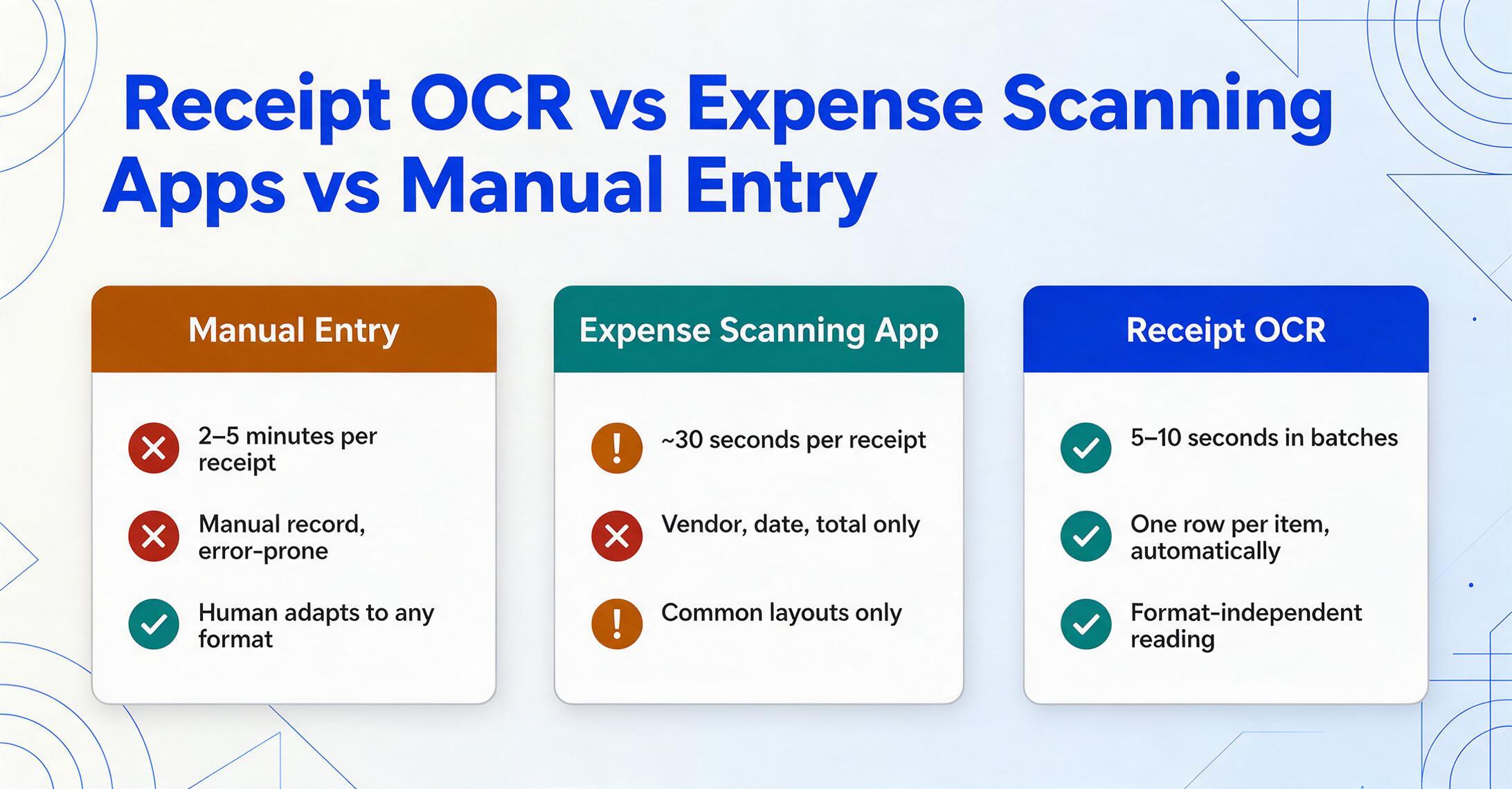
Expense scanning apps — like the receipt capture in QuickBooks Online or Xero — occupy the middle ground. They log a transaction and attach a photo, extracting vendor, date, and total. For a freelancer claiming a Schedule C deduction, those three fields meet the minimum IRS substantiation requirement under Treasury Regulation §1.274-5. But they don't help if you need to split line items across categories or reconcile a restaurant bill against a per-diem policy.
Receipt OCR is not a replacement for QuickBooks or Xero — it's a data input layer that feeds structured data into those systems. The distinction matters because many small business owners assume their accounting software's built-in photo capture does the same thing. It doesn't.
How Receipt OCR Works
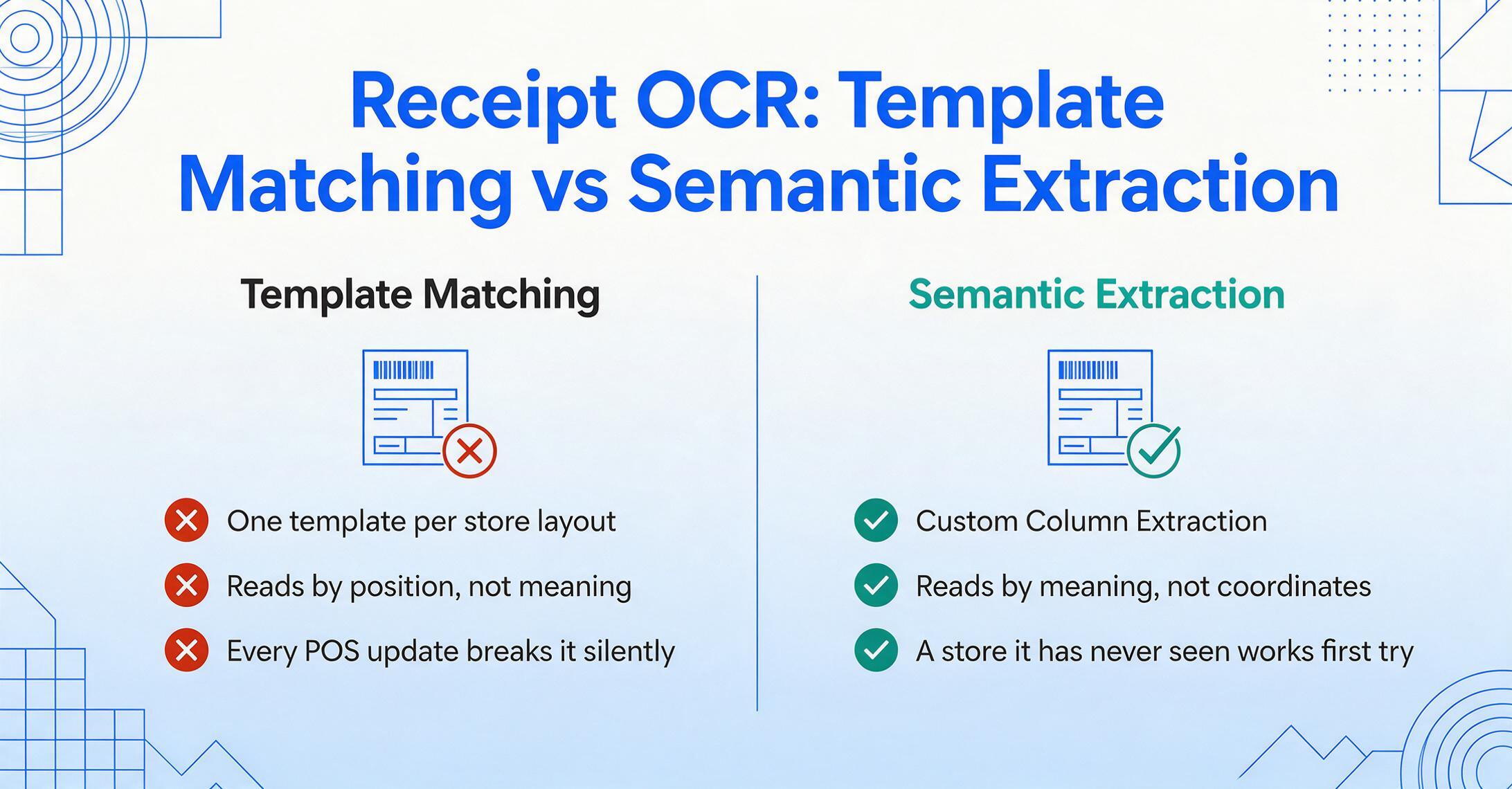
The old way: template matching. Traditional receipt OCR works by position. You create a template for each store's receipt layout — "Walmart receipts have the total in the bottom-right" — and the tool looks in that zone. Every store prints differently. Even the same chain uses different POS systems across locations. A template for one store is useless for another, and every POS update silently breaks existing templates.
The modern way: semantic extraction. AI-based receipt OCR works by understanding what each piece of text means, not where it sits. This is Custom Column Extraction: you type the column names you want — "Store Name," "Date," "Item Description," "Line Total" — and the AI reads the entire receipt, identifies which text blocks correspond to which fields by their semantic role, and maps them to the right output columns. A receipt from a store it has never seen works on the first try, because the AI isn't looking at coordinates — it's looking at meaning.
The pipeline runs in four steps:
Upload
Drop in photos, scans, or PDFs — single or in batches. Works on phone photos of crumpled or creased paper.
Define Columns
Type the fields you want — "Store Name," "Transaction Date," "Item," "Price," "Category." These become your spreadsheet headers. No template setup, no training.
AI Reads & Maps
The vision model identifies each text block by its semantic role — "this looks like a date," "these are line items" — and maps each to the column you defined, regardless of position.
Export Structured Data
Download as Excel (XLSX), CSV, or write directly into Google Sheets. Each receipt becomes one row — or multiple rows with line items extracted individually.
Files are processed securely and not stored.
When You Need Receipt OCR
Not every situation calls for extraction software. Receipt OCR crosses from "nice to have" to "necessary" at these thresholds:
1. Tax season stops being a weekend project. The NFIB found that 42% of small employers spend four or more hours per month on tax compliance paperwork. SCORE reports the majority spend more than 41 hours annually on tax preparation, with receipt organization as the largest component. When receipt sorting becomes a recurring drain on every weekend, extraction tools change the equation from hours of typing to minutes of review.
2. The IRS threshold catches up with you. Under IRS Publication 463, business expenses of $75 or more require documentary evidence (§1.274-5(c)(2)(iii)) — a receipt, not just a bank statement. That threshold catches a tank of gas, a software subscription, a client dinner. For lodging, receipts are required regardless of amount. A freelancer who can produce clean, dated, categorized receipts for every transaction above that threshold walks into an audit prepared. One who can't is arguing about expenses they can't prove.
3. Receipts are fading before you can log them. Thermal paper begins fading within weeks. You can't recover data from a blank slip. The only reliable solution is to capture and extract the data while the receipt is still legible. For records the IRS recommends keeping three years, the gap between "receipt is readable" and "receipt is evidence" widens every month the data stays on paper.
4. You need to split receipts across expense categories. A single big-box store trip might include office supplies (deductible) and a personal snack (not). Inferred columns let you define a categorization rule — "classify each item as Office Supply, Meals, or Cost of Goods Sold" — and the AI applies it during extraction, turning a manual line-by-line judgment into a single pass. For a walkthrough of how this fits into a tax workflow, see our guide on receipt preparation for tax season.
For a broader look at the technology, see our guide to AI document extraction. And for the financial breakdown, our analysis of what manual receipt tracking costs at tax time quantifies the labor and deduction losses.
What to Look For in a Receipt OCR Tool
Receipt OCR tools range from smartphone apps that extract three fields to AI-native platforms handling batch processing and custom columns. A few criteria separate tools that reduce workload from tools that just rename it.
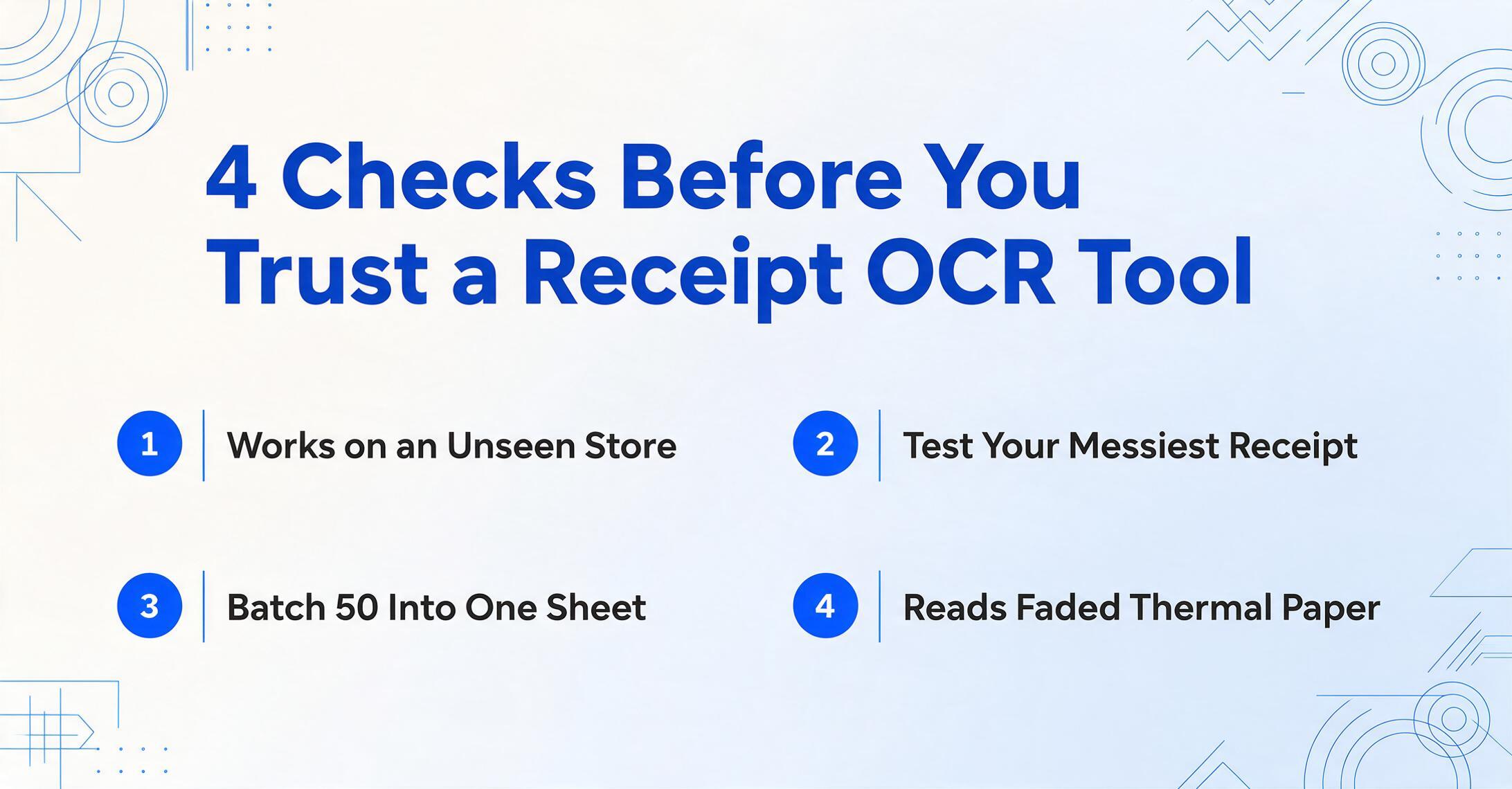
Template-free operation. The single most important differentiator. A tool requiring templates per store layout is not extraction — it's template management. Template-free extraction reads by semantic understanding: a receipt from a store it has never seen works on the first upload. Ask: "If I upload a receipt from a store I've never processed before, does it work?" If the answer involves "define a template," you're buying maintenance.
Line-item extraction quality. Header fields are the easy part. Line items are the real test — can the tool reliably extract item descriptions, quantities, and prices from a densely printed retail receipt with truncated names and right-aligned prices? Test on your most chaotic receipts, not your cleanest. For a side-by-side comparison, see our roundup of receipt scanning tools.
Batch processing. Processing 50 receipts one at a time isn't meaningfully faster than manual entry once you account for tool interaction overhead. Batch processing — upload 50 at once, get one unified spreadsheet — is where time savings compound.
Receipt-specific edge cases. Multi-currency receipts from international travel. Handwritten tips on printed receipts. Thermal paper already partially faded. Crumpled receipts from a wallet. A tool that handles clean, flat receipts but chokes on these real-world cases creates a two-tier workflow: automated for the easy ones, manual for the hard ones.
For a deeper look at format-independence applied to receipts, see our guide on extracting receipt data across any format.
Frequently Asked Questions
Does receipt OCR work with faded or crumpled receipts?
Yes, with limits. AI-powered tools handle moderate fading, creasing, and wrinkling because they read context and shape, not just individual characters. A partially faded receipt still legible to a human is typically readable to the AI. But once thermal paper has faded completely blank, no tool can recover the data. Capture and extract receipt data as soon as possible — waiting until tax season is a race against chemistry.
Does the IRS accept digital receipt scans as valid records?
Yes. Under IRS Publication 583, supporting documents include "cash register tapes," "account statements," and "credit card sales slips" — all accepted in digital form if legible and showing amount, date, and business purpose. The IRS does not require physical paper originals.
Can receipt OCR handle handwritten tips or notes on printed receipts?
Yes. Modern vision models read handwriting — including tips scribbled on restaurant receipts and manual adjustments — alongside printed text in the same pass. Accuracy depends on legibility: clear block print extracts reliably, dense cursive less so. The AI uses context to disambiguate: if it sees a handwritten "$12.00" near a printed "Tip:" label, it understands that's the tip amount.
What's the accuracy rate for receipt OCR?
Modern AI-based receipt OCR achieves 95–99% field-level accuracy on printed, legible receipts. Manual data entry error rates run 1–3% per field — meaning a receipt with 15 fields has roughly a 14–36% chance of containing at least one typo. The key difference: OCR errors are visible in a spreadsheet for review; a manually typed error is invisible unless you double-check every cell.
Can receipt OCR handle multiple currencies?
Yes, if the tool uses semantic understanding. An international receipt might show amounts in a foreign currency with a conversion note. A position-based tool might grab whichever number is in the usual spot. A semantic tool reads currency symbols and labels to distinguish "total in THB" from "reference in USD."
How is receipt OCR different from invoice data extraction?
They share the same technology — AI-based semantic extraction — but target different document structures. Invoices are formal business documents with relatively consistent field labels. Receipts are consumer-facing with wildly inconsistent labeling: a total might appear as "TOTAL," "AMOUNT DUE," "BALANCE," or just a number at the bottom with no label. Receipt extraction is the harder problem. See our guide to invoice data extraction.
Do I need receipt OCR if I already use QuickBooks or Xero?
QuickBooks and Xero include receipt photo capture that extracts vendor, date, and total — useful for basic expense logging. But they don't extract line items, so you can't split a receipt across categories, and they don't give you a standalone spreadsheet of all receipt data. Receipt OCR complements accounting software by feeding richer, line-item-level data into it. For the workflow, see our guide on building a receipt-to-Schedule-C pipeline.
Where to Go From Here
Receipt OCR closes the gap between when a receipt is printed and when its data enters your books. Thermal paper fades. IRS rules require documentary evidence. Manual entry costs time at $32.23 per hour according to the Bureau of Labor Statistics. The tools to bridge that gap exist — and unlike even two years ago, they work without templates, without training, and across any receipt format.
The best way to evaluate whether receipt OCR fits your workflow is to test it on your actual receipts — especially the difficult ones: the faded thermal scroll, the crumpled restaurant receipt with a handwritten tip, the international duty-free slip. Upload a sample receipt and see what structured data you get back — or start with our step-by-step guide to receipt data extraction.