How to Improve OCR Accuracy:
10 Practical Tips That Actually Work
By the end of this guide, you will know exactly what to change in your scanning and document preparation workflow to get measurably better OCR results. Not vague advice like "use better images" — specific, actionable steps with the numbers behind them. Each tip answers three questions: why it matters, what to do, and how much accuracy it can recover. Some cost nothing (changing a scanner setting), some require a few seconds of preprocessing. All of them work.
Key Takeaways
- 15–20% of your OCR accuracy vanishes before the engine ever sees the document — a 150 DPI scan lacks the pixels to tell an e from a c, and no premium OCR tool can read what was never captured.
- 99% character accuracy sounds near-perfect until you do the math: it still means 50 wrong characters per dense page — and one misread digit in an invoice total makes the entire extraction useless.
- Three zero-cost changes — scan at 300 DPI, flatten the page under even light, and enable deskew — solve 80% of accuracy problems without touching preprocessing, a new engine, or your wallet.
Before You Start
OCR accuracy depends on a pipeline: the quality of your input image, how well the OCR engine processes it, and what you do with the output after. A weak link anywhere in this chain drags down the final result.
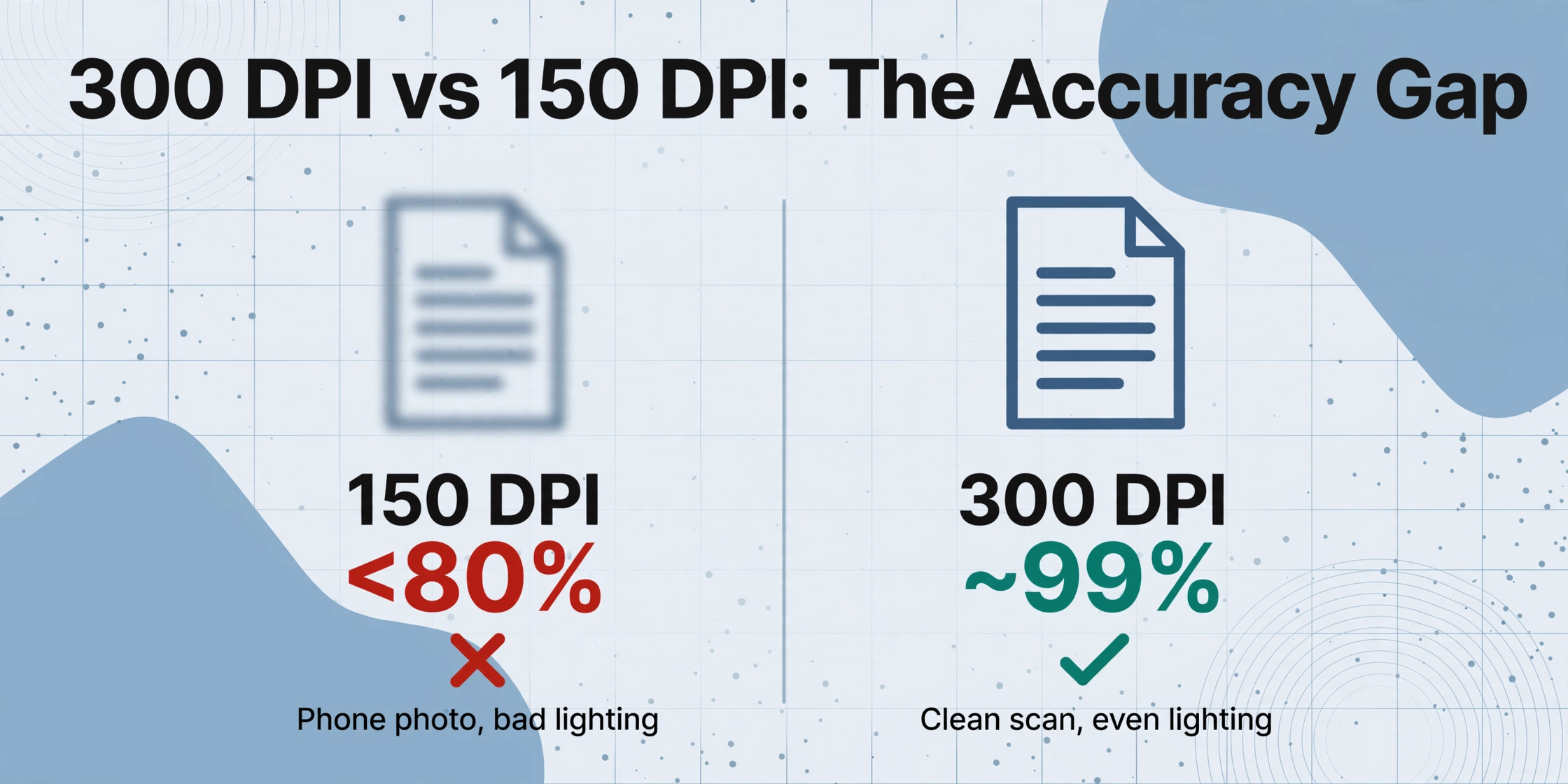
The good news is that the biggest gains come from the earliest stages — scan quality and image preprocessing — and you control most of them. A document scanned at 300 DPI with even lighting and proper contrast can achieve close to 99% accuracy with modern OCR engines. The same document scanned at 150 DPI from a phone photo under bad lighting will struggle to hit 80%, regardless of which OCR software you use.
This guide gives you ten techniques, ordered roughly from highest impact to lowest. Start with the first few. They will fix most of your accuracy problems.
If you are unfamiliar with how OCR accuracy is measured and why vendor claims often mislead, read What Does OCR Accuracy Actually Mean? first — it explains the difference between character-level and field-level accuracy that makes the tips below more meaningful.
1. Scan at 300 DPI or Higher
Why it matters: Image resolution is the single most controllable factor in OCR accuracy. When an OCR engine tries to recognize a character, it needs enough pixels to resolve the shapes (the loops in an "e," the crossbar on a "t," the serif on an "M"). Too few pixels, and distinct characters blur into the same muddy shape. According to AI Multiple's OCR accuracy benchmarks, documents scanned at 150 DPI lose 15–20% accuracy compared to the same documents at 300 DPI. Drop below 150 DPI and accuracy falls off a cliff.
What to do: Set your scanner to at least 300 DPI (dots per inch). For documents with small fonts (below 8 point) or dense tables, use 400–600 DPI. Do not go above 600 DPI — you get diminishing returns: 600 DPI adds roughly 2–3% over 300 DPI on small fonts, and 1,200 DPI adds almost nothing while tripling file size and processing time.
For phone photos: Most modern phones capture images well above the equivalent of 300 DPI. The problem is effective resolution — if you take a photo from too far away or at an angle, the text covers fewer pixels. Get close enough that the document fills most of the frame. As a rule of thumb, if you can comfortably read all the text on your phone screen, the resolution is likely adequate.
Expected improvement: 15–20% over a low-resolution scan. This is your highest-ROI change — it costs nothing to adjust a scanner setting.
2. Control Lighting Conditions (Especially for Phone Photos)
Why it matters: Uneven lighting creates shadows, hotspots, and gradients across the document — all of which the OCR engine must filter out before it can read the text. A shadow across an invoice date can turn "2024-03-15" into "2024-03-1S" because the "5" is partially obscured. Glare from a desk lamp can wash out entire columns.
What to do: Place the document on a flat surface with even, diffused light. Avoid direct overhead light that creates shadows from your hand or phone. Natural light from a window on an overcast day is often best. If you scan documents regularly, a small desk scanner or a document-feeding scanner eliminates lighting variability entirely.
For batch capture: Flatbed scanners and document feeders provide controlled, consistent lighting. If your volume justifies it, the accuracy gain from consistent lighting alone often pays for the hardware.
Expected improvement: 5–10% on mobile-captured documents where lighting was previously poor. More importantly, it eliminates the unpredictable errors that lighting variation causes — the kind that slip through because they look plausible.
3. Enhance Image Contrast
Why it matters: Low contrast — dark gray text on a light gray background — is the silent killer of OCR accuracy. Characters that a human can barely read look the same to an OCR engine. The text blends into the background, and the engine guesses based on partial shape information.
What to do: Increase the contrast between text and background. The most effective method is Contrast Limited Adaptive Histogram Equalization (CLAHE), which enhances local contrast without over-amplifying noise in uniform areas. Standard global histogram equalization works too, but it can make noisy backgrounds worse.
In practice: Many OCR tools (including Adobe Acrobat, ABBYY FineReader, and Tesseract) have built-in contrast enhancement. If you are preprocessing images yourself, OpenCV's createCLAHE function gives you direct control. Set the clip limit to 2.0–3.0 and tile grid size to 8×8 for most documents.
Expected improvement: 5–10% on documents with naturally low contrast (faded receipts, old photocopies, thermal paper prints that have faded over time).
4. Correct Skew (Tilted Pages)
Why it matters: A document that is even slightly rotated — 5 degrees, barely noticeable to the eye — can increase OCR word error rate by 15% or more. The engine relies on horizontal text baselines to segment lines and words. When those baselines are tilted, line segmentation fails: characters from two lines can merge, or a single line can split into fragments. The result is scrambled output that bears little resemblance to the original.
What to do: Use deskew (also called skew correction or rotation correction). Most OCR software includes automatic deskewing — enable it. For manual preprocessing, detect the skew angle (typically using the Hough transform or the bounding box of the largest text block) and rotate the image by the negative of that angle. Tools like ScanTailor, unpaper (Linux), and the built-in deskew in Adobe Acrobat all handle this well.
Key threshold: Tesseract OCR can handle roughly ±2 degrees of skew without significant accuracy loss. Beyond 2 degrees, automatic deskew becomes essential. Beyond 10 degrees, some OCR engines fail entirely.
Expected improvement: 10–15% word error reduction on pages with noticeable skew. This is one of the cheapest fixes — a single checkbox in most scanning software.
5. Set the Correct Language
Why it matters: OCR engines use language models to disambiguate characters. When an engine is set to English, it knows that "rn" (r followed by n) is a more probable character sequence than "m" in specific contexts — but it also knows that the word following "an" is unlikely to start with certain letter combinations. If your document is in German and the engine is set to English, it will misinterpret common German letter combinations (like "ß," "ä," "ö") and may force incorrect corrections based on the wrong language model.
What to do: Set the OCR language to match your document. If your document contains multiple languages (e.g., an English invoice with French terms), select all relevant languages — most modern OCR engines support multi-language mode. The performance cost of enabling extra languages is negligible; the accuracy cost of using the wrong one is significant.
Multi-language documents: Documents like international invoices, EU customs forms, or bilingual contracts often mix languages. Enabling the relevant languages in your OCR engine (e.g., English + French + German) avoids the common failure mode where the engine misreads a French word because it considers it an "invalid" English spelling.
Expected improvement: 3–8% on documents in non-native languages. More importantly, it reduces catastrophic failures on language-specific characters.
Different document types respond differently to language setting changes. For a deeper breakdown, see Why OCR Accuracy Drops by Document Type.
6. Apply Grayscale Conversion & Adaptive Thresholding
Why it matters: Color images contain far more data than an OCR engine needs for text recognition — and that extra data often includes noise, compression artifacts, and color gradients that confuse character segmentation. Converting to grayscale removes the color dimension while preserving luminance information. Thresholding (binarization) goes one step further: it converts the image to pure black text on a white background, which is the format most OCR engines prefer internally.
What to do: Apply grayscale conversion first. Then use adaptive thresholding (not global thresholding) to binarize the image. Global thresholding picks one threshold for the entire image, which fails badly on documents with uneven lighting or partial shadows. Adaptive thresholding calculates a local threshold for each region, handling gradients naturally.
Recommended method: Otsu's binarization is a good starting point for clean documents. For documents with variable lighting, use adaptive Gaussian thresholding (OpenCV's adaptiveThreshold with ADAPTIVE_THRESH_GAUSSIAN_C, block size 11–15, C parameter 2–5).
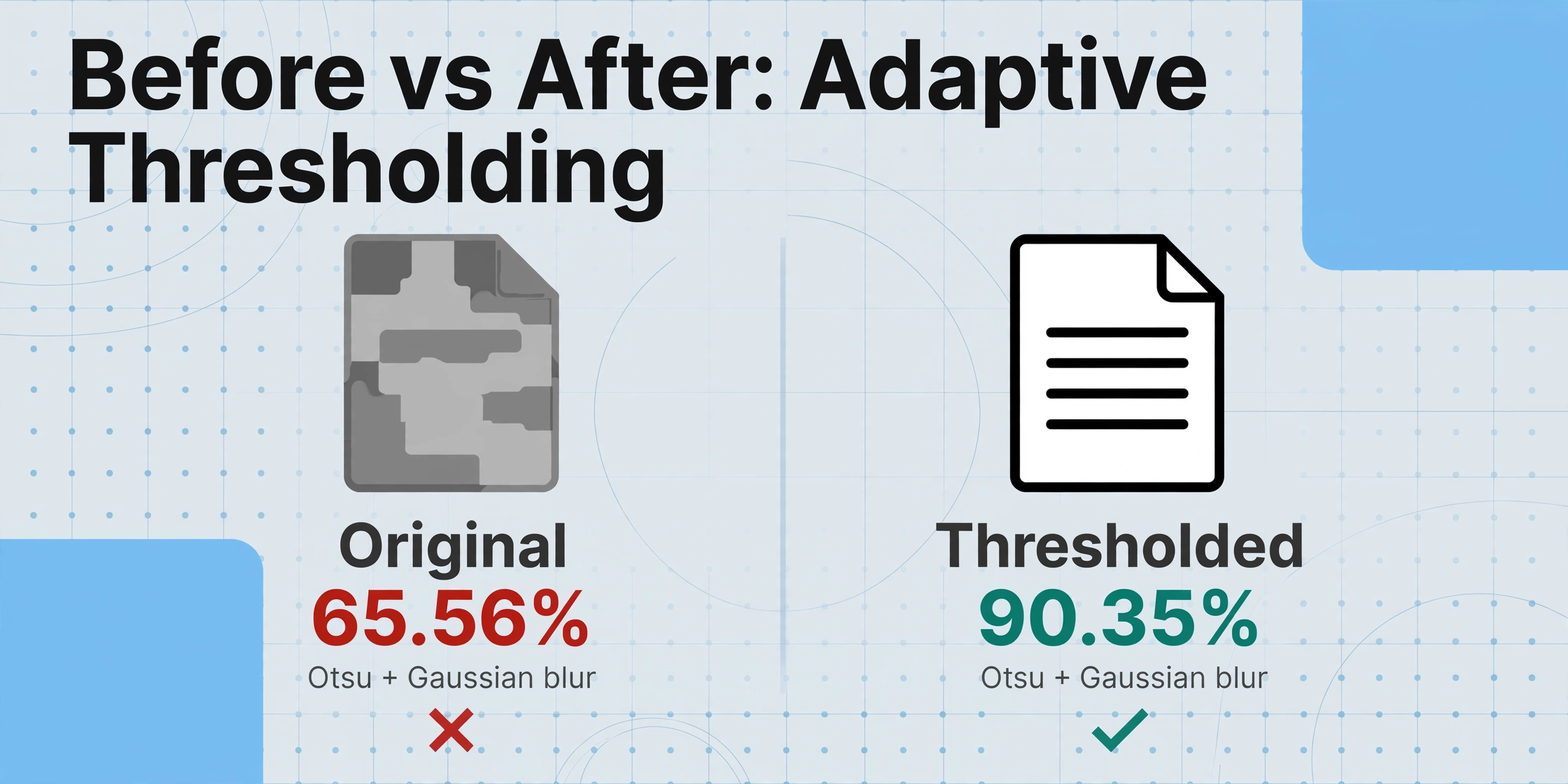
Expected improvement: 5–15% absolute accuracy gain on documents with background noise or color gradients. A study published in the International Journal of Environmental Sciences found that applying Otsu binarization and Gaussian blurring improved printed text OCR accuracy from 65.56% to 90.35%.
7. Use Spell Check & Dictionary Validation in Post-Processing
Why it matters: Even the best OCR pipeline makes mistakes. A 99% character accuracy rate still means 1 in 100 characters is wrong — and on a document with 5,000 characters (roughly one dense page), that is 50 errors. Many of these errors are subtle: "rn" read as "m," "cl" read as "d," "0" (zero) read as "O" (letter). A spell checker cannot tell you whether the extracted "1O" should be "10" — but a post-processing validation layer can flag it as suspicious and apply domain-specific corrections.
What to do: Run the OCR output through a spell checker with a domain-specific dictionary. Here is a practical two-layer approach:
Layer 1 — General spell checking: Run the output through a language spell checker (Hunspell, LanguageTool, or even your word processor's built-in checker). Fix obvious misspellings that are not domain terms.
Layer 2 — Custom dictionary: Create a dictionary of terms specific to your domain — vendor names, product codes, standard terms, legal phrases. Flag any word that appears in the OCR output but does not appear in either the general dictionary or your custom dictionary. Review flagged terms manually.
Expected improvement: 1–3% accuracy gain in isolation, but crucially it catches the errors that slip through everything else — the "1O" vs "10" problem, the "rn"/"m" confusion, and misspellings in critical terms. In production workflows, post-processing validation catches roughly 60% of residual OCR word errors according to published research on automatic OCR validation.
8. Validate Critical Fields Separately
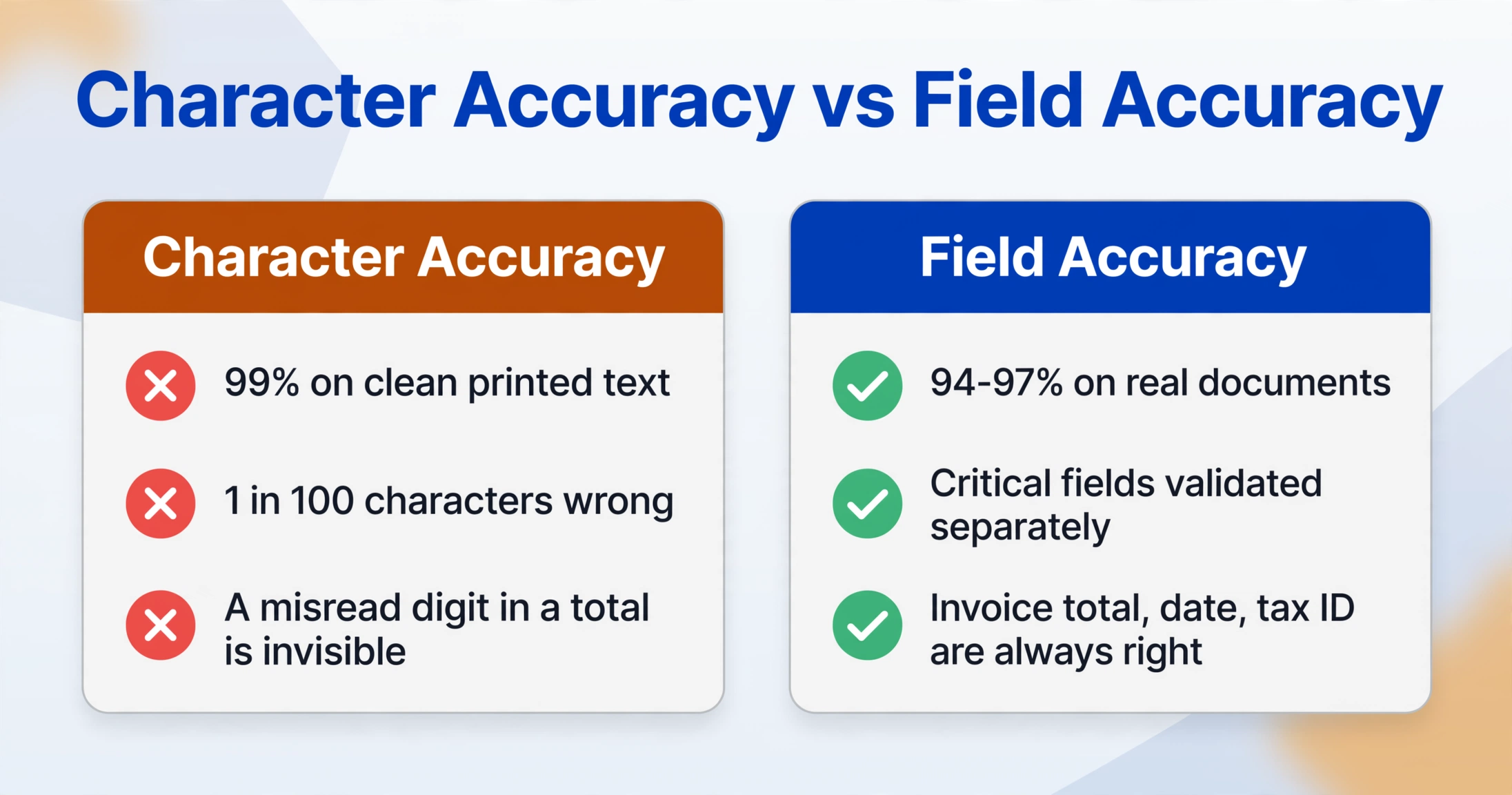
Why it matters: Not all fields are equal. A misread character in a paragraph of body text is harmless — the reader can figure it out. A misread digit in an invoice total, a due date, or a tax ID is catastrophic. The distinction between character-level accuracy and field-level accuracy is the most important concept in OCR quality. You can have 99% character accuracy and still get the invoice total wrong because one digit of a five-digit amount was misread.
What to do: Identify the critical fields in your documents (amounts, dates, invoice numbers, vendor registration IDs, quantities) and apply stricter validation to those fields only.
Amount fields: Check that the extracted value matches the expected format (numeric, with or without decimal points, within a plausible range). Flag values that deviate from the pattern — for example, if most supplier invoices are between $100 and $5,000, a total of $1,200,000 likely indicates a misread.
Date fields: Validate against the expected date format (YYYY-MM-DD vs DD/MM/YYYY), range (not in the far future or far past), and logical consistency (due date after invoice date).
Numeric identifiers: Invoice numbers, PO numbers, and tax IDs often follow specific patterns. If the known format is "INV-2026-XXXXX," flag any extracted number that does not match.
Expected improvement: This tip does not improve overall accuracy — it improves usable accuracy. It ensures that the fields that matter most are correct, while accepting minor errors in non-critical text. In business workflows, this is the difference between an output that needs full manual review and one that can be used directly after spot-checking.
For a closer look at why field-level accuracy is the metric that matters for business documents, see What Does OCR Accuracy Actually Mean?
9. Choose OCR-Friendly Fonts When Possible
Why it matters: Not all fonts are equal in the eyes of an OCR engine. Simple, uniform, well-spaced fonts like Arial, Helvetica, Courier, and Times New Roman (in normal weight) produce the best recognition rates. Decorative fonts, script fonts, condensed fonts, and fonts with very thin strokes cause problems because the variations between characters become too small for the engine to distinguish reliably.
What to do: If you create the documents yourself (generating invoices, purchase orders, contracts), use a standard sans-serif or serif font at 10 pt or larger. Avoid:
- Script or handwriting-style fonts (they blur the boundary between characters)
- Condensed fonts (characters are too close together for segmentation)
- Very light or thin fonts (stroke width drops below the threshold the OCR engine can resolve)
- Italic variants of already-small fonts (the slant reduces effective character separation)
If you are at the receiving end: This tip is mostly preventive. If your suppliers send documents in difficult fonts, preprocessing (especially contrast enhancement and adaptive thresholding) can partially compensate, but the recognition rate will still be lower than for standard fonts. Knowing this helps you set realistic expectations: poor font choice by the document creator can cap your accuracy regardless of preprocessing quality.
Expected improvement: 2–5% when switching from a difficult font (script, decorative, or very thin) to a standard font. More importantly, it eliminates the "random failure" pattern where some characters in a specific font are consistently misread while others are fine.
10. Start with a Clean Original Source
Why it matters: No amount of preprocessing can fully recover text from a fundamentally degraded source. A crumpled receipt that has been in a wallet for six months, a faxed-and-then-scanned contract, or a thermal paper printout that has turned black with age — these documents have lost information permanently. Preprocessing can remove noise, correct skew, and enhance contrast, but it cannot restore the pixels that are no longer there.
What to do: Think about document quality before it reaches the scanner.
- Store originals flat and dry. Crumpled paper creates crease shadows and permanent distortion.
- For important documents, request a clean copy or a digital original (PDF) from the sender rather than scanning a physical copy.
- Avoid scanning documents that have been through a fax machine — faxing compresses images aggressively and introduces significant analog noise.
- If you must digitize a damaged original, prioritize it for manual verification — it will have errors that no automated process can fully fix.
Expected improvement: Hard to quantify because it depends entirely on how degraded your current source documents are. But there is a simple test: if you cannot read a character with confidence, neither will the OCR engine. Use that as your threshold for deciding whether to invest in a cleaner source or accept that manual review will be required.
Troubleshooting Common OCR Issues
Even with all ten tips applied, some accuracy problems persist. Here are the most common failure modes and how to diagnose them.
If the OCR consistently reads "rn" as "m" or "0" as "O," the issue is almost always resolution or font choice. Increase DPI to 400+ and check whether the font is condensed or very thin. A custom character whitelist (e.g., numbers only for amount fields) can act as a safety net.
This tells you the problem is with the document, not the OCR engine. Check for unusual fonts, poor print quality, low original contrast, or non-standard layout. Review tip 5 (language setting) — some document types are more sensitive to wrong language settings.
Traditional OCR struggles with handwriting at a fundamental level. A 90% character accuracy on handwriting still means wrong totals, as explained in OCR Handwriting Accuracy: Why 90% CER Still Means Wrong Totals. For handwritten documents, use an AI-powered extraction tool designed for handwritten text, and plan for manual verification of critical fields.
Complex table layouts require layout-aware processing. Standard OCR treats the page as a single text stream. If your tables are misaligned, check whether your OCR tool supports layout analysis or table extraction mode. Preprocessing that removes lines (table borders) can paradoxically make things worse — use an OCR engine that understands tabular structure.
Frequently Asked Questions
Can I achieve 99% OCR accuracy on any document?
No. The 99% figure most vendors quote applies to character-level accuracy on clean, printed, single-language documents in standard fonts — conditions that rarely describe real-world documents. For mixed document workflows (phone photos, scanned paper, multiple layouts and languages), 94–97% field-level accuracy is a realistic target. The tips above can close much of that gap, but some document types (handwriting, very old scans, thermal paper) will always require manual review.
Does higher DPI always mean better OCR accuracy?
Up to a point. Moving from 150 to 300 DPI produces a clear accuracy gain (15–20%). Moving from 300 to 600 DPI adds 2–3% on small fonts. Beyond 600 DPI, the accuracy improvement is negligible, but file size and processing time increase significantly. The sweet spot is 300 DPI for most documents and 400–600 DPI for documents with very small text (below 8 point).
Is JPEG or TIFF better for OCR?
TIFF (or PNG) with lossless compression is better than JPEG. JPEG is a lossy format — it discards image data to reduce file size, and that discarded data often includes subtle character-edge information that OCR engines use. If you must use JPEG, set the quality to maximum (95–100%). For long-term document storage and batch OCR, uncompressed TIFF or high-quality PDF is the standard recommendation.
Do phone cameras work as well as flatbed scanners for OCR?
Not consistently. Modern phone cameras have enough resolution, but they introduce variables that flatbed scanners eliminate: variable lighting, perspective distortion (keystone effect from not being perfectly parallel to the document), lens distortion, and motion blur. A carefully taken phone photo can produce OCR results close to a scanner. An average phone photo will be noticeably worse. The practical difference is often 5–10% accuracy depending on how carefully the photo is taken.
Should I use preprocessing software or let the OCR engine handle it?
Most modern OCR engines include built-in preprocessing (automatic deskew, contrast adjustment, binarization). For clean documents from consistent sources, the built-in processing is sufficient. For challenging documents — old scans, phone photos, faded thermal prints — manual preprocessing with dedicated tools (ScanTailor, OpenCV scripts, or the preprocessing options in tools like Adobe Acrobat) gives you better control. The rule of thumb: if the built-in preprocessing handles 80–90% of your documents well and the remaining 10–20% poorly, preprocess the exceptions manually.
Does OCR accuracy improve over time with use?
For traditional OCR engines — no. The engine stays the same regardless of how many documents you process. For AI-powered extraction tools that use vision language models, the answer is more nuanced: the underlying model is periodically updated, so accuracy can improve over time, but there is no per-user learning in the traditional sense (the model does not remember your corrections). The practical implication: track your accuracy issues and adjust your preprocessing pipeline based on recurring error patterns, rather than waiting for the tool to learn from your mistakes.
The ten tips above form a complete accuracy pipeline — from the moment you touch the scan button to the moment you review the final output. Work through them in order: start with resolution and lighting (the highest-ROI changes), add preprocessing for the documents that need it, and use post-processing validation to catch the errors that slip through. Most users find that tips 1 through 4 resolve 80% of their accuracy problems. Tips 5 through 10 close the remaining gap.
If you are still seeing accuracy issues after applying all ten, the limitation is likely in the OCR engine itself — not all engines handle challenging documents equally. The next step is to test your documents on a tool designed for real-world variability. Run a sample through and see how much of the gap the tips above have closed.