OCR Accuracy by Field:
95% Overall, 60% on Fields That Matter
"95% accuracy" is the number most OCR tools lead with. But when you run a batch of 200 invoices through the pipeline and still spend Tuesday afternoon manually fixing extracted fields, that 95% claim starts to feel like a rounding error in someone else's favor. The reason is not that the number is fabricated. It is that accuracy is never uniform across field types — and the fields OCR gets wrong are disproportionately the ones your downstream systems actually depend on. This article measures the gap field by field, explains why each field type breaks differently, and shows what it costs to correct each one.
Key Takeaways
- Your OCR reports 95% accuracy while silently dropping to 60% on the three field types your accounting system cannot function without.
- Five different field types fail for five completely different reasons — and upgrading to a higher scan resolution fixes exactly zero of them.
- Replace the dashboard accuracy number with one metric — correction time per field type — and use ImageToTable.ai to address each failure mode at its structural root instead of its surface symptom.
The "95% Accuracy" Problem
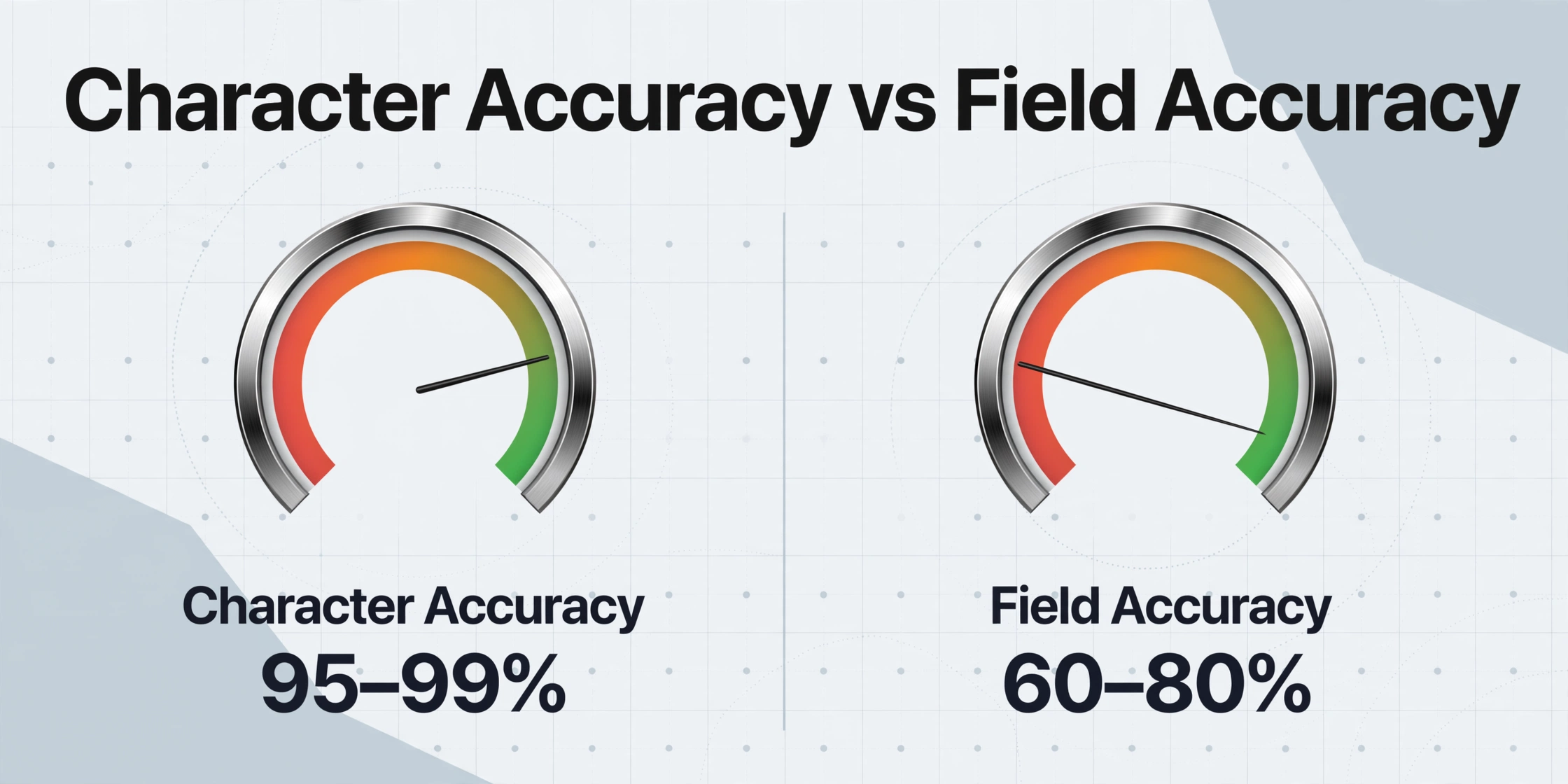
Traditional OCR engines measure themselves on character-level accuracy — the percentage of individual characters correctly recognized from a document image. Tesseract 5, the open-source benchmark maintained by Google, achieves 95% character accuracy on clean printed documents. Enterprise engines like ABBYY FineReader reach 97–99% in lab conditions. These are real numbers measured on real test sets.
But character accuracy is a poor proxy for what businesses actually need: complete, correct data fields. A single misread digit in a 10-digit invoice number means the entire field is wrong. A 99% character accuracy on a page of 1,000 characters means 10 characters are wrong — and if those 10 wrong characters fall inside 3 of your 15 target fields, field-level accuracy drops to 80%. The TDWI documented this exact scenario in production OCR pipelines: the dashboard reports 99%, but 1 in 5 extracted business fields contains an error.
What makes this worse is that errors do not distribute evenly. Traditional OCR gets some field types right nearly every time. Others fail so badly that the extraction might as well not have happened. The problem is that the fields most likely to fail — dollar amounts on line items, handwritten dates, table-structured data — are also the fields where a mistake is most expensive to fix.
Printed Dates and Numbers — What OCR Gets Right
On clean, printed, high-contrast documents, traditional OCR handles dates and dollar amounts in standard positions well. An invoice date printed as "06/09/2026" in 11pt Arial against a white background at 300 DPI will OCR with near-perfect character accuracy. A total amount printed as "$1,234.56" in the bottom-right corner, consistently positioned across a vendor's invoices, extracts reliably when combined with a well-maintained template.
These are the fields that produce the 95–99% numbers OCR vendors quote. They represent the best-case scenario: standardized fonts, predictable positions, high contrast. This is where traditional OCR genuinely works.
The cracks appear as soon as formats vary. A date written as "09/06/2026" — is that June 9th (US) or September 6th (UK)? Traditional OCR has no mechanism to detect the difference; it faithfully reads the digits, and the downstream system either guesses or defaults to the US format. A Reddit user building a Python-based European invoice pipeline documented exactly this problem: Italian invoices use 31/12/2024, German invoices use 31.12.2024, and British invoices use 31/12/2024 (same syntax, different day/month order). Without locale-aware normalization, dates extracted from multi-country invoice batches silently shuffle by months.
Dollar amounts have a subtler failure mode. A cleanly printed "$1,234.56" reads fine. But when a line item subtotal of "$1,234.56" sits one row above an invoice total of "$1,234.56" — same number, different meaning — template-based extraction risks pulling the wrong one. Currency symbol variants compound the issue: "€1.234,56" (European decimal comma), "¥1,235" (Japanese yen, no decimal), or amounts printed without any currency symbol at all can each trip different parsing rules.
Names and Addresses — Characters Right, Context Wrong
On the surface, names and addresses seem easy for OCR. They are text, usually printed in readable fonts, and contain no unusual glyphs. A traditional OCR engine will correctly recognize the string "John Smith" with high confidence and the address "123 Main Street, Springfield, IL 62701" nearly as well.
The failure is not character recognition. It is field identification. OCR reads "John Smith" as characters on a page. It does not know whether that text is the customer name, the vendor name, the ship-to contact, or the approving manager. These relationships are defined by the document's layout — John Smith might be printed next to "Bill To:", "Ship To:", or "From:" — and traditional OCR's bottom-up character pipeline cannot connect a label to its associated value when layouts change across vendors.
This is why template-based systems require a separate coordinate map per vendor layout. The template says "the customer name is at pixel coordinates (450, 320)." When a new vendor puts the customer name at (520, 280), the template captures blank space or the wrong field. The problem scales with vendor count: 20 vendors mean 20 templates to build and maintain. 200 vendors mean template maintenance becomes a full-time job.
The cost of this failure is insidious because it often goes undetected. An incorrectly mapped name field does not throw a format error — "Sarah Chen" is a valid name whether it sits in the customer field or the vendor field. The mistake surfaces later, when a payment goes to the wrong entity or a report groups transactions under the wrong counterparty.
Line Items and Tables — Where OCR Loses Structure
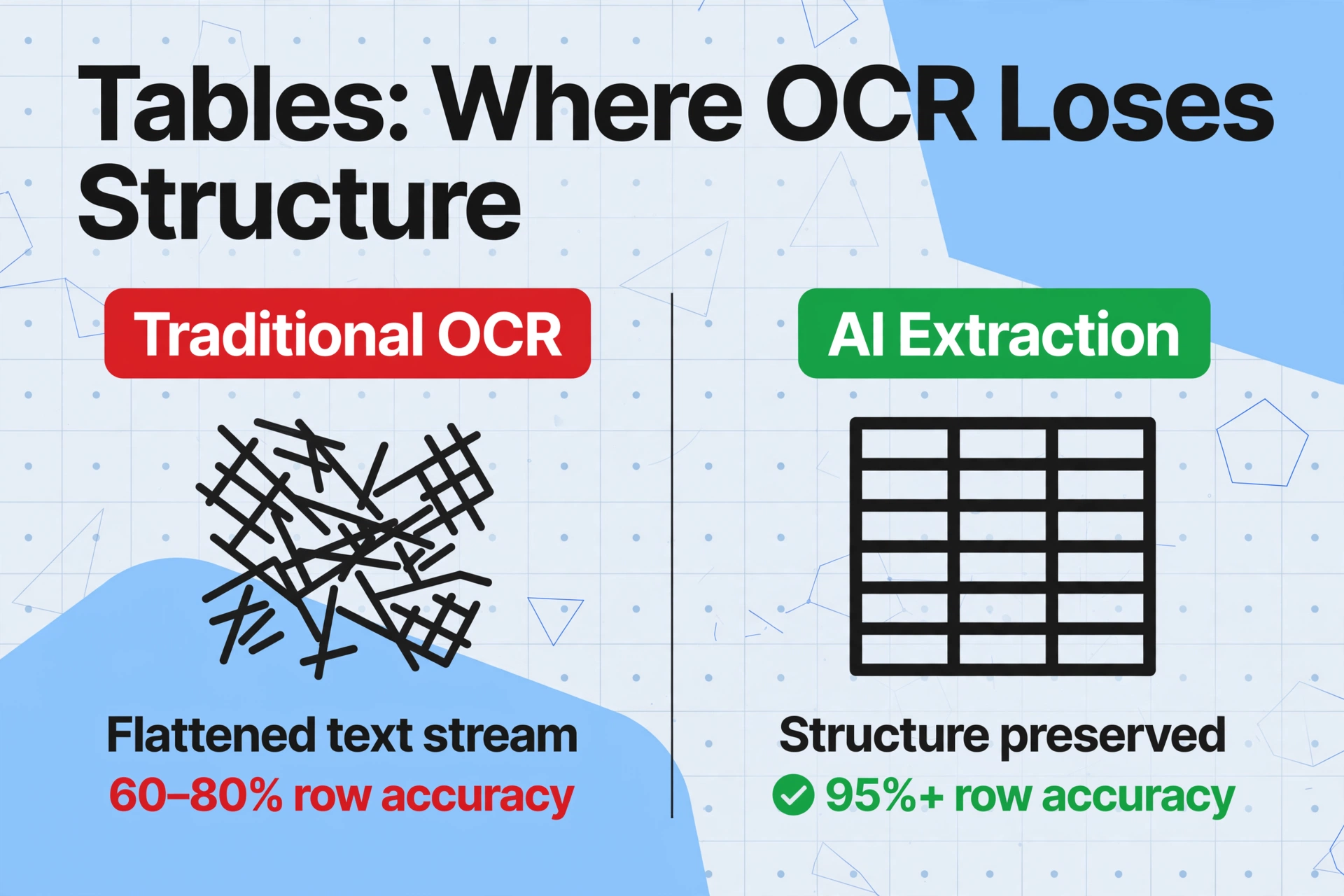
Tables are the single largest failure mode for traditional OCR, and they appear on nearly every business document: invoice line items, purchase order details, expense report breakdowns, bank statement transaction rows. The problem is architectural. OCR engines output a linear stream of characters organized by reading order — left to right, top to bottom. A three-column table with five rows gets flattened into a single sequence of text fragments, and the column boundaries that define which value belongs to which header evaporate.
Production benchmarks quantify the damage. On complex table layouts — merged cells, nested headers, inconsistent column widths — row-level accuracy for traditional OCR drops to 60–80%. A value intended for the "quantity" column ends up in the "unit price" column. A row spanning two lines of description gets split into two separate entries. Decimal points migrate by one position when OCR confuses a column separator line with the numeral "1."
This is not a character recognition failure. The OCR engine reads individual characters correctly — "5," "pcs," "$12.50" — but the downstream system has no way to reconstruct which characters belong to which row and column. The output is a jumble of interleaved text that requires manual reconstruction, row by row.
Template-based approaches attempt to solve this by defining table regions: "the line item table starts at Y=600 and ends at Y=900." But table heights vary with the number of line items. A one-line order and a 20-line order from the same vendor produce tables of completely different lengths. The template's fixed region either captures only part of the table or, worse, pulls unrelated text below the table into the last row. For a practical guide on extracting table data to structured spreadsheets, the critical variable is whether the extraction engine understands tabular structure semantically — not just reads characters within a bounding box.
Checkboxes, Stamps, and Mixed Content — What Traditional OCR Cannot See
There is a category of document elements that traditional OCR does not fail on — it simply cannot detect them at all. These elements produce no output, generate garbage characters, or, worst of all, contaminate the extraction of adjacent text fields.
Checkboxes. A checked box (✓) and an unchecked box (☐) are visually distinct to a human reader, but to a traditional OCR engine they are both low-contrast blobs near the detection threshold. OCR may register one as a smudge and the other as "nothing," or it may read the checkmark as a stray character — a "V," a "7," or a random glyph. The intent — "this box is checked" — is never captured. Forms that rely on checkbox fields (insurance applications, inspection reports, compliance checklists) require 100% manual review of every checkbox after OCR processes the document.
Stamps and watermarks. A "PAID" stamp overlaid on an invoice body, a "CONFIDENTIAL" watermark across a contract page, or a red company seal superimposed on a purchase order all create the same failure: two layers of visual information occupying the same spatial region. Traditional OCR cannot separate foreground from background; it sees a single noisy image region and produces either garbled text or nothing. The stamp text and the underlying document text both become unreadable.
Mixed content. Text printed on colored backgrounds, white text on dark headers, or data values inside shaded table cells all reduce contrast below the threshold OCR engines need. A dark blue header bar with white text reading "Invoice" may come out as blank — the engine's binarization step converts the entire region to black and loses the white text entirely. A dollar amount printed on a light gray alternating row band may drop characters when the contrast between the gray background and black text falls below the engine's sensitivity curve.
These failures are fundamentally different from the table or handwriting problems. Tables fail because OCR loses structure. Checkboxes and stamps fail because OCR never detects them in the first place. The difference matters for remediation: you can post-process a broken table, but you cannot post-process something that was never extracted.
Handwriting — The 30–60% Cliff
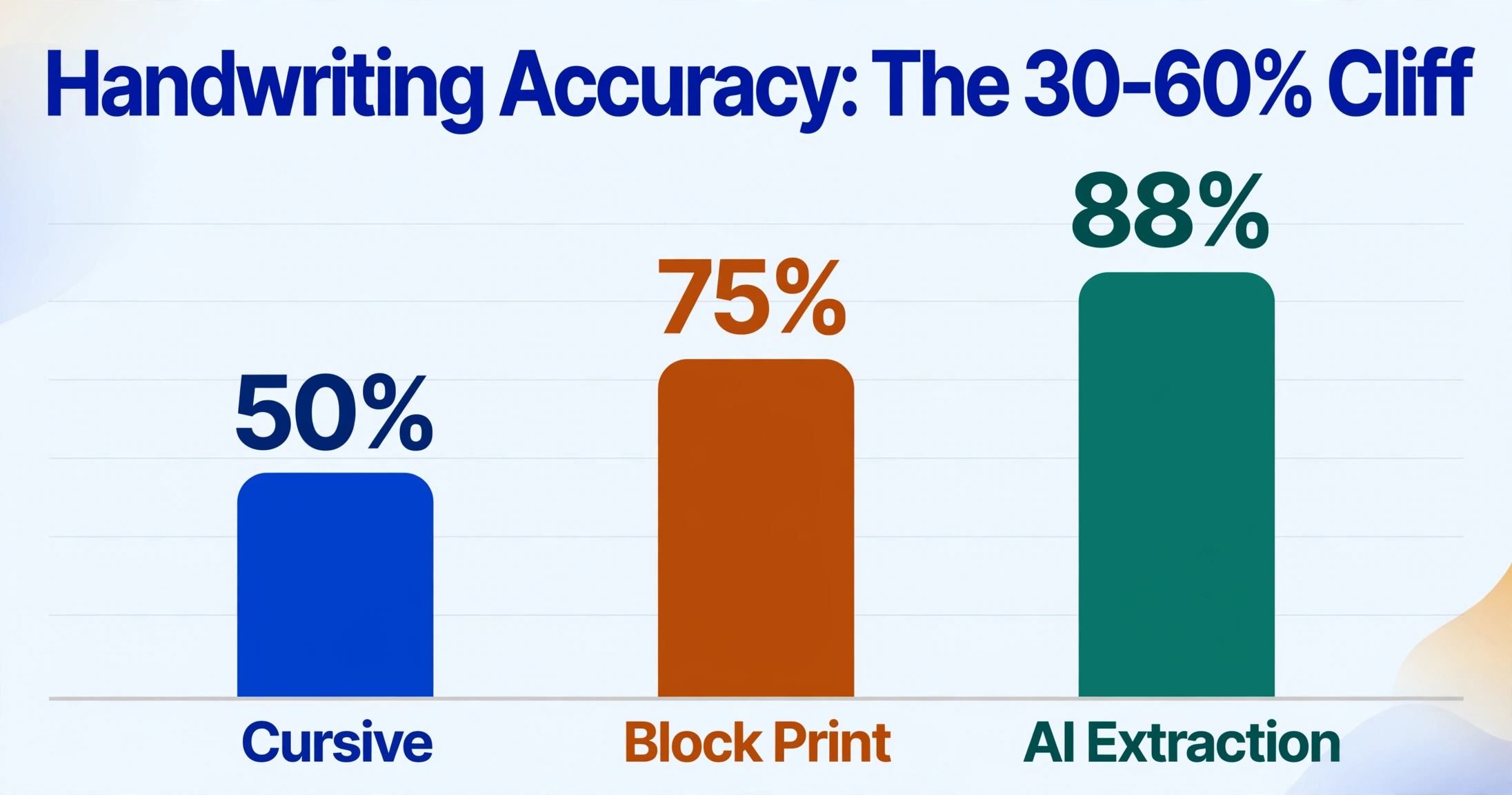
Handwritten text is the hardest problem in OCR, and the accuracy numbers reflect it. For traditional OCR engines, block-letter handwriting with constrained character boxes achieves around 75% character accuracy. Cursive handwriting drops to 50% or below. This is the data from OCRSolutions' production benchmarking across real-world form processing pipelines — not lab conditions with neatly written training samples.
The reason is mechanical. Traditional OCR works by pattern-matching individual glyphs against a database of known character shapes. Printed "A" always looks like printed "A" — minor font variations exist, but the character skeleton is consistent. Handwritten "A" has no consistent skeleton. Slant, stroke weight, ligature connections, letter spacing, and baseline drift all vary between writers — and often within the same writer's output across a single page. Pattern matching against a fixed glyph database fails when there is no stable pattern to match.
Cursive compounds every problem. When letters connect, the engine cannot determine where one character ends and the next begins. The connected sequence "tion" becomes a single undifferentiated glyph that matches nothing in the character database. Common OCR outputs for cursive handwriting are strings of random characters — "totl" for "total," "Jnury" for "January" — where the engine is guessing individual letter shapes without the visual segmentation cues that make printed OCR reliable.
The practical consequence is that any document workflow with a handwritten component — a signed delivery note, a hand-filled inspection form, a paper timesheet with penciled hours — creates a manual data entry step after OCR finishes. The tool that was supposed to eliminate manual entry can only handle the printed portion; everything a human wrote by hand still needs to be transcribed by a human reading the original. For workflows that specifically involve handwritten documents like converting handwritten forms to digital text, the choice of extraction engine determines whether the entire document processes automatically or only the printed headers survive.
Why AI Extraction Handles Each Field Type Differently
AI-based extraction does not solve all of these problems with a single, undifferentiated mechanism. Each field type fails for a different reason, and AI extraction addresses each reason with a different capability — just as a mechanic fixes a gasket leak differently from an electrical fault, even though both make the engine run poorly.
For names and addresses (context problem): AI vision models read documents top-down by understanding what each piece of text means in relation to the document structure. When you configure Custom Column Extraction in a tool like ImageToTable.ai — typing in field names like "Customer Name," "Vendor Address," "Invoice Number" — the AI does not look for pixel coordinates. It scans the document for values that match the semantic description. "John Smith" next to "Bill To:" gets mapped to Customer Name regardless of where on the page it appears. No templates, no coordinate maps, no rebuilding when a vendor redesigns their invoice. This is the mechanism that closes the gap between 60% template-based accuracy and 95%+ AI extraction on multi-vendor document batches.
For line items and tables (structure problem): AI vision models maintain an internal representation of spatial layout — columns, rows, spanning cells, nested headers — rather than flattening the page into a text stream. When extracting line items from an invoice, the model identifies the table region, segments it into rows and columns, and associates each cell value with its column header. The output preserves the table structure that traditional OCR discards. This moves row-level accuracy from 60–80% into the 90%+ range on complex layouts.
For checkboxes and mixed content (detection problem): AI vision models process the document as an image before converting it to text. This means they can "see" a checkbox, a stamp, or a watermark in the same way a human reader can — as a distinct visual element separate from surrounding text. A checked box is recognized as a checkmark, not as a random glyph. A stamp overlaid on text is identified as a separate layer, and the model can extract the text underneath by reasoning about what should be there.
For handwriting (pattern failure): AI models trained on millions of handwriting samples learn to recognize letters not by matching glyph skeletons but by understanding the intent behind a stroke pattern. Context fills in what individual letter recognition misses. If the model reads "Totl" in a field labeled "Amount Due" at the bottom of an invoice, it resolves to "Total" — not because it suddenly recognized the "a," but because "Totl" with that label and that position must be "Total." This contextual correction is what lifts handwriting accuracy from 50% into the 85–93% range on block print and 75–85% on cursive.
None of these mechanisms are magic. Each one fails under extreme conditions — severely degraded scans, handwriting that is illegible even to a human, tables with no visible column boundaries. But each mechanism targets a specific failure mode that traditional OCR has no answer for. The cumulative effect across all field types is what changes a document batch from "needs 40% manual review" to "needs 5% manual review."
The difference becomes immediately visible when you try it. The demo below processes an invoice with the same field types discussed above — dates, dollar amounts, vendor name, line items, tax — through an AI extraction pipeline. No templates, no coordinate mapping, no pre-configuration beyond typing in the column names you want.
Files are processed securely and not stored.
How to Audit Your OCR: Which Fields Cost the Most to Correct
If you are running a document processing pipeline today, the most useful thing you can do is measure correction cost by field type — not by overall accuracy percentage. A 95% overall rate looks fine on a dashboard. A per-field breakdown tells you where the 5% of errors are concentrated and what those errors actually cost to fix.
Here is how to run a field-level accuracy audit on your current extraction pipeline:
Sample 100 documents from production.
Do not use your clean test set — use whatever your pipeline actually processes on a normal business day. Mixed vendors, mixed formats, whatever scan quality your team actually submits.
Categorize every extraction error by field type.
Tag each error as Date, Dollar Amount, Name/Address, Line Item (table), Checkbox, Handwriting, or Mixed Content. One error can have both a field type and a root cause — record both.
Measure correction time, not just error count.
Fixing a misaligned line item table row can take 2–3 minutes of cross-referencing the original document. Fixing a date format takes 10 seconds. Count the minutes, not the errors.
Multiply field-type error rate by per-field correction cost.
A 5% error rate on dollar amounts that cost $2 each to fix is different from a 20% error rate on names that cost $0.50 each. The field type with the highest product of error rate × correction cost is your bottleneck.
When teams run this audit on traditional OCR pipelines processing multi-vendor invoices, a consistent pattern emerges. Line items and tables consume the most correction time — not because they have the highest error count (handwriting wins that category), but because each table error requires reconstructing the row-and-column relationship from the original document. A 20% table error rate across 500 invoices with 5 line items each means 500 rows to manually reconstruct. At 2 minutes per row, that is 16 hours of correction time — more than two full working days — for a batch the OCR was supposed to process automatically.
Dollar amounts and dates, despite lower raw error rates, are the second most expensive category because the consequences of missed errors are high. A wrong invoice total that passes into the ERP creates a reconciliation discrepancy that costs far more to untangle than the field-level correction would have cost to catch. For a broader view of how these field-level failures aggregate into total pipeline inefficiency, see our breakdown of AI OCR vs traditional OCR accuracy benchmarks and our practical guide to setting accuracy expectations for AI data entry.
Once you know which field types are eating your team's time, the next question is whether the extraction engine can handle those specific field types better. If your bottleneck is table structure, switching to an engine without semantic table understanding replaces one problem with the same problem. If your bottleneck is handwriting or checkboxes, an engine that cannot detect them will never improve. The audit tells you not just that extraction is failing, but where — and where determines whether an upgrade actually addresses the bottleneck or just changes the logo on the same error log.
FAQ
Does traditional OCR work better on some document types than others?
Yes. Traditional OCR performs well on clean, printed, single-column text documents with consistent layouts — contracts, letters, standardized forms from a single source. Accuracy drops on any document with tables, handwriting, mixed fonts, low contrast, or layout variation across sources. The gap is not marginal: a typewritten letter might extract at 98% field accuracy while a multi-vendor invoice batch with line-item tables extracts at 60–85%.
Can I improve traditional OCR accuracy by scanning at higher resolution?
Up to a point. Scanning at 300 DPI (the standard recommendation) improves character recognition compared to 150 DPI or smartphone photos taken from a distance. But resolution improvements only affect character-level errors — they do nothing for the structural failures (tables, field mapping, checkboxes) that account for the majority of correction time in production pipelines. A sharper image of a broken table is still a broken table.
What is the hardest field type for any extraction system to get right?
Handwriting — specifically cursive — remains the hardest field type for any system, including AI-based extraction. AI models trained on diverse handwriting datasets achieve 85–93% on block print and 75–85% on cursive, which is a significant improvement over traditional OCR's 30–60%, but not 99%. For workflows where handwritten fields carry critical data (payment amounts, patient names, compliance check values), human-in-the-loop review of low-confidence extractions is still the safest approach.
Does ImageToTable.ai handle handwritten documents?
ImageToTable.ai uses a vision-language model that can recognize handwriting, printed text, checkboxes, stamps, and table structures within the same document. Handwriting recognition accuracy depends on legibility and writing style — neat block print extracts reliably, while heavily stylized cursive may still need manual verification. The model provides visual cues showing which regions of the document it read from, so you can quickly spot-check handwritten fields without re-reading the entire document. If your documents are primarily handwritten, consider starting with a small batch test to measure accuracy on your specific handwriting samples before scaling.
How does ImageToTable.ai handle table extraction differently from traditional OCR?
Traditional OCR outputs a linear text stream. Tables get flattened. ImageToTable.ai processes the document as a visual layout, detecting table regions, segmenting rows and columns, and associating each cell value with its column header. The output preserves the table structure — each row becomes a row in your output spreadsheet, each column maps to the column name you specified. This works without templates, meaning a 5-row invoice and a 20-row invoice from the same vendor both extract correctly regardless of table height. For a deeper explanation of how this differs from traditional approaches, see our overview of AI data entry.
The question is not whether your OCR has errors. Every extraction system does. The question is whether the errors concentrate in one-minute fixes or in fields where every mistake cascades into an hour of reconciliation. Run the audit on your next batch — measure correction time by field type, not overall accuracy — and you will know which bucket you are in.