Best OCR Software in 2026:
9 Tools for Every Budget Compared
The optical character recognition market is on track to grow from about $10.6 billion in 2022 to $32.9 billion by 2030, according to Grand View Research — and most of that growth is going to tools that, technically, aren't doing classic OCR at all. The word "OCR" still means one thing in most people's heads (turn a picture of text into characters), but the software winning the category in 2026 does something different: it reads a document the way a person would, understands what the numbers mean, and hands back structured data. This guide compares nine OCR tools across that whole spectrum — desktop scanners, free online converters, cloud APIs, and AI extraction — so you can see where each one fits and, just as important, where it doesn't.
Key Takeaways
- $32.9 billion is pouring into "OCR" software by 2030 — yet most of it buys tools that aren't really doing OCR (turning pictures of text into characters) at all.
- Traditional OCR reads where text sits on the page; AI OCR reads what the text means — one name, two opposite jobs.
- The real question was never "which OCR is best," but "do I need text or data" — answer that and the right camp picks itself for you.
What "OCR" Means in 2026: Traditional vs AI
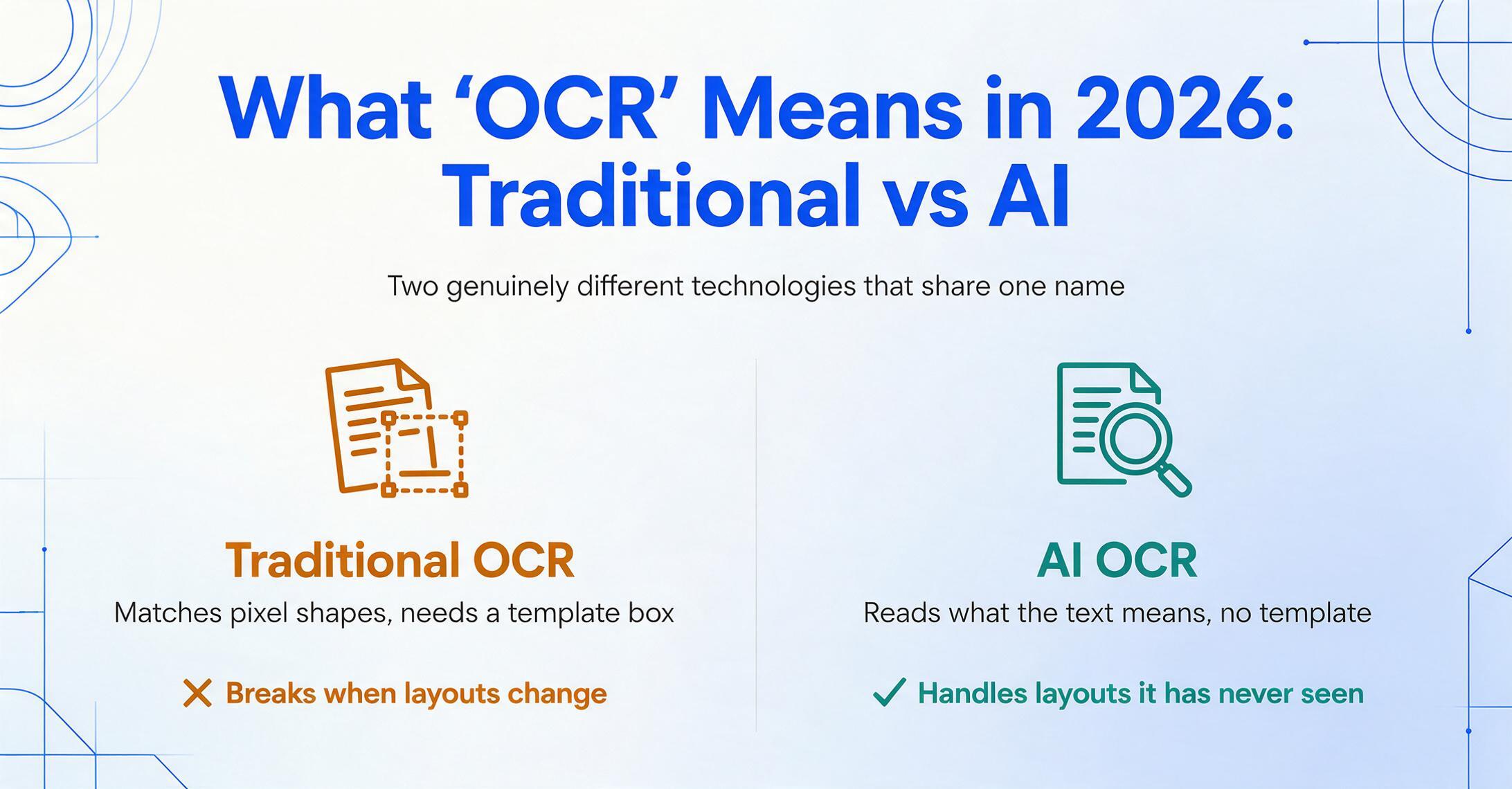
"OCR software" now splits into two genuinely different technologies that happen to share a name, and picking the wrong one is the most common reason people end up disappointed. Before comparing tools, it's worth ten seconds to draw that line clearly — because it decides which half of this list you should even be looking at.
Traditional OCR is pattern recognition. It scans an image, matches pixel shapes against a library of character forms, and outputs text. It's excellent at one job: turning a clean scanned page into searchable, copyable characters. What it doesn't do is understand. It has no idea whether "1200" is an invoice total or a postal code — it just knows those are the characters it saw. To pull out a specific field, traditional tools rely on templates (also called zonal OCR): you draw a box around where "Invoice Number" sits, and the tool copies whatever appears at those coordinates on every document. Move the field, change the vendor, feed it a slightly tilted scan, and the box points at the wrong thing.
Traditional OCR reads where text sits on the page. AI OCR reads what the text means. That single difference is why traditional OCR breaks when a layout changes, and why AI OCR can tell an invoice date from a due date without being told where either one lives.
AI OCR (also called intelligent or vision-based OCR) is built on a vision language model. On top of recognizing characters, it reasons about the whole page: it understands that a dollar figure belongs to a specific column header, infers an unclear word from context, and adapts to a layout it has never seen — no template to build. The practical payoff is that it can return structured data, not just a wall of text. That's the capability a Reddit user in r/automation was circling when they described their scanned-PDF problem: the raw OCR "just needed to get me close, and the automation handled the rest," but they warned others to "look into an OCR tool with better layout retention first." The gap between "characters on a page" and "data you can use" is exactly the gap AI OCR closes.
So the real first question isn't "which OCR tool is best?" — it's "do I need text, or do I need data?" If you only need a scanned PDF to become searchable and editable, a traditional desktop or online tool is faster and cheaper. If you need the contents turned into a spreadsheet with your own columns, that's an AI extraction job. This guide covers both camps. If you've already decided you only want the AI side, our dedicated roundup of the best AI OCR software goes tool-by-tool through that narrower field; here, the job is to map the entire landscape.
The "text vs data" line is measurable. In our first-party OCR benchmark, the best traditional engine and the best vision-language model tied on raw character accuracy on clean receipts (docTR CER 0.197 vs Surya2 0.191 on SROIE 2019), but their behavior diverged at field extraction: under fixed regex rules the VLM extracted 0.318 field F1 to docTR's 0.077 — because the traditional engine's raw line text needs downstream structure while the VLM already outputs understood text. Adding an LLM postprocessor then pulled both to ~0.61–0.62. The takeaway for buyers: if you consume fields, the postprocessing pipeline matters more than the OCR engine; if you consume text, the traditional engine is cheaper and equally accurate. Our CER-fairness analysis covers why raw accuracy numbers across the two families need this caveat.
How We Picked and Tested
Nine tools made this list because together they represent the genuine span of the OCR market, not because they're easy to praise. We started from what buyers actually search for and what neutral roundups and review platforms consistently include: the desktop OCR veterans (ABBYY, Adobe), the free online converters everyone tries first (iLovePDF, SmallPDF, OnlineOCR.net), the developer cloud APIs (Google, AWS), and the AI extraction tools (Nanonets, and our own ImageToTable.ai). We left open-source engines like Tesseract out of the scored list — they're powerful and free, but they're a developer library, not a tool you "use," so they answer a different question (and we compare them separately in our best open-source OCR tools guide).
Each tool was assessed on four things: what it actually produces (searchable text, or structured data?), real pricing (the lowest published figure, not "starting from"), who operates it (an individual, or a developer/team?), and honest fit — the jobs where it genuinely wins and the ones where it doesn't. Pricing was pulled from each vendor's public pricing page and cross-checked against neutral platforms (Capterra, G2, TrustRadius, SoftwareAdvice). All figures are current as of Pricing checked June 2026; where a vendor only quotes enterprise pricing on request, we say so rather than guess.
One disclosure up front: ImageToTable.ai — the product this site belongs to — is one of the nine tools reviewed below. We've placed it where it honestly fits (no-code AI extraction for small teams) and named the scenarios where Adobe, ABBYY, Google, or AWS is the better call. A roundup that hid its own affiliation, or pretended one tool wins every use case, wouldn't be worth your time.
The 9 Best OCR Tools at a Glance
The table below is the fast answer, grouped by the four corners of the OCR landscape. "Starting Price" is the lowest published monthly figure for each tool (usage-based APIs are shown at their per-page rate, since they have no monthly minimum). "Pricing checked June 2026."
| Tool | Starting Price | Pricing Model | Best For | Key Limitation | Free Trial? |
|---|---|---|---|---|---|
| ABBYY FineReader | $16/mo (or $199 once) | Per-seat subscription / one-time license | Accuracy-critical, offline, 198 languages | Desktop-first; enterprise IDP is sales-led | Yes |
| Adobe Acrobat Pro | $19.99/mo | Subscription | PDF editing with built-in OCR | OCR is a feature, not bulk data extraction | 7-day trial |
| iLovePDF | $7/mo (annual) | Subscription + free tier | Quick one-off PDF/OCR conversions | Output is text/PDF, no field extraction | Free tier |
| SmallPDF | $12/mo | Subscription + free tier | In-browser PDF to searchable/Word | No custom fields, no merged data table | Free tier |
| OnlineOCR.net | Free (15 pages/hr) | Free + weekly/monthly plans (from $9.95/wk) | Zero-cost occasional OCR, no install | Rate-limited; no structured output | Free (guest) |
| Google Document AI | $1.50 / 1,000 pages | Usage-based (per page) | High-volume cloud OCR, developers | Needs dev setup; raw output needs work | Free tier (GCP) |
| AWS Textract | $1.50 / 1,000 pages | Usage-based (per API call/page) | High-volume OCR inside AWS stacks | Developer-only; forms/tables cost 10–33x | Free tier (1k pg/mo, 3 mo) |
| Nanonets | $499/mo (Pro) | Per-run credits ($0.30/extraction) | Mid-market to enterprise AP automation | Often needs sample training; pricey for SMB | Free tier/trial |
| ImageToTable.ai | $9/mo | Subscription + PAYG (credit-based) | No-code AI extraction into spreadsheets | No native ERP sync, no SOC 2/HIPAA | Free tier |
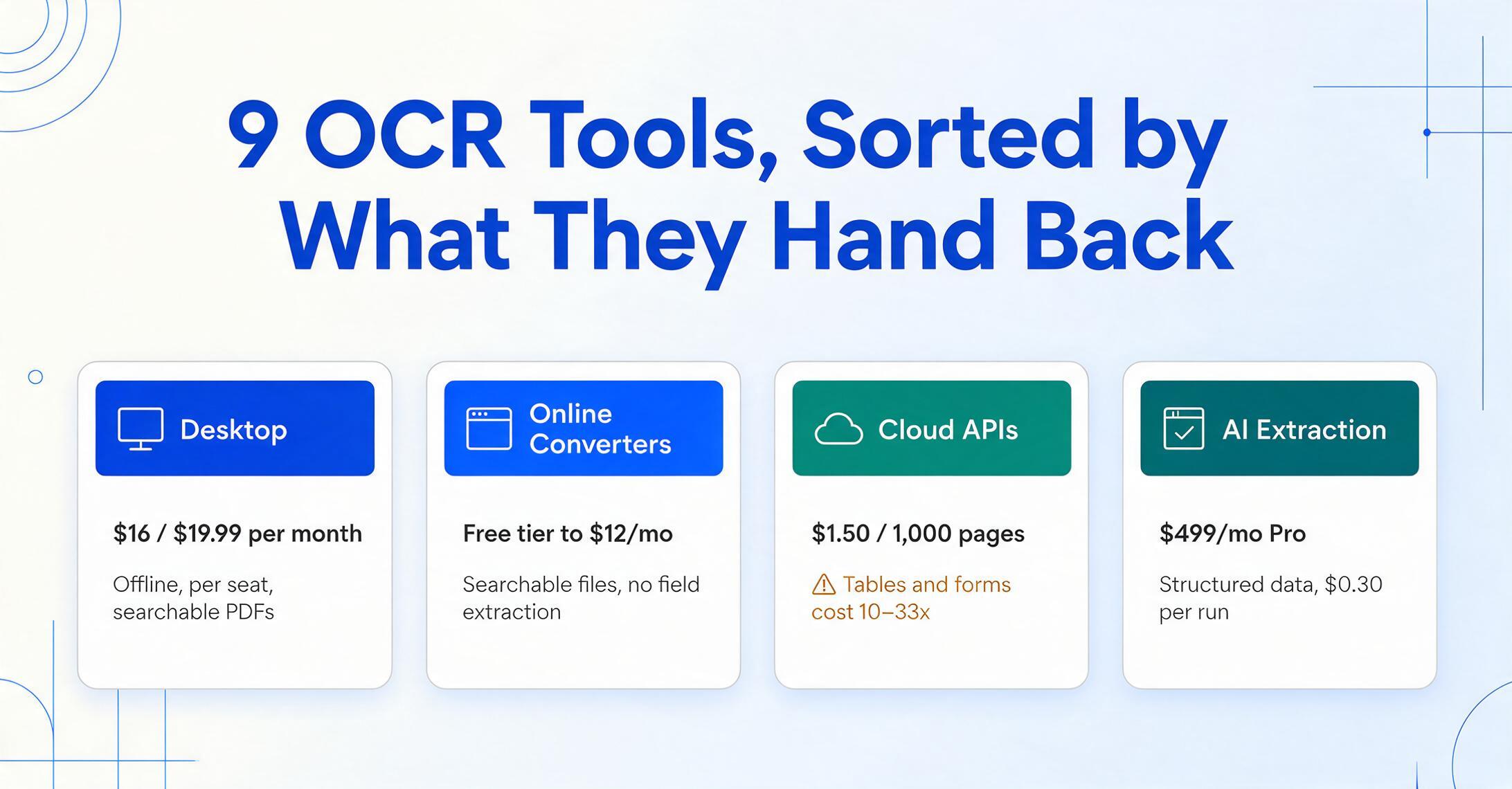
One pattern is worth naming before we go tool by tool: price tells you almost nothing about reading quality here, and almost everything about what surrounds the reading. A $7/month online converter and a $499/month AI platform can both turn a clean invoice into accurate text. The 70x difference buys structured output, batch pipelines, integrations, and support — capabilities you either need or don't. The rest of this guide is about figuring out which.
Desktop OCR Powerhouses: ABBYY FineReader & Adobe Acrobat Pro
If your goal is the classic OCR job — turn a scanned document into a clean, searchable, editable file on your own machine — the two desktop veterans are still the benchmark. Both are mature, offline-capable, and built around the PDF, not the spreadsheet.
ABBYY FineReader PDF
ABBYY is the elder statesman of OCR and still the accuracy reference point, with independent comparisons citing up to 99.8% across 198 languages. FineReader PDF is a desktop OCR-and-PDF tool starting at $16/month for the Windows Standard edition (Corporate runs $24/month), or roughly $199 as a one-time license — a genuine advantage if you dislike subscriptions. Its strengths are layout fidelity, multilingual archives, and fully offline processing, which matters for privacy-sensitive work. ABBYY also sells enterprise IDP products (Vantage, FlexiCapture) priced per page through custom quotes.
Best for: accuracy-critical OCR, multilingual document archives, on-premise/offline work, and serious PDF workflows. Not ideal for: anyone who wants a cloud app that returns a finished spreadsheet — FineReader desktop isn't built for batch API automation, and its enterprise tier is sales-led with a real implementation phase. See the head-to-head in our ABBYY FineReader comparison. View ABBYY FineReader pricing →
Adobe Acrobat Pro
Adobe Acrobat Pro bundles capable OCR into the PDF tool millions of offices already run, at $19.99/month (Pro for Individuals, annual billed monthly; Standard is $14.99, Studio $24.99). Its "scan to editable PDF" feature turns scanned documents into searchable, editable files in a couple of clicks, and because it lives inside the full Acrobat suite, OCR sits next to editing, signing, comparing, and exporting. For most people the appeal is simple: they already have it.
Best for: professionals who live in PDFs and want solid OCR as one feature among many — editing, signing, converting, and making scans searchable in one place. Not ideal for: high-volume or structured-data jobs — Acrobat OCR makes a document searchable, but it won't extract "every line item from 50 invoices into one spreadsheet." For that conversion specifically, see how a scanned PDF turns into an Excel table, and our Adobe Acrobat comparison for the trade-offs. View Adobe Acrobat pricing →
Free & Online OCR Converters: iLovePDF, SmallPDF & OnlineOCR.net
For a one-off conversion, the fastest and cheapest OCR lives in a browser tab — no install, often free. These tools win on convenience and lose on everything that requires repeatability or structure, which is exactly the right trade for occasional use.
iLovePDF
iLovePDF is a suite of browser-based PDF tools — merge, split, compress, convert, and OCR — with a generous free tier and Premium from $7/month on an annual plan (around $9 month-to-month). The OCR feature makes scanned PDFs searchable and converts them to editable formats, and the interface is about as friction-free as it gets.
Best for: individuals who need to OCR or convert the occasional PDF without paying for a desktop suite. Not ideal for: structured extraction or volume — output is searchable text or a Word/Excel file mirroring the page, not data mapped to columns you choose, and free tiers cap file size and daily tasks. View iLovePDF pricing →
SmallPDF
SmallPDF covers the same in-browser PDF territory — convert, compress, edit, and OCR scanned files into searchable, editable documents — with a free tier and Pro at $12/month ($108/year). It earns consistently high ease-of-use ratings, and Smallpdf Desktop adds offline access for paid users.
Best for: users who want a clean, reliable web app to make scans searchable and convert PDFs to Word or Excel layouts now and then. Not ideal for: batch jobs that merge many documents into one consistent table, or any workflow needing custom fields — like its peers, it converts a document, it doesn't model your data. View SmallPDF pricing →
OnlineOCR.net
OnlineOCR.net is the bare-bones, genuinely-free option: in Guest mode (no registration) it converts up to 15 pages per hour to Word, Excel, or text. If you need more, paid plans start at $9.95/week (2,000 pages) or $29.95/month (10,000 pages). There's nothing to install and no account required to start.
Best for: a quick, free, no-signup conversion when you have a handful of pages and don't care about polish. Not ideal for: sensitive documents, large volumes, or any structured output — the rate limit, basic layout handling, and lack of field-level extraction make it a utility, not a workflow tool. View OnlineOCR.net pricing →
All three share one ceiling: they hand you a document, not data. The moment "I need this searchable" becomes "I need these fields from 200 of these in a spreadsheet," you've left the converter category — and you're choosing between a developer API and an AI extraction tool instead. If you're weighing the newer image-to-text options (including chatbots like ChatGPT and Claude), our best AI image-to-text converters guide compares them head to head.
Cloud OCR APIs for Developers: Google Document AI & AWS Textract
If you have engineering resources and high, steady volume, the hyperscaler OCR APIs are unbeatable on raw cost per page. They aren't apps you "use" — they're services you build on, which is both the strength and the catch.
Google Document AI
Google Document AI is a cloud platform with a family of processors: a general Enterprise Document OCR processor plus Form Parser and Custom Extractor for structured fields. Base OCR runs $1.50 per 1,000 pages (dropping to $0.60 above 5 million pages/month), while Custom Extractor and Form Parser cost $30 per 1,000 pages. Handwriting support is strong on structured forms.
Best for: development teams needing scalable, API-based recognition at high volume, especially those already on Google Cloud. Not ideal for: non-developers — there's no point-and-click app, and the OCR returns raw text blocks that need post-processing before they're spreadsheet-ready. Cost also climbs fast once you move from base OCR to structured extraction. View Google Document AI pricing →
AWS Textract
AWS Textract is Amazon's document OCR service, exposed through several APIs (Detect Document Text, Analyze Document, Analyze Expense, Analyze ID). Detect Document Text costs $1.50 per 1,000 pages ($0.0015/page, falling to $0.0006 above 1M pages), but the structured features are far pricier — tables run ~$15 per 1,000 pages and forms ~$50 per 1,000 pages. A free tier covers 1,000 pages/month for the first three months.
Best for: teams already inside the AWS ecosystem who want OCR as a building block in a larger pipeline. Not ideal for: anyone without developers, or workloads dominated by forms and tables, where per-page cost is 10–33x the base rate. We break down the trade-offs in our AWS Textract comparison. View AWS Textract pricing →
Both APIs share the same boundary for non-technical buyers: they read documents well, but turning their output into a finished spreadsheet — with your column names, your formats, your calculations — is a project, not a feature. That's precisely the gap the AI extraction tools close.
AI Data Extraction: Nanonets & ImageToTable.ai
At the far end of the spectrum sit tools where "OCR" is just the first step — they read the document, then understand it and return structured data, no template required. This is the camp that's pulling the market's growth, and it ranges from heavyweight workflow platforms to lightweight no-code apps.
Nanonets
Nanonets is a workflow-automation and document-AI platform aimed squarely at accounts-payable teams. It has a free Starter tier, but the production Pro plan starts at $499/month, with extraction billed at $0.30 per run on a credit system. It's integration-rich (QuickBooks, Sage, Xero) and built to run a document pipeline end to end — and Reddit threads on receipt extraction routinely name it among the strongest options.
Best for: mid-market to enterprise AP automation, where approval workflows and accounting integrations justify the price. Not ideal for: small teams or anyone wanting zero setup — Nanonets often involves uploading samples and training models for complex document types, which adds an onboarding curve. Our Nanonets comparison covers where that setup pays off. View Nanonets pricing →
ImageToTable.ai
ImageToTable.ai — the product behind this site, and one of the nine tools in this comparison — is an AI data-extraction tool built on a vision large model, aimed at people who want structured data without code, templates, or a model-training phase. Its core mechanism is Custom Column Extraction: instead of drawing zones, you type the column names you want — "Invoice Number," "Due Date," "Total" — and the AI locates each value anywhere on the page by understanding what it means. Because it's template-free, a new vendor layout needs no setup. It adds two things converters and basic OCR lack: computed columns (define "Line Total (Qty × Unit Price)" and the AI does the math during extraction) and inferred columns (a "Category" column the AI fills in even when the document has no such field). Output lands directly in Excel, CSV, JSON, or Word, with a native Google Sheets add-on. Pricing starts with a free tier, then $9/month, with pay-as-you-go credits that don't expire.
Best for: freelancers, bookkeepers, and small-to-mid teams who want no-code, template-free extraction into a spreadsheet at low per-document cost — including handwritten documents and phone photos. Not ideal for: enterprises needing native one-click ERP sync, on-premise deployment, or SOC 2 / HIPAA compliance — for those, ABBYY, Google, or AWS is the right call. It's an extraction tool, not an AP platform with approval routing. You can see the no-code approach on our OCR extraction page, or compare the broader field in our document data extraction tools roundup. Try ImageToTable.ai free →
It's worth a brief note on the tools people often reach for here: general-purpose chatbots like ChatGPT and Gemini read documents impressively and are fine for a one-off, but they lack an enforced output schema and a batch pipeline, so the same prompt can return different column structures across runs. For a repeatable process, a purpose-built tool wins. If your interest is strictly the AI side of OCR, our best AI OCR software guide compares nine of these tools in depth.
How to Choose: By What You Actually Need
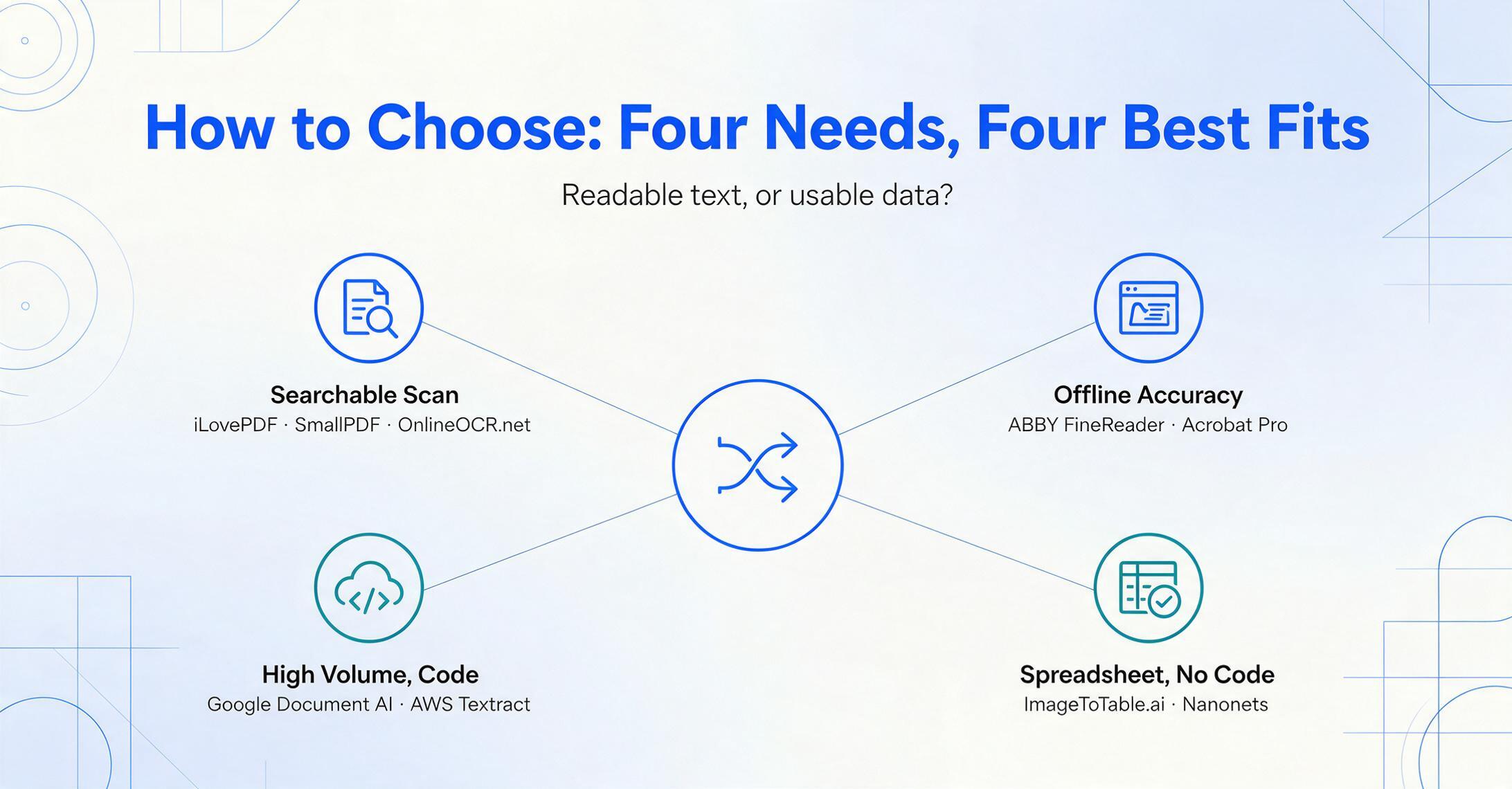
The right OCR tool follows directly from one question — do you need readable text, or usable data? — and then from your volume and who's operating it. Here's the decision in four common situations.
"I just need this scan searchable"
Best fit: iLovePDF, SmallPDF, or OnlineOCR.net
A few documents, occasional need, output is a searchable or editable file. Start free in a browser; only pay if you hit volume or file-size caps. No reason to buy a platform for this.
"I work in PDFs all day / need offline accuracy"
Best fit: Adobe Acrobat Pro or ABBYY FineReader
Desktop control, top-tier accuracy, multilingual or privacy-sensitive archives, and OCR sitting beside full PDF editing. Pick Adobe for the familiar suite, ABBYY for maximum accuracy and offline use.
"I have developers and high steady volume"
Best fit: Google Document AI or AWS Textract
Lowest cost per page at scale, and you can turn raw output into structured data in code. Choose by the cloud you already live in, and budget for the jump once forms and tables enter the mix.
"I need data in a spreadsheet, no code"
Best fit: ImageToTable.ai (small teams) or Nanonets (AP at scale)
This is the AI extraction job. For solo users and lean teams wanting columns you name, start no-code and cheap. For a mid-market AP pipeline with approvals and integrations, a platform like Nanonets earns its price.
If your situation leans toward structured data rather than searchable text, the AI side of this list is where the value is — and it's worth reading the deeper roundups by segment: the broad AI OCR software comparison, options built for small businesses and solo users, and tools that work natively inside Google Sheets. If you mainly need editable Word out of a scan, our PDF-to-Word converter roundup covers that lane.
Frequently Asked Questions
What is the difference between traditional OCR and AI OCR?
Traditional OCR converts images of text into characters by matching pixel shapes — it reads where text sits but doesn't understand what it means, so it relies on templates and breaks when layouts change. AI OCR uses a vision language model to understand the document's structure and context: it knows an amount belongs to a specific column, distinguishes an invoice date from a due date, handles layouts it has never seen, and can return structured data rather than just searchable text — no template required.
What is the best free OCR software?
For occasional conversions, OnlineOCR.net is genuinely free with no signup (15 pages/hour), and iLovePDF and SmallPDF both have free tiers for making PDFs searchable. For free AI-grade extraction into a spreadsheet, ImageToTable.ai has a free tier, and the cloud APIs (Google, AWS) offer free usage tiers if you have developers. Free tiers cap volume and file size, so they suit one-off jobs, not a steady workflow.
Which OCR software is the most accurate?
On clean printed documents, the top tools all reach the high 90s — ABBYY FineReader is widely cited at up to 99.8% across 198 languages, and modern AI tools report up to 99% on printed table data. Accuracy diverges on messy real-world input: varied layouts, poor scans, and especially handwriting, where even the best models sit well below printed-text accuracy. The practical question isn't peak accuracy but how often your documents fall outside the "clean and predictable" case.
Do I need OCR software or AI data extraction?
Choose by your output. If you need a scanned document to become searchable, editable text or a PDF, traditional OCR (desktop or online converter) is faster and cheaper. If you need the contents turned into structured rows and columns — say, line items from many invoices merged into one spreadsheet — that's an AI data extraction job, and a converter won't get you there no matter how accurate its OCR is.
Can OCR software read handwriting?
AI/vision-based OCR reads handwriting far better than traditional pattern-matching OCR, because it interprets letters using context. That said, handwriting remains the hardest case — accuracy drops noticeably on cursive and messy notes even for leading models — so for handwriting-heavy work it's worth testing your actual documents on a free tier before committing.
Is Adobe Acrobat's OCR good enough for business?
For making scanned PDFs searchable and editable inside a PDF workflow, yes — Adobe Acrobat Pro ($19.99/month) is solid and convenient if you already use Acrobat. Where it stops is structured extraction at volume: it makes a document searchable, but it won't pull specific fields from hundreds of documents into one spreadsheet. For that, a cloud API or an AI extraction tool is the better fit.
The Bottom Line
The most useful thing to take from this comparison is that "OCR software" isn't one category — it's a spectrum, and your place on it is decided by a single question: text, or data? Desktop tools (Adobe, ABBYY) and online converters (iLovePDF, SmallPDF, OnlineOCR.net) make documents readable. Cloud APIs (Google, AWS) and AI extraction tools (Nanonets, ImageToTable.ai) make documents structured. They all "do OCR"; they differ entirely in what they hand back and who's expected to operate them.
Don't pick the most powerful OCR tool — pick the one whose output matches your need. If you want a searchable scan, the cheapest converter does it. If you want a spreadsheet, no amount of traditional OCR accuracy will get you there; that's an AI extraction job.
If you've realized you need data and not just text — columns you name, filled in, across a stack of documents — the no-code AI end of this list costs nothing to try, and a few seconds will tell you whether it reads your specific documents correctly. Upload one, type the columns you want, and watch them appear filled in.
Disclosure: This guide is published by ImageToTable.ai, which is one of the nine tools reviewed above. We've aimed for a fair, technical assessment — including naming the scenarios where competing tools are the better choice. Competitor pricing was taken from public pricing pages and neutral review platforms and is current as of June 2026; verify the latest figures on each vendor's site before purchasing.