Best Desktop OCR Software 2026:
ABBYY, Adobe & Offline Alternatives Compared
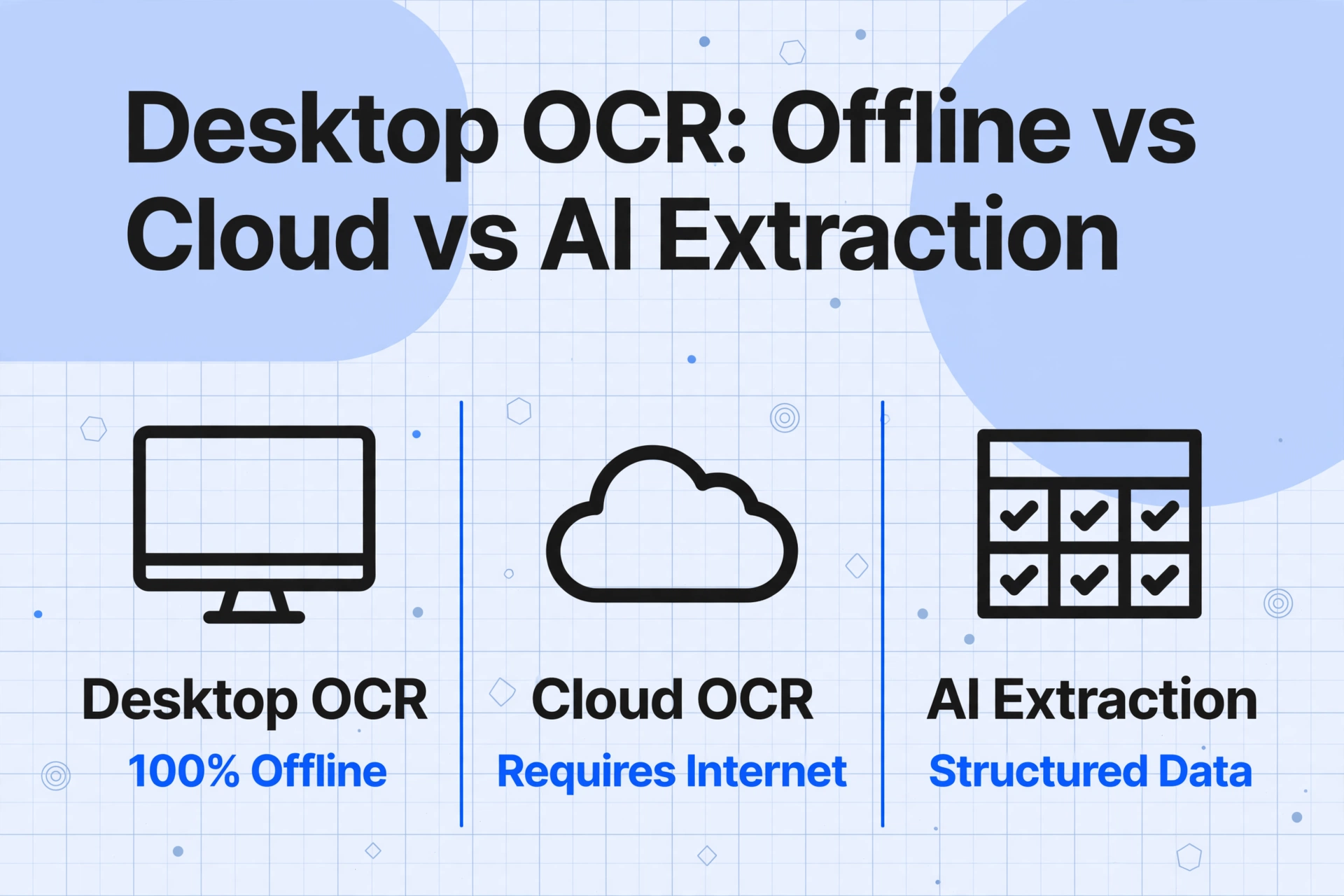
This guide evaluates ten desktop OCR tools against a single primary criterion: can they run a full OCR workflow without sending data to a cloud server? Every tool listed here works offline — we verified it. But within that constraint, the range in accuracy, price, batch capability, and platform support is wide. We tested each tool on real documents, checked pricing from official sources, and gathered user perspectives from Reddit and professional reviews to build this comparison. The goal is to help you pick the right tool for your actual workflow — not the longest feature list. From the industry-standard ABBYY FineReader to free open-source Tesseract front-ends, here is how desktop OCR software stacks up in 2026.
Key Takeaways
- Ten tools, one output category: searchable text. The $199 ABBYY and the free gImageReader produce the same fundamental result — a document you can search, not a spreadsheet you can analyze.
- The metric every OCR review leads with — raw character accuracy — may be the wrong metric for your workflow. A 99%-accurate OCR engine still cannot tell you which number on an invoice is the total and which is the subtotal.
- The decision that actually matters is not "which OCR tool is best" but "do I need searchable documents or structured data in a spreadsheet?" If your end goal is columnar data, desktop OCR is the wrong category of tool entirely.
Quick Comparison Table
| Tool | Best For | Platform | Pricing Model | Starting Price | Offline |
|---|---|---|---|---|---|
| ABBYY FineReader PDF 16 | Maximum accuracy & layout retention | Windows, macOS | One-time or subscription | $199 one-time / $16/mo | ✅ Full |
| Adobe Acrobat Pro | PDF editing + OCR in one tool | Windows, macOS | Subscription | $22.99/mo | ✅ Partial |
| Readiris PDF 17 | Budget one-time purchase | Windows, macOS | One-time license | $49 (Standard) | ✅ Full |
| OmniPage (Tungsten) | High-volume enterprise batch OCR | Windows, Linux (SDK) | Enterprise quote | Custom quote | ✅ Full |
| PDF-XChange Editor | Lightweight PDF editing + OCR | Windows | One-time license | $62 (Editor) | ✅ Full |
| Nitro PDF Pro | Modern PDF suite with OCR | Windows, macOS | One-time or subscription | $180 one-time | ✅ Full |
| Foxit PDF Editor | Lightweight cross-platform PDF | Windows, macOS, Linux | Subscription | $10.99/mo | ✅ Full |
| gImageReader | Free Tesseract GUI (open source) | Linux, Windows | Free (GPL v3) | $0 | ✅ Full |
| NAPS2 | Free scanning + OCR pipeline | Windows, macOS, Linux | Free (open source) | $0 | ✅ Full |
| FreeOCR / SimpleOCR | Windows freeware OCR | Windows | Free | $0 | ✅ Full |
How We Picked and Tested
This roundup applies a different filter than most OCR comparisons. We evaluated every tool against one primary criterion: can it run a full OCR workflow without sending data to a cloud server? If the tool required an internet connection for text recognition, it did not qualify as desktop OCR for this guide. That excludes cloud APIs (Google Document AI, Amazon Textract, Azure AI Document Intelligence), online converters, and any tool that processes documents on a remote server.
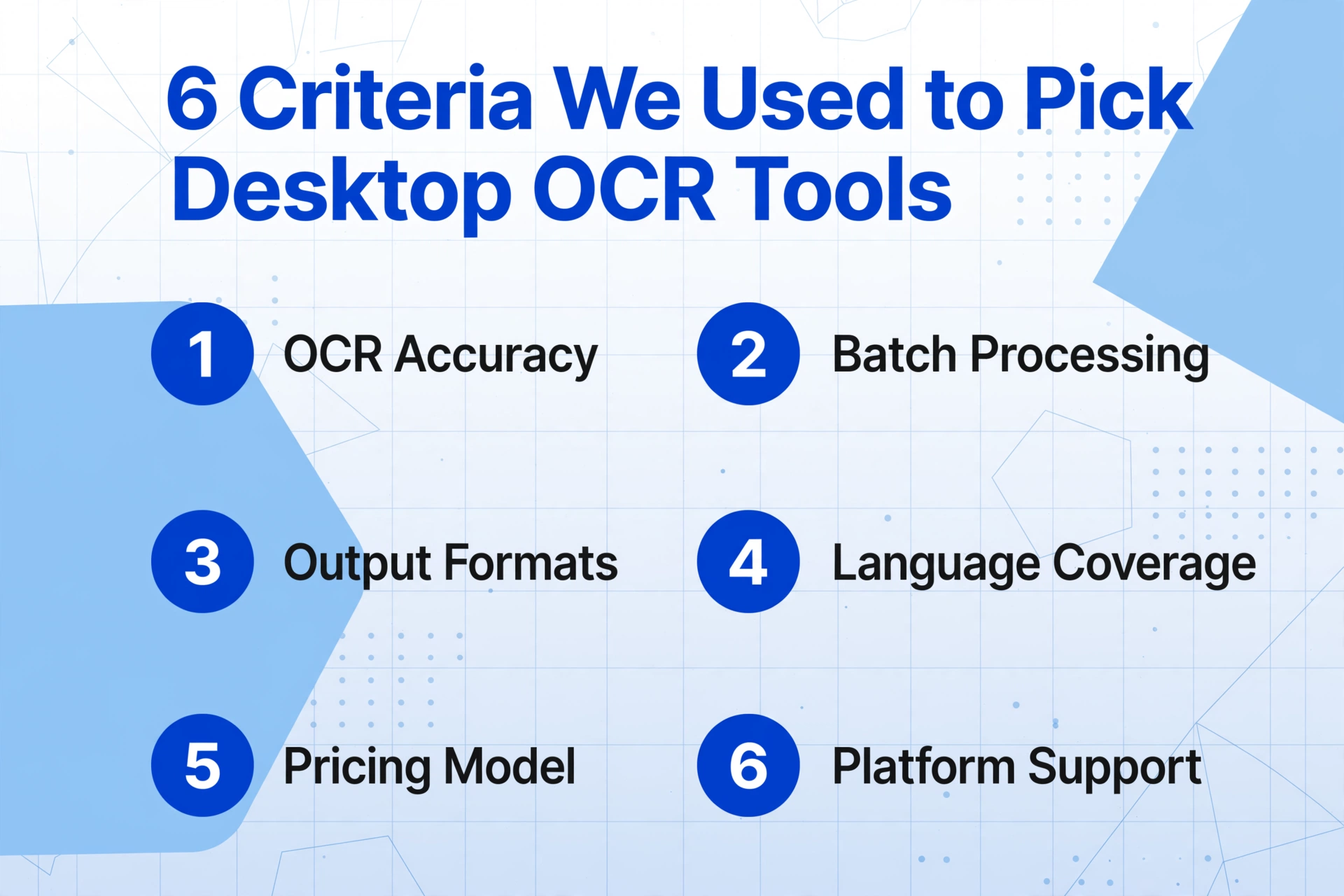
Within that constraint, we evaluated each tool on:
- OCR accuracy and layout retention — how well it preserves tables, columns, headers, and reading order across mixed-quality scans
- Batch processing — can it handle folders of documents, watched directories, or automated job queues
- Output format support — searchable PDF, Word, Excel, plain text, PDF/A
- Language coverage — number of supported OCR languages
- Pricing model — one-time purchase vs subscription, total cost over 2-3 years
- Platform support — Windows, macOS, Linux availability
We also checked recent user discussions on Reddit communities like r/software and r/datacurator to understand real-world pain points — what tools people actually use, what breaks in practice, and where the gap between marketing claims and daily reality is widest.
Disclosure: This article includes affiliate links to the tools listed. ImageToTable.ai is a cloud-based AI extraction tool mentioned in the final section as a modern alternative for users who do not strictly need offline processing. We aim to evaluate each tool honestly — no tool is ranked first in every category, and limitations are called out explicitly.
ABBYY FineReader PDF 16
ABBYY FineReader PDF 16 is the desktop OCR tool that other desktop OCR tools are measured against. It has been in development for nearly three decades, and that maturity shows up in the consistency of its output — especially on documents where layout matters.
If you feed ABBYY a multi-column scanned contract, a faded fax, or a mixed-language PDF with embedded tables, it preserves the page structure better than any other desktop tool we tested. Tables stay as tables, columns do not merge into one block of text, and headers and footnotes land in their correct positions. That directly reduces cleanup time. As one long-time user on r/software put it: "ABBYY is expensive, but I spent more time fixing output from cheaper tools than the price difference."
Key details:
- Pricing: $199 one-time license (Standard) or $16/month (subscription). Corporate edition at $24/month adds document comparison, batch conversion, and automated workflows.
- Platform: Windows (richest feature set) and macOS. The Mac edition is solid but historically lags behind Windows on advanced features like hot folders and automation.
- Languages: Over 190 recognition languages — among the broadest language support in any desktop OCR tool.
- Output: Searchable PDF, PDF/A, Word, Excel, PowerPoint, HTML, CSV, and plain text.
- Batch processing: Hot Folder support on Windows — drop files into a monitored directory and ABBYY processes them automatically.
Best for: Legal, finance, and archival users who need maximum layout accuracy and can justify the price for documents where format errors create real rework.
Not ideal for: Users who only OCR a few pages per month. The interface is powerful but complex, and at $199 for a one-time license, it is overkill for light, occasional use. It also has limited API and workflow integration compared to cloud options — ABBYY is designed for a person working directly with documents, not for automated pipeline ingestion.
ABBYY also powers many other OCR products under the hood — several tools in this guide use ABBYY's engine. For a deeper look at alternatives, see our ABBYY alternative comparison page.
Adobe Acrobat Pro
Adobe Acrobat Pro is not primarily an OCR tool — it is a PDF editor with OCR built in. That distinction matters because it changes who should buy it. If your team already lives inside Acrobat for editing, redacting, comparing versions, collecting signatures, and creating forms, the OCR capability is a practical bonus that reduces tool switching.
Acrobat's OCR engine is good on clean business scans — standard fonts, straight pages, and well-lit documents. It can make any scanned PDF searchable in a few clicks. But it is less forgiving than ABBYY on difficult inputs. Complex multi-column layouts, mixed-language documents, and low-quality scans are more likely to produce scrambled output that needs manual correction.
Key details:
- Pricing: $22.99/month (Pro) or $14.99/month (Standard). No perpetual license option.
- Platform: Windows and macOS.
- Languages: Supports OCR in over 100 languages.
- Output: Searchable PDF, Word, Excel, PowerPoint, HTML, and plain text.
- Offline note: The desktop app can run OCR offline, but some features (online storage, AI Assistant, web-based conversion) require internet.
Best for: PDF-heavy business workflows where OCR is one task inside a larger document process — editing, reviewing, redacting, and sharing.
Not ideal for: High-volume batch OCR, users who want a one-time purchase, or teams processing challenging scans with mixed layouts. The subscription cost also adds up quickly — three years of Acrobat Pro costs more than an ABBYY perpetual license.
If your primary need is data extraction rather than PDF editing, see our Adobe Acrobat alternative page for a comparison with AI-based extraction tools.
Readiris PDF 17
Readiris occupies a useful middle ground. It is less expensive than ABBYY, simpler to use than Acrobat, and available as a one-time purchase — which is increasingly rare in the OCR market. For small offices, solo professionals, and anyone who wants decent desktop OCR without a recurring subscription, Readiris is often the most practical choice.
Readiris handles the everyday jobs well: convert scans into Word, Excel, or searchable PDF; merge and split files; compress oversized PDFs; and keep document workflows moving without much ceremony. The interface is straightforward — easier to learn than ABBYY's professional-grade toolset.
Where it falls short is the same place many mid-range desktop OCR tools do. When layouts get messy — complex nested tables, poor scan quality, multilingual pages with mixed fonts — Readiris is more likely to produce output that needs post-processing. ABBYY and (for clean documents) Adobe handle these edge cases more reliably.
Key details:
- Pricing: $49 (Standard), $69 (Pro), $99 (Corporate) — all one-time licenses. No subscription required.
- Platform: Windows and macOS.
- Languages: Over 130 recognition languages.
- Output: Searchable PDF, Word, Excel, PowerPoint, HTML, and plain text. Corporate edition adds batch conversion and watched folders.
Best for: Budget-conscious small teams and individual users who need reliable desktop OCR without monthly fees. The one-time pricing is the strongest argument — over three years, Readiris costs less than four months of Acrobat Pro.
Not ideal for: Complex document reconstruction, high-volume enterprise workflows, or teams that need field-level data extraction from invoices and receipts.
The one-time purchase question. Readiris, PDF-XChange, Nitro Pro, and ABBYY (perpetual option) are among the last desktop OCR tools that let you pay once and own the software. Most cloud-based tools and newer desktop apps have moved to subscriptions. If avoiding recurring costs is your priority, these four deserve your attention.
OmniPage (Tungsten Automation)
OmniPage has been in the OCR business since the late 1980s — it was one of the first OCR programs to run on personal computers. Now under Tungsten Automation (formerly Kofax), OmniPage serves a specific niche: high-volume, centrally managed OCR for enterprise back offices.
This is not a tool you install on a single laptop. OmniPage is designed for server deployments, watched folder processing, and batch conversion at scale. It includes SDKs for embedding OCR into custom applications and supports Linux server environments — a rarity among desktop OCR tools. The recent OmniPage Capture SDK 2025.3 for Linux release added MRZ and MICR recognition, adaptive image pre-processing, and improved forms recognition.
Key details:
- Pricing: Enterprise quote only — expect to contact sales. Previous editions were priced around $220 for Standard and $500+ for Professional.
- Platform: Windows server, Linux (SDK), with desktop client for Windows.
- Languages: Over 100 languages.
- Output: Searchable PDF, PDF/A, Word, Excel, and custom formats via SDK.
- Batch processing: Server-grade — watched folders, job queues, scheduled processing, and central administration.
Best for: Large organizations with dedicated IT support that need standardized OCR across departments — think government records departments, shared services centers, and BPO operations.
Not ideal for: Individual users, small teams, or anyone who wants a simple install-and-go product. The buying process alone (quotes, reseller channels, sales calls) filters out most smaller buyers.
PDF-XChange Editor
PDF-XChange Editor is a Windows-native PDF editor that includes surprisingly capable OCR for its price point. At $62 for the standard Editor license (or $79 for the Plus version), it costs less than half of Readiris and about a third of ABBYY's perpetual license. It also includes an optional Enhanced OCR plugin for more demanding recognition tasks.
What makes PDF-XChange notable is its combination of lightweight performance and feature depth. It handles PDF creation, editing, annotation, form filling, and OCR in a single application without the bloat of larger suites. The OCR engine uses ABBYY technology under the hood, which means recognition quality punches above its price class — especially on business documents with standard layouts.
On r/pdf, PDF-XChange is frequently recommended as the best value PDF editor for Windows users who want a one-time purchase instead of a subscription. Users consistently praise its speed and low system resource usage compared to Acrobat.
Key details:
- Pricing: $62 (Editor), $79 (Editor Plus) — both one-time licenses. The Enhanced OCR plugin is available separately.
- Platform: Windows only.
- Languages: Over 100 languages via the ABBYY-powered OCR engine.
- Output: Searchable PDF, PDF/A, Word, Excel, and plain text.
Best for: Windows users who want a fast, affordable PDF editor with solid OCR — especially admin staff, legal assistants, and knowledge workers processing moderate document volumes.
Not ideal for: macOS or Linux users, teams that need enterprise deployment and central administration, or high-volume batch OCR workflows requiring watched folders and automated job queues.
Nitro PDF Pro
Nitro PDF Pro positions itself as a modern alternative to Adobe Acrobat — a full PDF suite with editing, conversion, OCR, e-signatures, and AI-powered features, available on both Windows and macOS. The OCR capability handles standard business documents well, and the interface is cleaner than many legacy desktop tools.
Nitro recently introduced AI-powered features including automated data extraction to spreadsheets and fillable form creation, which shifts it slightly toward the "intelligent document processing" direction — though the core OCR engine still runs locally. Pricing is available both as a one-time purchase (starting around $180) and as a subscription.
Key details:
- Pricing: Approximately $180 one-time license (check current pricing) or subscription options.
- Platform: Windows and macOS.
- Languages: Supports major business languages for OCR.
- Output: Searchable PDF, Word, Excel, and plain text.
Best for: Teams that want a modern, cross-platform PDF suite with OCR and prefer a one-time purchase over a subscription. Good for small-to-medium businesses that need more than basic OCR but less than enterprise-grade infrastructure.
Not ideal for: Users who only need OCR (Nitro is a full PDF suite), Linux users, or high-volume batch processing at enterprise scale.
Foxit PDF Editor
Foxit PDF Editor is known for being lightweight — the application installs and launches noticeably faster than Acrobat or ABBYY. It includes OCR capabilities as part of its PDF editing toolkit, and it is one of the few commercial desktop PDF tools that offers native Linux support alongside Windows and macOS.
The OCR engine is adequate for clean scanned documents and standard business correspondence. On complex layouts, tables, and mixed-quality scans, it does not match ABBYY's accuracy or layout retention — but for users whose primary need is lightweight PDF editing with occasional OCR, Foxit's performance and speed trade-off may be acceptable.
Key details:
- Pricing: $10.99/month (Editor) or $13.99/month (Editor+). Annual plans available at $129.99 and $159.99.
- Platform: Windows, macOS, and Linux — notably broad platform support.
- Languages: Over 80 languages.
- Output: Searchable PDF, Word, Excel, and plain text.
Best for: Cross-platform teams, Linux users who need a commercial PDF editor with OCR, and anyone who prioritizes application speed and low resource usage.
Not ideal for: Complex OCR-heavy workflows, users who want a one-time purchase (Foxit is subscription-only), or documents requiring advanced layout preservation.
gImageReader (Tesseract GUI)
gImageReader is a free, open-source graphical interface for the Tesseract OCR engine — the most widely used open-source OCR library, originally developed by HP and now maintained by Google. Tesseract itself is a command-line tool, which makes it inaccessible to most non-technical users. gImageReader bridges that gap by providing a point-and-click interface on Linux and Windows.
It supports automatic page layout detection, manual region selection, spellchecking, and batch processing of multiple images. The underlying Tesseract engine supports over 100 languages and can be trained on custom fonts and documents.
The trade-off is that accuracy depends heavily on input quality. On clean, well-prepared documents, Tesseract via gImageReader can produce results comparable to commercial tools. On messy scans, crumpled documents, or phone photos, output quality drops significantly — and there is no built-in image preprocessing to compensate. Users on r/software recommend using gImageReader with deskewed, contrast-adjusted images for best results.
Key details:
- Pricing: Free (GPL v3 license).
- Platform: Linux and Windows.
- Languages: Over 100 languages (inherits Tesseract language packs).
- Output: Plain text, searchable PDF (via Tesseract), and hOCR.
Best for: Budget-zero users who have some technical comfort, Linux users who need a desktop OCR GUI, and anyone who wants to experiment with Tesseract before deciding whether to invest in a commercial tool.
Not ideal for: Users who want a polished, out-of-the-box experience with strong layout preservation, or anyone processing low-quality scans without the ability to preprocess images. For a deeper comparison of open-source OCR tools including Tesseract's other GUIs, see our best open source OCR tools guide.
NAPS2
NAPS2 (Not Another PDF Scanner) is free and open-source scanning software that includes built-in OCR capabilities. It is primarily a scanner front-end — it connects to Twain, WIA, SANE, and ESCL-compatible scanners — but it also includes Tesseract-based OCR that can make your scanned PDFs searchable.
What makes NAPS2 valuable is the complete pipeline: scan directly from the application, run OCR, save as searchable PDF, TIFF, JPEG, or PNG — all in one interface, all offline. It supports drag-and-drop page reordering, automatic deskew, brightness and contrast adjustment, and over 100 OCR languages.
On r/software, one user described it simply as "free, runs offline, and most importantly, it's FREE. 10/10 recommend." That captures its appeal accurately.
Key details:
- Pricing: Free (open source, MIT license). No ads, no watermarks, no premium tier.
- Platform: Windows, macOS, and Linux.
- Languages: Over 100 languages via Tesseract.
- Output: Searchable PDF, PDF/A, TIFF, JPEG, PNG, and plain text.
Best for: Anyone with a document scanner who wants a free, complete scanning-to-searchable-PDF pipeline. Particularly useful for personal document digitization and small office workflows.
Not ideal for: Complex OCR tasks, documents requiring advanced layout preservation, or users who need to process existing image files (not scans) — NAPS2's OCR is a companion to its scanning workflow, not a standalone document conversion tool.
FreeOCR & SimpleOCR
FreeOCR and SimpleOCR are two freeware Windows applications that target the same basic need: convert a scanned document or image into editable text without spending money. Both run entirely offline and provide a simple interface for OCR on basic documents.
FreeOCR supports multipage TIFF files, PDFs, and common image formats. It uses the Tesseract engine and outputs to Word, Excel, or plain text. The accuracy is acceptable on clean printed documents with standard fonts — think typed letters, simple forms, and clear scans. It struggles with complex layouts, handwriting, and low-quality images.
SimpleOCR (from SimpleSoftware) offers a freeware version alongside paid enterprise products. The free version includes basic OCR with zone recognition and outputs to Word, Excel, and searchable PDF. It is a good starting point for occasional OCR needs but is limited compared to commercial tools in accuracy and format options.
Key details:
- Pricing: Free.
- Platform: Windows only.
- Languages: English and a handful of major European languages (FreeOCR). SimpleOCR supports English and French.
- Output: Word, Excel, plain text, searchable PDF (varies by tool).
Best for: Windows users who need occasional free OCR for simple documents and want the simplest possible interface.
Not ideal for: Mac or Linux users, complex layouts, high-volume batch processing, multilingual documents with non-Latin scripts, or any document where OCR accuracy matters for downstream use.
Which Desktop OCR Tool Is Right for You?
If you know you need desktop OCR, the decision usually narrows down to two variables: budget and document complexity.
Your documents are complex (multi-column, mixed languages, tables, poor scan quality): ABBYY FineReader PDF 16 is the clear choice. Its layout preservation and accuracy on difficult inputs justify the higher price. If you are on a tight budget, PDF-XChange Editor (using ABBYY's engine) offers a solid alternative at a fraction of the cost.
You already use Acrobat for PDF work: Adobe Acrobat Pro is the practical choice — OCR is a bonus feature inside a tool you already pay for. Accept that it is not the best standalone OCR engine, and plan for more manual cleanup on complex documents.
You want a one-time purchase and no subscription: Readiris (simplest), PDF-XChange (best value), or Nitro Pro (most modern interface) are your options. ABBYY also offers a perpetual license for $199.
Your budget is zero and you are technically comfortable: gImageReader (Tesseract GUI) on Linux/Windows or NAPS2 (scanning + OCR) on any platform. Expect to spend time on image preprocessing and manual correction.
You need enterprise-scale batch OCR with central management: OmniPage is the only tool in this roundup designed for that role. Contact Tungsten Automation for a quote and be prepared for IT involvement in deployment.
You are on a cross-platform team or need Linux support: Foxit PDF Editor (commercial, subscription) or gImageReader/NAPS2 (free, open source).
What About Cloud OCR? When Offline Is Not a Requirement
Desktop OCR is indispensable when documents must stay on your machine. But if you are reading this guide because you want to extract structured data from documents — not just make them searchable — and you do not have a strict requirement for offline processing, there is a strong case for looking beyond desktop OCR entirely.
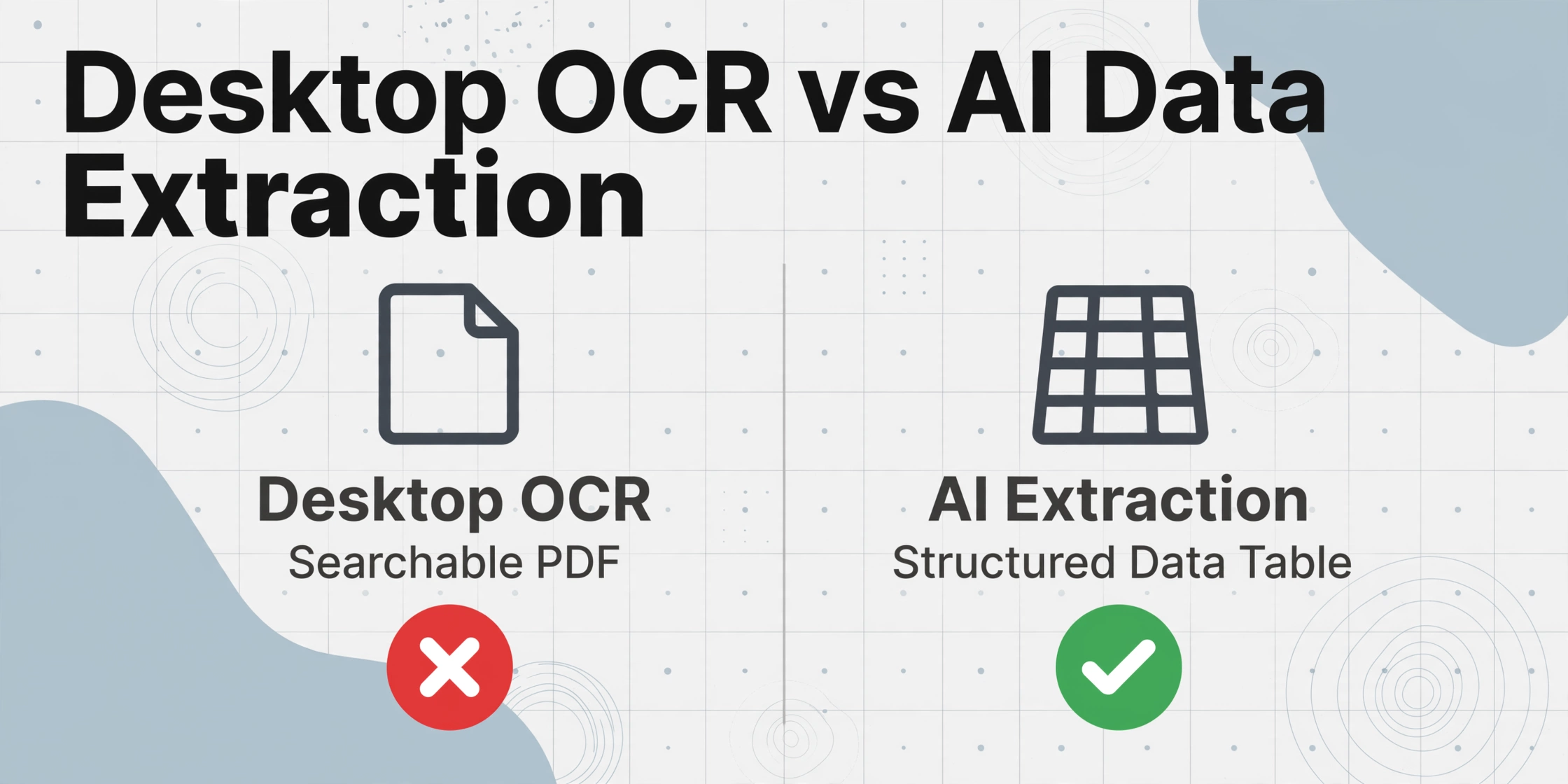
Traditional OCR, including the desktop tools in this guide, works by recognizing characters. It turns pixels into text. That is useful for creating searchable PDFs or editable Word documents. But if your goal is to pull specific fields — invoice numbers, dates, totals, line items, vendor names — from a pile of documents and land them in a spreadsheet, you are doing something different from character recognition. You are doing data extraction.
This is where ImageToTable.ai and similar AI-based extraction tools differ from desktop OCR. ImageToTable.ai is cloud-based — it requires an internet connection — but it is built for the job that desktop OCR handles poorly: taking unstructured visual documents (PDFs, photos, screenshots, scans) and producing structured data tables. It uses AI OCR powered by vision-language models to understand document semantics, not just character shapes.
The practical difference: with desktop OCR, you get a searchable PDF. With tools like ImageToTable.ai, you upload a batch of invoices, type the column names you want — "Invoice Number," "Date," "Total," "Vendor Name" — and the AI locates each value by understanding what it means, not where it sits on the page. Output lands directly in Excel or Google Sheets. The accuracy comparison between traditional OCR and AI extraction is significant — especially for semi-structured documents where field positions change between suppliers.
Desktop OCR and AI extraction are not competitors. They solve different problems. If your primary need is offline searchable PDFs, choose desktop OCR. If your primary need is structured data in a spreadsheet and you can work with a cloud service, AI extraction will save more time — often reducing per-document processing from minutes to seconds.
For users who need semantic data extraction without templates, training, or setup, ImageToTable.ai is built for that workflow. It is template-free, format-independent, and processes batches of mixed-format documents into a single consolidated spreadsheet. You can try it on your own documents at imagetotable.ai.
Frequently Asked Questions
Is there any OCR software that works completely offline?
Yes. Every tool in this roundup runs OCR locally without sending documents to a cloud server. ABBYY FineReader, Readiris, PDF-XChange Editor, and Nitro Pro are fully offline. Free options include gImageReader, NAPS2, and FreeOCR. Adobe Acrobat Pro can run OCR offline on the desktop, though some features require internet connectivity.
Which is more accurate: desktop OCR or cloud OCR?
For basic text recognition on clean documents, they are comparable. For complex layouts, tables, and poor-quality scans, high-end desktop OCR like ABBYY often matches or exceeds cloud OCR accuracy on text recognition. For structured data extraction — pulling specific fields like invoice totals or receipt dates — cloud-based AI extraction tools (including AI OCR platforms) are significantly more accurate because they understand document semantics, not just character shapes.
What is the best desktop OCR software for Windows 11 in 2026?
ABBYY FineReader PDF 16 offers the highest accuracy and best layout preservation on Windows 11. For budget-conscious users, PDF-XChange Editor provides excellent value using ABBYY's OCR engine at a fraction of the cost. Free alternatives include gImageReader and NAPS2. A 2026 discussion on Microsoft's Windows 11 forum also recommended Wondershare PDF Element for its ease of use on scanned PDFs.
Does desktop OCR software exist for Mac?
Yes. ABBYY FineReader PDF, Adobe Acrobat Pro, Readiris, Nitro PDF Pro, and Foxit PDF Editor all support macOS. However, some advanced features — particularly hot folders and batch automation in ABBYY — are limited to Windows. Free cross-platform options include NAPS2 (macOS version available) and Tesseract via command line.
Is there any good free desktop OCR software?
gImageReader (Windows and Linux) and NAPS2 (Windows, macOS, Linux) are the strongest free options. Both use the Tesseract OCR engine under the hood. FreeOCR and SimpleOCR offer basic freeware OCR on Windows. For a full breakdown, see our best free OCR software guide. Note that free tools generally have lower accuracy on complex layouts and require more manual cleanup than paid alternatives.
Which desktop OCR tools offer a one-time purchase (no subscription)?
ABBYY FineReader ($199 one-time), Readiris ($49-$99), PDF-XChange Editor ($62-$79), and Nitro Pro (~$180) all offer perpetual licenses. OmniPage pricing is quote-based but historically provided perpetual options. Most other tools in this category have moved to subscription-only pricing.
Can desktop OCR software process folders of documents automatically?
ABBYY FineReader (Corporate edition) supports Hot Folder automation — drop files into a monitored directory and they are processed automatically. OmniPage provides server-grade batch processing with watched folders and job queues. Readiris Corporate edition includes watched folders. Most free tools process one file at a time or require scripting for batch workflows.
Is desktop OCR still relevant in 2026 with so many online tools available?
Yes, for three specific scenarios: (1) when documents cannot leave your local network due to compliance (HIPAA, GDPR, attorney-client privilege), (2) when you work in an environment with unreliable or no internet, and (3) when you prefer a one-time purchase over ongoing subscription costs. For all other scenarios, cloud-based OCR and AI extraction tools offer faster processing, better structured output, and no local software maintenance.
Try AI-powered document extraction — no desktop install required.
If you do not strictly need offline processing and your goal is structured data in a spreadsheet, ImageToTable.ai extracts invoice numbers, dates, totals, line items, and more from any document — PDF, photo, or screenshot — and delivers them to Excel or Google Sheets. No templates, no training, no setup.
Try It on Your Own Documents