Document Extraction Troubleshooting Guide:
Match Your Symptom to the Right Fix
Your document extraction worked yesterday. Today, half the files are missing, the numbers are wrong, and the handwriting came back as gibberish. Before you blame the tool, which is what everyone does first, here's a diagnostic framework that matches your symptom to the right fix in under two minutes.
Key Takeaways
- Your extraction tool probably isn't broken. What looks like a software defect is usually one of eleven specific, diagnosable failure modes, from mismatched PDF types to field mapping errors, and each one has a documented fix rather than a development ticket.
- The symptom you see tells you which pipeline stage failed. Blank cells mean Stage 3 (output structure). Garbled text means Stage 2 (processing). Missing files mean Stage 1 (upload). Knowing the stage narrows the fix and eliminates guesswork.
- Template-based extraction has a built-in failure ceiling that no amount of tweaking can raise. If your tool needs per-vendor templates and you receive documents in more than three different layouts, the architecture itself is the bottleneck, not your configuration. Template-free extraction eliminates that entire failure class by design.
Symptom-to-Article Map: What You See, Where to Go
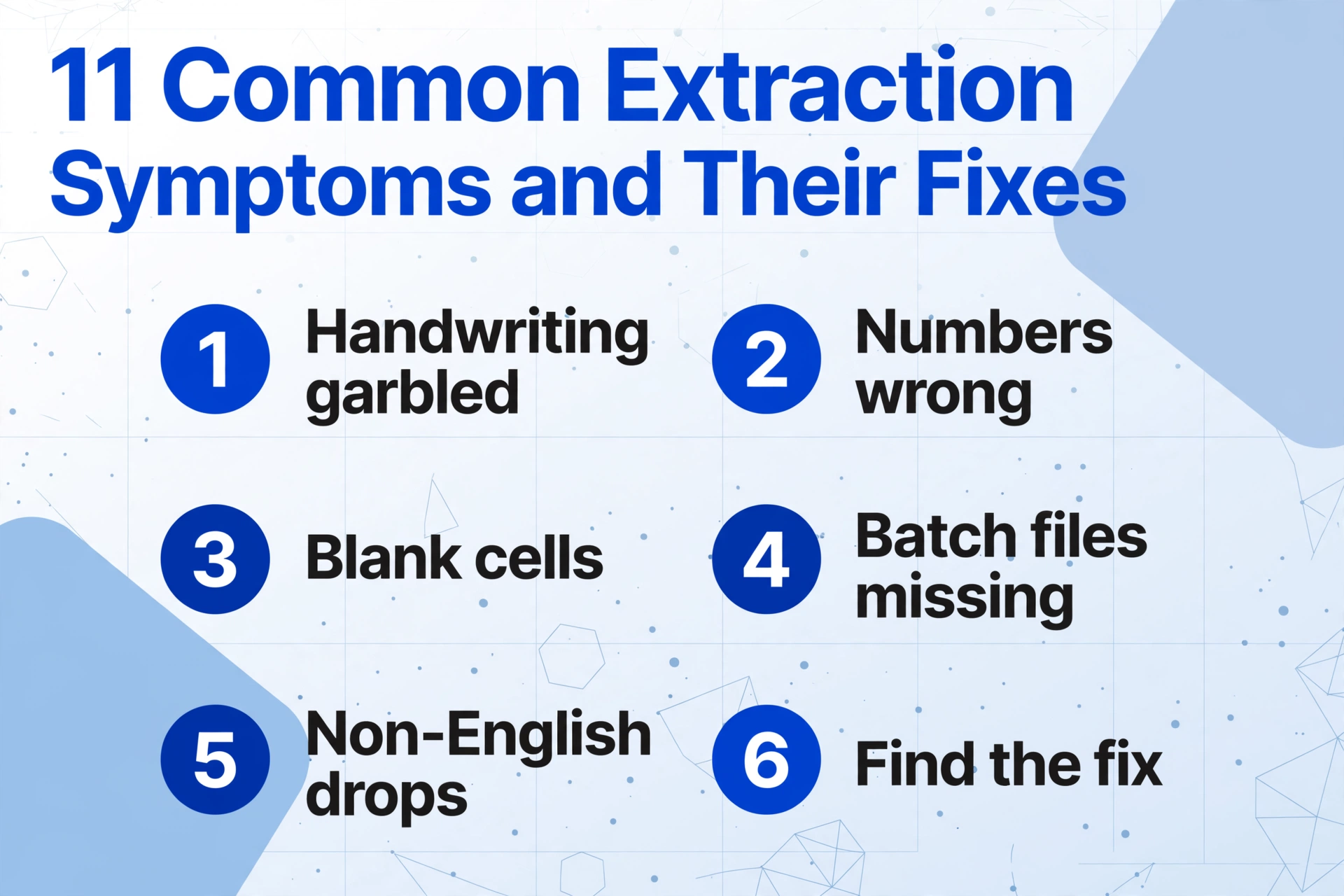
Document extraction problems rarely announce themselves with clear error codes. What you get is a symptom, whether that's wrong numbers, missing rows, or files that vanish, and you have to reverse-engineer the cause. The table below maps the eleven most common extraction symptoms to their probable root cause and a dedicated article that walks through the fix step by step.
Find what matches your situation, click through, and skip the general advice that doesn't apply to your problem.
| If you see this symptom... | Probable cause | Go to this guide |
|---|---|---|
| "Handwriting came back as random characters or blank" | Image resolution too low for the handwriting style, or cursive/script exceeds what the model can segment | Handwriting not reading? Causes & fixes |
| "Numbers are wrong: totals shifted, dates reversed" | Field naming ambiguity (two date fields, multiple dollar amounts), or the extraction model mapped values to the wrong column | Extracted numbers wrong? Field design mistakes |
| "Table came back with blank cells and misaligned columns" | Merged cells, split rows, or irregular table borders broke the grid detection algorithm | Fix table extraction: merged cells & alignment |
| "Half my batch files didn't show up in the results" | Upload failure, processing pipeline dropout, or merge-stage filtering eliminated files silently | Batch extraction missed files: failure modes |
| "Accuracy drops noticeably on non-English documents" | Script density and character set differences (CJK, Arabic, accented Latin) stress the OCR engine beyond its training distribution | Multi-language extraction accuracy drops |
| "Same handwriting style, different accuracy across files" | Handwriting recognition has inherent variance tiers: light cursive on high-contrast paper works, while heavy ballpoint on newsprint does not | Handwriting extraction failure modes |
| "Two identical-looking PDFs produce different results" | One is a digital PDF with embedded text; the other is a scanned image-only PDF. The tool processes them through completely different pipelines | PDF text vs. image-only extraction |
| "How do I know if the results I got are actually right?" | No verification workflow in place; you lack a consistent method to spot-check extraction quality before using the data | Verify extraction results: spot-check guide |
| "Decimals, commas, and currency symbols are missing" | Sub-pixel symbols (periods, commas, cents marks) fall below the minimum feature size the OCR treats as meaningful | Extraction missing decimal & currency symbols |
| "OCR fails completely on colored or gradient backgrounds" | Reduced text-background contrast and watermark interference confuse character edge detection, especially in low-contrast zones | OCR fails on colored backgrounds & watermarks |
| "Something else entirely, and it doesn't match any of these" | Unknown or compound failure; the issue may span multiple root causes or stem from an edge case not covered above | Can AI read blurry documents? (capability check) |
How to use this table: Scan the symptom column for the one that matches what you're seeing. If none fits perfectly, pick the closest match and start there, and the article will help you narrow down. If two symptoms apply, start with the one that blocks your workflow most.
Diagnostic Flowchart: Trace the Failure Point
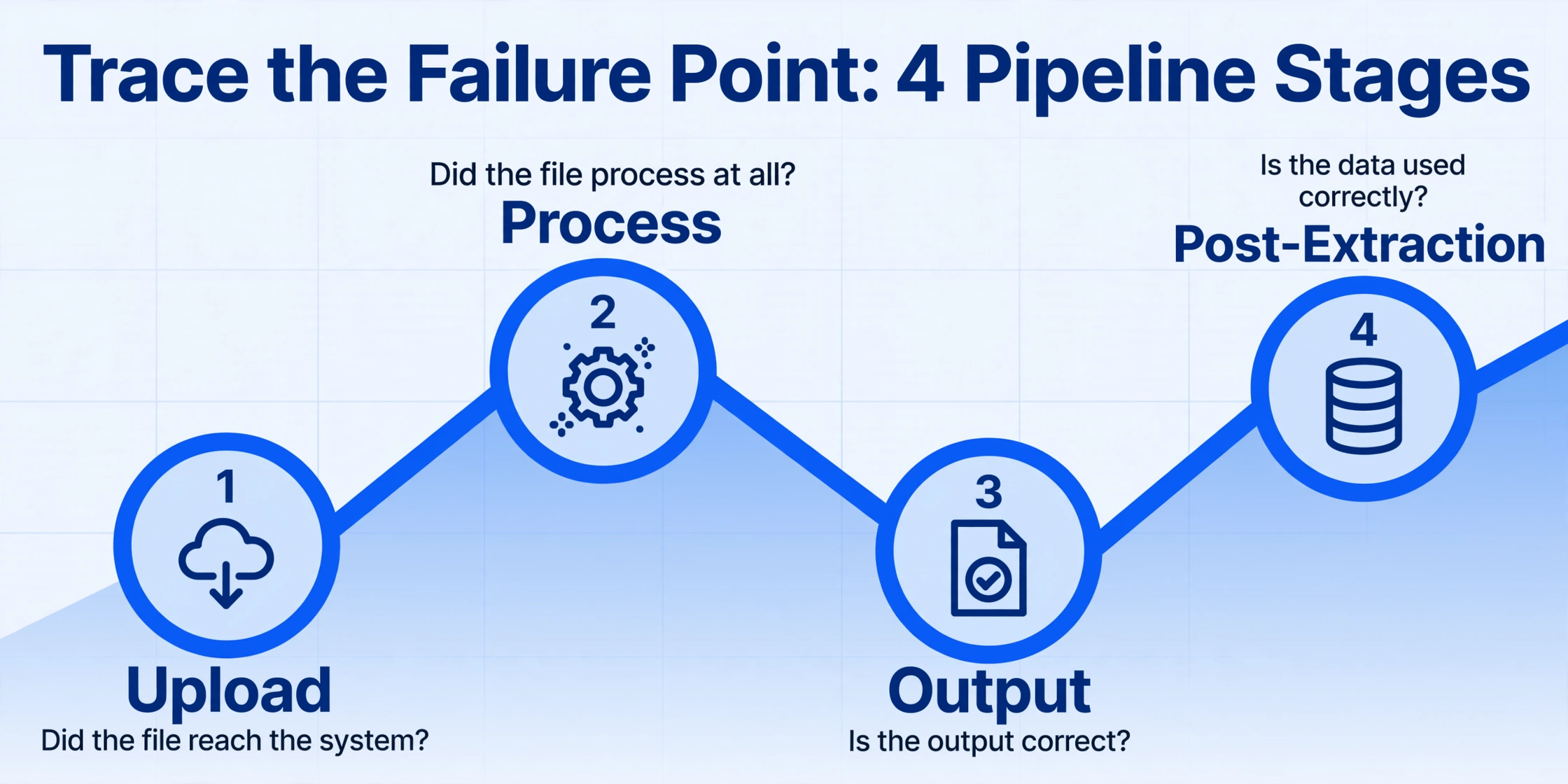
If the table above gives you the destination, this flowchart gives you the route. It is a text-based decision tree designed to do one thing: tell you where in the pipeline your problem lives before you try to fix it. The extraction pipeline has four stages (upload, processing, output, and post-extraction), and each stage has its own failure profile. Find yours.
Stage 1: Did the file reach the system?
Start here. If the file wasn't uploaded, nothing else matters.
- File didn't appear in the upload list at all? → Browser timeout, file size limit exceeded, or unsupported format. Check your upload queue for errors. If you're processing in batches, see the missing-files article.
- File appeared but shows "error" or "failed" status? → The system received the file but couldn't decode it. That's a corrupted document or an image format the pipeline can't read. Password-protected PDFs are supported, so a locked file isn't automatically a lost cause; if one keeps failing at this stage despite being intact, re-export it and try again.
- File appeared and shows "pending" but never processes? → Queue congestion or a processing limit hit. If you're on a concurrent-upload plan, wait for active jobs to complete, or check your plan limits.
Stage 2: Did the file process at all?
File uploaded and shows "completed", yet the output is wrong. Now you are in the extraction quality zone.
- Results returned but completely empty? → The document may be image-only in a format the model doesn't fully support (certain multi-layer PDFs, or unusual image encoding). Try converting to PNG or JPG first.
- Results returned but text is garbled? → This is the classic OCR failure. The engine read characters but could not assemble them into meaningful text. Move to the symptom table and check handwriting, contrast, or language-related articles.
- Results returned but data is mapped to the wrong columns? → This is not an OCR problem; it's a field design problem. The data was extracted correctly but assigned to the wrong output field. See the field design article.
Stage 3: Is the output structure intact?
Processing completed without errors, but the data isn't usable in its current form.
- Tables have blank cells or shifted rows? → The extraction engine detected the table structure incorrectly. Merged cells, irregular borders, and missing column headers are the top three causes. See the merged cells fix guide.
- Decimal points, commas, or currency symbols are missing? → Tiny punctuation marks are being filtered as image noise. The extraction engine needs a higher-contrast input or the symbols are falling below a detection threshold. See the missing symbols article.
- Color/gradient backgrounds make text unreadable? → Low contrast between text and background breaks edge detection. This is particularly common with watermarked documents and scanned colored forms. See the colored backgrounds guide.
Stage 4: Is the result consistent across files?
Single-file extraction looks fine. Batch results expose the problem.
- Identical-looking PDFs give different results? → Check whether one is a digital (text-layer) PDF and the other is scanned (image-only). They go through different pipelines. See the PDF comparison article.
- Some batch files processed fine, others failed silently? → Batch pipeline failures are rarely random. The failing files share a trait: particular format, page count, or image quality. See the batch failures article.
- Same handwriting reads accurately in one file and poorly in another? → Handwriting recognition has variable performance based on pen pressure, paper texture, and writing instrument. See handwriting failure modes.
- The numbers look plausible, but you can't be sure they're right? → Wrong values survive every stage above if nobody re-checks them. This is a verification problem, not a recognition problem. A review layer with source-location highlighting solves it: click any extracted cell and its origin is highlighted on the original document, so a wrong number surfaces in seconds instead of after a full re-read. Turn on auto-annotate after processing and the highlights are already waiting when you open the results. See the verification guide.
When ALL Fixes Fail: The Tool Architecture May Be the Limit
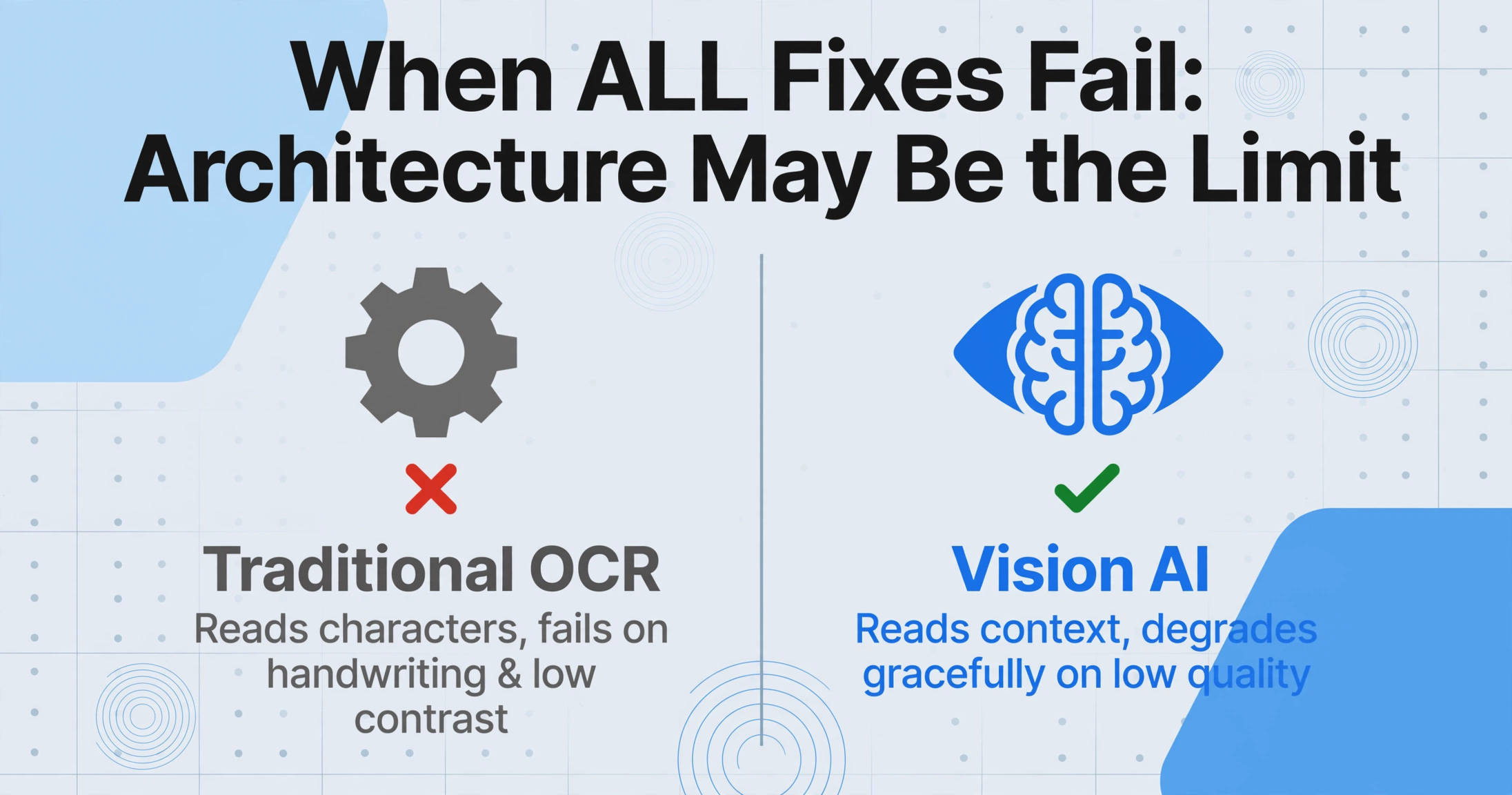
If you have gone through the relevant article, applied the recommended fix, and the problem persists, it is time to consider that the issue is not how you are using the tool but what the tool fundamentally is. Different extraction architectures have different failure ceilings.
Traditional OCR-based tools, including Tesseract, cloud OCR APIs, and template-based extractors, share a common limitation: they read characters without understanding document context. That architecture fails predictably on handwriting, low-contrast layouts, crossed-out text, and documents with complex formatting. When the problem is architecture, no amount of preprocessing or parameter tuning will close the gap. You need a different approach.
Vision AI models, which is the approach used by ImageToTable.ai, process documents differently. They do not rely on character segmentation and template matching. Instead, they interpret the document holistically: reading context, layout, and field relationships the way a human reader would. This means they degrade gracefully on low-quality inputs (accuracy drops gradually rather than collapsing) and handle format variation without template maintenance.
If your extraction tool relies on fixed templates, requires per-vendor configuration, or uses zonal OCR (extracting data from predefined rectangles on the page), and you are hitting a ceiling, consider testing a vision AI-based tool on your actual documents to see whether the architecture change solves your recurring failures.
Quick reality check: If your tool requires templates or training for each document format, and your documents come in more than three different layouts, the bottleneck is the tool architecture, not your configuration. Template-free extraction eliminates that entire class of failures by design.
Frequently Asked Questions
Why does my extraction tool read clear text incorrectly?
Clear to a human eye and clear to an OCR engine are different standards. A document that looks perfectly readable to you may have subtle features that degrade character segmentation, such as slightly low contrast, minor compression artifacts, or fonts with tight letter spacing. Modern vision AI tools handle these cases better because they understand context rather than relying on character shape alone, but no tool has perfect accuracy on every document.
Can document preprocessing fix most extraction problems?
Preprocessing (deskewing, adjusting contrast, increasing DPI) fixes a meaningful subset of image-quality-related failures, roughly the ones that stem from poor source capture. It does not fix problems caused by tool architecture limits, field design errors, or handwriting styles that the model cannot interpret. A good rule of thumb: if preprocessing does not solve the issue within two attempts, the root cause is likely elsewhere, and you should move to the diagnostic table above.
Why do I get different results when I run the same document twice?
Most extraction tools are deterministic: the same input produces the same output. If you observe variation, three causes are possible. First, the file may have been re-compressed or re-saved between runs, changing the pixel-level input. Second, some AI models incorporate probabilistic sampling that can produce slight output variation on ambiguous fields. Third, batch processing may introduce race conditions where files are processed in a different order, exposing different queue states. Run the exact same file three times. If two out of three match, the variation is within expected tolerance.
My extraction tool works fine on invoices but fails on receipts. Why?
Invoices are typically structured documents with consistent field positions and high print quality. Receipts are frequently low-resolution thermal prints that are folded, crumpled, or faded, the worst-case scenario for any extraction system. Additionally, receipt formats vary wildly between merchants, making template-based approaches particularly fragile. If your tool requires templates, the receipt gap is predictable. Template-free tools handle receipts better but still face accuracy limits on extremely faded thermal paper.
How long should I spend troubleshooting before switching approaches?
A reasonable troubleshooting budget: 15-30 minutes per recurring issue. If you cannot resolve a specific failure mode within that timeframe using the recommended fixes, the problem is likely architectural rather than configurational. The cost of continued troubleshooting (time spent, delayed workflows, data re-entry) quickly exceeds the cost of trying a different extraction approach on a sample of your actual documents.
Does extraction accuracy vary by document language?
Yes, measurably. OCR engines are trained predominantly on Latin-script English documents. Performance on non-English documents is lower out of the box, especially for CJK (Chinese, Japanese, Korean) scripts with high character density, Arabic scripts with connected letterforms, and accented Latin scripts. Vision AI models narrow this gap because they read characters in context rather than matching isolated glyph shapes, but the gap does not disappear entirely. See the multi-language extraction article for specific benchmarks and mitigation strategies.
Is there a way to validate extraction accuracy without manually checking every file?
Yes. Statistical spot-checking — verifying a random 5-10% sample of each batch against the original documents — catches systematic errors with high confidence. Additionally, field-level validation rules (e.g., "invoice amounts must be positive numbers" or "dates must fall in the current fiscal year") can automatically flag outliers for human review. For individual suspicious values, review-mode source highlighting is the faster check: click any extracted cell and its origin is highlighted on the original document, so you confirm or reject it in seconds. The extraction verification guide provides a complete workflow for building a spot-check routine that scales with your volume.
Still not sure what's causing your extraction problem? Upload a sample document and see how a template-free AI extraction tool handles it, no sign-up required.
Diagnose Your Extraction ProblemFiles are processed securely and not stored.