Why Did My Batch Extraction Miss
Half the Files? Common Failure Modes
You uploaded 30 files. Only 22 came out in the spreadsheet. No error message, no warning — just half your data, missing. Here's what happened, in order of probability.
The unsettling part is not the 8 files that didn't make it. It's the silence around them. A batch processing tool that showed green checkmarks across the board, a download that looked complete, and only later — when you tried to reconcile the rows against the originals — the gap revealed itself. This pattern is more common than most users realize, and it's almost never random. Files don't vanish without a trace. They fail at specific stages of the pipeline, and each failure mode leaves a signature.
This article walks through the three stages where files can drop off — upload, processing, and output merge — in order of how likely each one is to be the culprit. By the end, you'll have a diagnostic framework and a pre-upload checklist to catch the most common causes before they take another 8 files out of your next batch.
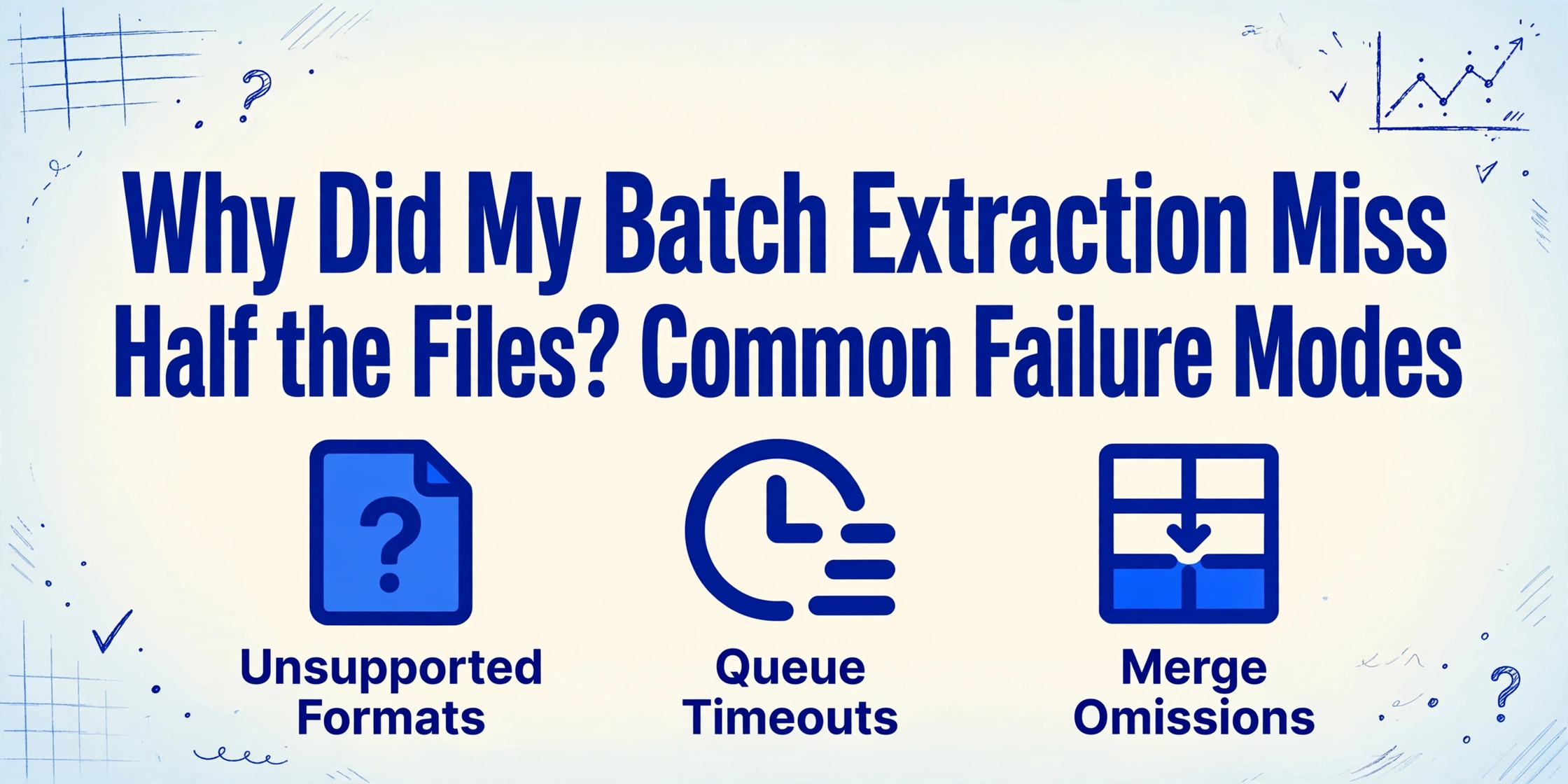
Key Takeaways
- You uploaded 30 files, the tool showed green checkmarks, and the download looked complete — but only 22 rows came out, with zero error messages for the 8 that went missing.
- Files don't vanish randomly; they fail at three specific pipeline gates — 60% at upload (unsupported formats like TIFF, special characters in filenames, corrupted bytes), 30% during processing (concurrency drops, silent timeouts), and 10% during the merge (structural mismatches).
- A 30-second pre-upload checklist — sort by extension, check for files over 30MB, sanitize filenames, group by document type — catches the majority before they fail, and the 8 missing files are almost certainly still on your machine ready to reprocess.
Stage 1: The File Never Made It Past Upload
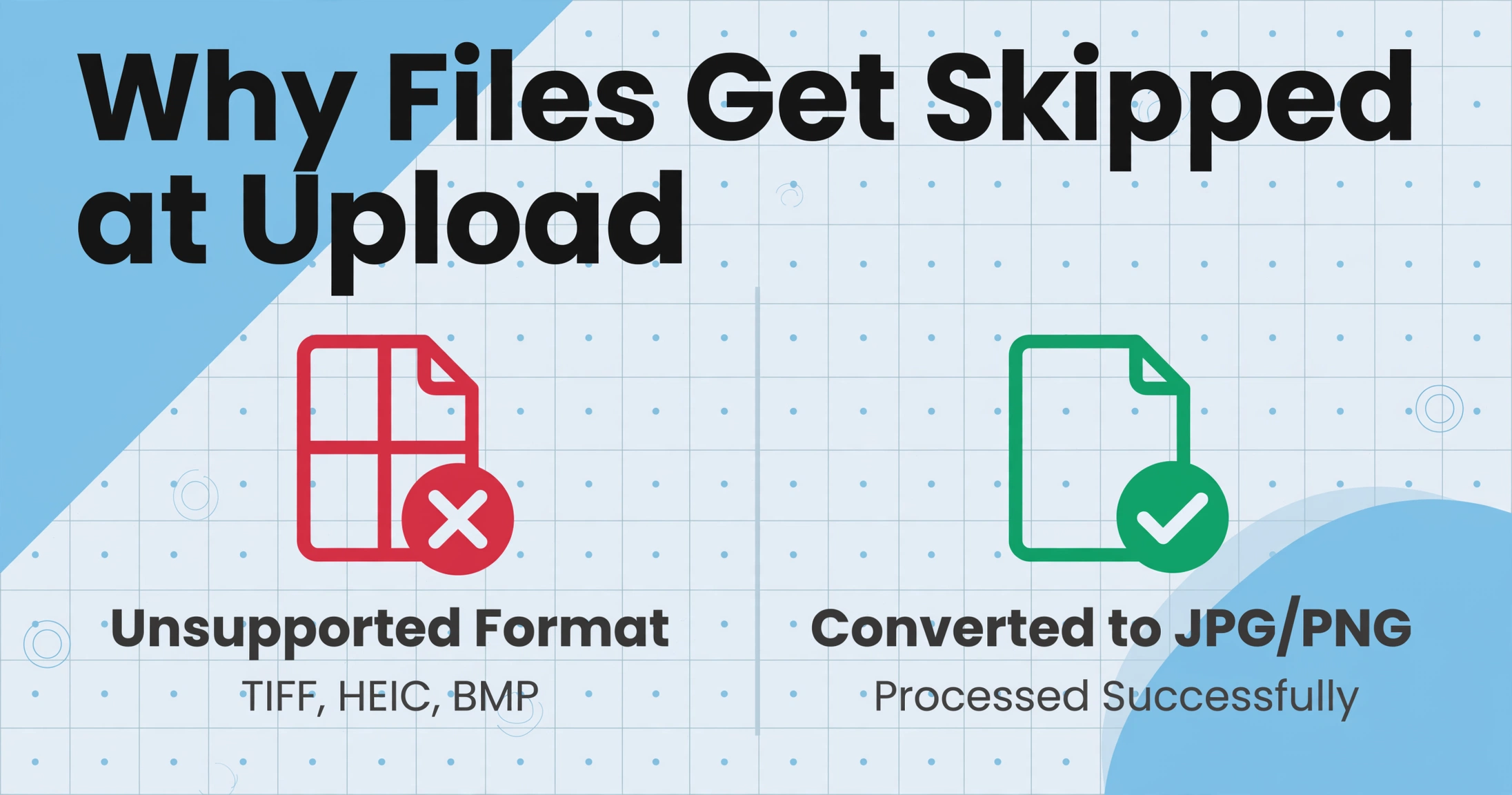
This is the most common cause of missing files, and also the easiest to overlook because the upload progress bar moves smoothly — it just stops counting before the problem files enter the queue. The tool registered these files as "tried" rather than "uploaded," and without a per-file error log, the gap passes silently.
Unsupported file format
Not all image and document formats are created equal. Most AI extraction tools — ImageToTable.ai included — support PDF, JPG, PNG, WebP, and AVIF. But if your batch contains a TIFF file, a HEIC photo from an iPhone, or a BMP screenshot from an older system, the upload handler may simply skip it. TIFF in particular is a common offender: many scanners still default to multi-page TIFF, and while TIFF is a valid image container, it's not on most extraction tools' input list. The file appears to upload — the browser sends it — but the processing pipeline never picks it up.
How to check: Sort your source folder by file extension before uploading. If you see .tiff, .heic, .bmp, or .svg, convert them to JPG or PNG first. Most operating systems can batch-convert in File Explorer or Finder. A 30-second conversion step saves hours of afterward head-scratching.
TIFF is the single most common unsupported format that trips up batch processing. If your scanner defaults to TIFF, change the output setting to JPEG or PDF before you scan the next batch.
Corrupted or incomplete files
A file that opens fine on your machine may still fail the upload integrity check. The PDF might have a truncated last page from an interrupted cloud download. The image might have a corrupt EXIF header from a failed camera write. A file that "looks fine" in preview — because the OS shows a cached thumbnail — can fail when the extraction tool tries to read its bytes.
This is especially common with files downloaded from email attachments or cloud storage links. The file opens, the content looks right, but the binary is not pristine. Extraction tools, unlike humans reading a preview, read the bytes — and broken bytes produce empty results.
How to check: Try opening each suspect file and re-saving it. In Adobe Acrobat, use "File → Save As → Optimized PDF" to strip latent corruption. For images, a quick re-save in any photo editor usually resolves header issues.
File size limits
Most extraction tools cap individual file sizes. On ImageToTable.ai, the standard upload limit accommodates typical office documents, but a 200-page scanned PDF or a high-resolution invoice photo taken at 48 megapixels can exceed it. The tool doesn't always reject the upload visibly — it may accept the file metadata but skip the actual content when it detects the size threshold has been crossed.
How to check: Review your files before uploading. If any single file exceeds 30-50 MB, consider splitting multi-page PDFs into smaller documents using a PDF splitter, or reducing image resolution before upload. Tools like PDFsam or Adobe Acrobat's "Split Document" feature handle this in seconds.
Special characters in filenames
An underappreciated failure mode. Files named INV-2026-03-15_återbetalning.pdf or 收据-001.jpg or Invoice (final - DO NOT EDIT).pdf — with non-ASCII characters, special symbols, or very long path names — can fail during the server-side write step. The upload request succeeds, the server accepts the file stream, but when it tries to write the file to temporary storage using the original filename, the filesystem rejects the character encoding. The file is counted as "received" by the HTTP layer but never lands on disk for processing.
How to check: Scan your filenames for anything outside standard alphanumeric characters, hyphens, and underscores. A quick bulk rename — INV-2026-03-15-refund.pdf instead of the original — eliminates this variable entirely.
Stage 2: Uploaded but Silently Dropped During Processing
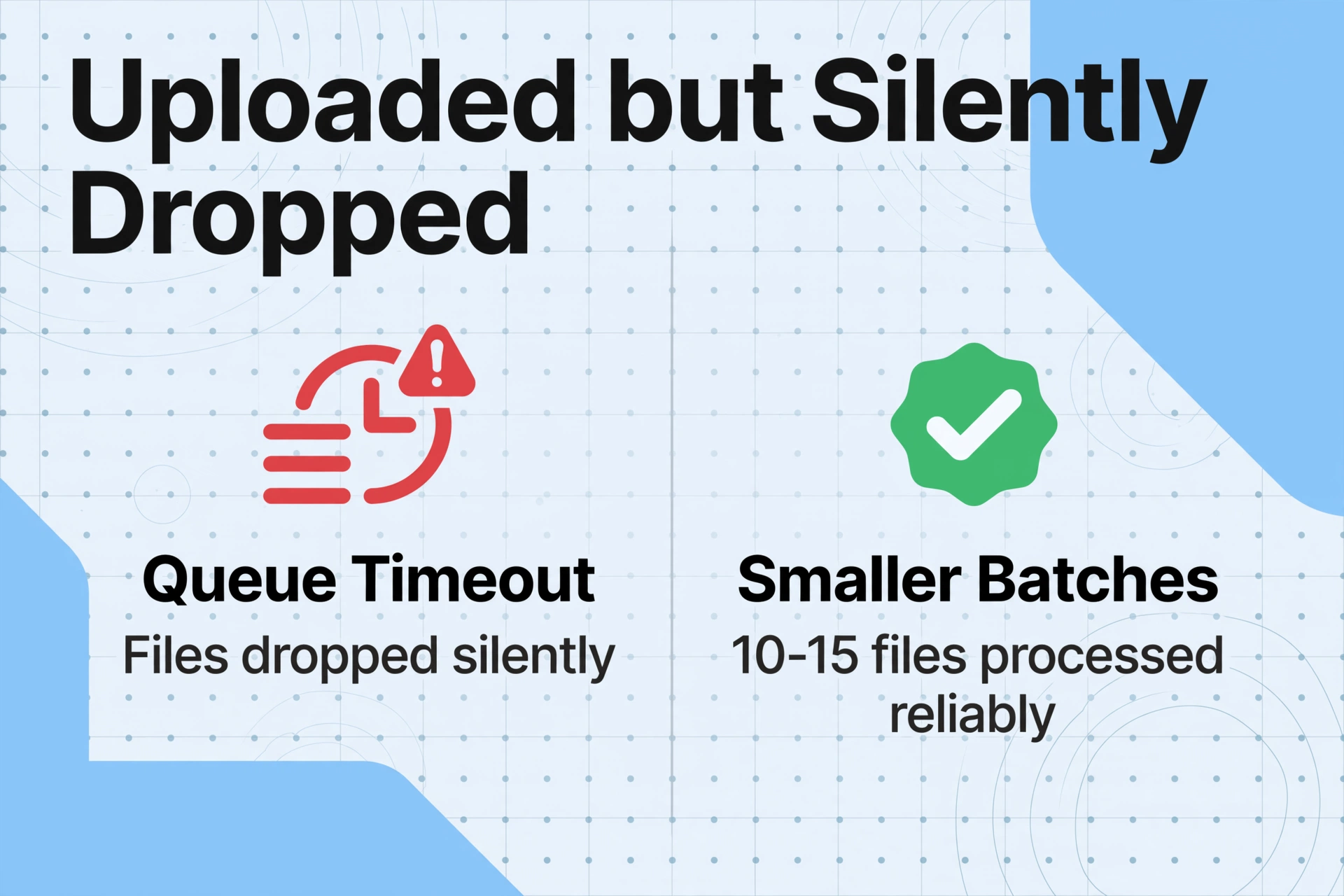
This stage is trickier to diagnose because the upload confirmed success. The tool shows 30 files uploaded, 30 green indicators. But during the processing phase — when the AI actually reads each document and extracts the data — files can drop off the conveyor belt without triggering an error state. The processing UI says "Complete" because the core engine finished its work, but it processed fewer documents than were uploaded.
Concurrency throttling and queue limits
AI extraction is computationally expensive. Each document requires a vision model inference, which consumes GPU memory and API throughput. To maintain stability, extraction tools enforce concurrency limits — typically 4 to 8 simultaneous processing slots per user. When you upload 50 files, they enter a queue, and the tool processes them in waves: 4 at a time, then the next 4, and so on.
The problem arises when the queue has a hard cap. Some systems silently drop files that exceed the queue depth. If your plan allows 50 files per batch but only 4 concurrent slots, and the processing engine encounters a persistent error on one of the first 4 files — say, a corrupted PDF that hangs the reader — it may stall the entire wave long enough for the remaining files in the queue to time out and be discarded. The UI still shows "50 uploaded, 46 processed" — but the 4 missing ones were never actually attempted.
How to check: Split your upload into smaller batches of 10-15 files and process them sequentially. If a specific batch consistently loses files while smaller batches don't, concurrency throttling is your culprit. This behavior is documented across multiple batch processing systems — from Google Document AI to self-hosted OCR pipelines — where the gap between "uploaded" and "processed" counts is almost always a queuing artifact.
Silent timeouts on large or complex PDFs
A PDF with 100+ pages or complex embedded graphics can exceed the extraction engine's per-document processing timeout. Unlike an explicit timeout error — which would tell you the file failed — some systems handle this by silently skipping the file and continuing with the next one. The processing job logs the file as "completed" because the timeout handler closed the thread gracefully, but no extraction result was generated.
This is especially common with scanned PDFs that are essentially 100 separate JPEG images bundled into a single file. Each page requires a full OCR pass, and the cumulative time can push past the timeout threshold on the 70th page — after which the processor discards the accumulated work and moves on.
How to check: Upload the problematic file individually. If it processes successfully as a standalone upload but gets skipped in batch mode, timeout during the batch queue is the cause. For multi-page PDFs exceeding 30 pages, consider splitting them into smaller documents before batch uploading.
Mixed file types behaving differently
Not all file types process at the same speed. A batch that mixes single-page JPG screenshots with 50-page scanned PDFs creates an uneven processing rhythm. The lightweight JPGs finish quickly, while the heavy PDFs consume disproportionate processing time. If a batch timeout is calculated on total processing time across all files, the slow PDFs can cause the JPGs that arrived later in the queue to be discarded — even though the JPGs would have processed fine on their own.
This is a systems-level issue that affects any batch extraction tool, not a quirk of a particular product. The underlying cause is that processing pipelines typically batch files heterogeneously but measure timeout homogeneously.
How to check: Group files by type and size before uploading. Process all small JPG files in one batch, then handle the large PDFs separately. This isolates the slow files from the fast ones and eliminates cross-contamination in the timeout logic.
Stage 3: Processed But Lost in the Merge
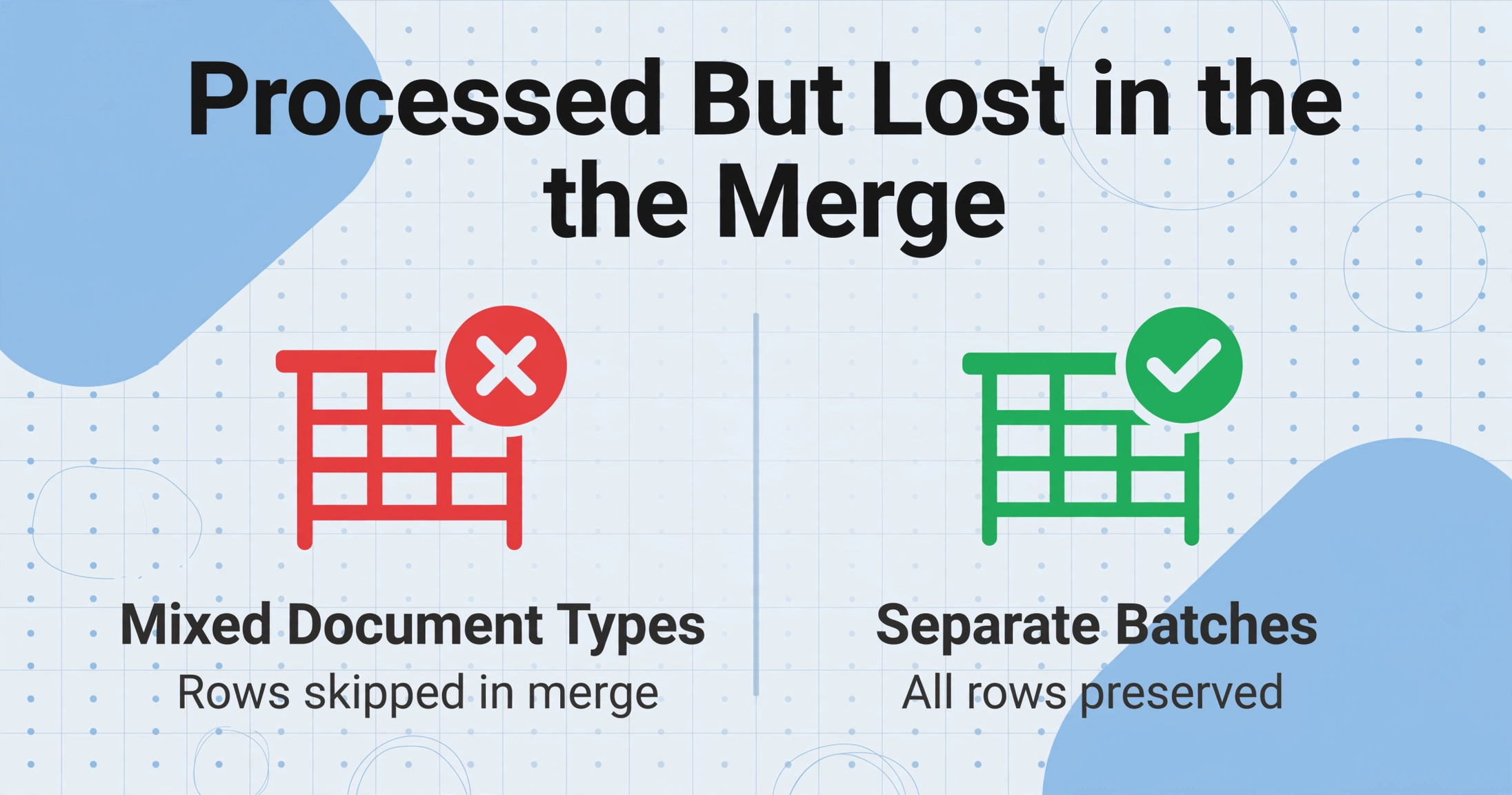
The rarest but most deceptive failure mode. All 30 files uploaded successfully, all 30 were processed by the AI, all 30 returned extraction results. But the final merged output — the single spreadsheet you downloaded — contains only 22 rows. The other 8 were processed as individual documents but never stitched into the unified export.
Different file structures producing misaligned rows
When you run batch extraction on a set of documents, the tool's batch processing engine attempts to merge results into a single table with consistent column headers. This works seamlessly when all files are the same type — 30 invoices, for example. But if your batch contains 25 invoices and 5 credit notes, the credit notes may have different fields (like "Credit Note Number" instead of "Invoice Number"), causing the merge algorithm to either create duplicate columns or — in some implementations — skip rows whose structure doesn't match the majority schema.
This is not a data loss in the strict sense; the extraction was successful. But the export logic treated these 8 files as structural outliers and excluded them from the unified table to preserve columnar consistency. The tool never told you because from its perspective, it delivered the cleanest possible merge.
How to check: Look for differences between your source files. If a subset has a different page orientation, a different language, or a fundamentally different document type, process those files as a separate batch. The definition of "batch" matters — your workflow should group files by structural similarity, not by folder convenience.
This issue is particularly common when batch processing across similar-but-not-identical documents, such as extracting tables from documents with merged cells or nested structures, where the row-count per document varies unpredictably.
The Pre-Upload Checklist — 30 Seconds Per Batch
Most of the failure modes above share a common trait: they are detectable before upload with a quick visual scan of your source folder. Treat this checklist as the gate between "ready to process" and "start the batch." It takes less time than troubleshooting 8 missing files afterward.
- File format audit — Confirm every file is JPG, PNG, or PDF. Convert any TIFF, HEIC, BMP, or WebP files. A quick sort by extension in File Explorer reveals outliers immediately.
- File size scan — Check for files over 30 MB. If you see any, split or compress them.
- Filename sanitization — Rename files that contain special characters (&, %, #, parentheses) or non-ASCII letters (é, ü, å, 中). Stick to
A-Z,0-9, hyphens, underscores. - Type homogeneity check — Are all files the same document type? If you're mixing invoices with credit notes, purchase orders with delivery receipts, separate them into dedicated batches.
- Spot-test a heavy file — Upload your largest PDF individually and verify it processes correctly. If it times out alone, it will definitely fail in a batch.
- Batch size sanity — If you have more than 30 files, split into smaller batches of 10-15. Smaller batches isolate problems and complete faster end-to-end.
When to Escalate — Is This the Right Tool for Your Files?
Honesty about tool limitations prevents repeated frustration. If you consistently lose files across multiple batches and the pre-upload checklist doesn't reveal the cause, consider whether your document set has characteristics that push against the design assumptions of most extraction tools.
Batch extraction tools — including ImageToTable.ai — are built for the common case: standard office documents, clean scans, and photos with readable content. They are not designed for:
- Extremely large single documents — 500+ page PDFs belong in a dedicated document management pipeline, not a batch extraction queue.
- Highly heterogeneous collections — 15 different document types in one folder will push any merge engine to its limit. Separate them.
- Encrypted or rights-managed PDFs — Password-protected files are skipped by virtually every extraction tool. Remove protection before uploading.
- Documents needing pixel-perfect positioning — If your use case requires knowing the exact X,Y coordinate of every field, a template-based zonal OCR tool may be more appropriate than a semantic extraction engine.
If your files fall into any of these categories, the fix isn't better troubleshooting — it's adjusting your workflow to match the tool's design. That's not a failure of the tool or of your process. It's a signal that your specific document characteristics need a different approach to the extraction pipeline.
Frequently Asked Questions
Why doesn't my extraction tool show an error when files fail?
Most extraction tools report at the batch level ("30 files uploaded") rather than the per-file level. If a file fails during upload without registering in the processing queue, the tool has no record that it was ever intended for processing. The gap between your mental count and the tool's count exists at the boundary where responsibility shifts from you to the system. Tools that provide per-file status tracking are the exception, not the norm. A batch OCR run that tracks status per file is one of those exceptions, showing queued, processing, completed, or failed for every document.
Can I recover data from files that were skipped during batch processing?
Yes, in most cases. Files that fail during upload or processing are typically untouched on your local machine. Run them through the pre-upload checklist, fix the identified issue (format conversion, renaming, splitting), and process them individually or as a smaller batch.
Does file order in the upload dialog affect which files get skipped?
Not in most systems, but it can appear that way. If you upload 30 files and the processing queue processes them in the order received, the files that land later in the queue are more likely to be affected by cumulative timeouts. The solution is reducing batch size rather than rearranging file order.
How do I know if a file is corrupted before uploading it?
Try opening it in its native application — Adobe Acrobat for PDFs, a photo viewer for images. If it opens without warnings, it's likely intact. For batch verification, tools like pdfinfo (Linux) or Adobe Acrobat's "Preflight" tool can scan multiple PDFs for structural integrity. A quick re-save of suspect files usually resolves latent corruption.
What's the maximum number of files I should include in a single batch?
Most tools support 30-50 files per batch, but reliability often peaks at 10-15. Smaller batches complete faster, make it easier to isolate problematic files, and reduce the impact of concurrency throttling and cumulative timeouts. Batch size is a reliability trade-off, not a feature limit.
Don't Guess — Diagnose
A missing file in a batch extraction is rarely a mystery once you know where to look. Upload failures account for roughly 60% of cases — unsupported formats, corruption, and filename issues. Processing failures — concurrency drops, timeouts, mixed-type conflicts — account for another 30%. Merge omissions, the quietest failure mode, make up the remaining 10%. Each has a fix, and most of those fixes take less than a minute to apply.
The 8 files you lost in your last batch are almost certainly still on your machine, untouched and ready to process once you identify the specific gate they couldn't pass. The difference between "batch extraction misses files" and "batch extraction works reliably" is knowing which gate failed and why.
Run the checklist on your next batch. You'll still have 30 files going in — but you'll get 30 rows coming out.
No sign-up required · Works with JPG, PNG, and PDF