Why Are Merged Cells Breaking
Your Table Extraction?
If your extracted spreadsheet has blank cells where merged headers should be, or values spilling into wrong columns — you've hit the most structurally complex problem in table extraction. The symptoms are unmistakable: rows that seem to belong to no visible group, headers that only apply to half the columns, or a spreadsheet that needs more manual repair after extraction than it saved.
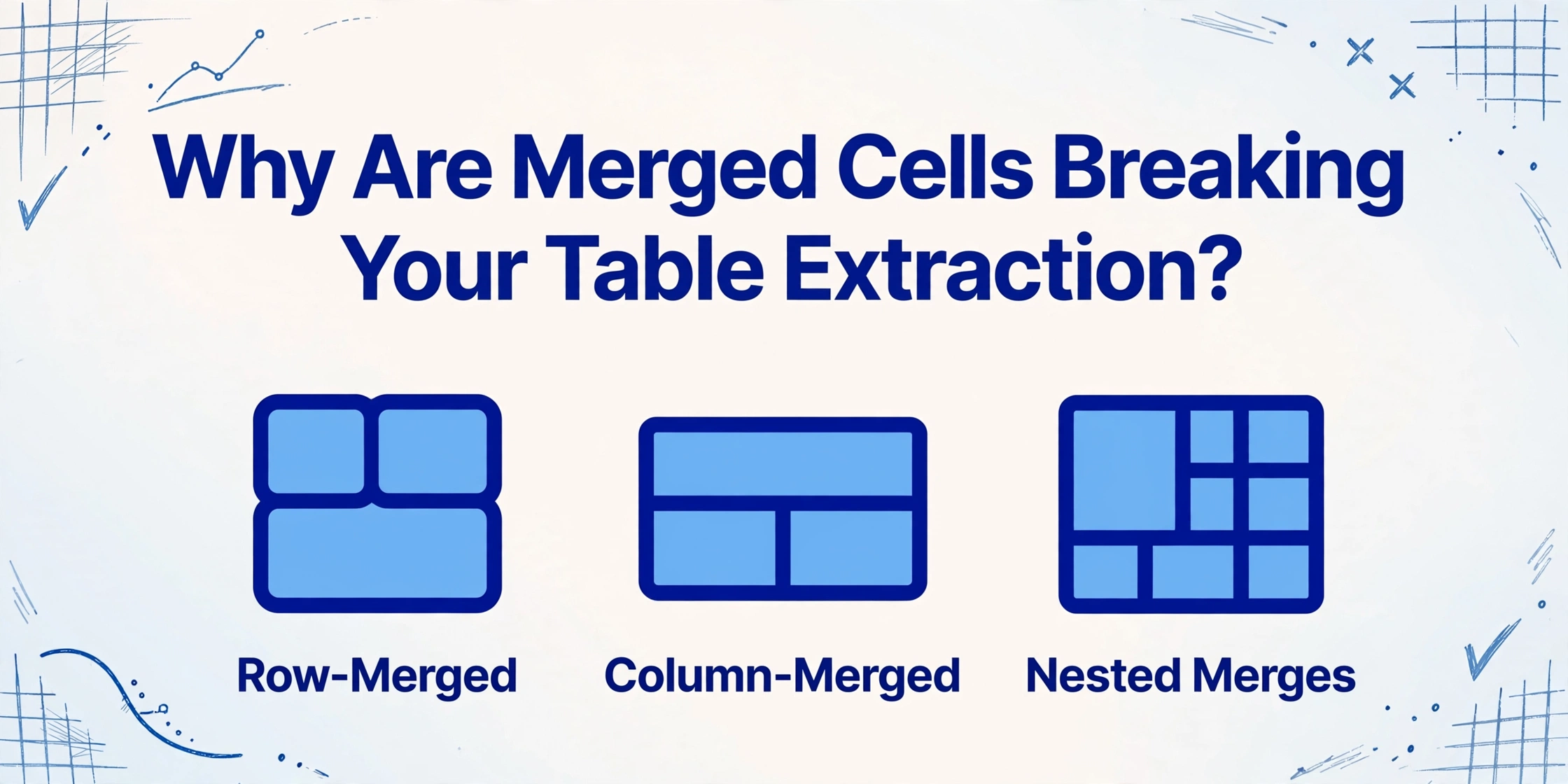
Key Takeaways
- Your extracted spreadsheet has blank cells where labels should be and values spilling into wrong columns — you know something's broken but can't quite name the cause.
- Merged cells create a fundamental mismatch between visual layout and data grids: the value lives in exactly one cell, every other cell in the merged range is empty by design, and no extraction tool can reconstruct a flat grid from an inherently non-flat structure.
- Use AI to read every value correctly, then apply Excel's unmerge-and-fill shortcut (select blanks, =↑, Ctrl+Enter) to repair the grid in under 30 seconds per column — the gap between visual layout and structured data closes with a two-minute post-processing pass.
What Makes Merged Cells Such a Hard Problem for Table Extraction?
To understand why merged cells break extraction, you need to see what a table extraction tool actually sees. When you look at a table, rows line up, columns line up, and merged cells span across multiple positions. The tool sees something different — a set of coordinates with text, and it must reconstruct the grid from those coordinates alone.
A merged cell creates a fundamental mismatch. Visually, one cell appears to occupy the space of two or three rows or columns. Structurally, the value lives in exactly one cell — typically the top-left cell of the merged range. All other cells in that range are empty by design. The extraction tool must choose: leave those positions blank (which produces gaps) or infer that the blanks should carry the merged value (which risks misattribution).
This is not a bug in any single tool. Every approach — from AI-based extraction to traditional OCR to PDF parsers — has to work around it. The good news is that merged cells fall into predictable patterns. Once you recognise which pattern is causing the problem, you can apply the right fix without redoing the extraction.
Root Cause 1 — Row-Merged Cells (Multi-Line Descriptions)
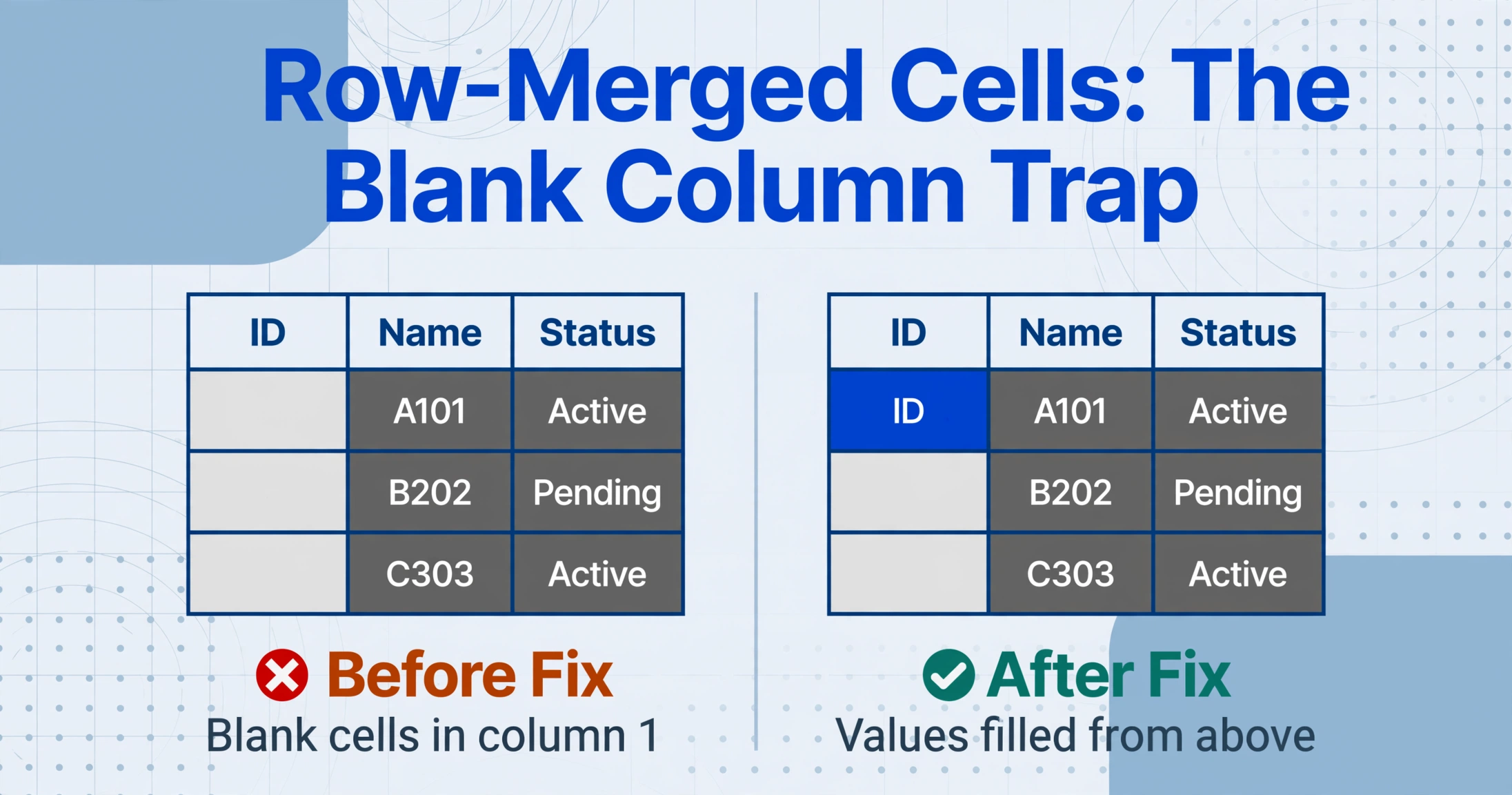
Symptom: The first column of your extracted table has blank cells. Everything else looks correct, but one column has random gaps.
This is the most common and the easiest to fix. Row-merged cells appear when a single label applies to multiple data rows underneath it — for example, an invoice line-item table where "Office Supplies" is merged across rows for pens, paper, printer toner, and binder clips. After extraction, the rows exist but the first column shows "Office Supplies" only on the first row, with blank cells on the following rows.
Why it happens: The merged cell contains one value in one cell; the cells below are structurally empty (part of the merged range, not independent cells). Some tools copy the value down — but that is a guess. Others return only what is physically present, leaving blanks.
The fix — In Excel: select the column with blanks → Home → Find & Select → Go To Special → Blanks → type = and press the ↑ arrow key → press Ctrl+Enter. This fills every blank cell with the value from the cell directly above it. Then copy the column and paste as values to lock the data. In Google Sheets, the same flow works: select blanks, type =, press ↑, press Ctrl+Enter (or Cmd+Enter on Mac).
Row-merged cells are the cheapest problem to solve because the fix is a single operation that affects one column and never shifts data between columns.
Root Cause 2 — Column-Merged Cells (Spanning Headers)
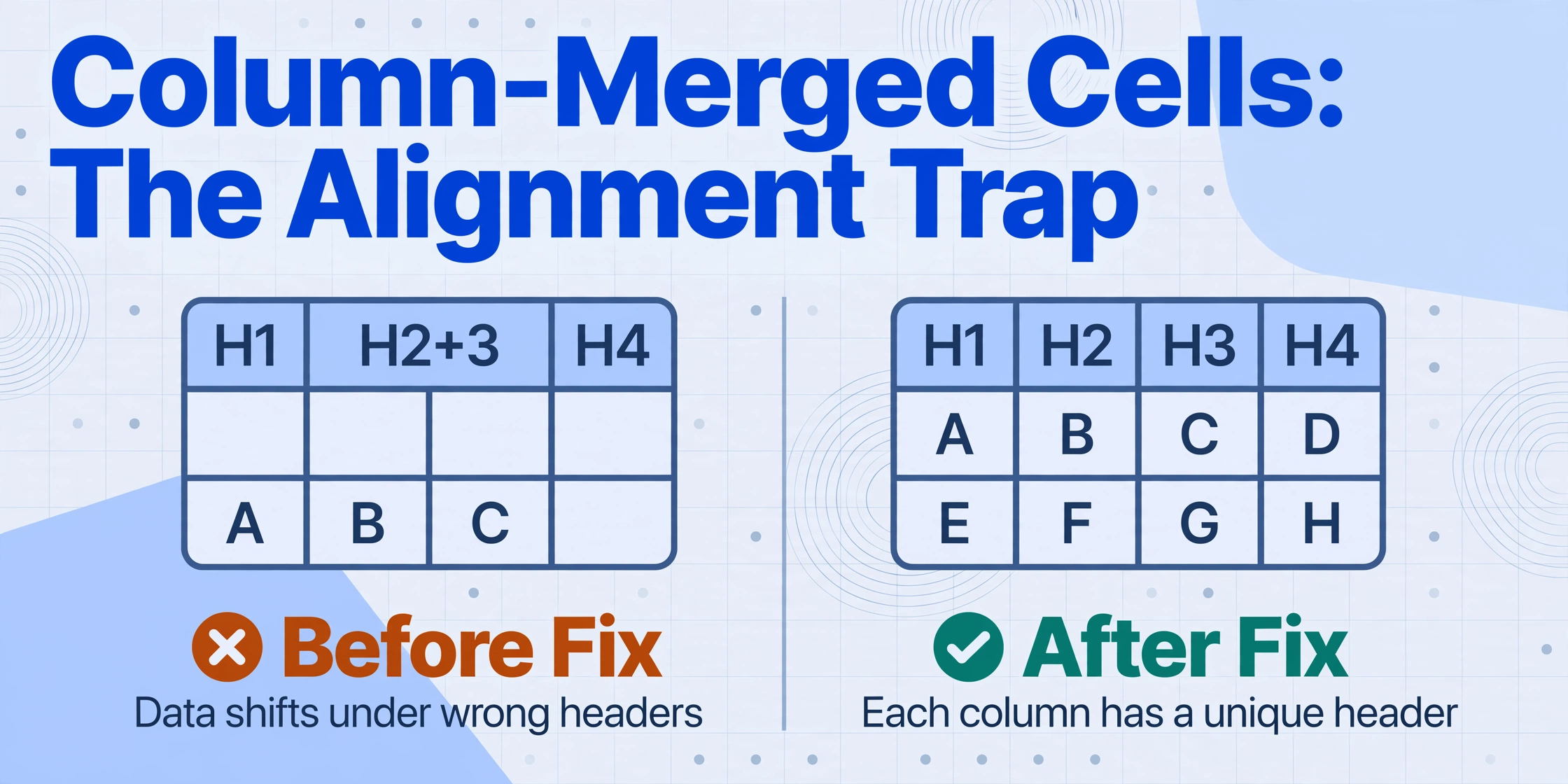
Symptom: Values appear under the wrong column headers. The column count is inconsistent between the header row and data rows, and the meaning of each column shifts halfway through the table.
Column-merged cells are more disruptive because they affect alignment. When a header spans two or three columns — say, a "Q1 2026" header covering January, February, and March — the extraction tool must decide how many columns the table has. If it counts the merged header as one column, every data row beneath shifts left by two positions. If it counts the underlying columns correctly but reads the merged header as belonging only to the first column, the semantic relationship is lost.
This is where most column misalignment errors originate. A merged header forces the tool to guess grid boundaries, and different tools guess differently. Some duplicate the header text across all spanned columns; others assign it only to the first column, leaving the rest headerless.
The fix requires understanding the intended column hierarchy. In Excel, after extraction:
- Insert a helper row below the header to reconstruct the full column layout manually.
- Unmerge any merged header cells using
Merge & Center→Unmerge Cells. - Fill the newly blank header cells with the correct column labels by referencing the original document.
- Delete the helper row and verify that each data column now has a unique, correct header.
This takes more time than the row-merge fix because you must reconstruct the column structure from your knowledge of the document — the tool cannot infer hierarchy reliably.
Root Cause 3 — Nested Merged Cells (Rows + Columns Combined)
Symptom: The extracted table is fundamentally broken. Rows and columns do not align, values appear in positions that make no logical sense, and the total cell count does not match any expected grid dimension.
Nested merged cells — where a single cell spans both multiple rows and multiple columns — are the hardest scenario. These appear in complex financial statements, clinical trial schedules, and multi-level project timelines. A cell spanning 2 columns and 3 rows creates a rectangular hole that throws off both row and column detection simultaneously.
Traditional OCR tools and PDF parsers like Tabula or pdfplumber typically fail entirely on nested merges, producing incorrect row and column counts. AI-based tools perform better at reading text inside merged regions but still struggle to reconstruct a flat grid that matches the original structure.
The fix is a two-pass approach. First, run the extraction with an AI tool that preserves cell-span metadata — information about which cells are merged and over how many rows and columns. Azure Document Intelligence and some modern vision-model-based tools return this metadata in their JSON output. Second, in Excel or Google Sheets, manually reconstruct the affected region:
- Identify each merged region from the original document (count how many rows and columns it spans).
- Insert blank rows or columns in the extracted table to match the span dimensions.
- Use the unmerge-and-fill technique from Root Cause 1 on each affected column.
- Cross-check row counts against the original to confirm nothing was dropped.
This is manual work and takes 5–15 minutes per table depending on complexity. The honest answer is that no tool today handles nested merged cells automatically with 100% reliability.
When to Escalate — Staircase-Pattern Merges
There is one merged-cell pattern where the most practical advice is: stop trying to automate it. Staircase merges occur when merged cells form a diagonal or step pattern — a cell in row 1 spans columns A–B, a cell in row 2 spans columns B–C, a cell in row 3 spans columns C–D. This creates overlapping span boundaries that no grid-reconstruction algorithm handles correctly, because the underlying structure violates the assumption of a non-overlapping cell matrix.
Staircase merges appear most often in manually built Excel reports and legacy accounting printouts where visual layout was prioritised over structural consistency.
How to identify staircase merges: open the source PDF or image and trace the merged regions with your eye. If you see a pattern where the merged areas do not line up in neat rows and columns — where the merge boundaries zigzag — you are looking at a staircase pattern.
The honest fix: Pre-process the document manually before extraction. Open the source file in Excel, unmerge all cells, fill the values down and across, and save a simplified version. Then run the extraction on the cleaned copy. This upfront 5–10 minute investment saves 30+ minutes of fixing broken extraction output.
The Practical Fix — AI Extraction + Unmerge-and-Fill Post-Processing

Across all three root causes, the most reliable workflow is not about finding a tool that "handles merged cells perfectly" — because that tool does not exist. It is about combining two stages that each do what they do best.
Stage 1 — AI extraction: Use a template-free extraction tool like ImageToTable.ai (it uses Custom Column Extraction: you type the column names you want, and the AI locates the values by meaning, not position). This handles document variation better than OCR or template-based tools. The AI reads every value in the table, including text inside merged regions. It cannot reconstruct the merged-cell hierarchy into a flat grid without gaps — but that is a limitation of the flat-grid format, not the AI.
Stage 2 — Excel post-processing: Apply the unmerge-and-fill technique from Root Cause 1 for row merges. Reconstruct headers manually for column merges (Root Cause 2). Use the two-pass approach for nested merges (Root Cause 3). For staircase merges, simplify the source document before extraction.
This workflow — AI reads the content, Excel repairs the structure — handles roughly 90% of merged-cell scenarios in 5–15 minutes. The remaining 10% (staircase patterns) are rare outside legacy internal spreadsheets.
FAQ
Why does my extracted table have blank cells?
The most common cause is row-merged cells. The tool finds the merged value only in the first cell of the range and leaves the others blank. Use the unmerge-and-fill technique in Excel to fix this in under 30 seconds.
Can AI handle merged cells perfectly?
Not yet. AI-based tools like ImageToTable.ai read text inside merged regions accurately, but they cannot reconstruct a perfect flat grid when merges span multiple dimensions. The flat-grid format is fundamentally incompatible with merged cells. Post-processing in Excel is still necessary and will be for the foreseeable future.
How do I know if my table has staircase merges?
Open the source document and trace the merged boundaries visually. If they form a zigzag or diagonal pattern where cells overlap irregularly, that is a staircase merge. These are rare in professional reports but common in legacy Excel files built for printing rather than data processing.
Is there a way to avoid merged cells in the source document?
If you control the source document creation, avoid merged cells entirely. Use Center Across Selection instead of Merge Cells for visual spanning. In PDFs from reporting tools, configure the output to repeat headers rather than merge them. This eliminates the problem at its source.
Does the Google Sheets add-on handle merged cells differently?
The Google Sheets add-on for ImageToTable.ai uses the same engine as the web app. It extracts values from merged regions accurately, but the output still contains blank cells where row-merged values need to be filled down. The same unmerge-and-fill post-processing applies using Google Sheets' fill-down shortcut (Ctrl+Enter after selecting blanks).
The gap between visual layout and structured data is where merged cells do their damage. A template-free AI tool gets the values right. A two-minute post-processing pass fixes the grid. Together, they handle 90% of merged-cell cases — without becoming an expert in any single tool's table model.
Try Table Extraction on Your DocumentNo sign-up · No credit card · Results in 10 seconds