How to Fix Wrong Extracted Numbers:
3 Root Causes You Can Diagnose Today
When your AI extraction gets the invoice total wrong by $200, the AI is rarely the problem. Most of these errors trace back to field design mistakes: how the columns you asked for were named and defined. That part is under your control, and it takes only a few minutes to diagnose.
Key Takeaways
- When an extracted invoice total is off by $200, your first instinct is "the AI is bad at numbers," but three separate root causes produce this error, and none of them are random noise.
- A column named "Total" maps to five different amounts on a single invoice (subtotal, tax, grand total, discount, shipping), so the model has to guess which one you meant.
- Rename "Total" to "Grand Total After Tax" and add three validation rules (numeric-only check, range check, math check). Most wrong-number errors surface before they reach your accounting system, and the math check can run during extraction instead of in your spreadsheet.
The AI Isn't Bad at Numbers — Your Field Names Are the Culprit
Here is a situation most people who work with AI extraction encounter at least once: you upload a clearly readable invoice, the tool returns every field confidently, and then you spot it: the "Total" column shows $1,247.30 when the real invoice total is $1,447.30. The subtotal, tax, line items all look right. But the one number that matters most is off by $200.
Wrong extracted totals are rarely random. They follow predictable patterns, which is why you can usually diagnose and fix one without switching tools. Across the documents we process, the same three causes account for nearly every wrong number we see.
The cost lands downstream. A wrong total that already posted takes minutes to trace and correct, and the automated process ends up creating more cleanup work than it saved. The fix, though, rarely requires a different AI engine. It requires knowing which of three root cause categories your error belongs to.
Custom Column Extraction is the mechanism this diagnosis rests on. You type the field names you want, and the AI locates each matching value anywhere on the page by understanding what the label means rather than where it sits. That is also why field design carries so much weight: the AI works from the exact label you gave it, and a precise label leaves it little room to pick the wrong number. The three root cause categories below explain virtually every wrong-number error, and each one has its own diagnostic test.
Root Cause 1: Ambiguous Field Design — "Total" Is Not Specific Enough
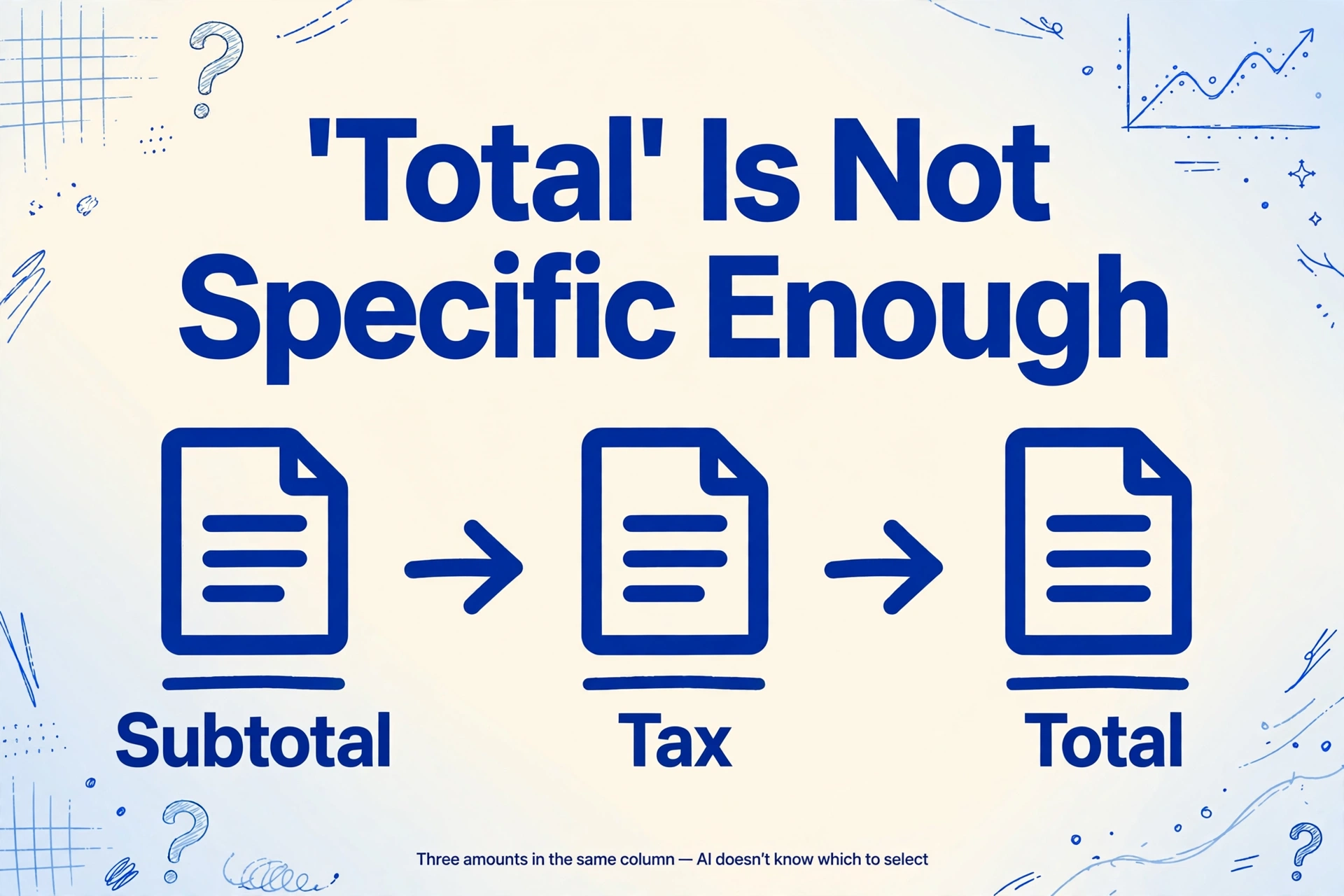
Symptoms: The extracted total is not the total you expect. It might be the subtotal. It might be the amount after a discount you didn't notice. It might be the tax-inclusive total when you wanted the net amount. But the number itself is legible and appears on the invoice — it's just the wrong one of several available amounts.
Why it happens: A typical invoice's totals section contains at least three monetary fields stacked vertically: Subtotal, Tax (or VAT/GST), and Total. Many invoices also include Discount, Shipping, or Previous Balance fields in the same column. If your extraction column is named "Total," the AI has to guess which of these amounts you mean. The word "Total" is a valid field label on the document, but it is also the word that appears in "Subtotal," and the general area where "Tax" and "Shipping" also sit. The AI does not have native knowledge of which total you care about — it reads the label you give it and finds the best semantic match on the page. When one label maps to five possible values, the error rate goes up.
This is not a limitation unique to any particular AI engine. Here is what happens inside a vision-language model when it processes an ambiguous column request: it sees the word "Total" in your column definition, scans the totals section, finds three or four numbers that all plausibly match — the subtotal sits one line above the tax, the grand total sits one line below it — and picks the one with the strongest semantic and positional signal. On most invoices, that works fine. On invoices where the subtotal and total are close in font size and separated by only one line of whitespace, the model's confidence for either option may be nearly equal. The result is a coin flip that looks like a confident wrong answer on the output.
How to fix it: Be specific about which amount you want. Instead of a column named "Total," use one of these:
- "Total Amount Due": unambiguous, appears on most invoices as the final payable number
- "Grand Total (after tax)": the suffix tells the AI this is the final number after all additions
- "Subtotal (before tax)": explicitly excludes tax-inclusive values
- "Amount Paid" / "Balance Due": distinguishes payment from outstanding amounts on statements
The more specific your column name, the fewer candidates the AI has to choose from. That is how the extraction is meant to work, not a workaround. How modern AI distinguishes invoice fields by meaning, not position explains why label specificity directly controls extraction accuracy at the field level.
To test whether this is your problem: look at the invoice alongside your extraction output. Find the value the AI returned for "Total" and the value on the document that matches it. If they are the same but that value happens to be the subtotal or the tax-inclusive total, you have an ambiguity problem, and the fix costs nothing but a more specific column name. Once the names are right, extracting specific invoice fields into Excel is the next step.
Root Cause 2: Character Confusion — When 5 Becomes S and 0 Becomes O
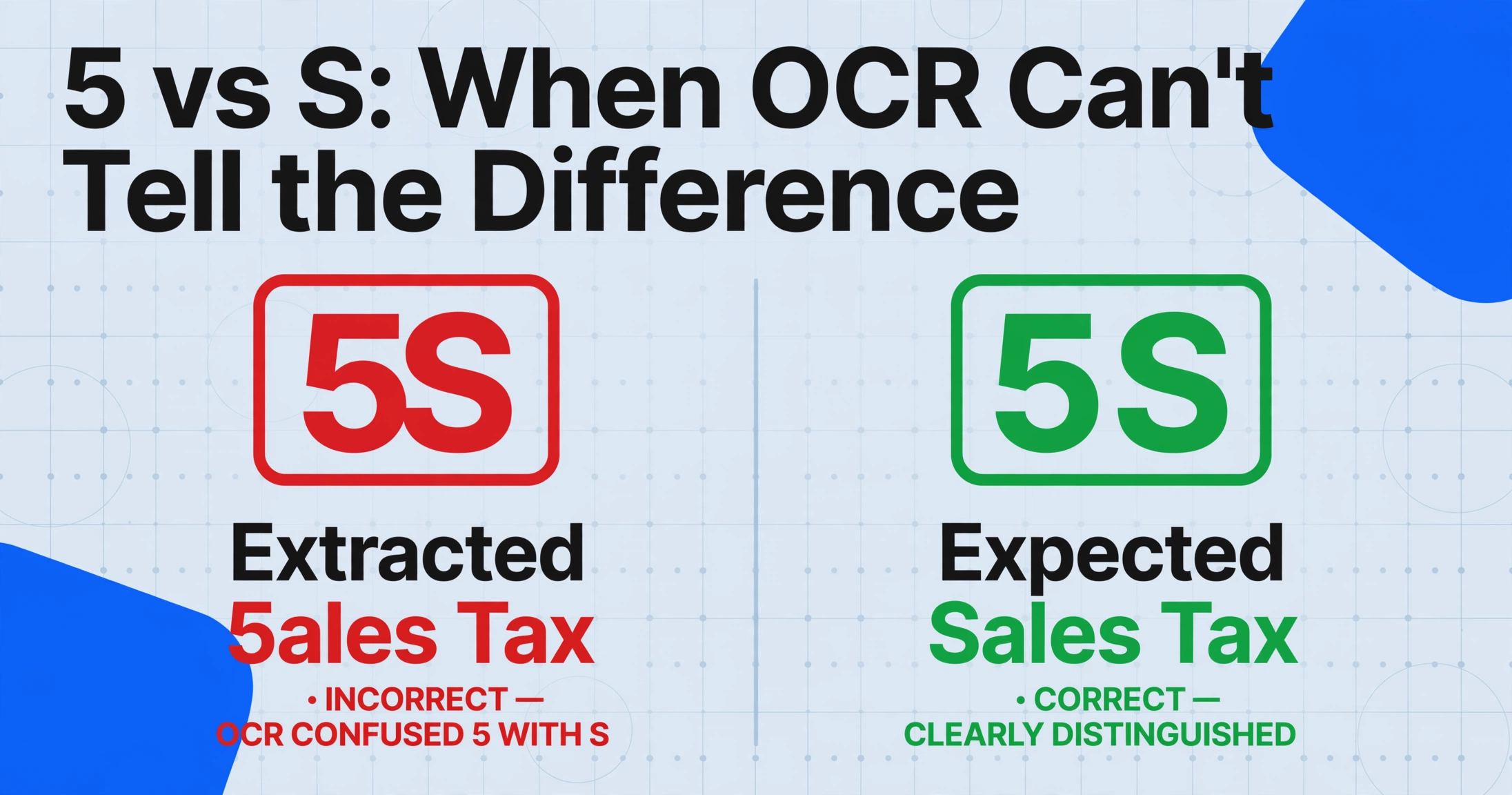
Symptoms: A number in the extracted output contains a letter where a digit should be — "5" extracted as "S," "0" as "O," "1" as "l" or "7." The error is consistent across similar documents from the same source. The number is wrong by one or two positions, but the magnitude looks roughly correct.
Why it happens: OCR engines and vision models both analyze the pixel shapes of characters. Some character pairs share nearly identical visual profiles at common font sizes and scan resolutions:
| Pair | Why OCR Confuses Them |
|---|---|
| 5 / S | The curved top and bottom look nearly identical in small fonts or low-contrast scans |
| 0 / O | Both appear as a round or elliptical shape; the slash through zero is often missing in fonts |
| 1 / l / 7 | Thin vertical strokes collapse into the same visual profile at low resolution |
| 8 / B | The internal loops are visually similar when the scan is slightly blurred |
| 6 / G | The tail of the G and the loop of the 6 are nearly indistinguishable at small sizes |
This is not a problem that better AI can fully eliminate. Even state-of-the-art vision models have near-equal confidence for "5" and "S" when the character appears at 9 pixels tall with compression artifacts. The human brain resolves these ambiguities using word-level context — you know "5ales Tax" is wrong because "Sales Tax" is a known term. An OCR engine has no such word-level knowledge unless it has been trained specifically to expect dictionary words in certain fields.
How to fix it: Character confusion is best caught after extraction, not during it. Implement field-level validation rules that check the extracted value against expected patterns:
- Numeric-only fields: If a field should contain only digits (invoice number, PO number, account code), run a simple regex check. Any extracted character that is not a digit in a numeric-only field is almost certainly a misread. Replace "S" with "5," "O" with "0," "l" with "1" in that context.
- Range checks: If an extracted total is $5,000.00 but all other invoices from that vendor are in the $200–$800 range, flag it for review. A single outlier number is often the result of a misplaced decimal or a character misread that inflated a value by an order of magnitude.
- Cross-field math validation: Check whether subtotal + tax = total. If the math does not add up within a small tolerance, at least one of the three numbers contains a character-level error. This single check catches the majority of character confusion errors because a misread digit in any of the three totals breaks the arithmetic relationship.
ImageToTable.ai's intelligent data post-processing handles the formatting half of this automatically, standardizing dates, amounts, and serial numbers so a value arrives in one consistent shape. The math half can run during extraction instead of in your spreadsheet: describe the calculation in a column name, for example "Tax Check (Subtotal + Tax = Total)", and ImageToTable.ai performs it while reading the document, outputting a pass, a fail, or the difference. When subtotal + tax does not equal the printed total, that mismatch arrives as a value on the row it belongs to rather than as a formula you still have to build.
Root Cause 3: Format Variance — 1.234,56 vs 1,234.56
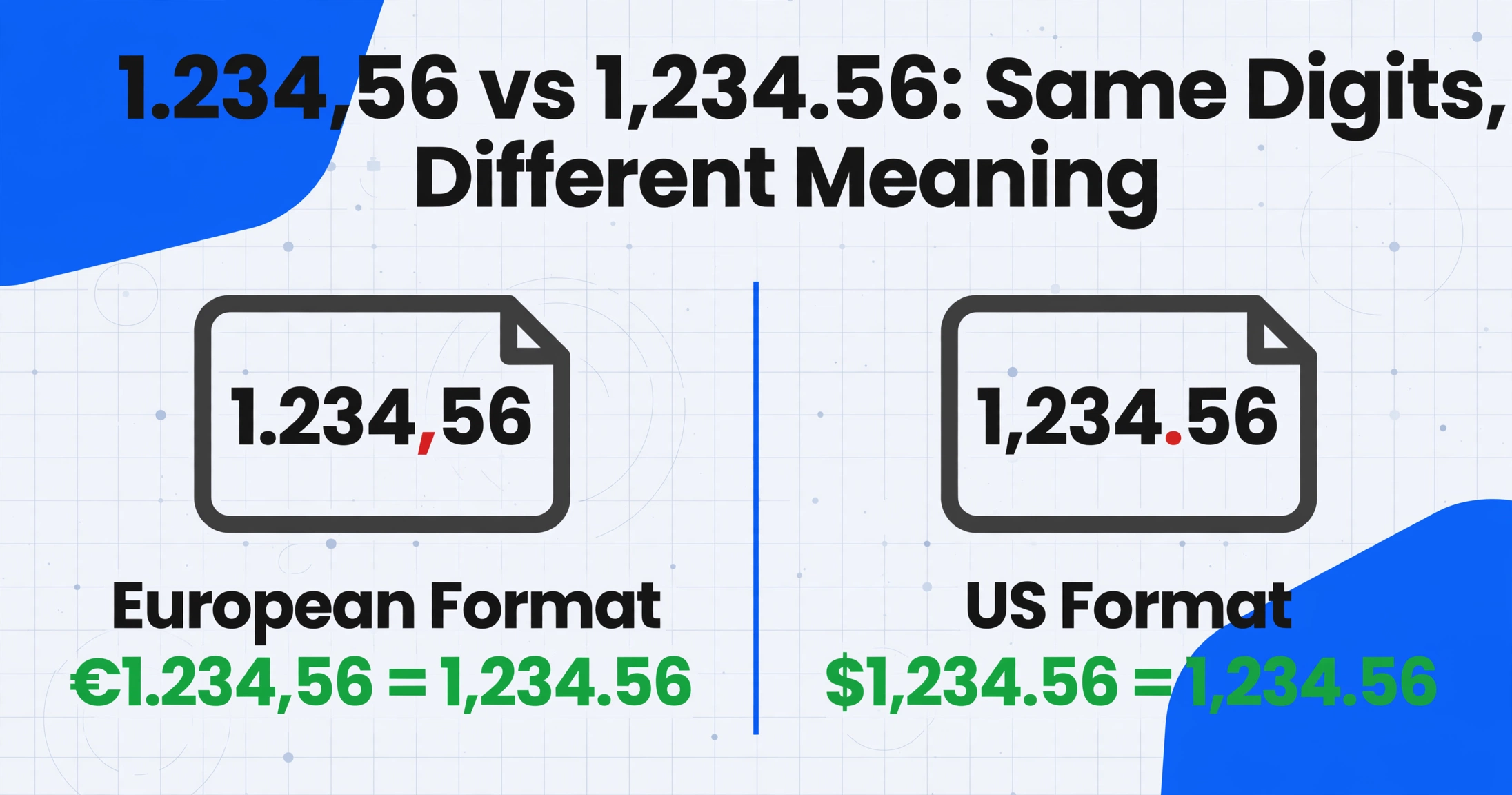
Symptoms: The extracted number is off by three orders of magnitude. A total of €1.234,56 on a European invoice is extracted as 1.234, or worse, as 1,234.56 (which in European notation means one thousand two hundred thirty-four and 56/100). Dates are also affected: 03/04/2026 is read as March 4 by a US-based system when the invoice clearly intends April 3.
Why it happens: Most of continental Europe, most of South America, and parts of Africa and Asia use the comma as a decimal separator and the period as a thousands separator. The United States, the United Kingdom, and a few other countries invert this convention. An AI extraction engine that processes a German invoice (€1.234,56) and a US invoice ($1,234.56) in the same batch sees two numbers that look structurally identical but mean completely different things.
Here is the subtle part: the AI does not know which convention the document follows unless you tell it, because the visual pattern is the same — a number with two separators. The model sees "1.234,56" and has no inherent way to know whether the period is a thousands separator (European) or a decimal point (unusual but possible in some formats).
How to fix it: Post-extraction validation rules do the real work for format variance, because the AI's visual understanding cannot resolve an ambiguity that is cultural rather than visual.
- Configure a decimal separator rule per document source. If you process invoices from German suppliers, define the comma as the decimal separator for that group of documents. ImageToTable.ai's data post-processing standardizes date, amount, and serial-number formats as part of the output, so the exported values follow the convention you set.
- Apply range-based sanity checks. If an extracted "Total" is 1.234 (one thousand two hundred thirty-four based on European formatting) but the line items sum to around 1.234,56 (one thousand two hundred thirty-four and 56 cents), the AI likely ate the decimal part. A range check that compares the extracted total to the sum of line items catches this immediately.
- Use mathematical consistency checks. Same as in Root Cause 2: subtotal + tax = total. If the decimal separator was misinterpreted, the math will not balance, and you know to re-examine the format before the error propagates.
A stronger OCR engine does not resolve this, because the ambiguity is cultural rather than visual. What works is a validation layer that checks the parsed number against the rest of the document before the value moves on.
When to Escalate: The Edge Cases Even Good Tools Can't Fix
Honesty matters here. Not every wrong-number error has a field-name-level fix. There are two situations where even the best AI extraction, with the most specific column names and the most thorough post-processing, will still produce wrong outputs with some frequency.
Situation 1: Adjacent total rows with identical formatting. When an invoice lists "Subtotal," "Discount," "Tax," and "Total" in the same right-aligned column, using the same font size and the same font weight, with no visual separator between them, any AI engine faces a genuine ambiguity problem. The signals the model uses to disambiguate fields, such as font size, whitespace, and label position, are weak or contradictory here. In that case, the practical approach is to extract all four values (define columns for each) and resolve which is which in your downstream spreadsheet based on expected relationships: the total should be the largest number, the subtotal should be the second largest, the discount should be the smallest.
Situation 2: Inconsistent decimal conventions within a single document. Some invoices mix formats, using a period as a decimal separator in one section and a comma in another. This is rare but exists, typically in cross-border invoices where the document layout has been assembled from multiple regional templates. In these cases, no single format rule works for the entire document. The solution is a manual review of the fields where the format mix appears, combined with a flagging rule that alerts you when line items and totals use different separator patterns.
In both edge cases, blaming the tool misses the point. The source document itself carries an ambiguity that any automated system would struggle with, so the work shifts to designing your validation workflow around it.
Frequently Asked Questions
When my extracted total is wrong, should I assume the AI made a random error?
No. Extraction errors on numerical fields follow predictable patterns. Check your column name specificity first: "Total" is ambiguous on most invoices. If the correct number appears on the document but it is not the one the AI returned, the root cause is almost certainly field ambiguity (Root Cause 1). If the number itself contains unexpected characters (letters where digits should be), it is character confusion (Root Cause 2). If the magnitude is off by roughly 1,000x, it is a decimal separator issue (Root Cause 3). Each has a different fix, but none should be treated as random noise.
Can I use the same column name "Total" if I always want the grand total?
You can, but you will get wrong results on any invoice where the total is ambiguous. "Total" is the most overloaded field name in document extraction. A column named "Total Amount Due" or "Grand Total (after tax)" eliminates the ambiguity without any extra effort on your part. The AI uses your column name as its primary search signal, so the more precise the signal, the less room for interpretation.
Does better AI hardware resolve character confusion between 5/S or 0/O?
No. Character confusion is a fundamental visual ambiguity, not a hardware limitation. A state-of-the-art vision model and a basic OCR engine both face the same 5/S ambiguity when the character is 9 pixels tall on a compressed scan. The fix is post-extraction validation: check that numeric-only fields contain only digits, apply range checks, and use cross-field math to catch inconsistent values. Swapping in a stronger model does not help, and it can make things worse by returning an incorrect value with more confidence.
My European invoice has €1.234,56 but the extraction returns 1.234. What happened?
The AI likely interpreted the period as the decimal point and the comma as a thousands separator, following the US convention, which truncated the decimal portion entirely. The value "1.234,56" in European formatting means one thousand two hundred thirty-four and 56/100. Read as US formatting, the period becomes the decimal point (making the value 1.234, or roughly one and a quarter) and the comma becomes the thousands separator, which is ignored in a four-digit number. Configure your batch for European decimal formatting by telling the system that the comma is the decimal separator, then re-run.
Should I add manual review for every extraction, or only when numbers look suspicious?
Targeted review beats blanket review. Apply three rules to every batch: (1) flag any extracted total that falls outside a defined range (e.g., 3 standard deviations from the vendor's historical average), (2) flag any batch where subtotal + tax ≠ total by more than a small tolerance (e.g., $0.50), and (3) flag any numeric-only field that contains non-digit characters. These three rules catch the vast majority of wrong-number errors without requiring you to inspect every single row. Manual review on only the flagged items keeps your throughput high while catching the errors that matter.
How does Custom Column Extraction handle ambiguous field names differently from template-based tools?
Custom Column Extraction treats each column name as a semantic search query, not a position-based rule. When you type "Total Amount Due," the AI searches the entire document for a value that matches that specific meaning, the final payable amount after all additions and deductions. A template-based tool, by contrast, looks at a pre-recorded coordinate zone on the page. The coordinate zone approach works well when the total never moves; Custom Column Extraction works well when the total moves but its meaning stays the same.
Can the same batch contain invoices from US and European suppliers with different number formats?
It can, but you will need to handle the format variance downstream. The AI extracts the numbers as it sees them on the page and does not automatically normalize format conventions within a batch. For mixed-format batches, the practical approach is to process US and European documents separately, applying the matching format rule to each group, or to normalize the separators in a post-processing step before the values reach your accounting system. For a deeper look at the kinds of writing and character obstacles extraction tools face, see our companion piece on why OCR struggles with handwriting and how to fix it.
Wrong extracted numbers are frustrating, but they are almost never random. They fall into one of three predictable categories: ambiguous field names, character confusion, or format variance. The first place to look is field design, and each category has a specific fix that does not require switching tools or retraining a model. The next time a total comes back wrong, do not ask "why is the AI bad at numbers." Ask "which of the three root causes is this, and what is the cheapest fix?" The answer is usually a more specific column name or a single validation rule, and neither costs more than a few seconds of thought.
Test the approach on your own documents. Upload an invoice you know caused a wrong-number error, define the columns with maximum specificity, using "Grand Total After Tax" instead of "Total," and see whether the result changes. Try extraction on your own documents and see if three minutes per document becomes ten seconds.