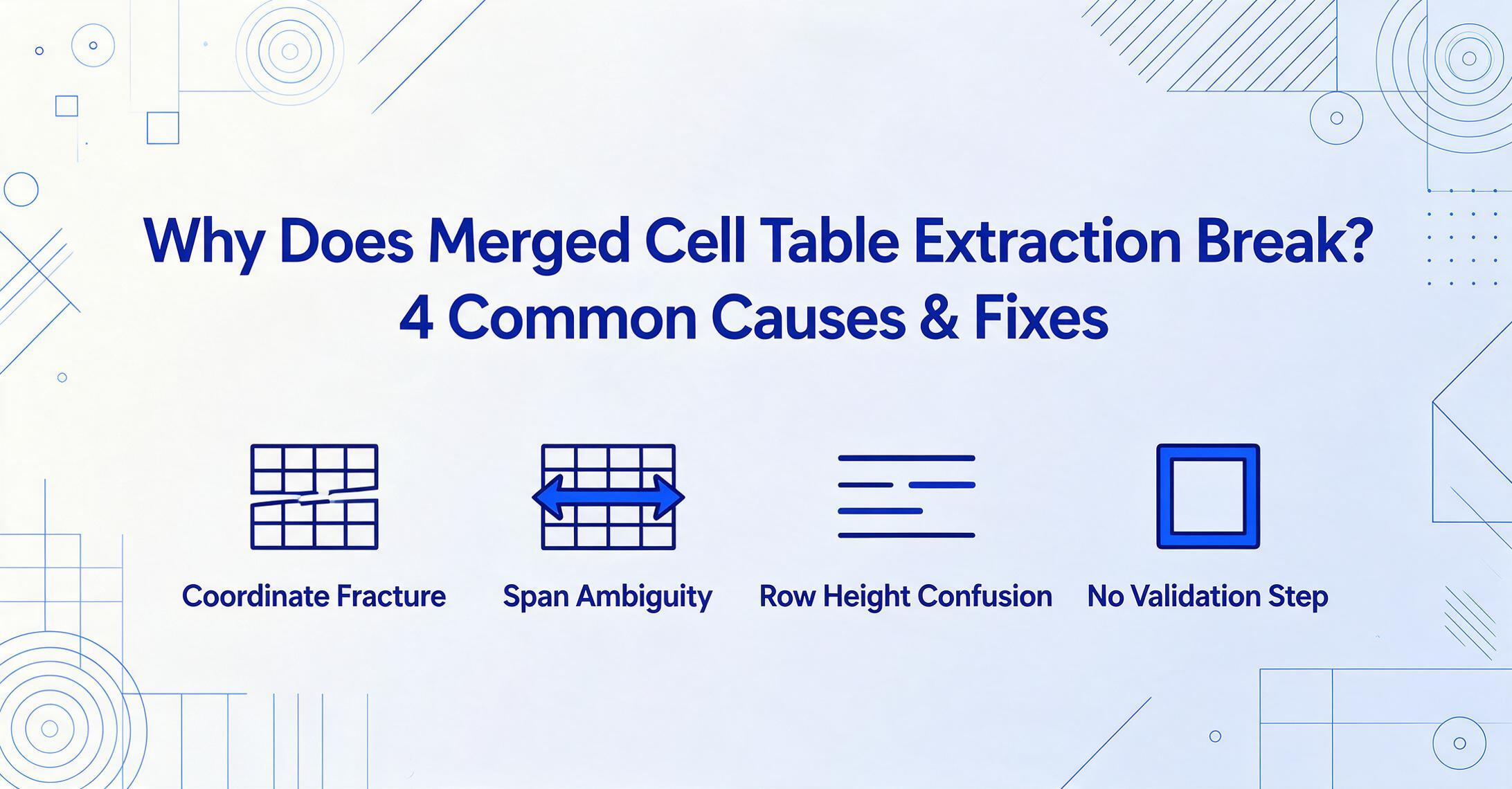
Why Does Merged Cell Table
Extraction Break? 4 Common Causes & Fixes
You are not alone — this is the single most common extraction issue. Your tool reads the text, but the output comes back with empty cells where data should be, column headers scattered across the wrong columns, or rows that simply vanished. Merged cells in the source document are almost always the culprit, and the fix depends on understanding which kind of merged cell pattern is causing the trouble.
Key Takeaways
- Your extraction completed without an error but entire columns came back empty because every merged cell in the source forced your tool into a silent guess.
- Those blank cells aren't random — four specific merged-cell patterns cause them and each has a named root cause you can diagnose in 30 seconds.
- A single post-extraction check — unmerge any remaining cells, fill down to propagate values, and verify your row count against the source — catches the silent corruption that every tool is vulnerable to.
Does This Look Familiar?
If you are here, one of these scenarios probably matches what you are staring at right now:
- Blank cells in columns that should have data. A merged category label ("Q1 Revenue") that spans three rows — the first row has the text, the next two are empty.
- Data has drifted into the wrong column. Values that belong under "Amount" ended up under "Description" because the merged header confused the column boundary detection.
- Column headers missing or jumbled. A two-row header block where "Product Details" spans five columns — extraction collapsed it into a single column.
- Rows don't add up. The source has 14 data rows but the output shows 9, or vice versa, because merged row boundaries were miscounted.
Each of these symptoms points to a different root cause. The good news: once you know which pattern is at play, the fix is straightforward.
The Big Picture: Why Merged Cells Break Extraction
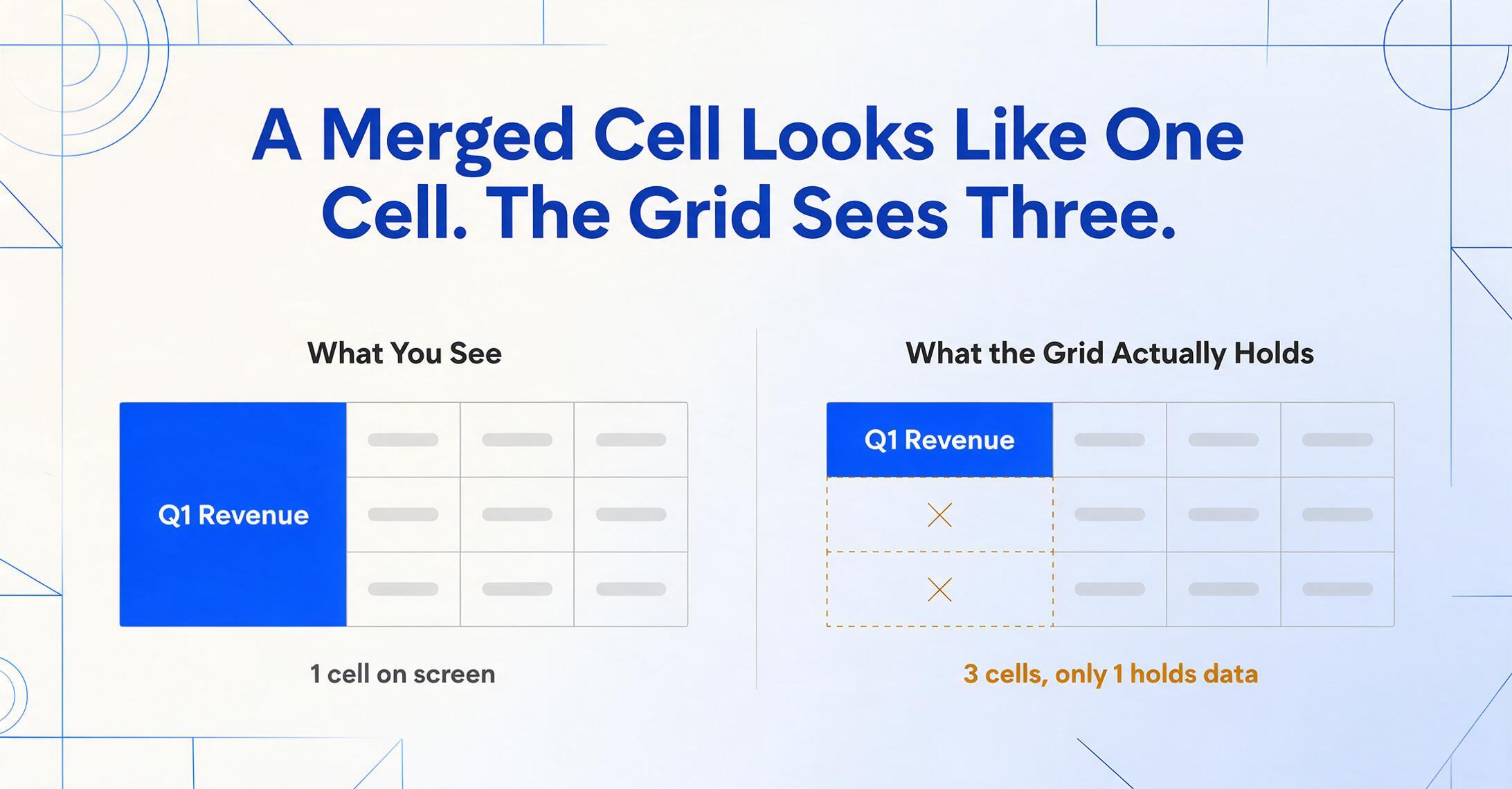
A table is a grid — rows and columns forming cells, each holding one value. A merged cell combines adjacent cells into a single visual unit. It looks like one big cell on screen, but the underlying structure still treats them as separate cells — only one of which actually contains data.
This gap between visual appearance and structural reality is where extraction tools stumble. Whether you are using traditional OCR or a vision AI model, the extraction engine has to decide: "How do I map this visual span back to a clean grid?" That decision is where things go wrong.
Merged cells force extraction tools to guess. Both approaches fail when the guess is wrong — and with merged cells, it frequently is.
Root Cause 1: Line-by-Line OCR Can't Handle 2D Structure
Symptoms
The text is all there, but the row-column mapping is broken. A row that should be "Part A | $12.50 | 3 | $37.50" comes out as "Part A | $12.50 | " with the remaining values pushed to the next line. Merged cells that span multiple rows produce blank rows in the output.
Root Cause: Coordinate Fracture
Traditional OCR engines process documents sequentially — lines from top to bottom, words left to right. This works for paragraphs. For tables, it treats each text block as a standalone line without understanding the vertical alignment that defines a column.
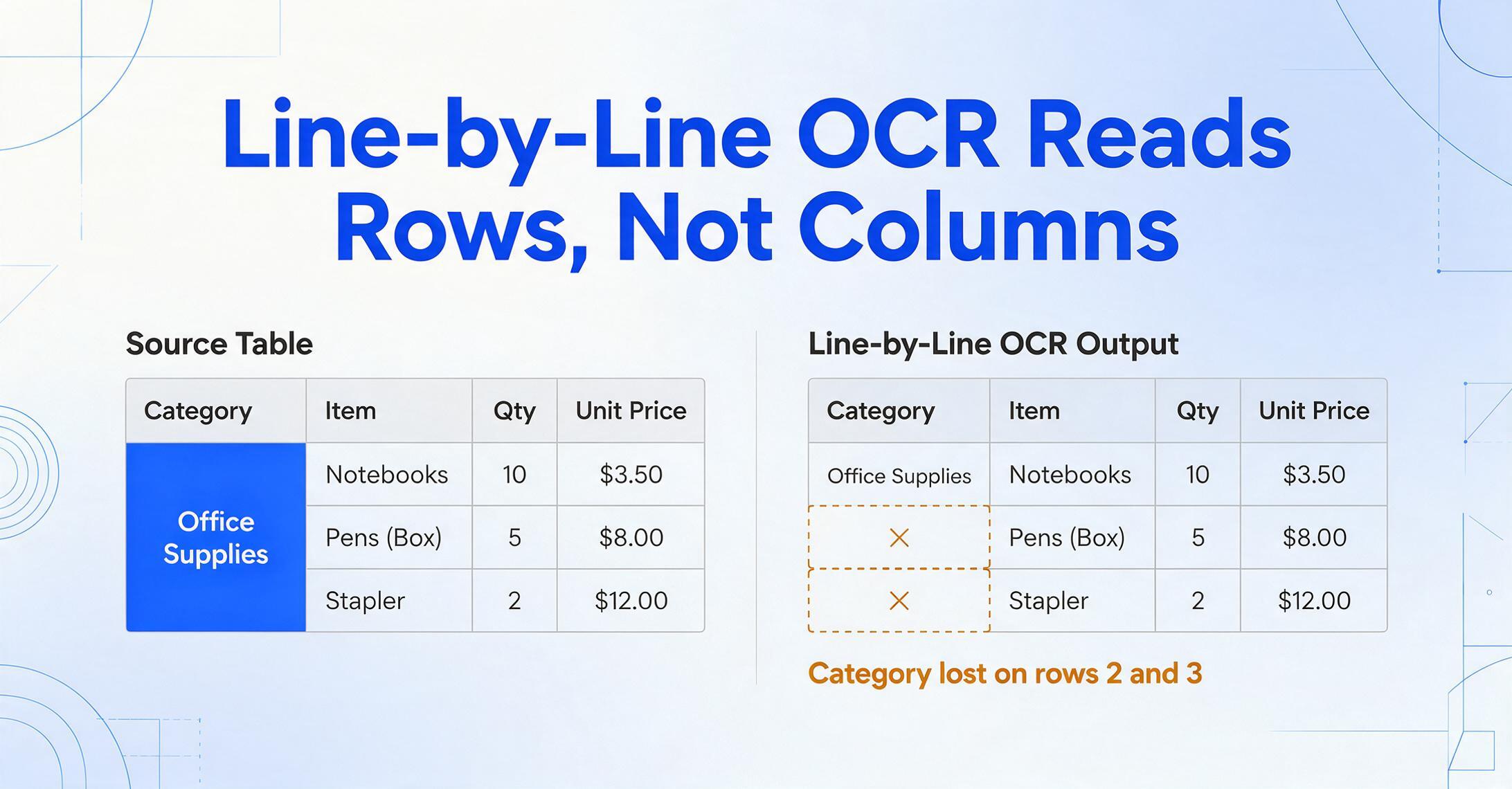
Here is a concrete example. Imagine a purchase order with a merged cell reading "Office Supplies" that spans three rows:
| Category (merged) | Item | Qty | Unit Price |
|---|---|---|---|
| Office Supplies | Notebooks | 10 | $3.50 |
| Pens (Box) | 5 | $8.00 | |
| Stapler | 2 | $12.00 |
A line-based OCR engine reads this as:
Line 1: "Office Supplies" | "Notebooks" | "10" | "$3.50"
Line 2: "Pens (Box)" | "5" | "$8.00"
Line 3: "Stapler" | "2" | "$12.00"
Notice what happened: "Office Supplies" was read on line 1 alongside the actual data for that row, because the OCR found it at the same vertical position. On lines 2 and 3, the OCR engine doesn't know that "Office Supplies" still governs those rows — the text physically isn't there. The result is an extraction where the Category column is empty for rows 2 and 3, breaking any downstream analysis that groups by category.
The Fix
Preprocessing: detect merged-cell boundaries before extraction. Some tools (including ImageToTable.ai) analyze the document layout first — identifying the table grid, including merged spans — before reading any text. By understanding the full 2D structure upfront, the extraction engine knows that "Office Supplies" occupies rows 1 through 3 and can propagate that value across all three rows in the output. If your current tool doesn't do this, look for one that performs layout analysis as a separate phase before OCR or text extraction — this is the single biggest upgrade from line-based extraction.
Root Cause 2: Span Ambiguity — The Cell That Belongs Everywhere
Symptoms
A merged column header causes data to appear under the wrong header. For example, a table with headers "Product Details | Q1 | Q2 | Q3 | Q4" where "Product Details" spans two sub-columns ("Item" and "SKU") — the extracted output collapses the two sub-columns into one, or duplicates values across them.
Root Cause: Span Ambiguity
When a merged cell spans multiple columns, the extraction tool needs to answer: "Does this cell belong to column 1, column 2, or all of them?" The answer seems obvious to a human eye, but to an algorithm, it is ambiguous.
This is especially tricky for vision AI models that use patch-based analysis. These models break the image into small tiles and analyze each one independently. A merged cell that spans five columns gets fragmented across multiple tiles. Each tile sees only a piece of the merged cell, and the model has to stitch them back together — a task that introduces errors at every seam. A Medium analysis of practical failures in table reconstruction documented this exact issue: vision models that divide images into patches "perform poorly for objects that depend on global continuity — tables being one of them."
The Fix
Design your extraction with expected structure. If you know your source document has a header like "Product Details (Item | SKU)," define your column names accordingly — "Item" and "SKU" — rather than relying on the tool to guess the hierarchy. Tools like ImageToTable.ai that use Custom Column Extraction let you specify exactly the columns you want. The AI then matches each column to the right sub-column in the document by understanding what each field means, not by guessing span boundaries. This sidesteps the ambiguity problem entirely: instead of asking the tool "how wide is this merged cell?", you tell it "these are the columns I need — find them in the document."
Root Cause 3: Irregular Row Heights Break the Rhythm
Symptoms
The extracted table has too few or too many rows. A section subtotal row that spans the full width of the table gets counted as a new row (expanding the grid) or completely skipped (collapsing it). The total row count of the extracted table doesn't match the source.
Root Cause: Row Height Variation
Most table extraction algorithms rely on detecting horizontal lines or whitespace gaps to identify row boundaries. A merged cell that spans multiple rows changes the visual height pattern — either taller (merged content needs more space) or shorter (empty merged area). Either way, the algorithm's heuristic for row boundaries gets confused.
This is especially common with staircase patterns, where merged cells create a diagonal boundary. The algorithm sees inconsistent heights and can't tell if it should treat the whole block as one big row or split it.
The Fix
Post-processing: cross-check row count against expected structure. After extraction, run a quick sanity check: does the number of data rows match what you expect? If you know every invoice has a line item section with 3 to 12 rows, flag any output that falls outside that range. In Excel, you can use a simple COUNTA check or a pivot table to verify row counts across batches. More advanced tools offer built-in validation that automatically compares extracted structure against expected row and column counts and highlights discrepancies for manual review.
Root Cause 4: No Post-Processing Validation
Symptoms
The extraction appears to succeed — no errors, no timeouts — but when you use the data, you discover that values are in the wrong rows or columns. The error is silent, which makes it more dangerous than a failed extraction.
Root Cause: Post-Processing Collapse
Many extraction tools have a final assembly step where detected text blocks are mapped back to a grid. If merged cells caused any issues upstream (coordinate fracture, span ambiguity, or row height confusion), the post-processing step often tries to paper over them by collapsing or padding cells to fit a rectangular grid. This is where silent data corruption happens: the tool fills empty cells with neighboring values, shifts entire columns left or right, or drops rows that don't fit the grid shape it decided on.
The specific mechanism: the post-processor has a target grid shape (e.g., 4 columns × 15 rows) inferred from the detected cell count. When a merged cell creates an anomaly — say, 63 detected cells for what should be a 4×16=64 grid — the engine has to account for the gap. Some tools pad with blanks (creating the "empty cell" symptom). Others squeeze: they redistribute the 63 cells into 64 slots, pushing one data value into the wrong column.
The Fix
Enforce post-extraction validation. Whether you do this manually or automate it, every batch of extractions from documents with merged cells should include a cross-check step. The most practical approach: export your extracted table, unmerge any remaining merged cells in Excel or Google Sheets using the built-in "Unmerge Cells" feature, then use "Fill Down" to propagate values into the newly empty cells. This gives you a clean rectangular grid that you can validate against your original source.
Three Fixes That Actually Work
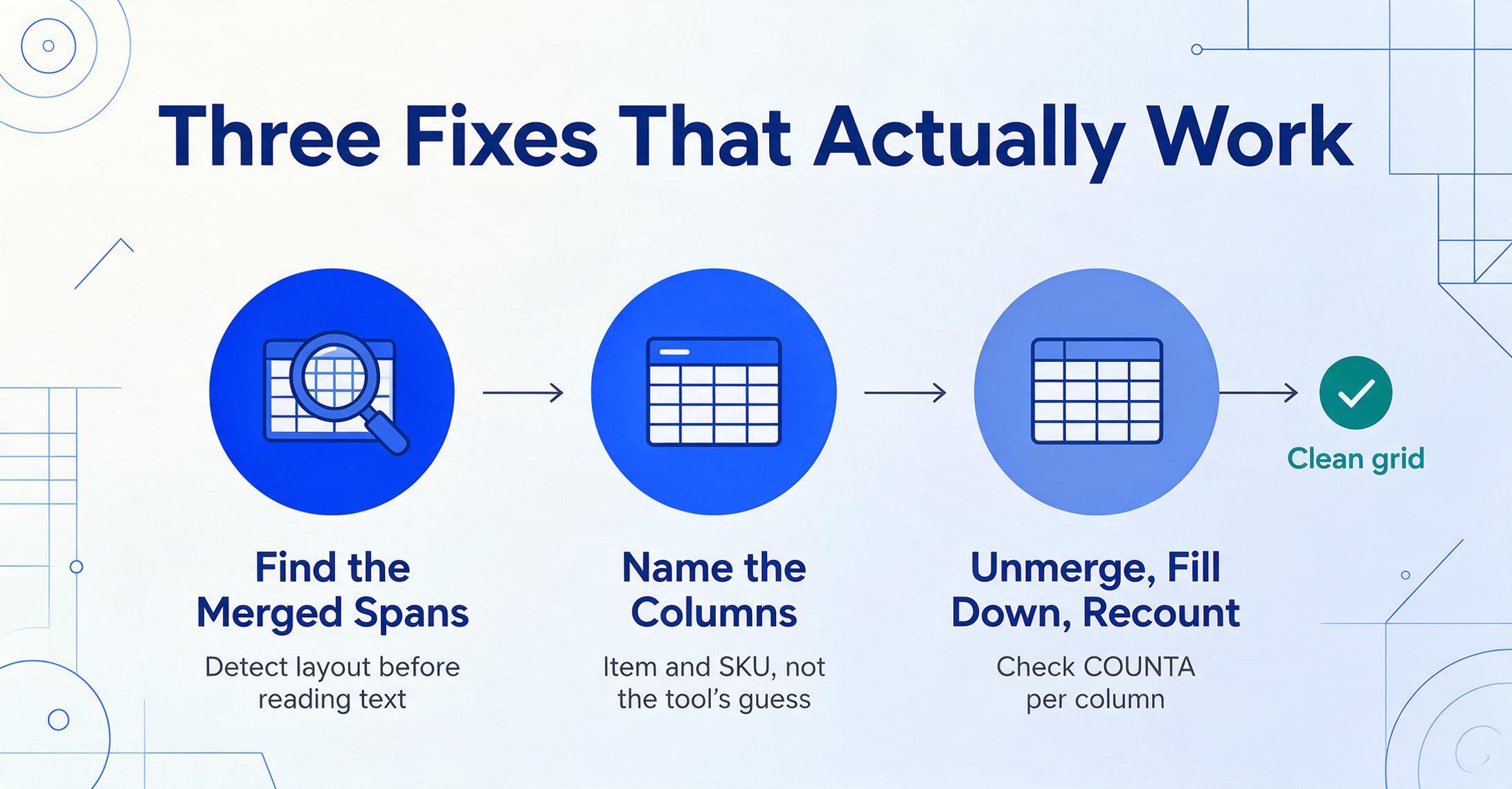
Based on the four root causes above, here is the practical fix pathway — from the simplest to the most thorough.
If your tool supports it, enable layout analysis or table structure detection as a preprocessing step. This tells the extraction engine to identify the full grid — including merged spans — before reading text. For tools that don't offer this, consider pre-splitting the document. For PDFs, tools like Adobe Acrobat's "Prepare Form" can help you manually define boundaries. For images, look for a tool that performs table detection as a discrete first step.
Don't rely on the tool to guess your columns. Specify them explicitly. With ImageToTable.ai's Custom Column Extraction, you define the column names you want — and the AI matches each to the correct data in the document by semantic understanding, not position. This means that even if a merged header confuses the layout detection, the column mapping is still correct because the AI knows what "SKU" means, not just where it sits.
After extraction, run a simple validation in Excel or Google Sheets: unmerge any cells that remain merged, use Fill Down to propagate values, and check that your row count matches the source document. For batch processing, set up a COUNTA formula per column to flag any column with fewer entries than expected. If you process the same document type regularly, save this validation as a template — it takes 30 seconds to run and catches nearly all silent corruption.
When to Escalate: Not All Merged Cells Can Be Fixed Automatically
Some merged-cell patterns are genuinely hard — even for advanced AI. Here is when you should consider preprocessing the source document manually rather than trying to fix the extraction:
- Nested merges (rowspan + colspan in the same cell): A cell that spans both 3 rows AND 2 columns creates a hole in the grid that no tool fills perfectly. Pre-splitting the document into simpler tables before extraction often yields better results.
- Staircase merge patterns: Diagonal boundaries where row 1 merges columns A-B, row 2 merges B-C, row 3 merges C-D — this cascading structure breaks nearly every extraction engine. The most efficient fix is often to export the document as a flat table from the source application before extraction.
- Multi-page tables with merged cells crossing page breaks: Even the best tools struggle here. Consider processing each page independently and stitching results manually.
The honest answer: if your document has complex nested or staircase merges and you process more than 50 such documents a month, the ROI of a tool change (to something that handles these patterns natively) is worth calculating. For occasional documents, manual preprocessing before extraction is cheaper than wrestling with bad output.
Frequently Asked Questions
Does AI extraction handle merged cells better than traditional OCR?
Yes — but not perfectly. Vision AI models analyze the document as a whole layout rather than line by line, so they identify merged-cell boundaries more accurately than line-based OCR. However, span ambiguity remains a challenge for AI models because patch-based analysis can fragment merged cells across tiles. Tools like ImageToTable.ai that combine layout analysis with semantic field matching handle merged cells significantly better than traditional OCR but are not 100% immune, especially with nested or staircase patterns.
Can I fix merged-cell extraction errors in Excel without reprocessing?
Yes, for most row-merge patterns. Select the column, go to Home → Merge & Center → Unmerge Cells, then select the blank cells and press Ctrl+D (Fill Down) to propagate the value. For column-merge patterns, use Text to Columns or Flash Fill. This works as a stopgap, but for batch processing, fix the extraction upstream.
Are merged cells in PDFs the same problem as merged cells in Excel?
Structurally, yes. But PDFs are harder to fix because you cannot simply "unmerge" them. A PDF merged cell is baked into the page layout, so the fix must happen at extraction time rather than at the source.
What if my source document has borders that look like merged cells but aren't?
This is common. Faint or broken table borders can make separate cells appear merged, especially in scans. Try preprocessing the image to enhance contrast — this can make faint borders detectable. See our guide on image preprocessing for better detection for specific techniques.
My tool says "table extraction complete" but the data is wrong — what happened?
This is Root Cause 4. The post-processor assembled detected text into a grid, but merged cells caused upstream errors that weren't flagged. "Success" meant a rectangular grid was produced — not that the grid was correct. Always validate sample output. For more on building a validation workflow, read our comprehensive troubleshooting guide for table extraction.
Merged cells are the most common source of extraction errors — but once you understand which pattern is causing the problem, the fix is usually straightforward.
Test your own document with a tool that handles layout analysis first. Many merged-cell problems disappear when the extraction engine sees the full grid before reading a single word.