How to Preprocess Images
A 6-Step Pipeline for Better OCR Recognition
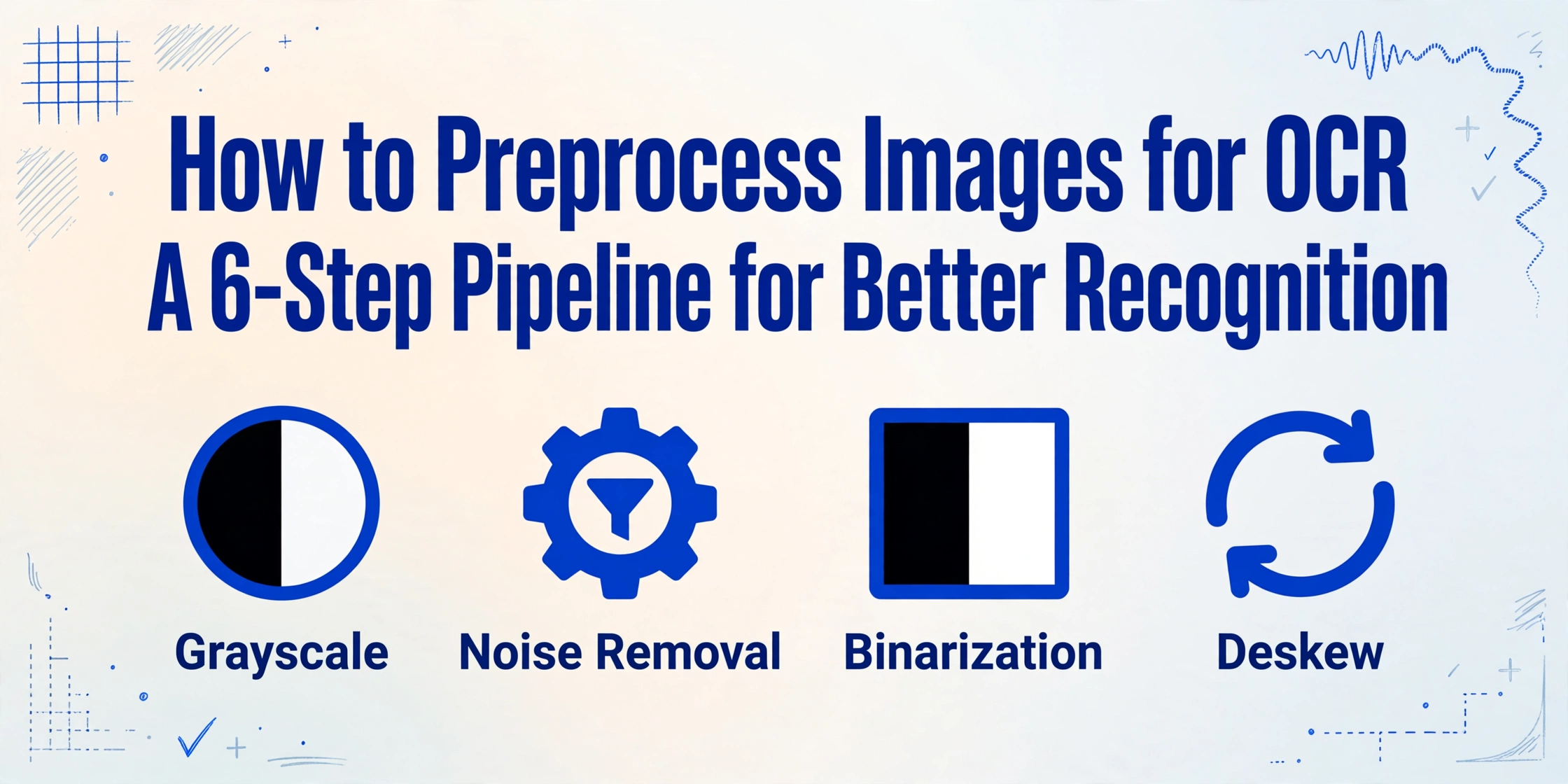
The difference between OCR output you can use and output you have to retype often has nothing to do with the engine itself. It comes down to what happens to the image before the OCR engine ever sees it. A phone-camera photo of an invoice, a faxed contract at 150 DPI, a crumpled receipt — these are the real-world inputs that preprocessing exists to fix. A well-designed six-step pipeline can take a noisy, skewed, low-contrast image and make it as readable to the engine as a clean printed page.
Why Preprocessing Matters More Than the OCR Engine
Traditional OCR engines — Tesseract, ABBYY FineReader, Google Cloud Vision — were designed for clean, high-contrast scans from flatbed document scanners at 300 DPI. Real-world images look nothing like that. A phone photo of an invoice has shadows from the photographer's hand, skewed perspective, and lens distortion. A faxed purchase order arrives at 200 DPI with moiré patterns. A crumpled receipt has fold lines that create artificial edges, and parts of the text sit in shadow while others are washed out.
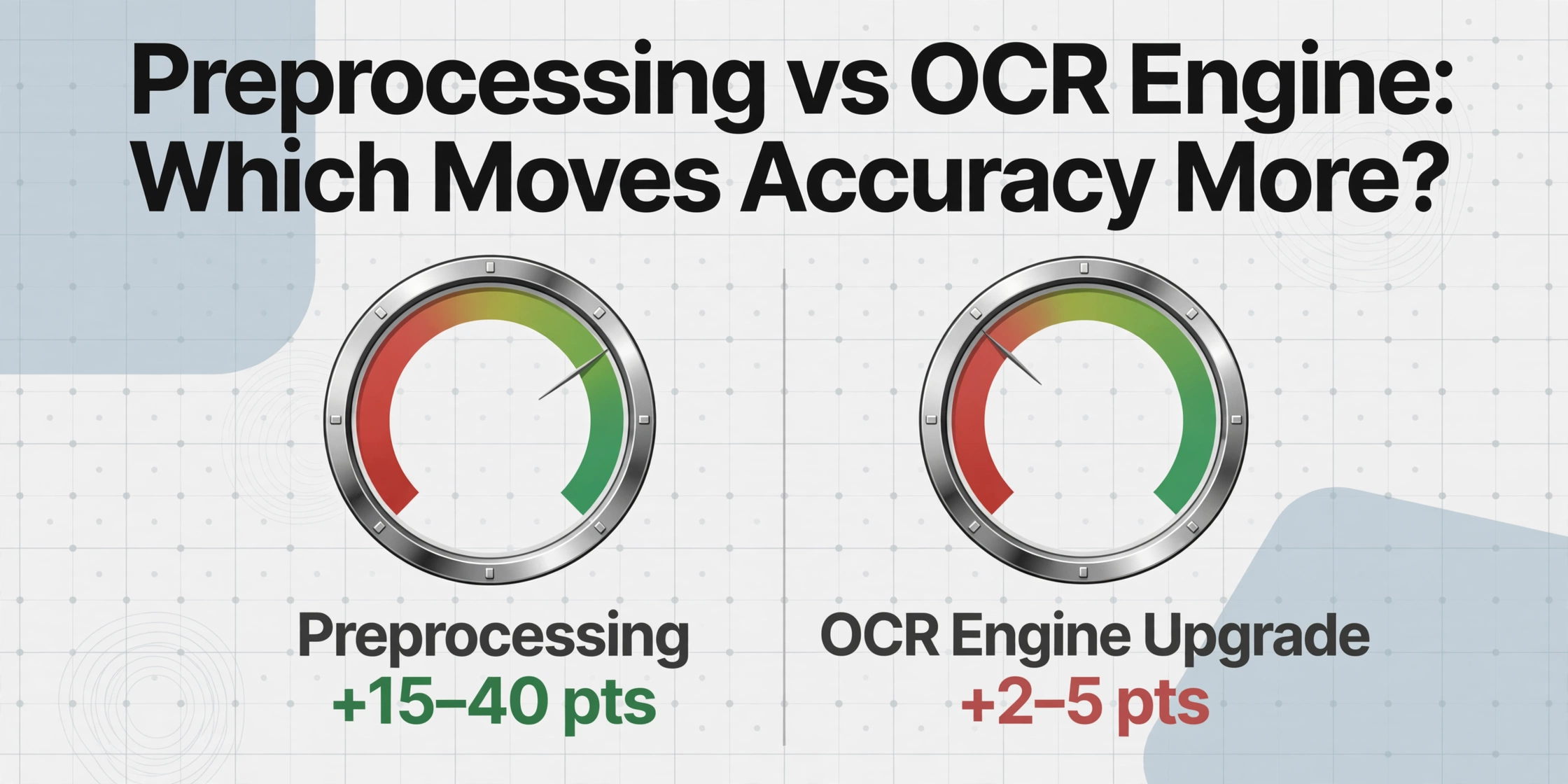
Preprocessing bridges this gap. Benchmarks from the Document Image Binarization Contest (DIBCO) consistently show that the choice of preprocessing technique can shift character-level accuracy by 15–40 percentage points on the same OCR engine using the same document. On degraded documents — yellowed paper, faint carbon copies, thermal receipts — the gap widens further.
The six steps below form a complete preprocessing pipeline. They are ordered by dependency: each step assumes the previous one has been applied. You can skip steps when your source images are already clean, but the order should not be rearranged.
Step 1: Grayscale Conversion — Remove Color Without Losing Signal
A color image stores three channels — red, green, and blue — each with its own illumination characteristics. Under mixed lighting, one channel may be blown out while another retains detail. Processing all three independently multiplies computational load and introduces channel-specific noise that OCR does not need. Grayscale conversion collapses them into a single luminance channel using luminosity weighting (Y = 0.299R + 0.587G + 0.114B), preserving the contrast information OCR relies on while eliminating color-based noise. The result is a single-channel image where only brightness matters, ready for noise removal.
Step 2: Noise Removal — Choosing Between Gaussian and Median
Noise comes from multiple sources: sensor noise in phone cameras, JPEG compression artifacts, halftone dithering in printed materials, and dust on scanner glass. Two filtering approaches dominate, each suited to different noise types.
Gaussian blur averages each pixel with its neighbors and is effective against the normally distributed brightness variations typical of camera sensors. The trade-off is edge softening — thin strokes in a 9pt font become harder for OCR to separate. A kernel of 3×3 or 5×5 is usually sufficient.
Median filtering replaces each pixel with the median of its neighborhood, making it dramatically more effective against salt-and-pepper noise — the scattered white and black pixels common in scanned or faxed documents. It removes isolated noisy pixels while preserving edges nearly intact. Standard window size is 3×3; 5×5 for heavily corrupted scans.
The practical rule: scattered specks call for median filtering. Overall graininess calls for Gaussian blur. Both should be applied sparingly — each filter removes real content along with noise.
Step 3: Binarization — The Highest-Impact Step
Binarization converts a grayscale image into a pure black-and-white image: each pixel is either ink (black) or paper (white). This is the step where the largest accuracy gains — and the largest accuracy losses — occur. DIBCO competition results over the past decade show that the gap between the best binarization method and a simple global threshold averages 30–40 percentage points on degraded documents. Choosing the wrong binarization method is the single most common preprocessing mistake.
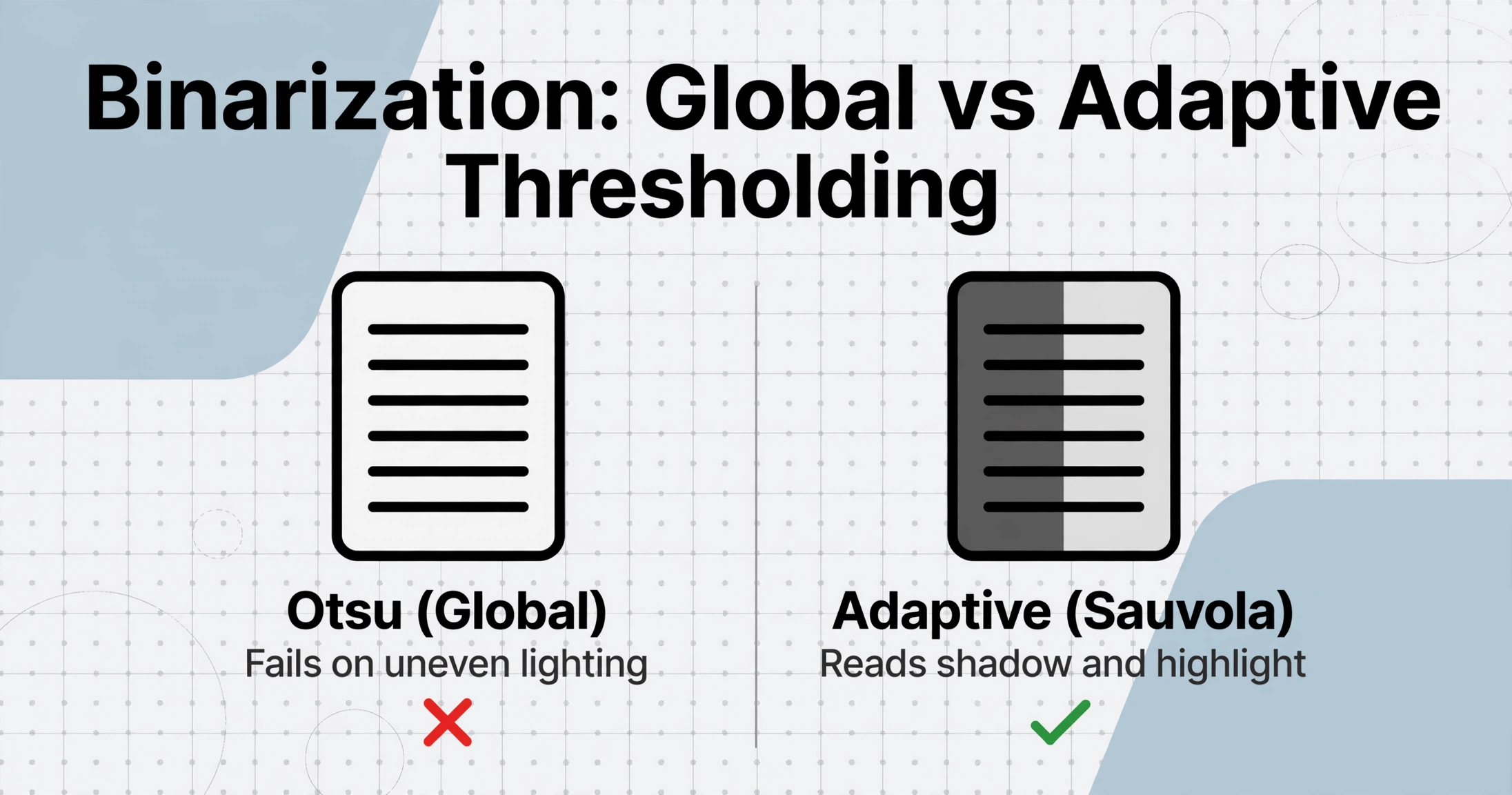
Otsu's method is the default binarization in most OCR libraries. It calculates a single global threshold by maximizing the variance between the black and white pixel classes. On a clean, evenly lit scan — a white page with black text under uniform lighting — Otsu produces near-perfect binarization in one pass. The problem is that most real-world documents are not evenly lit. A page photographed at a desk has a gradient from the bright window side to the shadowed side. Otsu picks one threshold for the entire image, which means the shadowed text disappears into the background while the bright-side text is overexposed.
Adaptive thresholding solves this by calculating a local threshold for every pixel based on its surrounding neighborhood — typically 15×15 to 51×51 pixel windows. Each region gets its own threshold, so a document half in shadow and half in sunlight comes out with readable text across the entire page. Sauvola's method, a refinement of adaptive thresholding, adds a bias term that improves performance on varying stroke widths — common on carbon copies and historical documents.
The trade-off is speed and parameter sensitivity. Adaptive thresholding is 5–10× slower than Otsu, and the window size dramatically affects output: too small (below 11×11), and large characters get treated as background; too large (above 75×75), and it approaches Otsu's behavior. A good starting point is a window size of roughly 1/20th of the image width.
Step 4: Deskew — Correcting Rotation Before Text Lines Are Misread
Skew — the rotation of a document image relative to horizontal — is nearly universal in camera-captured documents and common in scanned ones. Even a small skew degrades OCR accuracy disproportionately because the engine's segmentation algorithms assume horizontal baselines. Published research in the Pattern Recognition journal measured the effect precisely: at 5°, character-level accuracy drops by 15–20%. At 10°, the error rate exceeds 40% as lines misalign with their row boundaries. At 15° — easily produced by photographing a document at an angle — most OCR engines output text as a single merged character stream with no line-break boundaries.
The standard deskew method uses the Hough transform, which detects straight lines (text baselines) and calculates their dominant angle, then rotates the image by the negative of that angle. A simpler alternative computes the projection profile — the sum of black pixels per row, which peaks when text is horizontal. Both methods converge within 0.1° on clean documents. On noisy images, the Hough transform is more robust because it can discard outlier lines and focus on the dominant text direction.
Step 5: Border Removal — Stopping Edge Artifacts from Confusing Layout Analysis
Scanned documents and phone-captured images almost always include visual content outside the document itself — dark scanner lid edges, a photographed page on a desk, fax header timestamps. These elements corrupt the layout analysis step because OCR algorithms detect page regions by identifying connected components. A thick black border creates a connected component spanning the full image width, which the algorithm interprets as a page boundary — causing it to crop into the actual document content or assign nearby header text to the wrong reading order. The document dates, page numbers, and supplier names at the edges are typically the first to drop out.
Automated border removal uses contour detection to find the outermost rectangular boundary of the document content and crops to it. The algorithm scans inward from each edge looking for the transition from dark border to light page. The crop should be conservative: cropping too aggressively removes marginal text, while leaving a thin (2–5 pixel) margin does not affect downstream processing.
Step 6: Resolution Enhancement — When More Pixels Actually Help
OCR accuracy has a well-documented relationship with image resolution. Below 200 DPI, character edges pixelate to the point where similar glyphs become indistinguishable — "O" vs zero, lowercase "l" vs capital "I." The standard 300 DPI sweet spot provides sufficient detail for 8–12pt fonts while keeping file sizes manageable. At 600 DPI, accuracy improves only 2–5% while file sizes quadruple.
The challenge is that input images are not always under your control. A mobile photo of a receipt may have an effective resolution of 150 DPI; a fax is fixed at 200 DPI. For these cases, super-resolution techniques — using neural networks to infer high-resolution detail — can recover some of the lost information, yielding a modest but measurable 5–8 percentage point gain below 200 DPI. Traditional bicubic upsampling does not produce the same benefit; it creates smooth edges but adds no real detail. Only super-resolution — trained on millions of document images — can reconstruct sharp character edges from blurred patches.
When You Can Skip Preprocessing
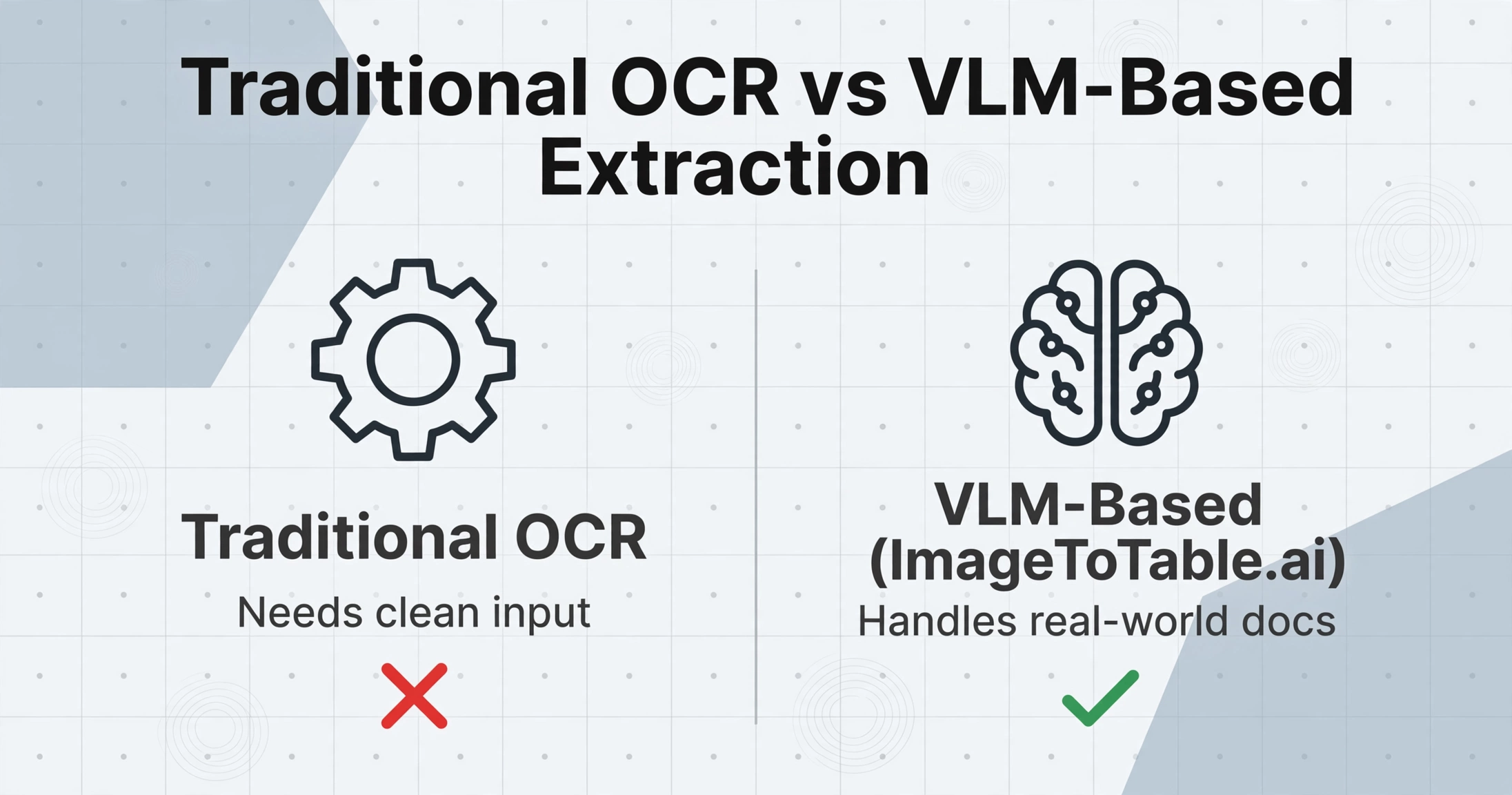
The preprocessing pipeline above was developed for traditional OCR engines — Tesseract, ABBYY, Google Cloud Vision — that operate character-by-character. These engines need clean, high-contrast input because their architecture lacks contextual awareness. A missing character segment due to noise is simply lost.
Modern vision large language model (VLM) based OCR — the architecture used by ImageToTable.ai — works differently. Instead of recognizing characters one by one, a VLM reads the entire document image as a visual scene and extracts data by understanding what each region means. Trained on millions of real-world document images — phone photos, crumpled receipts, skewed scans — the kinds of degradation that preprocessing fixes are already represented in its training data. A document photographed at 15° skew under mixed lighting is not an edge case to the model; it is statistically indistinguishable from thousands of training examples.
This does not mean preprocessing is obsolete. On extremely degraded images — a thermal receipt that has turned entirely brown, a fifth-generation photocopy — even a VLM benefits from adaptive thresholding or contrast enhancement. But for the middle range of real-world document quality that accounts for 90% of everyday use, a modern VLM-based tool can skip the entire preprocessing pipeline and produce accurate extraction directly.
For a deeper comparison of the two approaches, see OCR vs. AI Extraction: When Preprocessing Is Necessary and our guide on improving OCR accuracy with modern extraction tools.
Troubleshooting Common Preprocessing Issues
Your threshold is too aggressive. Switch from Otsu to adaptive thresholding with a window size of 1/20th of the image width. If deep shadows remain, apply a contrast-limited adaptive histogram equalization (CLAHE) pass first.
Your kernel size is too large. Drop to a 3×3 kernel, or switch from Gaussian to median filtering, which preserves thin edges better. For fine-print documents, skip noise removal entirely if the image is already clean.
The Hough transform likely detected a false dominant line — a border edge or table rule. Apply border removal before deskew, or mask the top and bottom 5% of the image. Raise the Hough threshold so only near-full-width lines register as baselines.
Adaptive thresholding and super-resolution are computationally expensive. For large batches, consider using a VLM-based extraction tool that handles these transformations internally in a single inference pass per page.
Frequently Asked Questions
Is preprocessing necessary for every document?
No. A clean 300 DPI scan of black text on white paper needs no preprocessing. The pipeline adds value in proportion to how far the input deviates from that ideal: phone photos, faxes, thermal receipts, and faded originals benefit most. If you are using a VLM-based tool, the threshold is much lower — the model handles moderate skew, uneven lighting, and noise internally.
Does preprocessing affect handwriting recognition differently than printed text?
Yes. Printed text has regular stroke widths and spacing, so the standard pipeline works well. Handwriting has variable strokes, overlapping characters, and non-uniform spacing. Aggressive binarization (especially Otsu) merges cursive strokes into blobs. For handwritten documents, use a larger adaptive threshold window (51×51 or higher) and gentler noise removal. Some VLM-based tools skip binarization entirely for handwriting and process the grayscale image directly. See our guide on why OCR struggles with handwriting for a deeper breakdown.
What DPI should I use for document scanning?
300 DPI is the standard for most business documents — enough detail for 8–12pt fonts at roughly 25 MB per color page. 200 DPI works for large-print documents (14pt+). 600 DPI is rarely necessary for OCR; the accuracy gain over 300 DPI averages only 2–5% while quadrupling file sizes. The exception is documents with extremely small fonts (6–8pt footnotes, fine print).
Can preprocessing fix a blurry phone photo of a document?
Partially. Mild motion blur (under 3 pixels) can be corrected with a Wiener or Richardson-Lucy deconvolution filter (available in OpenCV and scikit-image). Moderate blur (3–10 pixels) requires a neural deblurring model. Heavy out-of-focus blur is usually unrecoverable — the high-frequency information (character stroke edges) was never captured by the sensor. Re-taking the photo with the camera steady and the document flat is the only reliable fix.
Should I convert PDF pages to images before preprocessing?
It depends on the PDF type. Born-digital PDFs contain selectable text and do not need OCR. Scanned PDFs are image collections in a PDF wrapper — render each page to PNG at 300 DPI using Poppler's pdftoppm or Python's pdf2image, then apply the pipeline. See our guide to extracting data from scanned PDFs for a complete workflow.
How do I know which preprocessing step is causing problems?
Save the output of each step as a separate image file. If the OCR output is garbage, start with the binarized image — that step has the widest accuracy variance. If binarization looks clean but output is still wrong, compare the deskewed image to the raw input: a 3° residual skew invisible to the eye can drop accuracy by 10%. Each saved intermediate tells you exactly where the error was introduced.
When the Pipeline Is Not the Answer
The six-step pipeline is the right approach when you control the input — you choose the scanner and DPI. But in many real-world scenarios, you do not. Invoices arrive from hundreds of vendors in formats ranging from born-digital PDFs to phone photos. The preprocessing burden shifts to the tool.
A VLM-based extraction tool like ImageToTable.ai — which uses Custom Column Extraction to locate data fields by semantic meaning rather than pixel coordinates — has the preprocessing pipeline built into its inference process. You upload the document as-is: skewed, shadowed, low-resolution. The model reads the document as a whole and extracts structured data into the columns you defined.
This does not make preprocessing knowledge obsolete. Understanding each step helps you diagnose why any extraction tool might fail on a particular image — and tells you exactly what to fix. For a walkthrough of diagnosing extraction failures by document type, see why OCR accuracy drops vary by document type.
Test your extraction tool on the same document before and after applying the six-step pipeline. The difference will tell you exactly how much preprocessing your workflow needs.