OCR for Accounting: A Complete Guide
to Invoice, Receipt & Bank Statement Processing
OCR for accounting means using automated text recognition and AI-powered extraction to convert financial documents — invoices, receipts, bank statements, purchase orders, tax forms — into structured data that flows directly into your accounting system. Done right, it eliminates manual data entry, reduces reconciliation time, and creates audit-ready digital records. But "OCR for accounting" is not a single technology. It covers three different extraction approaches, five document types with distinct processing requirements, and a web of regulatory frameworks — IRS Rev. Proc. 97-22 in the US, Making Tax Digital in the UK, GoBD in Germany — that determine whether your digital records pass audit scrutiny. This guide walks through all of them, in the order an accounting team actually encounters them: starting with what OCR means in practice, then covering each document type, the compliance rules that apply, and finally how to choose the right tool for your accounting stack.
Key Takeaways
- Template-based OCR doesn't end data entry — it rebrands it as template maintenance, and at 50 vendors that maintenance becomes a part-time desk role.
- Manual data entry creates 2–5 errors per 100 fields, each costing $10 to find and fix — which means 500 invoices a month hides $2,500 to $12,500 in invisible correction labor.
- AI-powered extraction reads invoices by what fields mean, not where they sit on the page — the same setup works across every vendor format and lands structured data in QuickBooks or Xero with audit-ready source document links.
What OCR for Accounting Actually Means
In the accounting context, OCR is not about turning scanned text into searchable PDFs. It's about turning document content into structured, importable data — rows and columns that map to your chart of accounts, vendor records, and transaction history.
The relevant capability isn't "can this tool read the text" — it's "can this tool extract the invoice number, match it to a purchase order, format the date for my accounting system, and output the result alongside 99 other invoices in one Excel file."
That distinction matters because traditional OCR technology — which has existed since the 1990s — can read characters from a document but cannot understand what they mean. It will correctly recognize the string "1,247.83" on a page, but it doesn't know whether that's the invoice total, the tax amount, or a line item subtotal unless you tell it exactly where on the page to look. For accounting teams receiving invoices from dozens or hundreds of vendors, each with a different layout, that "tell it where to look" step is the bottleneck that has kept manual data entry alive despite decades of OCR availability. To understand the fundamental shift from character recognition to document understanding, see what AI OCR is and how it differs from traditional OCR.
The shift that has changed this in the last three years is AI-powered semantic extraction — a fundamentally different technical approach. Instead of scanning for characters at fixed coordinates, a vision-language model reads the document the way a human does: it sees the layout, recognizes the relationship between labels and values, and extracts fields based on what they mean, not where they sit. This means the same extraction setup works whether your vendor sends a one-page invoice or a four-page PDF, whether the total appears in the top-right corner or the bottom-left, and whether the document is a clean PDF or a phone photo of a thermal receipt.
Why Accounting Needs OCR — The Quantified Case
The argument for OCR in accounting is not about technology. It's about labor distribution. Every hour an AP clerk spends typing invoice numbers and line-item descriptions into a spreadsheet is an hour they are not spending on variance analysis, vendor relationship management, or cash flow forecasting. The numbers that quantify this trade-off are well established across multiple industry benchmarks.
A single invoice entered manually takes 3 to 5 minutes for header fields alone — vendor name, invoice number, date, PO number, total. Add line-item extraction and the time per invoice doubles. At 500 invoices per month, that's roughly 40 hours of pure data entry — one full work week every month spent on transcription. At an average AP clerk's fully loaded cost of approximately $25 per hour, that's $1,000 per week, or $52,000 annually, for work that adds zero analytic value. The error rate compounds the problem: manual transcription routinely produces 2-5 errors per 100 fields entered, and each error costs an average of $10 to detect and correct, according to APQC's finance benchmarks. A single transposed digit on a $12,000 invoice — $12,000 entered as $21,000 — creates a reconciliation problem that takes longer to find than it took to type the number in the first place.
The structural insight that most accounting teams miss: the cost of manual data entry isn't the typing time. It's the cleanup time afterward. Every error you introduce during entry must be found — and finding it costs more than entering it correctly would have. OCR eliminates the error source, not just the typing labor.
On the output side, automated extraction processes a single page in 5 to 10 seconds — roughly 18 times faster than manual entry — with field-level accuracy on printed text that consistently exceeds 97%. The trade-off is not speed versus accuracy. It's speed and accuracy versus the same team doing data entry for three days every month. For a deeper breakdown of accuracy expectations by document type and a methodology you can run on your own documents, see the field-level accuracy guide for OCR.
Five Document Types OCR Handles in Accounting
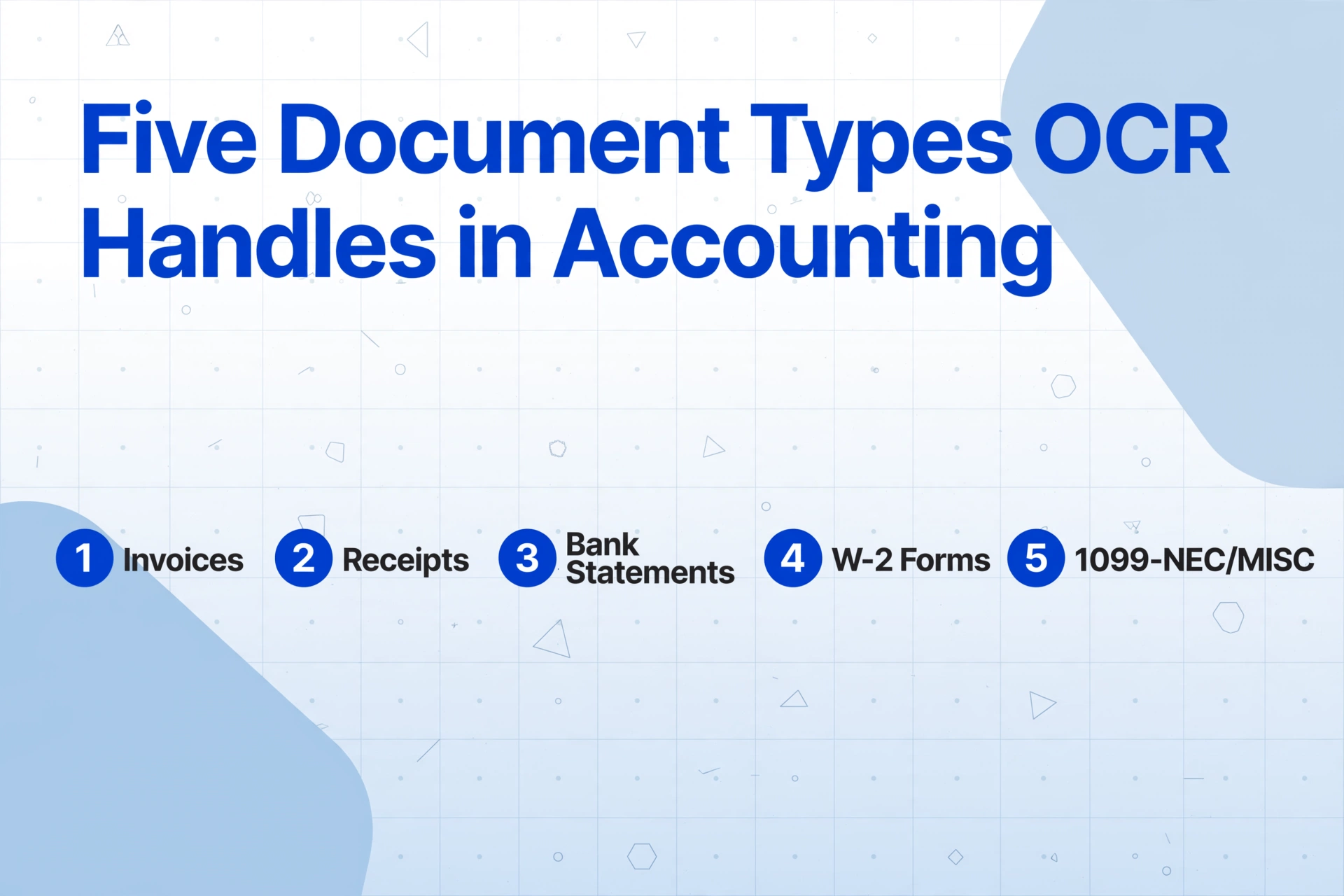
Accounting teams process more than just invoices. A complete OCR setup must handle the full document mix that lands in your shared inbox, physical mail, and expense report submissions. Each document type presents different extraction challenges — and the tool you choose needs to handle all of them with the same configuration, not a separate setup per type.
1. Invoices — The Core Workload
Invoices represent the bulk of accounting OCR volume. The standard extraction target includes header fields — vendor name, invoice number, date, due date, PO number, total amount, tax amount, currency — and line items, which are harder because tables vary in column count, column order, and page span across vendors. A tool that cannot handle line item extraction across multi-page invoices with variable column structures is not production-ready for AP. For a complete treatment of invoice-specific extraction, see the complete guide to invoice data extraction.
2. Receipts — The Format Nightmare
Receipts arrive in more formats than any other accounting document. Thermal paper, phone photos, email PDFs, scanned bookmark-sized slips from gas stations, multi-page restaurant folios. The print quality ranges from crisp to nearly illegible (thermal paper fades within 6-12 months). Unlike invoices, receipts rarely follow a standard layout — a taxi receipt and a hardware store receipt share no structural pattern beyond "has a total at the bottom." The IRS requires that digital receipts preserve vendor name, date, each line item, total, and payment method — not just the total. This means OCR for receipts must capture line-item detail from documents that were never designed for machine reading, and it must work on the photo quality that a field employee produces in three seconds with a phone.
3. Bank Statements — Multi-Page Structure with Repeating Rows
Bank statements are structurally distinct from invoices and receipts. A single PDF can span 20 pages, each containing a repeating transaction table with date, description, reference number, debit, credit, and running balance. The extraction requirement is not just capturing the rows — it's ensuring that multi-page statement data merges into a single continuous table with no duplicate rows (common at page boundaries) and no missing rows. Statement formats vary significantly between banks: some use two-column layouts (debits on the left, credits on the right), others use a single column with transaction type indicators, and others combine both within the same document depending on the account type. For a focused treatment, see what bank statement extraction looks like for accounting teams.
4. Tax Forms — W-2 and 1099
W-2 and 1099 forms are seasonal but high-stakes. Most accounting teams process them in bursts — January through April for US businesses — and accuracy requirements are absolute: a wrong SSN or EIN on a 1099 generates a CP2100 notice from the IRS, and reissuing corrected forms after the January 31 filing deadline carries per-form penalties that escalate through March. The extraction challenge is that tax forms use small type (8-10 pt in boxed layouts), contain fields that look similar but carry different meanings (Box 1 wages vs Box 3 Social Security wages vs Box 5 Medicare wages), and are often printed on multi-part forms that produce poor scan quality. Most OCR tools treat all tax forms as "just read everything" — but the field that matters for 1099-NEC reporting is Box 7 (nonemployee compensation), and the field that matters for W-2 payroll reconciliation is Box 1 (wages, tips, other compensation). Extraction tools that do not distinguish between these semantically similar fields create downstream reporting errors that surface months after processing.
5. Purchase Orders — The Matching Side of Three-Way Match
Purchase orders (POs) are the least-prioritized accounting document for OCR, but they are essential for three-way match workflows (PO + goods receipt + invoice). POs define the committed spend, item quantities, and agreed prices that the invoice must match against. Extracting PO data — PO number, item descriptions, quantities ordered, unit prices, delivery dates — enables automated matching: the system compares the PO line items to the invoice line items and flags discrepancies without a human cross-referencing two paper documents. Without PO extraction, matching remains a manual desk activity regardless of how well the invoice extraction works.
The Real Challenge — Multi-Format Vendor Invoices
Ask any AP team what makes data entry hard, and the answer is consistent: "The documents come from hundreds of different vendors, so they're all formatted differently." This single sentence — repeated across Reddit threads in r/Accounting, r/Entrepreneur, and r/smallbusiness — captures the structural problem that most OCR tools fail to solve.
The problem is not that invoices have different layouts. It's that traditional OCR requires you to handle each layout as a separate configuration. Generate a template for Vendor A's single-page invoice. Build another template for Vendor B's two-page invoice with line items on the second page. Create a third template for Vendor C's invoice that puts the total at the bottom-left instead of the top-right. Now multiply by every vendor you work with — and every time a vendor updates their accounting software and their invoice layout shifts, the template breaks.
One Reddit user described the breaking point: "I used to manually enter 2,500+ invoices a month. Same fields again and again: invoice number, date, vendor, totals. It was repetitive, slow, and I kept making mistakes simply because of fatigue. The breaking point for me was accidentally entering the same invoice twice and then spending hours trying to find where the numbers stopped matching."
Another user, evaluating OCR solutions for an AP team processing multiple formats: "We looked at some OCR solutions, but they often require extensive training for each new template. Is anyone using a tool that can reliably pull line-item data from varied documents without needing to build a custom parser for every single vendor?"
This is the fundamental distinction between traditional OCR and AI-powered extraction. Template-based tools treat each vendor format as a separate problem. AI extraction treats all invoices as the same problem: "find the invoice number, find the total, find the line items" — because the AI understands what an invoice looks like regardless of its specific layout. For a detailed comparison of these two architectural approaches, see OCR vs AI extraction: which fits your document mix.
Traditional OCR vs AI-Powered Extraction
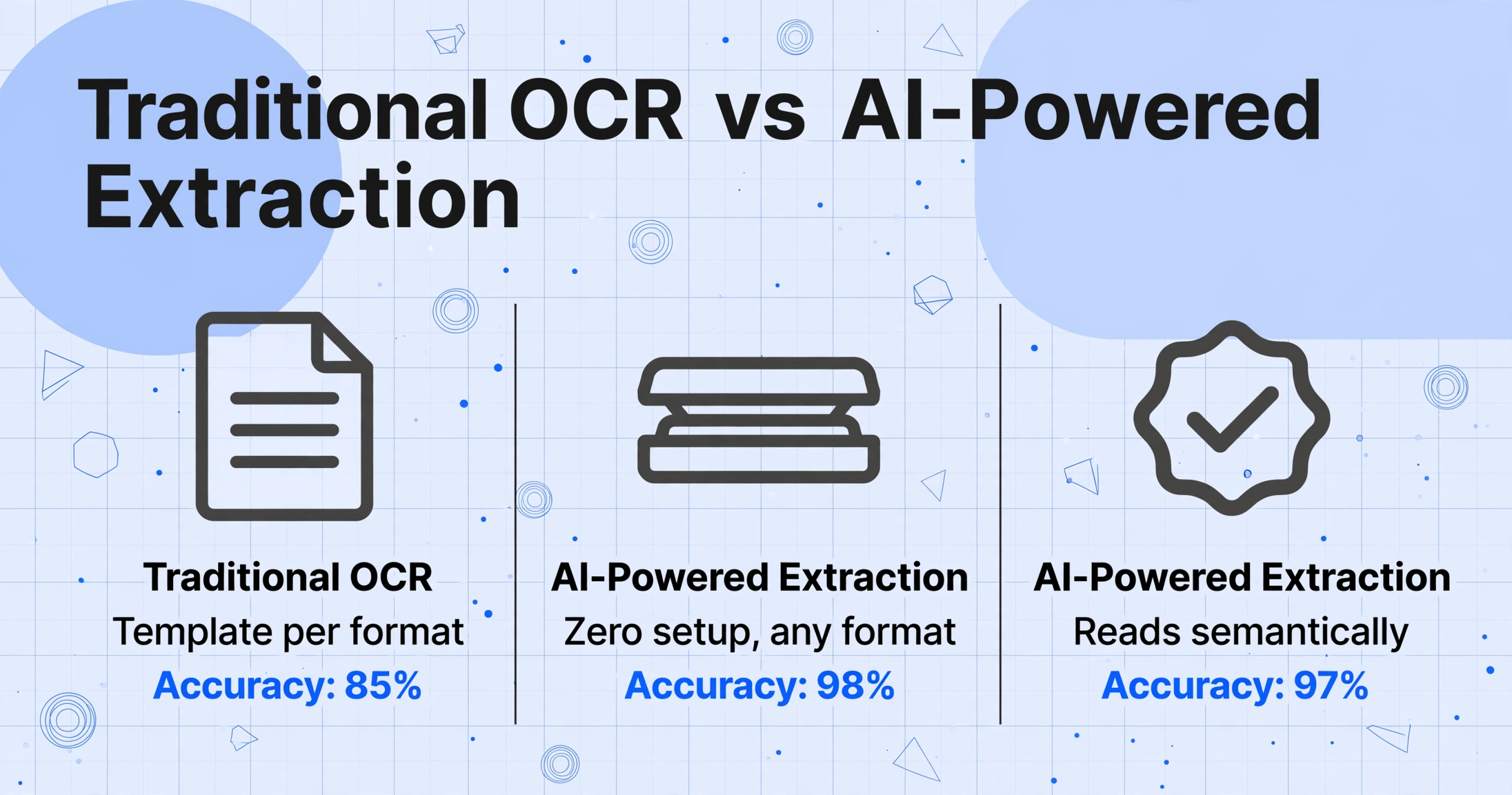
The difference between traditional OCR and AI-powered extraction is not a matter of degree — it's a difference in what each technology can do at all. Understanding this distinction is necessary for evaluating any tool for accounting use.
| Capability | Traditional OCR | AI-Powered Extraction |
|---|---|---|
| Setup per vendor format | One template per format | Zero — same setup works for any format |
| When vendor changes layout | Template breaks — rebuild required | No change — AI reads semantically |
| Handwriting on invoices | <50% accuracy | 85-95% with good image quality |
| Multi-page document tables | Breaks on page 2 | Reads across page boundaries |
| Table with variable columns | Column misalignment | Adapts to column count/structure |
| Custom column extraction | Requires zone drawing per field | Type field name — AI locates it |
| Computed columns / math | Not supported | Built-in — derive values during extraction |
| Output format | Text file or searchable PDF | Excel, CSV, JSON — structured by field |
The table above shows why the question "is OCR good for accounting" is misleading. Traditional OCR — useful for making text searchable — is insufficient for accounting workflows that need structured field-level data. AI-powered extraction, which reads documents by understanding what each field means, is the technology that actually eliminates data entry. For a deeper primer on how this works, see what OCR is and how AI changed it.
Compliance — Three Regulatory Frameworks Every Accounting OCR Setup Must Satisfy
OCR for accounting is not just about speed. It's about creating digital records that satisfy tax authorities when they ask for documentation. Three regulatory frameworks — one US, one UK, one German — define what compliant digital recordkeeping looks like in practice. If your accounting OCR setup does not meet these requirements, it does not produce audit-proof records.
US — IRS Revenue Procedure 97-22: Digital Records as Legal Originals
The IRS accepts electronically stored records in place of paper originals — but only if your storage system meets the six conditions of Revenue Procedure 97-22. Under IRC Section 6001, every taxpayer must keep records sufficient to support their tax returns. Rev. Proc. 97-22 defines the specific conditions under which electronic storage satisfies that obligation.
The three practical requirements that matter for OCR output: (1) the electronic image must be a complete and accurate reproduction of the original — every field on the original document must be legible in the digital copy; (2) records must be indexed for retrieval — you must be able to locate a specific document within a reasonable time; (3) the system must produce legible, readable copies upon request — proprietary formats that cannot be opened without specific software do not meet this standard.
For OCR in accounting, this means: your extraction tool must preserve the original document alongside the extracted data. Excel output alone is not sufficient — during an audit, the IRS examiner will want to see the source document that produced each extracted value. A proper setup exports extracted data to your accounting system and retains the original PDF or image in a retrievable archive with a reference link back to the extracted row. For the full breakdown of what constitutes a compliant digital receipt or invoice record in IRS terms, see IRS receipt digital record requirements.
UK — Making Tax Digital: Quarterly Digital Reporting
From April 2026, Making Tax Digital (MTD) for Income Tax Self-Assessment becomes mandatory for sole traders and landlords with combined self-employment and property income exceeding £50,000. Phase 2 extends this to those earning over £30,000 in April 2027, and £20,000 in April 2028. For VAT-registered businesses, MTD has already been mandatory since 2019.
The key requirements that affect OCR for accounting in the UK:
- Digital records must be kept in MTD-compatible software. You cannot gather paper receipts all year and digitize them in March. Records must be created and stored digitally in functional compatible software — and the data must be transferable between systems via "digital links" (copy-paste is not sufficient).
- Every transaction must be recorded with date, amount, and category. OCR that only captures the total on a receipt is insufficient — HMRC requires transaction-level granularity in your digital records.
- Quarterly updates must be submitted to HMRC. Your software needs to generate and submit summary data every three months. This means OCR is not a once-a-year tax-season activity — it must be integrated into your ongoing bookkeeping workflow.
- Separate businesses must have separate digital records. If you run a plumbing business and own a rental property, you need separate digital ledgers — even though both report on the same Final Declaration.
For UK accounting teams evaluating OCR tools, the critical question is not just "can it read receipts" but "does the output format work with MTD-compatible accounting software like Xero, QuickBooks, FreeAgent, or Sage." If the OCR tool exports data that your MTD-compatible software cannot import via digital link, you are creating a compliance gap.
Germany — GoBD: Machine Readability and the 10-Day Rule
Germany's GoBD (Grundsätze zur ordnungsmäßigen Führung und Aufbewahrung von Büchern, Aufzeichnungen und Unterlagen in elektronischer Form) — revised by the BMF letter of November 28, 2019 — sets the strictest standards for digital document management among the three frameworks. The 2019 revision explicitly permits "ersetzendes Scannen" (replacement scanning) — digitization of paper documents followed by destruction of the originals — provided specific technical and procedural conditions are met.
The requirements most relevant to OCR in accounting:
- Timeliness (Zeitgerecht): Documents must be recorded within 10 business days of receipt. Cash transactions must be recorded daily. Accumulating receipts for month-end batch digitization is flagged as untimely during a Betriebsprüfung (tax audit).
- Machine readability (Maschinelle Auswertbarkeit): Digital records must be in formats that allow automated evaluation by tax authorities using audit tools like IDEA. Storing invoices exclusively as flat image scans (TIFF, JPEG) without accompanying structured data violates this principle — the archive must be queryable, sortable, and cross-referenceable programmatically.
- Retention period: 10 years for tax-relevant documents. The retention period starts at the end of the calendar year in which the document was created.
- Image quality: 300 DPI minimum for 10-12 pt text documents, 400-600 DPI for small-font or thermal paper documents. Color or grayscale — not black-and-white — for documents where stamps, signatures, or logo details are relevant.
- Archival formats: PDF/A or TIFF. JPEG alone is not considered revision-proof because it lacks audit-trail integration and degrades on re-compression.
For German accounting teams, this means OCR output must include structured data fields alongside the archived document image — and the workflow must capture and digitize documents within 10 days. The GoBD's requirement for machine readability means that Excel or CSV output with source-document references is actually stronger compliance evidence than a flat image archive. For a complete walkthrough, see the GoBD-compliant document digitization guide.
Key Fields to Extract Across Document Types
Accounting teams need a consistent extraction schema — the same field names and data types — across all five document types. This is what makes batch processing and ERP import possible: when every document produces the same column structure regardless of format, the post-extraction integration is a simple mapping exercise rather than a per-document data-wrangling task. The table below maps the critical fields for each document type in an accounting context.
| Document Type | Header Fields | Line-Item / Detail Fields | Compliance Fields |
|---|---|---|---|
| Invoice | Invoice #, Date, Due Date, Vendor Name, PO #, Subtotal, Tax, Total, Currency | Description, Qty, Unit Price, Line Total, SKU, Tax Rate | VAT/Tax ID, Vendor EIN, Tax registration # |
| Receipt | Vendor Name, Date, Total, Payment Method, Category | Item Description, Qty, Unit Price, Line Total | Business purpose memo, Tax category (Meals/Travel/Office) |
| Bank Statement | Account #, Statement Period, Starting Balance, Ending Balance | Transaction Date, Description, Reference, Debit, Credit, Running Balance | NA — bank statements are supporting docs |
| W-2 | Employer EIN, Employer Name, Employee SSN, Employee Name | Box 1–14 wages, Box 2 Fed Tax, Box 3-6 SS/Medicare, Box 12-14 codes | EIN must match IRS records; State EIN |
| 1099-NEC/MISC | Payer EIN, Payer Name, Recipient TIN, Recipient Name | Box 1/Box 7 (Nonemployee Comp), Box 3/4, Fed Tax Withheld | Recipient TIN must be validated against IRS database |
| Purchase Order | PO #, Vendor Name, Issue Date, Total Amount, Currency | Item Description, Qty Ordered, Unit Price, Line Total, Delivery Date | NA — POs are internal authorization docs |
For most accounting teams, the practical recommendation is to start with the header fields for every document type — these cover 80% of the data entry workload. Add line-item extraction once the header workflow is running reliably. The exception is bank statements: the header fields (account number, period, starting/ending balance) matter for reconciliation, but the real value is in the transaction rows, which are the bank statement equivalent of line items.
Files are processed securely and not stored.
How to Choose OCR for Your Accounting Stack
Selecting an OCR tool for accounting comes down to five criteria, ordered by impact on daily workflow. The vendor's marketing claims about "99% accuracy" are less important than whether the tool integrates with your existing accounting system without creating a new data pipeline to maintain.
1. Accounting Software Integration — Non-Negotiable
The best extraction in the world produces zero value if the output cannot reach your accounting system automatically. The integration requirement is not "can it export CSV" — every tool can export CSV. The question is whether the tool has a native connection to your accounting platform that sends extracted data directly into your vendor records, chart of accounts, and transaction queue.
For QuickBooks Online and Xero — the two most widely used accounting platforms for small and mid-market businesses — the integration landscape is mature. Tools with dedicated connectors can map extracted fields (vendor name → QuickBooks vendor record, account code → chart of accounts entry, tax amount → tax code allocation) and push data directly into the accounting queue for review and posting. This eliminates the download-and-import step that introduces data quality issues and requires someone to open the exported file, check column alignment, and fix format mismatches before the data lands in the system.
If you use a less common accounting platform, confirm that the OCR tool's API can output structured JSON that your platform accepts, or that a middleware connector (Zapier, Make) bridges the gap without requiring custom development. For a comprehensive comparison of extraction tools by technical approach and use case, see the best OCR software for accounting firms in 2026.
2. Template-Free — Eliminates the Hidden Maintenance Cost
Template-based OCR has an invisible cost that grows with your vendor count: template maintenance. Every new vendor format requires a new template. Every vendor format change breaks the existing template. At 50 vendors, template maintenance becomes a part-time job. At 200 vendors, it becomes a full-time role. The alternative — template-free AI extraction — uses the same field definitions for any vendor format, any language, any layout. The field name "Invoice Number" works whether the label is "Invoice No." on one vendor's document or "Rechnungsnummer" on another's. This is the single most important criteria for any accounting team processing more than 20 vendor formats.
3. Batch Processing — One Run, One Spreadsheet
Processing one document at a time is not accounting-grade. The tool must accept multiple files in a single upload — mixing PDFs, JPGs, and PNGs — process all of them with the same extraction configuration, and output a single merged file where each source document maps to one row (or one set of rows for line items). Every row must carry a source file reference so you can trace back to the original document without manually matching rows to files.
4. Line-Item Extraction — Tables Are the Hard Part
Header-only extraction covers 30-50% of the data on an invoice. Line items — quantities, unit prices, descriptions, line totals — are where the labor cost lives. The tool must handle multi-page tables (many vendor invoices run across 2-4 pages), variable column counts (some POs have 6 columns, others 8), and irregular column ordering (Description before Qty vs Qty before Description). Tools that cannot reliably extract line items from multi-page, variable-format invoices leave the most time-consuming part of data entry on your team's plate.
5. Compliance-Grade Output — Source Document Retention
As covered in the compliance section above, OCR output for accounting must include the extracted data and a reference to the source document. The tool must either store the original file alongside the extraction results or provide a downloadable archive that includes both. Any tool that gives you the extracted Excel file and does not retain the source document creates a compliance gap. This is especially critical for the UK's MTD requirement (source documents must be linked to digital records) and GoBD's traceability requirement (Nachvollziehbarkeit — every data point must be traceable to its original document).
FAQ
Does OCR work with phone photos of receipts for expense reporting?
Yes, AI-powered OCR works on phone photos — this is one of its key advantages over traditional scanning. However, photo quality directly affects accuracy. For reliable extraction from phone photos: capture in good lighting, hold the phone parallel to the receipt (avoiding perspective distortion), include all four corners, and avoid flash on glossy paper. Thermal paper receipts (which fade over time) should be photographed immediately — waiting even a few weeks can make them unreadable. Under reasonable conditions, field-level accuracy on receipt photos is 85-95% for printed text, lower for handwriting.
Can I integrate OCR output directly into QuickBooks Online or Xero?
Yes, if the OCR tool supports direct integration. QuickBooks Online and Xero both have APIs and app marketplace ecosystems that allow extraction tools to post invoices, bills, and expense data directly into your accounting queue. When evaluating integration support, look for: (1) field mapping — does the tool map extracted vendor names to your vendor list, extracted account descriptions to your chart of accounts? (2) posting format — does it create draft bills ready for review, or does it post directly to the ledger? (3) attachment linking — does the source document get attached to the transaction in your accounting software for audit trail purposes? If the tool lacks direct integration, the fallback is CSV export followed by manual import, which adds 2-5 minutes per batch but works with any accounting platform.
Do I need to create templates for each vendor's invoice format?
Not if you use AI-powered extraction. This is the defining difference between modern AI extraction and traditional template-based OCR. AI-powered tools read invoices by understanding what each field means semantically — "invoice number" means the number that identifies this transaction to the vendor, wherever it appears on the page. You define the fields once (e.g., "Invoice Number," "Total," "Tax Amount") and the same definitions work across every vendor format, including ones you have never seen before. Template-based tools require a separate template per vendor format. If your accounting team processes invoices from 50+ vendors, template-free extraction is the only practical option — the maintenance burden of managing 50+ templates exceeds the labor cost of manual entry.
How do I make sure my digital records pass an IRS audit?
IRS Revenue Procedure 97-22 sets three practical conditions: (1) the digital copy must be a complete and accurate reproduction of the original — every field on the original receipt or invoice must be legible in the digital version; (2) you must have an indexing system that enables retrieval — you should be able to locate a specific document within a reasonable time; (3) the system must reproduce legible copies on demand — standard image formats (JPEG, PNG, PDF) are fine; proprietary formats that cannot be opened without specific software are not. In practice, a compliant system means: keep the original document image (scan or photo), store it alongside the extracted data, index it by vendor/date/amount, and be able to produce it when the auditor asks. Preserving the original image alongside your extracted Excel output — with a reference linking each row to its source file — is the most straightforward way to meet all three conditions.
Is OCR for accounting worth it for a small team processing under 100 invoices a month?
Yes — but the margin is narrower than for high-volume teams. At 100 invoices per month, the manual data entry time is approximately 5-8 hours per month (3-5 minutes per invoice for header fields). A low-cost AI extraction subscription ($20-50/month) eliminates those hours. The math works if your effective hourly rate for data entry is above $15/hour — which it is for any business that pays an employee or their own time. The caveat is setup time: you need to invest 30-60 minutes initially to configure your extraction fields, test on sample invoices, and set up the integration with your accounting software. Below 30 invoices per month, the setup cost may not justify the savings — though it becomes worthwhile during tax season or year-end close when volume spikes. For a comprehensive landscape, see the best OCR software for 2026 evaluated by use case.
Can one OCR tool handle both invoices and bank statements?
Yes — but the tool must support the specific extraction requirements of each document type. Some OCR tools specialize in invoices and cannot process multi-page bank statement tables without breaking rows across page boundaries or misreading the running balance column. When evaluating a tool for mixed document types, test it on your actual documents — not on sample files. Upload a multi-page bank statement and check that: (1) all transaction rows are captured across page boundaries, (2) the running balance column is correctly read and can be used for reconciliation verification, (3) the debit and credit amounts are cleanly separated into the correct columns. A tool that passes these tests on your specific bank's statement format will likely work for invoices and receipts as well. For an interactive test, see how OCR software works with different document types.
What's the minimum document resolution for reliable OCR extraction?
For printed text at standard 10-12 pt font size, 200 DPI is the bare minimum for reliable OCR, and 300 DPI is the practical standard for good results. For small print (8 pt or smaller), thermal paper, or documents with fine details, 400-600 DPI is recommended. For phone photos, resolution matters less than lighting and focus — a 12 MP phone photo with good lighting at close range produces better OCR results than a 300 DPI scan taken at a bad angle. The GoBD standard (Germany) explicitly requires 300 DPI minimum for standard documents and 400-600 DPI for small-print documents, in color or grayscale. If you are scanning paper documents for archival purposes, scan at 300 DPI in color — this produces larger files but ensures legibility for years, especially on thermal paper that fades over time.