The Complete Guide to Invoice Data Extraction
(2026)
Invoice data extraction means turning the information locked inside invoices — vendor names, amounts, line items, dates, tax IDs — into structured rows and columns you can sort, filter, import, and analyze. It sounds simple. It's not. There are three fundamentally different ways to do it, each with its own setup cost, accuracy ceiling, and scalability limit. This complete guide to invoice data extraction covers all three, explains which fields you actually need to extract, and gives you a decision framework for choosing the right approach based on your invoice volume, format complexity, and where the data needs to go afterward.
What Is Invoice Data Extraction — and Why Most Teams Still Do It by Hand
Invoice data extraction is the process of capturing information from invoice documents — PDFs, scanned images, photos — and converting it into structured data formats like Excel, CSV, or JSON. The information extracted typically includes the invoice header (number, dates, vendor, totals) and the line items (quantities, descriptions, unit prices, line totals). The output is a table where each row is one invoice or one line item, and each column is one data field.
The reason this matters: 68% of businesses still enter invoice data manually into their ERP or accounting systems, according to industry data from HighRadius's 2025 AP automation statistics. Manual entry costs roughly $15 per invoice in labor, takes 3-5 minutes per document, and introduces a consistent 2-5% error rate. At 500 invoices a month, that's $7,500 in labor and 10-25 errors every 30 days — errors that cascade into wrong payments, miscoded GL entries, and reconciliation work that costs more than the original entry.
The alternative — automated extraction — has been possible for years. But the technology has changed so fast that what was state-of-the-art three years ago (template-based OCR) is now the legacy approach, and what's state-of-the-art today (AI-powered semantic extraction) works on document types and formats that the previous generation couldn't touch. Understanding the three methods — what they are, what they cost, and where they break — is the difference between choosing a tool that works and spending six months on a failed implementation. For the deeper story of why manual entry persists despite automation being available, see why AP teams still key invoice data by hand.
The Three Methods — Manual Entry, Template OCR, and AI-Powered Extraction
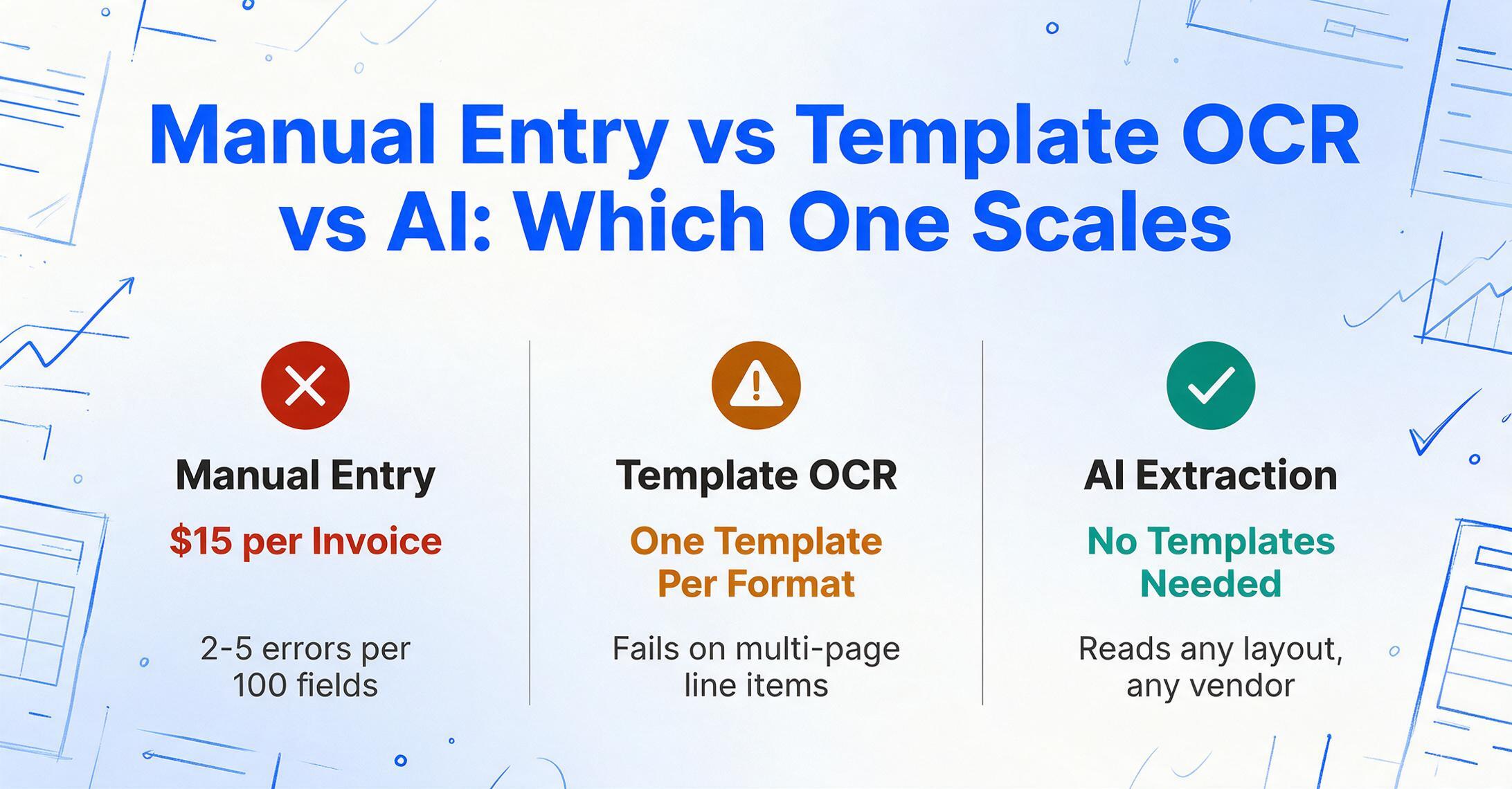
Every invoice extraction approach falls into one of three categories. They're not equal — each has a different accuracy ceiling, setup cost, and scalability limit. The right choice depends on your volume and your mix of invoice formats, not on which method sounds most advanced. For a hands-on look at template-free extraction in action, try the invoice processing workflow with column-name extraction.
Method 1: Manual Entry
What it is: A person opens each invoice PDF, reads the fields, and types them into a spreadsheet or ERP. No technology beyond a PDF viewer and Excel.
Cost: Roughly $15 per invoice in fully loaded labor cost, per Quadient's 2025 AP automation benchmarks. At 100 invoices a month: $1,500/month. At 1,000 invoices: $15,000/month — roughly one full-time AP clerk dedicated entirely to data entry.
Accuracy: 95-98% per field for careful operators — meaning 2-5 errors per 100 fields. These are transcription errors: transposed digits, misread handwriting, decimal point placement. Notably, a human transposing a number creates a wrong value that looks right in the system. An AI missing a field creates a blank — which is safer because it's visible.
When it makes sense: Below 50 invoices a month, or when every invoice is from a different vendor with a unique format and the cost of setting up any automated system exceeds the labor cost. Also: when the person doing the entry has deep context about the vendor relationship and coding rules that no automated system can replicate without months of training.
When it breaks: Above 200 invoices a month, the error rate compounds faster than the throughput. The same person who was accurate at 50 invoices starts making mistakes at 200 because cognitive fatigue sets in after the first hour of repetitive transcription. For more on the specific mistakes and their cost, see the six invoice data entry mistakes that cost the most.
Method 2: Template-Based OCR
What it is: Optical Character Recognition software reads the text from an invoice image, and a template tells it where each field is located ("invoice number is at coordinates x:420, y:180"). You create one template per vendor format. The OCR engine reads the characters; the template maps them to fields.
Cost: OCR software ranges from free (Tesseract) to $0.01-0.05 per page (cloud APIs like AWS Textract, Google Document AI) to $30-300/month for packaged tools. The hidden cost is template maintenance — every new vendor format requires a new template, and every vendor layout change breaks the existing template. Organizations with 100+ vendors and template-based OCR typically spend 5-10 hours a month maintaining templates.
Accuracy: 95-99% on printed text in the exact position the template expects. Drops below 70% on handwritten content, stamps, annotations, or any layout variation, according to PDFExcel's analysis of OCR accuracy on non-standard invoices. Page-level accuracy can be 99% while field-level accuracy is 70% if the OCR errors cluster on the financially significant fields.
When it makes sense: When you process high volumes of invoices from a small, stable set of vendors with consistent formats — for example, a manufacturer receiving weekly invoices from the same 15 raw material suppliers. Create 15 templates once, maintain them quarterly, process thousands of invoices.
When it breaks: When your vendor count is large or changing. When vendors switch accounting software and their invoice layout shifts. When invoices include handwritten notes, multi-language content, stamps, or irregular tables. Template OCR is reliable for known formats and fragile for unknown ones — and in AP, unknown formats are the norm, not the exception. As LlamaIndex's analysis of real-world invoice variability documents, there is no such thing as a standard invoice.
Method 3: AI-Powered Semantic Extraction
What it is: A vision-language model reads the invoice like a human — it sees the layout, understands which labels correspond to which values, and extracts fields based on semantic meaning rather than fixed positions. You specify what you want by field name ("Invoice Number," "Total Amount," "Vendor Name"), not by coordinates. The AI locates each field anywhere on the page based on understanding what it is, not where it sits.
Cost: Typically $0.05-0.30 per page for API-based services, or $20-50/month for packaged tools that include a web interface and batch processing. No template maintenance cost — the same setup works for any vendor format.
Accuracy: 97-99% field-level accuracy on clean printed invoices, 88-95% on invoices with handwritten annotations, 75-90% on fully handwritten documents. The variance depends on document quality (scan resolution, color vs B&W, deskew) more than the tool itself. For a detailed breakdown of accuracy by invoice type and how to measure it on your own documents, see the practical AI extraction accuracy guide.
When it makes sense: When you process more than 100 invoices a month from multiple vendors with varied formats. When your invoice mix includes handwritten notes, multi-language documents, or irregular layouts. When you need to extract line items with quantities and unit prices — template OCR struggles with tables that span multiple pages or have variable column counts.
When it breaks: When invoices are severely degraded — fourth-generation photocopies, 72 DPI fax images, photos taken at an angle in bad lighting. No extraction method handles these well, but AI degrades more gracefully than OCR because it can guess from context where OCR simply returns noise. Also: when the invoice contains fields that require external knowledge the AI doesn't have (e.g., which cost center a specific line item should be coded to — that's a separate GL coding decision, not an extraction problem).
For a side-by-side comparison of specific tools within the AI extraction category — including which ones work without IT support, handle line items, and support batch processing — see our comparison of AI invoice extraction tools for finance teams.
The Fields You Actually Need — Header, Line Items, Computed, and Compliance
Not every invoice field needs to be extracted. Understanding which categories of data matter for your workflow prevents over-specifying (which slows down extraction and increases error surface) and under-specifying (which means re-extracting later).
Header fields — always extract. These identify the transaction and appear once per invoice: Invoice Number, Invoice Date, Due Date, Vendor Name, Total Amount, Tax Amount, Currency, and PO Number. These are the minimum viable extraction set. Every invoice workflow needs them for payment processing and ERP import. Missing or wrong header fields cause the most expensive errors because they route the invoice to the wrong approval path, the wrong payment amount, or the wrong accounting period.
Line items — extract when you need cost allocation. Each line item is one row in the invoice table: Description, Quantity, Unit Price, Line Total, and optionally SKU, Tax Rate, or Account Code. Extracting line items matters when you need to split an invoice across cost centers (line 1 goes to department A, line 2 to department B), track spending by product category, or verify that the unit prices match the contract. Line item extraction is technically harder than header extraction because tables have variable columns, split across pages, and use inconsistent formatting — the table on page 1 may have 5 columns and the table on page 2 may have 6. Template OCR frequently fails on line items. AI extraction handles them because it reads the table structure semantically, not geometrically.
Computed fields — extract when the document doesn't show the number you need. Some values you need aren't printed on the invoice. A pre-tax subtotal when the invoice only shows the tax-inclusive total. A line item total when only quantity and unit price are shown. The difference between the billed amount and the contracted rate. Column-name computation — where you write a calculation logic into the field name, such as "Subtotal (Total − Tax Amount)" or "Line Total (Quantity × Unit Price)" — tells the AI to compute the missing value from the fields it can read. This turns extraction (finding what exists) into derivation (calculating what you need from what exists).
Compliance fields — extract when regulations require them. These vary by country: VAT Number for EU invoices, ABN for Australian invoices, GSTIN for Indian invoices, Supplier Tax ID for US 1099 reporting. Missing or wrong compliance fields don't block payment but cause downstream tax filing problems — a 1099 filed with the wrong TIN generates an IRS notice, a VAT return with a missing supplier registration triggers an audit query. These fields should be part of every extraction setup where they apply, not added as an afterthought during tax season.
Which Method Fits Your Situation — A Decision Framework
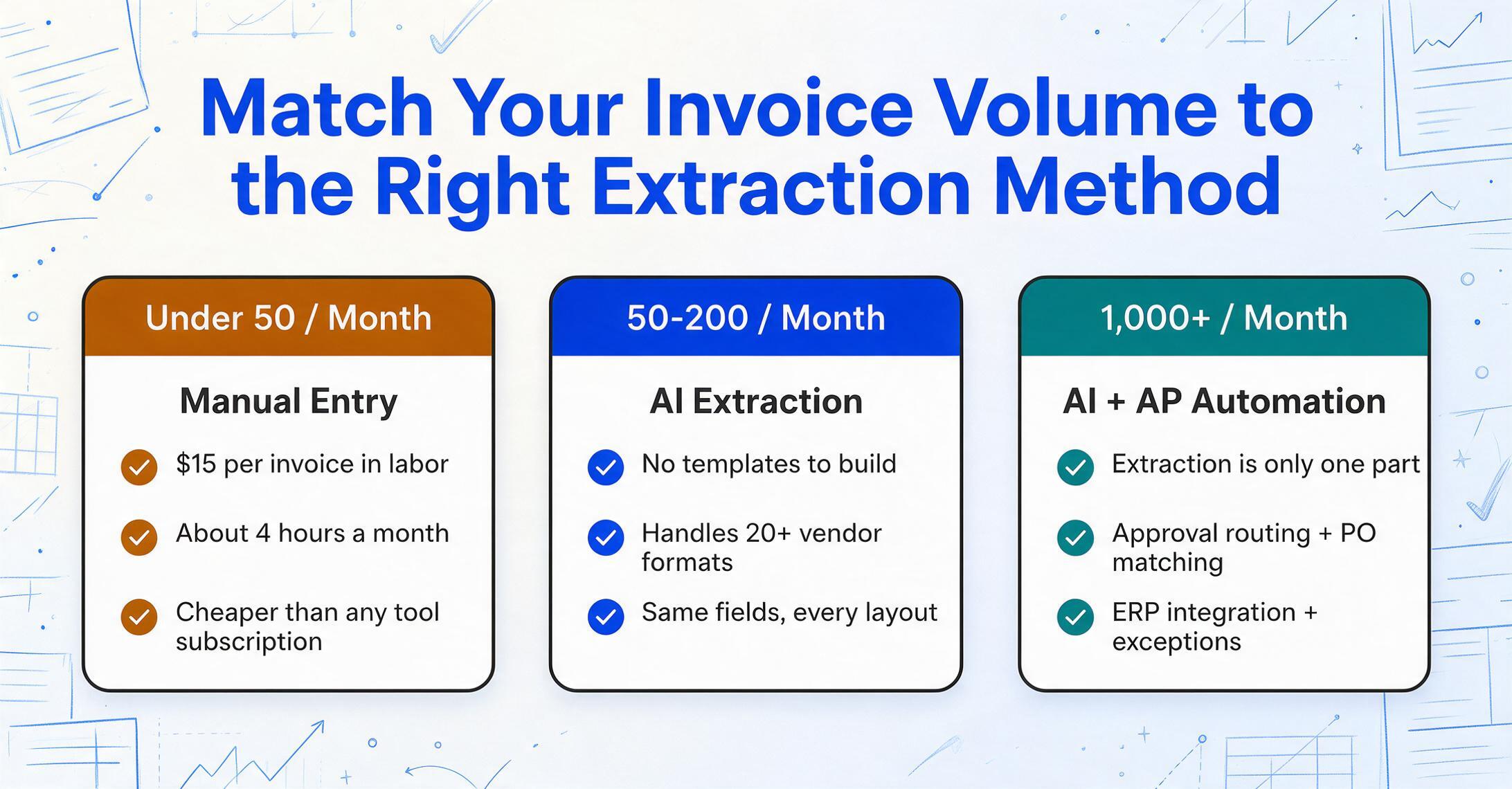
The right extraction method isn't the most advanced one. It's the one whose cost and complexity match your volume and format mix. Here's the decision logic, organized by the factors that actually determine success or failure:
| Your Situation | Best Method | Why |
|---|---|---|
| < 50 invoices/month, varied formats | Manual entry | Setup cost of any automated system exceeds labor cost at this volume. A single person processing 50 invoices (~4 hours/month) is cheaper than any tool subscription plus the time to learn it. |
| 50–200/month, varied formats | AI extraction | Template OCR setup time across 20+ vendor formats costs more than an AI tool subscription. AI handles format variability without template maintenance. |
| 200–1,000/month, < 20 stable vendor formats | Template OCR or AI | If your vendor list is stable and formats are consistent, template OCR delivers high accuracy at lower per-page cost. If formats vary, AI avoids template maintenance overhead. |
| 200–1,000/month, 50+ vendor formats | AI extraction | Managing 50+ templates is a part-time job. AI handles format diversity without per-vendor setup. See the scaling framework for volume-based decision logic. |
| 1,000+/month, any format mix | AI extraction + AP automation | At this volume, extraction is only one part of the workflow. You also need automated approval routing, PO matching, ERP integration, and exception handling. Standalone AI extraction tools handle the data capture. Full AP automation platforms (Tipalti, Stampli, Rossum) handle the entire invoice lifecycle. |
| Handwritten invoices, any volume | AI (VLM-based) | Template OCR drops below 70% on handwriting. VLMs read handwriting by understanding letterforms in semantic context. High-resolution scans (400-600 DPI, color) are essential. |
| Multi-language, cross-border invoices | AI (VLM-based) | Vision-language models read semantically across languages. Template OCR trained on English struggles with Japanese labels, French date formats, and European decimal conventions. |
The threshold that matters most is the 50-200 invoice range. Below 50, manual entry is genuinely cheaper and simpler than any automation. Above 200, manual entry costs more than AI extraction in direct labor alone — before counting the error correction cost. The middle band (50-200) is where the decision depends on your specific format mix and whether you have a person who can spend an afternoon setting up and learning an extraction tool.
Files are processed securely and not stored.
What Happens After Extraction — From Spreadsheet to ERP
Extraction gets the data out of the document. Getting it into your accounting system is a separate step — and it's where many extraction implementations stall because the team realizes the data is structured but the connection to the ERP isn't. There are four integration paths, ordered from simplest to most automated:
Path 1: Download and import. The extraction tool outputs Excel or CSV. You download the file, verify it, and import it into your ERP using the ERP's native import function. This works with every ERP — SAP, Oracle, NetSuite, QuickBooks, Xero, Sage, Microsoft Dynamics — because CSV import is universal. It requires zero IT involvement. The cost is the manual download-and-import step, which takes 2-5 minutes per batch regardless of how many invoices are in the batch. This is the right path for most teams processing under 1,000 invoices a month.
Path 2: Direct spreadsheet integration. The extraction tool writes data directly into Google Sheets or Excel Online via API. The spreadsheet becomes the intermediary between extraction and ERP — the tool appends rows to a sheet, and a separate integration (Zapier, Make, or a built-in ERP connector) reads from the sheet into the ERP. This eliminates the download step and makes the data available for review in a format the finance team already uses. For Google Sheets users specifically, some extraction tools offer sidebar add-ons that let you upload invoices and get extracted data without leaving the spreadsheet.
Path 3: API integration. The extraction tool sends extracted data directly to the ERP via API. This requires that both the extraction tool and the ERP have compatible APIs and that someone (usually IT or an integration consultant) sets up the connection. Once configured, extraction → validation → ERP import runs with minimal human intervention. The invoices that pass validation auto-post. The ones that fail get flagged for review. This path is appropriate above 1,000 invoices a month or when the manual import step is the bottleneck in the workflow.
Path 4: Collection links for inbound documents. A collection link is a shareable URL that lets suppliers, clients, or team members upload invoices directly into your extraction queue — no registration, no login, no email back-and-forth. The person opens the link, enters a short verification code, and uploads their file. It lands in your processing pipeline. This turns extraction from "I gather documents, then extract" into "documents arrive pre-gathered in the extraction queue." For audit preparation scenarios where you need to collect invoices from multiple sources under time pressure, see the audit season preparation guide.
The other inbound channel is email. A collection link covers the documents you have to chase; most invoices arrive on their own, as attachments. A dedicated inbox address turns that stream into the same queue: you share one address with suppliers or clients, and each attachment lands in your processing queue automatically. With auto-processing turned on and the fields you want bound to the inbox, extraction starts the moment mail arrives, a sender whitelist keeps unrelated mail out, and saved passwords let protected PDFs unlock without anyone typing the password. The outcome matches the collection link: documents arrive pre-gathered, and nobody forwards or uploads files by hand.
Going Deeper — Key Topics for Specific Needs
Invoice data extraction intersects with multiple specialized workflows. The articles below go deeper into each area:
| What Is Invoice Data Extraction? How It Works & Why It Matters | The entry-level definition — if you're new to the concept, start here before diving into methods and tooling. |
| Why AP Teams Still Key Invoice Data by Hand | The structural reasons manual entry persists despite decades of automation — and why "better ERP" wasn't the answer. |
| AI Extraction Tools Compared for Finance Teams | Side-by-side comparison by technical approach — which tools work without IT support, handle line items, and support batch processing. |
| Scaling Invoice Processing Without Adding Headcount | Decision framework for when to optimize process, when to automate, and when to hire — by volume inflection point. |
| 6 Invoice Entry Mistakes That Cost the Most | The visible mistakes (transpositions, duplicates) and the invisible ones (GL coding, tax classification) — with cost-per-error breakdowns. |
| Practical Accuracy Guide for AI Invoice Extraction | Why "99% accuracy" is a marketing number, what field-level accuracy actually means, and how to run your own accuracy test in one afternoon. |
| Audit Season: Preparing Invoice Data When Time Is Short | Emergency triage system for digitizing invoice data when auditors are weeks away — what to prioritize, what to skip. |
Advanced Field Extraction: Computed Columns and Cross-Field Validation
The next level beyond extracting what's printed on an invoice is extracting what you actually need — which isn't always the same thing. An invoice might show a subtotal of $1,247.83 without breaking out tax, but you need the pre-tax amount for GL coding. It might list 15 line items with quantities and unit prices but no line totals. It might show a grand total that doesn't match the sum of line items — and you need to know which number is wrong before posting the payment.
These are not edge cases. They're everyday invoice processing problems that turn extraction from a one-step read into a multi-step verification-and-calculate workflow. The tools that handle this well separate themselves from the tools that just read text.
Computed Columns — Calculated Results, Not Just Extracted Values
A computed column is a field you define that doesn't just locate a value on the document. It takes one or more extracted values and performs a calculation on them, then outputs the result as its own column in the spreadsheet. The simplest and most common example: Line Total = Quantity × Unit Price. Many invoices print the line total alongside quantity and unit price — but when they don't (or when the printed line total is wrong), a computed column fills the gap by multiplying what was extracted.
This capability extends well beyond basic arithmetic. The same mechanism handles:
- Missing subtotal: The invoice shows only the tax-inclusive total. A computed column derives
Subtotal = Total − Tax Amount, giving you the pre-tax figure for GL coding without a separate calculator step. - Line-level validation: Extract Quantity and Unit Price separately, then compute
Expected Line Total = Quantity × Unit Price. Compare against the printed line total. A mismatch column flags discrepancies before they reach the ERP. - Invoice-level reconciliation: Sum all computed line totals and compare against the printed subtotal. If the difference is nonzero, something is wrong — either the line items were misread or the header subtotal was misprinted. Either way, you catch it before payment.
- Conditional logic:
Discount Flag = IF(Line Total > $500, "Review", "OK")— apply business rules during extraction so the output already segments what needs attention from what can auto-post. - Rate lookup: Embed a fixed tax rate (e.g., 8.875% for NYC) in the computation rule. The AI applies it to every line without the rate appearing anywhere on the document.
The architectural shift here is significant: extraction stops being purely about reading what's there and becomes a combined read-and-derive operation. Instead of extracting raw data and then opening Excel to calculate, pivot, and validate, you get calculated results in the same table that came out of the extraction — one step instead of three. For a detailed walkthrough of the full computed column mechanism, see how line item extraction with calculated totals works.
Cross-Field Validation — Catching Errors Without Manual Review
Cross-field validation is the mathematical verification that extracted values are internally consistent. It answers the question: "If I add up the line items, do I get the subtotal? If I apply the tax rate, do I get the tax amount? If I add tax to subtotal, do I get the grand total?"
These checks are deterministic — they either pass or they don't. No judgment required. And they catch the most dangerous class of extraction errors: values that look right in isolation but don't work together. A transposed digit in a line total (was $1,247, extracted as $1,274) might clear a three-way match. But Σ(Quantity × Unit Price) ≠ Subtotal catches it instantly.
The three validation tiers that matter in practice:
| Validation Tier | Check | What It Catches |
|---|---|---|
| Line-level | Quantity × Unit Price = Line Total | Misread digits, swapped Qty/Price, missing line totals that should be derived |
| Invoice-level | Sum of line totals + tax = Grand Total | Missing line items, duplicate extraction, tax misclassification, rounding drift |
| Cross-document | PO total − previously invoiced = remaining balance | Duplicate invoice detection, over-billing, partial shipment tracking errors |
Not every extraction tool supports computed columns and cross-field validation natively. Template-based tools in particular struggle here — they can extract whatever sits at a coordinate, but they can't perform arithmetic on the results. The validation step falls back to a human with a calculator or a separate Excel reconciliation process. If you process more than 100 invoices a month, that manual validation step is where the real time drain lives, not the initial data entry. For a deeper exploration of extraction accuracy and how to measure it on your documents, the practical accuracy guide covers field-level validation methodology.
Invoice Variants by Industry — What Makes Each Type Different
A standard commercial invoice — vendor name, date, line items, total — is the baseline. But if your business handles invoices outside the commercial norm, extraction accuracy depends on whether the tool understands what it's looking at. Three industry variants illustrate how far "invoice" can stretch from the standard format — and why generic extraction often breaks on them.
Construction — AIA G702/G703 Progress Billing
The AIA G702 Application and Certificate for Payment isn't an invoice in the traditional sense. It's a progress billing document that tracks cumulative work across a construction project. The form has a distinct structure that standard invoice extraction tools weren't designed for:
- Line 1: Original Contract Sum — the total contract value at signing. This is a stationary number carried through every billing cycle, not a per-period charge.
- Line 2: Net Change by Change Orders — cumulative approved changes. Every change order that gets signed modifies this number, which means the G702 for month 4 carries different base numbers than month 1.
- Line 3: Contract Sum to Date — Line 1 + Line 2. The moving target that defines what "100% complete" means at this point in the project.
- Line 4: Total Completed and Stored to Date — the value of all work done plus materials stored on-site. This is the key figure that must be supported by the G703 continuation sheet.
- Line 5: Retainage — typically 5-10% withheld until project completion, calculated separately on work completed vs. materials stored.
- Line 6: Total Earned Less Retainage — what the contractor has actually earned after the owner's holdback.
- Line 7: Less Previous Certificates for Payment — the total of all prior approved payments. For the first pay app, this is zero. For subsequent ones, it's the running total from previous cycles.
- Line 8: Current Payment Due — Line 6 minus Line 7. The amount being requested this billing period.
- Line 9: Balance to Finish, Including Retainage — what's left on the contract after this payment.
The G703 Continuation Sheet provides the detailed line-item backup for Line 4 on the G702. It breaks the project into individual scope items — each with its scheduled value, work completed from the previous application, work completed this period, materials stored, total completed and stored to date, percentage complete, and balance to finish. The G703 grand total must equal G702 Line 4 exactly. According to Rabbet's 2024 Construction Payments Report, 82% of contractors now experience payment delays exceeding 30 days, up from 49% just two years earlier. Math errors between G702 and G703 forms are among the most common causes of rejection. For a focused walkthrough of construction invoice processing specifically, see what construction invoice extraction actually involves.
Medical — CMS-1500 (HCFA-1500) Claim Forms
The CMS-1500 form (still widely called the HCFA-1500 in billing departments) is the standard claim form used by physicians and outpatient providers to bill Medicare, Medicaid, and commercial insurers in the United States. It contains 33 numbered fields — some with multiple subfields — covering patient demographics, insurance information, diagnosis codes (ICD-10), procedure codes (CPT/HCPCS), dates of service, charges, and provider identifiers.
What makes CMS-1500 extraction uniquely challenging:
- Box 24 is a multi-row table within a single form field. Each row contains dates of service, place of service, procedure code, diagnosis pointer, charges, units, and provider ID. A single CMS-1500 can have 6 service lines. Extraction must recognize each row as a separate record while keeping them tied to the same patient and claim.
- Diagnosis pointers create a cross-reference system. Box 21 lists up to 12 ICD-10 codes. Box 24E contains numbers (1, 2, 3, etc.) that point back to specific diagnoses in Box 21. The extraction needs to resolve these pointers — not just capture the numbers — to produce a complete claim record.
- NPI numbers appear in multiple boxes. The rendering provider NPI (Box 24J), billing provider NPI (Box 33a), and referring provider NPI (Box 17b) are different entities. Mixing them up routes the claim to the wrong provider record.
- Box-level precision matters. Field 32 (service facility location) is required when different from the billing provider. Field 11 (insured's policy number) must match the payer's records exactly. Misfiling one box can trigger a claim rejection that takes weeks to correct.
A single CMS-1500 contains over 30 distinct data elements. Manual entry takes 5-7 minutes per form and the error rate on box-level coding — particularly diagnosis pointer mapping and modifier placement — is high enough that most billing departments run claims through a scrubber before submission. AI extraction that understands the form's cross-reference structure can reduce this to seconds with field-level accuracy comparable to a trained biller, though it should be noted that payer-specific requirements (which boxes are mandatory for which insurer) still require human oversight.
Restaurant & Food Service — High-Volume, Variable-Format Invoices
Restaurant supplier invoices don't look like commercial invoices. A Sysco or US Foods invoice runs across multiple pages with 30-50 line items, each carrying a pack/size specifier ("6/5 lb bag"), quantity in cases, unit of measure that varies by product (case for dry goods, pound for produce, each for specialty items), and a unit price that may be per case, per pound, or per each. Handwritten annotations — price adjustments, credit notes, substitution notes scribbled by the delivery driver — appear on the same page as the printed table.
What breaks on restaurant invoices:
- Unit of measure (UoM) inconsistency is the norm. The same invoice may have produce priced per case, meat per pound, seafood per each, and cleaning supplies per case — with the UoM column sometimes present and sometimes implied by the pack/size description. Extraction that doesn't handle UoM as a distinct field produces line totals that can't be verified.
- Pack/size is a compound field. "6/5 lb" means six 5-pound units per case. A line with quantity 2 and pack "6/5 lb" means 60 pounds total — not 2 items. Getting this wrong inflates or deflates food cost calculations by multiples, not percentages.
- Handwritten adjustments are standard. A driver-scribbled "$2 off produce" or a circled substitution with a handwritten price changes the effective line total. The printed number is wrong, and the handwritten number is the real one. Extraction must capture both — or at minimum flag the discrepancy.
- Multi-page line-item tables. A 4-page Sysco invoice may have the header on page 1 and line items spanning all four pages. Template-based tools that expect a single-page table break on page 2. AI extraction handles page-spanning tables but needs to recognize continuation pages as part of the same invoice.
A 10-location restaurant group might work with 50-100 food and beverage vendors, each with a different invoice format. Header-level extraction (vendor name, date, total) is enough for AP posting. But food cost analysis, recipe costing, per-item price tracking, and theoretical-vs-actual variance all require complete line-item extraction with UoM normalization. The extraction engine needs to handle new vendor formats on the first document without setup — which means template-free AI extraction, not per-vendor template creation.
Batch Processing at Scale — From One Invoice to One Spreadsheet
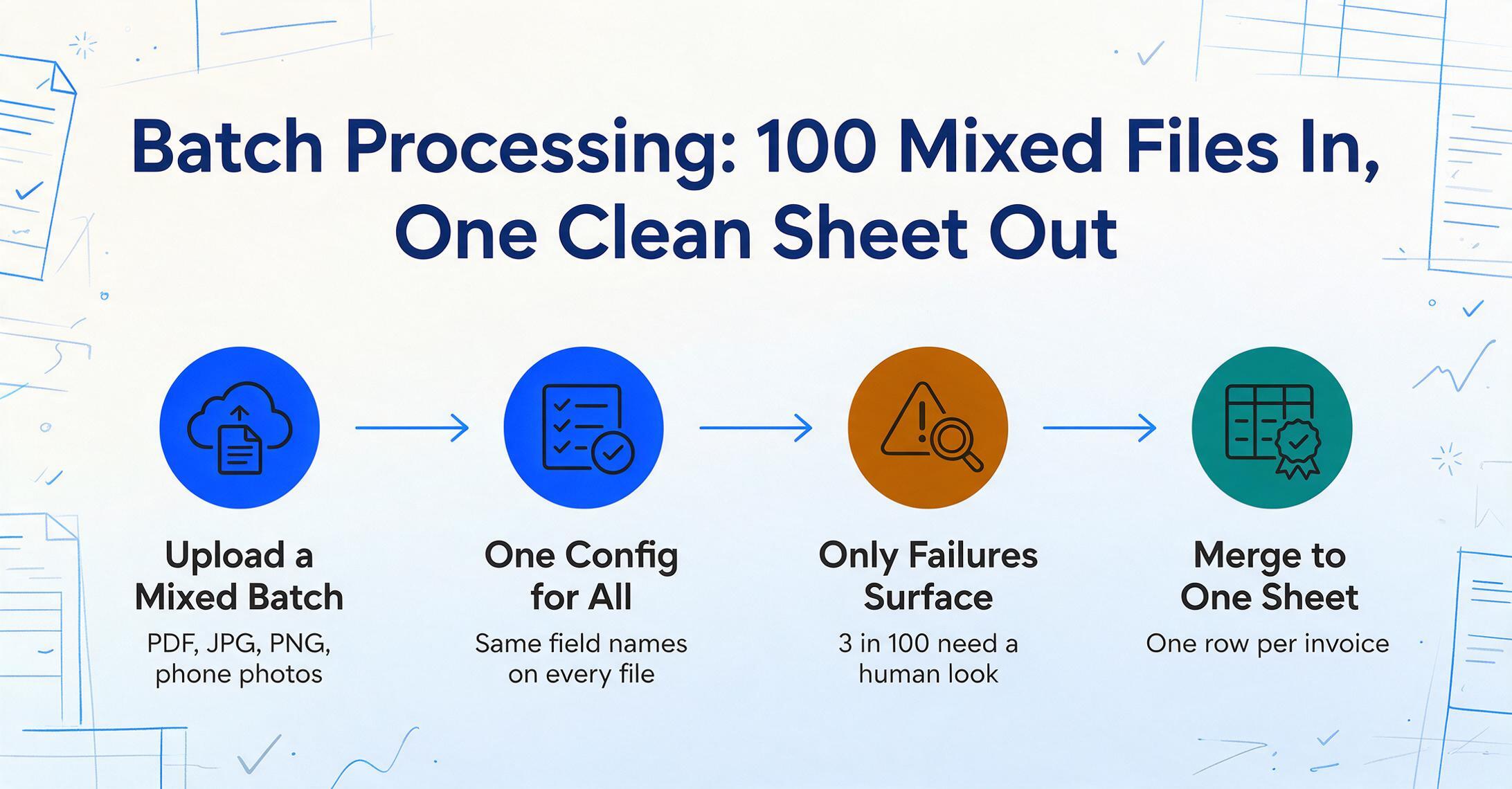
Processing one invoice at a time teaches you how the tool works. Processing a hundred invoices at once teaches you whether the tool actually works — because volume exposes design flaws that single-document demos hide. Batch processing is the difference between extraction that fits a workflow and extraction that requires building a workflow around it.
How Batch Processing Actually Works
Batch processing isn't just "do the same thing N times." It's a specific pipeline: upload N invoice files (which can be a mix of PDFs, JPGs, PNGs, and phone photos) → the tool processes all of them with the same extraction configuration → the results merge into a single output file, one row per invoice (or one row per line item, depending on output mode).
What makes this harder than single-document processing:
- Format heterogeneity. A batch of 50 invoices may include 30 different vendor formats. Template-based extraction breaks here because you'd need 30 templates configured before pressing "process." AI extraction handles it because the same field definitions work across all formats.
- Mixed file types. Some invoices arrive as clean PDFs. Others as photos of paper. Some as multi-page documents with POs and delivery notes mixed in. The batch processor needs to handle all of these without manual file-type sorting beforehand.
- Partial failure handling. In a batch of 100 invoices, 3 might fail extraction (unreadable scan, corrupted file, format the AI can't parse). The batch output should include results for the 97 that succeeded plus clear error indicators for the 3 that didn't — not a single "batch failed" message that requires starting over.
- Row-to-source traceability. In a merged spreadsheet with 500 rows from 50 invoices, every row needs to reference its source file. Without this, finding the original document for a suspect value means manually matching rows to files — which defeats the purpose of batch processing.
The batch pipeline also interacts with computed columns and validation: instead of running validation on one invoice at a time, a batch run applies the same computation rules and cross-field checks across the entire batch. A single validation rule ("Line Total = Qty × Unit Price") catches errors across all 50 invoices simultaneously — which is fundamentally different from opening 50 individual results and checking each one.
What Happens After the Batch Finishes
The batch result — a single Excel file or structured JSON — is the starting point, not the endpoint. There are three post-batch stages that turn raw extraction into posted AP data:
1. Exception review. Flag rows where validation failed (mismatched line totals, missing required fields, duplicate invoice numbers). These go to a human for resolution. The rest — typically 85-95% of the batch — flow through without manual intervention. The goal isn't zero exceptions; it's making exceptions easy to find so the review step takes minutes instead of hours.
2. Data transformation. The extracted data rarely matches the ERP import format exactly. Dates might need reformatting (MM/DD/YYYY → YYYY-MM-DD). Vendor names might need normalization ("Sysco Corp" → "SYSCO-01" in the vendor master). Currency amounts might need conversion. If the extraction tool exports a clean, predictable structure (every column has a consistent data type, no merged cells, no formatting artifacts), this transformation is a 5-minute spreadsheet operation. If the output is messy, transformation becomes a separate data-cleaning project.
3. ERP import. The transformed file goes into the ERP via CSV import, API, or spreadsheet integration (as covered in the integration paths section above). The batch size determines which method makes sense: CSV import for under 200 invoices a month, API for 200-1,000, full AP automation platform integration above 1,000.
For a step-by-step walkthrough of the end-to-end batch workflow — from upload to merged Excel — see how to batch-extract invoice data to one Excel file. For the scaling framework that matches volume to the right processing approach, see scaling invoice processing without adding headcount.