The Complete Guide to Australian
BAS Data Extraction (2026)
If you search for “BAS data extraction” today, the results span roughly four content types: ATO landing pages telling you what a BAS is, accounting firm blogs explaining when to lodge it, software comparison pages listing which platforms auto-fill it, and our own how-to article on extracting BAS fields into Excel. What does not exist — anywhere — is a single reference that walks through every label on the NAT 4189 form, explains which numbers cross-reference which, and maps each one to an extraction column you can define in five minutes and reuse every quarter. This is that reference.
Key Takeaways
- A single BAS form carries three to six separate tax obligations — GST, PAYG withholding, PAYG instalments, and sometimes FBT and fuel tax credits — on one page, with each tax type using its own label prefix and its own set of cross-check rules.
- The ATO already knows your W1 wages and W2 withholding from real-time STP payroll reports — the BAS is a verification, not a report, and any mismatch between the two triggers an automatic discrepancy flag no one notices until the letter arrives.
- Run extraction once per quarter and you get four rows in a spreadsheet — the sum row at the bottom auto-builds a twelve-month tax ledger where cross-quarter ratios and STP-to-BAS reconciliations become visible weeks before the ATO's data-matching engine would flag them.
BAS Is Not a Single Form — It Is a Multi-Tax Container
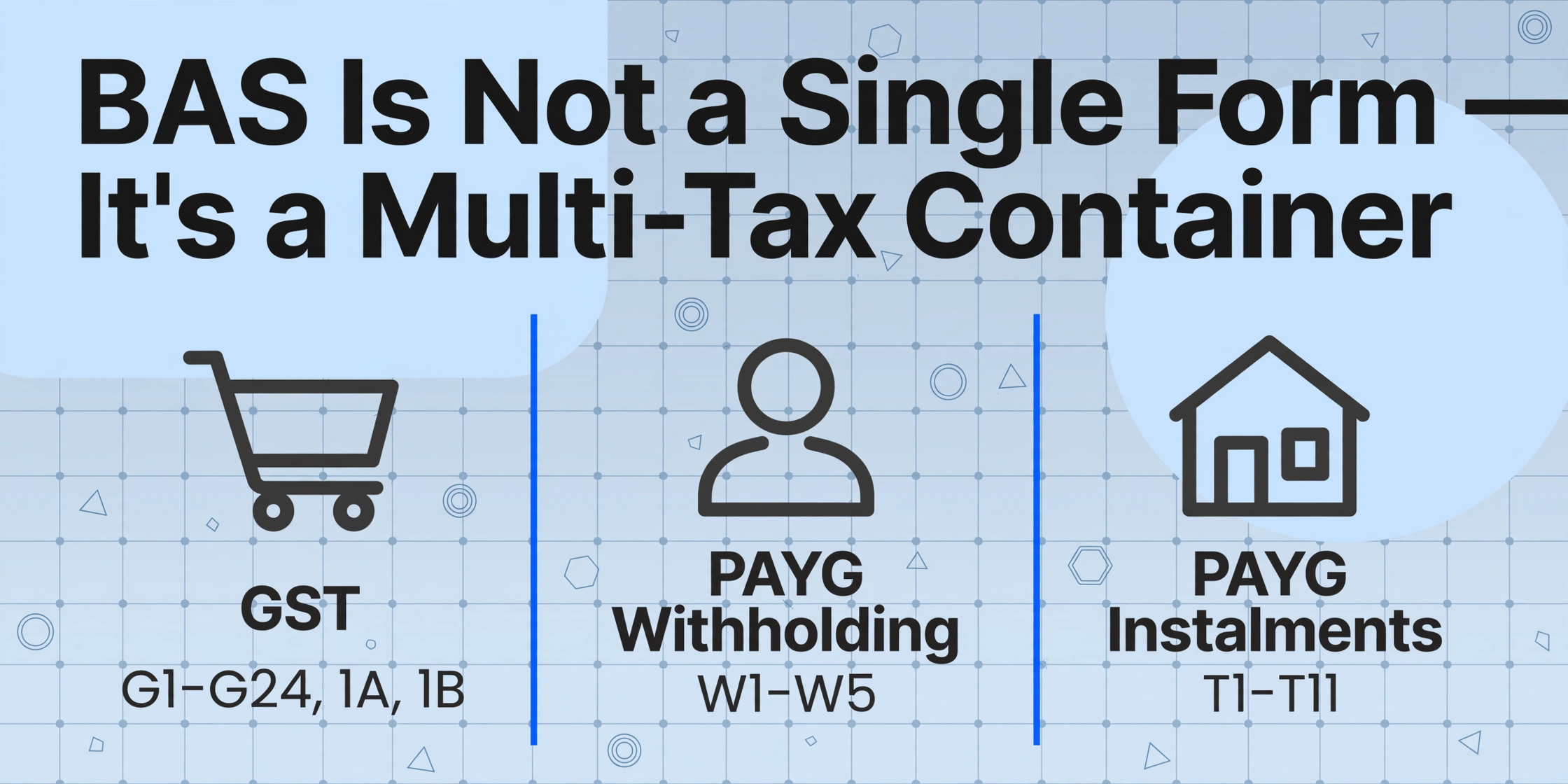
The BAS A — Quarterly business activity statement (NAT 4189) is not one tax form. It is a single document that the ATO uses to consolidate four to six separate tax reporting obligations into one lodgement. Each tax type has its own label group, its own calculation logic, its own source documents, and — critically for extraction — its own relationship to the other labels on the same page.
Here is what the form actually carries, broken down by tax type:
| Tax Type | Label Group | What It Reports | Source Documents | Cross-Checks |
|---|---|---|---|---|
| Goods and Services Tax (GST) | G1–G24, 1A, 1B | GST collected on sales, GST credits claimed on purchases | Tax invoices issued, supplier tax invoices received | G1 × 1/11 should approximate 1A (cash basis exempt) |
| PAYG Withholding | W1–W5 | Gross wages paid, income tax withheld from employees | Payroll records, STP reports | W1 must reconcile to STP year-to-date total |
| PAYG Instalments | T1–T11 | Prepaid income tax based on prior-year earnings | ATO instalment notice (rate pre-filled) | T1 is business income — separate from G1 treatment |
| Fringe Benefits Tax (FBT)* | F1–F4 | Quarterly FBT instalment for employers providing benefits | Prior-year FBT return | F1 not the same as W1 — FBT is a separate levy |
| Fuel Tax Credits (FTC)* | 7C, 7D | Credits claimed for fuel used in eligible off-road activities | Fuel purchase records | Standalone credit; does not net against GST |
| Wine Equalisation Tax (WET)* & Luxury Car Tax (LCT)* | 1C, 1D, 1E, 1F | Industry-specific taxes | WET returns, car sale records | Only appears if registered for these obligations |
* WET, LCT, and FTC labels only appear on your BAS if your business is registered for those obligations. Most small businesses will never see them. The core tax types for 95% of BAS filers are GST, PAYG withholding, and PAYG instalments.
This multi-tax structure is what makes BAS extraction different from extracting a single-purpose document like a W-2 or a P60. The UK P60, for example, reports one thing — employee pay and tax — on one certificate, and has one flat field layout. The BAS reports three to six different taxes on a single form, each with its own label prefix and cross-referencing logic. If your extraction treats it as a flat form with undifferentiated fields, you will end up with W1 wages mixed into your GST column and no way to trace the error.
The right extraction model treats the BAS as a multi-table container: one table for GST, one for PAYG-W, one for PAYG-I, and optional tables for FBT and FTC. Each table has its own column set. The tables share a common key — the period covered (quarter/date range) — but their values do not mix. Understanding this container model is the prerequisite for everything that follows on this page.
For the step-by-step extraction workflow that covers this exact pattern, see how to extract Australian BAS data to Excel for GST and PAYG reporting. For the pain points that make manual BAS preparation the quarterly ritual is dreaded, see why BAS lodgement week is the hardest week in small business.
The BAS Label System: A Complete Field Walkthrough
Every Australian small business owner has stared at a BAS form and wondered what the letter in front of each box actually means. The label prefixes are not arbitrary — they encode the tax type, the reporting direction (what you owe vs what you can claim), and the calculation dependency. Understanding this system is what turns the BAS from a tax form into a set of extraction column definitions you can reuse every quarter.
The G Labels: GST on Sales and Purchases
The G labels report your GST position. They are self-referential — the number at 1A (GST on sales) should roughly equal 1/11th of G1 (total sales) on a cash basis, and the number at 1B (GST on purchases) should roughly equal 1/11th of the sum of G10 and G11. When the ratio is off, either a transaction is miscoded or the BAS is carrying stale manual data.
| Label | Full Name | What It Contains | Extraction Column Name | Validation |
|---|---|---|---|---|
| G1 | Total Sales | Gross sales including GST, GST-free, and input-taxed. Whether the amount includes GST is indicated by a separate Yes/No checkbox. | Total Sales (G1) | G1 × 1/11 ≈ 1A (within ~$5 tolerance for rounding) |
| G2 | Export Sales | Sales of goods exported from Australia within 60 days (GST-free). Full reporting only. | Export Sales (G2) | G2 + G3 ≤ G1 |
| G3 | Other GST-Free Sales | Sales of GST-free items — basic food, medical, education, childcare. Full reporting only. | GST-Free Sales (G3) | G2 + G3 ≤ G1 |
| G10 | Capital Purchases | Business asset purchases where GST was included — vehicles, equipment, property. Full reporting only. | Capital Purchases (G10) | G10 + G11 should be > 0 if 1B > 0 |
| G11 | Non-Capital Purchases | Day-to-day business expenses — rent, stationery, inventory, software subscriptions. Full reporting only. | Non-Capital Purchases (G11) | G10 + G11 should be > 0 if 1B > 0 |
| 1A | GST on Sales | Total GST collected on taxable sales. This is the amount you owe the ATO for GST. | GST on Sales (1A) | Output column; 1A ≈ G1 × 1/11 (cash basis) |
| 1B | GST on Purchases | Total GST credits claimed on business purchases. This is the amount the ATO owes you back. | GST on Purchases (1B) | Output column; 1B ≈ (G10+G11) × 1/11 |
Two things are not obvious from the form layout. First, G1 includes sales that carry no GST — GST-free medical supplies, exported goods, basic food — which is why the checkbox ("Does the amount shown at G1 include GST?") matters. If you tick Yes on a G1 figure of $110,000 that includes $10,000 of GST-free sales, your 1A should be $9,091 (1/11th of the $100,000 taxable portion), not $10,000 (1/11th of the full G1). Second, on cash basis accounting — the default for most small businesses — you only report GST on amounts actually received and paid, not invoiced. The difference between invoiced and received can create a significant G1-to-1A gap that the form's layout does nothing to warn you about. Extraction does not solve the accounting method decision — but it does make the figures transparent enough that a bookkeeper can spot the gap before the ATO does.
The W Labels: PAYG Withholding from Wages
If your business has employees, the W section reports the income tax you withheld from their wages. This section is separate from GST, but it feeds into the same total payable at the bottom of the form.
| Label | Full Name | What It Contains | Extraction Column Name | Validation |
|---|---|---|---|---|
| W1 | Total Salary, Wages, and Other Payments | Gross payments to employees — wages, salaries, allowances, bonuses. Includes payments to labour-hire workers and religious practitioners. Excludes super contributions and salary-sacrificed amounts. | Total Wages (W1) | Must match STP year-to-date totals exactly. Cross-quarter check: W1_Q1 + W1_Q2 + W1_Q3 + W1_Q4 = STP annual total. |
| W2 | Amount Withheld from W1 | Total income tax withheld from the payments shown at W1. | Tax Withheld (W2) | W2 ≤ W1 (tax rate cannot exceed 100%). Cross-quarter sum should match annual STP withheld total. |
| W4 | Amount Withheld — No ABN Quoted | 47% withholding on payments to suppliers who did not provide an ABN on their invoice. | No ABN Withholding (W4) | Rare for most small businesses — leave blank if none |
| W3 | Other Amounts Withheld | Withholding not covered by W2 or W4 — e.g. from investment distributions where no TFN was quoted, payments to foreign residents. | Other Withholding (W3) | Rare for most small businesses |
| W5 | Total Amounts Withheld | Sum of W2 + W3 + W4. This is the total PAYG withholding payable to the ATO. | Total PAYG Withheld (W5) | Computed column: W2 + W3 + W4 |
The W1-to-STP reconciliation is the single most audited field pair on the BAS. Single Touch Payroll (STP) reports run in real time to the ATO — your payroll software sends wage and withholding data with every pay run. When you lodge a BAS, the ATO already knows what your W1 and W2 should be from STP. A mismatch triggers an automatic discrepancy flag. If you are extracting W1 and W2 from payroll reports rather than manually typing them from software screens, the extraction output becomes a reference record you can diff against your STP dashboard before lodging. For the quarterly batch workflow that turns four BAS extracts into a twelve-month ledger with automatic cross-check columns, see how to batch-process quarterly BAS statements into one annual tax ledger.
The T Labels: PAYG Instalments
PAYG instalments are not a tax on the current period. They are a prepayment of your annual income tax, calculated by the ATO based on your last lodged tax return. The ATO sends you an instalment rate (a percentage of your business income), and you multiply your actual income for the quarter by that rate to arrive at the instalment amount.
| Label | Full Name | What It Contains | Extraction Column Name |
|---|---|---|---|
| T1 | PAYG Instalment Income | Total gross business income for the quarter (not the same as G1 — T1 excludes GST and may differ by accounting method). | Instalment Income (T1) |
| T2 | Instalment Rate | The ATO-provided percentage rate applied to T1. Pre-filled on the form. | Instalment Rate (T2) |
| T7 | Calculated Instalment Amount | T1 × T2%. The amount payable for this quarter. | Instalment Payable (T7) |
| T8 | Estimated Tax for the Year | Your estimate of total annual tax payable. Used when varying the instalment. | Estimated Annual Tax (T8) |
| T9 | Varied Amount Payable | What you choose to pay instead of the ATO-calculated amount. Must be accompanied by a reason code at T4. | Varied Instalment (T9) |
The PAYG instalment section is easy to overlook in an extraction workflow because the ATO pre-fills the rate at T2. But pre-filling is not the same as accuracy. If your business income has dropped significantly since your last tax return — common for seasonal businesses — the pre-filled rate will overcharge you, and you should vary the instalment downwards at T9 to avoid a large refund wait at year-end. Varying without documentation that supports the lower estimate risks a shortfall interest charge if the variation was unreasonable.
Extracting the T labels into a spreadsheet alongside the GST figures gives you a quick ratio check: T1 should typically be lower than G1 because G1 includes GST and T1 does not. If the two numbers are identical, either GST was included in T1 by mistake, or G1 contained no taxable sales — both worth verifying before lodgement.
FBT, Fuel Tax Credits, and the Labels Most Businesses Never See
Labels F1–F4 (Fringe Benefits Tax instalments) only appear if your business provides employee benefits and is registered for FBT. They work similarly to PAYG instalments: an ATO-calculated amount at F1, an estimated total at F2, a varied amount at F3, and a reason code at F4.
Labels 7C and 7D cover fuel tax credits for businesses that use fuel in off-road machinery, heavy vehicles, or primary production. Labels 1C/1D (Wine Equalisation Tax) and 1E/1F (Luxury Car Tax) appear only for businesses in those specific industries. For extraction purposes, the rule is simple: if the label is blank on your BAS, do not create a column for it. Only extract what your business reports. Adding empty columns to a spreadsheet that other people will read creates exactly the kind of confusion a structured extraction workflow is designed to eliminate.
Simpler BAS vs Full BAS: What Changes for Extraction
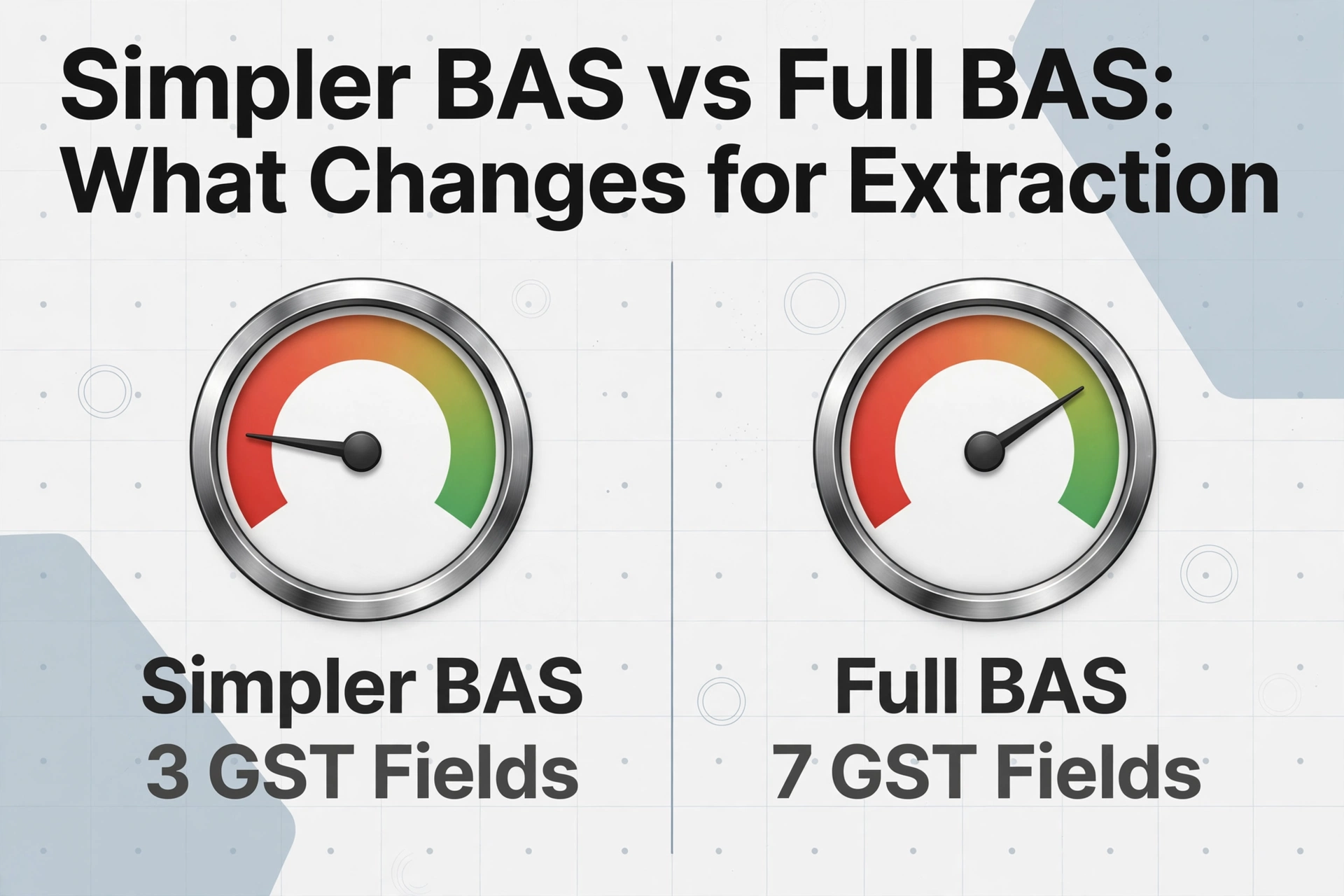
Since 1 July 2017, the default GST reporting method for businesses with annual GST turnover under $10 million is the Simpler BAS. Instead of reporting seven GST fields (G1, G2, G3, G10, G11, 1A, 1B), you report three: G1, 1A, and 1B. The full reporting method — all seven fields — is mandatory only for businesses with turnover of $10 million or more, or those whose main activity is making input-taxed supplies (such as financial services or residential rental).
For extraction, the difference between the two reporting methods is not cosmetic. It changes which columns you define, which source documents feed which labels, and whether you can validate the 1A-to-G1 ratio at all.
| Aspect | Simpler BAS (Turnover <$10M) | Full BAS (Turnover ≥$10M) |
|---|---|---|
| GST Fields to Extract | 3 (G1, 1A, 1B) | 7 (G1, G2, G3, G10, G11, 1A, 1B) |
| Extraction Column Count | 3 + W labels + T labels | 7 + W labels + T labels |
| GST-Free Sales Visibility | Invisible — mixed into G1 total only | Separated (G2, G3) |
| Capital vs Non-Capital Split | Invisible — both feed 1B | Separated (G10, G11) |
| Simplest Validation | 1A ≈ G1 × 1/11 (cash basis only) | 1A ≈ G1 × 1/11; 1B ≈ (G10+G11) × 1/11 |
The Simpler BAS saves time at lodgement, but it also makes data validation harder. When G2 and G3 are lumped into G1 without visibility into the GST-free portion, the 1A/G1 ratio becomes noisy. A G1 of $110,000 might produce a 1A of $9,091 (if $10,000 was GST-free) or $10,000 (if none was). Without extracting the underlying sales breakdown from your accounting records separately, you cannot know which 1A figure is correct from G1 alone.
The practical approach for extraction is to define your columns based on the labels you actually have to report, but keep your source transaction data (sales invoices, purchase receipts) in a separate extraction batch. The BAS labels are the output. The sales and purchase documents are the input. Extracting both — the labels from the filled BAS and the line items from the source documents — gives you a two-way reconciliation that catches the misclassified GST-free sale before the ATO does.
To understand what manual BAS lodgement costs in time and money — and how those costs map to the decision between Simpler and Full reporting — see our breakdown of what manual BAS data entry costs Australian businesses per quarter.
The Annual GST Return Track
Most Australian businesses lodge BAS quarterly and pay GST as they go. But there is a separate track: businesses that voluntarily registered for GST with turnover under $75,000 can elect to report GST annually using the GST instalment method. Under this method, you pay quarterly GST instalment amounts calculated by the ATO (or varied by you), and at the end of the financial year you lodge an annual GST return that reconciles the instalment payments against your actual GST liability.
For extraction, the annual GST return is a different document from the quarterly BAS. It reports seven fields regardless of turnover — G1, G2, G3, G10, G11, 1A, and 1B — and its purpose is reconciliation, not ongoing reporting. The annual return covers twelve months of transactions. The quarterly instalment notices cover three months each, and their labels (G21, G22, G23, G24) are structurally different from the quarterly BAS labels.
The extraction challenge with the annual track is that the data you need in July — a full-year G1 total, a full-year 1B total — has been accumulating in twelve months of source documents. If you have not been extracting quarterly, the annual return becomes a retrospective reconstruction exercise: dig through twelve months of invoices and receipts to arrive at numbers the quarterly filer has been reporting all along. The quarterly extraction workflow — run four times a year, each time pulling G1/1A/1B from the current quarter's documents into a spreadsheet — makes the annual GST return nearly automatic: sum the four quarterly 1A columns and you have your annual GST on sales.
If your business is on the annual GST track: you still need to extract the underlying transaction data — supplier invoices, sales summaries — to compute the full-year totals for the annual return. The quarterly instalment notices only track estimated payments, not actual GST. The extraction work happens once at year-end instead of four times, but the volume is four times larger, and the margin for error on a full-year 1A figure is proportionally larger too.
How BAS Data Extraction Actually Works
BAS extraction means taking a filled BAS form — whether it is a screenshot from Xero, a PDF from the ATO portal, a scanned paper form, or a spreadsheet export from accounting software — and converting each label value into a structured column in a spreadsheet, one row per quarter. Unlike invoice extraction or receipt extraction, where the source documents are the raw transactions, BAS extraction works from the summary form itself: the document that already contains the calculated totals.
That means the extraction task is not “read 47 supplier invoices and compute G11.” It is “the accountant prepared this BAS in Xero and sent you a PDF. Read the number next to G11 and put it in cell C4.” The calculation happened upstream, in the accounting software or the bookkeeper's ledger. The extraction is capturing the output.
But BAS forms are not uniform. A Xero-generated BAS PDF places G1 top-left with a bold label and a dollar-amount table. A paper BAS mailed by the ATO — the NAT 4189 form with pre-printed fields — uses a completely different layout where the GST, PAYG-W, and PAYG-I sections are stacked on separate panels with the label codes in small grey boxes next to blank value fields. A screenshot of the ATO online portal shows the same labels in an HTML-rendered layout that looks different from both.
This is where Custom Column Extraction — the ability to define output columns by field meaning rather than by pixel coordinate — handles what template-based OCR cannot. A template-based approach would need three separate templates for three BAS formats (Xero PDF, ATO paper scan, ATO portal screenshot) and would fail on the fourth format you had not anticipated. A semantic extraction approach uses the same column definitions — Total Sales (G1), GST on Purchases (1B), Total Wages (W1) — regardless of which BAS format the source came from, because it reads the label text to locate the value rather than relying on a fixed coordinate.
Files are processed securely and not stored.
Building a Quarterly-to-Annual Tax Ledger from Extracted BAS Data
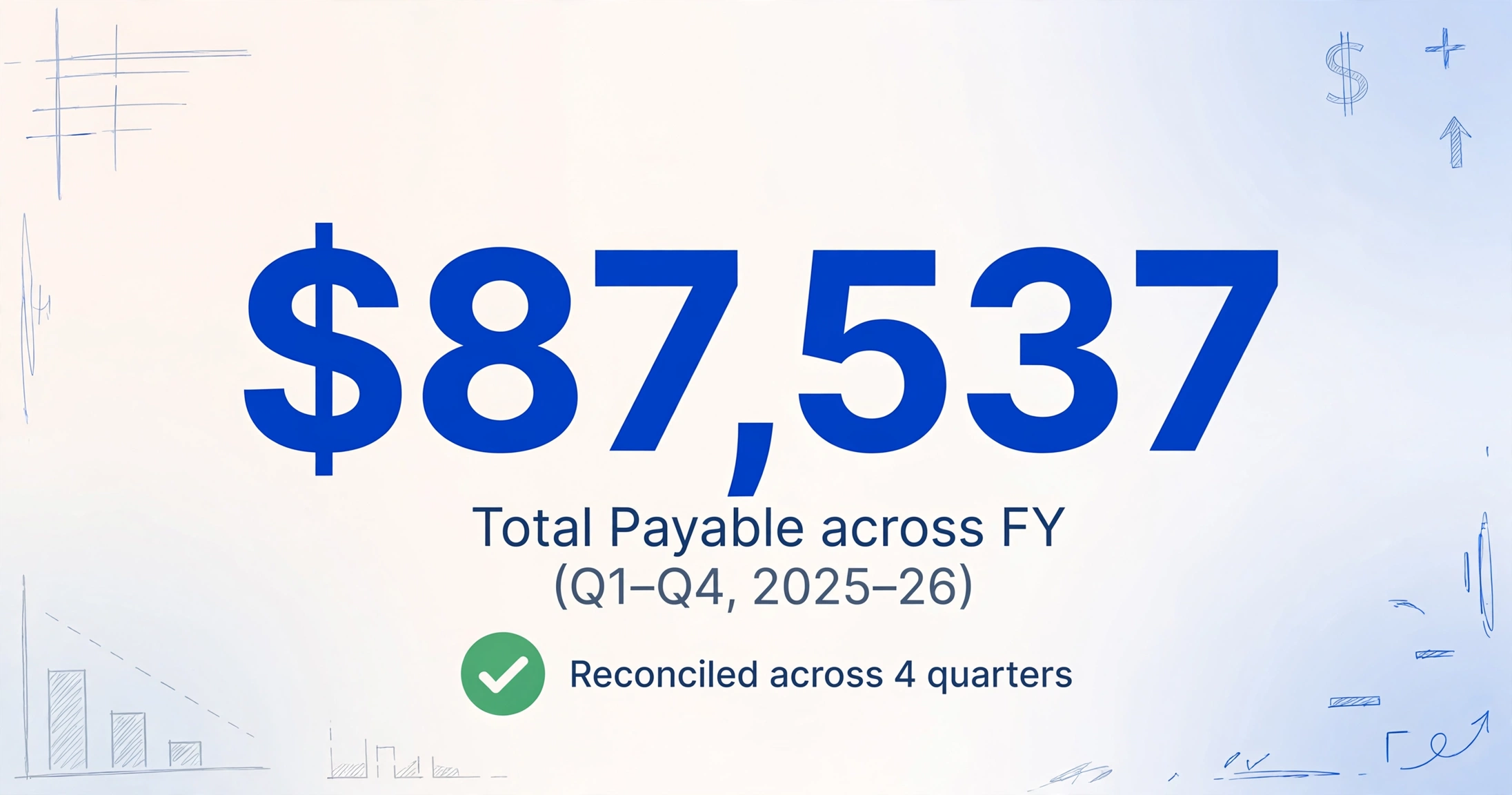
One BAS extraction run fills one row in a spreadsheet: the July–September quarter figures. Four runs fill four rows: Q1 through Q4, covering the full Australian financial year (1 July to 30 June). The real value of BAS extraction does not emerge until you have all four rows in the same workbook and can do what the form itself does not allow — compare quarter to quarter.
Here is what a quarterly-to-annual ledger looks like with extracted BAS data:
| Period | G1 Total Sales | 1A GST on Sales | 1B GST on Purchases | Net GST (1A-1B) | W1 Total Wages | W2 Tax Withheld | T7 Instalment | Total Payable |
|---|---|---|---|---|---|---|---|---|
| Q1 Jul–Sep | 132,000 | 12,000 | 5,500 | 6,500 | 45,000 | 9,800 | 4,200 | 20,500 |
| Q2 Oct–Dec | 148,500 | 13,500 | 6,200 | 7,300 | 52,000 | 11,200 | 4,700 | 23,200 |
| Q3 Jan–Mar | 126,000 | 11,455 | 5,100 | 6,355 | 48,000 | 10,300 | 4,000 | 20,655 |
| Q4 Apr–Jun | 156,000 | 14,182 | 6,800 | 7,382 | 50,000 | 10,900 | 4,900 | 23,182 |
| FY Total | 562,500 | 51,137 | 23,600 | 27,537 | 195,000 | 42,200 | 17,800 | 87,537 |
With all four quarters in one ledger, several checks become possible that a single BAS does not support. W1 totals across four quarters should reconcile to the full-year STP report. Net GST across all quarters should approximate 1/11th of annual taxable sales. And the PAYG instalment total should be claimable as a credit against the final income tax assessment — a number you will want at tax time, not nine months later after reconstructing four separate BAS forms from memory.
For the batch workflow details — including how to merge four quarters of extracted BAS data into a single Excel workbook with automatic cross-quarter validation columns — see the quarterly BAS batch processing guide.
Edge Cases and Reconciliation
BAS extraction workflows that work perfectly on a clean Xero PDF for Q2 will encounter their first real test in Q3, when one of the following edge cases appears. Knowing which ones exist before they happen is what prevents a quarter-end scramble.
Revised BAS: When You Need to Re-Extract
If you discover an error in a previously lodged BAS — a missed supplier invoice, a misclassified sale — you lodge a revised BAS. The ATO issues a new Document Identification Number (DIN) for the revision. From an extraction perspective, the original BAS data in your quarterly ledger is now stale. The correct approach is to re-extract from the revised BAS and overwrite the row for that quarter. Do not create a second row and manually net the difference — the revised BAS is the new source of truth, and a duplicated row creates phantom totals in the annual sum column.
Simpler BAS, Full-Records Books: The Invisible Field Problem
A business on the Simpler BAS track reports only G1, 1A, and 1B. But its accounting records still track G2, G3, G10, and G11 internally because the accounting software (Xero, MYOB, QuickBooks) uses those tax codes to compute 1A and 1B. The extraction output from a Simpler BAS has three GST columns. The extraction output from the underlying sales and purchase records has seven. Reconciling a three-column summary against a seven-column source is possible only if the extraction workflow name-maps the columns correctly — sum of all G-code columns (excluding G1) + 1B from the transaction data should equal the BAS 1B figure.
The W1–STP Reconciliation: The Field That Cannot Be Wrong
W1 (total salary and wages) is the most consistently audited field on the BAS because the ATO has an independent real-time data source for it: Single Touch Payroll. Every pay run your payroll software reports the year-to-date gross wages and tax withheld to the ATO through STP. When your BAS W1 and W2 land in the ATO system, they are automatically compared against the STP total for the same period. A discrepancy triggers an automatic flag. Extracting W1 and W2 from the BAS as it was prepared — rather than re-typing them from payroll software screens — gives you a verified copy of what went into the form. You can diff that copy against the STP dashboard to confirm alignment before lodgement, rather than hoping the numbers match and discovering three months later they did not.
The December Quarter: Extended Deadline, Compressed Reality
The December quarter BAS has a lodgement deadline of 28 February (the other three quarters are due on the 28th of October, April, and July). That extended window exists because the December quarter coincides with the holiday period and EOFY preparations for some businesses. But the practical effect is that the Q2 figures sit un-extracted for up to eight weeks after the quarter closes. By the time you extract Q2 in February, Q3 is already half over. The workflow does not break — extraction can be run at any time — but the gap between quarter-end and extraction grows, and the risk that someone has already manually typed the Q2 figures into the business's tax planning spreadsheet goes up. Extraction after the fact means double-checking that the manual number matches the BAS, not the other way around.
The Australian Accounting Software Landscape
Understanding how accounting software handles BAS data is essential because in most Australian businesses, the BAS is not created in isolation — it is generated by the same platform that holds the transactions. The extraction workflow sits downstream of that platform.
Xero dominates the Australian small business market. Its BAS module auto-populates the G, W, and T labels from coded transactions, allows direct online lodgement to the ATO, and generates a BAS summary PDF. The PDF layout places the GST section on the front page with all label codes clearly visible. This is the most extraction-friendly output because label codes and values are adjacent and consistently formatted. But Xero's PDF includes only the summary — it does not include the transaction-level breakdown that would explain why G11 is $18,500 instead of the $21,000 you expected. That breakdown requires a separate transaction report export.
MYOB Business / AccountRight handles BAS preparation through integrated GST coding and payroll, with lodgement available within the platform. MYOB's BAS output formats — both the summary screen and the PDF — can differ from Xero's in label placement. The same G1 label appears in a different position on the page. For template-based approaches, this matters. For semantic extraction, it does not.
QuickBooks Australia offers BAS preparation and lodgement with GST tracking similar to Xero and MYOB. The field structure is the same — ATO-mandated labels — but the visual output is QuickBooks-specific.
Reckon and other smaller platforms (Free Accounting Software, Saasu) serve the lower end of the market. Their BAS outputs are less predictable and more likely to be printed as image-based PDFs rather than text-searchable PDFs, depending on the version and the printer driver. An extraction tool that can handle both text PDFs and image-based PDFs — using visual AI to read the label text directly from the rendered page rather than from embedded text layers — is the difference between a workflow that works on all BAS sources and one that works only on Xero PDFs.
The software landscape also determines whether you need to extract from the BAS form at all. If your accounting software auto-fills the BAS from coded transactions and you trust the coding, the BAS form itself is a secondary reference — your extracted data should come from the underlying transaction export. The BAS extraction is a verification step, not the primary data source. If you are not using accounting software, or if the coding is inconsistent, the BAS form becomes the primary source, and extraction accuracy determines whether the lodged figures are right.
BAS Data Extraction Step-by-Step Workflow
Here is the complete quarterly extraction workflow, from the day your BAS arrives to the day you lodge it. The workflow assumes you have access to the filled BAS — either from accounting software or the ATO portal — and a tool that supports Custom Column Extraction.
Obtain the BAS in a single digital file
Export the BAS summary as a PDF from Xero / MYOB / QuickBooks, or screenshot the ATO portal, or scan the paper BAS mailed by the ATO. The file must contain the filled label values. A blank BAS is useless for extraction — you are extracting the numbers that have already been calculated, not filling in blanks.
Define your extraction columns
Create one column for every label your BAS requires. For a Simpler BAS business with employees: G1, 1A, 1B, W1, W2, T1, T7. For a full BAS business with employees: add G2, G3, G10, G11. Do not create columns for labels your BAS does not use — W4, W3, F1, 7C, 1C, 1E stay blank for most businesses.
Run extraction and verify each row
Process the BAS file. The output should produce one row of data. Compare each extracted value against the visible label on the source PDF or screenshot — a quick visual scan, not a line-by-line manual check. If a value looks wrong, the source label may be ambiguous (low-quality scan, screenshot of a scrolled page). Re-export or re-capture and re-run.
Run cross-reference validations
In your spreadsheet, add a row below the extracted data with validation formulas: =ROUND(G1_cell/11, 0) next to 1A on cash basis; =W2_cell + W3_cell + W4_cell next to W5; =1A_cell - 1B_cell for net GST. If a validation cell value differs from the extracted value by more than a few dollars, investigate before lodging.
Append to the quarterly ledger
Copy the validated row into your master quarterly-to-annual BAS ledger spreadsheet. Label the row with the quarter name (Q1 Jul–Sep 2026). The sum row at the bottom auto-updates. Archive the source BAS file and the extraction output for five years — the ATO's standard record-keeping requirement for GST records.
The entire workflow, from opening the BAS PDF to having a validated row in the quarterly ledger, takes about two minutes per BAS. Compare that to manual data entry across three separate tax sections with cross-referenced labels, and the quarterly time savings compound across the year. For the detailed quarterly preparation checklist that covers record reconciliation before you even open the BAS form, see the BAS quarter-end checklist.
Beyond BAS: How Extraction Fits Into Your Broader Document Workflow
The BAS sits at the end of a document chain. Before the G1 total exists, there were sales invoices. Before the G11 total, there were supplier receipts and purchase orders. Before the W1 figure, there were timesheets and payroll runs. The BAS is the summary. Every number on it was calculated from source documents. And those source documents — invoices, receipts, bank statements — are the extraction domain where the same Custom Column Extraction approach applies.
This is the logical architecture of a complete BAS document workflow: extract structured data from source documents quarterly (invoices → columns, receipts → columns, payroll reports → columns) → reconcile to accounting software → generate BAS → extract BAS labels to quarterly ledger for verification and archival. Extraction appears twice: once upstream, on the raw transaction documents, and once downstream, on the completed BAS. The upstream extraction catches coding errors before the BAS is generated. The downstream extraction creates a verified record of what was lodged.
For the extraction patterns that apply to UK tax documents using similar workflows, see the complete guide to UK P60 data extraction and the complete guide to UK SA100 Self Assessment data extraction. The document types differ, but the extraction paradigm — define columns by field meaning, not by document layout — is the same.
Five-year record keeping: Under ATO rules, you must keep BAS records and supporting documents — tax invoices, receipts, bank statements, payroll records — for five years. An extracted spreadsheet with all four quarterly rows in one workbook, saved alongside the source BAS PDFs in a dated folder, satisfies this requirement in a form you can actually use at tax time. A shoebox of paper BAS forms does not.
FAQ
Can I extract data from a scanned paper BAS form?
Yes, provided the scan quality is sufficient. The NAT 4189 paper form has clear label codes (G1, W1, etc.) printed next to blank value boxes. If you hand-wrote the values and scanned the form, the extraction tool must be able to read handwriting. ImageToTable.ai's visual AI handles both printed and handwritten text — but if the scan is blurry or the writing is illegible to a human reader, the AI will not do better. Photograph the form in good light, flat on a desk, before scanning.
Do I need a separate extraction run for GST, PAYG-W, and PAYG-I?
No. One extraction run with columns for all three label groups produces a single row with all values. The tool reads the entire BAS in one pass and fills every column you defined. The only reason to split the extraction would be if the three sections are on separate pages of a multi-page document — in which case, process each page and merge the output rows by quarter label.
What if my BAS includes FBT or Fuel Tax Credit labels?
Add columns for F1, F2, 7C, or 7D to your column definitions. Only do this if those labels actually appear on your BAS — creating columns for labels your business does not report will produce blank cells, which is harmless but adds noise to the spreadsheet. If you are uncertain whether you need FBT labels, check with your tax agent.
How does BAS extraction compare to Xero's auto-fill feature?
Xero auto-fills BAS labels from coded transactions inside Xero. Extraction reads the labels from the BAS output — the PDF or screenshot — regardless of which software generated it. The two are complementary, not competitive. Xero auto-fill handles the upstream calculation. Extraction handles the downstream verification, cross-quarter ledger building, and scenarios where the BAS came from a different platform or a paper form. If your BAS is 100% Xero-generated with perfect coding, extraction is optional. If your BAS involves multiple data sources (a paper supplier invoice, a screenshot of a payroll screen, a Xero BAS PDF), extraction is the thread that ties them together.
Does the Simpler BAS missing G10/G11 create any extraction risk?
Not for the extraction itself — you are extracting what is on the form, and the form only shows G1, 1A, and 1B. The risk is external: without G10 and G11, you cannot cross-check whether your 1B figure is reasonable. A bookkeeping error that overstates GST credits by $3,000 will not surface on a Simpler BAS because the underlying capital vs. non-capital split is invisible. If this concerns you, extract G10 and G11 from your accounting software's transaction report (not the BAS) and add them as separate columns in the ledger for internal validation only. Do not report them to the ATO if you are on Simpler BAS — submitting extra labels triggers a validation error.
Can I extract BAS data from a screenshot of the ATO online portal?
Yes. The ATO portal renders BAS labels as HTML text on screen. A screenshot captures that rendered text. The extraction tool reads the label name and the adjacent value just as it would from a PDF. The caveat: make sure the screenshot includes all sections (GST, PAYG-W, PAYG-I) without scrolling. A truncated screenshot that misses W1 or T7 will produce incomplete extraction output. Full-page screenshot tools are better than manual window captures for this purpose.
What happens if the extraction produces a wrong value?
Compare the extracted value against the visible value on the source document. If they differ, the extraction misread the label or the value. Common causes: the label text was cut off by low image resolution, the value was positioned ambiguously between two labels, or the BAS format used an unusual layout the AI did not anticipate. Re-export the BAS at higher resolution, adjust the column name to be more specific (e.g. GST on Sales (label 1A) instead of just 1A), and re-run. If the error persists, type the single value manually and move on — a one-field manual correction on a row of fifteen fields is still 93% automated.