The Complete Guide to Australian PAYG
Payment Summary Extraction (2026)
Every July, approximately one million Australian businesses issue end-of-year income statements to their employees — digitally through Single Touch Payroll for most, and on traditional PAYG payment summaries for those at the edges of the STP system. The document that reports an employee's gross wages and tax withheld for the financial year is called a PAYG (Pay As You Go) payment summary, formally the PAYG payment summary – individual non-business (ATO form NAT 0046). For most employees at most employers, the summary now arrives as a digital income statement in myGov, generated automatically from STP data. For the employees who still receive a traditional certificate — STP-exempt employers, closely held payees, pre-transition period workers, and recipients of third-party certificates — that summary arrives as a PDF or printed form, and every field on it must eventually find its way into a payroll reconciliation spreadsheet. This guide covers the complete process of getting it there without retyping.
Key Takeaways
- Seven distinct PAYG summary types — each with its own ATO form number and field set — all need to converge into one reconciliation spreadsheet, yet no payroll software exports them in a common format.
- Forcing every employee into STP reporting was supposed to eliminate paper summaries, but three gaps remain: STP-exempt employers, closely held payees with 30 September deadlines, and five years of pre-STP historical records the ATO still demands you produce on request.
- Stop chasing a common export format across Xero, MYOB, Employment Hero, and scanned paper forms — semantic extraction reads "Gross Payments" by what it means, and the same column schema absorbs every source into one spreadsheet.
What a PAYG Payment Summary Is — and the Seven Types That Exist
A PAYG payment summary is the annual certificate Australian employers must issue to employees and other payees showing the total payments made and the amount of tax withheld during the financial year (1 July to 30 June). It is the Australian equivalent of the UK P60 and the US W-2 — same function (end-of-year income and tax withheld certificate), entirely different tax system, deadlines, and terminology.
The ATO mandates seven distinct PAYG payment summary types, each with its own form number and set of reportable fields:
| Summary Type | Form Number | Who Receives It | Key Fields (Beyond Basic Identity) |
|---|---|---|---|
| Individual non-business | NAT 0046 | Standard employees receiving salary and wages | Gross payments, tax withheld, RFBA, RESC, allowances, lump sums A-E |
| Business and personal services income | NAT 72545 | Contractors under voluntary withholding agreements | Gross payments, tax withheld, ABN (instead of TFN in some cases) |
| Employment termination payment (ETP) | NAT 70868 | Employees receiving a termination lump sum | Taxable component, tax-free component, ETP code (R/O/D/B/N), tax withheld on ETP |
| Superannuation lump sum | NAT 70947 | Recipients of lump sum super payments from an employer (not a super fund) | Taxable component, tax-free component, taxed element, untaxed element |
| Departing Australia super payment (DASP) | NAT 72068 | Former temporary residents claiming super after leaving Australia | Component breakdown (taxed/untaxed elements, pre-July 1983 component) |
| Natural resource payments to foreign residents | — | Foreign residents receiving payments for natural resource activities in Australia | Gross payment, tax withheld, payee overseas address |
| Foreign employment | — | Australian residents working overseas for an Australian employer | Foreign employment income, foreign tax paid, period of foreign service |
For payroll extraction purposes, the individual non-business summary (NAT 0046) accounts for over 95% of the summaries an Australian payroll team processes. The ETP summary (NAT 70868) accounts for most of the remainder. The other five types appear in specific industry or employment scenarios — but when they do appear, the extraction challenge is identical: a PDF or paper document containing structured data that needs to become rows in a spreadsheet.
STP vs Legacy Payment Summaries: Why Both Still Exist in 2026
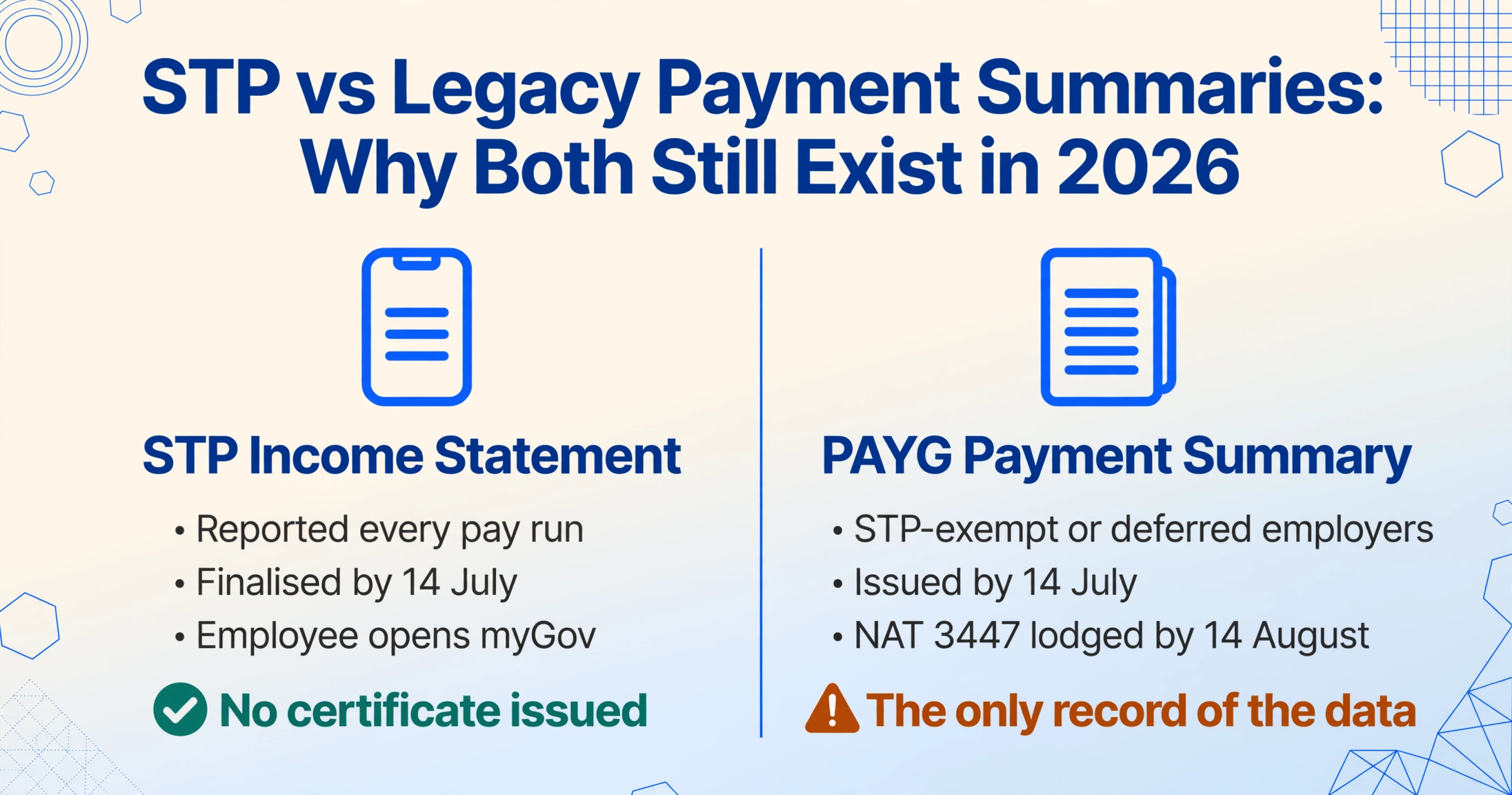
Single Touch Payroll has been mandatory for all Australian employers since the 2019-20 financial year. Under STP, payroll data — gross wages, PAYG withholding, super contributions — is reported to the ATO with every pay run. At the end of the financial year, the employer submits a finalisation declaration by 14 July, confirming that the year-to-date figures are correct. Employees then access their income statement — the STP-era term replacing the traditional "payment summary" or older "group certificate" — through myGov.
For most employees at most employers, this means no paper or PDF summary is needed. The employer does not generate a document; the ATO does not require a separate lodgment; the employee does not receive a certificate — they log into myGov and see their income statement, prefilled with data the employer reported throughout the year.
Three scenarios break this clean pipeline and keep traditional PAYG payment summaries in circulation:
1. STP-exempt and deferred employers. Certain employer categories — including withholding payer number (WPN) holders, employers granted specific ATO deferrals, and micro-employers with approved exemptions — are not required to report through STP for some or all employees. These employers must issue traditional PAYG payment summaries by 14 July and lodge a payment summary annual report (NAT 3447) by 14 August. The summaries they generate — whether from payroll software or manually completed triplicate forms — are the only record of employee income and withholding for the year.
2. Closely held payees. Directors, family members of a family business, and certain trust beneficiaries classified as closely held payees have a separate STP finalisation deadline of 30 September — two and a half months after the standard employee deadline. Many employers issue these payees a traditional PAYG payment summary by 14 July as an interim document while STP data is finalised over the following weeks. The summary issued in July may be superseded by the September STP finalisation — but until then, it is the document the employee and the employer rely on.
3. Pre-STP historical records. The ATO requires employers to retain payroll records — including payment summaries — for five years. An employer that transitioned to STP in 2021 still holds PAYG payment summaries from 2019-20 and 2020-21. When an ATO review, an employee dispute, or a payroll software migration requires accessing these historical summaries, they exist as PDFs or scanned paper copies — not as STP income statements in myGov. Every field on every one of those historical summaries must be extracted if the data is needed for any purpose other than passive archival.
Field-by-Field Walkthrough: Every PAYG Summary Field and Its Extraction Relevance
Understanding what each field represents for extraction — not just its label — is what determines whether the extracted spreadsheet reconciles against payroll records on the first pass. Fields are grouped by their function in the reconciliation workflow.
Identity and Reference Fields
| Field | Format | Extraction Importance |
|---|---|---|
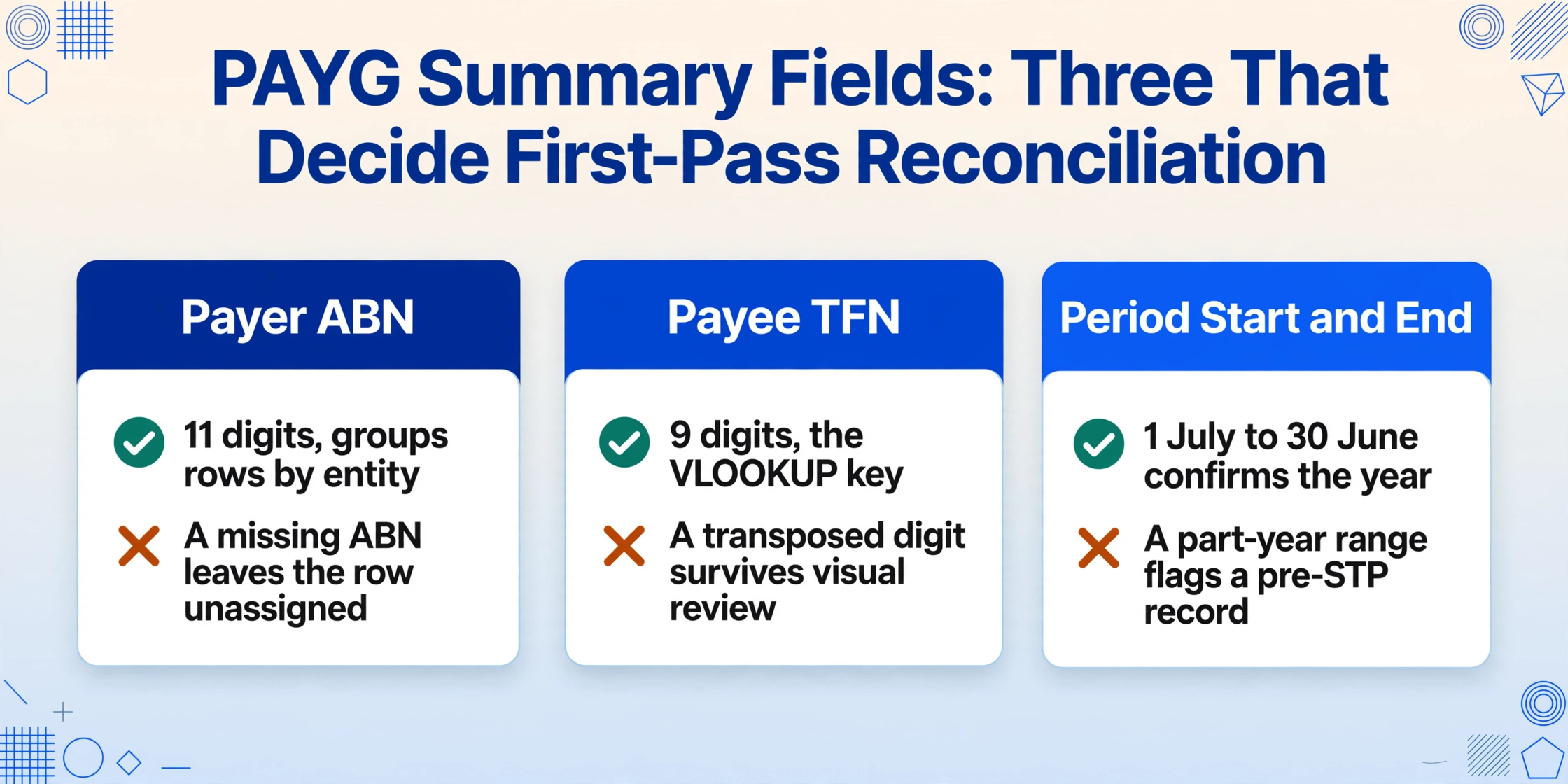
| Payer ABN | 11 digits | Anchors every row to the correct employer entity. If your organisation operates multiple ABNs (different divisions, related entities), this field is the key for grouping summaries by entity during extraction. A missing or incorrect ABN on a summary means the row cannot be definitively assigned to an entity — a problem when reconciling across a corporate group. |
| Payee TFN | 9 digits | The primary employee identifier for ATO cross-referencing. A missing or incorrect TFN triggers higher withholding rates (47% instead of the marginal rate). During extraction, TFN is the key for VLOOKUP operations between the extracted spreadsheet and the payroll system's year-to-date report. A transposed TFN digit is the most common cause of a reconciliation mismatch that survives visual review. |
| Period During Which Payments Were Made | Date range (typically 1 July – 30 June) | Confirms the summary covers the full financial year. A summary with a non-standard date range (e.g., 1 July – 15 March) indicates a part-year employment period or a pre-STP transition window. Extraction must capture both the start and end dates — they determine which financial year the row belongs to when building multi-year archives. |
| Employee Name and Address | Text | Secondary identifier. Used to cross-reference against payroll records when the TFN is missing or when two employees share similar names. The address field is rarely used for reconciliation but serves as a verification checkpoint during audit sampling. |
Core Payment and Tax Fields
| Field | Format | Extraction Importance |
|---|---|---|
| Gross Payments | Dollar amount | The total of all salary, wages, allowances, bonuses, commissions, and back pay paid during the financial year — before tax and before salary sacrifice deductions. This is the primary reconciliation figure: it must match the payroll system's year-to-date gross earnings report for each employee. The most common discrepancy cause is a payment straddling the financial year boundary — confirm the payment date (not the work date) determines which year's summary includes it. For employees who also received an ETP: the ETP amount is reported on a separate NAT 70868 summary and is not included in Gross Payments on the NAT 0046 — the two figures must be extracted separately and not summed unless the analysis specifically calls for total termination-related payments. |
| Total Tax Withheld | Dollar amount | Total PAYG withholding deducted from the employee's payments and remitted to the ATO during the financial year. This figure, summed across all employees, must match the sum of PAYG withholding amounts reported on the four quarterly BAS (labels W1 for total salary and wages, W2 for total amounts withheld). A mismatch between the annual total of summaries and the quarterly BAS sum is the fastest route to an ATO query letter — the ATO's data-matching algorithms compare these figures automatically. |
| Allowances | Dollar amount (per allowance type) | Separately itemised payments such as tool allowance, travel allowance, first aid allowance, and laundry allowance. Each allowance type may have different tax treatment — some are fully taxable, some are tax-free up to a threshold, and some are reportable but not taxable. During extraction, capture each allowance type as a separate column if the allowance composition matters for reconciliation. In practice, most payroll teams extract total allowances and only drill into individual types if the total triggers a discrepancy. |
Reportable Benefits and Superannuation Fields
| Field | Format | Extraction Importance |
|---|---|---|
| Reportable Fringe Benefits Amount (RFBA) | Dollar amount | The grossed-up taxable value of fringe benefits exceeding $2,000 in the FBT year (1 April to 31 March — not the financial year). RFBA is reported on the payment summary for income test purposes only — it affects the Medicare levy surcharge, HELP repayment obligations, and certain government benefit eligibility thresholds, but is not included in the employee's assessable income and is not subject to income tax. A common extraction error: adding RFBA to Gross Payments to calculate total remuneration. RFBA is a separate concept from assessable income. Another error: failing to extract RFBA because the value is zero — a non-zero RFBA is a compliance flag (is the FBT return correct?) and warrants a verification step regardless of its impact on the employee's tax position. |
| Reportable Employer Super Contributions (RESC) | Dollar amount | Super contributions above the Super Guarantee minimum (12% of ordinary time earnings for 2025-26). This includes salary sacrifice arrangements (where the employee voluntarily directs pre-tax salary into super) and additional voluntary employer contributions. Standard SG contributions — the compulsory 12% the employer pays to meet its legal obligation — are not reportable and do not appear on the payment summary. A common reconciliation error: mistaking total super paid for RESC. Only the excess above the statutory minimum is RESC. Also: the RESC figure on the PAYG summary must match the RESC reported through STP Phase 2 — a mismatch here is a reporting error, not a timing difference. |
Lump Sum Payment Fields (Types A through E)
| Field | What It Represents | Tax Treatment | Extraction Warning |
|---|---|---|---|
| Lump Sum A | Unused annual leave paid on termination | Taxable, but potentially at concessional rates if accrued before a certain date | Do not confuse with Lump Sum D (redundancy — tax-free). An A entered as D means the employee understates taxable income. |
| Lump Sum B | Unused long service leave paid on termination | Taxable, concessional rates may apply depending on accrual date | Separate from Lump Sum A because different tax treatment applies. A payroll system that reports both under a single "lump sum" total is misconfiguring the summary. |
| Lump Sum D | Tax-free component of a genuine redundancy or early retirement scheme payment | Tax-free — not assessable income | Must still be reported on the summary. An employee who sees $0 in Lump Sum D when they expected a redundancy payment raises a payroll query. The tax-free limit for 2025-26 is $12,524 base + $6,264 per year of service. |
| Lump Sum E | Back pay relating to earlier income years | Taxable, but may be eligible for lump sum tax offset to prevent bracket creep | The employee may need to complete a separate tax schedule to claim the offset. Extraction must flag non-zero Lump Sum E rows so the payroll officer can advise the employee on the offset claim. |
| Lump Sum C | (Rarely used) — not applicable to most individual non-business summaries | — | — |
The Extraction Workflow: From Summary PDFs to Reconciliation Spreadsheet
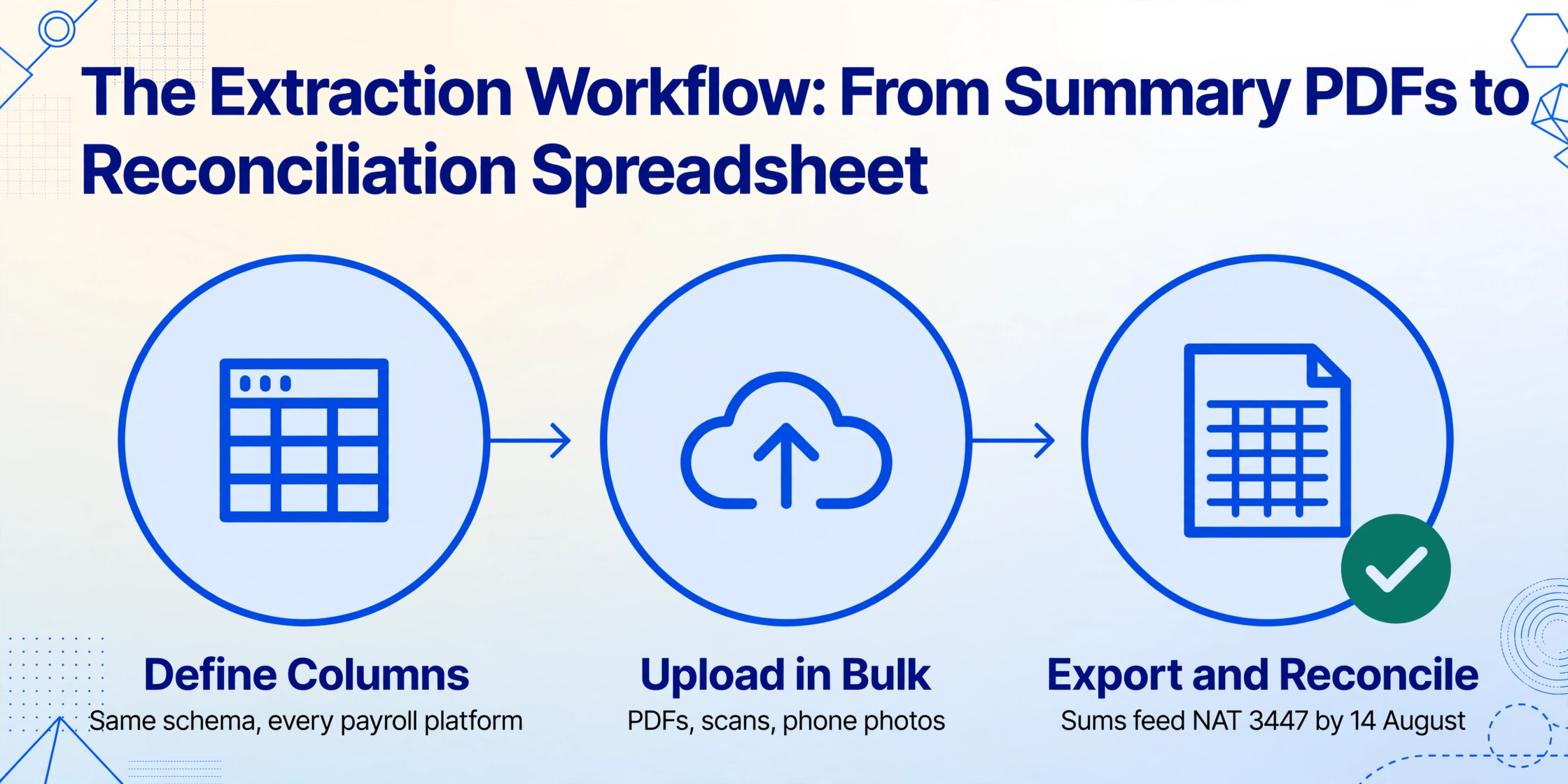
The workflow that converts a folder of PAYG summary PDFs into a single reconciliation spreadsheet has three steps. The first — defining the output schema — is done once and reused across every payroll provider, every tax year, and every batch.
Define your column schema
Type the field names exactly as you want them to appear as column headers in the output spreadsheet. A practical reconciliation schema: Employee Name, TFN, Payer ABN, Gross Payments, Total Tax Withheld, Reportable Fringe Benefits Amount (RFBA), Reportable Employer Super Contributions (RESC), Allowances, Lump Sum A, Lump Sum B, Lump Sum D, Lump Sum E, Period Start, Period End. This is Custom Column Extraction: you define the output, and the AI maps each summary's fields to your columns by semantic meaning — the same column names work across Xero, MYOB, Employment Hero, KeyPay, and scanned paper certificates because the AI understands that whether labelled "Gross Payments," "Total Gross," or "Gross YTD," the concept being extracted is the same. You can also add Computed Columns — for example, a column calculating "SG Check (Gross × 12% vs RESC)" flags super compliance gaps, and a column for "Effective Tax Rate (Tax / Gross × 100)" surfaces outliers.
Upload all summaries in one batch
Drop in every summary — digital PDFs from payroll software, scans of printed certificates, phone photos of paper summaries, and third-party provider documents. The extraction engine processes each file independently with the same column schema and merges all results into one spreadsheet. Files from different payroll platforms, different tax years, and different document formats (PDF, JPG, PNG) are handled in the same batch because semantic extraction reads field meaning, not template position. For details on handling large volumes, see the batch PAYG summary processing guide.
Export to Excel and reconcile
Download one spreadsheet with one row per employee per summary type. The reconciliation phase — comparing extracted totals against the payroll system, BAS returns, and super records — is now a spreadsheet-native operation (VLOOKUP on TFN, SUM of Gross Payments, cross-check of tax withheld) rather than a data entry exercise. The five hours that would have been spent retyping is now five minutes verifying — and the spreadsheet, with all fields machine-extracted, serves as a searchable audit archive for the five-year record retention period.
Files are processed securely and not stored.
Batch Processing and the ATO Annual Report Integration
For employers processing more than a handful of summaries, batch extraction — uploading all summaries in a single job and receiving one consolidated spreadsheet — is the difference between a workflow that takes hours and one that takes minutes. The batch approach is particularly valuable when summaries come from multiple payroll platforms (Xero for head office, MYOB for the acquired subsidiary, Employment Hero for the sales division) because the same column schema processes all formats in the same upload.
The batch-extracted spreadsheet also feeds directly into the PAYG payment summary annual report (NAT 3447) lodgment by 14 August. The SUM of the Gross Payments and Total Tax Withheld columns, filtered by summary type, provides the figures for the annual report. The same spreadsheet, cross-referenced against the quarterly BAS withholding totals (labels W1 and W2), confirms that the employer's reported withholding throughout the year matches the amounts shown on employee summaries — a reconciliation that the ATO performs automatically, and that the employer should perform before the ATO does.
For organisations processing summaries in both Australia and the UK, the same extraction principles transfer directly: the UK P60 extraction workflow and P45 extraction workflow follow the same three-step pattern (define schema → batch upload → export and reconcile) under different tax calendars and withholding systems. The document type changes; the extraction challenge does not.
Related PAYG Guides
How to Extract AU PAYG Data for Payroll Reconciliation — Step-by-step extraction workflow with field-level reconciliation checks.
300 PAYG Summaries, One Payroll Report — Batch processing for mid-size employers with multi-platform payroll environments.
Why PAYG Manual Entry Costs More Than You Realize — The hidden costs of the July reconciliation crunch across three data sources.
The Real Cost of Manual PAYG Processing — A calculation framework for Australian employers to quantify their per-tax-year processing costs.
PAYG July 14 Deadline Preparation Checklist — Four-phase checklist from pre-30 June data readiness through ATO annual report lodgment.
PAYG Summary Errors That Trigger ATO Reconciliation — Seven common PAYG data errors, their ATO consequences, and how to prevent them during extraction.
Frequently Asked Questions
What is the difference between a PAYG payment summary and an STP income statement?
A PAYG payment summary is the traditional paper or PDF certificate employers issue to employees at the end of the financial year, summarising gross payments and tax withheld. An STP income statement is the digital equivalent — the same data, reported to the ATO through each pay run and finalised by 14 July, accessed by the employee through myGov. The difference is the reporting channel (annual certificate vs per-pay-run digital reporting), not the data content. For most employees at most employers, the STP income statement has replaced the PAYG payment summary. For STP-exempt employers, closely held payees, and pre-STP historical records, the traditional PAYG payment summary — as a PDF or printed document — remains the only accessible form of the data.
Can I extract data from both digital PDFs and scanned paper PAYG summaries in the same batch?
Yes. Semantic extraction reads the visual content of the document — whether it originated as a digitally generated PDF from payroll software or a scanned copy of a triplicate NAT 0046 form with handwritten entries. Scanned documents with moderate skew, varying lighting, or aging paper stock still extract correctly because the AI locates fields by their semantic meaning (what the value represents) rather than by template alignment (where the value sits on a clean reference page). The same column schema that extracts "Gross Payments" from a crisp Xero PDF also extracts it from a 2019 paper summary scanned on an office multifunction printer.
How does the Australian financial year affect extraction for employees who started or left mid-year?
The Australian financial year runs 1 July to 30 June. A PAYG payment summary covers the period during which payments were made, not the period during which work was performed. If an employee started on 15 June 2026 and their first pay was processed on 1 July 2026, that payment belongs to the 2026-27 financial year and appears on next year's summary — even though the work happened in the 2025-26 year. The "Period During Which Payments Were Made" field on the summary confirms the date range. During extraction, capture both Period Start and Period End as separate columns — they determine which tax year each row belongs to when building multi-year archives.
What if an employee has both a regular PAYG summary and an ETP payment summary?
Process both documents in the same batch with a column schema that covers the superset of fields from both summary types. The regular individual non-business summary (NAT 0046) contains salary, allowances, and lump sum payments A-E. The ETP summary (NAT 70868) contains the taxable component of the termination payment, the ETP code, and the tax withheld on the ETP. In the output spreadsheet, the employee will have two rows — one per document type — with different field sets populated. Group by TFN in the output to see the employee's complete year-end picture: regular salary row + ETP row, with all fields across both rows.
How do I extract data from a PAYG summary that was generated by payroll software I no longer have access to?
If the summary exists as a PDF or scanned copy — even if the payroll software that generated it was decommissioned years ago — the extraction works identically to any other PDF. The AI reads the visual content of the document, not the software that produced it. This is particularly valuable during payroll software migrations: the five years of historical summaries generated by the old platform can be batch-extracted into a single spreadsheet, providing the historical employee data needed for opening balances in the new system without manually retyping every field from every archived summary.