The Complete Guide to UK P60 Data
Extraction for Payroll Teams
If you search for “P60 data extraction” today, the results split cleanly into two buckets: product pages from extraction tools showing their software can read a P60, and general explainers about what a P60 is and what each box contains. Nothing in between. No guide that takes you from “my payroll software generated 150 P60 PDFs across three providers” to “all fields are in one spreadsheet, reconciled against the year-end Full Payment Submission, and the leaver certificates from the acquired company are included.” This is that guide.
Key Takeaways
- Sage P60s and BrightPay P60s carry identical statutory fields in incompatible layouts — HMRC mandates the data but not the visual design and six major payroll providers exploit this freedom with fundamentally different printing formats.
- Template-based OCR that works on one payroll provider's layout silently fails on the other five — producing empty cells and wrong field values with no warning flag until you compare each row against the original certificate.
- AI semantic extraction reads 'Pay in This Employment' by what the label means rather than where it sits on the page — one column definition extracts every payroll provider's P60 plus the phone photo of a paper certificate from a leaver's previous employer.
What P60 Data Extraction Actually Is
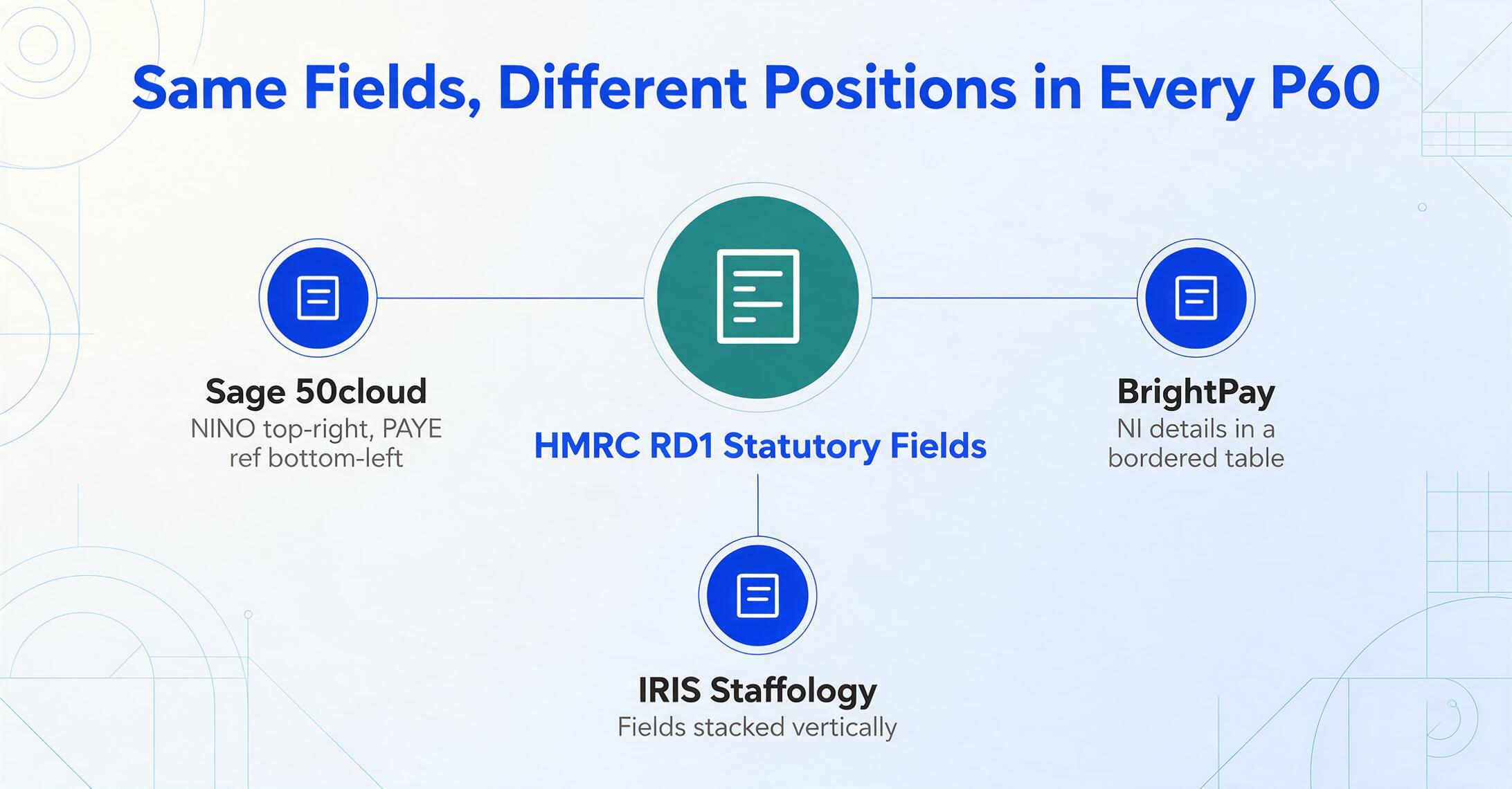
P60 data extraction is the process of reading the statutory fields on an End of Year Certificate — employee NINO, employer PAYE reference, pay in this employment, tax deducted, National Insurance contributions, final tax code — and converting them into structured columns in a spreadsheet, one row per employee per tax year. The certificate itself is governed by HMRC specification RD1, which prescribes every field a substitute P60 must carry, while leaving the visual layout entirely at the payroll software provider's discretion.
This distinction — mandated data, free-form layout — is the reason extraction exists as a category at all. If every P60 looked identical, any template-based OCR tool could read Box 1 through Box 6 from fixed coordinates. But Sage 50cloud might print the NINO top-right and the PAYE reference bottom-left in bold beneath the employer name. BrightPay might place them side-by-side in a bordered section. IRIS Staffology might stack everything vertically. All three certificates are equally HMRC-compliant. All three contain the same statutory fields. And all three defeat a template that was built for any one of them.
Custom Column Extraction — where you define the output columns your spreadsheet needs (“NINO,” “Pay in This Employment,” “Tax Deducted,” “NI Category Letter”) and the AI locates each value on every P60 by understanding what the field label means rather than where it sits — is what makes extraction work across payroll providers without per-provider configuration. The same column definition reads a Sage P60, a Xero P60, a BrightPay P60, and a scanned paper P60 from an employer that went into administration in 2023. The AI reads by meaning, not by template.
The core shift: P60 extraction moves the logic from “where on the page is this field” to “what does this field mean in the context of a tax certificate.” A PAYE reference formatted as 123/AB456 is the same data whether it appears in the header, the footer, or a dedicated reference block — and the extraction system that understands that distinction is the one that handles every payroll provider's layout without a separate template for each.
Why P60 Data Extraction Matters
Under Regulation 67 of the Income Tax (PAYE) Regulations 2003, every UK employer must provide a P60 to each employee on payroll as of 5 April. The statutory deadline is 31 May. For the payroll software that generated the certificate, that is where the workflow ends. For the payroll team, it is where three downstream workflows begin — and none of them are served by the payroll software's P60 generation feature.
Year-End Payroll Reconciliation Against FPS
A payroll bureau running year-end for multiple employer clients needs to confirm that the figures on every employee's P60 match the year-end Full Payment Submission (FPS) totals sent to HMRC through the Real Time Information (RTI) system. The reconciliation runs employer by employer: extract all P60s for Employer A into a spreadsheet, diff the pay and tax totals against the bureau's own FPS extract, investigate any row where the two figures do not align to the pound. At 150 employees across five employer clients, this is 750 P60-to-FPS comparisons — and a single transcription error in any row creates a mismatch that an HMRC compliance check can flag months later. For a detailed walkthrough of this workflow, see how to extract UK P60 data into Excel for payroll reconciliation.
Self Assessment Preparation (January Deadline, May Collection Window)
An accounting practice serving individual clients receives P60s alongside bank statements, dividend vouchers, and P11D forms in the run-up to the 31 January Self Assessment filing deadline. A client with two concurrent employments in the same tax year produces two P60 rows — each with its own employer PAYE reference and “Pay in This Employment” figure. These map directly to the Employment pages of the SA100 tax return, and a transcription error where the pay figure from Employer A lands on Employer B's line is one of the most common triggers for an SA302 inquiry. UK payroll's May problem is that this transcription work peaks in a window where accountants are already stretched across every client's year-end documentation.
Income Verification at Scale
Mortgage providers, letting agents, employment-screening firms, and immigration advisers routinely request P60s as proof of prior-year income. The verification workflow is high-volume and narrow-field: Name, NINO, Employer PAYE Reference, Total Pay for Year. Because the P60s come from whatever payroll provider the applicant's employer uses — which the verifier does not control — the extraction tool's ability to handle any layout without pre-configuration determines whether the verification pipeline can be automated or whether someone opens each PDF and types the figure by hand.
The Unique Challenges of P60 Extraction
P60s share some extraction challenges with payslips and tax forms — format diversity, inconsistent labeling, scanned-versus-digital quality — but they also have three structural problems that almost no other document type creates. Understanding these before you set up an extraction workflow is what prevents the spreadsheet from needing a second pass of manual corrections in June.
Multiple Payroll Provider Formats, One Statutory Specification
HMRC's RD1 specification explicitly permits “variations in format and layout” for substitute P60s. Sage prints the statutory certificates section as left-aligned blocks with the PAYE reference in bold beneath the employer name. BrightPay separates the NI details with a bordered table. Xero places the NINO above the employee address block. QuickBooks Online prints the tax code and NI category letter in a horizontal strip across the top quarter. Moorepay uses a three-column grid. All six layouts are compliant. None of them share a template.
This is not a flaw in the specification — it exists because UK employers have used different payroll software for decades, each with its own printing engine, and HMRC's regulatory stance is to mandate data content, not visual layout. The practical consequence for extraction is that a template-based approach that works on Sage-generated P60s produces garbage on BrightPay P60s. A semantic extraction approach — reading by field meaning rather than by pixel coordinate — handles all providers with a single column definition because it understands that “Pay in This Employment” means the same thing regardless of where it appears on the page.
Leaver P60s: The Edge Case Hidden in Every Payroll Year-End
An employee who resigned in February 2026 was on payroll as of 5 April this year — meaning their former employer must issue a P60 for the portion of the tax year they worked, even though they left before year-end. If the employer uses Sage but the company they joined uses Xero, the new payroll department now holds a P60 in a layout their team rarely encounters. Worse, if the previous employer still issues paper certificates — permitted under HMRC rules for care and support employers and certain exempt entities — the P60 arrives as a physical document. Someone photographs it with their phone and emails it to payroll. That photograph is now an extraction input alongside the clean, digitally generated P60s from their own payroll system.
Leaver P60s also carry cross-year implications. An employee who worked for Employer A from April 2025 to February 2026, then Employer B from February to April 2026, holds two P60s covering the same tax year. Their total taxable earnings for the year are the sum of both “Pay in This Employment” figures — but neither P60 shows that sum. The calculation happens in the spreadsheet, after extraction, and it depends on both P60s being extracted accurately into the same workbook. A single mis-keyed digit on either row creates a total that is wrong in ways the Self Assessment return will eventually surface.
Cross-Year Data: The NI Category Letter Problem
When an employee's National Insurance category letter changes mid-year — most commonly from A to C upon reaching State Pension Age — the P60 shows two separate NI rows under two different category letters. Each row carries its own earnings bands (at the LEL, between LEL and PT, between PT and UEL, above UEL) and its own employee contributions due. Sage prints these as two adjacent rows with letter labels on the left. Xero prints them as separate table sections with the letter as a section header. An extraction system that collapses both rows into a single “total NI” figure — common in tools that were designed for payslips and retrofitted for P60s — loses the category-letter breakdown that employer reconciliation against RTI submissions depends on.
The NI category letter set is constrained: A, B, C, F, H, I, J, L, M, S, V, X, Z. Any value outside this set in an extracted spreadsheet is either a transcription error or an extraction failure — and because most P60s use letter A (standard rate), a stray “D” or “K” in the NI category column is detectable with a simple Excel validation rule. But the detection only works if the extraction preserved the letter in a dedicated column — not if it merged both NI rows into a single row with the contributions summed.
Traditional Methods vs AI-Powered P60 Extraction
Three approaches exist for getting P60 data into a spreadsheet, and the choice between them defines whether the May payroll window is a typing marathon or a file upload and export sequence.
| Method | How It Works | Speed (per P60) | Handles Multiple Payroll Provider Layouts | Handles NI Category Changes |
|---|---|---|---|---|
| Manual Entry | Open P60 PDF, locate each statutory box, type value into spreadsheet cell | ~2 minutes | Yes (human adapts visually) | Yes (human interprets context) |
| Template / Zonal OCR | Define coordinate zones per payroll provider layout; OCR reads text within each zone | ~10 seconds | No — each provider requires a separate template; new formats break existing templates | No — extracts text but does not distinguish which NI row belongs to which category letter when two rows exist |
| AI Semantic Extraction | Vision AI reads document by understanding field meaning and document structure, not pixel position | ~5-10 seconds | Yes — layout-agnostic; one column definition works across Sage, Xero, BrightPay, QuickBooks, IRIS, Moorepay, and scanned paper P60s | Yes — preserves both NI rows when category letter changes mid-year, each in its own output row with the correct letter label |
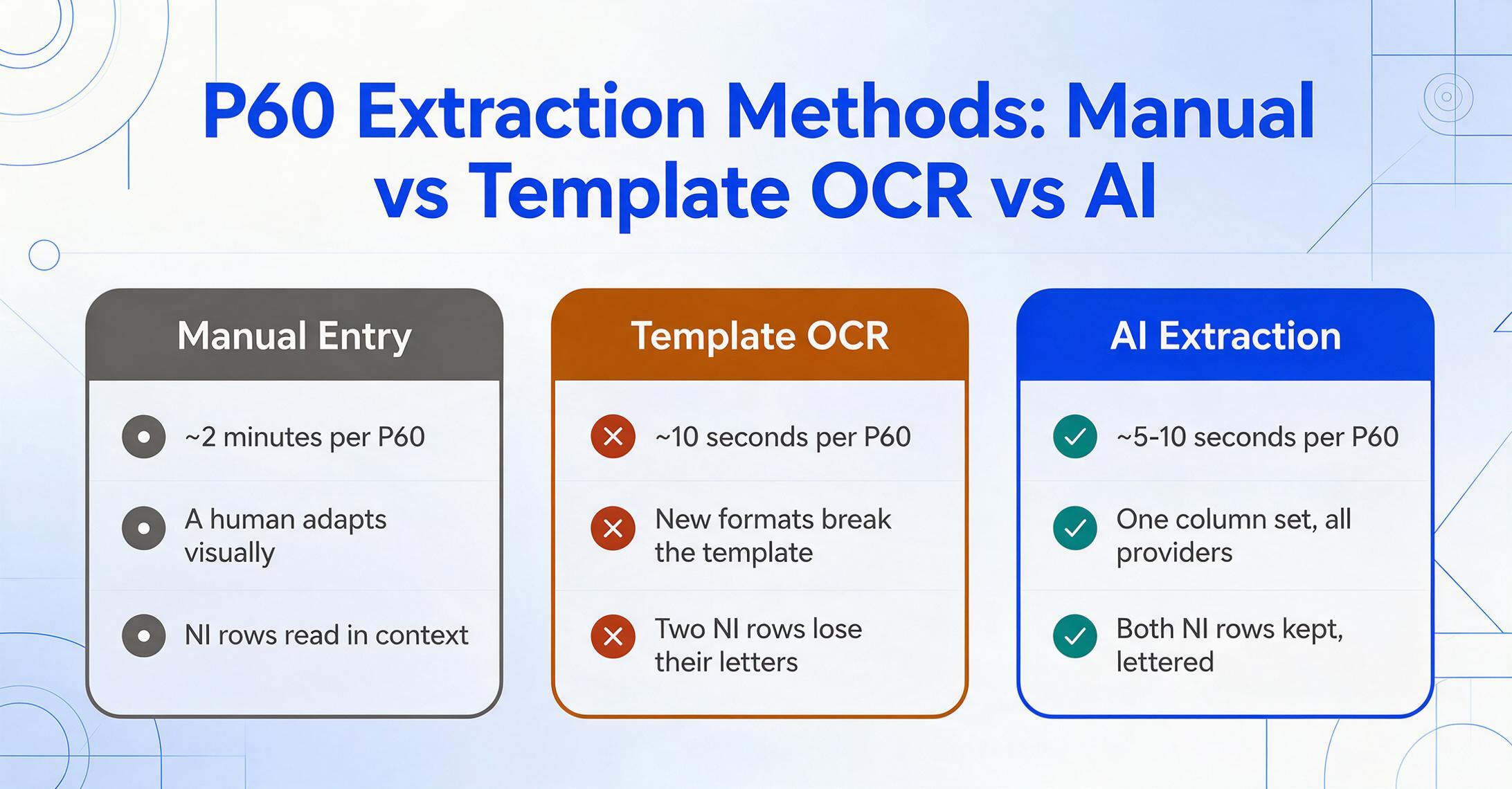
Template-based OCR — the approach used by legacy document processing tools — works by defining rectangular zones on a document image and running OCR within each zone. For a Sage P60 where the employee NINO sits at coordinates (530, 280, 700, 300) on an A4 page, the template reads whatever text appears in that rectangle. A BrightPay P60 where the NINO sits at coordinates (400, 190, 600, 210) produces an empty cell or the wrong field value. Because UK payroll providers use fundamentally different P60 layouts, a template system needs one template per provider, plus a fallback for scanned paper P60s that do not match any digital layout — and every time the provider updates their printing format, the template silently breaks.
AI semantic extraction inverts this logic. Instead of defining where data sits on the page, you define what data you want — by typing the column names your spreadsheet needs. The AI reads the entire document, identifies each field by its semantic role within a tax certificate structure, and populates the corresponding column regardless of pixel position. A P60 from Sage, a P60 from BrightPay, and a phone photo of a paper P60 from a leaver's previous employer all produce populated rows in the same spreadsheet because the AI matches by meaning rather than by coordinate. This is the fundamental shift from position-based extraction to semantic-based extraction.
The efficiency difference compounds with volume. At two minutes per P60 for manual entry, 150 employees consume five hours of focused transcription work — in a May window where the payroll team is also handling the final EPS, reconciling the P32, and preparing reports the board expects by month-end. AI extraction processes the same 150 P60s in approximately 15 to 25 minutes of total processing time. For a deeper comparison of the manual approach, see the hidden cost of P60 data entry.
The same extraction mechanism works across P60s from Sage, Xero, BrightPay, or any payroll provider — type your column names and the AI reads by field meaning, not template position.
Key P60 Fields to Extract
The P60 carries more fields than most extraction workflows need. Which fields you extract depends on what the spreadsheet will feed — but the fields themselves are defined by HMRC's RD1 specification, and understanding what each one is for determines whether your output resolves the downstream task or creates a new reconciliation problem.
Identity & Reference Fields
- Employee NINO — National Insurance number (two letters, six digits, one suffix letter, e.g. QQ 12 34 56 C). The employee identity key for HMRC cross-referencing against RTI data.
- Employer PAYE Reference — Format
NNN/AAAAAAAA(three-digit tax office number, slash, up to ten alphanumeric characters). Anchors each P60 row to the correct employer entity — essential when the same employee has multiple P60s from different employers in the same tax year. - Works/Payroll Number — Internal employee identifier. Optional but valuable when two employees share the same name.
Pay & Tax Figures
- Pay in This Employment — Gross taxable pay from this specific employer for the tax year. Maps to the Employment pages of the SA100 Self Assessment return.
- Tax Deducted — Total PAYE income tax deducted. Reconciles directly against FPS year-end totals.
- Total Pay for Year & Total Tax for Year — Aggregates across previous and current employments when an employee held multiple jobs in one tax year. These figures do not replicate the "in this employment" values — they carry the combined totals.
- Final Tax Code — e.g. 1257L. May carry a Week 1 (W1) or Month 1 (M1) suffix indicating the emergency-tax regime applied at year-end.
National Insurance Details
- NI Category Letter — A single letter from the set A, B, C, F, H, I, J, L, M, S, V, X, Z. Determines contribution rates and must be preserved separately when the letter changed mid-year.
- Earnings Bands — Earnings at the Lower Earnings Limit (LEL), between LEL and Primary Threshold (PT), between PT and Upper Earnings Limit (UEL), and above UEL. Shown separately for each NI category letter.
- Employee NI Contributions Due — The actual NI deducted on earnings above the PT. Reconciles against the employer's P32 payment calculation.
Statutory Payments & Deductions
- Statutory Payments — SMP, SPP, ShPP, SAP, SPBP, SNCP each listed separately. These appear only if the employee received them; blank means "did not apply," distinct from "applied and was zero."
- Student Loan Deductions — Plan 1, Plan 2, or Plan 4 repayments in whole pounds.
- Postgraduate Loan Deductions — Separate from undergraduate student loans, deducted at a different threshold.
The spreadsheet consequence is that a complete P60 extraction for 150 employees produces roughly 150 rows and 20 to 25 columns when you include all NI band breakdowns. The column definition is reusable across tax years — HMRC's statutory field set changes only when legislation changes, and when it does (as with the addition of Statutory Neonatal Care Pay in the 2025-26 specification), you add the new column without rebuilding the rest. If you are moving from manual transcription to extraction, the five P60 data entry mistakes that put payroll reconciliation at risk are worth reading before you define your columns — each one maps to a column-level check you can build into the extraction output.
Batch Processing P60s at Scale
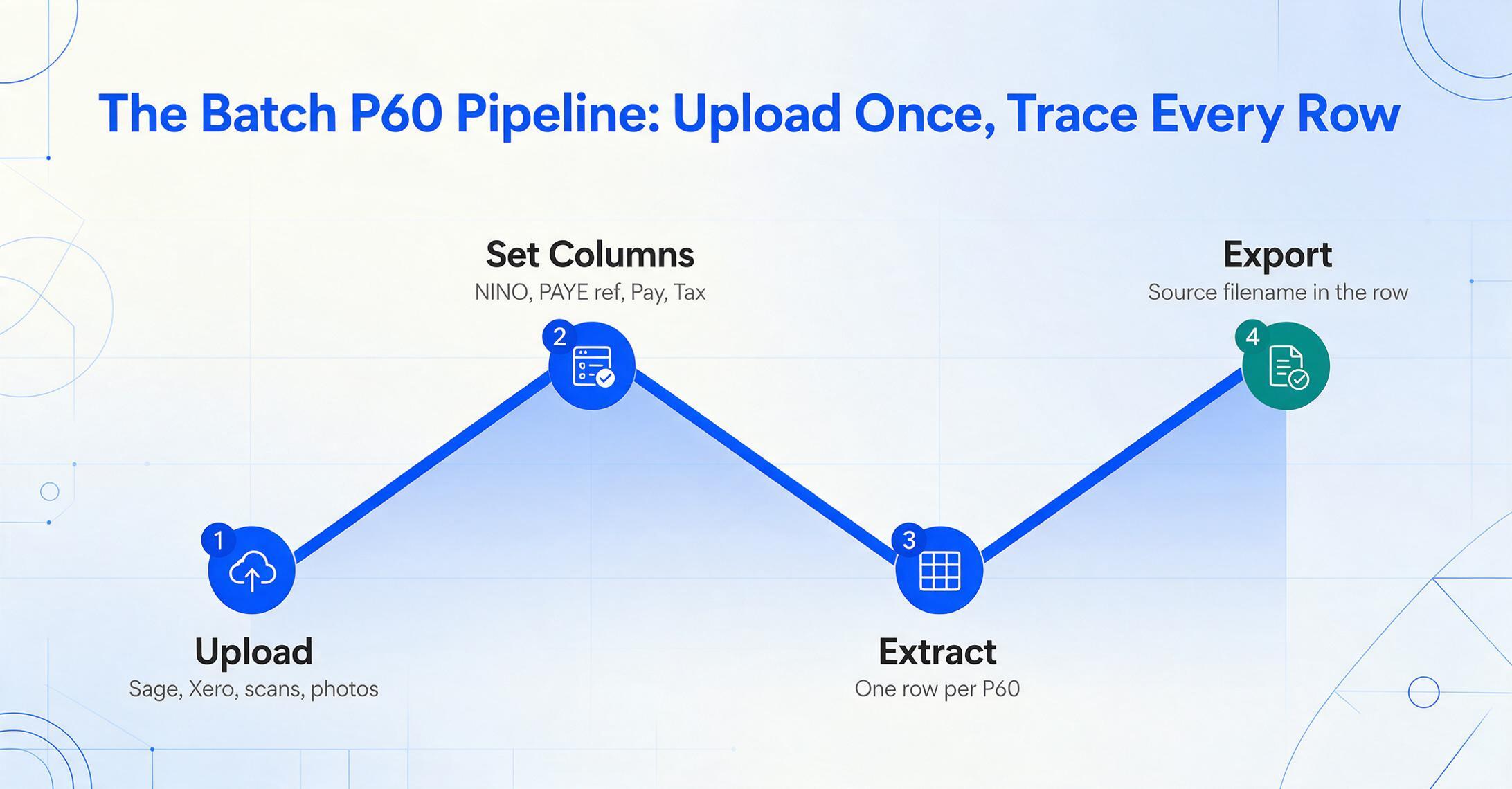
Processing a single P60 is not the problem. Extracting one P60's fields into Excel takes attention, not automation. The problem emerges at volume — 100 employees, three payroll providers, a handful of scanned paper P60s from acquired-company leavers — and at that scale, the structural challenges shift from "can I read this field" to "can every row in this spreadsheet be traced back to exactly one source document and exactly one tax year."
Batch processing collapses the multi-file workflow into a single upload-and-export sequence: drop all P60 PDFs — Sage-printed, Xero-printed, scanned paper, phone photos — into one batch, define your column names once, and receive a unified spreadsheet where each row is one P60. Batch-processing 100+ P60s before the 31 May deadline is what turns extraction from a per-document convenience into a payroll-team workflow.
Three batch-specific concerns are worth addressing before you process 150 P60s at once:
Row provenance at audit scale
Every row in the output spreadsheet must be traceable to exactly one source file and one tax year. If the output has a column for "Total Pay for Year" with £38,450 next to it but no column identifying which employee and which P60 produced that figure, the spreadsheet is an audit liability — not an audit asset. HMRC compliance checks can request the source P60 underlying any figure in a reconciliation. Extraction that embeds the source filename as a column in the output makes this trivial; extraction that does not forces a manual cross-reference pass that takes longer than the original batch processing.
Mixed digital and scanned inputs
A batch of 100 P60s will contain at least 3-5 edge cases: a scanned paper P60 from an employee's previous employer, a phone photo of a certificate where the employee lost the original, a screenshot from the HMRC portal showing prior-year figures. These arrive at different resolutions, with different lighting and skew angles, and their visual quality is lower than digitally generated PDFs. The extraction system needs to handle them in the same batch — not require a separate workflow for "scanned" versus "digital" documents — because in the real world, you receive both types and you need them in the same spreadsheet.
Tax year spanning in a single batch
A payroll bureau processing Self Assessment data for a client with three years of P60s on file (2023-24, 2024-25, 2025-26) needs all three years in one worksheet — not three separate extraction jobs. The extraction should include the tax year as a column in the output, so rows can be filtered by year. The column definition (NINO, employer PAYE reference, pay, tax, NI) remains the same across years because the RD1 statutory field set is stable — only the printed tax year indicator changes.
Exporting and Using Extracted P60 Data
Extraction output needs to land where the downstream workflow lives. P60 data has three primary destinations, each with different format requirements:
- Excel (XLSX) — The default format for payroll reconciliation. Extracted data arrives with proper column headers, standardized date formats (the tax year expressed as “2025-26”), and numeric fields formatted as numbers — meaning you can immediately apply the validation formulas covered in the P60 extraction how-to guide without reformatting currency values stored as text or NINOs split across merged cells.
- CSV — For bulk import into payroll software, accounting systems, or the bureau's own reconciliation tools. Most payroll platforms accept CSV imports for compensation data, and a clean CSV from extraction means skipping the intermediate step of manually formatting a spreadsheet before import.
- JSON — For custom integrations, API-driven verification pipelines, or automated cross-checking against RTI submission data extracts.
For teams that run their reconciliation in Google Sheets, a Google Sheets sidebar add-on writes extracted P60 fields directly into the active sheet without the export-and-reimport loop. Upload P60 PDFs from within Sheets, define your column names, and the data lands in the next available row.
Choosing a P60 Data Extraction Approach
The features that matter for P60 extraction are not the features that matter for invoice extraction or receipt scanning. A tool that processes 10,000 invoices a month may be entirely wrong for 150 P60s — because the P60's structure (statutory fields, NI category letter splits, leaver edge cases, cross-year data) creates demands that generic extraction tools were not designed to handle. Here are the dimensions to evaluate:
| Dimension | Why It Matters for P60s Specifically | What to Test |
|---|---|---|
| Template-free operation | Payroll providers print P60s in incompatible layouts. A tool that needs a template per provider is a setup burden, not an automation benefit. | Upload one Sage P60 and one BrightPay P60 with the same column definition. Both should populate correctly without reconfiguration. |
| Custom column definition | Different workflows need different field sets — income verification needs six fields, payroll reconciliation needs twenty. A tool that extracts a fixed, unchangeable set of fields limits you to its assumptions. | Define columns for NINO, PAYE reference, Pay in This Employment, Tax Deducted, NI Category Letter, Student Loan Deductions. Upload a P60 and verify all columns populate. |
| NI category letter preservation | When the category letter changed mid-year, the P60 shows two NI rows. An extraction tool that collapses them into a single row loses data needed for employer reconciliation. | If available, upload a P60 with a mid-year NI category change. Verify the output shows both rows with the correct letter labels and separate contribution amounts. |
| Batch processing with merged output | Single-document extraction is useful for one-off checks. Batch extraction with all rows in one spreadsheet is what makes the tool viable for a payroll department processing 150 certificates in May. | Upload five P60s from different payroll providers and verify the output has five rows in one spreadsheet with source filename traceability per row. |
| Scanned and photographed P60 handling | Leaver P60s from previous employers arrive as paper scans and phone photos with uneven lighting and skew. A tool that only works on clean digital PDFs cannot handle the real-world P60 workstream. | Photograph a printed P60 at typical office desk quality and upload it alongside clean digital P60s. Verify the extraction accuracy does not degrade to the point where every field needs manual verification. |
| Tax year as an output column | When processing P60s from multiple tax years in one batch, each row needs a tax year identifier. Without it, you cannot filter by year or distinguish a 2024-25 figure from a 2025-26 figure. | Include "Tax Year" as an extraction column. Verify it populates correctly for P60s from different years. |
| Data security and retention | P60s contain NINOs, pay figures, and employer references — all of which are personal data under UK GDPR. The extraction platform should state its encryption, data retention, and model-training policies explicitly. | Review the platform's security page and terms. Confirm that uploaded documents are encrypted, not used for AI training, and deleted within a defined window. |
These dimensions are specific to P60 extraction. A tool that excels at invoice processing may fail on the NI category letter test. A tool that handles payslips well may struggle with leaver P60 edge cases. Testing with your actual documents — including the messy ones — before committing to a production workflow is the only way to confirm that the tool handles the P60 workstream your team actually receives, not the ideal version of it.
Frequently Asked Questions
Can I extract data from a paper P60 I photographed on my phone?
Yes, if the extraction tool uses AI-based semantic reading rather than template OCR. Phone photos introduce uneven lighting, slight skew, and lower resolution than digital PDFs — all of which degrade template-based OCR that relies on clean pixel alignment. Semantic AI extraction handles photographed documents as long as the text is legible to a human eye. For best results, photograph the P60 on a flat surface in even lighting and avoid casting shadows across the certificate. If the photographed P60 is the only copy from a leaver's previous employer, it is worth extracting even at slightly reduced accuracy — the alternative is typing the figures manually, which has its own error rate.
What if an employee has P60s from multiple employers in the same tax year?
Each P60 becomes its own row in the output spreadsheet. An employee with two jobs produces two rows — one per employer — with the Employer PAYE Reference column distinguishing which row came from which employer. The Pay in This Employment and Tax Deducted figures report only the amounts from that specific employer. The Total Pay for Year and Total Tax for Year columns on each P60 include the combined totals across all employments. Extraction preserves this structure as HMRC designed it — separate certificates per employment — rather than attempting to merge rows. The merging, if needed for a Self Assessment return or income verification, happens in the spreadsheet after extraction, using the NINO as the grouping key.
How does extraction handle an NI category letter change mid-year?
When the NI category letter changes during the tax year — most commonly from A to C on reaching State Pension Age — the P60 shows two separate NI rows under different category letters, each with its own earnings band breakdown and contributions figure. Semantic extraction preserves both rows: the NI Category Letter column contains the correct letter for each row, and the earnings band columns show the split amounts separately. This is the correct behaviour — collapsing both rows into a single total NI figure loses the breakdown that RTI reconciliation requires. If your extraction tool produces only one NI row per employee, it is failing the P60-specific test and you should verify that the merged row does not conflate contributions across category letters before relying on the data for payroll reconciliation.
Does the same column definition work across different tax years?
Yes. HMRC's statutory P60 field set is stable across tax years — the same fields appear on every P60 from 2018-19 through 2025-26. The only addition in recent years was Statutory Neonatal Care Pay (SNCP), added to the 2025-26 specification. A column definition built for the current tax year works for prior-year P60s and can be adapted for future years by adding columns for any new statutory fields — without rebuilding the existing column set. Include "Tax Year" as a dedicated extraction column if you are processing multiple years in one batch.
How accurate is P60 extraction compared to manual entry?
AI extraction accuracy on clean, digitally generated P60s from major payroll providers typically exceeds 98% for standard fields (NINO, pay, tax, NI contributions). Accuracy on scanned or photographed P60s is lower — roughly 90-95% depending on image quality — because low resolution, skew, and shadows introduce ambiguity that the AI cannot resolve with the same confidence as a clean digital document. Manual entry has its own error rate: the American Payroll Association estimates 1-8% of total payroll contains errors for companies relying on manual processes, and a mis-typed digit in a NINO or PAYE reference is harder to detect than an extraction discrepancy that generates a format-validation flag. The practical recommendation is to extract first, then run column-level validation checks — NINO format, NI category letter membership, tax-to-pay proportionality — and manually verify only the flagged rows. This combines the speed of extraction with the verification that matters for compliance.
Is employee P60 data secure during extraction?
P60s contain NINOs, gross pay, tax deducted, and employer PAYE references — all of which qualify as personal data under UK GDPR and as special-category data in certain contexts. A responsible extraction platform encrypts files in transit (TLS) and at rest, does not use uploaded documents to train its AI models, and automatically deletes source files within a defined retention window after processing is complete. Before uploading any employee P60s to an extraction platform, confirm these commitments in the platform's privacy policy and terms of service. If the platform's policy on model training or data retention is vague, treat it as a red flag and do not upload employee tax documents until you have explicit written confirmation.
Does HMRC accept P60 data extracted through AI as valid for compliance?
Extraction tools are data processing utilities — they read information from P60 certificates and output it in structured formats. They do not generate, authenticate, or submit data to HMRC. The extracted data is only as compliant as the source document it was read from. If the underlying P60 was generated by payroll software that is HMRC-recognised and the extraction is accurate, the extracted figures are identical to the figures on the certificate — and the certificate, not the extraction tool, is the compliance artefact. HMRC compliance checks reference the P60 itself. Extraction simply moves the data from the certificate into a format that makes reconciliation, audit, and reporting possible at scale.
How do I collect P60s from employees or clients without emailing PDFs back and forth?
A Collection Link — a shareable URL generated from your extraction tool account — lets you send a link to anyone who needs to submit P60s. The recipient opens the link, enters a verification code you set, and uploads their documents through a simple web page. The files land in your processing queue automatically. No account creation, no login, no email attachments. This is useful for payroll bureaus collecting P60s from employer clients, accountants gathering documents from Self Assessment clients, and HR teams collecting prior-employer P60s from new hires.
P60 extraction is ultimately a May problem — a payroll team that spends the last week of the month retyping certificate fields into a spreadsheet is spending time their competitors have automated. Define your columns once, batch-upload your P60s, and let the reconciliation spreadsheet fill the row your employee is sitting on while you verify the ones that need a second look.
Extract Your First P60 BatchNo sign-up required to test on sample files. Secure processing with automatic file deletion.