CPA's Guide to W-2 and 1099
Tax Form Extraction
In a tax firm with six preparers, March means a conference-room table covered in manila folders — each one stuffed with a client's W-2s, 1099‑MISCs, 1099‑NECs, 1099‑Rs, and 1099‑DIVs. One preparer handles 80 returns in six weeks. 80 returns means roughly 200 information forms to transcribe. You cannot scale that by hiring more preparers — the experienced ones already bill at $200–$400 an hour, and Q1 is when every firm is competing for the same talent. Tax form extraction removes the transcription bottleneck: a preparer reviews every box value that the AI reads, instead of squinting at employer‑specific font sizes and typing numbers by hand. For a general introduction to the form types and how AI reads IRS box labels, see our guide to W-2 and 1099 extraction fundamentals — this guide assumes the CPA‑firm context and goes directly to the workflow.
Key Takeaways
- 1,000 W-2s and 1099s cost a tax firm 33 hours of pure transcription every Q1 — and CP2000 mismatch notices arriving months later consume another 5 to 10 hours of unbillable resolution time.
- A 2% error rate across 1,000 forms generates 20 IRS notices, each costing 15 to 30 minutes the firm absorbs — because you cannot bill a client to fix your own data entry mistake.
- One column definition for W-2s and one per 1099 variant: the AI reads Box 1 wages and Box 12 codes by their labels, not by pixel position, so the same setup works across ADP, Paychex, Gusto, and every other payroll layout without changes.
Why W-2 and 1099 Extraction Belongs in One Workflow
In most firms, W-2s and 1099s arrive in the same batch — a client brings in a folder in early February with both form types mixed together. Yet most extraction tools and workflows treat them as separate problems.
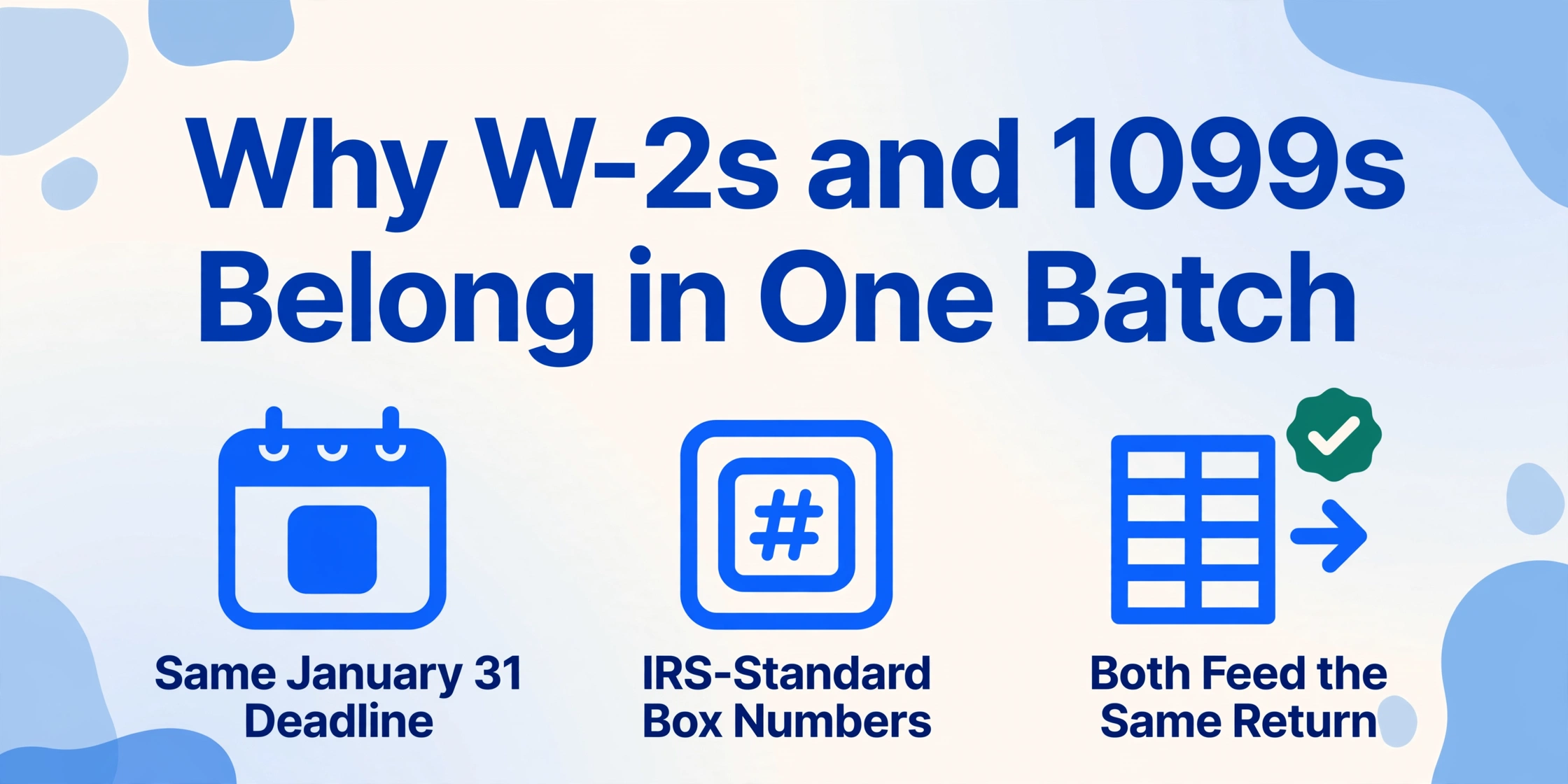
W-2s and 1099s share three structural similarities that make them natural candidates for a unified extraction pipeline:
- Same filing deadline. Both W-2s and 1099-NECs must be furnished to recipients by January 31 and filed with the IRS by the same date. The forms arrive simultaneously, and the processing window is identical.
- IRS-standardized box numbering. Every W-2 uses the same box numbers (Box 1 is always wages, Box 2 is always federal tax withheld). Every 1099 variant has its own prescribed layout, but the box numbers are consistent within each variant.
- Same downstream destination. The extracted data goes into the same tax return — W-2 data populates wage lines, 1099 data populates income lines. They are not separate workflows; they are inputs to the same return.
The difference is the field set. A W-2 reports employer-side wage and withholding data across 20+ boxes. A 1099-NEC reports payer-side nonemployee compensation in a handful of boxes. The two form types share only payer/payee identification fields — everything else uses a different schema. A unified workflow must handle both schemas from the same upload batch.
AI-powered document extraction makes this possible because it does not rely on fixed templates. With Custom Column Extraction, you define the columns you want — "Box 1 Wages" for W-2s, "Nonemployee Comp" for 1099-NECs — and the AI locates each value by its semantic meaning across every form in the batch. The same upload folder can contain W-2s from ADP and 1099-NECs from Upwork, and each form maps to the correct field set.
The extraction principle: You define the output schema. The AI reads the document and populates the columns. The same column definition works across every employer's W-2 layout — because the AI reads box numbers, not pixel positions.
The Real Cost of Manual Tax Form Data Entry
Every accounting firm knows manual data entry is expensive. But the true cost has four layers that compound during Q1.
Volume compression. Employers must furnish W-2s to employees by January 31, and 1099-NECs to contractors by the same date. This means all forms arrive in a four-to-six-week window. A firm handling 1,000 information returns cannot spread that work — it all lands between February 1 and March 15. The staffing needed to absorb that peak is expensive: seasonal data entry staff, overtime pay, or pulling senior staff off advisory work to type numbers.
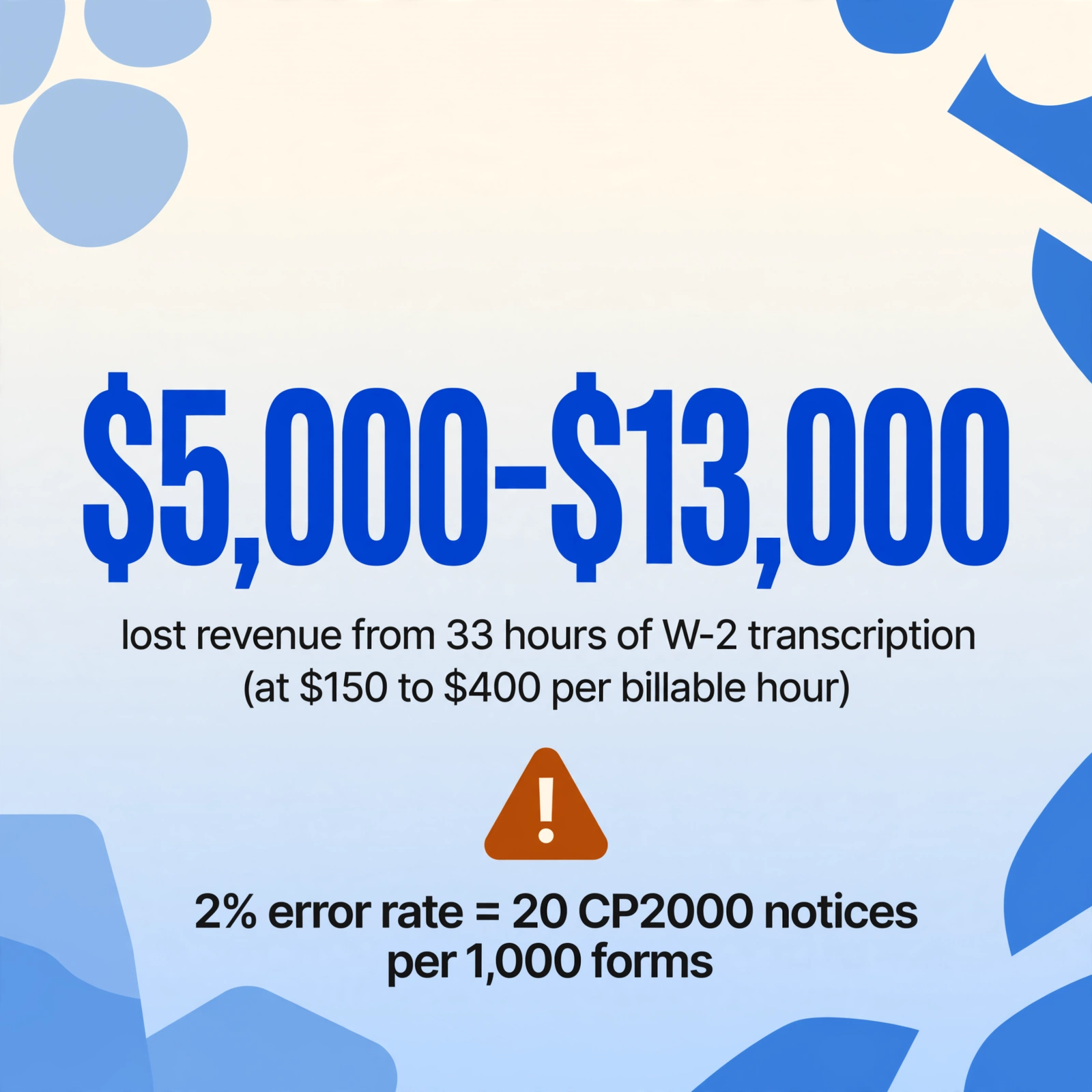
Transcription error costs. The IRS cross-references every information return against taxpayer-filed returns. A mismatch — transposed EIN, misread Box 12 code, wrong dollar amount — triggers a CP2000 notice. Each notice costs the firm 15 to 30 minutes of unbillable resolution time: locating the source document, comparing the figures, preparing a response. A 2% error rate on 1,000 forms generates 20 notices and roughly 5 to 10 hours of lost billable time. The firm absorbs this cost because it cannot bill the client for fixing its own data entry mistake.
Opportunity cost of Q1 hours. At typical CPA billable rates of $150 to $400 per hour, 33 hours of W-2 transcription represents $5,000 to $13,000 in lost revenue from advisory work, complex returns, or tax planning that the firm could otherwise be doing. Tax season is when capacity is most constrained — every hour spent typing is an hour not spent on work the firm can bill at a premium.
Cross-year reconciliation drag. Clients bring multi-year W-2s for amended returns or prior-year filings. Prior-year forms may use slightly different layouts — the IRS adjusted Box 12 reporting in recent years — but the data must match what the IRS has on file from the employer's original submission. Re-entering prior-year data doubles the transcription work and the error risk.
These four costs together make W-2 and 1099 data entry one of the highest-ROI automation targets in a tax practice — not because the work is intellectually demanding (it is the opposite), but because the volume is predictable, the deadline is immovable, and the error consequences are concrete.
For a broader look at how OCR and AI extraction fit into accounting workflows, see our guide on document data extraction for accounting teams.
Every W-2 Field You Need to Extract
Form W-2 reports wages and tax withholdings for each employee. The IRS mandates that every W-2 follows a fixed box-numbering scheme. Here is every field that matters in a typical tax return workflow.
| Box | Field | 1040 Mapping |
|---|---|---|
| b | Employer EIN | IRS matching; must be exact 9 digits |
| c | Employer name and address | Return identification; state filing |
| e | Employee name | Must match SSN record |
| f | Employee address | Return pre-population |
| 1 | Wages, tips, other compensation | Line 1 of Form 1040 |
| 2 | Federal income tax withheld | Line 25a of Form 1040 |
| 3 | Social Security wages | Schedule 2 line 11 |
| 4 | Social Security tax withheld | Schedule 2 line 11 |
| 5 | Medicare wages and tips | Additional Medicare tax threshold |
| 6 | Medicare tax withheld | Schedule 2 line 12 |
| 7 | Social Security tips | Affects SS wage limit |
| 8 | Allocated tips | Form 4137 |
| 10 | Dependent care benefits | Form 2441 |
| 11 | Nonqualified plans | May be taxable income |
| 12a–12d | Codes and amounts (D = 401k, E = 403b, G = 457b, C = group life, etc.) | Each code has different tax treatment |
| 13 | Statutory employee / Retirement plan / Third-party sick pay | Checkbox status |
| 14 | Other (union dues, education assistance, etc.) | Employer-specific |
| 15 | State employer ID | State filing identification |
| 16 | State wages | State return income |
| 17 | State income tax | State return withholding |
| 18–20 | Local wages, local tax, locality name | Local return (where applicable) |
The must-extract fields for most returns are Boxes 1, 2, 3, 4, 5, 6, 12 (codes and amounts), 15, 16, 17, and the employee/employer identifying information (b, c, e). For tax preparation, the extraction output should include the tax year as a column so that multi-year batches stay correctly identified.
Box 12 codes require special attention. Code D (401k deferral) and Code C (group-term life insurance over $50,000) look visually similar in some employer print layouts but have completely different tax treatment. The extraction system must read the letter code precisely and associate it with the correct dollar amount. A misread code is the kind of error that passes initial review but triggers an IRS notice months later.
Every 1099 Variant and Its Critical Boxes
The 1099 family includes at least six commonly encountered form types. Each uses a different box-numbering scheme. A unified extraction workflow must classify each form before applying the correct field mapping.
| Form | Purpose | Key Fields to Extract |
|---|---|---|
| 1099-NEC | Nonemployee compensation | Box 1a (Nonemployee comp), Box 4 (Federal tax withheld), Box 5–7 (State/local). 2026 change: Box 1 split into 1a (compensation), 1b (cash tips), 1c (TTOC code), 1d (overtime comp) under OBBBA. |
| 1099-MISC | Miscellaneous income | Box 1 (Rents), Box 2 (Royalties), Box 3 (Other income), Box 4 (Fed tax), Box 6 (Medical), Box 8 (Substitute payments), Box 10 (Crop insurance) |
| 1099-INT | Interest income | Box 1 (Interest $10+), Box 2 (Early withdrawal penalty), Box 3 (Tax-exempt interest) |
| 1099-DIV | Dividends | Box 1a (Ordinary dividends), Box 1b (Qualified dividends), Box 2a (Capital gain distributions) |
| 1099-B | Proceeds from broker transactions | Box 1a (Short-term gains/losses), Box 2a (Long-term gains/losses), Box 3 (Cost basis reported to IRS) |
| 1099-K | Payment card / third-party transactions | Box 1a (Gross card payments), Box 1b (Gross TPN payments), Box 2 (Merchant category code) |
The 2026 OBBBA changes to 1099-NEC deserve special attention. The One Big Beautiful Bill Act introduced dedicated reporting boxes for cash tips and overtime compensation. Box 1 on the 1099-NEC expanded into Box 1a (nonemployee compensation, the main amount), Box 1b (cash tips separately stated), Box 1c (Treasury Tipped Occupation Code), and Box 1d (overtime compensation). Any extraction workflow built before 2026 must be updated — if your tool still maps everything to "Box 1," it will miss the new sub-boxes and potentially report incorrect amounts.
Consolidated brokerage statements from Fidelity, Schwab, and Vanguard compound the complexity. A single multi-page document may contain 1099-INT, 1099-DIV, 1099-B, and 1099-MISC data combined. The extraction system must identify where each form type begins and segment the data into separate records — or the entire consolidated statement will be treated as one giant 1099 with the wrong box mappings for most of its content.
The Challenge: Same Forms, Different Execution
IRS forms are standardized by regulation, but real-world execution introduces five problems that a manual data entry workflow absorbs silently — and an automated one must handle explicitly.

Employer printing variations. Large employers use ADP, Paychex, QuickBooks Payroll, and Gusto — each prints W-2s in the IRS-specified layout but uses different fonts, box border weights, and alignment. Copy A (the IRS copy) uses red dropout ink that makes certain fields invisible on photocopies. Copy B (employee copy) can be a single sheet or a combined form with state data on the back. Some employers print on perforated card stock; others use plain paper. The visual presentation differs across every payroll provider, even though the box numbering is identical. An extraction tool that relies on pixel coordinates will break. A semantic system that reads box labels works across all of them.
1099 auto-classification. A batch of 50 1099s may contain 35 NECs, 10 MISC, 3 INTs, and 2 DIVs. Each must be classified by form type before extraction — a 1099-MISC Box 3 ("Other income") means something completely different from a 1099-INT Box 3 ("Tax-exempt interest"). The extraction system must read the form title in the upper-left corner to determine which 1099 variant it is processing, then apply the correct box mapping for that variant.
Multi-state W-2s. An employee who worked in multiple states will have multiple state rows — Boxes 15 through 17 repeated for each state. The AI must group each state's employer ID, wages, and tax as a single record and not mix State A's wages with State B's tax withholding. For employees in Florida, Texas, Nevada, Washington, South Dakota, Wyoming, Alaska, New Hampshire, and Tennessee — states without income tax — the state fields should be empty, and the system should not flag them as missing data.
Handwritten corrections. Small employers occasionally cross out a printed value on a W-2 and write the corrected figure by hand. This is most common on Box 1 (wages) when the employer made a last-minute payroll adjustment. AI reads handwriting with lower accuracy than machine print — expect 70 to 85% accuracy on handwritten numeric corrections. These forms require manual verification.
Poor scan quality. Forms scanned at 150 DPI or lower, or photographed at an angle with a phone camera, produce degraded box labels. The difference between Box 1 and Box 2 becomes harder for any system to distinguish. The threshold for reliable extraction is 200 DPI minimum for scans and in-focus, straight-on photos for smartphone captures.
How to Process W-2s and 1099s in One Batch
Here is a six-step workflow that a CPA firm or tax preparer can follow to process a mixed batch of W-2s and 1099s using AI-powered extraction. The workflow assumes use of a semantic extraction tool like our W-2 extraction tool, the 1099-to-Excel converter, or our general tax form OCR converter — but the steps apply to any semantic extraction platform.
Tax Year, Employee Name, SSN, Employer EIN, Employer Name, Box 1 Wages, Box 2 Fed Tax, Box 3 SS Wages, Box 4 SS Tax, Box 5 Medicare Wages, Box 6 Medicare Tax, Box 12 Codes, Box 12 Amounts, Box 13 Checkboxes, State, State ID, State Wages, State Tax. For 1099-NECs: Tax Year, Recipient Name, Recipient TIN, Payer Name, Payer EIN, Box 1a Nonemployee Comp, Box 1b Cash Tips, Box 4 Fed Tax Withheld, State, State Tax. With Custom Column Extraction, you type these column names as your output headers, and the AI locates the corresponding values in each form by semantic understanding — the same column definition works across W-2s from ADP, Paychex, and Gusto without modification.- SSN and EIN — check every character against the source form. A single transposed digit makes the data useless for IRS matching.
- Box 12 codes — confirm the letter code matches the dollar amount. Code D (401k) and Code C (group life) look similar in some fonts.
- Multi-state rows — ensure State A's wages did not get paired with State B's tax withholding.
- 1099-NEC Box 1a — with the new OBBBA sub-boxes, verify that nonemployee compensation is in 1a, not lost in 1b (tips) or 1d (overtime).
For a deeper look at how document data extraction fits into broader accounting workflows, see our guide covering the full spectrum of accounting documents.
Exporting to Tax Preparation Software: Field Mapping
The final step is where extraction workflows either deliver their full value or break down. Not all tax software handles CSV import the same way. Here are the specific import requirements for the five most common US tax preparation platforms.
Drake Tax
Drake supports importing W-2 and 1099 data via CSV through its Import Center. The import expects specific column headers that match Drake's internal field names. For W-2s, key mappings include EMPEIN for employer EIN, BOX1 for wages, BOX2 for federal tax withheld. For 1099-NEC, the import expects PAYERNAME, PAYEREIN, NECBOX1 for nonemployee compensation. Export your extraction output with these headers, and Drake will populate the forms automatically for each client. Drake also supports direct copy-paste from spreadsheet cells into its form input screens, which can serve as a fallback if the CSV import produces format errors.
UltraTax CS (Thomson Reuters)
UltraTax CS offers a Data Import utility for CSV files. The import requires the client ID to be included in each row, since UltraTax routes data to the correct client return by matching the ID. For W-2s, the system maps to the W-2 screen fields by matching column headers — W2_BOX1, W2_BOX2, and so on. UltraTax also supports an Excel-based import using its proprietary mapping template, which is more flexible but requires setup before tax season begins. Thomson Reuters provides documentation for the exact field name conventions in the UltraTax CS help system under "Data Import."
ProSeries (Intuit)
ProSeries supports W-2 and 1099 import via CSV in its Import from Spreadsheet feature. Column headers must match ProSeries field names — Intuit provides a downloadable mapping template (.CSV with the required headers) in the ProSeries support portal. For 1099s, the import requires a FormType column (e.g., "1099-NEC") so the system knows which form to populate. The extraction output must include this classification column for any batch containing multiple 1099 variants.
Lacerte (Intuit)
Lacerte's import workflow uses its own Import Spreadsheet Template. Lacerte supports importing multiple clients in one import file by including a client ID column. For W-2s, each row must contain the client ID, the form data, and the tax year. For 1099s, the extraction output must be organized with one row per client per form type — a client with a W-2, a 1099-NEC, and a 1099-INT will occupy three rows in the export file, each tagged with the same client ID and the appropriate form type identifier.
ATX and TaxSlayer Pro
Both ATX and TaxSlayer Pro support CSV import with field mapping. ATX uses its ATX Import Manager, which walks through a step-by-step mapping wizard. TaxSlayer Pro uses ProForm, which expects specific column naming conventions. For both systems, the extraction output should be exported as plain CSV with numeric amounts (no dollar signs or commas) and text-formatted SSNs/EINs (to preserve leading zeros).
Formatting rule that applies to every tax software: Export SSNs and EINs as text strings, not numbers. A leading zero in an SSN (e.g., "012-34-5678") will be silently dropped if the column is formatted as numeric. Export dollar amounts as plain numbers without currency symbols or comma separators. IRS form data is all numeric — extraneous formatting will cause import errors in every major tax preparation system.
Security and Compliance: What to Look For in an Extraction Tool
Tax forms contain Social Security numbers, Employer Identification Numbers, and wage data — among the most sensitive personal information handled by any firm. Not all extraction tools are designed to handle this data responsibly.
In-memory processing. The tool should process documents in memory and not store the uploaded files on disk after extraction completes. Look for explicit statements about data retention — some tools retain uploaded files for model training, which is unacceptable for tax documents containing SSNs.
Encryption in transit and at rest. Uploads must use HTTPS. Any stored data (even temporary) must be encrypted. Most reputable extraction tools provide this, but verify before uploading client data.
No training on your data. Confirm that the tool's terms of service explicitly state that uploaded documents are not used to train or improve the AI model. This is a common default in consumer-oriented OCR tools that is not suitable for tax documents.
Access controls. If the tool supports multi-user access, verify that users can only see their own uploads. A shared tool where every user sees every uploaded form is a compliance risk.
Data deletion. The tool should provide a way to permanently delete uploaded documents and extracted data, either automatically after a retention period (e.g., 24 hours) or on demand. Some firms have document retention policies that require deletion after the tax return is filed.
Frequently Asked Questions
What accuracy can I expect for W-2 Box 1 (wages)?
On clean, printed W-2s scanned at 200+ DPI, Box 1 accuracy typically runs 93 to 98%. The most common error is misreading the decimal separator — particularly on forms where the wage amount has a printed decimal point close to the digits. Handwritten forms drop to 70 to 85% accuracy on the same field. The solution is not to expect 100% AI accuracy — it is to budget 15 to 30 seconds of verification per form for the high-risk fields, which is still an 80% time savings over manual entry from scratch.
Does W-2 and 1099 extraction have seasonal accuracy issues?
No — the AI model performs consistently year-round. The seasonal factor is volume. Firms that process 50 W-2s per month outside tax season suddenly handle 500 per month in January through March. The verification bottleneck is human, not technical. Build the extraction workflow before tax season starts — process a trial batch of 20 forms in December to surface any form-type issues before the January flood arrives.
Can AI extract handwritten W-2 corrections?
Partially. AI reads handwriting with lower accuracy than machine print — expect 70 to 85% accuracy on handwritten numeric corrections. Small employers sometimes cross out a printed wage amount and write a corrected figure by hand. These forms require manual verification. Some extraction systems flag fields where the AI detected handwriting, which makes it easier to spot which forms need extra attention.
How do I handle multi-state W-2s?
Include State, State ID, State Wages, and State Tax as columns in your output. An employee who worked in three states will have three sets of state data on the W-2. The AI must group each state's data as a separate record — not mix State A's wages with State B's tax. After extraction, verify that the state rows are correctly grouped by comparing the state abbreviations against the wage amounts. For employees in states without income tax (Florida, Texas, Nevada, and seven others), the state fields should be empty — do not flag them as missing data.
How do I handle consolidated brokerage 1099s?
Consolidated 1099s from major brokerages combine multiple 1099 form types on a single multi-page document. AI extraction tools vary in their ability to segment these. Before committing to batch processing, test your extraction tool on a single consolidated statement. If the tool treats the entire document as one 1099 (rather than segmenting it into INT/DIV/B/MISC components), you will need to process each form type separately or use a different tool for consolidated statements.
Can I process all 1099 variants in one batch?
Yes, if the extraction tool auto-classifies each form by reading the form title. The output must include a "Form Type" column so you can verify the classification. Some tools support this natively; others require you to sort 1099s by variant before uploading. Always verify auto-classification — a 1099-MISC misclassified as 1099-NEC will produce wrong box mappings for every field.
Can extraction handle prior-year W-2s?
Yes — the AI reads whatever year's form it receives. Include a "Tax Year" column in your extraction output. Prior-year W-2s may use slightly different Box 12 formatting or different font choices, but the box numbering scheme is consistent across years. The IRS made minor layout adjustments in 2020 and 2023 that affected form spacing but not box numbering.
How much time does AI extraction really save?
For a tax professional processing 100 W-2s: manual entry at 2 to 3 minutes per form takes 200 to 300 minutes (3.3 to 5 hours). AI extraction at 5 to 10 seconds per form plus 15 to 30 seconds of verification per form takes roughly 35 to 50 minutes total. That is an 80 to 85% time reduction. A firm processing 1,000 forms recovers approximately 25 to 35 hours per tax season — time that can be redirected to tax planning, complex returns, or client advisory work.
What changed on the 2026 1099-NEC under the OBBBA?
The One Big Beautiful Bill Act split Box 1 on the 1099-NEC into four sub-boxes: Box 1a (nonemployee compensation), Box 1b (cash tips), Box 1c (Treasury Tipped Occupation Code), and Box 1d (overtime compensation). These changes take effect for the 2026 tax year (filed in 2027). If your extraction workflow was built before 2026, update your column definitions to include these new sub-boxes. The total nonemployee compensation remains in Box 1a — Boxes 1b and 1d are additional breakdowns, not separate income amounts.
Is it safe to upload tax forms containing SSNs?
It depends on the tool's data handling practices. Use only tools that process files in memory without long-term storage, use HTTPS for uploads, and explicitly state that documents are not used for model training. Verify the tool's SOC 2 or ISO 27001 certification if available. For most accounting firms, a reputable AI extraction tool with clear data retention policies is more secure than emailing spreadsheets containing SSNs between staff members — which is the current workflow in many firms.
Related Guides
This article is part of a series on financial document extraction for accounting professionals:
- What Is OCR? A Complete Guide to Optical Character Recognition — the foundational hub article on document data extraction
- OCR for Accounting: A Practical Guide for Finance Teams — how OCR and AI extraction fit into accounting workflows
- Document Data Extraction for Accountants: A Complete Guide — the full spectrum of accounting documents and extraction strategies