The Accountant's Guide to AI Document Data Extraction
What to Automate First
Accountants are not short of documents to process. An average 10-person firm handles bank statements from 30 financial institutions, invoices from 200 vendors, receipts in 15 photo orientations, W-2s and 1099s across 40 employees, and expense reports assembled from texts, emails, and crumpled paper — every month. What accountants are short of is a way to turn that document mix into structured data that doesn't consume 30 billable hours a week. This guide covers every major document type an accounting practice encounters, what's extractable from each, what still needs human judgment, and the implementation path that fits between tax seasons.
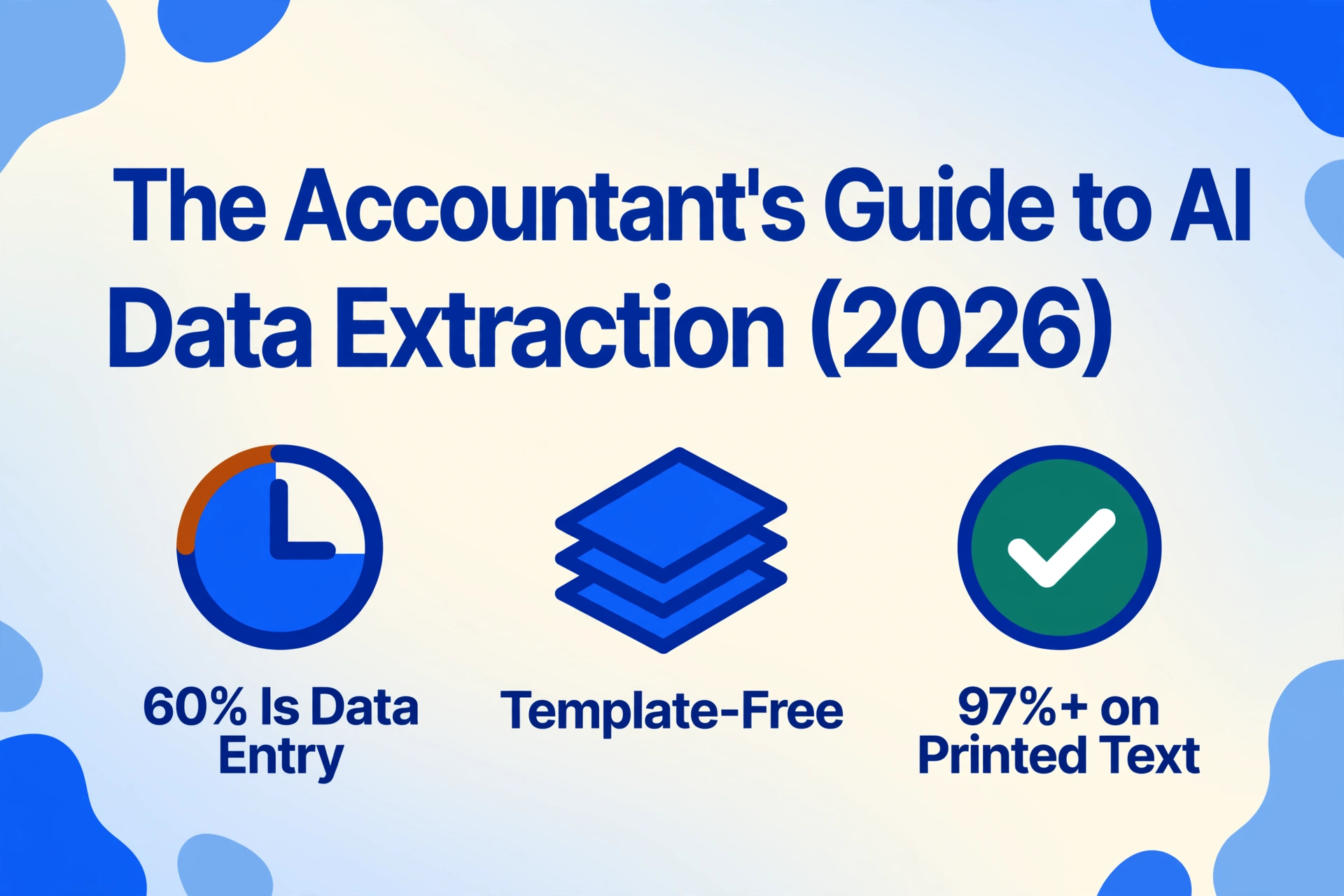
Key Takeaways
- 60% of tax preparation time isn't spent on judgment calls or client advisory — it's spent on data extraction and correction, draining 30 billable hours a week from an average 10-person firm.
- A template-based extraction tool requires a new template for every vendor and bank your 30 clients use — and when a column silently shifts on a statement, the output looks right but the amounts are wrong until reconciliation.
- When extraction becomes format-independent — reading by what fields mean rather than where they sit — your job shifts from data entry operator to exception reviewer, the only work a CPA license was issued for.
Why Accountants Need Document Extraction: The Quantified Case
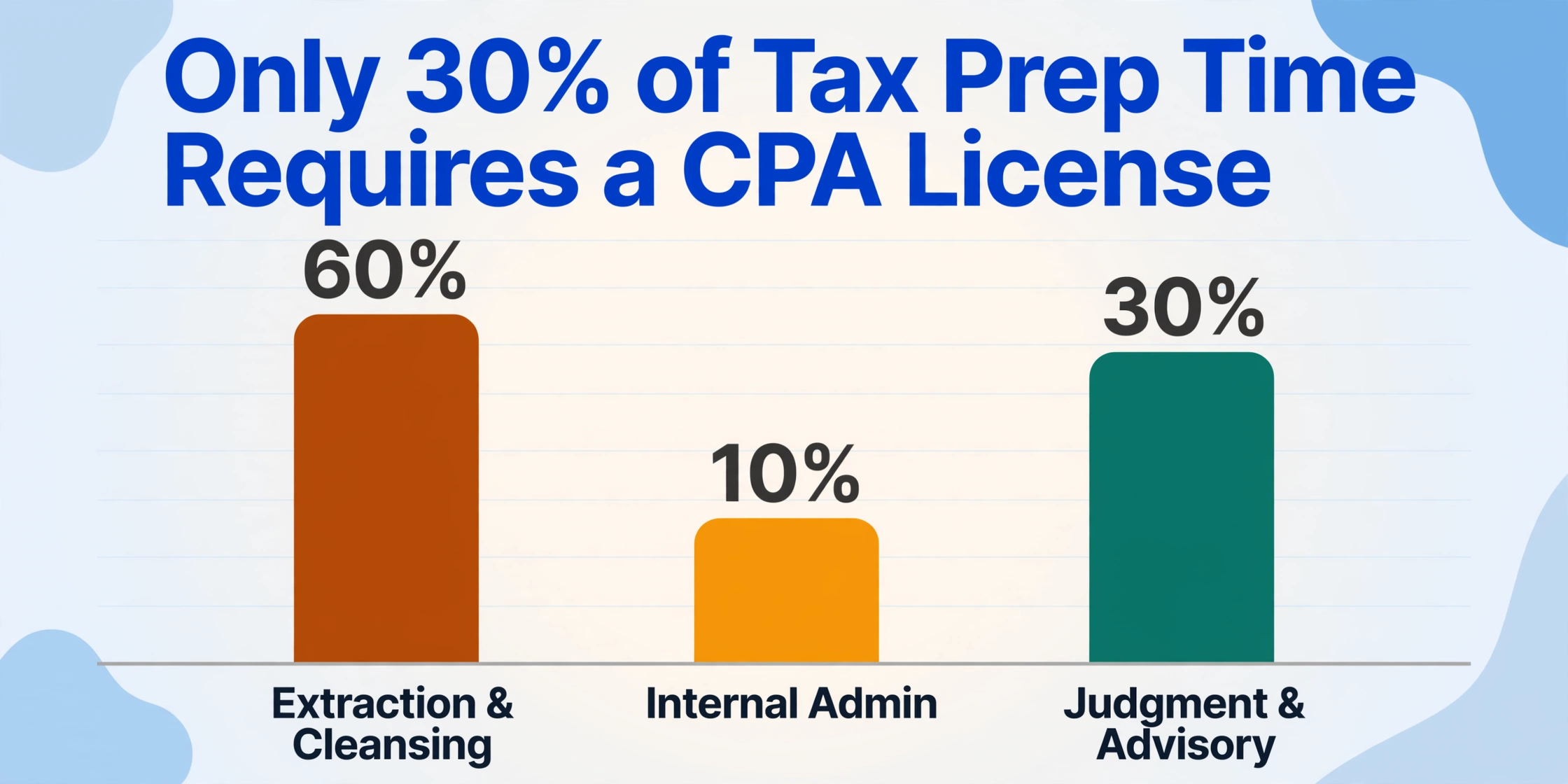
A PWC study of tax compliance workflows found that 60% of the time spent on tax return preparation is consumed by data extraction, cleansing, and analysis — not by professional judgment, risk assessment, or client advisory. Another 10% goes to internal administration. That leaves approximately 30% of a tax professional's time for the work that actually requires a CPA license. Across a firm billing at $200–400 per hour, redirecting even half of that extraction time into advisory hours represents a revenue shift that no amount of staff hiring can match.
The structural insight most accounting firms miss: manual data entry doesn't just cost the time spent typing. It costs the cleanup time afterward. Every error introduced during entry — 2 to 5 per 100 fields, per APQC finance benchmarks — must be found and corrected, and finding a transposed digit on a $47,000 invoice takes longer than typing it correctly would have.
On the output side, AI-powered extraction processes a single page in 5 to 10 seconds — roughly 18 times faster than manual entry — with field-level accuracy on printed text consistently exceeding 97%. The trade-off isn't speed versus accuracy. It's speed and accuracy versus the same team doing data entry for three days every month. The U.S. Bureau of Labor Statistics projects bookkeeping employment to decline roughly 5% from 2023 to 2033, attributing the shift to software-based automation of data-entry tasks — a signal that the market is not waiting for firms to decide.
But "document extraction" is not one problem. It's six different problems wearing the same label, because a bank statement, an invoice, a receipt, a W-2, an expense report, and a UK P60 each present fundamentally different extraction challenges. The rest of this guide walks through each one — what's extractable, what's hard, how much time you should expect to recover, and where human judgment remains non-negotiable. If you're new to document extraction technology itself, start with our explanation of how OCR works and what it means for accounting workflows — then return here for the document-type-by-document-type breakdown.
Invoices: The Extraction Baseline
Invoices are the most commonly automated document type in accounting — and the one where AI extraction shows its clearest advantage over template-based tools. A typical vendor invoice contains 8–15 structured fields: vendor name, invoice number, date, due date, PO number, line items with descriptions and quantities, subtotal, tax amount, shipping, and total. On a clean PDF from a known vendor, traditional template OCR works reliably. The problem is the "from a known vendor" part.
An accounting firm processing client payables doesn't receive invoices from 5 vendors. It receives invoices from every vendor its 30 clients do business with — Amazon Business, Home Depot, local electricians with handwritten bills, SaaS subscriptions with email PDFs, and international suppliers with multi-currency line items. Each new vendor means a new layout, and template-based tools treat each layout as a new configuration project. AI-powered extraction that reads documents by understanding what each field means — rather than by memorizing where it sits on the page — processes a new vendor's invoice with the same setup as a familiar one.
For a deeper look at how this works across a high-volume batch, see our batch invoice processing guide. The key point for accountants: invoice extraction is the document type where you should measure success not by "how many fields it gets right on vendor A's invoice" but by "how many new vendors you can onboard without touching the extraction configuration."
Bank Statements: The Reconciliation Bottleneck
Bank statements are the highest-volume document type in most accounting practices — and the one where format diversity hits hardest. A firm with 30 clients may receive monthly statements from Chase, Wells Fargo, Bank of America, regional credit unions, online banks like Mercury and Relay, and international institutions like Revolut — each with different column layouts, date formats, and transaction grouping conventions.
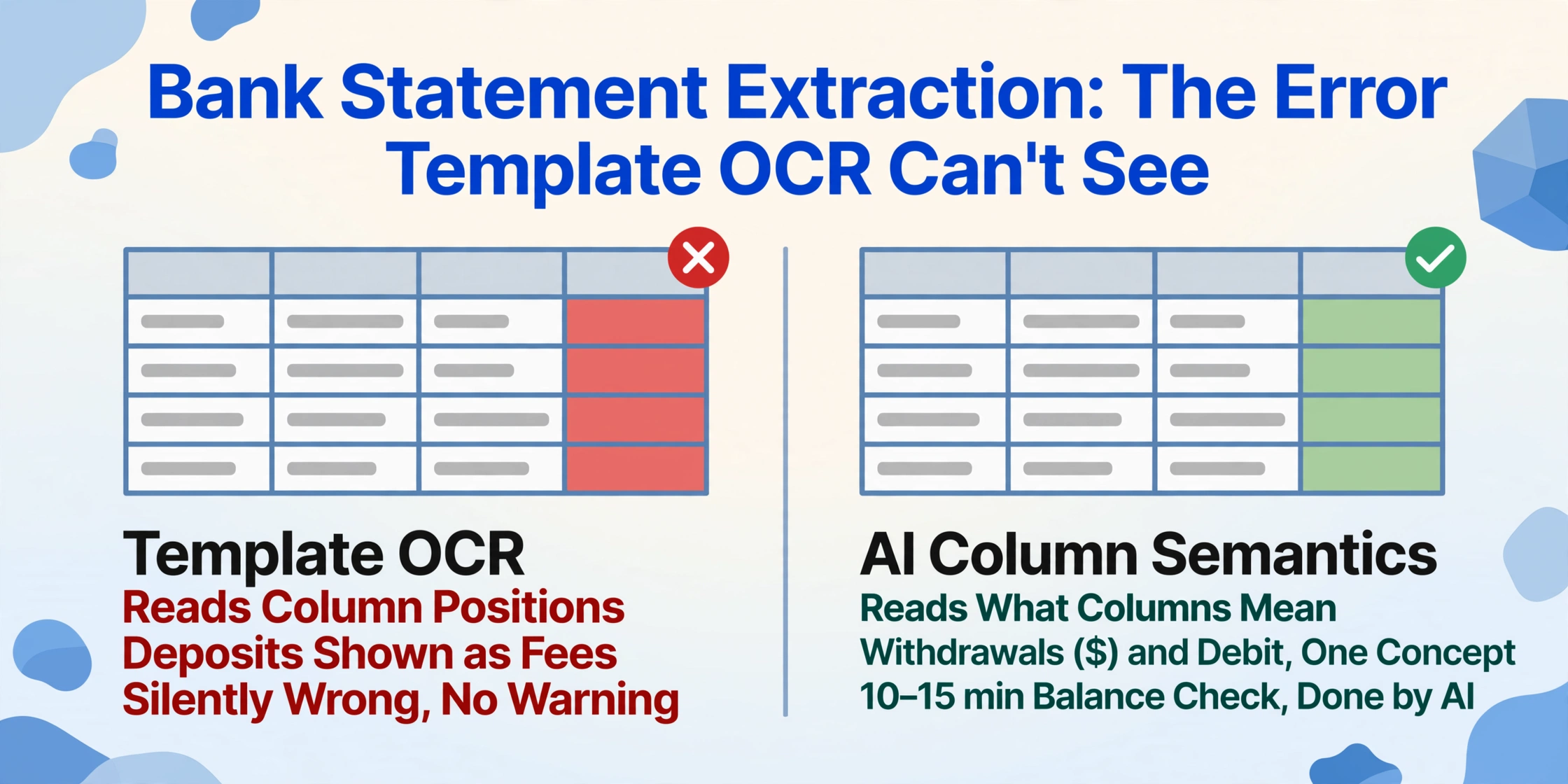
Template-based tools struggle with this diversity: a template built for Chase statements silently misfires on a Wells Fargo PDF that splits debits and credits into separate columns instead of a single transaction amount column. The extracted data looks right — numbers are in the right columns — but the credit card payments show as withdrawals and the deposits show as fees. Traditional OCR has no way to know it made this error because it reads positions, not meaning.
AI extraction that understands column semantics — recognizing that "Withdrawals ($)" and "Debit" are the same concept expressed differently — eliminates this class of error entirely. For bank statements specifically, the most valuable AI capability is not extraction speed but computed column verification: the AI can calculate the ending balance from beginning balance plus debits minus credits, compare it to the stated ending balance on the statement, and flag any discrepancy — a reconciliation step that normally takes a human 10–15 minutes per statement. For a walkthrough of the end-to-end workflow, see our bank statement to Excel conversion guide.
Time savings benchmark: a 12-page monthly business bank statement typically takes an accountant 15–20 minutes to manually enter the header information and spot-check the balance. AI extraction processes it in under 60 seconds, and the computed balance verification replaces the manual spot-check entirely. Across 30 clients × 12 months, that's approximately 90 hours per year recovered from statement entry alone — before counting the reconciliation errors it prevents.
Receipts: The Photo Problem
Receipts are the document type where input quality — not extraction technology — is the binding constraint. A clean digital receipt from Amazon or a SaaS platform extracts with near-perfect accuracy. A photo of a crumpled thermal paper restaurant receipt, taken at an angle under yellow lighting, with faded ink and a coffee stain — the kind your clients actually send — is a different problem entirely.
The extraction ceiling on receipts is set by what's legible in the photo, not by what the AI can theoretically read. If a human squinting at the image can't tell whether the tip line says $8.00 or $8.80, neither can the AI — and neither should be trusted without verification.
What AI extraction adds to receipt processing beyond basic OCR is categorization. Most receipts don't print an expense category. A restaurant receipt says "Table 12, Server: Maria, $54.30" — not "Meals & Entertainment." AI with inferred column capability can read the merchant name and purchase context and assign a category: "Meals" for restaurants, "Travel" for hotels, "Office Supplies" for Staples. This classification step, done manually by an accountant or bookkeeper reviewing each receipt against a chart of accounts, typically adds 30–60 seconds per receipt. At 200 receipts per month across clients, that's 2+ hours recovered from classification alone.
See our receipt to Excel extraction guide for the step-by-step workflow, including how Custom Column Extraction — where you type the field names you want and the AI locates each value by what it means rather than by its position on the page — handles the receipt format variety that breaks template-based tools.
W-2 and 1099 Tax Forms: High-Stakes Extraction
Tax forms are the document type where accuracy has legal consequences. A miscategorized invoice amount creates a reconciliation error you'll catch during month-end close. A mistranscribed W-2 Box 1 wage amount or 1099-NEC non-employee compensation figure creates a filing error that triggers an IRS notice — and potentially a client conversation no accountant wants to have.
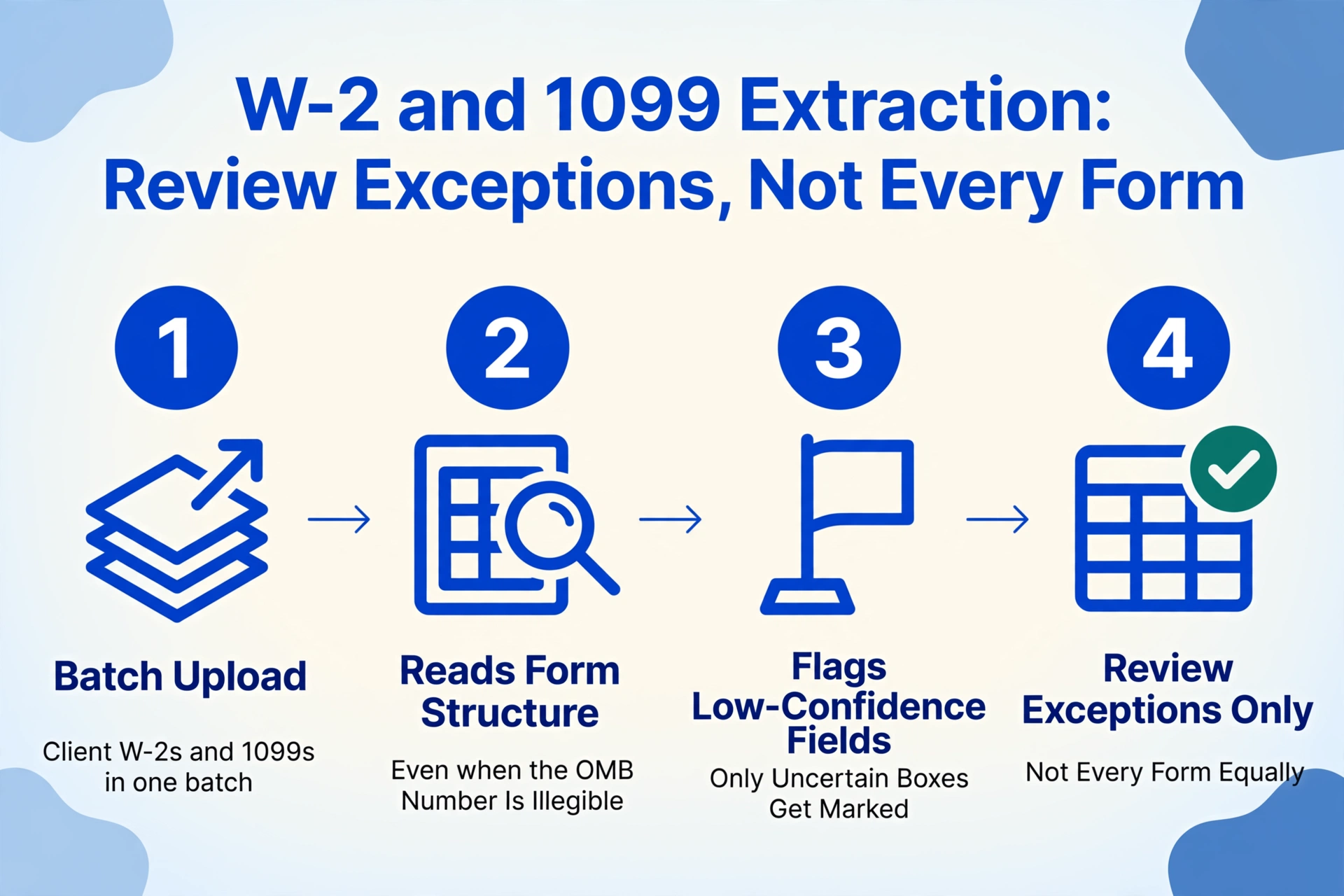
W-2 forms contain 14 boxed fields plus employer/employee identification data. 1099-NEC and 1099-MISC forms add another layer with payer TINs, recipient TINs, and varying box assignments by form variant. Template-based tools handle this by identifying the IRS OMB control number in the top-right corner — 1545-0008 for W-2, 1545-0116 for 1099-NEC, 1545-0074 for 1040 — and applying extraction logic specific to that form layout. This works for clean digital PDFs but breaks on scanned copies where the OMB number is illegible or on photos of forms where glare obscures the identifier.
AI extraction that reads the form's content structure — recognizing the wage-and-tax-statement layout regardless of whether the control number is visible — provides a fallback when template identification fails. The practical workflow for a tax practice: run extraction on a batch of client W-2s and 1099s, export to a spreadsheet, and spend review time on the forms the AI flagged as low-confidence rather than on every form equally. This shifts the accountant's role from "transcriber of box numbers" to "reviewer of exceptions" — the role their license was issued for.
For W-2 and 1099-specific extraction workflows, see our 1099 to Excel extraction guide. The IRS compliance dimension — secure storage, access control, audit trails — is covered in detail in our AI data entry buyer's guide for accountants, including Circular 230 and IRC §7216 requirements that govern how client tax information must be handled at every processing stage.
Expense Reports: The Compound Document Problem
Expense reports are not a single document type. They're a compound document: an expense report form or spreadsheet plus a stack of receipts that serve as supporting documentation. The extraction challenge is not reading the individual receipts — that's the same receipt problem described above — but matching each receipt to the correct report line item and verifying that the amounts match.
A typical client expense report for a business trip might include a flight itinerary ($487), a hotel folio ($1,240 for 4 nights), five meal receipts ($15–$85 each), two taxi receipts, and a conference registration invoice. The accountant's job is to verify that the sum of all attached receipts matches the total claimed on the report, that each receipt is categorized correctly, and that no duplicate receipts were submitted across multiple reports. This is the kind of multi-document cross-referencing that current AI extraction tools do not automate — and the kind most accounting firms don't want fully automated, because the verification step is where fraud and errors are caught.
Where AI extraction does reduce the expense report processing burden: extracting all receipt data into a single spreadsheet with consistent columns (date, merchant, amount, category), then letting the accountant or bookkeeper scan the spreadsheet for anomalies instead of flipping through 50 individual receipt images. This converts the review step from 3 minutes per receipt to 30 seconds per flagged anomaly — and keeps the human judgment step where it belongs.
International Tax Documents: P60, PAYG, and T4
Most document extraction guides stop at US tax forms. Accounting practices with international clients — or firms based outside the US — need coverage that extends to the tax documents their clients actually produce. Here are the three most common non-US employment income documents, what's extractable from each, and what to watch for.
UK P60 (End of Year Certificate). Issued by employers to employees after the end of each tax year (April 5), the P60 summarizes total pay, total tax deducted, National Insurance number, final tax code, and employer details for the year. Key extractable fields: employer name and PAYE reference, employee NI number, total pay for the year, total tax deducted, final tax code, and any statutory payments (maternity, paternity, adoption). The main challenge: P60s from different payroll providers (Sage, Xero, BrightPay, QuickBooks UK) use slightly different layouts despite containing the same mandatory HMRC fields. Format-independent extraction handles this variation without per-provider configuration.
Australia PAYG Payment Summary. Replaced by Single Touch Payroll (STP) income statements for most employees but still issued in some circumstances — particularly for contractors and employees of small employers not yet on STP. Key extractable fields: payer ABN, payer name, payee TFN, gross payments, total tax withheld, reportable fringe benefits amounts, and lump sum payments with their type codes (A through E). Most extraction tools that handle US tax forms do not recognize the ATO's layout conventions — confirm coverage before committing to a tool if you process Australian payroll documents.
Canada T4 (Statement of Remuneration Paid). The T4 is Canada's equivalent of the W-2, with a critical difference: it uses up to 85 CRA box numbers rather than the W-2's 14. Key fields span employment income (Box 14), CPP contributions (Box 16), EI insurable earnings (Box 24), RPP contributions (Box 20), union dues (Box 44), and dozens of other codes for taxable benefits and deductions. The extraction challenge is not reading the numbers — it's mapping the correct CRA box to the correct field in TaxCycle or Intuit ProFile, where import format requirements are precise. A tool that lets you define your own column names — for example, specifying "Box 14 Employment Income" and "Box 16 Employee CPP" as custom columns — produces output that maps directly to your tax software's import template without post-extraction column renaming. For a detailed walkthrough of the Canadian tax slip extraction workflow, see our form extraction guide — the same custom column approach works across all tax jurisdictions.
What to Look for in an Extraction Tool: An Accountant's Framework
The standard software evaluation criteria — pricing, feature lists, integration logos — don't tell you what you actually need to know as an accounting practice. Here are the five factors that determine whether an extraction tool survives contact with your actual client documents.
Multi-client batch separation
Processing 15 bank statements for Client A and 8 bank statements for Client B should produce two separate spreadsheets — without you pre-sorting files into folders. A tool built for single-entity accounting treats every upload as one pool of data. A tool built for accounting practices lets you name batches per client and export per-batch results. For a full comparison of tools that handle multi-client workflows, see our roundup of extraction tools for accounting firms.
Format independence, not template configurability
A tool that offers "powerful template builders" and "zonal OCR configuration" is selling you a template maintenance job, not automation. The meaningful capability is format independence: the tool processes a new vendor's invoice, a new bank's statement, or a new payroll provider's forms with the same setup as a familiar one — because it reads documents by understanding what fields mean, not by measuring where they sit. For the technical distinction between these approaches, see our explanation of AI OCR vs traditional OCR.
Custom column templates you can save, not rebuild
The columns you extract for a restaurant client (food costs by category, tips reported, POS settlement amounts) differ from the columns for a construction client (job cost codes, retainage, lien waivers). A practice-grade tool saves column templates per client or per engagement type, so staff members don't rebuild extraction configurations from scratch each month.
Output in the format your downstream tools expect
QuickBooks Online imports CSV with specific column headers. Drake Tax expects certain field mappings. Xero bulk imports require particular date formats. Your extraction tool needs to produce Excel or CSV output that maps to your accounting software's import format — with column names that match, date formats that parse, and numeric fields without currency symbols. If the tool only exports to its own proprietary format, you've traded data entry for data reformatting.
Document collection, not just extraction
The bottleneck in most accounting practices isn't extracting data from documents — it's getting the documents from clients in the first place. A tool that includes a Collection Link — a shareable link clients open (no login required) to upload documents directly into your processing queue — solves the upstream problem. Instead of emailing, texting, and chasing clients for their monthly statements and expense receipts, you send one link that feeds everything into your extraction pipeline. For practices that serve nonprofit clients, see our guide on extracting donation receipt data for a Collection Link use case specific to that sector.
Common Pitfalls When Automating Document Extraction
Every accounting firm that has adopted document extraction has encountered at least one of these. Knowing them in advance turns a lesson learned the hard way into a checklist you can verify before the tool touches your first client file.
Pitfall 1: Buying a template tool for a multi-format environment. Template-based OCR tools are sold as "set up once, run forever." For an accounting practice, "once" means per-vendor, per-bank, per-client — and you never stop setting up because clients change banks and vendors change invoice formats. The tool that worked during the demo on three clean PDFs breaks on month four when Client C switches from Wells Fargo to Mercury and the statement columns invert. The fix is not to buy a better template tool. It's to buy a tool that doesn't use templates.
Pitfall 2: Treating accuracy as a single number. A tool that advertises "99% accuracy" achieved that number on the documents in its benchmark dataset — clean PDFs with printed text in standard layouts. That same tool may run at 80% accuracy on photographed receipts from poorly lit restaurants, 70% on scanned bank statements from credit unions using dot-matrix printers, and 50% on handwritten margin notes. The accuracy that matters is accuracy on your worst documents, not the vendor's best. Before committing to any tool, run it on 10 of your most problematic files — the crumpled receipts, the faxed W-2s, the three-page restaurant chain invoices — not the ones that look like the vendor's demo. This is the methodology we walk through in our practical accuracy guide.
Pitfall 3: Automating extraction before automating collection. If your extraction pipeline can process 100 documents per hour but your clients take two weeks to send those documents, you've accelerated a step downstream of the real bottleneck. Fix the collection problem first: standardize how clients submit documents (a single Collection Link instead of email attachments), set submission deadlines, and automate reminders. Extraction speed means nothing if there's nothing to extract.
Pitfall 4: Over-automating the review step. IRS Circular 230, Section 10.22 requires that a practitioner exercise due diligence in preparing tax returns — which includes verifying the accuracy of input data. Automating extraction does not eliminate your review obligation; it changes it from reviewing every data point to reviewing the exceptions. Design your workflow so that extracted data is clearly sourced back to the original document image, with low-confidence fields flagged for human review, and the rest verified by exception. A "review everything" workflow defeats the time savings. A "review nothing" workflow violates Circular 230. The middle ground — verify-by-exception — is where extraction tools earn their place in a CPA practice.
Implementation Roadmap for Accounting Firms
Rolling out document extraction across an accounting practice should follow the document types in order of volume and format consistency — not the order of perceived importance. The goal is to build staff confidence and workflow habits on the easiest documents before introducing the harder ones.
Phase 1: Bank and credit card statements (Month 1–2). Start here because statements are high-volume, arrive monthly on a predictable schedule, and — despite format variation across banks — have a consistent internal structure (transactions in chronological rows with date, description, amount columns). Pick 3–5 clients with the most consistent statement formats and process one month of statements. Compare extraction output against manual entry for accuracy. Time the difference end-to-end: from receiving the PDF to having verified data ready for reconciliation. By the end of Phase 1, staff should trust the tool on statements and the firm should have a clear time-savings baseline.
Phase 2: Vendor invoices (Month 2–4). Add invoices once the statement workflow is stable. Start with recurring invoices from known vendors — the ones where you've already seen 20 variants and know what the data should look like — before introducing new vendors. Save column templates per client that include their commonly used GL codes and cost center assignments, so extraction output is pre-mapped to the ledger structure. For nonprofits and organizations with specific expense tracking needs, see our donation receipt extraction guide for a template design example.
Phase 3: Receipts and expense reports (Month 4–6). Receipts introduce the photo quality variable and require the categorization features that basic OCR doesn't provide. Start with digital receipts (Amazon, SaaS subscriptions, electronic invoices) before introducing photographed paper receipts. Create a client-facing guide for receipt photos — legible, flat, well-lit — that reduces the input quality problems before they reach your extraction pipeline. For expense reports, run the AI extraction on receipts first, then use the spreadsheet output to verify report totals — not the other way around.
Phase 4: Tax forms (July–October window). Tax forms demand the highest accuracy and have the steepest regulatory consequences for errors. Do not roll out tax form extraction during December–April busy season. Use the July–October window to test on prior-year W-2s and 1099s, compare AI extraction against manual entry on a form-by-form basis, and build the review-by-exception workflow before live returns depend on it. By the time January W-2s start arriving, staff should already know which forms the tool handles reliably and which need full manual review.
Timing principle: Never roll out a new extraction workflow within 60 days of a tax deadline. The learning curve — figuring out which documents extract cleanly, which need human review, and what to do when extraction fails — consumes more staff time than the tool saves during the first month. Plan rollouts for the lulls between filing seasons, not the peaks.
FAQ
Can AI extraction handle handwritten receipts and margin notes?
Partially. Block-letter handwriting extracts at roughly 75–85% field accuracy; cursive and rushed handwriting drops to 50–70%. The AI can read what's legible. If a human can't make out the amount on a faded thermal receipt with a coffee stain, neither can the AI — and you should not rely on that field without client confirmation.
Does extraction work with scanned bank statements that have skewed pages and dot-matrix printing?
Yes, with caveats. AI extraction handles skew, rotation, and low-resolution scans better than traditional OCR because it sees the whole page layout rather than scanning character-by-character. However, dot-matrix printing on paper that has yellowed over 5+ years creates low-contrast text that degrades any extraction system's accuracy. These documents should be flagged for human review regardless of the tool used.
Is client financial data secure during AI processing?
This depends on the tool's architecture. Some tools route documents through third-party AI APIs that retain data for model training — a potential IRC §7216 concern if the data contains client tax information. Others process documents through their own infrastructure with no data retention for training purposes. Verify the tool's data handling policy against your WISP requirements before uploading client documents. At minimum: confirm that uploaded documents are not used for model training, that processing is encrypted in transit, and that documents are automatically deleted after a defined retention period.
Do I need to train a model per client or can one setup handle everyone?
With template-based tools, you effectively train per client — or per vendor, per bank, per form type — because each new document layout requires a new template. With format-independent AI extraction, you define the columns you want once (Date, Description, Amount, Category) and the same setup processes documents from any client, any bank, any vendor. No per-client training, no per-vendor template building. This is the single most important architecture question to verify before purchasing any tool for a multi-client practice.
How does AI extraction interact with QuickBooks or Xero?
AI extraction tools produce structured data in Excel or CSV format — they do not directly post transactions to QuickBooks or Xero the way Dext or Hubdoc do. The workflow is: AI extracts data → you review the spreadsheet output → import into QuickBooks/Xero using the software's bulk import feature. This gives you full control over what enters the ledger, at the cost of requiring an import step. If you want direct ledger publication with no spreadsheet intermediary, a bookkeeping-integrated capture tool like Dext or Veryfi is the right tool for that job — but those tools are opinionated about document types and categorization rules. AI extraction tools are flexible across any document but leave the import step to you. Neither architecture is universally superior; they serve different workflows. Compare options in our accounting firm tool roundup.
What happens when the AI gets a field wrong — how do I catch it?
The most effective verification workflow is review-by-exception, not field-by-field checking. After extraction: (1) scan for blank fields where data should exist — these are obvious extraction failures; (2) spot-check computed columns against source documents (e.g., does the calculated ending balance match the stated ending balance?); (3) sort by amount and verify the top and bottom 5 entries — the largest transactions carry the most risk if wrong. This three-step review catches the vast majority of extraction errors in less than 5 minutes per batch, versus 20+ minutes of field-by-field verification. Do not skip review entirely — Circular 230 due diligence obligations apply to AI-assisted work the same way they apply to manual work.
Can it handle multi-currency invoices and international tax forms?
Yes for multi-currency recognition — AI extraction can identify currency symbols ($, €, £, ¥) and preserve them in the extracted data, though you'll need to handle currency conversion separately as extraction tools don't perform forex calculations. For international tax forms (UK P60, Australia PAYG, Canada T4), coverage varies significantly by tool. Most tools optimized for the US market do not recognize non-US form layouts. Verify international form support explicitly before purchasing — don't assume "supports tax forms" means anything beyond US W-2/1099. A tool that lets you define your own columns by CRA box number or HMRC field name can work with international forms even without built-in form recognition, because the AI reads the form content by meaning rather than by matching a template.
The time an accounting practice spends on data entry is time it can't spend on the analysis, advisory, and client relationships that actually grow the firm. Document extraction doesn't just cut costs — it converts billable hours from transcription work to expertise work, the only kind of work a CPA license was designed for. The tool is the first step. The practice decision — which clients to take on, which services to expand, which document types to stop doing by hand — is the step that pays for it.