How to Extract Donation Receipts
for Nonprofit CRM and IRS 990 Filing
A single missing field on a donation acknowledgment letter creates two problems that unfold on different timelines. The immediate one: a donor who gave $500 cannot claim the deduction on their tax return — they email your development office, frustrated, and someone spends 20 minutes locating the original receipt, cross-referencing the gift record, and re-issuing the letter. The slow one: 18 months later, your external accountant flags a Schedule B discrepancy because a $6,000 donor's contribution total doesn't reconcile between the CRM export and the acknowledgment letter file. Both trace back to the same root cause — a field that was supposed to be typed but wasn't.
The IRS doesn't just recommend these fields. Under Publication 1771, a donor cannot claim a federal tax deduction for any single contribution of $250 or more without a contemporaneous written acknowledgment containing the organization's name, the contribution date and amount, and a statement of whether goods or services were provided in return. That is four data points per receipt — and a mid-sized nonprofit processing 2,000 annual donations is keying 8,000 field values by hand. The extraction step is not a productivity improvement. It is a compliance control.
Key Takeaways
- Every donation receipt you manually key into your CRM today gets audited twice — once by a donor who can't claim their deduction, and again 18 months later by your accountant reconciling Schedule B against acknowledgment letters.
- Processing 2,000 annual donation receipts means keying 8,000 IRS-required field values by hand — missing one in two hundred is not carelessness, it's that the task exceeds human reliability at scale.
- The extraction step is a compliance control, not a productivity boost — the person who configures it stops being a data entry clerk and becomes the one who decides which exceptions are worth investigating.
What Makes an Acknowledgment Letter IRS-Compliant (and Why Each Field Gets Expensive When Wrong)
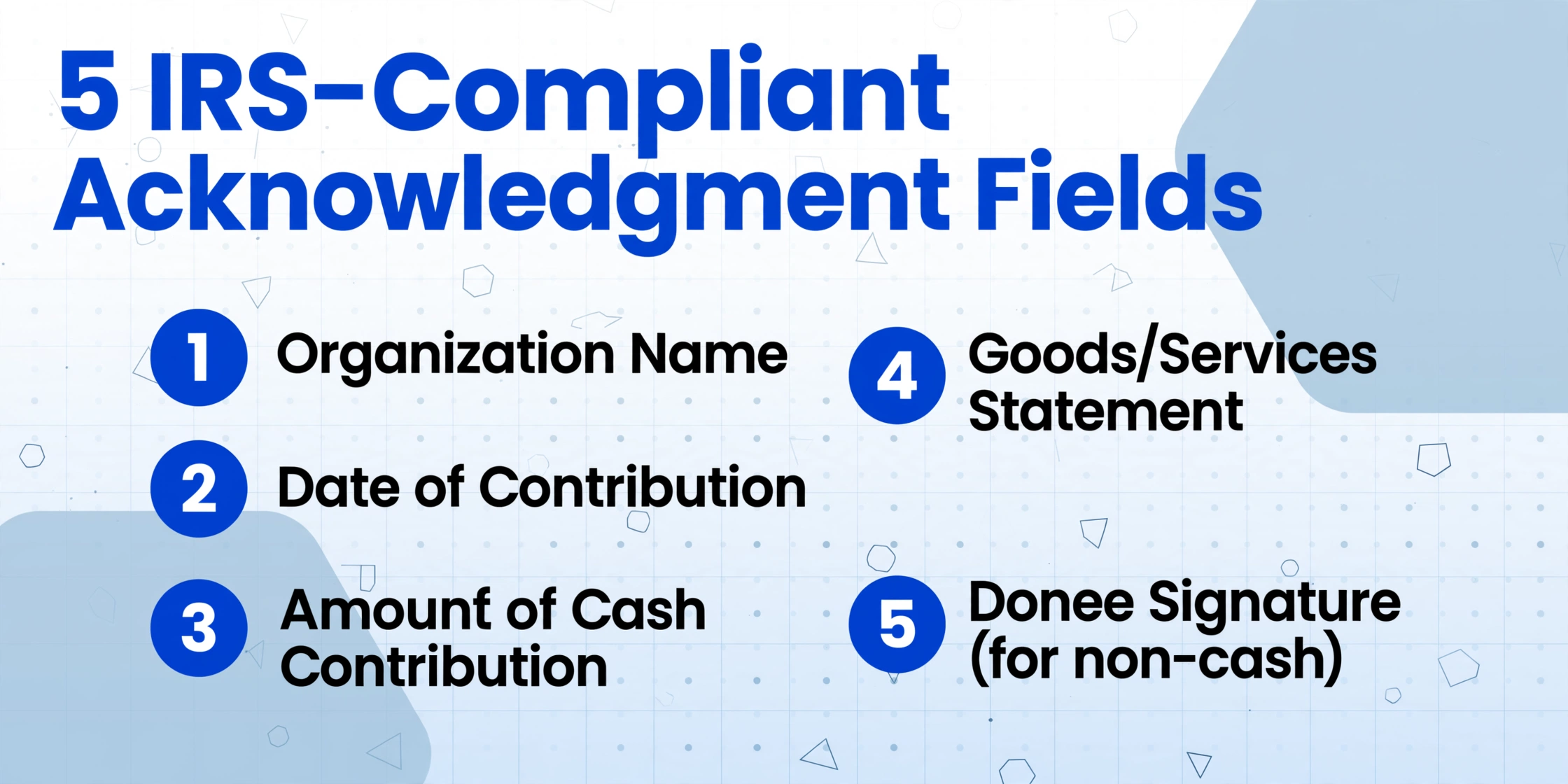
Before discussing extraction columns, the starting point is what the IRS actually requires. A contemporaneous written acknowledgment — meaning the donor must receive it by the earlier of the date they file their return or the due date, including extensions — must contain five data points for any single contribution of $250 or more, as specified in IRS guidance on charitable contribution substantiation:
| Required Field | Why the IRS Needs It | What Happens When It Is Missing or Wrong |
|---|---|---|
| 1. Organization Name | Identifies the qualified 501(c)(3) recipient — must match the name registered with the IRS under the organization's EIN. | Donor cannot substantiate the deduction. If the organization uses a DBA or abbreviated name that differs from its IRS registration, the acknowledgment is technically non-compliant. |
| 2. Date of Contribution | Determines the tax year in which the donor may claim the deduction. The date of delivery (check postmark, credit card charge date, stock transfer settlement date) — not the date the acknowledgment letter was printed. | A wrong year on the acknowledgment forces the donor to choose between filing an amended return or losing the deduction. For year-end gifts, a December 31 vs. January 2 date difference is the difference between two tax years. |
| 3. Amount of Cash Contribution | For cash gifts, the dollar amount received. "Cash" includes check, credit card, electronic funds transfer, and payroll deduction. | An overstated amount creates a donor over-deduction risk — the IRS can disallow and assess an accuracy-related penalty of 20% of the underpayment under IRC Section 6662. An understated amount shortchanges the donor. |
| 4. Description of Non-Cash Property (if applicable) | For gifts-in-kind, a reasonable description of the donated property — no requirement to state a value (the donor determines fair market value). | Without a description, the acknowledgment is incomplete and the donor cannot file Form 8283. For noncash gifts exceeding $5,000, the donor also needs a qualified appraisal — and the acknowledgment must exist before the appraisal can be attached. |
| 5. Goods or Services Statement | Either: (a) "No goods or services were provided in return for this contribution" — or (b) a description and good faith estimate of the value of goods/services provided. | The most commonly omitted field. If a donor received a $75 gala dinner ticket for a $300 donation, failing to state this means the donor cannot properly compute their deductible amount ($225). For the charity, failing to disclose quid pro quo contributions over $75 triggers a penalty of $10 per contribution, capped at $5,000 per fundraising event or mailing (IRC Section 6714). |
The $250 threshold has a nuance worth understanding: it applies to single contributions, not annual totals. A donor who gives $25 monthly via payroll deduction has made twelve separate $25 contributions — none of which individually trigger the $250 substantiation requirement. But a donor who writes a single $300 check at the year-end gala has triggered it. Nonprofits that issue blanket year-end summaries without parsing individual gift amounts are creating acknowledgment documents that don't match the legal threshold structure.
For contributions under $250, a bank record (canceled check, credit card statement) or a written communication from the charity showing the name, date, and amount is sufficient — the goods/services statement is not required. But best practice, and what most donor management platforms recommend, is issuing a receipt for every gift regardless of amount: it builds donor trust and eliminates the need to determine threshold applicability at the point of acknowledgment generation.
Each of the five fields is a compliance checkpoint, not a courtesy detail. A development coordinator processing 50 acknowledgment letters a week who misses one goods/services statement on a $200 gala ticket purchase is creating a penalty liability — and the charity, not the donor, pays it.
Build Extraction Columns That Feed Your CRM — Not Just a Spreadsheet
The most common mistake when extracting acknowledgment letter data is treating the output as an end-state spreadsheet. A well-designed extraction column set is a CRM import pipeline: the columns you define determine whether the data lands cleanly in your donor database or requires an afternoon of reformatting.
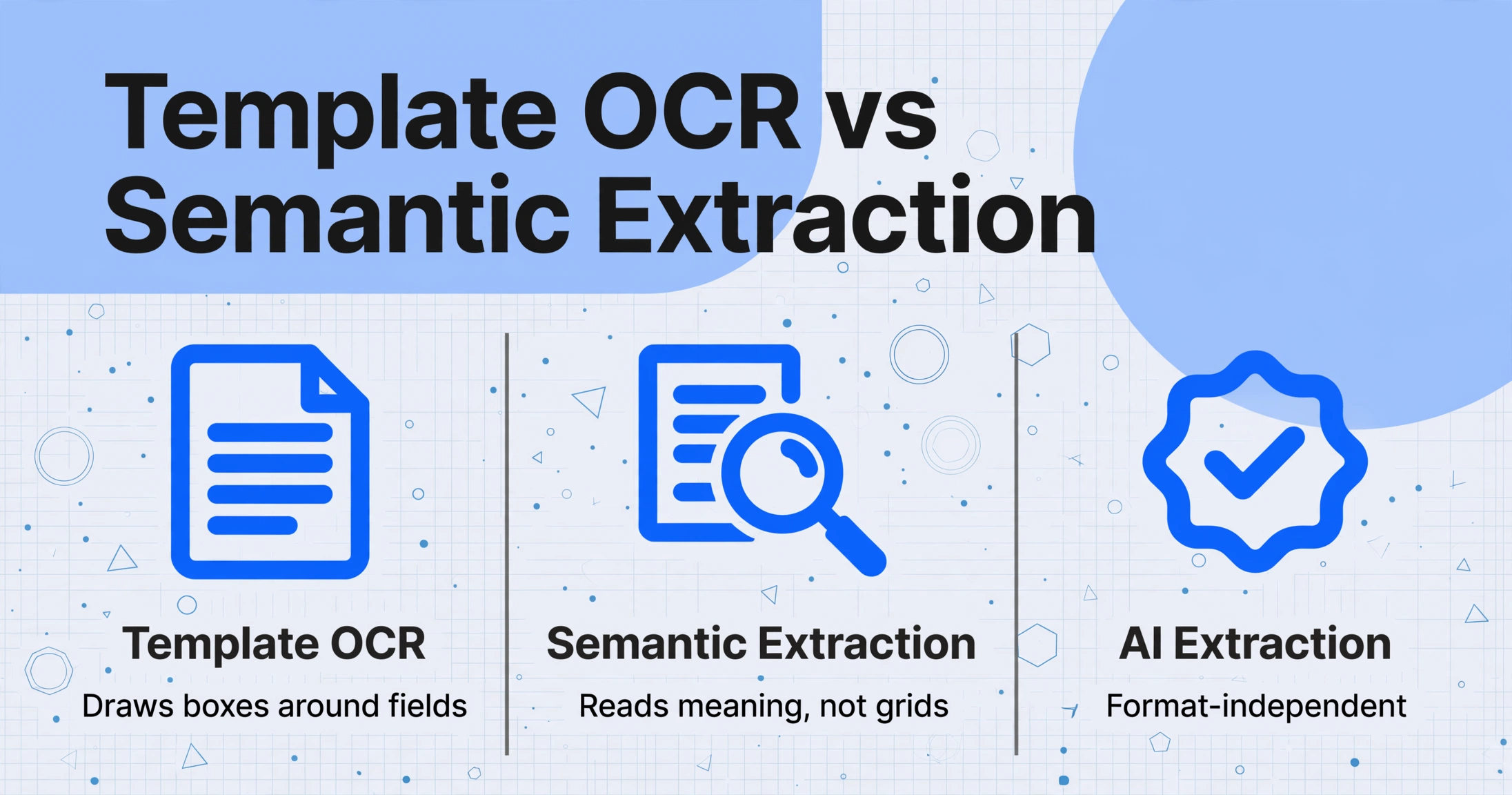
The column names in an AI extraction tool work differently from spreadsheet headers. In a traditional template-based OCR tool, you draw a bounding box around a field and label it — the tool reads whatever text falls inside the rectangle. In a semantic extraction tool like ImageToTable.ai, you type a column name — say, Donor Name — and the AI scans the document for text that semantically matches "a person or entity making a charitable contribution," regardless of whether that text appears in a header, a body paragraph, or handwritten in a margin. This distinction is what makes the workflow format-independent across acknowledgment letter styles.
Here is a CRM-ready column set for donation receipt extraction, with the extraction mode for each column:
| Column Name | Extraction Mode | CRM Destination |
|---|---|---|
Donor Name | Direct extraction | Contact / Account record — primary lookup key |
Donation Date | Direct extraction | Gift date on the opportunity / gift record — determines fiscal year classification |
Donation Amount | Direct extraction | Opportunity amount — must match acknowledgment letter exactly for audit trail |
Organization Name | Direct extraction (or fixed value if single-org) | Verifies the gift belongs to your organization — useful when processing receipts from multiple chapters or affiliates |
Organization EIN | Direct extraction (when printed on letterhead) | Cross-reference for 990 Schedule B — the IRS matches contributor-reported donations by EIN |
Goods/Services Provided | Direct extraction | Determines deductible amount = gift amount minus FMV of benefits received. Required for quid pro quo compliance |
Goods/Services Value | Direct extraction (numeric) | Entered as a soft credit or benefit value in the CRM; subtracted from gift amount for tax receipt purposes |
Deductible Amount | Computed column: Donation Amount - Goods/Services Value | Ready-to-use figure for the donor's tax letter and the charity's internal reconciliation. The AI calculates this during extraction — no Excel formula needed afterward |
Donation Channel | Inferred column: Donation Channel (options: Online/Check/Mail/Event/In-Kind/Stock/Wire/Other) | Campaign source tracking in CRM — the acknowledgment letter may not explicitly state the channel, but the AI infers it from context (check number present → Check; "thank you for attending" → Event; "Dear Stockholder" → Stock) |
Campaign or Fund | Direct extraction | Maps to the CRM campaign or designation field — annual fund, capital campaign, endowment, restricted gift |
The three extraction modes work together in a single batch pass. Direct extraction pulls fields explicitly written on the acknowledgment — the donor name, the date, the amount. Computed columns perform arithmetic during extraction: Deductible Amount = Donation Amount - Goods/Services Value means the spreadsheet arrives with the tax-deductible figure already calculated, no post-processing required. Inferred columns let the AI read between the lines: an acknowledgment letter that says "thank you for joining us at the Annual Gala" doesn't explicitly state "Event" as the channel, but the AI recognizes the context and fills the column. For more on the underlying extraction mechanics, our guide on how AI OCR differs from traditional template-based extraction covers the semantic matching logic in detail.
Files are processed securely and not stored.
A practical point on batch processing: most acknowledgment letters from a single organization share the same Organization Name and EIN. Rather than extracting those fields from each receipt individually, you can set them as constant values in your extraction template — or, since the AI reads each document independently, simply include them as columns and let the extraction proceed. Either way, the batch output is a single Excel file with one row per donation, all columns populated, ready for CRM import.
From $250 Receipts to $5,000 Schedule B Triggers: The 990 Filing Pipeline
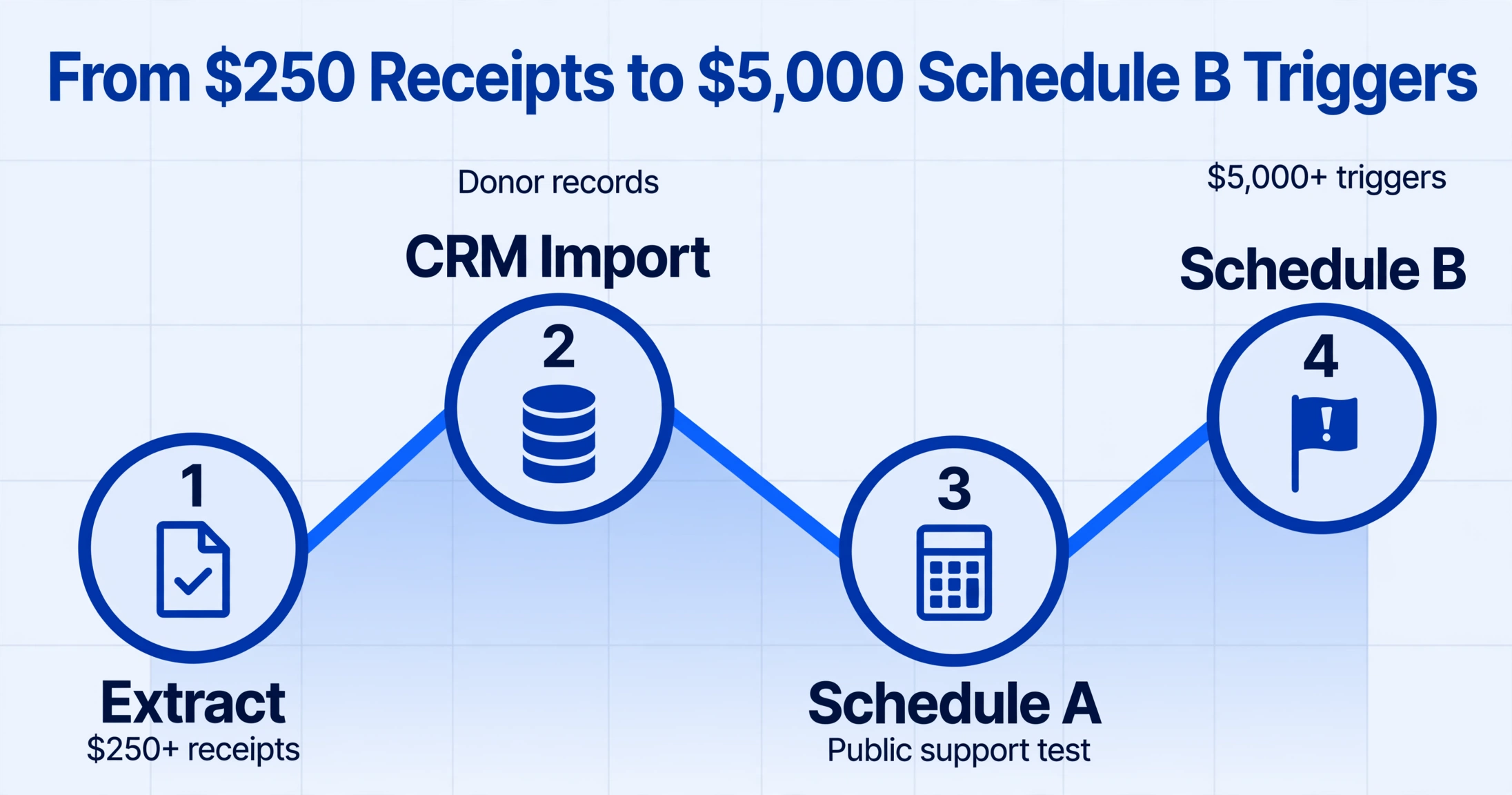
The spreadsheet you built for CRM import is also the foundation of your annual Form 990 submission. Understanding the connection — and designing the extraction columns to serve both purposes simultaneously — eliminates the reconciliation scramble that dominates January and February for most development teams.
Schedule A — Public Support Test. Organizations classified as public charities under Section 509(a)(1) must demonstrate that at least 33 1/3% of their total support comes from public sources over a rolling five-year period. The data that feeds this calculation is, fundamentally, a list of contributions by donor, date, and amount — exactly the data your extraction spreadsheet produces. The distinction that matters: Schedule A groups contributions by donor type (individuals, corporations, foundations, government grants), and each type carries a different public support percentage weight. Adding a Donor Type inferred column to your extraction — with options like Individual/Corporation/Foundation/Government — means the Schedule A preparation step becomes a pivot table instead of a manual classification exercise across 2,000 donor records.
Schedule B — Schedule of Contributors. This is where the $5,000 threshold enters the picture. Under IRS Schedule B instructions, a 501(c)(3) organization must report the name, address, and total contribution amount for any single contributor who gave $5,000 or more during the tax year — or, for organizations that qualify under the 33 1/3% public support test, the greater of $5,000 or 2% of total contributions. A donor who wrote four $1,500 checks throughout the year crossed the $5,000 threshold — even though no single gift exceeded $250 individually for substantiation purposes. The acknowledgment letter file, which captures each gift individually, must be aggregated by donor to determine Schedule B reporting obligations.
The extraction spreadsheet serves as the single source of truth for both workflows: CRM gift records (one row per donation) and Schedule B aggregation (sum of all rows grouped by donor name, compared against the $5,000 threshold). When the extraction is automated and the columns are consistent, the Schedule B determination becomes a SUMIF — not a weekend spent tracing gifts across three systems.
Schedule B and donor anonymity. The IRS does not accept anonymity. A donor can be anonymous to the public — the charity redacts the name and address from the publicly disclosed copy of Schedule B — but the IRS receives the full, unredacted filing. The extraction spreadsheet must contain the actual donor name for Schedule B purposes, and the redaction step happens at the filing preparation stage. This is another reason why a consolidated extract is more reliable than tracking donors across separate acknowledgment letter files, email folders, and online giving platform export CSVs: a single extract provides one authority source for the Schedule B contributor list. For organizations dealing with multiple document formats across donor sources, the same batch-extraction approach covered in our guide to extracting specific fields from any document applies directly.
Non-Cash Donations, Gift-in-Kind Receipts, and the Form 8283 Dimension
Non-cash donations — stock transfers, vehicle donations, real estate, artwork, securities, in-kind goods — sit in a substantiation tier of their own. The acknowledgment letter for a non-cash gift must include a description of the donated property but is not required to state a value (the donor determines fair market value). The donor, not the charity, files Form 8283 (Noncash Charitable Contributions), and the acknowledgment letter serves as supporting documentation.
The extraction column design for non-cash receipts differs from cash receipts in two ways:
1. The property description replaces the dollar amount as the primary extraction field. An acknowledgment for a donated vehicle should read "One 2019 Toyota Camry, VIN JTDKN3DU0A0123456, odometer reading 62,000 miles" — not "Car donation, value $X." The AI extraction needs to capture the full description text, not just a dollar figure. Your column should be Property Description rather than Donation Amount — and a second column for Donation Amount either remains empty (the charity doesn't determine value) or pulls a stated value only if the acknowledgment letter explicitly lists one for the charity's own gift-in-kind recording purposes.
2. Form 8283 Section B triggers additional acknowledgment requirements. For non-cash gifts exceeding $5,000 (other than publicly traded securities), the donor must obtain a qualified appraisal, and Section B of Form 8283 requires the donee organization to sign an acknowledgment — the "Donee Acknowledgment" section — confirming receipt of the property and stating whether the organization intends to use it for a purpose unrelated to its exempt function. The charity's development office must track which non-cash gifts received a signed 8283 acknowledgment, because this signature creates a compliance obligation: if the organization disposes of the property within three years of receipt, it must file Form 8282 (Donee Information Return). Adding a Form 8283 Signed (Yes/No) column to the non-cash extraction and a Appraisal Required (Yes/No) column gives the development team a tracking sheet for outstanding compliance items before the filing deadline.
For context, the same column-based approach works for other document types with compliance obligations baked in — our article on extracting insurance loss notices for claims triage covers a similar field-prioritization logic driven by regulatory deadlines, and extracting transcript data applies the same inferred-column technique for classification fields not explicitly written on the source document.
Getting the Extracted Data into Salesforce NPSP, Raiser's Edge, or Bloomerang
The spreadsheet is the bridge — but the destination is your donor CRM. The three most widely used nonprofit CRM platforms each import structured data differently, and the extraction column design should anticipate the destination:
| CRM Platform | Import Method | Key Column Mapping |
|---|---|---|
| Salesforce Nonprofit Cloud (NPSP) | Data Import Wizard or NPSP Data Importer (CSV upload) | Contact/Account → Opportunity (gift record). Donor Name matches to an existing Contact or creates one. Donation Amount maps to Opportunity Amount. Donation Date maps to Close Date. Campaign or Fund maps to Primary Campaign Source. |
| Blackbaud Raiser's Edge NXT | Import Selection via Administration → Import Records (CSV) | Constituent → Gift. Donor Name maps to Constituent lookup (first name/last name or organization name). Goods/Services Value maps to Non-deductible Amount on the gift record. Organization EIN can be stored in a custom constituent attribute for Schedule B aggregation. |
| Bloomerang | Bulk Import via Settings → Import (CSV or direct integration) | Constituent → Transaction. Donation Channel maps to Transaction Method. Deductible Amount maps to the tax-deductible field. Bloomerang's import mapping is more opinionated than Salesforce's — columns must match Bloomerang's field names exactly during import, so name your extraction columns to match. |
The extraction spreadsheet is CRM-agnostic by design: the columns contain the data, and the import step in each CRM maps those columns to the platform's internal field names. The work is in getting the columns right once — the same extraction configuration processes every acknowledgment letter batch throughout the year.
For nonprofits that manage donor data in Google Sheets rather than a dedicated CRM, the extraction output can land directly in a shared spreadsheet. ImageToTable.ai's Google Sheets add-on lets development staff upload acknowledgment letters from within Sheets and append extracted rows directly — the data never leaves the spreadsheet environment.
Frequently Asked Questions
Can the AI extract data from handwritten donation receipts?
Yes — handwritten acknowledgment letters, personal thank-you notes that also serve as receipts, and hand-filled donation forms are all processable. The AI uses visual language understanding, not template matching, so the variability in handwriting position and style does not prevent extraction. Accuracy on handwriting is lower than printed text (expect high-90s% on printed, mid-80s on clean handwriting), so for compliance-critical fields like dollar amounts on handwritten receipts above $250, a quick verification pass is recommended.
What happens if a receipt is partially illegible or a required field is missing?
The AI will attempt extraction on the fields it can read and leave blank the fields it cannot. A blank cell in the output spreadsheet is the signal to check the original document — it's a triage flag, not a failure. For acknowledgment letters that omit a required field (for example, no goods/services statement), the blank cell identifies exactly which letter needs a follow-up with the donor or a corrected acknowledgment reissue.
Can the tool distinguish between donations to different funds or campaigns from the same donor?
Yes. If the acknowledgment letter mentions a specific fund, campaign, or designation, including Campaign or Fund as a column captures that text. For letters that reference a restricted purpose but don't name the fund explicitly (e.g., "thank you for your contribution toward the library renovation"), the AI can use an inferred column — Restricted Use (options: General/Program/Scholarship/Capital/Other) — to classify the gift based on context clues in the letter body.
How many acknowledgment letters can be processed in one batch?
Batch processing scales to hundreds of documents in a single upload — all output is merged into one Excel file with one row per receipt. The processing time per document remains roughly 5–10 seconds, and processing happens in parallel, so 100 acknowledgment letters complete in a few minutes rather than sequentially. The practical limit is the upload size and the time you are willing to wait — not a hard cap on document count.
Can I use the same extraction columns for cash donations, stock transfers, and in-kind gifts — or do I need separate configurations?
For an organization that receives all three types, the most efficient approach is maintaining two column sets: a primary set for cash donations (with Donation Amount as the value column) and a secondary set for non-cash gifts (with Property Description replacing the amount column and including the Form 8283 Signed and Appraisal Required tracking columns). Running two separate batches — one for cash receipts, one for non-cash — produces cleaner output than trying to fit both into a single hybrid column set where half the columns are irrelevant to half the records.
Does the Google Sheets add-on work for donor receipt extraction?
Yes. The ImageToTable.ai Google Sheets add-on allows uploading acknowledgment letters directly from a Sheets sidebar and appending extracted rows to the active sheet. This is especially useful for development teams that already track donations in a shared Google Sheet — the extraction step happens inside the same document, with no file download-upload-import cycle.
The acknowledgment letter you issue today is the substantiation your donor files next April — and the data point your accountant traces to Schedule B the year after. Design the extraction columns once, and every letter becomes a CRM record and a compliance artifact in the same automated pass.