How to Extract Foundation Grant Expense Report Data
to Excel for Budget Reconciliation
The Ford Foundation sends you a 12-column expense report template. It has line items for Personnel, Fringe Benefits, Travel, Equipment, Supplies, Contractual, Other Direct Costs, and Indirect Costs — each with a Budgeted Amount column you filled in during the proposal, and an Actual Expense column that is currently empty. Your job, before the reporting deadline, is to populate that Actual Expense column for every budget line, across every grant, calculate the variance, and attach supporting receipts for each line item that exceeds the threshold specified in the grant agreement. The data exists — in your accounting system, in receipts folders, in timesheets. It just needs to land in the cells of this template, line by line, grant by grant.
Key Takeaways
- A grant expense report is not a reimbursement request — every cell is a compliance attestation where one wrong figure can freeze your next disbursement, trigger an audit finding, and unravel a funder relationship that took two years to build.
- The Personnel line on one grant report pulls data from six places — payroll registers, benefits statements, insurance invoices, timesheets — and none of them talk to each other.
- Design your extraction columns to compute the reconciliation during extraction — the spreadsheet arrives with variance already calculated and threshold flags already marking every line that needs a narrative justification.
Why Grant Expense Reports Are a Different Problem from Employee Expense Reports
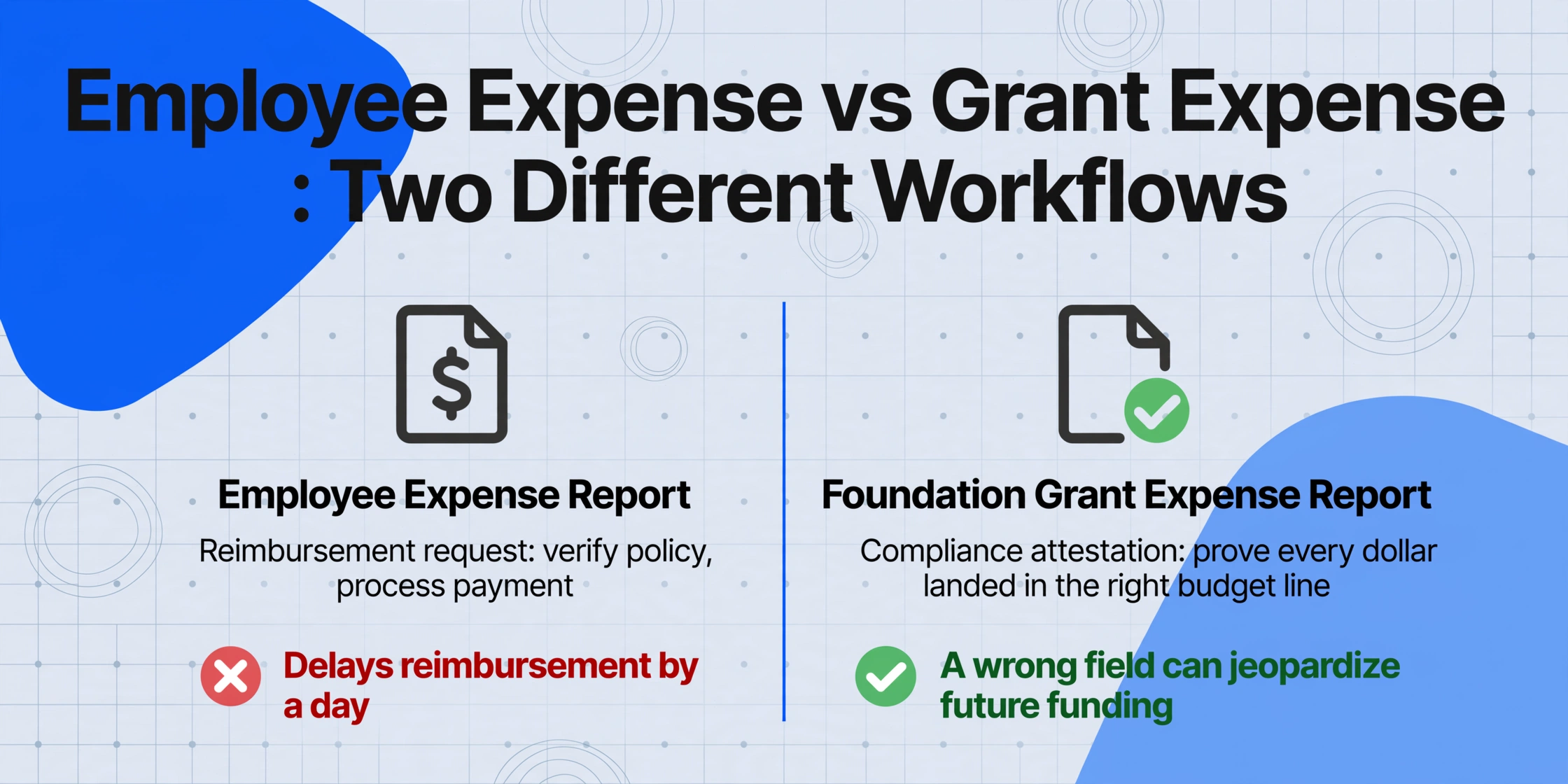
An employee expense report and a foundation grant expense report share a word in their names, but the workflows they serve are fundamentally different. An employee expense report is a reimbursement request: "I spent $47.50 on a client lunch; please pay me back." The finance team's job is to verify the expense against policy — is the amount within the meal limit, is the receipt attached, is the category correct — and process payment.
A foundation grant expense report is a compliance attestation: "Here is how we spent your $150,000 grant across eight budget categories, and here is the evidence." The grant administrator's job is not to approve reimbursement. It is to prove that every dollar landed in the budget line where the grant agreement said it would — and to explain, with receipts and narrative, any variance. Under the terms of a typical foundation grant agreement, an unspent $4,000 in the Travel line cannot simply offset a $4,000 overage in Equipment. Each line is independently accountable, and the reconciliation must document which lines are on-budget, which are over, which are under, and why.
The fields on a grant expense report are not arbitrary data points. They are assertions — about compliance with grant terms, about proper use of restricted funds, about the nonprofit's eligibility for future funding from the same foundation. Getting one field wrong on an employee expense report delays a reimbursement by a day. Getting one field wrong on a grant expense report can delay the next disbursement, trigger an audit finding, or damage a funder relationship that took two years to build.
Inside a Foundation Grant Expense Template: The Data Fields You Are Actually Extracting
Before designing extraction columns, it is worth understanding the anatomy of a typical foundation-provided expense report template. Most foundations — especially the larger ones like Ford, Rockefeller, MacArthur, and Gates — use a standardized template structure that follows the OMB Uniform Guidance (2 CFR 200) cost categories. Even when the template is the foundation's own design, the budget categories almost always trace back to this federal cost classification framework.
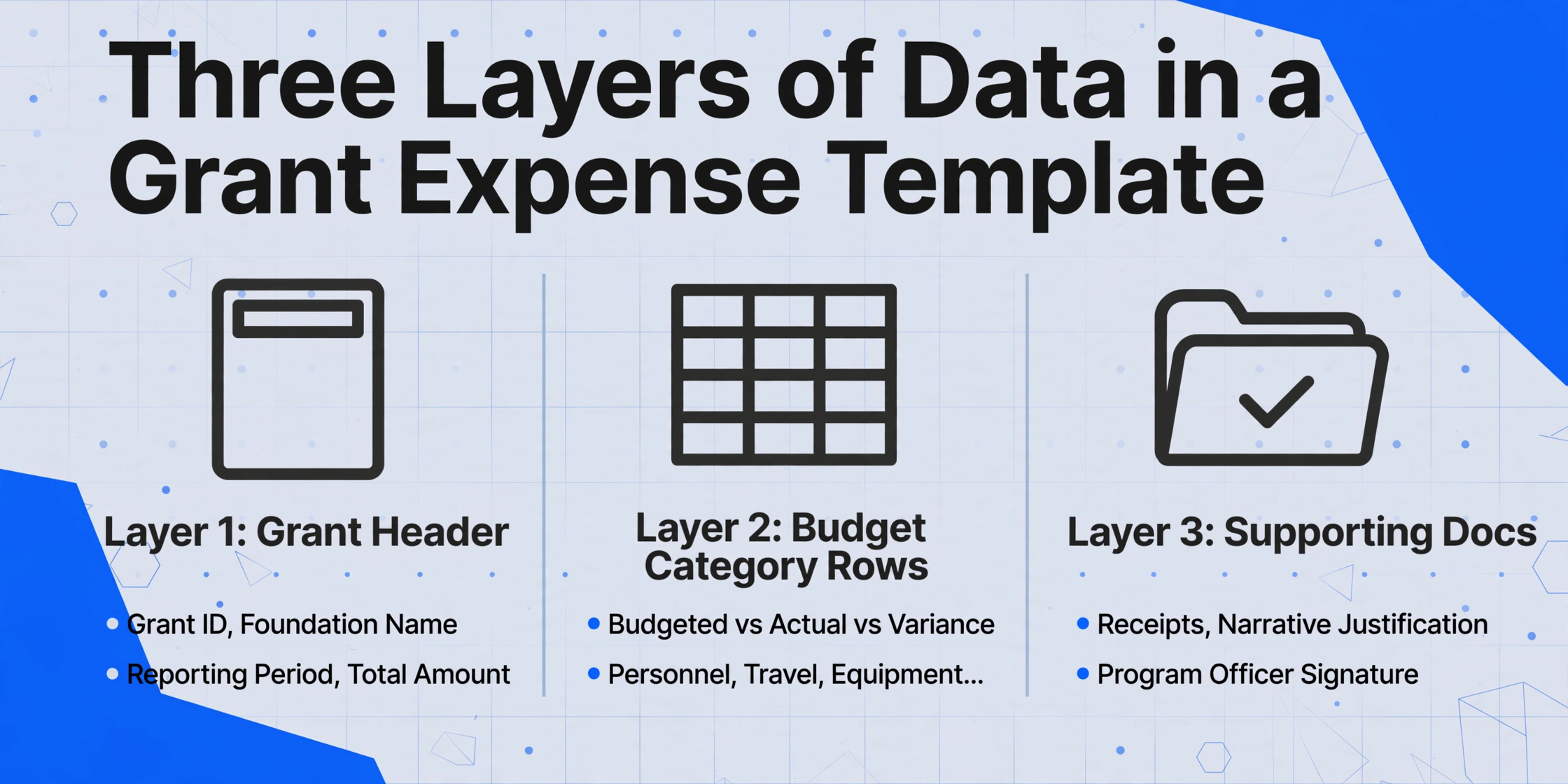
A standard grant expense report has three layers of data:
Layer 1 — Grant Header (once per report)
- Grant ID / Award Number
- Foundation / Grantor Name
- Organization Name & EIN
- Reporting Period (e.g. July 1 – December 31, 2025)
- Total Grant Amount
- Report Type (Interim / Final)
Layer 2 — Budget Category Rows (repeat per category)
- Budget Category (Personnel / Fringe / Travel / Equipment / Supplies / Contractual / Other / Indirect)
- Budgeted Amount (from the approved grant proposal)
- Actual Expense (what was actually spent in this category)
- Variance (Budgeted - Actual, or Actual - Budgeted depending on the template)
Layer 3 — Supporting Documentation (per line item, threshold-dependent)
- Receipt / Invoice Reference (#)
- Narrative Justification (required when variance exceeds foundation's tolerance — typically 10% or a fixed dollar amount)
- Program Officer Signature / Date
The personnel category alone generates the most reconciliation friction in practice. A grant might budget $45,000 for a program coordinator position at $35/hour for 1,286 hours. But the actual expense includes not just the coordinator's salary but their prorated share of payroll taxes, health insurance, and retirement contributions — all of which live in different expense accounts in the accounting system. The grant expense report asks for a single Personnel line number. The data to populate that number is scattered across the general ledger, payroll reports, and benefits statements. For more on the mechanics of reading this scattered data from source documents, how AI-based extraction differs from template OCR explains the semantic matching approach that makes this possible across varied document formats.
Design Your Extraction Columns to Produce a Reconciliation-Ready Output
The most common mistake when extracting grant expense report data is treating the extraction as a data capture exercise rather than a reconciliation pipeline. A spreadsheet that lists Actual Expenses without Budgeted Amounts gives you half the picture. A spreadsheet that computes the variance during extraction — so every row arrives with the reconciliation already done — gives you the finished product.
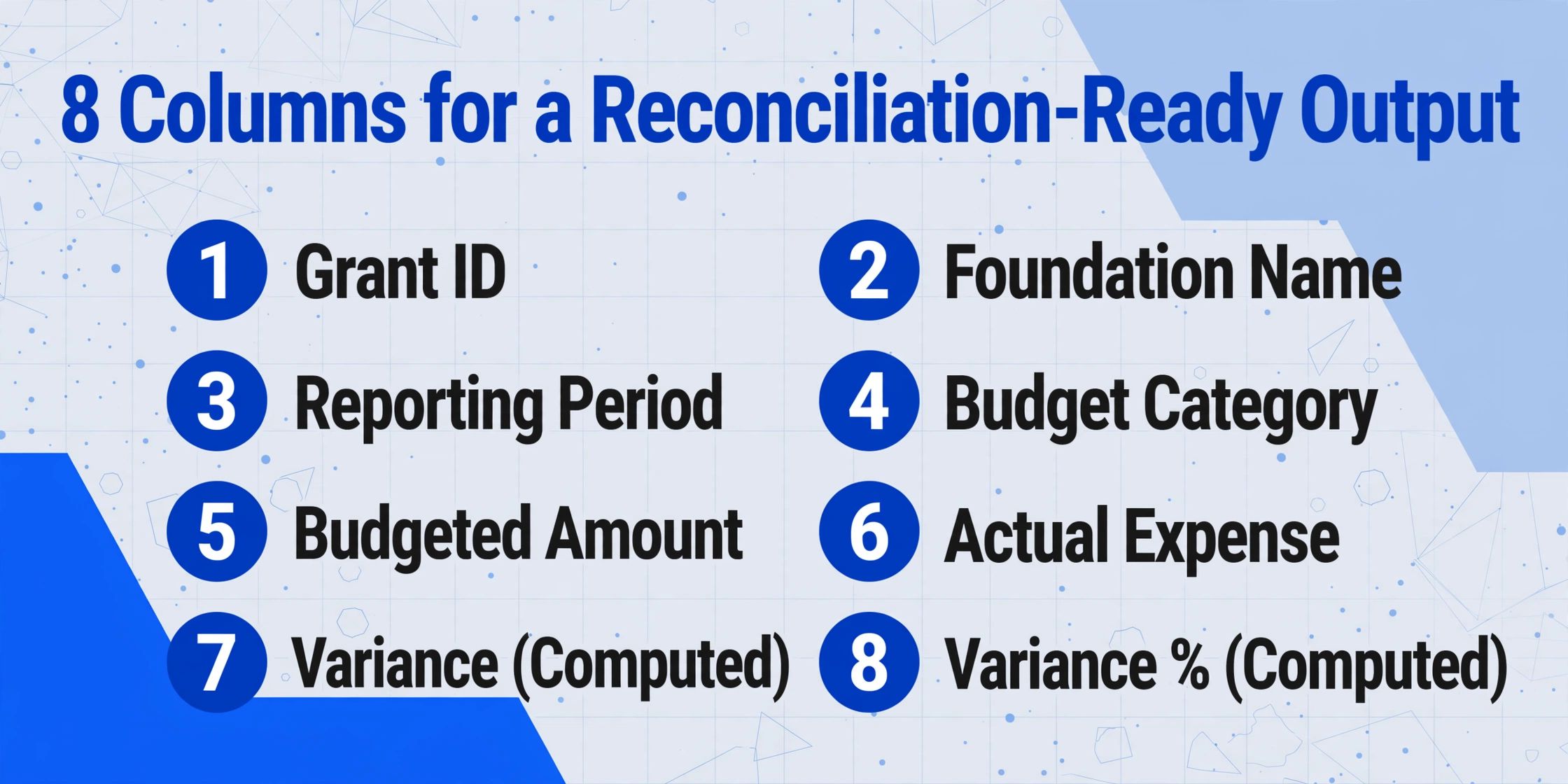
Here is a column set designed for foundation grant expense report extraction, organized by how each column should be populated:
| Column Name | Extraction Mode | Where the Data Comes From |
|---|---|---|
Grant ID | Direct extraction | Printed on the expense report header — the foundation's unique identifier for the grant |
Foundation Name | Direct extraction | The grantor organization name on the report |
Reporting Period | Direct extraction | The date range the report covers — determines which fiscal year the expenses belong to |
Budget Category | Direct extraction | Personnel, Fringe Benefits, Travel, Equipment, Supplies, Contractual, Other, Indirect Costs — extracted from the row label on the template |
Budgeted Amount | Direct extraction (numeric) | The approved budget figure from the grant proposal — already printed on the template as a reference column |
Actual Expense | Direct extraction (numeric) | The amount actually spent — typically hand-entered by the grantee or pulled from accounting records |
Variance (Budget - Actual) | Computed column: Budgeted Amount - Actual Expense | Calculated by the AI during extraction — positive = underspent, negative = overspent. No Excel formula needed after the fact |
Variance % | Computed column: (Budgeted Amount - Actual Expense) / Budgeted Amount * 100 | Expressed as percentage — a -12% variance flags a line that exceeds the foundation's typical 10% justification threshold |
Over Threshold | Computed column (conditional): Variance % < -10 ? "Yes" : "No" | Flags rows that require a narrative justification per grant agreement. The foundation's variance tolerance (10%, 15%, or a fixed dollar amount like $1,000) can be set as the threshold |
990 Functional Class | Inferred column: 990 Functional Class (options: Program/Management & General/Fundraising) | The AI reads the Budget Category and expense description to infer whether this cost is programmatic, administrative, or fundraising — a classification required for IRS Form 990 Part IX |
Receipt Reference | Direct extraction | Receipt or invoice number that supports the expense — extracted when printed on the report or referenced in a note |
Three columns in this set are doing work that would otherwise require post-extraction Excel manipulation. The Variance column turns extraction into reconciliation — the same pass that reads the budget and actual numbers also subtracts one from the other. The Variance % column gives you the foundation's own metric in the same output. And the Over Threshold column replaces the manual step of scanning a spreadsheet for negative variances above a certain percentage — the column is already populated with "Yes" on the rows that need a narrative addendum before submission.
Variance (Budget - Actual) with the formula Budgeted Amount - Actual Expense produces a reconciliation-ready spreadsheet — not a spreadsheet that still needs reconciliation work.Files are processed securely and not stored.
Batch Processing Across Multiple Grants and Foundations
The column set above works for a single grant. But most nonprofit grant administrators manage five, ten, or twenty active grants simultaneously — each from a different foundation, each with its own reporting calendar, each with its own template format. The batch processing workflow that handles this reality looks like this:
Group reports by column structure, not by foundation. Two foundations that use the same budget category column names (Personnel/Fringe/Travel/etc.) can be processed with the same extraction configuration — even if their header fields differ. Three foundations with different category naming conventions (one uses "Salaries," another "Personnel Costs," a third "Human Resources") need separate column sets — or you can let the AI's semantic matching bridge the terminology gap automatically.
Upload all reports in one batch. A folder containing five grant expense reports — a 4-page PDF from the Ford Foundation, a scanned Excel printout from a local community foundation, a digitally filled form, a scanned handwritten report from a small family foundation, and a photo of a printed template — all upload together. The AI reads each document independently, locates the matching fields across formats, and produces a consolidated output.
Enter your reconciliation column set once. The same columns — Grant ID, Budget Category, Budgeted Amount, Actual Expense, Variance, Variance %, Over Threshold, 990 Functional Class, Receipt Reference — apply across all reports. The output is a single Excel table with a Grant ID column that lets you filter, sort, or pivot by grant.
Review variance flags and export. The Over Threshold column marks every budget line that needs a narrative justification. Sort by that column, write the justifications for the flagged rows, and the grant expense report package is ready for submission. Processing time per report: 5–10 seconds. Review time replaces transcription time.
Foundation expense reporting is not like employee expense reporting where a single standard form template exists within your organization. Each foundation uses its own format — and the same foundation may revise its format between grant cycles. A traditional template-based extraction tool that expects "Personnel" to appear in row 3, column B will break on every format variation. Semantic extraction — where you define the concept you want ("the row label that names a budget category for staff compensation") rather than the position — handles the format variability as a normal operating condition. This distinction is covered in detail in our guide on how to improve OCR accuracy for varied document formats, which applies directly to the multi-foundation scenario.
From Reconciliation to 990: The Functional Expense Classification Step
The output of grant expense report extraction feeds directly into two downstream compliance processes: the financial report you send back to the foundation, and the IRS Form 990 your organization files annually. The connection between these two is a column in your extraction: 990 Functional Class.
Under IRS instructions for Form 990 Part IX, every dollar a 501(c)(3) organization spends must be classified into one of three functional categories:
| Functional Category | What Goes Here | Budget Category Mapping |
|---|---|---|
| Program Services | Expenses directly tied to mission delivery — program staff, program supplies, direct service costs | Most Personnel, Travel (program-related), Equipment (program use), Supplies (program), Contractual (program delivery) |
| Management & General | Administrative overhead — executive director salary, office rent, audit fees, general liability insurance | Portion of Personnel (admin staff), Indirect Costs, Equipment (office), Supplies (office) |
| Fundraising | Costs of soliciting contributions — development staff, grant writing consultants, fundraising events, donor management software | Portion of Personnel (development staff), Contractual (grant writing), Travel (donor meetings) |
The challenge for nonprofit finance teams is that the same budget category can span multiple functional classes. An organization's $120,000 Personnel budget might include $75,000 in program staff salaries (Program Services), $30,000 in executive director compensation (Management & General), and $15,000 in development officer salary (Fundraising). An AI that only extracts "Personnel: $120,000" gives you a number that still needs to be broken down manually before it can enter the 990.
An inferred column — one where you specify the output options and let the AI make a judgment call based on document context — handles this split. A column defined as 990 Functional Class (options: Program/Management & General/Fundraising) prompts the AI to read the context around each budget line: a line for "Program Coordinator — Youth Mentorship Initiative" maps to Program; a line for "Executive Director — General Operations" maps to Management & General; a line for "Development Associate — Annual Fund" maps to Fundraising. The classification runs during extraction — the spreadsheet arrives with the 990 functional column already populated.
For organizations that separate restricted and unrestricted funds, the same inferred-column approach applies. A column named Restriction Status (options: Temporarily Restricted/Unrestricted/Permanently Restricted) reads the grant context and classifies each expense accordingly. The combination of functional class and restriction status in a single extraction output means the spreadsheet serves as the authoritative source for both the foundation report and the 990 filing — no separate manual classification pass. For a companion perspective on handling different document types in nonprofit finance, our article on extracting donation receipts for nonprofit CRM and 990 filing covers the revenue side of the same reconciliation problem.
Why the Personnel Category Demands Special Attention
If there is one budget line on a grant expense report that causes more reconciliation delays than any other, it is Personnel. The reason is structural: personnel costs are never a single number in a single ledger account.
A grant that budgets $60,000 for a program manager position is really budgeting for 2,080 hours of labor at an hourly rate. But the actual personnel expense includes the salary itself, plus the employer's share of FICA (7.65%), state unemployment insurance, workers' compensation, health insurance premiums, and retirement plan contributions — all of which are separate expense line items in the general ledger, often tracked in different accounts, sometimes paid to different entities on different schedules. The grant expense report asks for a single Personnel Actuals number. The raw data to compute it lives in at least six different places.
This is where extraction helps differently than automation platforms do. An expense management platform wants you to issue corporate cards and capture transactions at the point of purchase — a workflow that doesn't apply to payroll, benefits, or insurance premiums. An extraction tool reads the summary data from the source documents you already have: the payroll register, the benefits statement, the insurance invoice — and populates the grant expense template columns. For detailed multi-column extraction from complex personnel documents, the PDF expense report to Excel converter applies the same column-matching approach to structured expense forms.
Frequently Asked Questions
Can the AI handle grant expense report templates from different foundations in the same batch?
Yes. Semantic extraction reads fields by meaning, not by position — so a Ford Foundation template with "Personnel" as its first budget line and a local community foundation template with "Salaries and Wages" as its third budget line can both be processed with the same column name Personnel. The AI understands that "Personnel Costs," "Salaries," "Staff Compensation," and "Human Resources" all refer to the same budget category concept. If the terminology difference is extreme — one foundation uses "Compensation" while another uses "Program Staff" — you can either define separate column sets for each or add an inferred column to normalize the categories in the output.
What happens when a grant expense report is partially filled — some Actual Expense cells have numbers, others are blank?
The AI extracts whatever values are present and leaves empty cells where values are absent. A blank Variance cell for a budget line where Actual Expense is also blank is not an error — it means that line is not yet ready for reconciliation. The spreadsheet still serves as a working document: the populated rows are reconciled, the blank rows are your to-do list. This is especially useful for interim reports where some budget lines have activity and others will have activity in later reporting periods.
Can the tool distinguish between expenses that belong to the current reporting period and expenses from a prior period?
Yes. Including Reporting Period and Expense Date as columns captures both values from the report. For organizations that use an inferred column to flag period mismatches — Period Match (Expense Date within Reporting Period? options: Yes/No/Unclear) — the AI checks whether each expense's date falls within the report's stated date range and flags any anomalies. This replaces the manual step of scanning a 50-line report for an expense dated outside the grant period.
How many grant expense reports can be processed in one batch?
Batch processing handles hundreds of pages in a single upload — all output is merged into one Excel file with one row per budget line per grant. Processing time per document is approximately 5–10 seconds, and documents are processed in parallel, so 10 grant reports complete in a few minutes. The practical limit is the upload size and processing queue depth, not a hard cap on document count. Each report keeps its Grant ID column value, so filtering or pivoting by grant in the output spreadsheet is straightforward.
Can the tool capture narrative justifications that accompany expense lines?
Yes. Add a column like Narrative Justification to your extraction configuration, and the AI will extract any explanatory text that accompanies a budget line — such as a note explaining why the Equipment line is 18% over budget. This is especially useful for reports where justifications are written in a separate section or appended as notes rather than inline with the budget lines. The extracted text appears in the output spreadsheet alongside the numeric data.
What if our accounting system already tracks expenses by grant — why extract from the expense report template at all?
Your accounting system tracks actual expenses. The foundation expense report template compares those actuals against the approved budget and asks for variance explanations. These two data sets live in different documents for a reason: the accounting system doesn't know the approved budget (which was set in the grant proposal), and the expense report template doesn't automatically pull actuals from the general ledger (especially in organizations where the accounting system is QuickBooks Desktop and the report is a PDF). Extraction bridges this gap by reading both the budgeted and actual columns from the completed template — or by letting you populate the actuals column from supporting documents and having the AI compare against the budgeted amounts already printed on the form.
The grant expense report you submit today is the compliance document your foundation reviews before releasing the next disbursement — and the audit trail your external accountant traces to the 990 two years later. Design the extraction columns to serve both timelines, and every report becomes a reconciliation artifact and a 990 input in a single pass.