Extract Bank Statement Data Into
Google Sheets Without Typing
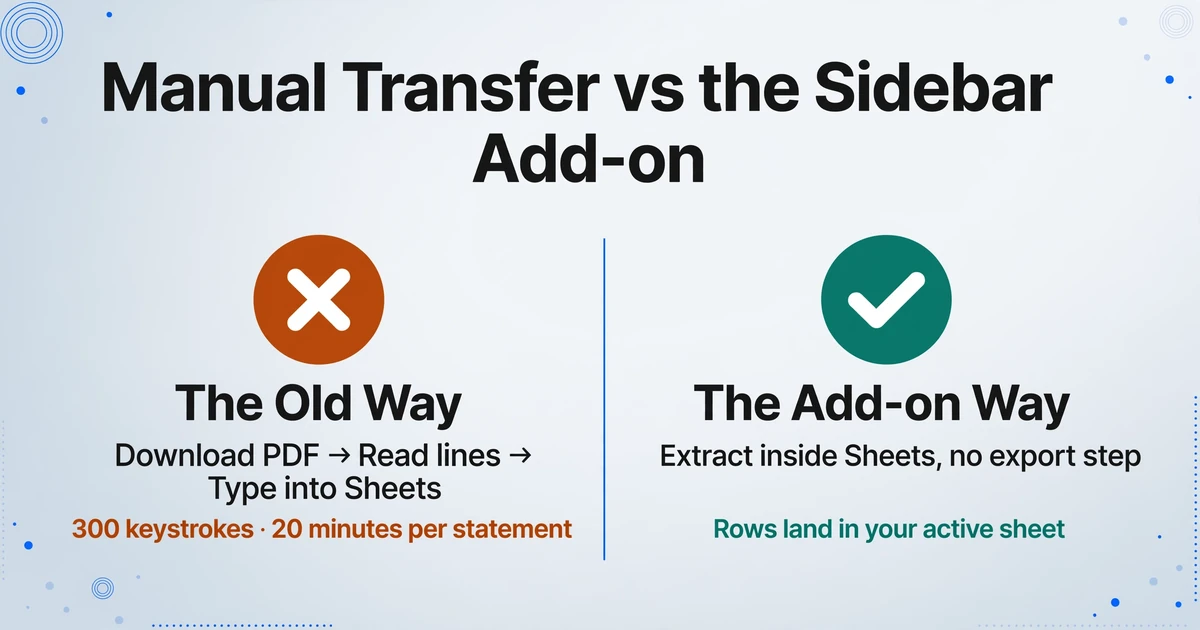
Bank statements arrive as PDFs. Reconciliation happens in Google Sheets. In between sits the same manual transfer that bookkeepers have been doing for decades: download the monthly statement, open it in a PDF viewer, read each transaction line, switch to the reconciliation sheet, type date, description, debit amount, credit amount, balance — row by row until the month matches. A single checking account with sixty transactions means roughly 300 keystrokes and twenty minutes of focused transcription. Two accounts plus a credit card, and the end-of-month reconciliation that should take fifteen minutes of comparison turns into an hour of data entry before you've verified a single number. The spreadsheet isn't the problem. The gap between the statement PDF and the sheet is.
The Gap Between Statement PDFs and Reconciliation Sheets
Bank reconciliation — matching your internal records against the bank's version — is one of the oldest and most important financial controls that every small business should perform monthly. GAAP doesn't mandate a specific reconciliation format, but it does require that financial records be accurate and verifiable. The monthly bank rec is how you prove they are.
Yet for small business owners and self-employed individuals who track their finances in Google Sheets, the reconciliation process has a structural problem that has nothing to do with accounting skill. It's the data transfer step:
Step 1 — Download the statement. Log into online banking. Navigate to the right account. Select the statement period. Download the PDF. For some banks, that's the only option — no CSV, no Excel, no structured export. Credit unions and regional banks are especially likely to offer PDF-only statements.
Step 2 — Open it. The PDF opens in a browser tab, Adobe Reader, or a phone screen. None of these are Google Sheets. You're now reading numbers in one application while the destination sits in another.
Step 3 — Read each transaction line. Find the date (is it "Transaction Date" or "Posting Date"?), the description (often a concatenation of merchant name, location, and a reference code that spans two lines), the debit column (if your bank separates debits and credits), the credit column, and the running balance. Every bank formats these fields differently. Chase PDFs use separate Debit and Credit columns. Wells Fargo and Bank of America use a single "Amount" column with negative values for debits. Credit unions often use fixed-width layouts from the 1990s. You are the parser for all of them.
Step 4 — Type each transaction into the reconciliation sheet. Switch windows. Click the Date cell. Type — and reformat, because the bank writes "05/03/2026" and your sheet expects "2026-05-03." Click the Description cell. Type. Click the Debit cell. Type. Click the Credit cell. Type. Click the Balance cell. Type. Repeat for sixty transactions. Then do it again for the next account.
Step 5 — Now you can start the actual reconciliation. After all the typing, you finally get to the work the sheet was built for: matching deposits against your invoice records, verifying that every check cleared, flagging the bank fee you forgot to record, and confirming the ending balance. The analysis that should take fifteen minutes starts after an hour of transcription.
Reconciliation is a verification task. Typing transactions into a sheet to enable that verification makes it a data entry job first. A sidebar add-on removes the typing so reconciliation is the only step — which is what it was supposed to be all along.
From Data Entry Form to Capture System: What the Sidebar Changes
Most tools that promise to move bank data into spreadsheets share the same architecture: a separate application. You upload statements to a web dashboard. You connect a bank feed that auto-imports transactions (QuickBooks, Xero, Wave all offer this). You download a CSV from the bank portal and use an import script. The extraction happens somewhere else. Sheets is the destination, not the workspace.
A Google Sheets add-on is not a separate application. It's a sidebar panel that opens inside your spreadsheet — accessible from the Extensions menu, no new tab, no second login, no separate dashboard to check. When you install it, the add-on becomes part of your Sheets environment: same window, same session, same data. You open the sidebar, upload a bank statement PDF, and the extracted transactions appear as rows in whatever sheet is currently active. There is no export step because the data was never anywhere other than your reconciliation sheet. For the full capability rundown — supported field types, formats, and plan details — see the Google Sheets extraction capability guide.
The mechanism that makes this work is column-name extraction: instead of drawing bounding boxes around each field or building a template that matches one bank's PDF layout, you type the field names you want — "Date," "Description," "Debit," "Credit," "Balance" — and the AI reads the statement to find those values by understanding what they mean, not where they sit on the page. A Chase statement and a credit union statement look nothing alike. But both contain transaction dates, descriptions, amounts, and running balances. Column-name extraction searches for the meaning of those fields, not their pixel coordinates.
This is the difference between a template-based approach and a semantic one. Templates need one configuration per bank format. Column-name extraction needs one column definition per output sheet — and it works across Chase, Wells Fargo, Bank of America, your local credit union, and international banks like HSBC or Barclays without changing anything.
There's a second capability that changes how you think about bank transaction data: inferred columns. You can define a column like "Category (options: Revenue/COGS/Operating Expenses/Financing/Transfer)" and the AI reads each transaction description — "AMAZON WEB SERVICES SEATTLE WA," "TRANSFER TO SAVINGS XXXXXX4567," "POINT OF SALE SQUARE DEPOSIT" — and classifies it into the correct category. No bank statement on earth prints a "Category" column. The AI infers it from the transaction context. For a small business owner who needs to know "how much did I spend on operating expenses this month," this merges extraction and categorization into a single pass — a month's bank data comes out of the sidebar already classified.
Files are processed securely and not stored.
Setting Up Your Reconciliation Sheet Pipeline
The setup takes under five minutes and requires no template training or bank-specific configuration. Here's the four-step workflow that turns your reconciliation sheet from a data entry form into a capture system:
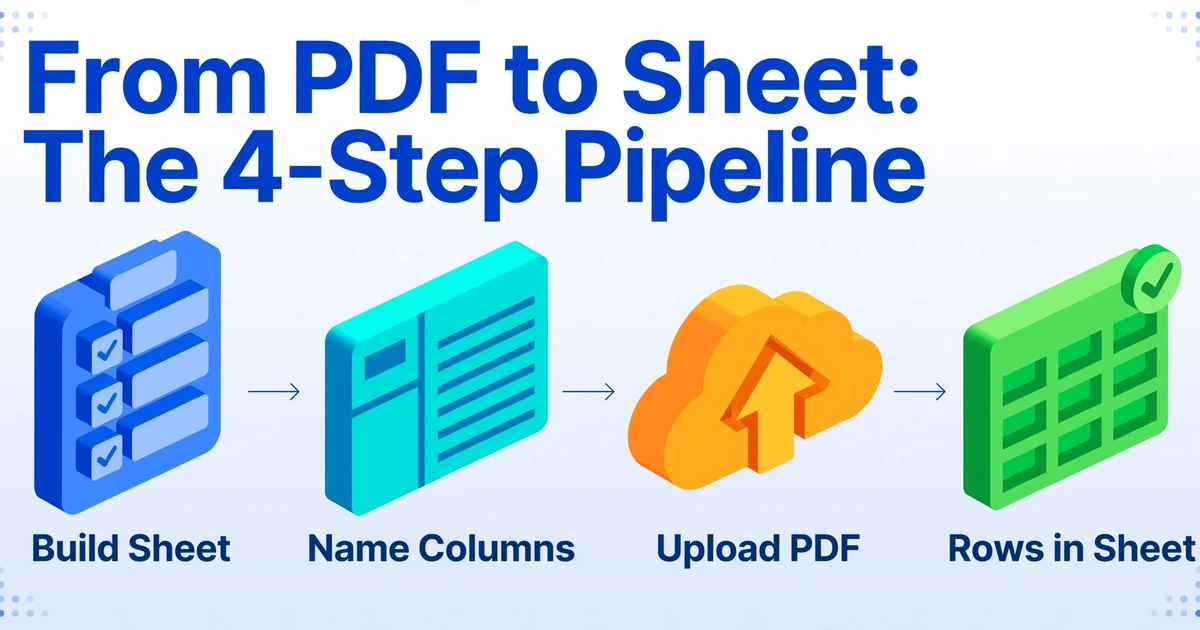
1. Build your reconciliation sheet structure. If you already have a reconciliation template in Google Sheets — columns for Date, Description, Debit, Credit, and Balance, with a section below for matching against your internal records — you don't need to change anything. The add-on appends new rows to the existing structure. If you're starting fresh, create a sheet with those five columns as headers. Add an additional column for the bank's ending balance per the statement and a formula row for "Difference" — this is the cell that turns green when everything matches.
2. Open the add-on sidebar and name your columns. From the Extensions menu in Google Sheets, open the add-on. In the sidebar, type the field names that match your sheet's column headers. For a standard bank statement, that's typically "Date," "Description," "Debit," "Credit," and "Balance." If your bank separates debits and credits into a single column with negative values, define just "Date," "Description," "Amount," and "Balance." The column names you enter tell the AI what to look for — not where on the page to find it. If you also want transaction categories inferred, add a column like "Category (options: Revenue/COGS/Operating Expenses/Financing/Transfer)" and the AI classifies each transaction as it extracts.
3. Upload your bank statement PDF. Drag the PDF into the sidebar, or click to browse. The add-on accepts PDF files (whether digital originals or scanned paper statements), images (JPG, PNG, WebP), and screenshots of online banking pages. This matters because not every bank provides PDF exports — a screenshot of your transaction history page works as input when that's all you have. If you download statements from multiple accounts (checking, savings, credit card), upload them one at a time or batch them together for end-of-month processing.
4. Data lands in your sheet. Hit extract. The AI reads the statement, locates the values matching your column names, and appends each transaction as a new row. The column order matches what you specified in the sidebar. Your existing formulas, conditional formatting, and reconciliation checks stay intact — the new rows are just the next rows in the same structure, ready for matching against your internal records.
The add-on turns your reconciliation sheet from a data entry form into a capture system. The distinction matters: a data entry form requires you to do the work before the sheet can be useful. A capture system receives data and makes the sheet immediately usable for what it was built for — comparing, matching, and flagging differences. The sidebar doesn't replace your reconciliation process. It removes the hour of typing you do before the process starts.
Beyond Transcription: What Structured Bank Data Enables
Getting transaction data into the sheet without typing is the immediate win. But the structure that the add-on enforces — consistent column formats, categorized transactions, retained original files — creates downstream benefits that compound across the accounting year.
Reconciliation accuracy improves because the data is consistent. Manual transcription introduces errors. A date typed as "05/03/2026" on one row and "2026-05-03" on the next creates reconciliation mismatches that have nothing to do with your bank — they're artifacts of your own data entry. A description copied as "AMAZON WEB SERVICE" on row 12 and "AMAZON WEB SERVICES" on row 14 prevents a simple VLOOKUP from matching recurring charges. When the AI extracts the same field the same way every time, the reconciliation has one fewer source of discrepancy to chase down. A 2024 NSBA survey found that the majority of small business owners spend over 20 hours per year dealing with federal taxes alone — and businesses that reconcile monthly with clean data spend less of that time reconstructing records at year-end (NSBA 2024 Taxation Survey).
Inferred categories turn reconciliation into a monthly financial review. When every transaction row arrives with a category already assigned — Revenue for client payments and deposits, Operating Expenses for rent, software, and supplies, Financing for loan payments and interest, Transfer for movements between accounts — your reconciliation sheet doubles as a monthly P&L snapshot. A SUMIF of the Operating Expenses category gives you a real expense number without waiting for year-end. Filtering by "Transfer" isolates the transactions you can ignore for profit calculation. This changes the monthly reconciliation from a clerical obligation into a business insight that you actually want to see.
Tax preparation becomes a data export, not a reconstruction project. IRS Publication 583 states that electronic records are acceptable as long as they are accurate, complete, and retrievable. A spreadsheet of structured, categorized bank transactions — paired with the original statement PDFs — meets that standard. When your accountant asks for a year of categorized business expenses, you export the sheet rather than reconstructing 12 months of transactions from 36 PDFs. The standard retention period is three years from the filing date, though employment tax records should be kept for four and records involving substantial income omission for six. In practice, a seven-year digital archive of reconciled, categorized sheets is the safest default.
The NFIB reported in June 2025 that 19% of small business owners ranked taxes as their single most important business problem. The root of tax stress isn't calculating what's owed — it's proving every deduction with organized records. A monthly reconciliation sheet where every transaction is consistently extracted and categorized is the foundation those proofs are built on.
Where the Add-on Fits in Your Accounting Tool Ecosystem
The accounting software landscape for small businesses is well-populated. QuickBooks ($15–$35/month) connects to bank accounts and auto-imports transactions, with built-in reconciliation tools. Xero ($15–$78/month) offers similar bank feeds with a strong accountant collaboration model. Wave (free) provides bank-connected accounting aimed at sole proprietors. FreshBooks and Zoho Books serve the invoicing-plus-accounting niche. All of them handle bank reconciliation within their platforms.
Why would someone still use Google Sheets for reconciliation? Two common reasons:
1. Their bank doesn't support automatic feeds. Not every financial institution integrates with QuickBooks or Xero. Small credit unions, community banks, international banks, and some business accounts lack API-based transaction feeds. When auto-import isn't an option, the "bank feed" feature in accounting software is useless — and you're back to manual entry regardless of which platform you choose.
2. They don't want another platform. A business owner who already tracks everything in Google Sheets — inventory, invoices, expenses, payroll — doesn't have a platform gap. They have a data entry problem. Adding QuickBooks is adding a tool they never asked for to a workflow they already own. The add-on doesn't ask them to migrate their data, learn double-entry bookkeeping, or restructure their categories. It inserts at the one point where their existing system hurts: the manual transfer of transactions from statement to sheet.
The add-on is not a replacement for accounting software. It doesn't do double-entry bookkeeping, payroll, invoicing, or tax filing. What it does is remove the extraction step from the reconciliation workflow — and that step is the one that burns the time. If you later decide to move to QuickBooks or Xero, a year's worth of clean, consistently structured bank transactions in a Google Sheet is a straightforward CSV import. If you stay in Sheets indefinitely, the add-on keeps your monthly reconciliation current without the hour of data entry that precedes it.
The sidebar add-on turns your reconciliation sheet into a capture system. You don't change your accounting workflow. You delete the step where you type bank transactions by hand.
The same add-on that handles bank statements also processes receipts and invoices — making it useful for small businesses that track multiple document types in separate sheets. If you're pulling supplier invoices into an AP tracking sheet, the workflow is identical: name your columns, upload the PDFs, data appears in the sheet. For the full walkthrough, see our guide to extracting invoice data into Google Sheets, which covers the same sidebar architecture applied to supplier invoices, AP tracking, and expense classification. For expense receipts specifically, our article on extracting receipt data into Google Sheets covers the same pattern for vendor, date, amount, and category fields.
For small businesses handling higher transaction volumes, a batch approach saves time at month-end. Our guide to batch processing receipts with the add-on describes the same multi-file upload workflow that applies to statements — upload all your monthly statements at once and let the AI process them in sequence. And if you're weighing the sidebar approach against the alternative of downloading statements, importing CSV files, and manually cleaning formats, see our comparison of the Sheets-based AP pipeline workflow for an analysis of where each approach breaks down at scale.
For readers working with bank statements specifically — beyond the add-on workflow — our earlier article on extracting bank statement data into Excel covers the general extraction process across statement formats, and our analysis of how much bank reconciliation actually costs quantifies the manual-entry hours that the add-on eliminates. If you're evaluating extraction tools for your firm — including how the add-on compares against purpose-built bank statement software on reconciliation accuracy and pricing — our roundup of the best bank statement extraction tools ranks the leading options head to head. And for a one-off conversion without the sidebar, the bank statement to Excel converter runs the same extraction directly in your browser.
Frequently Asked Questions
Can the add-on handle statements from multiple different banks in the same month?
Yes. Upload statements from Chase, Wells Fargo, your credit union, and an international bank — one after another or as a batch — and the column-name extraction handles each bank's unique layout without per-bank configuration. The AI reads dates, descriptions, debits, credits, and balances from each statement by understanding what those fields mean, not by matching a template. All transactions land in the same sheet with the same column structure.
Does the add-on work with credit card statements, or only bank statements?
It works with any transaction-based financial document that contains dates, descriptions, and amounts — checking statements, savings statements, credit card statements, and merchant processing statements. Define your columns ("Date," "Description," "Amount," "Transaction Type" for card statements, for example) and the AI extracts the matching data regardless of the document label at the top of the page. For a deeper look at credit card statement extraction, see our article on extracting bank and credit card statement data for format-specific considerations.
What if my bank statement is a scanned image, not a digital PDF?
Scanned paper statements work — the AI reads the document as an image and extracts text visually, not from the PDF's text layer. If the scan is legible to your eye, the AI can typically read it. Low-quality scans with faded text, heavy shadows, or severe skew may produce partial results. For scanned statements, a flatbed scan in good light yields better extraction than a phone photo.
What happens if the AI misreads a transaction?
Extracted data appears directly in your sheet as editable cells. If the date came through as "05/15/2026" when the statement says "05/13/2026," you correct it in the cell. There's no separate review interface — your sheet is the review surface. This makes verification part of your existing reconciliation workflow: as you match each row against your internal records, you're also confirming that the extraction is correct. The add-on doesn't lock data behind a proprietary verification screen.
Can the add-on help with multi-currency bank statements?
The AI reads amounts as they appear on the statement — including currency symbols (USD, EUR, GBP, CAD, etc.). It doesn't perform currency conversion. If you need extracted amounts in a single currency for consolidation, you'll apply conversion rates in your sheet using Google Finance formulas in a separate column after extraction.
Does the add-on replace QuickBooks or Xero for bank reconciliation?
No. The add-on handles one step: getting transaction data from a statement PDF into structured rows in your sheet. It doesn't do double-entry bookkeeping, bank reconciliation matching against your general ledger, payroll, invoicing, or tax filing. Think of it as the extraction layer — it can feed clean data into QuickBooks or Xero (via CSV import), sit alongside Wave as your organized source of truth, or serve as the primary transaction tracker if Google Sheets is all you need. It makes your sheet work faster. It doesn't make your sheet do what accounting software does.
A year of reconciled bank statements — extracted, categorized, and matched — is the single most reliable record a small business owns. The add-on doesn't change what that record looks like. It changes how long it takes to build it: from an hour of typing per account per month to a sidebar upload and a verification pass. The reconciliation is the same. The data entry isn't.
Bank statements come as PDFs. Reconciliation happens in sheets. Between them no longer sits a keyboard. Try the add-on on your next bank statement