Extract Timesheet Data into Google Sheets
for Payroll Without Typing
Nearly 5 hours per pay period. That's how long the average small business owner spends calculating, filing, and remitting payroll taxes alone — before factoring in the time it takes to type timesheet data into the spreadsheet in the first place. An Intuit QuickBooks survey of 1,006 U.S. employers found that 63% of small business owners never realized how much time they were spending on payroll taxes, and 82% said they reviewed every calculation manually to ensure accuracy. That manual review loop — typing hours from paper timecards or phone photos of sign-in sheets into Google Sheets — is an unpaid hourly worker your payroll budget never accounts for. This article covers how to remove that worker from the process with a sidebar add-on that extracts timesheet data directly into your payroll spreadsheet, without leaving Google Sheets, downloading a file, or typing a single clock-in time.
The Hours That Disappear Before Payroll Even Runs
Everyone budgets for payroll itself — the wages, the taxes, the direct deposits. Almost nobody budgets for the hours spent getting timesheet data into the spreadsheet the night before payday. For a small business with 15 hourly employees submitting paper timecards each week: 15 cards, 5-8 fields per card (name, date, clock-in, clock-out, break, total hours, maybe a project code or job site), 75-120 individual values that need to find their way into cells. Even at 30 seconds per value — optimistic when deciphering handwriting — that's 45 minutes of pure transcription, every single week.
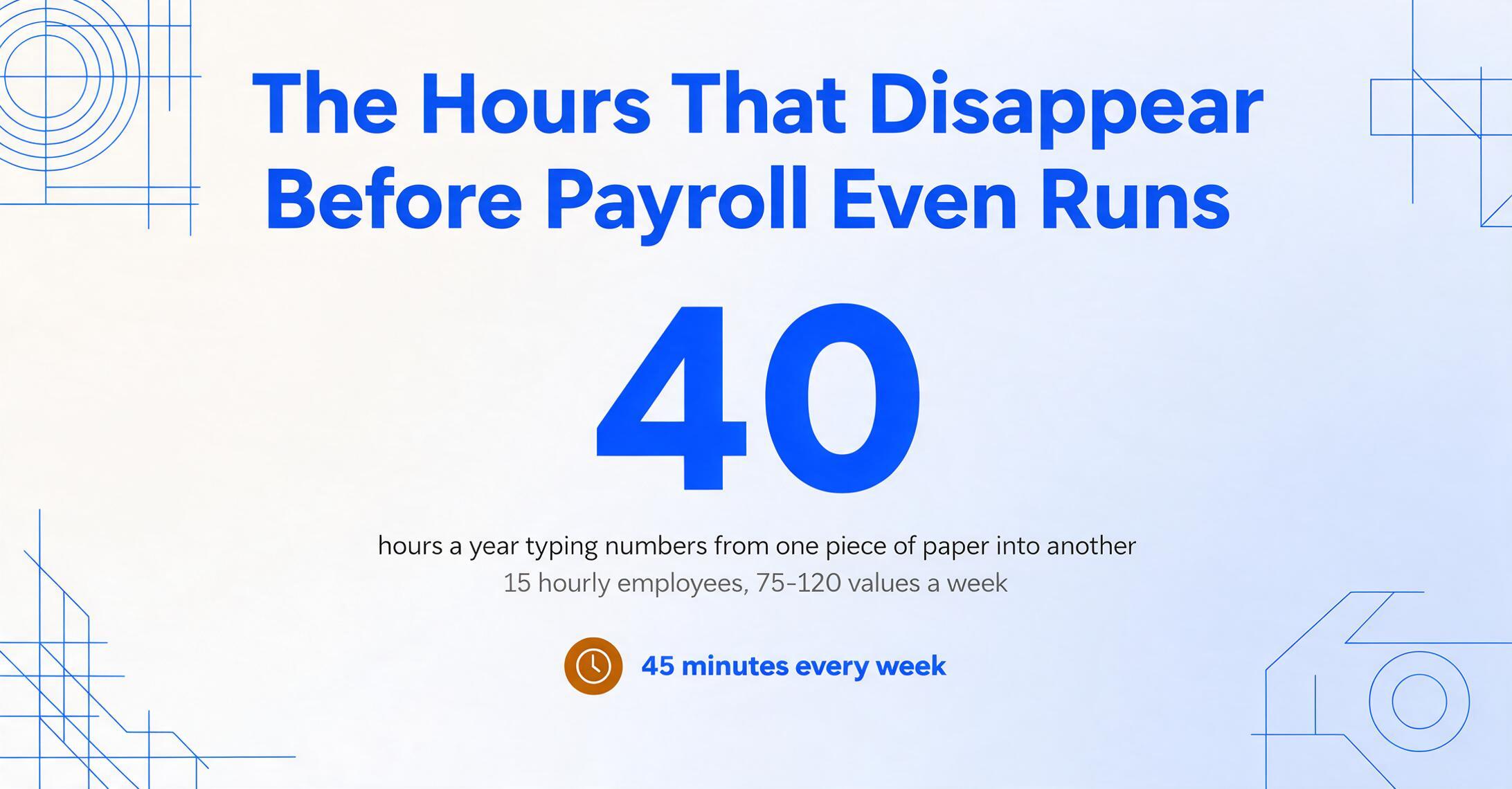
Multiply that by 52 weeks and you're looking at nearly 40 hours a year spent typing numbers from one piece of paper into another. And that's before the corrections. As one payroll admin at a community college described on Reddit: "300+ classified employees still submit paper timesheets every month. I have to physically gather them, print supporting docs, alphabetize everything, code them manually, and enter data into spreadsheets." On a smaller scale but equal frustration, a business owner handling 30 mobile employees described the same bottleneck: "Each one of these time sheets are hand typed into an excel spreadsheet for payroll."
This isn't just a construction thing, though construction gets most of the attention — roughly 40% of construction firms still use paper time tracking, according to a ConstrucTech study. It's a small business thing. When Google Sheets is your payroll system — because it's free, it's flexible, and you built your payroll register template three years ago and it still works — the bottleneck isn't the spreadsheet. It's the gap between "the timesheets are here" and "the hours are in the sheet."
The transcription step between a timesheet photo and a payroll spreadsheet is not a small business problem waiting for a payroll software subscription to solve. It's a data entry problem waiting for an input method that doesn't require a keyboard. The Google Sheets add-on addresses that gap specifically — it's an input method, not a platform migration.
The Download-and-Import Step That Breaks Your Payroll Flow
There are legitimate tools that extract data from timesheets. Parseur and several OCR platforms will take a photo of a timecard and return structured data. Their workflow is: upload to the tool's web dashboard → process → download CSV or Excel → open the file → copy the data → paste into your payroll sheet. Six steps, two tool switches, one context loss per cycle.
For a bookkeeper who processes payroll once a week, the download-and-import step isn't annoying because of the seconds it takes to click "Download." It's annoying because it forces you out of the spreadsheet you built to serve your exact payroll workflow. Your sheet has columns in a specific order. It has conditional formatting that highlights overtime rows in red. It has a pivot table in the Summary tab that feeds your quarterly 941 preparation. Every time you import data from an external CSV, you're importing into someone else's column order — or you're adding a reformatting step to get the data to match your structure. The tool that touches your sheet once (during import) never designed its output to match what you've already built.
A Google Sheets sidebar add-on removes the download step entirely. It opens as a pane inside your spreadsheet — same tab, same window, same session. You upload a timesheet photo from the sidebar. The extraction engine reads it — the same vision-model-based extraction that handles handwriting, printed text, and mixed formats. The resulting data appears in the next empty row of your active sheet, right where your payroll formulas expect it to be. No CSV download. No reformatting column headers. No switching between three apps to get 15 rows of data into the sheet you've been using for years. For the full capability rundown — supported field types, formats, and plan details — see the Google Sheets extraction page.
The cost of the download-and-import step isn't measured in clicks. It's measured in the cognitive friction that accumulates until you abandon the tool entirely and go back to typing — because manual typing, at least, happens in the spreadsheet you know.
Timesheet in the Sidebar, Payroll Data in the Sheet
The add-on installs from the Google Workspace Marketplace — Extensions → Add-ons → Get add-ons, search "ImageToTable.ai." After a one-time API key connection that syncs the add-on to your account, it lives in your Google Sheets sidebar, available whenever you open the spreadsheet you use for payroll. (For a full walkthrough of the add-on across all document types, see the Google Sheets add-on hub guide.)
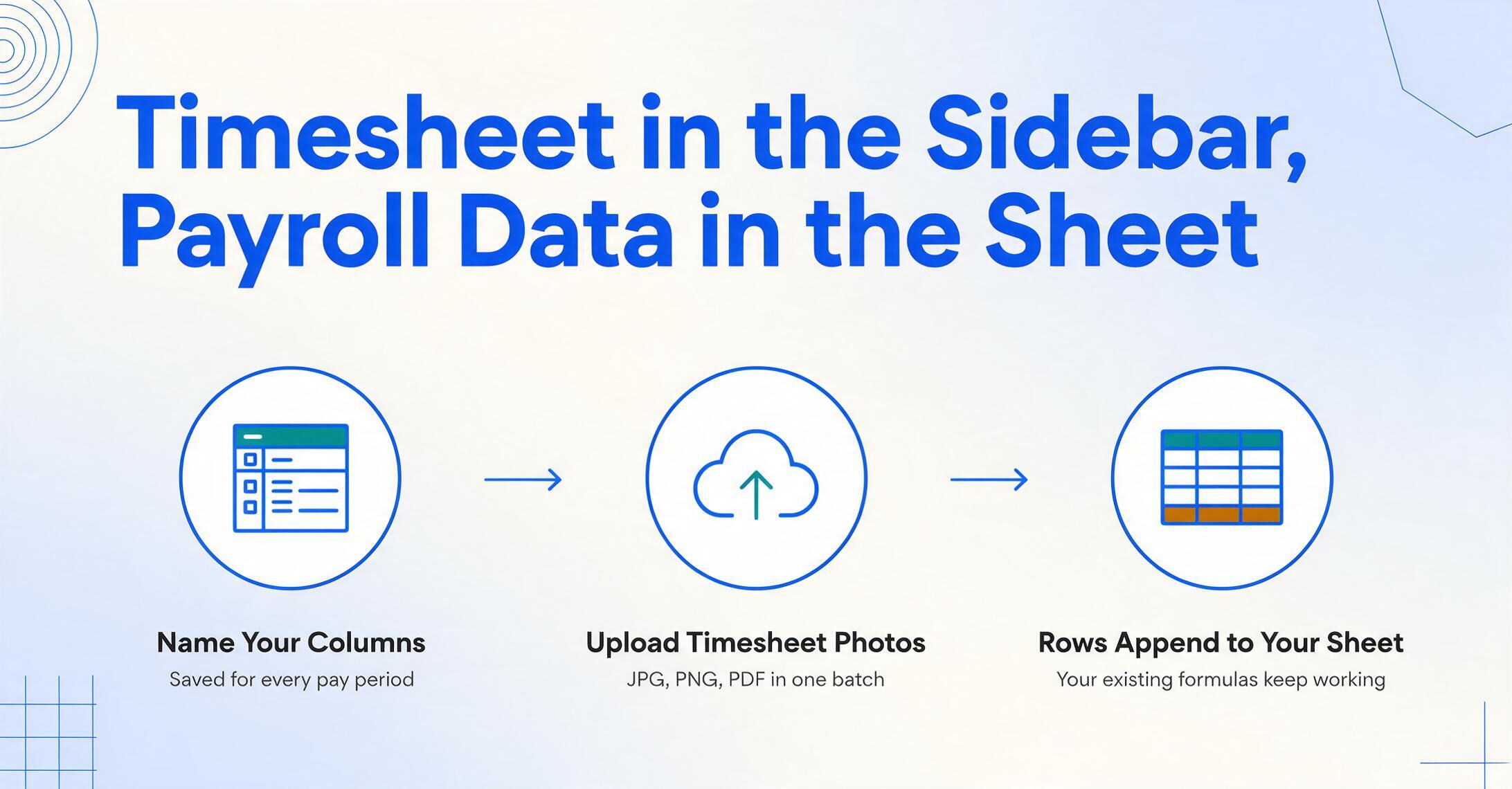
The payroll-specific workflow takes three steps that replace every keystroke in the manual process:
Name your payroll columns, once. In the add-on sidebar, type the fields your payroll sheet needs: Employee Name, Date, Clock In, Clock Out, Break, Total Hours, OT Hours, Project. These column names become the headers for every row the add-on creates — and they match whatever column order your existing payroll register already uses. Save this column list; it reuses every pay period without re-entry.
Upload timesheet photos in batch. Drag JPGs, PNGs, or PDFs into the sidebar — the 15 weekly timecards, the phone photo of the sign-in sheet from the Saturday crew, the foreman's PDF of hours from the remote job site. All file types go into the same batch, regardless of format or layout.
Data appends directly to your sheet. Each timesheet generates one or more rows at the bottom of your active sheet — columns in the order you specified, values extracted by the AI. Your existing formulas (SUM, IF, pivot tables) work immediately on the new rows. You review output rather than produce it.
What makes this work across different timesheet formats is column-name extraction. Instead of drawing rectangles around each field on a template — which would break the moment a foreman uses last year's timecard format — you specify what data you want by its meaning. The AI reads the entire page and locates "Employee Name" wherever it appears and in whatever layout it's presented in. A name at the top of a printed weekly grid is an employee name. A name in the margin of a handwritten sign-in sheet is also an employee name. The AI recognizes both because it understands context, not because both names happen to land in cell A3. For a deeper look at how the extraction engine handles handwriting and layout variance specifically, see the full guide to handwritten timesheet extraction.
After extraction, the sheet you see carries the same structure you built — columns in your order, data in your format, formulas still intact. The sidebar is an input device, not a platform change. You keep using the same payroll register you've been using. The only difference is where the data comes from.
Same extraction engine as the add-on. Files processed securely, not stored.
What the Add-on Actually Reads from a Timesheet
Timesheets contain two layers of information: header data that identifies the worker and pay period, and daily-entry data that repeats for each day. A manual typist processes both layers separately — typing the employee name once, then copying it across every daily row. The add-on handles both layers automatically.
| Field | Where It Appears on the Timesheet | What the AI Looks For |
|---|---|---|
| Employee Name | Top header, signature line, or margin | A person's full name positioned near time entries — carries forward to every daily row in output |
| Date | Column header, daily row label | Calendar date associated with a set of clock-in/out times — interpreted across formats (MM/DD, DD/MM, weekday labels) |
| Clock In / Clock Out | Paired columns or handwritten entries per day | Time values — recognized in 12-hr AM/PM, 24-hr military, and informal notation ("6:45") |
| Break Duration | Separate column, parenthetical note, or implied by gap | Explicit break entries; if absent, can be computed via computed columns that subtract break from gross hours |
| Total Hours | End-of-row calculation, may be hand-written or blank | Extracted if present; if missing, computed from Clock Out − Clock In − Break via computed column |
| Overtime Hours | Separate OT column or embedded in Total Hours | Explicit OT entries; if absent, computed via conditional logic (hours > 8 → OT = hours − 8) |
| Project / Job Code | Separate column, header area, or margin note | Job identifiers for labor cost allocation — extracts even when labeled differently across foremen ("Job," "Project," "Site") |
The output the add-on produces looks like a payroll register row — one row per employee per day, with header fields repeated across all rows for that employee:
| Employee Name | Date | Clock In | Clock Out | Break | Total Hours | OT Hours | Project |
|---|---|---|---|---|---|---|---|
| Jose Martinez | 2026-05-12 | 6:45 AM | 3:30 PM | 30 min | 8.25 | 0.25 | Elm Street Retail |
| Jose Martinez | 2026-05-13 | 7:00 AM | 4:15 PM | 30 min | 8.75 | 0.75 | Elm Street Retail |
| David Garcia | 2026-05-12 | 6:30 AM | 2:30 PM | — | 8.00 | — | Oakview Residence |
Where timesheet data gets tricky — when a worker records clock-in and clock-out but forgets to calculate total hours, or when overtime needs to be flagged for review — the add-on supports computed columns. You can define a column like Total Hours (Clock Out − Clock In − Break) and the AI calculates it during extraction. You get a payroll-ready spreadsheet in one pass, not raw data that needs a second round of formula work.
How the Sidebar Add-on Compares to Typing, Payroll Software, and Separate Extraction Tools
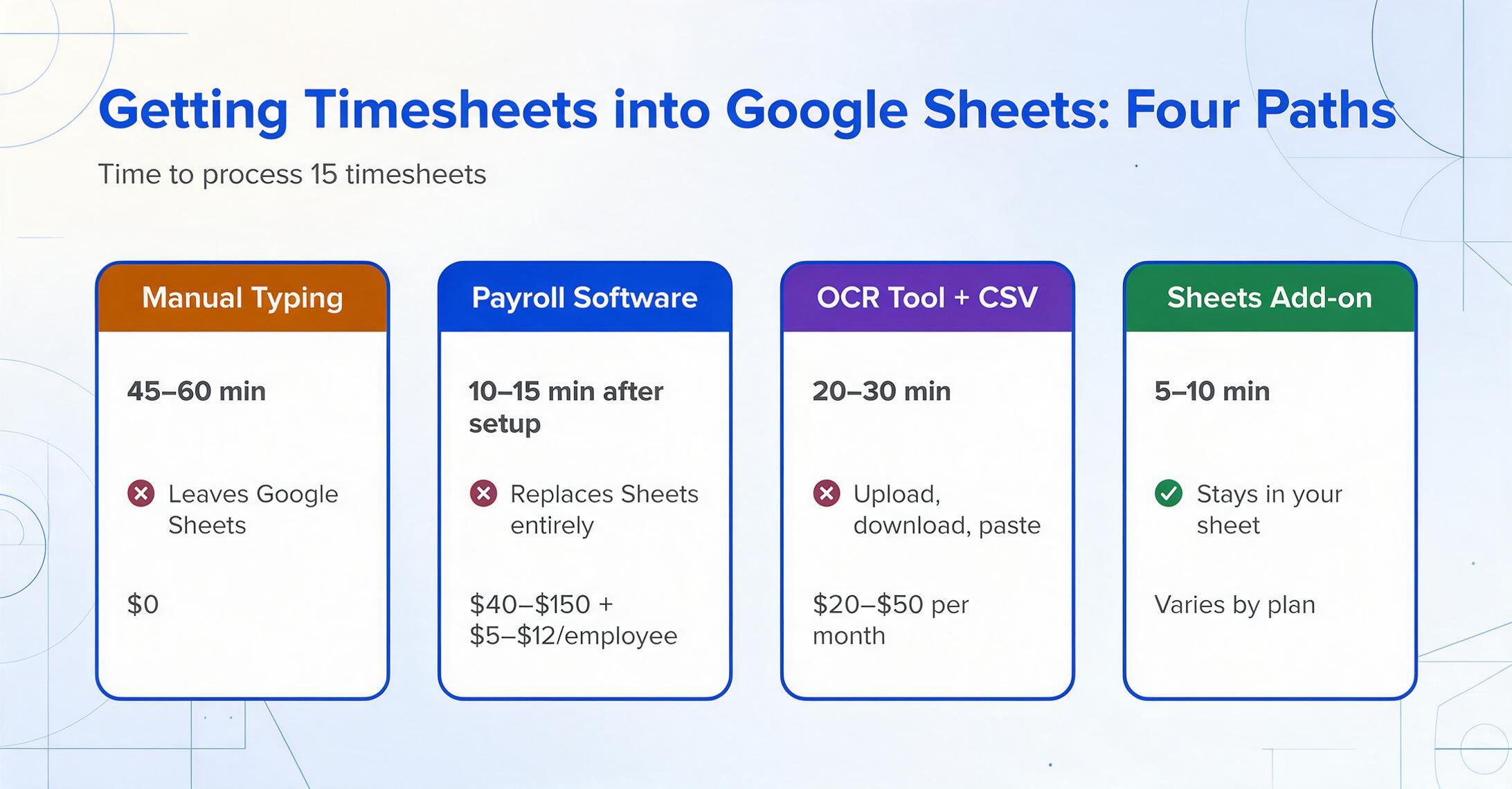
Small businesses processing timesheets into Google Sheets have four paths. They differ not just in cost, but in whether they require you to leave the spreadsheet you already built:
| Method | Time for 15 Timesheets | Leaves Google Sheets? | Monthly Cost | Built for Payroll? |
|---|---|---|---|---|
| Manual typing | 45-60 min | Yes (to open each photo/PDF) | $0 | You built it |
| Payroll software (Gusto, QuickBooks Payroll) | 10-15 min (after setup) | Yes (it replaces Sheets entirely) | $40-$150 + $5-$12/employee | Fully — but requires migration |
| Separate OCR tool + CSV import | 20-30 min | Yes (upload to dashboard, download CSV, paste into sheet) | $20-$50/month | No — reformatting step required |
| Google Sheets sidebar add-on | 5-10 min | No | Varies by plan | No — but feeds your existing payroll sheet |
The payroll software row deserves an honest note: Gusto, QuickBooks Payroll, ADP Run, Patriot Payroll ($17 + $4/employee), and Square Payroll ($35 + $6/employee) all solve payroll end-to-end — tax filing, direct deposit, W-2 generation. They're the right answer for many businesses. But they're also an answer to a different question than what this article addresses. The question here is: "I already run payroll in Google Sheets. My timesheets arrive as paper or photos. How do I get the data in without leaving the sheet?" Payroll software answers "stop using Sheets." The add-on answers "keep your sheet, change how data enters it."
The separate OCR path creates middle-ground frustration. You get automation — the tool reads the timesheet — but then you inherit a reformatting task: the CSV's column order doesn't match your sheet, the date format doesn't match your payroll register, and the employee name field might be split into First/Last when your sheet uses a single Name column. Each mismatch costs a few minutes to fix. Over 52 payroll cycles, those minutes compound into hours of reconciliation that the add-on avoids by writing directly to your existing column structure.
FLSA Recordkeeping Doesn't Require a Payroll Provider — It Requires Accurate Data
One of the quiet costs of paper timesheet processing isn't just the typing time. It's the compliance exposure created by manual data entry errors. Under the Fair Labor Standards Act, employers must maintain accurate payroll records for each non-exempt employee — and those records must stand up to Department of Labor inspection.
29 CFR Part 516 specifies what must be recorded for each covered employee: name, address, sex, occupation, workweek start time, hours worked each day and each week, regular rate of pay, overtime earnings, total wages per pay period, and dates of payment. The regulation explicitly states: "No particular order or form of records is prescribed." A Google Sheet with the required data fields satisfies FLSA recordkeeping requirements — as does a paper ledger, a time clock system, or any other method that produces complete and accurate records. The DOL's Fact Sheet #21 confirms: employers may use "any timekeeping method they choose," as long as it's complete and accurate.
What FLSA does require is retention: payroll records for three years (29 CFR 516.5), and the underlying documents used to compute wages — time cards, work schedules, wage rate tables — for two years (29 CFR 516.6). The IRS, under Publication 15 (Circular E), adds a four-year retention requirement for employment tax records. A Google Sheets payroll register stored in Google Drive, with timesheet photos saved alongside, satisfies all three retention windows — and unlike thermal paper timecards, digital records don't fade.
This is the frame that turns timesheet data extraction from a convenience feature into a recordkeeping mechanism. Every field you type manually is a field with a non-zero error rate. A payroll processor on Reddit described the downstream cost of those errors in construction payroll: "half my day disappears into checking and rechecking things before payroll can even go through. I noticed the classification didn't match what we had before. Somebody else had different hrs written down, and suddenly I'm messaging multiple ppl trying to figure out which version is actually correct." The extraction add-on doesn't eliminate error — no tool does — but it shifts the task from production (typing every value) to review (scanning for what looks wrong), which is a faster cognitive task with a lower miss rate.
The FLSA doesn't tell you to buy payroll software. It tells you to keep records that a DOL investigator can reconstruct an employee's pay from. A Google Sheet that's accurate and complete, supported by the timesheet photos you uploaded, meets that standard. The add-on helps get the data into the sheet without the typing errors that create the gap between what was worked and what was recorded.
Frequently Asked Questions
Does the add-on work with handwritten timesheets?
Yes, within the same accuracy limits as the web application. The underlying vision large model reads handwriting, printed text, and mixed formats on the same page. Clear, legible handwriting produces reliable extraction. Rushed end-of-shift scribbles, very faint pencil, or heavily smudged paper will reduce accuracy and may require manual review. For a detailed breakdown of how the extraction engine handles handwriting recognition and field-level accuracy, see the guide to handwritten timesheet extraction and the timesheet accuracy guide.
Can I process timesheets from multiple employees in one batch?
Yes. Upload all timesheet files at once — 15 individual timecards, a sign-in sheet with 20 names, a mix of printed templates and handwritten pages — and each document generates the appropriate number of rows in your sheet. The same column names apply across the entire batch. For businesses that batch-process multiple document types through the add-on, the batch processing workflow guide covers the patterns for scaling extraction through the sidebar.
What if my timesheet template is different from my payroll sheet template?
That's the expected case, not an exception. The column names you type in the sidebar define the output structure — they don't need to match the column headers on the physical timesheet. A timesheet that labels a column "Start" and another that labels it "Clock In" both extract into your column called "Clock In" because the AI matches by meaning, not by label text. The add-on adapts to the timesheet; your payroll sheet doesn't adapt to the tool.
Does the add-on integrate with payroll software like QuickBooks or ADP?
Not directly. The add-on writes to Google Sheets — it doesn't push data into third-party payroll platforms. If your workflow is: data enters Google Sheets → you export or upload to payroll software, the add-on handles the first step. If your workflow is: timesheets go directly into QuickBooks Payroll, the add-on isn't designed for that path. It's built for the workflow where the spreadsheet is the system, or the spreadsheet is the staging area before upload.
What happens if the AI misreads an employee's name or a clock-out time?
The extracted data appears directly in your sheet cells — there's no proprietary review interface or separate correction screen. If a field reads "J. Mratinez" instead of "J. Martinez," you click the cell and fix it, same as any other typo. The add-on doesn't lock your data behind a review dashboard. The goal is that you're fixing an average of 1-2 fields per timesheet rather than typing 6-8 fields each — meaning the tool handles the bulk of the work and leaves you with a quick scan instead of a full data entry session.
Can I reuse my column setup every pay period?
Yes. Once you define your payroll columns — Employee Name, Date, Clock In, Clock Out, Break, Total Hours, OT Hours, Project — save them and reload the same list each week. The column names work across different crews, different timecard formats, and different weeks because the AI matches by meaning rather than by specific layout. If you change a project code or add a new employee, you update those values in the column list and continue.
What file formats does the add-on accept?
JPG, PNG, WebP, AVIF, and PDF. This covers phone photos of paper timecards, scanned PDFs from a multi-function printer, screenshots of time entries, and digital timesheet exports. All formats can mix in the same upload batch.
The cost of a payroll error isn't just the correction — it's the conversation. The employee asking why their check is $40 short. The foreman calling to confirm that Garcia worked Tuesday despite what the timecard shows. The DOL letter requesting records from two years ago. The add-on reduces the error surface from "every keystroke" to "review once per timesheet." Feed this week's timesheets through the sidebar and see if your Friday afternoon comes back.
Try the Google Sheets Add-on