Extract Data into Google Sheets
Without Leaving Your Spreadsheet
An accountant on Reddit described their daily reality with a title that needed no elaboration: "Manual Data Entry is the New Form of Torture." The post asked a single question: "Is there a way I can just upload a doc or an image and get a neat Excel file?" Across r/googlesheets, r/Accounting, and r/smallbusiness, variations of that question appear every week. The most common answer is still "copy the data manually from the PDF into Sheets." This article covers the alternative: an AI sidebar add-on for Google Sheets that extracts data from PDFs, photos, and scanned documents directly into the current sheet — without opening another tool, exporting a file, or typing a single value.
Key Takeaways
- 1.1 billion people use Google Sheets every month — but the only way to move data from a PDF into a cell is the same four-step copy-paste loop that hasn't changed since spreadsheets were invented.
- Every "automated" alternative — upload to a separate tool, download a file, re-import into Sheets — forces three window switches per document, genuinely more disruptive than typing, so most people just give up and return to copy-paste.
- ImageToTable.ai runs an extraction sidebar directly inside Google Sheets: upload PDFs and photos from the same window, and the extracted data lands in your current sheet's cells — no switching tools, no exporting files, no copy-paste.
Getting PDF Data Into Google Sheets — Still a Copy-Paste Problem in 2026
Google Sheets has over 1.1 billion active users and 87% of them collaborate on spreadsheets weekly. It's the default data tool for 68% of freelancers and the backbone of small business operations across every industry. Yet when someone needs to get data from a PDF, a photo, or a scanned document into a sheet, the workflow hasn't changed in a decade.
A user asked r/googlesheets how to transfer invoice data from a PDF. The accepted answer: "You can copy the data manually from the pdf into Sheets." Another described the pain precisely: "One of the more time consuming tasks we do on Google Sheets is taking a PDF Work Order from our clients and manually inputting the information into sheets." An accountant titled their post "Manual Data Entry is the New Form of Torture" and asked: "Is there a way I can just upload a doc or an image and get a neat Excel file?"
These aren't edge cases. They're the default state for millions of people who live in Google Sheets but receive data in formats Sheets can't read: PDF invoices from vendors, photos of receipts from field workers, scanned work orders from clients, paper forms that someone photographed with their phone. The data exists. It's visible on the screen. But between the PDF and the cell is a copy-paste wall that Google hasn't built a bridge across.
1.1 billion Google Sheets users. One workflow for getting data from a PDF into a cell: open the PDF, find the value, select it, copy, switch to Sheets, find the right cell, paste. Repeat for every field on every document. This isn't a tool problem — the tools exist. It's a workflow gap. And it's the gap a Sheets sidebar add-on was built to close.
Leaving Sheets to Extract Data — Then Coming Back — Is the Real Cost
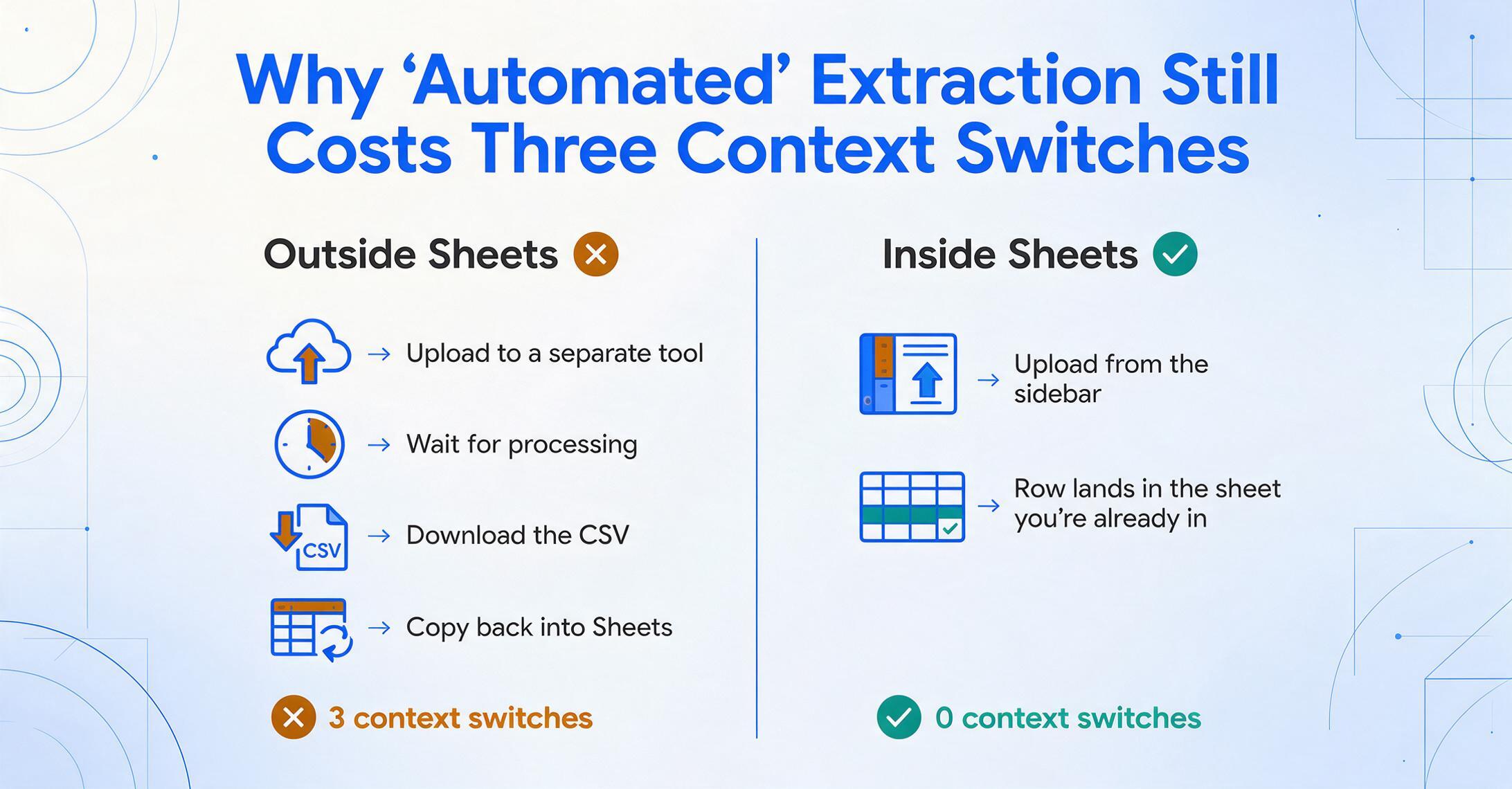
The current state of the art for "automating" data into Google Sheets looks like this: upload files to a separate extraction tool → wait for processing → download the output as a CSV or Excel file → open it → copy the data → paste into the actual working sheet. Or, for the technically inclined: set up a Zapier or Make automation that watches a Google Drive folder, sends files to an extraction service, receives the structured output, and writes it to Sheets via API. Both paths work. Neither happens inside Sheets.
Each tool switch is a context loss. The bookkeeper who leaves Sheets to open a separate extraction tool, exports a CSV, and imports it back has left their working environment three times. The data arrives, but the flow is broken. For a single invoice, the overhead is annoying. For 50 invoices — a normal Monday for a small accounting practice — the context switching compounds into hours of lost focus.
This is why spreadsheet users keep reverting to manual copy-paste despite knowing it's inefficient. The manual method is at least contained: PDF open on one side of the screen, Sheets on the other. The "automated" method bounces between three applications. Until the extraction happens in the same window as the spreadsheet, the cognitive cost of the automation can feel higher than the physical cost of typing — even when the math says otherwise.
Upload From the Sidebar, Append to the Sheet — How the Add-on Works
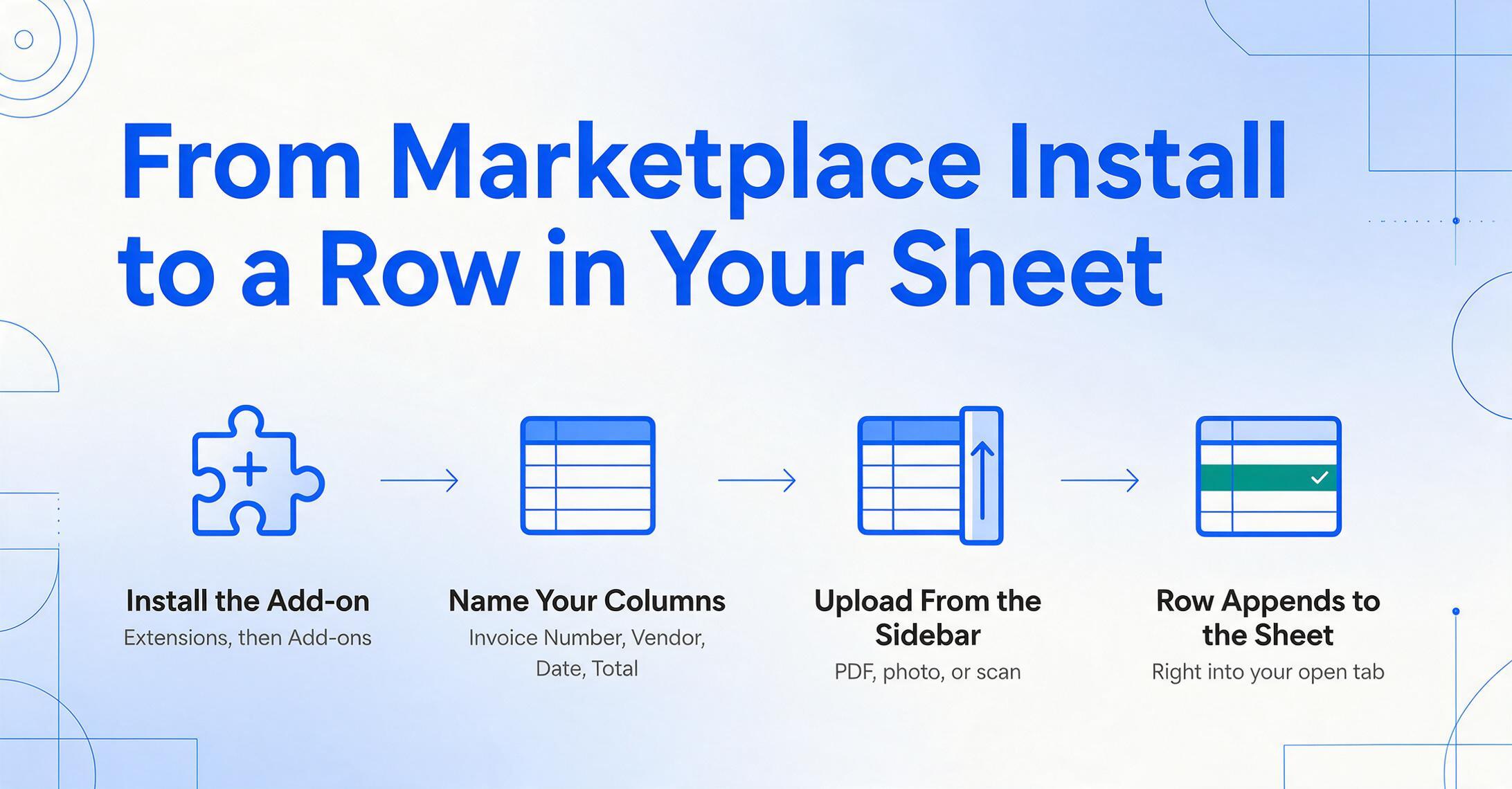
The ImageToTable.ai add-on for Google Sheets — listed under the same name in the Google Workspace Marketplace — puts AI document extraction into a sidebar panel directly inside Sheets. The workflow is:
For the full capability overview — every supported field type, document format, and plan detail — see the extract-to-Google-Sheets page.
The mechanism behind the sidebar is the same column-name extraction engine that powers the web application. When you open the add-on, you specify the column names you want extracted — just like you would on the web version. For an invoice: "Invoice Number," "Vendor Name," "Date," "Total." For a receipt: "Date," "Merchant," "Amount," "Category." The column names you enter become the headers of the row that gets appended to your sheet. Upload the document, and the extracted values appear directly in your spreadsheet, in the correct columns, without leaving the tab.
The add-on runs in account mode: you bind it to your ImageToTable.ai account with an API key. This means your extraction history, saved templates, and column-name presets sync between the web app and the Sheets sidebar. A template you create in the web dashboard — say, "Monthly Vendor Invoice" with five predefined columns — appears in the sidebar immediately. Your usage is tracked against your plan quota, just as it is on the web. Read how column-name extraction works across document types →
A day's invoices, straight into Sheets: Open your billing spreadsheet → open the ImageToTable.ai sidebar → select your "Invoice Processing" template → upload 20 vendor PDFs one after another → each invoice populates a new row with Invoice Number, Vendor, Date, and Total → close the sidebar. Time elapsed: 5 minutes. Data in the sheet: 20 rows. Keys pressed: 0.
Live Demo: See the Extraction Engine in Action
The demo below runs the same AI extraction engine that powers the Sheets add-on. Upload any document — an invoice, a receipt, a photo of a form — and watch the data extraction in real time. The add-on delivers this same output directly into your spreadsheet cells.
Same engine as the Sheets add-on. Files processed securely, not stored.
What You Can Feed the Sidebar — From Single Receipts to Batch Work Orders
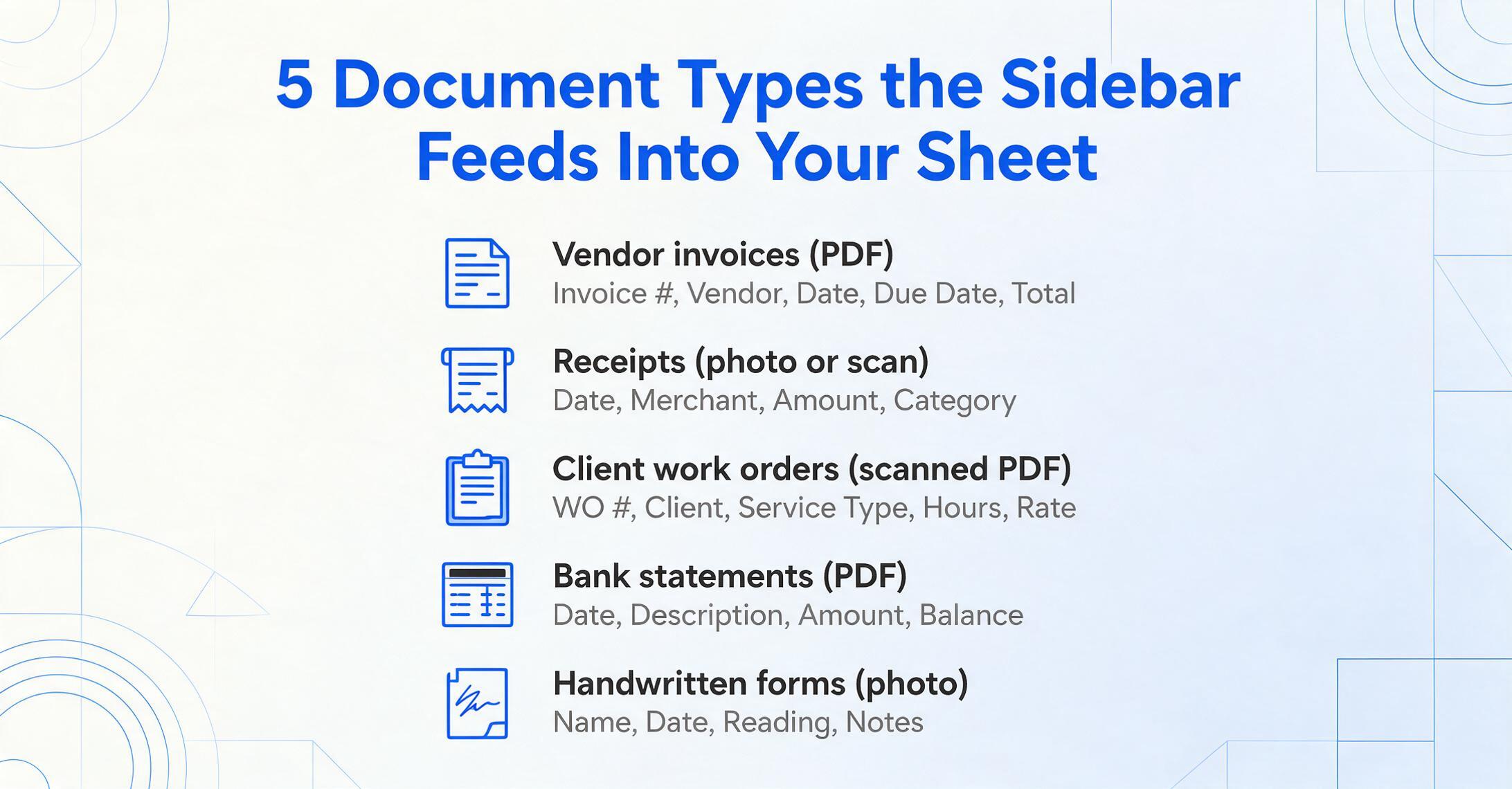
The add-on handles the same document types as the web application. The difference is the destination: data lands in the sheet you're already looking at, not in a separate export file.
| What You're Processing | Typical Column Names | How It Lands in Sheets | Manual Alternative |
|---|---|---|---|
| Vendor invoices (PDF) | Invoice #, Vendor, Date, Due Date, Total | One row per invoice, appended to your AP tracker | Open each PDF, copy 5 fields, paste — ~2 min each |
| Receipts (photo / scan) | Date, Merchant, Amount, Category | Rows appended to expense log; photo linked for audit | Read receipt, type into sheet; photo sits in camera roll |
| Client work orders (scanned PDF) | WO #, Client, Service Type, Hours, Rate | Rows appended to billing sheet; ready for invoicing | "Most time-consuming task we do" |
| Bank statements (PDF) | Date, Description, Amount, Balance | Rows appended to reconciliation sheet | Download CSV if available; otherwise retype |
| Handwritten forms / log sheets | Name, Date, Reading, Notes | Rows appended; handwriting recognition handles legible script | Decipher handwriting, type — slowest manual workflow |
The add-on doesn't replace your Sheet — it feeds it. Your existing spreadsheet structure, formulas, conditional formatting, and charts remain untouched. The sidebar is an input method, not a platform migration. You keep using the same billing tracker, the same expense log, the same reconciliation sheet. The only change is where the data comes from.
Frequently Asked Questions
How do I install the add-on?
Open any Google Sheet, go to Extensions → Add-ons → Get add-ons, and search for "ImageToTable.ai" in the Google Workspace Marketplace. Install with one click. After installation, open it from Extensions → ImageToTable.ai → Start. The first launch will prompt you to enter your API key — this binds the add-on to your account and syncs your templates and history.
Is this a separate product from the ImageToTable.ai web app?
No. The add-on is a different interface to the same extraction engine, using the same account, the same templates, and the same plan quota. An extraction you run in the add-on appears in your web dashboard history, and vice versa. The add-on is included with your existing plan — no separate subscription.
Does it work with handwritten documents?
Yes, within the same limits as the web application. The underlying vision large model reads printed text, handwriting, and mixed formats. Clear, legible handwriting produces reliable extraction. Heavily cursive, smudged, or tiny handwriting reduces accuracy. For the most common use case — typed invoices and receipts — handwriting accuracy is rarely a factor since the source documents are printed.
Can I process multiple documents at once from the sidebar?
Yes. The sidebar supports batch upload. Select multiple files, specify your column names once, and each document generates one row in your sheet. A batch of 20 invoices populates 20 rows in a single operation — the same batch processing capability as the web app, but with the output going directly to your current sheet instead of a download file.
What happens to my data? Is it stored?
Documents uploaded through the add-on are processed by the same AI engine as the web application. Files are processed securely and not permanently stored. Extraction results appear in your account history for reference, consistent with the web app's behavior. For organizations with specific data handling requirements, the same privacy posture applies across both the add-on and the web interface.
How is this different from using Zapier or Make to connect extraction tools to Sheets?
Automation platforms like Zapier and Make create a pipeline: file lands somewhere → extraction tool receives it → output is written to Sheets via API. This works for recurring, standardized workflows. The add-on is for the ad-hoc, semi-structured work that makes up most spreadsheet data entry: the client who emails an invoice as a PDF, the field worker who texts a photo of a completed form, the stack of receipts that arrives in a folder on Friday. The add-on handles these directly from the sidebar, without configuring an automation pipeline. It's not "set it and forget it." It's "open, upload, done." If you're weighing this against Zapier-bridged parsers like Docparser or Parseur, see our roundup of Google Sheets extraction add-ons and integrations for the full tradeoff breakdown.