Convert Handwritten Timesheets
and Attendance Sheets to Excel with AI
The construction industry loses billions of dollars annually to time theft, according to workforce management platform Truein — just 30 minutes of inflated hours per worker per day adds up to over $4,000 per employee per year at a $22 hourly rate. But even when every worker is honest, the ritual is the same: Friday afternoon, a stack of paper timecards on the office manager's desk, and a payroll deadline in three hours. Some cards are filled out cleanly in block capitals. Others are folded, coffee-stained, and scrawled in a hurry at the end of a shift. A few are missing the date. One lists "8-ish" as the clock-out time. And every one of them — the neat ones and the chaos cards alike — needs to become rows in a payroll spreadsheet before 5 PM.
Key Takeaways
- Your office manager isn't slow at data entry — she's decoding illegible handwriting, matching nicknames to payroll names, and reconciling five different timesheet formats that all arrived in the same stack labeled "standard."
- Layout-based OCR software fails on every timesheet format except the cleanest official template because it looks for data at fixed grid positions — which is why your office manager ends up manually entering the other four formats anyway.
- With ImageToTable.ai, column-name extraction reads each field by meaning rather than position — the official grid, the notebook list, and the sign-in sheet all go into one batch and come out as one payroll spreadsheet in 5–10 seconds per sheet.
The Friday Afternoon Ritual: 20 Handwritten Cards, One Payroll Deadline
The friction isn't just the data entry. It's the decision fatigue layered on top. Does "8-ish" mean 8:00, 8:15, or somewhere between? Is "J. Martinez" the same person as "Jose M." on last week's card? The office manager spent four years at this company — she knows the answer to those questions. The problem is that she spends her Friday afternoons answering them one card at a time, retyping hours into the payroll system, instead of doing the work she was actually hired to do.
On r/Construction, a contractor running a 15-person crew describes the situation precisely: "half my guys forget to turn in their timesheets. Currently using paper forms and it's chaos. Stuff gets lost, handwriting is illegible, and my office manager is spending hours every day just trying to piece together what happened." When another user asks r/smallbusiness if everyone else is "still spending hours on manual data entry," the answers read like a support group — invoice sorting, timesheet entry, receipt matching, all the manual tasks that consume administrative hours without generating revenue.
This article covers how to turn photos of handwritten timesheets and scanned attendance sheets into a formatted payroll spreadsheet — standard table-format timecards, makeshift sign-in sheets, and every format in between — without retyping a single clock-in or clock-out time by hand.
What a Timesheet Actually Contains — and Why the Layers Matter
Before thinking about how to extract the data, it helps to understand its shape. A standard handwritten timesheet — whether it's a printed template from a payroll provider, an Excel sheet someone filled out and printed, or a custom form a foreman uses at each job site — contains two distinct layers of information:
Header Fields — appear once per timesheet, identify the worker and reporting context
| Field | Common Label Variations | Why Payroll Needs It |
|---|---|---|
| Employee Name | Worker, Staff, Contractor, Crew Member | Maps hours to the correct person for wage calculation |
| Employee ID / Badge # | Payroll #, Clock #, Personnel Code | Links to payroll system when names are ambiguous (duplicates, nicknames) |
| Week Ending / Pay Period | Week Of, Statement Date, Period Covering | Ties all daily entries to a specific payroll cycle |
| Project / Job Site | Job Name, Location, Cost Code, Work Order | Allocates labor cost to the correct project for job costing |
| Supervisor / Foreman | Approved By, Signed, Verified By | Confirms hours were reviewed and authorized on-site |
Daily Entry Fields — repeat for each day of the pay period, multiple rows per timesheet
| Field | Common Label Variations | Why Payroll Needs It |
|---|---|---|
| Date | Day, Work Date, Shift Date | Verifies which day the hours apply to |
| Start Time / Clock In | In, Arrived, AM | Beginning of the shift for hourly wage calculation |
| End Time / Clock Out | Out, Left, PM | End of shift; combined with start time to calculate hours worked |
| Break Duration | Lunch, Meal Break (min) | Deducted from gross hours for accurate paid time |
| Total Hours | Hours Worked, Daily Total | The core payroll number — may be hand-calculated or left for office to compute |
| Overtime / Double Time | OT, DT, Premium Hrs | Separates regular and premium-rate hours for correct pay rates |
The label variations in the second column are not edge cases — they're what happens when six different foremen at four different job sites fill out timesheets from three different template versions. One column header says "Clock In." Another says "Start." A third just has a blank cell at the top of the column with handwritten-in "AM" next to it. To a human, these all mean the same thing. To a template-based extraction tool that expects an exact label match, they're three different unrecognized fields.
The layout variations compound the problem. A standard weekly timesheet from a payroll provider uses a Monday-through-Sunday grid with employee info at the top — clean, consistent, predictable. But job site reality introduces other formats: a sign-in sheet clipped to a clipboard at the trailer entrance, where each worker writes their name on a new line and scribbles an arrival time next to it. A notebook page where a foreman jots "Garcia — 6:45 to 3:30, Rodriguez — 7:00 to 4:00" in a continuous list. An event attendance sheet where volunteers sign in but don't log departure times — the coordinator notes them in the margin later. A template-based tool that relies on finding data at specific XY coordinates breaks on every format except the first one. The same mechanics handle converting training attendance to Excel, where a sign-in sheet records employee name, department, and completion status next to a printed training topic.
How AI Reads a Handwritten Timesheet: Space-Based vs. Meaning-Based Extraction
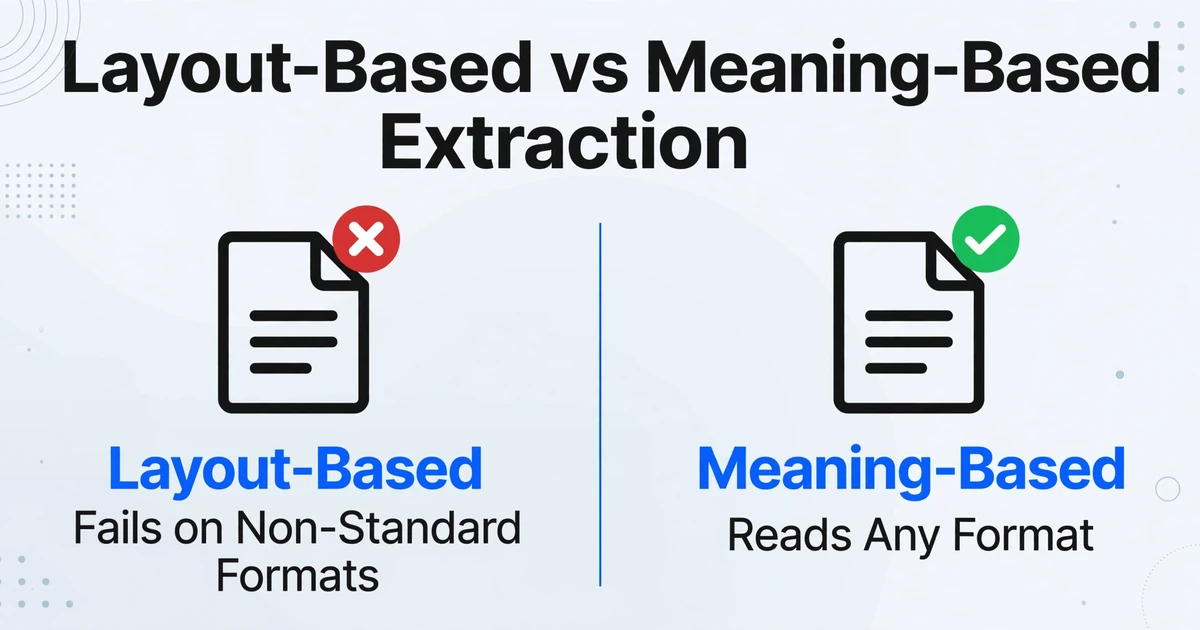
There are two fundamentally different approaches to extracting data from a timesheet image. Understanding the difference explains why some tools work on one format and fail on another.
Layout-based extraction identifies data by its position on the page. The tool assumes a predictable table structure — names in column A, dates in column B, hours in the remaining columns — and reads what it finds in each cell. NoteOCR describes this approach in its own documentation: "Our engine detects implicit tables based on spatial alignment. If the names are on the left and the hours are on the right, [the tool] will automatically format them into correct Excel columns." This works well when the timesheet is a clean, consistent grid. It breaks when the data isn't arranged that way — a sign-in sheet with names running vertically, a notebook page with prose-style time logging, or a form where someone wrote their hours diagonally because they ran out of space.
Column-name extraction — the approach ImageToTable.ai uses — identifies data by what it means rather than where it sits. You specify the columns you want in your output: Employee Name, Date, Clock In, Clock Out, Total Hours, Project, OT Hours. The AI reads the entire image — handwriting, printed labels, checkboxes, marginal notes — and locates each value by understanding the visual and semantic context of the page. A name that appears at the top of a timecard grid is an employee name. A name at the end of a row in a sign-in sheet is also an employee name. The AI recognizes both because it understands what an employee name looks like in context — typically a person's full name positioned near time entries — not because it landed in a specific grid cell.
This is also why column-name extraction handles handwriting that traditional OCR would struggle with. A character-based OCR engine sees the letter "J" and tries to match it to a template of what a J should look like — which fails when handwriting varies. A vision AI sees the entire page, understands that a person's name appears near time entries in a contextually expected location, and reads it holistically. Handwriting quality still matters — extremely illegible scrawl will reduce accuracy — but the tool isn't matching character templates; it's interpreting meaning.
From Photo to Payroll Spreadsheet: Step-by-Step
The workflow that replaces Friday afternoon manual data entry with AI extraction follows four steps — and once you've defined your columns, the setup reuses across every subsequent pay period:
Photograph or scan all timesheets
Whether they're timecards, sign-in sheets, or notebook pages, get them into digital format — a phone photo of a clipboard sheet works. Acceptable formats: JPG, PNG, PDF, WebP. Mixed types in the same batch are fine.
Switch to To Table mode and upload in batch
Select all timesheet files at once — 5 cards, 20 cards, or a folder of sign-in sheets from every job site. The AI queues them for parallel processing.
Enter your column names once
Type the fields your payroll spreadsheet uses: Employee Name, Date, Clock In, Clock Out, Break, Total Hours, Project, OT Hours. These become the exact column headers in your output. The same column list works week after week — save it and reuse it each pay period.
Review and export to Excel
Processing runs at 5–10 seconds per timesheet. Each daily entry becomes one row with employee header data repeated. Export as XLSX, CSV, or JSON — ready to import into ADP, Gusto, QuickBooks Payroll, or any system that accepts structured time data.
The output from a batch of timesheets structures the data as a payroll-ready table. Each row carries the employee's identifying information alongside the daily time entry — no VLOOKUP, no manual cross-referencing of employee IDs:
| Employee Name | Date | Clock In | Clock Out | Break | Total Hours | OT Hours | Project |
|---|---|---|---|---|---|---|---|
| Jose Martinez | 2026-05-12 | 6:45 AM | 3:30 PM | 30 min | 8.25 | 0.25 | Elm Street Retail |
| Jose Martinez | 2026-05-13 | 7:00 AM | 3:45 PM | 30 min | 8.25 | 0.25 | Elm Street Retail |
| David Garcia | 2026-05-12 | 6:30 AM | 2:30 PM | — | 8.00 | — | Oakview Residence |
| David Garcia | 2026-05-13 | 6:30 AM | 4:00 PM | 30 min | 9.00 | 1.00 | Oakview Residence |
Files are processed securely and not stored.
Computed Columns: Hours and Overtime, Calculated During Extraction
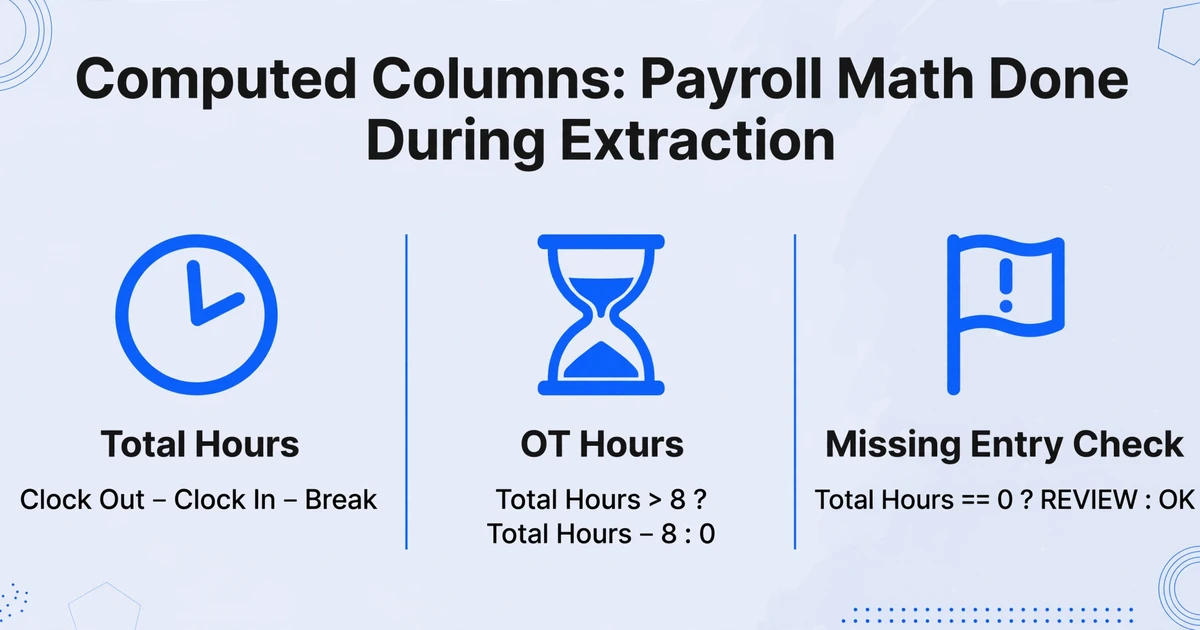
Extracting what's written on the timesheet is step one. But payroll requires more than just the raw clock-in and clock-out times — someone still has to calculate the actual hours worked and determine whether any of them qualify as overtime. That calculation work is typically a separate Excel task after extraction: subtract start from end, deduct the break, compare to the 8-hour or 40-hour threshold, tag OT rows. It's formula work — formula work that the extraction tool can do for you during processing.
Computed columns let you define calculations that run during extraction, producing derived values directly in your output table. Instead of extracting raw clock-in and clock-out times and computing everything afterward, you add computed columns to your column list and get a payroll-ready spreadsheet in one pass:
| Computed Column | What It Calculates | Example Output |
|---|---|---|
Total Hours (Clock Out - Clock In - Break) | Net hours worked for the day, accounting for the break duration listed on the timesheet | 8.25 |
OT Hours (Total Hours > 8 ? Total Hours - 8 : 0) | Any daily hours exceeding the 8-hour threshold, tagged as overtime | 1.25 |
Overtime Flag (OT Hours > 0 ? "OT" : "Regular") | A human-readable label for payroll processor review | "OT" |
Missing Entry Check (Total Hours == 0 ? "REVIEW" : "OK") | Flags days where clock-in/out times appear missing or inconsistent | "REVIEW" — Garcia, 5/14 |
Computed columns support arithmetic, conditional logic, aggregation, and fixed parameter references. A column like Weekly Total (sum of Total Hours for this employee across all dates in this batch) produces per-employee weekly totals without requiring a separate pivot table in Excel. This matters because the timesheet cards themselves often don't include self-calculated totals — workers record the clock-in and clock-out times and leave the math to the office. Computed columns close that gap during extraction, so the spreadsheet that comes out already has the numbers payroll actually needs.
Collection Link: Let the Crew Submit Directly from the Field
Even when the extraction part is automated, there's still the problem of actually getting the timesheets into the system. The Friday afternoon scramble often starts earlier in the week: foremen forget to collect cards, workers misplace them, cards pile up at the job site trailer until someone drives them back to the office. Each delay pushes the payroll deadline tighter.
A Collection Link — a shareable upload page you generate from your ImageToTable.ai account — removes the physical handoff from the process entirely. You create a link, share it with your crew leads or directly with workers via text or email, and anyone with the link can upload their timesheet photo from their phone. No account creation required on their end. No app to install. A short verification code confirms the uploader is authorized. The files land directly in your processing queue — organized, timestamped, and ready for batch extraction.
For a crew spread across multiple job sites, this means the foreman photographs the week's timesheets at each trailer on Friday morning, uploads them through the link, and they're waiting in the queue when the office manager opens the dashboard. No envelope. No courier. No "I thought Carlos picked them up."
When a "Standard" Timesheet Is Anything But
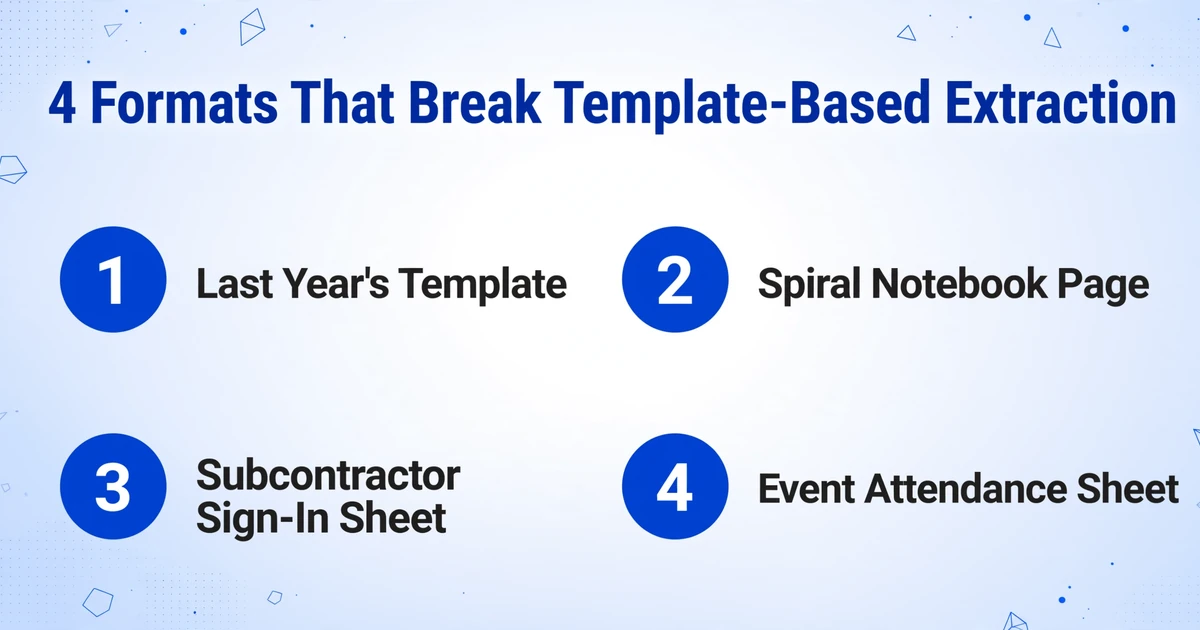
The word "timesheet" implies a standardized document — and in theory, one exists. The construction company issues the same printable PDF template to every foreman. In practice, what arrives at the office on Friday includes:
- The official weekly timecard template — filled out correctly by about two-thirds of the crew
- A different template from last year that one foreman prefers and keeps printing from a file on his desktop
- A spiral notebook page with times scribbled in a list — "because the template ran out and I wasn't driving back to the office"
- A sign-in sheet from a subcontractor's crew that uses a completely different layout — names running vertically with handwritten arrival times in the right margin
- An event attendance sheet from a training day where 15 workers signed in but no one recorded departure times — the trainer filled those in afterward as a second pass
Template-based extraction fails on every format except the first one — because it's looking for data at pre-defined positions. A tool that expects "Employee Name" in the top-left corner and "Total Hours" in the far-right column has no way to process a notebook page where those values appear in a continuous sentence. Column-name extraction handles the entire mixed batch because it reads each document independently, locating the requested fields wherever they appear. The official template and the notebook page go into the same batch and come out of the same output table.
Handwriting quality matters here in a practical sense — clear block capitals extract more reliably than rushed cursive, and heavily smudged or faint pencil marks may produce errors. But the AI reads legible handwriting across all common styles: print, cursive, mixed-case, and hand-printed numbers in rows and columns. It also handles common paper conditions at job sites — creases, coffee rings, mud smudges — to the extent the underlying text remains visually discernible.
Frequently Asked Questions
Can it read handwriting from multiple workers on the same sheet — like a sign-in sheet with 20 names?
Yes — this is one of the core scenarios column-name extraction handles that layout-based tools struggle with. A sign-in sheet where each worker writes their own name and arrival time in a different handwriting style is processed as a single document. The AI reads each row independently and extracts the name and time for each person. The output table produces one row per worker per sign-in sheet. That same multi-row reading is what moving training attendance to Excel relies on, since a training sign-in sheet lists each attendee on a separate line with their department and completion mark.
What if the timesheet uses military time (1400) and someone else uses AM/PM notation on the same batch?
The AI interprets both formats. "2:00 PM," "14:00," and "2p" are all recognized as the same time value. The output standardizes to the format you choose — specify your preference in the column name (e.g., "Clock Out (24-hour format)" or "Clock Out (12-hour AM/PM)") and the AI normalizes accordingly. Mixed formats across different timesheets in the same batch are handled without issue.
Can it handle timesheets where the worker forgot to fill in total hours?
Yes — and this is where computed columns are particularly useful. If the worker recorded clock-in and clock-out times but left the Total Hours field blank, a computed column like Total Hours (Clock Out - Clock In - Break) calculates it from the available data during extraction. The output spreadsheet includes the computed total even though the original timesheet had it missing. For cards where even the clock-in/out times are missing or illegible, the AI leaves those fields blank — it won't guess — and a computed column like Missing Check (Total Hours == 0 or blank ? "REVIEW" : "OK") flags them for manual follow-up.
Does it work for timesheets in languages other than English?
Yes. The AI reads timesheets in most major languages — Spanish, French, Portuguese, German, Japanese, Korean, and others. Field labels like "Nombre del Empleado" or "Heures Travaillées" are understood and matched to your English column names. If your crew submits timesheets in multiple languages across different job sites, they can all go into the same batch — the AI handles multilingual recognition in a single processing run. For a workforce using a Japanese attendance platform, see our guide to extracting clock-in and overtime data from Japanese attendance app screenshots (King of Time, Freee, SmartHR, Jobcan).
Can I reuse the same column setup for every pay period?
Yes. Once you define your column list — Employee Name, Date, Clock In, Clock Out, Break, Total Hours, Project, OT Hours — save it and reload it each week. The same column names work across different crews, different job sites, and different timesheet formats because the AI matches by meaning, not by label. If you add a new project code or change a supervisor name, you update those values in the column list — the extraction logic itself doesn't need reconfiguration.
What's the realistic accuracy on handwritten timesheets?
For clearly written print or legible cursive, printed table data on standard timesheets achieves up to 99% accuracy for numbers and names. Accuracy decreases with handwriting quality: rushed end-of-shift scribbles, very faint pencil, heavily smudged paper, or handwriting where individual characters are genuinely ambiguous will produce lower accuracy and may require manual review. The tool is designed to handle the average real-world condition of job site timesheets — not laboratory-clean handwriting samples. For critical payroll use, a quick review pass is recommended, but the review is scanning for flagged entries rather than retyping every field from scratch.
Photograph this week's timesheets, enter your payroll columns once, and get the spreadsheet — before the Friday deadline hits.
Start Extracting