Extract Data from Images and PDFs
Directly into Google Sheets
Getting data from paper documents, scanned invoices, or bank statement PDFs into a Google Sheet is one of those tasks that sounds simple and consistently isn't. The data exists — it's right there on the page. Getting it into cells without manual entry is the problem. Here's why the obvious methods fall short, and how AI extraction from a Sheets sidebar changes the workflow.
Key Takeaways
- Google Sheets has CSV import, IMPORTDATA, Google Forms, Zapier, APIs, and paste — six ways to bring data in, and none of them work when your data arrives as a photo of a receipt or a supplier's PDF.
- Two minutes per page of manual data entry feels harmless — until a month of invoices has consumed the entire analysis session you opened the spreadsheet for in the first place.
- The bottleneck was never extraction accuracy — it was the extra step between wherever you extract data and the spreadsheet cells you work in, which ImageToTable.ai cuts by writing extracted rows directly into your open sheet from a sidebar inside Google Sheets.
Why Getting Document Data into Sheets Is Harder Than It Should Be
Google Sheets has no shortage of ways to import structured data. CSV import, IMPORTDATA, connected Google Forms, Zapier integrations, direct API connections — all of these work, assuming the data source is already digital and structured. The problem is that a large portion of real-world business data doesn't arrive that way.
Invoices come as PDFs from ten different suppliers, each with a slightly different layout. Bank statements are either PDF exports or scanned paper statements. Receipts are phone photos. Contracts are signed scans. Supplier catalogs are image files. None of these have an API. None export as CSV. And none of the standard Sheets import flows can read them.
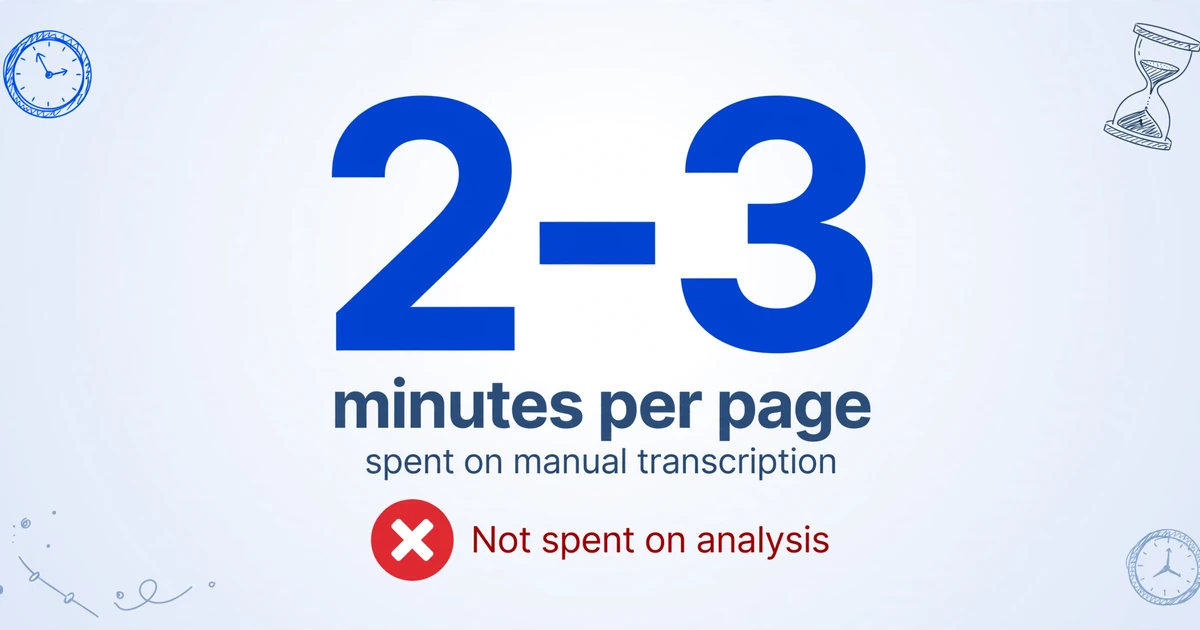
The typical fallback is manual entry — which works, and costs roughly two to three minutes per page for careful transcription. For a month of receipts or a quarter of supplier invoices, that adds up to a meaningful block of time before you can do any analysis.
Common Approaches and Where They Break Down
| Approach | Works when | Breaks when |
|---|---|---|
| CSV / Excel import | Data already exists as a structured file | Source is a PDF, image, or scanned document |
| Copy-paste from PDF | PDF has a selectable text layer and a simple layout | PDF is scanned, multi-column, or has complex table formatting |
| Google Forms | You control data entry at the source | Data already exists in documents you received |
| Manual transcription | Small volume (a few pages) | Any volume above ~10 pages, mixed layouts, or ongoing workflow |
| ChatGPT / AI chat | One document at a time, one-off extraction | Batch processing needed; inconsistent column structure across responses |
| Traditional OCR tools | You need raw text and will parse it yourself | You need specific fields — amount, date, vendor — not a text dump |
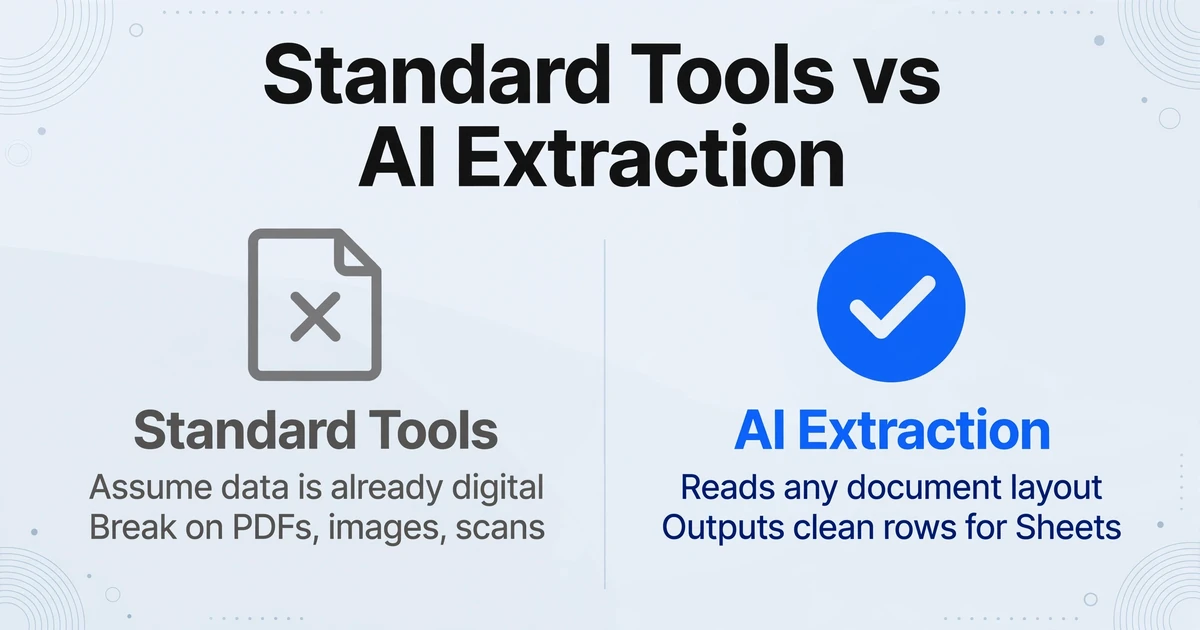
The common thread: standard tools assume the data is already digital and structured. When it's in an image or PDF, you're back to doing the extraction yourself.
How AI Extraction Fits the Google Sheets Workflow
AI vision models can read a document image — invoice, statement, receipt, or form — and extract specific fields into a consistent table structure. You define the columns you want (Invoice Number, Date, Amount, Vendor), and the model finds those values across any document layout, regardless of how the source document is formatted.
The extraction is field-targeted, not a text dump. You get a clean row of values for each document, ready to drop into a spreadsheet — not a wall of text you'd still have to parse yourself.
The remaining gap was workflow friction: running a separate extraction tool and then copying results into Sheets added its own steps. The ImageToTable.ai Google Sheets Add-on removes that gap by running the extraction directly from a sidebar inside Sheets.
The ImageToTable.ai Google Sheets Add-on
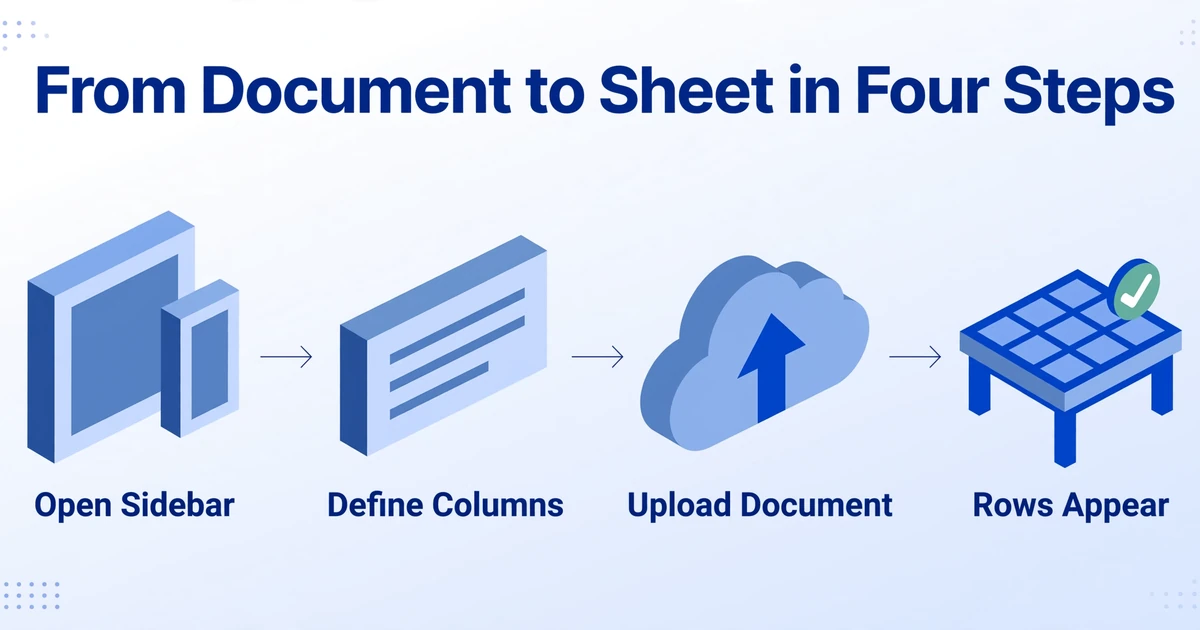
The add-on opens as a sidebar panel inside Google Sheets. You don't leave the spreadsheet — the entire upload, column definition, and extraction workflow happens in the sidebar, and the extracted rows are appended directly to your active sheet.
For the complete capability rundown — every supported field type, plan details, and what syncs between the sidebar and your web app — see the Google Sheets add-on capability guide. If you're weighing this add-on against other tools that move data into Sheets, our roundup of Google Sheets document extraction add-ons compares the native-sidebar approach with Zapier bridges and template-based parsers.
Open the sidebar
In Google Sheets: Extensions → ImageToTable.ai → Open. The sidebar appears on the right side of your spreadsheet without navigating away.
Define your columns
Type the field names you want to extract — Invoice No, Date, Amount, Vendor. Leave it blank and the AI will detect the document's fields automatically. Column names become the headers in your sheet.
Upload your document
Attach a JPG, PNG, WebP, or PDF directly in the sidebar. One file at a time per extraction — multi-page PDFs are processed as a single document.
Extract → rows appear in Sheet
Click Extract. Processing takes 5–10 seconds. The extracted rows are appended to your active sheet under the column headers — no copy-paste, no export step.
Column Names Work the Same Way as on the Website
The column names you type in the sidebar are instructions to the AI, not just labels. All the same column-naming techniques apply: embed format requirements ("Date (YYYY-MM-DD)"), disambiguate between similar fields ("Issue Date" vs. "Due Date"), add example values for ambiguous fields ("Category (e.g. Rent, Utilities, Payroll)").
If the same supplier sends you invoices every month, you define your columns once. For repeat extractions, you don't retype the field list — the sidebar remembers your last-used column set within the session.
Two Modes: Guest and API Key
Guest Mode (No Account)
No signup required. Install the add-on and start extracting immediately. Limited to 3 extractions per day (IP-based). Good for trying the workflow on a handful of documents before deciding whether to set up an account.
API Key Mode (Connected Account)
Enter your ImageToTable.ai API key in the sidebar. Your account's extraction quota applies. Templates you've saved on the website are available directly in the sidebar — select a template instead of retyping column names each session.
The API key is available from your account settings at ImageToTable.ai. Once entered, the sidebar syncs with your account: extraction history, saved templates, and remaining quota all reflect your account state.
Templates: Define Once, Reuse Across Sessions
If you process the same type of document regularly — a specific supplier's invoice format, your bank's statement layout, a standard expense receipt — you can save your column set as a template on ImageToTable.ai. The template shows up in the sidebar's template picker, so you select it instead of retyping your columns.
Templates are shared between the website and the add-on. A template you configure and refine through a batch run on the website is immediately available in your Sheets sidebar for the next single-document extraction, and vice versa.
Collect: Let Others Upload Documents Directly to Your Queue
The Collect feature solves a specific problem: you don't always hold the documents yourself. A bookkeeper waiting on clients to send their invoices. A finance team collecting receipts from field staff. A procurement manager asking suppliers to submit price lists. In each case, the bottleneck is gathering the files before you can extract anything.
The add-on's Collect button (available with an API key) generates a shareable link and a short access code. You send either to the people who have your documents. They open the link, upload the file — no account, no app install required on their end — and the file lands directly in your account's processing queue. You see it in the sidebar, extract it, and the rows appear in your Sheet.
Share a Link or Code
Copy the link for email or messaging. Or share the short access code — easier to read aloud or paste in Slack. Regenerate the code instantly if you need to revoke access.
They Upload, You Extract
The person submitting the file needs nothing installed. They open the link, upload their document, and it queues in your account. You handle the extraction and Sheet update on your side.
Add Upload Instructions
Set a note that appears on the upload page — "Please submit this month's invoices" or "Upload the signed receipt." A quick instruction reduces back-and-forth about what to submit.
Practical use: a team of five people submits expense receipts to one Collect link throughout the month. At the end of the month, the receipts are already in the queue. Apply a template with columns for Date, Merchant, Amount, and Category — extract all at once — and the expense tracking sheet is populated without anyone having to chase down who sent what.
What Document Types It Handles
- Invoices — any supplier layout; extract invoice number, date, line items, totals
- Bank statements — PDF exports or scanned statements; one row per transaction
- Receipts — phone photos of paper receipts; merchant, amount, date, category
- Expense reports — scanned paper forms or screenshot exports
- Supplier price lists — catalog images; product, SKU, unit price
- Contracts and forms — extract specific fields from standard-format documents
Input formats: JPG, PNG, WebP, and PDF. Both digitally generated PDFs (with embedded text) and scanned PDFs (image-only) are handled the same way — the AI reads the visual content regardless of whether the PDF has a text layer.
If your data source is app screenshots — payment confirmations, dashboards, order pages — rather than documents, the step-by-step screenshot-to-Sheets tutorial walks through that workflow with column examples for Stripe, Shopify, and dashboard captures.
Frequently Asked Questions
Does the add-on work with multi-page PDFs?
Yes. Upload the full PDF as a single file — all pages are processed together. A 12-page bank statement produces one continuous list of transactions in your sheet, not 12 separate outputs. Don't split multi-page PDFs into individual pages before uploading.
Where in my spreadsheet does the extracted data land?
Rows are appended to the active sheet starting after the last populated row. Column headers are written the first time you run an extraction; subsequent extractions add rows under the existing headers without overwriting them. If you want data in a specific sheet, activate that sheet before clicking Extract.
I process 50 invoices at the end of each month. Should I use the add-on or the website?
For batch processing of many files at once, the website's batch upload is more efficient — you upload all 50 files together, define your columns once, and get one export file. The add-on is optimized for ongoing single-document extraction: adding each invoice to your tracking sheet as it arrives, rather than batching at month-end. Both workflows can coexist — batch process for historical records, use the add-on for documents that arrive one at a time.
Does it work with scanned documents (images inside a PDF, not selectable text)?
Yes. The add-on processes all inputs visually — it reads the image content of the document, not a text layer. A scanned paper statement and a digitally generated PDF with embedded text are handled identically. Scan quality affects accuracy: straight, well-lit scans work best.
Can I collect documents from people who don't have an ImageToTable.ai account?
Yes. The Collect link is public — the person submitting the document doesn't need an account or the add-on installed. They open the link, upload the file, and it appears in your account's queue. You handle the extraction; they only need to upload. The access code can be regenerated at any time to stop accepting new submissions from an old link.
What's the difference between using the add-on and using the ImageToTable.ai website?
Same underlying AI, different workflow layer. The website is better for batch processing (many files at once) and reviewing results before export. The add-on is better for ongoing single-document entry directly into a Sheets-based workflow — no export step, no tab switching, no reformatting. Templates and quota are shared between both, so switching between them based on the task is straightforward.
Install the add-on from Google Workspace Marketplace and try it with a document you have open — no account needed to start.