Extract Invoice Data Into Google Sheets
Without Leaving Your Spreadsheet
A freelance designer gets fifteen supplier invoices a month: Adobe Creative Cloud, the freelance platform subscription, the co-working space, the accountant's retainer, the printer ink. Each one arrives as a PDF attachment in email. Each one needs the same four fields (vendor, date, amount, category) entered into the same Google Sheet where their AP tracking lives. The sheet works. The five-step loop required to get a single invoice into it does not: download the file, open it in a PDF viewer, find the values, switch to Sheets, type them cell by cell. At fifteen invoices a month, that's seventy-five manual steps and thirty to forty-five minutes of pure transcription every month, for a spreadsheet that's already built. This article is about deleting the loop. A sidebar add-on keeps your sheet, keeps your columns, and removes every step between "I have an invoice" and "it's in my sheet."
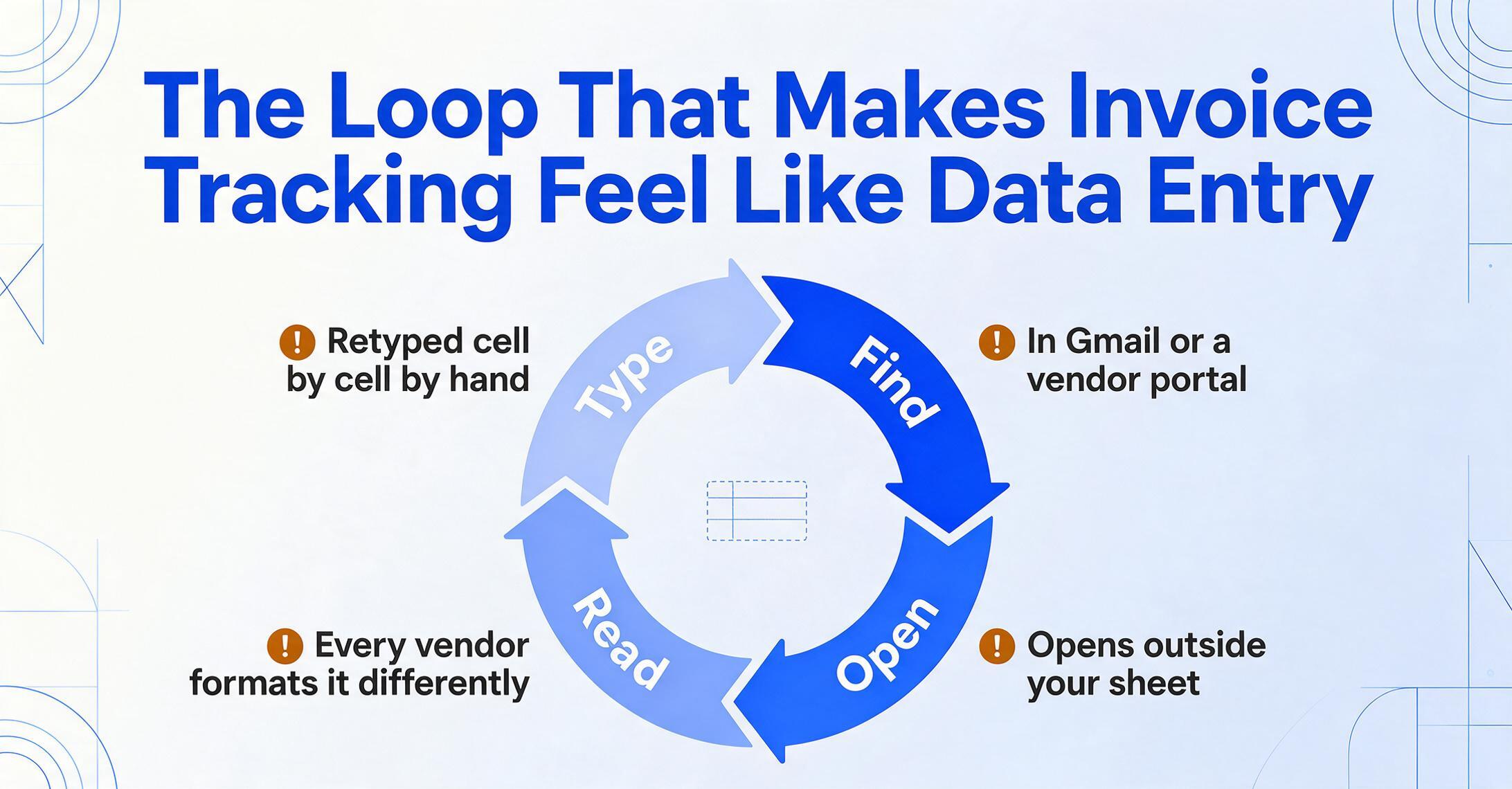
The Loop That Makes Invoice Tracking Feel Like Data Entry
Freelancers and micro-business owners track supplier invoices differently than AP departments. There is no ERP. There is no approval workflow. There is a Google Sheet with columns for Invoice Number, Vendor, Date, Amount, Due Date, and maybe a Category column for expense classification. The sheet is the system — built over months of incremental refinement, formula-layered, and shared with an accountant at tax time.
The friction isn't the sheet. The friction is what happens between receiving an invoice and seeing its data in a row:
Step 1 — Find the invoice. It arrived as a PDF in Gmail (a supplier's monthly billing statement), or as a download link from a vendor portal (the co-working space's member dashboard), or as a forwarded attachment from a client who's reimbursing a tool subscription. The invoice exists. Where it lives depends on which supplier sent it.
Step 2 — Open it. PDFs open in a browser tab, a desktop viewer, or a phone screen. None of these are Google Sheets. You are, at this point, in the wrong application — and you will be until step 4.
Step 3 — Read the values. Locate the invoice number (upper right? upper left? in the subject line only?), the date (is it "Invoice Date," "Bill Date," or just "Date"?), the vendor name (legal entity name or DBA?), the total (before or after tax?), and the due date (Net 30 from which date?). Every supplier formats these fields differently. You are the parser.
Step 4 — Type them into Sheets. Switch windows. Click the Invoice Number cell in the next empty row. Type. Click the Date cell. Type — and reformat, because the supplier wrote "05/03/2026" and your sheet expects "2026-05-03." Click the Vendor cell. Type. Click the Amount cell. Type. Repeat for every field, every invoice.
Step 5 — File the original. Save the PDF to a Drive folder labeled "2026 Supplier Invoices" so your accountant can find it. Name it something you'll recognize six months from now.
None of these steps is individually difficult. Multiplied by fifteen invoices per month, the accumulated friction is thirty to forty-five minutes of transcription — every month — for a task that adds zero insight. It's maintenance work on a tracking system, not the tracking itself. According to the FreshBooks 2025 Tax Trends Report, 35% of self-employed Americans say their top tax challenge is organizing receipts and documents — not understanding the tax code, not calculating what they owe, but simply keeping their paperwork in order. The manual entry loop is the root cause, and it compounds monthly.
The spreadsheet works. The loop doesn't. A sidebar add-on removes steps 2 through 4, replacing them with a single action: upload the invoice in the sidebar panel. Data appears in the next empty row. You stay in your sheet.
What Changes When Extraction Lives Inside the Sidebar
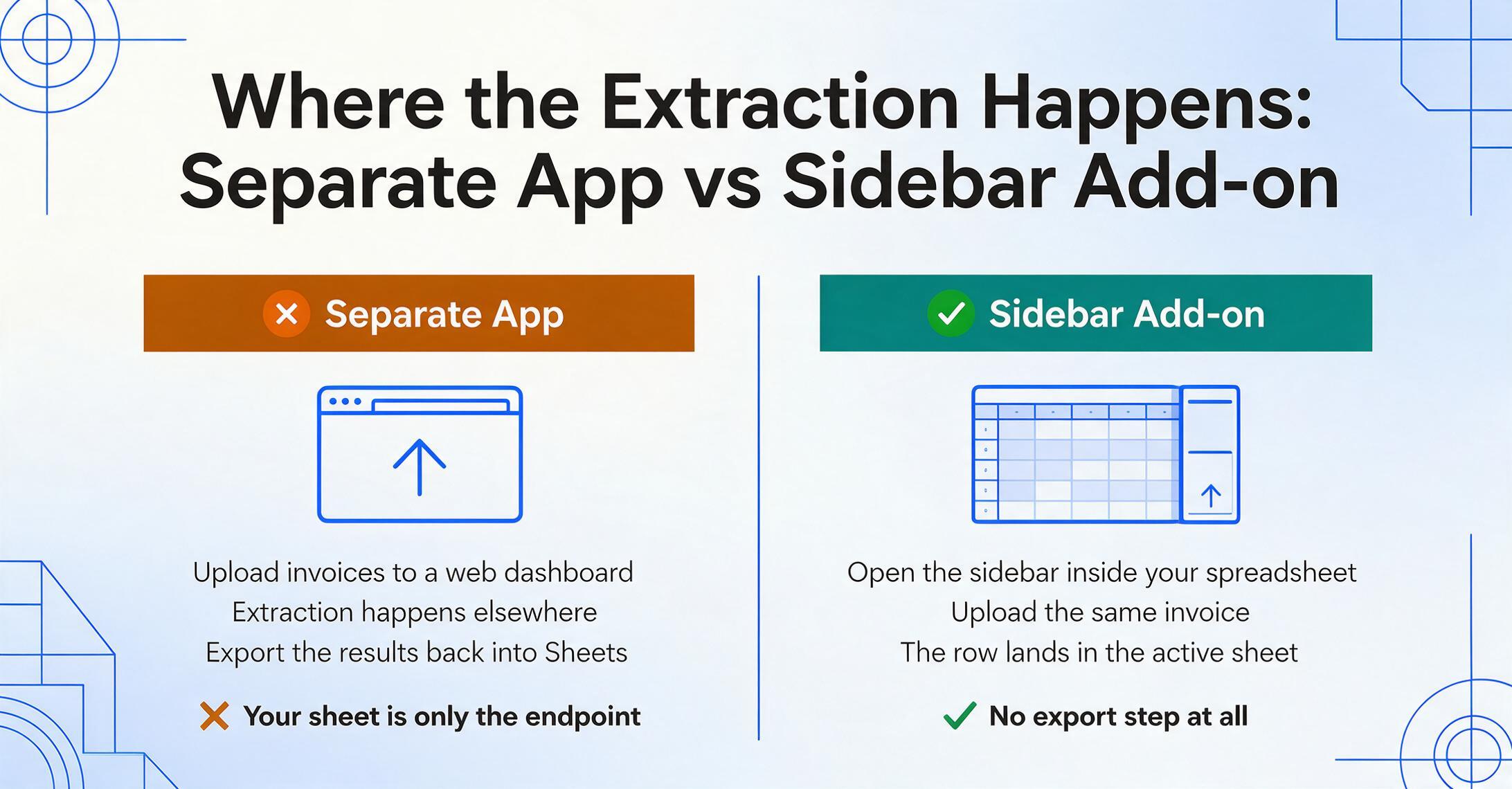
Most tools that promise to move invoice data into Google Sheets share the same architecture: a separate application that processes your invoices elsewhere and then exports, syncs, or copies the results into Sheets as a destination. You upload invoices to a web dashboard. You forward them to a parsing email address. You connect a Zapier workflow that monitors a Drive folder. The extraction happens somewhere else. Sheets is the endpoint, not the workspace.
This works, but it adds a tool. If your AP system is already a Google Sheet with columns you named, formulas you wrote, and a monthly summary tab your accountant reviews, every tool that processes invoices outside the sheet is adding an application to a workflow you already own. You're not looking for a new system. You're looking for a way to get invoice data into the system you have.
A Google Sheets add-on is a sidebar panel that opens inside your spreadsheet and is accessible from the Extensions menu, with no separate tab or login. When you install it, it becomes part of your Sheets environment: same window, same session, same data. You open the sidebar, upload an invoice, and the extracted fields appear in the next empty row of whatever sheet is currently active. There is no export step because the data was never anywhere other than your sheet. Most tools treat invoice to Google Sheets as an export step; here the extraction happens where the row is going to live. For the full capability rundown, including supported field types, formats, and plan details, see the Google Sheets extraction feature overview, or the invoice-specific version for a walkthrough built around invoice fields like PO Number and line items.
The mechanism that makes this work is column-name extraction: instead of drawing bounding boxes around each field on an invoice template or training a model on sample documents, you type the field names you want — "Invoice Number," "Vendor," "Date," "Amount," "Due Date" — and the AI reads each uploaded invoice to find those values by understanding what they mean, not where they sit on the page. A freelance platform invoice and a printer ink supplier invoice look nothing alike. But both contain an invoice number, a vendor name, a date, and an amount. Column-name extraction searches for the meaning of those fields, not their coordinates. This is what eliminates per-supplier template setup — and why the same sidebar panel works across every invoice format you receive.
Setting Up Your Invoice-to-Sheets Pipeline
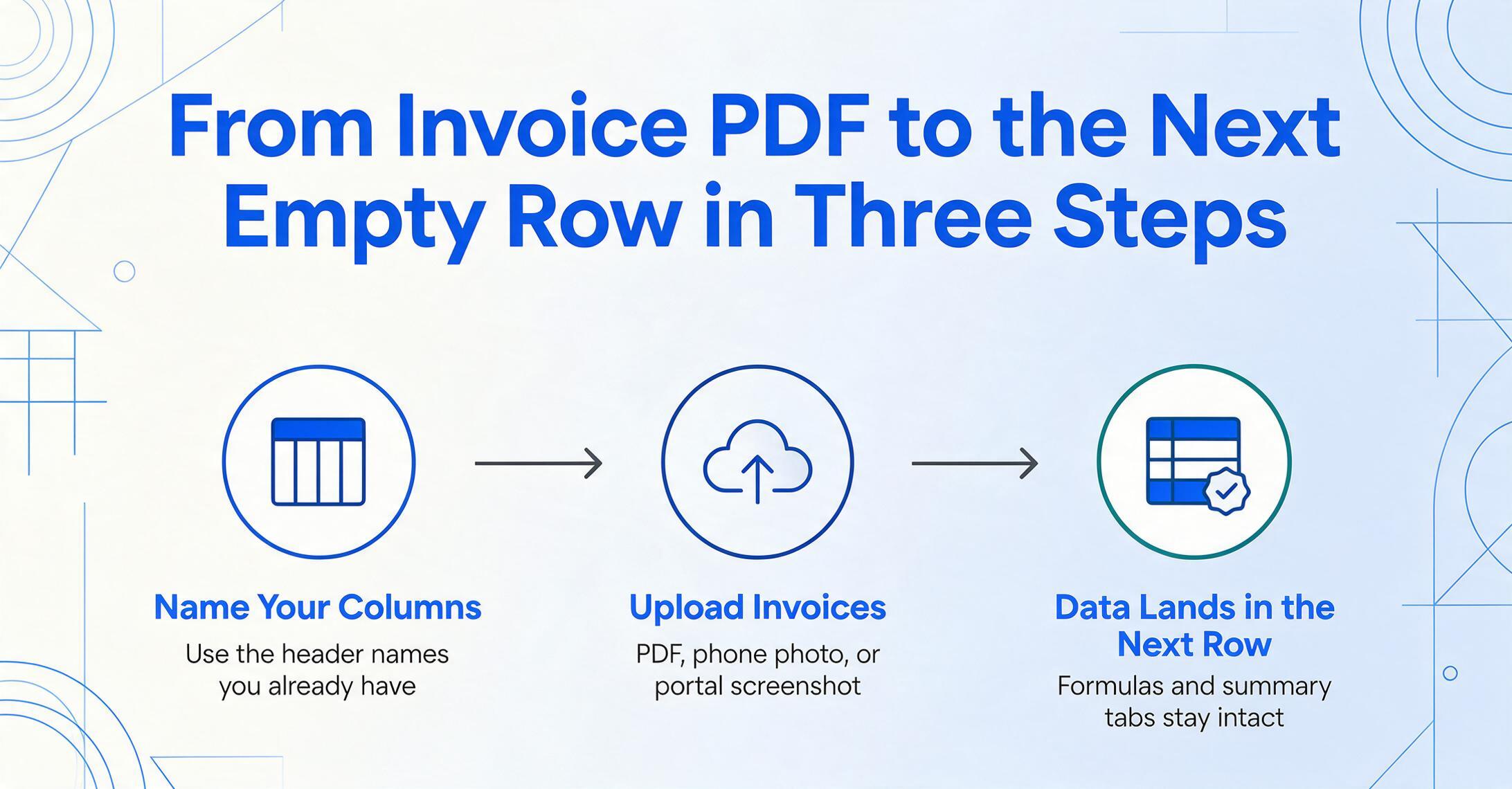
The setup takes under five minutes and requires no template configuration. Here's the three-step workflow:
1. Name your columns. In the add-on sidebar, type the field names that match your spreadsheet's column headers. If your AP tracking sheet tracks Invoice Number, Vendor, Date, Amount, Due Date, and Expense Category, type those exact names. The column names you enter become the fields the AI searches for in each invoice. You don't need to match supplier terminology — the AI understands that "Bill Date," "Invoice Date," and "Billing Date" all refer to the same concept. If you're unsure what fields an invoice contains, you can skip naming columns and let the AI auto-detect everything on the document.
2. Upload invoices. Drag a PDF or image into the sidebar panel, or click to browse. The add-on accepts JPG, PNG, WebP, PDF, and AVIF — a crisp digital invoice from a SaaS vendor, a photo of a paper invoice from a local supplier, or a screenshot of a vendor portal billing page. You can process one invoice at a time or batch multiple files for end-of-month catch-up.
3. Data lands in your sheet. Hit extract. The AI reads each invoice, locates the values matching your column names, and appends them as a new row at the bottom of your active sheet. Column order matches what you specified in the sidebar. Your existing formulas, conditional formatting, pivot tables, and monthly summary tabs stay intact. The new row is just the next row, structured the same way as every row before it.
Three steps replace five. None of the three requires your keyboard, and none of them requires you to leave Google Sheets.
The add-on also supports inferred columns. Define a column like "Expense Category (options: Software/Office Supplies/Professional Services/Travel/Other)" and the AI reads the invoice content (vendor name, line items, industry context) to infer the correct category, even though no invoice on earth contains a field labeled "Expense Category." Extraction and classification happen in a single pass, so a row comes out of the sidebar already classified with no manual tagging step afterward.
One piece of the old loop disappears too. Step 4 included reformatting: a supplier writes the date as "05/03/2026" and your sheet needs it another way. The extraction engine standardizes dates, amounts, and invoice numbers before the row is written, so the values land in a consistent format and you review them rather than retyping them.
Files are processed securely and not stored.
From Invoice PDF to Tax-Ready Records
The reason most freelancers maintain an invoice tracking sheet in the first place isn't operational. It's archival. April comes around, and the accountant asks for two things: a summary of business expenses by category (for Schedule C) and supporting documentation that substantiates each one (in case of audit). The sheet serves as the summary. The invoice PDFs serve as the supporting documents.
What the add-on workflow creates (extracted invoice data in a structured sheet, paired with the original invoice files) maps directly to what the IRS expects. IRS Publication 583 states that electronic records are acceptable as long as they are legible, complete, and retrievable. A digital invoice PDF stored alongside a structured expense log meets that standard. The standard retention period is three years from the filing date. Employment tax records run four years, records that understate income by more than 25% run six, and a claim for a loss from worthless securities or bad debt runs seven. Those are floors, not a deadline to purge: a supplier invoice sitting in a Drive folder costs almost nothing to keep.
The extracted data also maps naturally to Schedule C (Form 1040) expense categories. Office supplies, software subscriptions, professional services, rent, utilities, travel — these are the line items on the form, and they correspond directly to the categories you'd set as column values or inferred column options in the add-on. When your sheet is consistently categorized month after month, the Schedule C preparation becomes a SUMIF formula, not a receipt-by-receipt memory exercise.
There's a secondary benefit that affects 1099-season specifically. Freelancers who issue invoices to clients receive Form 1099-NEC from any client that paid them $600 or more in a calendar year. Reconciling 1099 amounts against your own income records — making sure the client's reported amount matches what you actually invoiced and received — requires having your invoice data organized by client and date. A sheet where every outgoing invoice row is consistently structured makes that reconciliation a filter-and-sum operation. A sheet where you have to reconstruct your invoicing from email search results turns it into a weekend project.
The NFIB reported in June 2025 that 19% of small business owners ranked taxes as their single most important business problem — and the root of tax stress isn't calculating the bill. It's proving every deduction with organized records. When your invoice data is already structured in a sheet, the proof is built in.
How the Add-on Fits Into Your Existing Tools
The freelancer tool ecosystem has no shortage of options for tracking money. QuickBooks Self-Employed ($20/month) connects to bank accounts and auto-categorizes transactions. FreshBooks ($15/month) handles invoicing and expense tracking with a polished interface. Wave (free) offers accounting and invoicing with no monthly cost. Zoho Books and Xero serve small businesses that work with accountants. Even HoneyBook and Bonsai target freelancers specifically with combined contract, invoice, and expense features.
None of these are bad tools. But all of them require migration — move your data, learn a new interface, adapt your categories and workflows to a new system. The question for someone whose AP tracking already lives in a Google Sheet isn't "which accounting software should I switch to?" It's "can I make the system I have work faster?"
The add-on answers that question by being an extraction layer, not a replacement platform. It doesn't do double-entry bookkeeping, bank reconciliation, or payroll. What it does is remove the manual step between receiving an invoice and having its data in your tracking sheet. If you later decide to move to QuickBooks or Xero, your sheet full of consistently structured invoice rows is a clean CSV import — far better than reconstructing from emails. If you stay in Sheets indefinitely, the add-on keeps your tracking current without the transcription friction.
The add-on turns your existing Sheets-based AP tracking into a capture system. You don't change your workflow. You delete the manual entry step.
The same sidebar add-on that handles invoices also processes receipts — making it useful for freelancers who track both sides of their finances in Sheets. If you're tracking incoming expense receipts alongside supplier invoices, the workflow is identical: name your columns, upload the files, data appears in the sheet. For a full walkthrough of receipt extraction, see our article on extracting receipt data into Google Sheets, which covers the same sidebar architecture applied to expense receipts, tax compliance, and batch month-end processing.
For freelancers whose expense tracking feeds directly into Schedule C preparation, our guide to building a receipt-to-Schedule-C workflow in Google Sheets covers how to structure your sheet so the April tax prep is a data export, not a reconstruction project. And if you're weighing the sidebar approach against manual download-and-import methods, see our comparison of receipt extraction vs. download-and-import — the same workflow trade-offs apply to invoice processing.
The organizational cost of scattered invoice records goes deeper than the monthly time loss. For a more detailed look at why freelancers consistently leave deductions on the table at tax time, our article on the freelancer invoice tracking problem examines the structural gap between invoicing tools and tax compliance — and why a centralized tracking sheet changes the math. For freelancers ready to consolidate a full year's worth of records in one focused session, see preparing a year of freelance invoices for taxes in one afternoon.
Frequently Asked Questions
Does the add-on work with scanned or photographed paper invoices?
Yes — JPG, PNG, WebP, and PDF are all supported, which covers phone photos of paper invoices, scans, and digital PDFs. If the text is legible to a human eye, the AI can typically read it. Severely skewed photos or invoices with very low-contrast text (faded thermal prints, poor lighting) may produce partial results. For best results, photograph invoices on a flat surface in good light.
Can I extract line items, not just the invoice total?
Yes. Add column names like "Line Item Description," "Quantity," "Unit Price," and "Line Total" to the sidebar, and the AI extracts line-level detail from the invoice body. Be aware that invoices with very long line-item tables (20+ rows) may take longer to process and are more sensitive to scan quality. For complex invoices, processing one at a time rather than in batch yields better line-item accuracy.
What happens if the AI reads a field incorrectly?
Extracted data appears directly in your sheet as editable cells. If the due date came through as "05/15/2026" when the invoice said "05/13/2026," you correct it in the cell and move on. The add-on has no separate review screen to learn: your sheet is the review surface, and the row is a starting point you can edit rather than a locked result.
Can I process invoices from multiple suppliers in one batch?
Yes. Select multiple files in the sidebar upload dialog — invoices from Adobe, your co-working space, your accountant, and your printer supplier can all be processed together. Each invoice gets its own row with data mapped to the column structure you defined. Column-name extraction handles the format differences across suppliers without per-vendor configuration. For large batches (20+ invoices), see our guide on batch processing with the add-on — the same approach applies to invoices.
Does the add-on replace accounting software like QuickBooks?
No. The add-on handles one step: getting invoice data from a file into structured rows in your sheet. It doesn't do double-entry bookkeeping, bank reconciliation, client invoicing, or payroll. Think of it as the extraction layer — it can feed data into QuickBooks (via CSV import), sit alongside Wave (as your organized source of truth before manual entry), or serve as the primary tracking system if Sheets is all you need. The add-on makes your sheet work faster. It doesn't make your sheet do what accounting software does.
Can the add-on tell the difference between an invoice and a credit note?
The AI reads the document content and extracts the values it finds — if a credit note shows a negative amount or is labeled "Credit Memo" instead of "Invoice," the extracted row will reflect that. To keep credit notes from mixing with standard invoices, add a column like "Document Type" to your column names. The AI populates it based on what the document says it is. You can then filter or sort by document type in your sheet.
The sheet you built to track supplier invoices works. The loop that feeds it doesn't need to. Three steps replace five. That is what the add-on changes. Try it on this month's invoices and see if your tracking sheet stays current without the transcription tax.
Try the Google Sheets Add-on