How to Extract Payslip Data into
Google Sheets for HR Teams
Ernst & Young's 2022 payroll study surfaced a number that every HR person recognizes in their gut: the average payroll error costs $291 to fix, and 1 in 5 payroll cycles contain at least one. That $291 isn't a fine — it's the cost of someone stopping their work to trace a discrepancy, recalculate taxes, reissue a payment, and explain the correction to an employee who already noticed. The root cause, more often than not, is a number that was typed by hand when it should have moved automatically.
For the HR person or office manager at a small company who runs payroll reconciliation in Google Sheets, those manual steps are concentrated in one place: the moment an employee's payslip arrives as a PDF or photo and someone has to look at it and type the numbers into the sheet. Gross pay. Federal withholding. Social Security. Medicare. 401(k) deduction. Health insurance. Net pay. That's seven fields per employee, per pay period — every field an opportunity for a $291 error. This article walks through removing that entire typing step with a Google Sheets add-on that reads payslip images and PDFs and writes the data directly into your reconciliation sheet.
Key Takeaways
- 1 in 5 payroll cycles contains at least one error — and the root cause isn't sloppy typing, it's the seven fields per employee that travel from payslip to spreadsheet through human fingers.
- Payroll software automates the pay run calculation but leaves the reconciliation input as a manual typing exercise — every typed field is a fresh opportunity for a $291 correction.
- ImageToTable.ai removes the typing step by reading payslip fields by meaning rather than by position, so the HR person stops being a transcriber and becomes an exception reviewer.
The Data Entry Gap in Small Business Payroll
Small business payroll software — Gusto, ADP RUN, Paychex, QuickBooks Payroll — has automated the pay-run side of the equation. Tax calculations, direct deposits, W-2 generation: all handled. But none of these platforms solve a problem that starts before the pay run: reconciliation. Before payroll is finalized, someone needs to verify that the numbers add up — hours match timesheets, deductions match elections, net pay matches gross minus withholdings. That verification step lives in a spreadsheet.
According to PayrollOrg (the combined American Payroll Association and Global Payroll Management Institute), 50% of employees will start looking for a new job after just two payroll errors. ADP's own research finds that only 44% of leaders have full visibility into payroll processes — and 94% of business spreadsheets contain critical errors. When the reconciliation sheet is the last line of defense between a mistake and an employee's direct deposit, that spreadsheet is doing a job that carries real weight. And the weakest link in the chain is the step where a human types a number from a document into a cell.
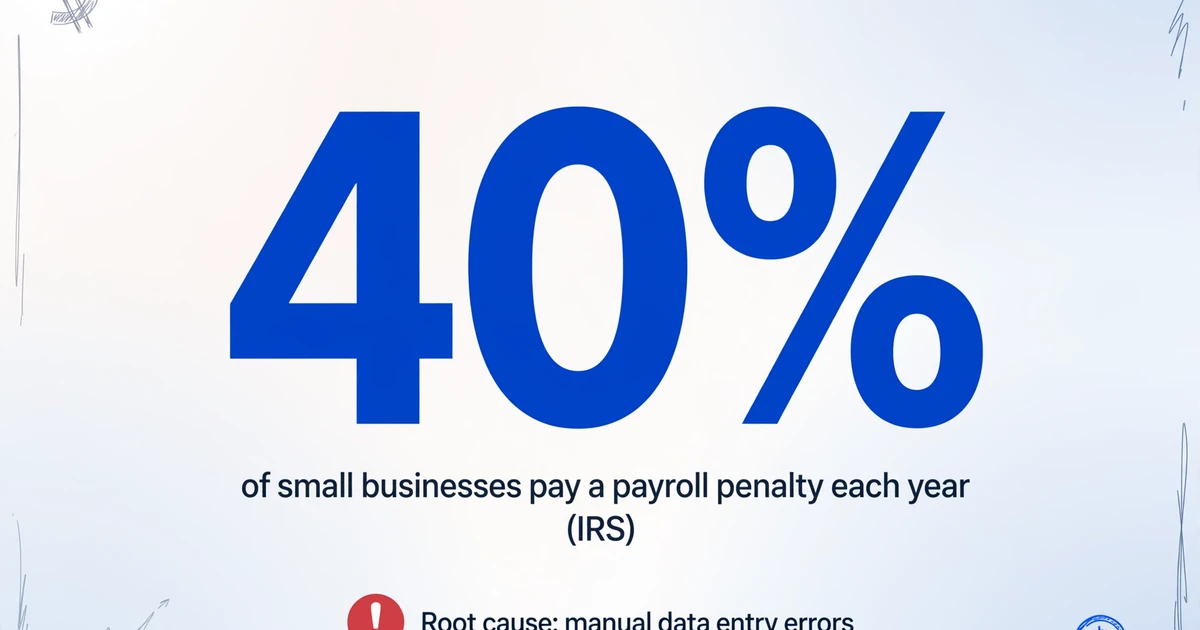
The IRS reports that 40% of small businesses pay a payroll penalty each year. Many of those penalties trace back not to payroll software miscalculations, but to data that was entered incorrectly into the reconciliation sheet.
Why the Google Sheets Add-on Changes the Reconciliation Loop
Payroll reconciliation is not one task — it's a loop with multiple handoffs. An employee sends a payslip (as a photo of a printed stub or a PDF from their previous employer's portal). HR receives it — in an email, a Slack DM, a shared folder. HR opens the reconciliation sheet. HR reads the payslip and types each field into the correct column. Then the spreadsheet formulas take over: net pay verification, period-over-period comparison, variance flagging. The bottleneck isn't the formulas. It's the fingers.
The ImageToTable.ai Google Sheets add-on inserts itself at exactly that bottleneck. Instead of opening the payslip in one window and the spreadsheet in another, you open the add-on sidebar inside Sheets. You upload the payslip image or PDF. You tell the add-on which columns you want filled — Employee Name, Pay Period, Gross Pay, Federal Tax, State Tax, Social Security, Medicare, 401(k), Health Insurance, Net Pay. The add-on reads the payslip and writes those values into the current row in your sheet. For the full capability rundown — supported field types, formats, and plan details — see the Google Sheets document extraction add-on.
This works through Custom Column Extraction: instead of drawing boxes around each field on the payslip (the template-based approach used by traditional OCR tools), you type the names of the columns you want — and the AI locates each value on the document by understanding what the field means, not where it sits. A payslip from ADP RUN and a payslip from Paychex will have different layouts, different labels, different positions for the same data — but "Gross Pay" means the same thing on both. Custom Column Extraction follows the meaning, not the coordinates. This means it works across any payslip format from any payroll provider without retraining or template creation. For the deeper anatomy of what those fields are and why YTD and deduction splits matter, our payslip data extraction deep dive walks through the field-level mechanics.
Setting Up Your Payslip Extraction Columns
After installing the add-on from the Google Workspace Marketplace and connecting your API key, you define your extraction columns once — they become your reconciliation sheet's permanent intake headers. A standard US payslip maps to roughly 10 columns:
| Column Name | What It Captures | Typical Payslip Label |
|---|---|---|
| Employee Name | Worker identifier | "Employee," "Name," "Pay To" |
| Pay Period | Dates covered | "Pay Period," "Period Ending" |
| Gross Pay | Total earnings before deductions | "Gross Pay," "Total Earnings" |
| Federal Income Tax | FIT withholding per W-4 | "Federal Tax," "Fed Withholding," "FIT" |
| State Income Tax | SIT withholding | "State Tax," "SIT," "State Withholding" |
| Social Security | OASDI at 6.2% (2025: up to $176,100 wage base) | "Social Security," "SS," "OASDI" |
| Medicare | 1.45% (additional 0.9% above $200,000) | "Medicare," "Med" |
| 401(k) / Retirement | Pre-tax retirement deduction | "401(k)," "Retirement," "Deferred Comp" |
| Health Insurance | Medical/dental/vision premium | "Health," "Dental," "Medical" |
| Net Pay | Take-home after all deductions | "Net Pay," "Take Home," "Amount" |
These column names are flexible: the AI reads the payslip contextually, so it correctly maps "Federal Tax" on one payslip and "Fed Withholding" on another to the same column. You don't need to rename your columns to match each payslip's vocabulary. Once these columns are defined in the sidebar, uploading a batch of payslips from multiple employees fills every row with the corresponding values.
If you're reconciling payslips that employees submit from outside your own payroll system — second-job verifications, income proof for loan applications, prior-employer stubs — these are documents you didn't generate and have no control over the format of. Custom Column Extraction handles that format variance natively.
Files are processed securely and not stored.
Verify Net Pay Automatically with Computed Columns
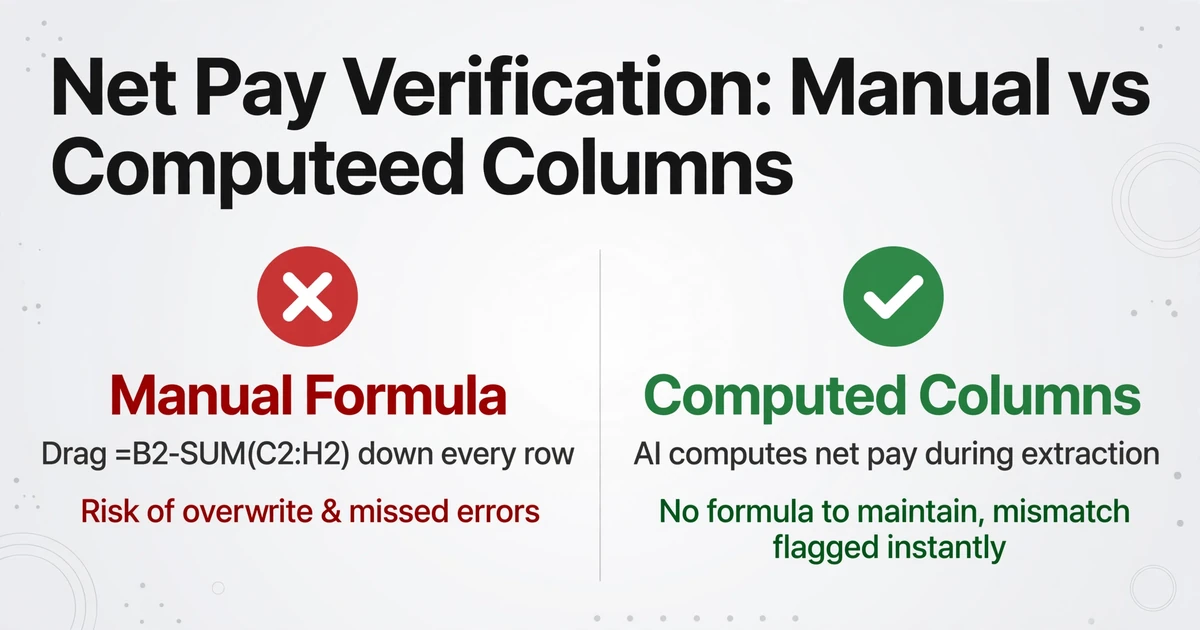
Extracting the values from a payslip is only half of reconciliation. The other half is confirming that the printed net pay actually equals gross pay minus all deductions — because the first sign of a payroll error is often a mismatch between those two numbers. A manual reconciliation sheet requires someone to write =B2-SUM(C2:H2) in the Net Pay Verification column and drag the formula down for every row.
The add-on eliminates this step with computed columns. A computed column is a column whose value isn't extracted from the document — it's calculated from other extracted columns during processing. In the sidebar, you can define a column like:
Net Pay Check (Gross Pay − Federal Tax − State Tax − Social Security − Medicare − 401k − Health Insurance − Other Deductions)
The AI reads each payslip, extracts all the deduction fields, and computes the expected net pay — then outputs the result into your sheet alongside the printed net pay. If the two don't match, you flag it before the pay run, not after the employee calls. This is the same verification logic you would write as a spreadsheet formula, but it executes inside the extraction itself — no formula to maintain, no column to drag, no risk that a formula was overwritten by a paste.
For a deeper dive into using computed columns with payslips — including annualized salary projection and effective tax rate calculation — see our article on extracting payslip data with net pay already computed.
Collection Link: Let Employees Submit Payslips Directly
Even with the extraction step automated, one manual friction point remains: getting the payslips into your possession. Employees email them. They Slack them. They hand you a paper copy. Each channel requires you to download, organize, and queue the files before extraction can begin.
The add-on's Collection Link feature removes this step. You generate a shareable link (in the format /c/xxxx) and send it to your team. Employees open the link on their phone or computer, enter a short verification code, and upload their payslip directly. The file lands in your processing queue automatically. No account creation, no login for the submitter — they just upload and the file appears in your sidebar's pending list.
This turns the payroll reconciliation loop into a one-direction flow: employees submit → files queue → you extract in Sheets → data populates the reconciliation sheet. The HR person stops being a document courier and becomes a reviewer — which is what the role is supposed to be. We cover the full multi-party workflow in detail in our guide on collecting employee payslips through Google Sheets.
The Full Payroll Reconciliation Workflow, End to End
Here is what payroll reconciliation looks like once the manual data entry step is removed, step by step:
Share the Collection Link with your team
Send one link to all employees whose payslips you need. They upload from any device — phone photo of a printed stub, PDF from a payroll portal, screenshot. No app install, no registration.
Open the add-on sidebar in your reconciliation sheet
Click Extensions → ImageToTable.ai → Start. Your defined columns (Employee Name, Gross Pay, Net Pay, etc.) load from your template.
Select the uploaded payslips and extract
The AI processes each payslip and writes the extracted values into the next available row in your sheet. Each column maps to the field name you defined — Gross Pay lands under "Gross Pay" regardless of how the payslip labeled it.
Review the computed Net Pay Check column
Any row where computed net pay ≠ printed net pay is immediately visible. You investigate those rows — all other rows are already verified and ready to reconcile against your payroll register.
For teams already using a similar Sheets-based workflow for other document types, the same sidebar add-on handles expense receipts (collecting employee expenses through Google Sheets), timesheets (extracting timesheet data via the add-on), and vendor invoices (extracting invoice data with the add-on) — a single sidebar, multiple document types, all feeding into the same Sheets environment.
Frequently Asked Questions
Does the add-on work with photographed payslips — phone photos, not scans?
Yes. The AI processes photographed payslips, including smartphone photos taken under uneven lighting or at slight angles. The underlying vision model reads the content from the image contextually — it doesn't require a flatbed scan with perfect alignment. That said, extremely blurry or heavily shadowed photos may reduce accuracy, and we recommend asking employees to use good lighting when snapping their payslip photos.
What payroll fields can the add-on extract?
Any field visible on the payslip can be extracted. The standard US payslip set includes employee name, pay period dates, gross pay, federal income tax, state income tax, Social Security (OASDI), Medicare, retirement contributions (401k, 403b), health/dental/vision insurance premiums, wage garnishments, and net pay. Year-to-date (YTD) totals are extractable as well. You define the column names — the AI maps the document data to your columns. Fields not present on a given payslip are simply left blank in that row.
Is payroll data secure when processed through the add-on?
Files uploaded through the add-on are transmitted over HTTPS to the ImageToTable.ai processing servers. Files are processed in memory for extraction and are not permanently stored. If you connect the add-on in account mode (using your API key), file processing history is retained in your account for reference, the same way it is on the website. The Collection Link submission page also uses HTTPS and the same processing pipeline.
Do I need a paid subscription to use the Google Sheets add-on?
The add-on is free to install from the Google Workspace Marketplace. Extraction uses your ImageToTable.ai account quota — the same page credits that apply on the website. Free accounts get trial credits (no credit card required) to test the add-on with a few payslips. Paid plans start with enough page credits to cover regular payroll reconciliation volume. See the pricing breakdown for small payroll providers for a detailed cost analysis.
Can the add-on handle payslips from different payroll providers?
Yes — this is one of the core advantages of Custom Column Extraction. Payslips from Gusto, ADP RUN, Paychex, QuickBooks Payroll, and in-house payroll systems all use different forms, labels, and layouts. Because the AI locates fields by semantic understanding rather than fixed-position templates, a column named "Gross Pay" will correctly capture the gross pay value whether the payslip labels it "Gross Pay," "Total Earnings," or "Gross Wages" — and whether it appears at the top left, in a middle table, or in a summary box at the bottom.
Can employees submit their own payslips through a Collection Link?
Yes. Generate a Collection Link from your account, share it with employees (email, Slack, SMS — any channel), and they can upload their payslip photos or PDFs directly. The link requires them to enter a short verification code to prevent spam submissions. Uploaded files appear in your processing queue in the sidebar. Employees do not need an ImageToTable.ai account. This is particularly useful when you need payslip data from people outside your organization — contractors, former employees, or job applicants providing income verification.
What if the payslip has handwritten notes or corrections?
The vision model reads handwriting as well as printed text. If an employee's payslip has a handwritten adjustment (a corrected deduction amount, a written note about overtime), the AI will attempt to read it alongside the printed fields. However, handwriting introduces additional uncertainty — heavily scribbled or illegible notes may not be read correctly. For payslips with extensive handwritten content, it's good practice to verify those specific rows after extraction, the same way you would with any document containing manual annotations.
Does computed column verification work for multi-state or complex tax scenarios?
Computed columns can handle multi-line deductions and conditional logic. If an employee has both state income tax and a local/city tax (e.g., New York City residents), you can define a Net Pay Check column that subtracts all applicable tax fields. If some deductions are pre-tax and others post-tax, the computed column can model that sequence. The AI executes the computation during extraction — you define the logic once, and every row gets the verification automatically. For advanced multi-step computations, the Rule Format (available to logged-in users) supports JSON-defined calculation rules with conditional branching.
Stop Typing Between the Payslip and the Sheet
Every field you type by hand from a payslip into a spreadsheet is a field where a $291 error can enter. The Google Sheets add-on removes the typing — and with computed columns, it also removes the formula-writing. Try it on your next payroll cycle: install the add-on, define your columns, upload a payslip, and see if the numbers that land in your sheet match what you would have typed. If they do — across all 10 columns — that's a reconciliation cycle with zero keystroke risk.
Try the Google Sheets Add-on