How to Extract Bank Statement Data into Excel
— Why Traditional OCR Fails and How AI Fixes It
Invoice extraction is a solved problem for most data tools. An invoice is a one-page document with discrete labeled fields — vendor name, amount, date — each living in its own box. A bank statement is the opposite: a multi-page transaction table where every row depends on the row above it, where a running balance must stay continuous from page one to page twelve, and where the only way to verify the extraction is correct is the oldest test in accounting — does opening balance + credits − debits = closing balance? If the tool drops one line or shifts a column by one row, the statement no longer reconciles, and the output is worse than useless: it looks right but fails the arithmetic. This difference — between extracting labeled fields and preserving a continuous transaction ledger — is where most OCR falls apart on bank statements, and where semantic AI extraction takes a fundamentally different approach.
Key Takeaways
- The real extraction barrier on bank statements isn't character accuracy — it's that a multi-page transaction table is a linked list where one misplaced row breaks reconciliation, regardless of how cleanly every character was read.
- On a 12-page business statement, page headers and subtotals repeat across every page — a 147-row transaction table becomes a 160-row Excel file where 13 structural-noise rows are indistinguishable from real data.
- When extraction reads document structure instead of pixel coordinates, the output is a verified ledger where opening balance + credits − debits equals the closing balance — proven before it enters your accounting system.
Why Bank Statements Are Structurally Harder Than Invoices
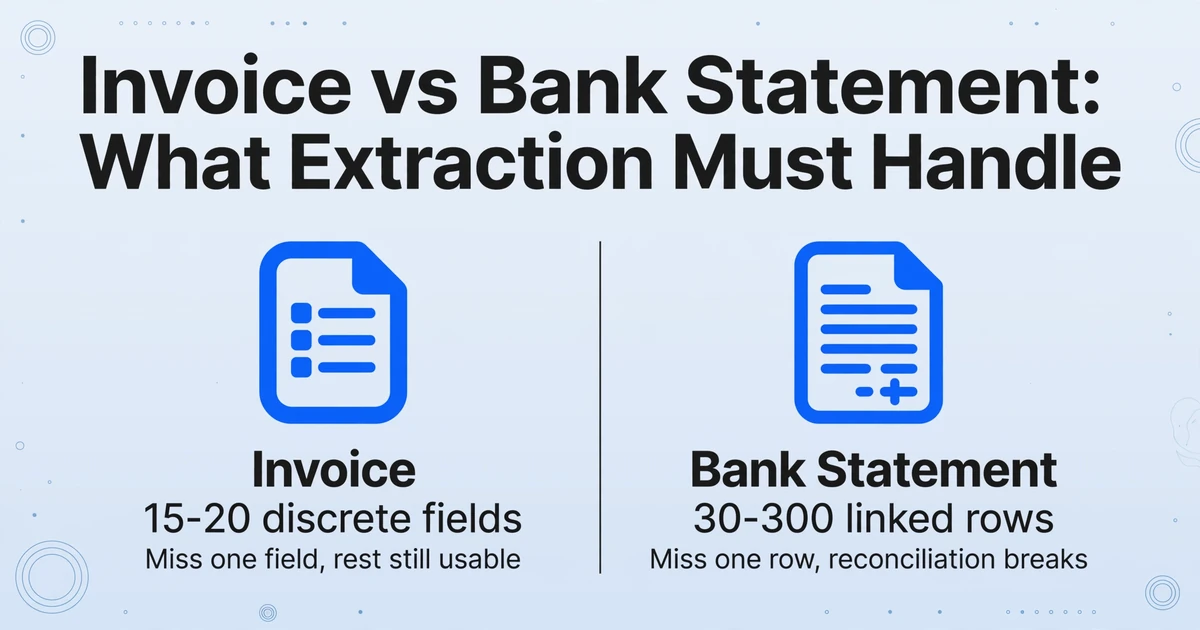
A bank statement is not a collection of fields — it is a time-ordered ledger where the position of every row matters and the arithmetic must close. Treating it like an invoice is the root cause of most extraction failures.
An invoice has maybe 15 to 20 data points spread across labeled regions on a single page: an invoice number here, a due date there, a total at the bottom. These are discrete fields — extracting them is a find-and-retrieve operation. If the tool misses one field, it misses one piece of information. The rest of the output is still usable.
A bank statement is a completely different data structure. It contains a transaction table — typically 30 to 300 rows per month — where each row has a date, a description, a debit or credit amount, and a running balance. The balance column on row 47 depends on the balance on row 46, which depends on row 45, all the way back to the opening balance. This is a linked-list data structure rendered as a printed table. If the tool misses one row or shifts a column by one position, the arithmetic chain breaks, and the entire reconciliation fails — not just one field. An investment statement layers a holdings table on top of the transaction rows, where Quantity, Price, and Market Value have to stay consistent within each line — a structure that column naming reads without a broker-specific template.
Add the fact that bank statements routinely span multiple pages (often 3 to 12 pages for a monthly business account), and that the transaction table may break mid-page with a carried-forward subtotal, and you can see why extracting a bank statement is a fundamentally different problem. It's not "harder OCR." It's a different class of extraction: continuous ledger reconstruction rather than field extraction.
Compounding this is the sheer variety of bank statement formats. An estimated thousands of distinct bank statement layouts exist globally — from Chase and Bank of America in the US to HSBC and Barclays in the UK, from Deutsche Bank in Germany to Caixa in Brazil. Each bank arranges its transaction columns differently, uses different terminology for debits and credits, and applies different page-level formatting. A template-based tool that works for one bank's PDF needs a completely new template for another bank's statement. For an accounting firm that handles clients across multiple banks, that means maintaining dozens of templates just to cover the common formats — and every time a bank updates its statement design, another template breaks.
Most people encountering this for the first time assume the solution is better OCR — higher character-level accuracy. But the real problem isn't reading the characters. The problem is understanding which characters form a transaction row, which form a header, which form a balance, and how they all connect across pages. That's not optical recognition. That's document comprehension.
What Generic OCR Gets Wrong on Bank Statements
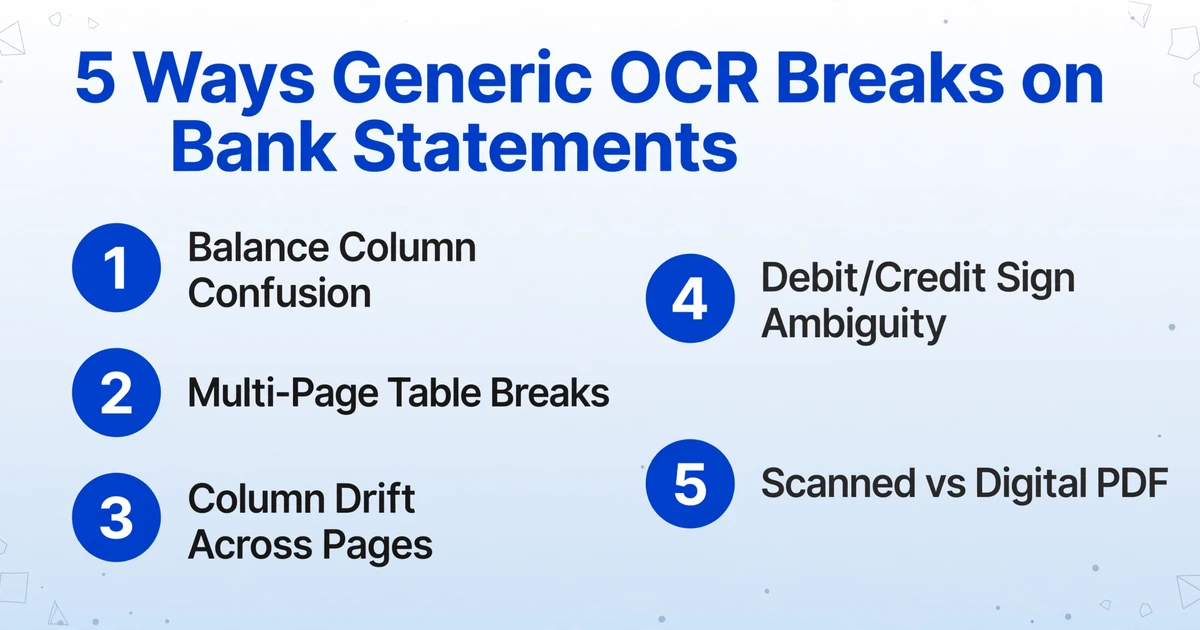
Generic OCR reads every character on the page equally — it cannot tell a transaction amount from a running balance from a page header. On a bank statement, that means your Excel output is contaminated with structural noise from the first row.
When you feed a bank statement PDF through standard OCR or through a PDF-to-Excel converter like Adobe's built-in export, you get approximately correct characters arranged in approximately correct positions. But "approximately correct positions" breaks down in five specific ways on bank statements:
1. Balance column confusion. A running balance column looks like just another number column to OCR. The OCR engine does not understand that the balance on row N is a derived value — it should be the result of adding or subtracting row N's transaction amount from the previous balance, not an independently extracted number. When a statement has a four-column layout (Date | Description | Debit | Credit | Balance), OCR often merges balance values into the debit/credit columns or vice versa. The resulting spreadsheet appears to have all its data, but the numbers don't add up — and the user spends more time fixing the extraction than they would have spent typing it from scratch, as one bookkeeper on r/Bookkeeping described: "Do your bank statement pdfs convert to Excel cleanly? Mine don't…"
2. Multi-page table breaks. A 6-page bank statement is one continuous transaction table split across pages. Page breaks introduce repeating column headers ("Date | Description | Debit | Credit | Balance"), page numbers, and often a carried-forward subtotal row. OCR treats every page as an independent table. The result: header rows and subtotal rows get interspersed with transaction rows in the output, breaking the row order and contaminating the data. A statement that had 147 real transactions can end up as 160+ rows in Excel — 13 of which are page headers and subtotals masquerading as transaction data.
3. Column drift across pages. Even within the same bank, transaction columns can shift position from page to page. Page one might have Description columns spanning 60% of the page width because there's no "Balance" column (it appears only as an opening balance at the top). Page two introduces the running balance as a fifth column, compressing the Description width to 40%. OCR that uses fixed column coordinates (zonal OCR) will misread every row after the column shift — extracting account numbers where descriptions should be, or balance amounts where transaction amounts should be.
4. Debit/credit sign ambiguity. Some banks use separate Debit and Credit columns with positive numbers in each. Others use a single Amount column with negative numbers for debits. Still others use a single Amount column where debits are marked with a "Dr" suffix and credits with "Cr." OCR reads these as text strings, not as accounting entries. The output requires manual cleanup — converting "500.00Dr" to -500.00, or collapsing dual columns into one signed column — before any reconciliation can begin. According to the AICPA's 2025 Practice Efficiency Benchmark, the average accounting firm spends 11.3 hours per client per month on bank reconciliation, with 78% of that time consumed by transaction matching that follows predictable, automatable patterns.
5. Scanned vs. digital PDF confusion. A digital PDF (generated directly by the bank's system) has selectable, machine-readable text. A scanned PDF (a physical paper statement photographed or scanned) is an image of text — no different from a photo. Many PDF-to-Excel tutorials assume digital PDFs and fail silently on scanned statements. OCR engines designed for clean digital text produce gibberish on a 150-dpi scan of a folded paper statement. Yet scanned statements remain common: a recent r/Accounting thread with 28 upvotes discusses the ongoing reality of clients who "send scanned PDFs for everything."
How AI Extraction Reads Bank Statements Differently
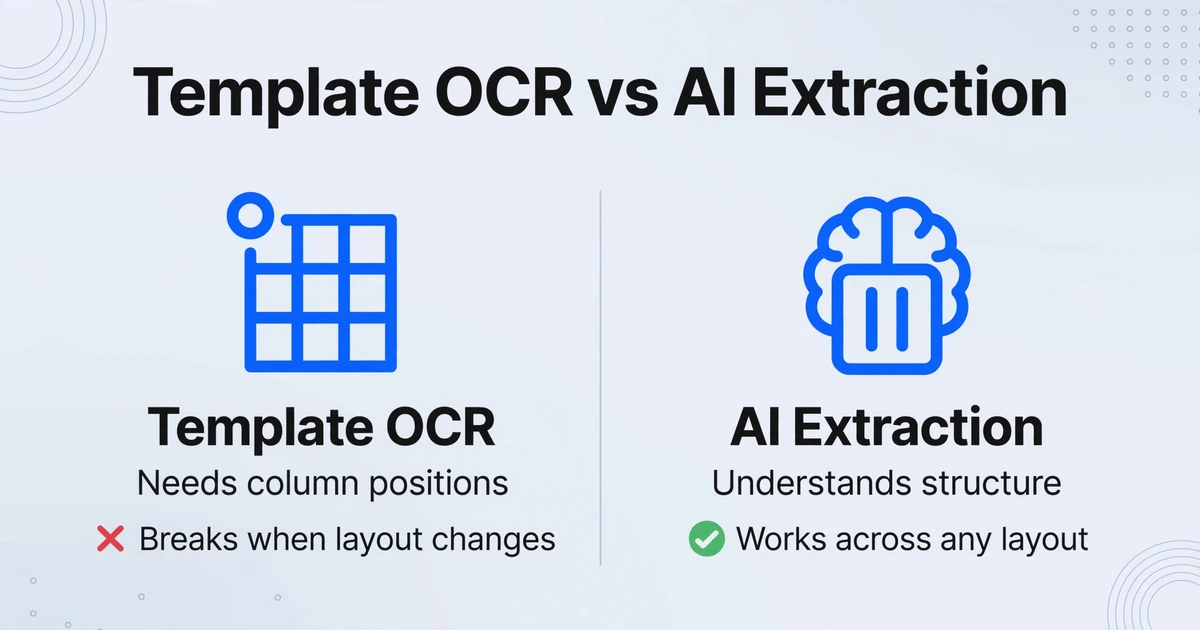
The fundamental shift from OCR to AI extraction is the move from reading characters to understanding document structure — recognizing that a balance column is not just a number column, and a transaction row is not just a line of text.
Traditional OCR answers one question: "What characters are at these coordinates?" AI extraction — specifically through large vision models — answers a different question: "What does this document contain, and how is it organized?"
This is the difference between position-based extraction and semantic-based extraction. A position-based tool (zonal OCR, template-based parsers) needs to be told where each field sits on the page — "the transaction amount is always in the fourth column, starting 73mm from the left edge." When Chase changes its statement layout next quarter or when you receive a Wells Fargo statement in a completely different column arrangement, that template breaks. You build a new one.
Custom Column Extraction — ImageToTable.ai's core mechanism — takes the opposite approach. Instead of telling the system where data lives on the page, you tell it what data you want: column names like "Transaction Date," "Description," "Debit Amount," "Credit Amount," and "Balance." The AI reads the entire page, understands which parts are headers, which are transaction rows, which are balance rows, and which are footers — then extracts every transaction row into the columns you defined, preserving row order end to end. It doesn't matter which column position each bank uses; the AI reads the semantic meaning, not the coordinates.
This matters particularly for running balances. When you define a "Balance" column, the AI recognizes that this column is a derived field — it extracts the value as-is but the real check comes from a Computed Column (see below) that verifies the arithmetic. If the AI can also be instructed to ignore the printed balance and re-compute it from the transaction amounts, you get a built-in validation: any discrepancy between the computed balance and the statement's printed balance flags a row that needs review. A loan amortization schedule is the same kind of chain — each payment's ending balance must become the next payment's beginning balance — so a single misread row throws off the final payoff.
The mechanism that makes this possible is the same thing that makes a vision-language model fundamentally different from an OCR engine: it processes the page as a whole visual scene, not as a grid of character bounding boxes. It sees that "the table has 5 columns, the fifth one is a running balance, the data continues across page breaks, and the middle section has a subtotal row that isn't a transaction." Traditional OCR sees none of this — it sees pixels arranged in a grid.
Step by Step: Extracting Bank Statement Data into Excel
The path from PDF bank statement to a clean, reconciliation-ready spreadsheet is four steps. No templates, no per-bank configuration, no column-position training data.
Upload your bank statement
Drag in a PDF, JPG, or PNG — any bank, any number of pages, digital or scanned. No format pre-processing required.
Define your columns
Type the column names you want: Transaction Date, Description, Debit Amount, Credit Amount, Balance, Reference/Check No., Transaction Type. These become your Excel column headers.
AI extracts every transaction row
The AI reads the entire document, identifies the transaction table across all pages, extracts every row into your defined columns, and preserves row order. Headers, subtotals, and page footers are filtered out automatically.
Export and reconcile
Download as Excel (XLSX) or CSV. The data is structured, clean, and ready for import into QuickBooks, Xero, Sage, or your reconciliation spreadsheet.
The four-step workflow above — upload, define columns, extract, export — is exactly what our bank statement to Excel converter does in one pass, no templates and no per-bank setup. Try it free on your own statement: upload a PDF, name your columns, and the extracted rows come back in seconds, ready for the reconciliation check.
Files are processed securely and not stored.
What makes this workflow different from a template-based parser is that you never tell the system where the data sits — you only tell it what you want. This is what makes it template-free: the AI understands the document's structure independently of its layout. When you receive a statement from a new bank — or when your existing bank redesigns its format — there is nothing to reconfigure. The same column names find the same data regardless of where on the page it appears.
Handling Multi-Page Statements and Batch Processing
A single month-end reconciliation might involve 12 PDFs from 3 different banks. Batch processing handles them all in one pass, merging every transaction into a single output spreadsheet with row order preserved per statement.
Bank statement extraction is rarely a one-file-at-a-time problem. A bookkeeper closing the books for Q1 might face 3 months × 3 bank accounts = 9 PDFs. An accounting firm handling 50 bookkeeping clients might process 200+ statements per month. The manual approach — open each PDF, read each row, type into Excel — scales linearly with transaction count, and the AICPA data confirms the result: 11.3 hours per client per month, 3.5 full-time equivalent staff for a 50-client firm, just on bank reconciliation.
Batch-First Processing means the tool is designed to accept multiple files at once and merge them into one output table. You can upload Chase January, Chase February, Chase March, Wells Fargo January, Wells Fargo February, and Wells Fargo March — six files in one batch — and receive a single Excel spreadsheet with all transactions from all six statements, each tagged with its source filename for traceability. Row order within each statement is preserved, and the output can optionally append a source-file column so you always know which transaction came from which statement.
For multi-page statements, the AI understands that pages 1 through 6 of a single PDF represent one continuous transaction table — not six separate tables. The running balance that appears on page 3, row 28 is recognized as the continuation of the transaction sequence from page 2. Headers, page numbers, carried-forward subtotals, and bank boilerplate text that repeat on every page are filtered out before reaching your Excel output.
This is where the batch + multi-page combination creates a compounding benefit over manual entry. A 12-page business checking statement with 200 transactions that would take roughly an hour to type (at 3 minutes per page of manual entry) processes in 5–10 seconds per page. The Sage 2025 Accounting Technology Report found that firms that automated bank reconciliation reduced processing time by 75% while improving first-pass match accuracy from 94.2% to 99.6%. The key insight isn't just the time savings — it's that shifting from human entry to AI extraction eliminates the most common category of error: transposition mistakes where a human misreads "2,847.31" as "2,487.31" or types an amount into the wrong row.
For practitioners who need data directly in Google Sheets rather than a downloaded Excel file, the Google Sheets add-on provides a sidebar interface that uploads statements and appends extracted transaction rows directly to the active sheet — no file download, no import step. For a fuller picture of how this compares to manual entry across a range of statement volumes, see our manual vs AI bank statement entry comparison.
Making Extracted Data Reconciliation-Ready
Getting transactions into Excel is step one. Making them reconcile automatically — verifying that opening balance + credits − debits equals closing balance — is where computed columns turn extracted data into verified data.
Even with perfectly extracted transaction rows, reconciliation requires an arithmetic check. The bank statement declares an opening balance and a closing balance; the sum of all transactions in between must bridge the two. A manual workflow handles this by doing the math in a separate Excel column after import. An AI extraction workflow can handle it during extraction, using computed columns.
Computed Columns let you define calculations that run as the AI processes each statement. For bank statement reconciliation, two computed columns are particularly useful:
Running balance verification: You can define a computed column that calculates the expected balance after each transaction (opening balance + sum of all debits and credits up to that row) and compares it against the statement's printed balance. Any discrepancy produces a flag — the row where the arithmetic breaks is the row that needs human review.
Debit/credit netting: For statements with separate debit and credit columns, a computed column can calculate the net amount for each row (Credit − Debit) and the cumulative net across all rows. The final cumulative net, added to the opening balance, should equal the closing balance. If it doesn't, the discrepancy amount tells you exactly how far off the extraction is — and usually points to one or two specific rows that were misread.
These computed checks are not optional for anyone doing reconciliation — they're the difference between "the data looks right" and "the data is proven right." The Association of Certified Fraud Examiners reports that approximately 22% of financial statement fraud cases are uncovered through bank reconciliation, underscoring why the arithmetic validation step cannot be skipped.
After extraction and validation, the structured Excel output can flow into your accounting software — QuickBooks Online, Xero, Sage, NetSuite, or any platform that accepts CSV/XLSX imports — with the transaction data already cleaned, standardized, and verified. If you're evaluating which tool to use across your entire financial document workflow, our comparison of bank statement extraction tools maps out the landscape by accuracy, pricing, and accounting integration.
Bank Statements Across Different Banks and Countries
A format-independent extraction system treats a Chase statement, a Deutsche Bank statement, and a Caixa statement as the same problem — each is a transaction table with dates, descriptions, and amounts. The visual layout differences do not change the extraction logic.
One of the quiet costs of template-based extraction is per-bank maintenance overhead. If your parsing tool requires training or template creation for each bank format, and your firm processes statements from 15 different banks across your client base, you maintain 15 parsing configurations. When any of those banks updates its statement layout — a font change, a column reordering, a new logo placement — one of your templates stops working. You discover this when you try to process a client's statement and the output is garbled, usually at month-end when time is tightest.
AI extraction that is format-independent sidesteps this entirely. Whether the bank uses a two-column layout (Date + Description followed by Debit + Credit), a five-column layout (Date + Description + Debit + Credit + Balance), or a regional variant with local terminology — "Retraits" instead of "Debits," "Versements" instead of "Credits" in French statements — the AI identifies the transaction table by its structural pattern: a repeating sequence of date, text description, and numeric amounts. The specific arrangement within that pattern doesn't matter.
This format independence also handles international statements where the underlying data standard differs. European banks increasingly emit statements in camt.053 — the ISO 20022 XML format for bank-to-customer statements — which is a structured, machine-readable format with explicit transaction-level metadata. But many banks still issue PDF statements alongside or instead of camt.053 files, and some countries are years away from ISO 20022 adoption. The reality for most accounting teams is that they receive a mix: some clients provide CSV exports, some provide PDFs, and a few forward XML statements they cannot parse. A single tool that handles all three formats eliminates the need for a separate processing path per format.
Even within a single country, layout diversity is substantial. A Wells Fargo business checking statement has a different table structure than a Chase business checking statement, which differs from a local credit union statement. The format-independent approach means the bookkeeper defines the columns once — "Transaction Date, Description, Amount, Balance" — and uses the same column definition across every client's statements regardless of which bank issued them. For a deeper look at how this applies specifically to batch reconciliation across an entire year, see our guide on batch processing 12 months of bank statements into one spreadsheet.
FAQ
Does this work with multi-page bank statements?
Yes. The AI reads the statement as one continuous transaction table regardless of page count. A 12-page statement with 250 transactions processes as a single unit — page headers, repeated column labels, carried-forward subtotals, and footer text are automatically identified and filtered out so they don't contaminate your Excel output. The row order is preserved across pages exactly as it appears on the original statement.
Can it extract data from scanned or photographed bank statements?
Yes. The visual-language model reads text from images, not just digital PDFs. A scanned paper statement — whether produced by a flatbed scanner, a phone photo, or a bank's own scan of a legacy paper record — is processed the same way as a native PDF. Image quality matters (a 150-dpi scan with visible skew will produce lower accuracy than a clean 300-dpi scan), but there is no requirement for a digitally generated, text-selectable PDF.
How does it handle the running balance column?
The AI extracts the running balance as it appears on the statement. However, because printed balances can contain errors or the extraction can misread a digit, the recommended practice is to define a Computed Column that recalculates the running balance from the extracted debit and credit amounts. If the computed balance matches the printed balance, you have a cross-verification. If they diverge, you know exactly which row to review. This turns the running balance from a passive extracted field into an active validation mechanism.
Will this work with statements from different banks with different layouts?
Yes — this is the core advantage of format-independent extraction. A Chase statement, a Wells Fargo statement, a Barclays statement, and a local credit union statement all share the same fundamental structure: a table of dated transactions with text descriptions and numeric amounts. The AI identifies that structure regardless of column order, font, spacing, or page layout. You use the same column names ("Transaction Date," "Description," "Amount") across all banks. There is no per-bank template to create or maintain.
How are debits and credits handled when banks format them differently?
Some banks use separate Debit and Credit columns with positive values in both. Others use a single Amount column with negative numbers for debits. Still others append "Dr" or "Cr" suffixes to amounts. The AI can extract whatever column structure exists on the statement, and you can optionally define a Computed Column that normalizes the values into a single signed amount column (negative for debits, positive for credits) — producing a uniform output regardless of how each bank formats its statement.
What's the accuracy on bank statement transaction extraction?
For printed (digital) bank statement PDFs with clear typography, field-level accuracy reaches up to 99%. For scanned or photographed statements, accuracy depends on image quality — a clean 300-dpi scan approaches similar results, while a low-resolution phone photo of a crumpled paper statement will be lower. The key safeguard is the reconciliation check: because every bank statement has a verifiable closing balance against which extracted transactions can be validated, any extraction error large enough to affect the reconciliation will be caught by the balance verification step before the data enters your accounting system.
The Bottom Line
Bank statement extraction sits at the intersection of two problems that most data tools solve separately: accurate character reading and structural document understanding. OCR alone gives you the characters but not the structure — it cannot distinguish a transaction row from a header row, a running balance from a transaction amount, or page one's table from page two's continuation of the same table. Template-based parsing adds structure but at the cost of per-bank configuration and fragility when layouts change.
AI extraction through vision-language models collapses these into one step: the AI reads the document as a whole, understands its structure, and extracts what you asked for — preserving row order, filtering out structural noise, and enabling arithmetic verification before the data reaches your accounting system. The output is not "approximately the right data in approximately the right order." It's a transaction ledger that ties to the statement's closing balance — the only standard that matters for reconciliation. Try it on your own bank statement.
Extract Your Bank Statement Now →
Free to start — no credit card required