Batch 12 Months of Bank Statements into
One Reconciliation Spreadsheet
The real bottleneck in a year-end bank reconciliation isn't the reconciliation itself. It's the 3-5 hours it takes to get the data off 12 monthly PDFs and into a spreadsheet. By month three of manual typing, the format differences between your Chase checking, Wells Fargo savings, and that credit union business account start to blur. You misread a credit as a debit. You skip a split transaction that wrapped across a page break. Two hours later, your ending balance is off by $47.41, and you're scrolling back through 472 rows trying to find it.
If you haven't extracted bank statement data before, start with our guide to extracting bank statement data into Excel — it covers single-statement extraction fundamentals. This article is about what changes when you're processing 12 at once.
12 Statements, 1 Spreadsheet: Where the Manual Approach Breaks Down
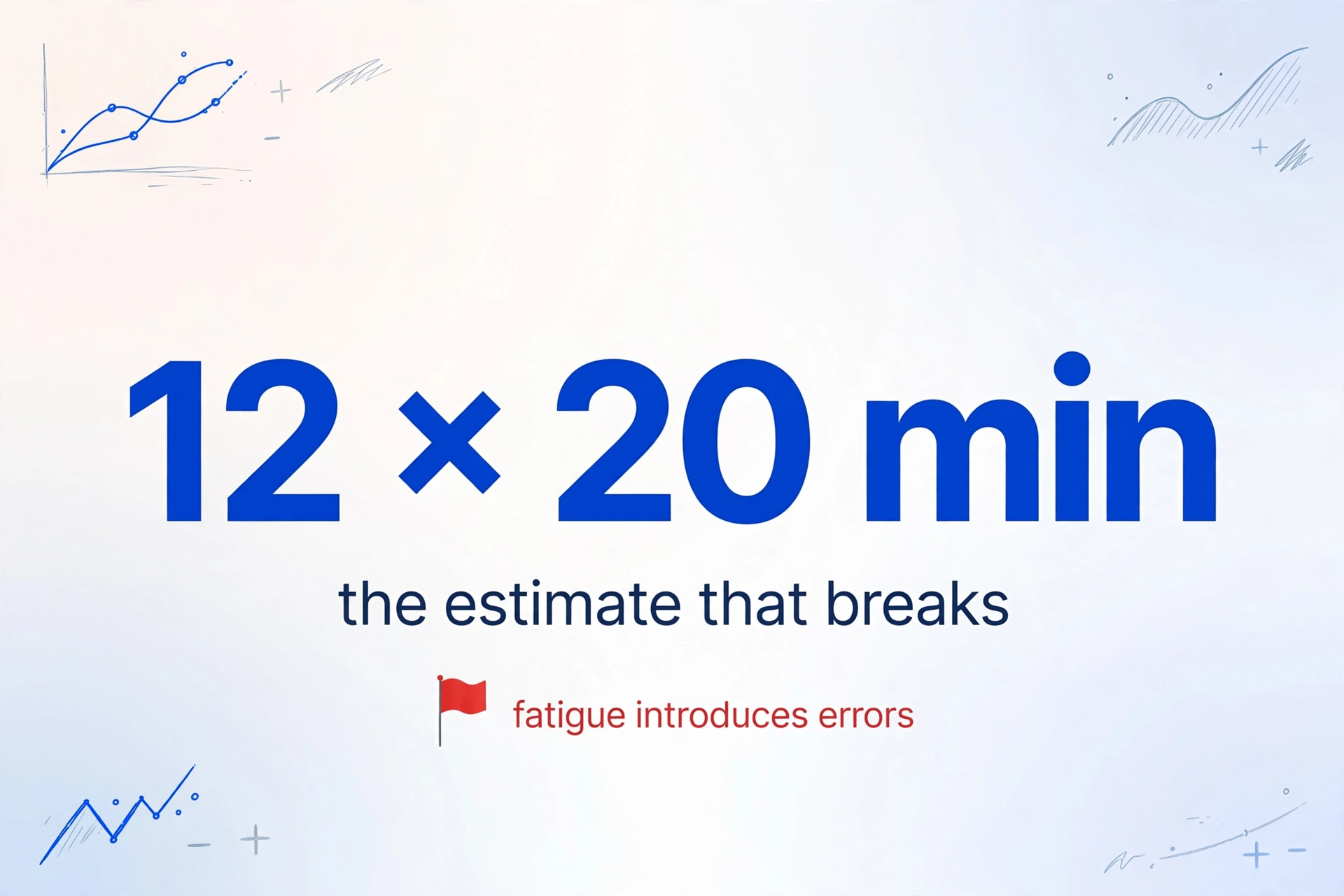
Processing a single bank statement by hand involves opening the PDF, reading each transaction line, and typing the date, description, and amount into a spreadsheet. Most people who've done it put the per-statement time at 15-25 minutes — not counting the reconciliation matching step that follows.
Processing 12 statements doesn't take 12 × 20 minutes. It takes considerably longer, because fatigue introduces errors that must be hunted down later. A Reddit user in r/Bookkeeping described reducing reconciliation time "from 3 hours to under an hour" for a single account after finding a better method — and that's someone who does this professionally. For a business owner with three accounts across two banks, 12 months of statements means roughly 36 individual PDFs to process, each potentially 3-7 pages long.
The efficiency cliff hits between the third and fourth statement. Before that, you're cross-referencing carefully. After that, the cognitive load of format-switching compounds — and by the eighth statement, you're making errors you'd catch on the first. This isn't a discipline problem. It's a structural limitation of manual data entry at volume.
This compounding effect is what makes batch bank statement processing different from single-statement extraction — and why tools designed for one-month-at-a-time workflows leave the year-end reconciliation problem unsolved. The American Institute of Professional Bookkeepers (AIPB) includes bank reconciliation as a dedicated section of its Certified Bookkeeper exam — a two-hour test that treats reconciliation as a core professional competency, not a clerical afterthought (AIPB CB Designation). When the certifying body for bookkeepers devotes 25% of its core exam to a single task, it's worth noticing how much time that task actually consumes — and what it costs when done manually at year-end scale.
Why Bank Feeds and CSV Exports Don't Always Save You
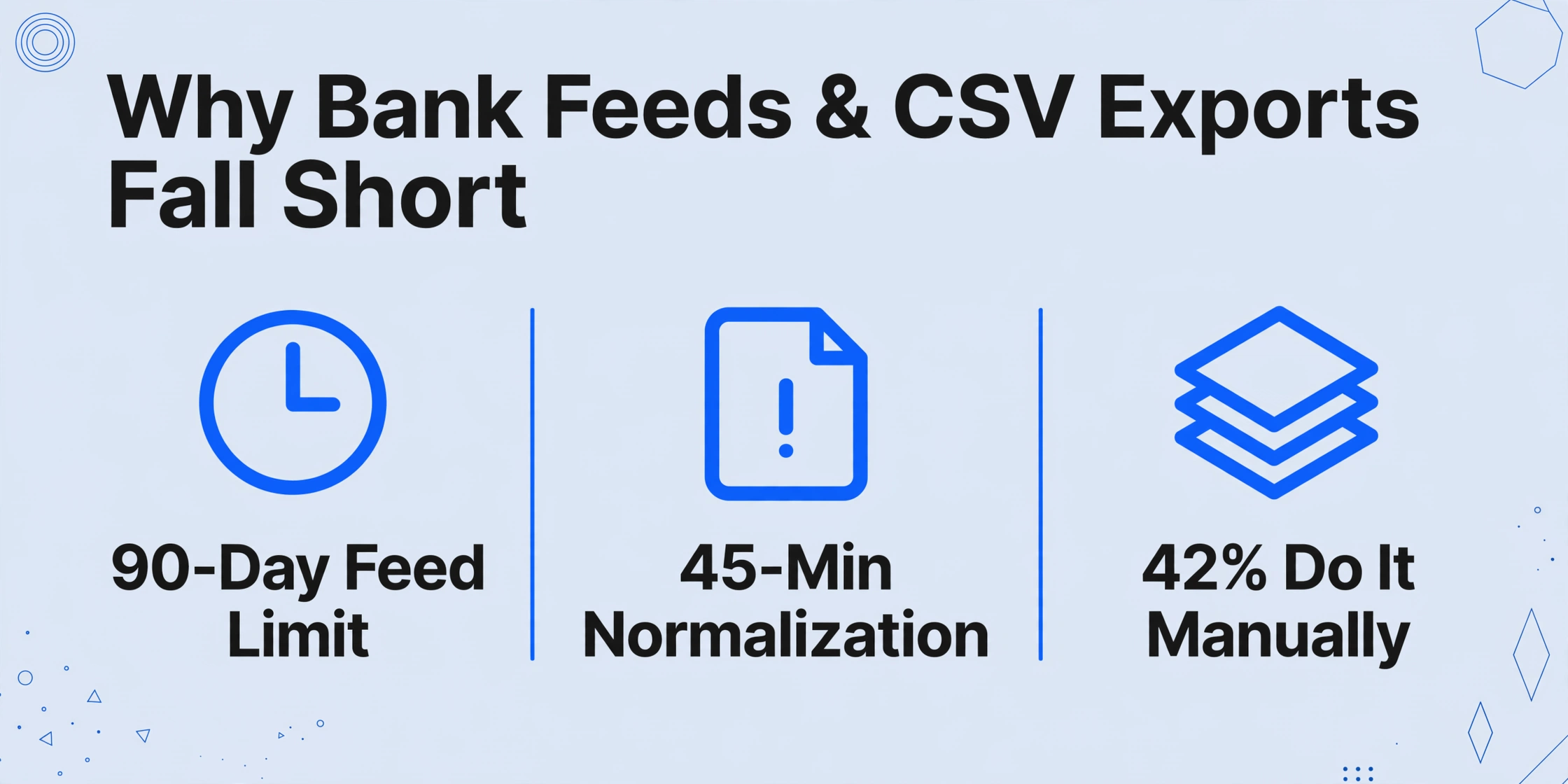
The standard advice — "just use a bank feed" or "download the CSV" — has three blind spots that become visible precisely when you need the data most.
First, bank feeds aren't universal. QuickBooks and Xero support automatic bank feeds for major US institutions, but these feeds typically pull only the last 90 days of transactions. A year-end reconciliation requires all 12 months. For statements older than the feed window — or for accounts at smaller banks and credit unions that don't participate in the feed program — you're back to manual entry. Xero's Hubdoc offers bank statement extraction for supported US and Canadian banks, but only for digital PDFs downloaded directly from the bank — not scans, not photos, not statements someone mailed you.
Second, CSV exports look standard but aren't. A Chase checking CSV and a Bank of America CSV use different column orders, different amount formatting, and different transaction description conventions. Downloading 12 CSVs sounds like a solution until you realize you'll spend 45 minutes normalizing column headers, cleaning date formats, and standardizing debit/credit representation — before you can merge them into one workbook.
Third, the vast majority of small businesses don't use accounting software that way. Data from the National Federation of Independent Business shows 42% of small employers spend four hours or more each month on tax compliance activities, with paperwork preparation — not strategic tax planning — as the dominant activity. Many of these businesses track finances in Excel spreadsheets maintained by the owner or a part-time bookkeeper. For them, "connect your bank feed" presumes an infrastructure they don't have.
IRS Publication 583 requires businesses to retain bank statements and supporting documents for at least three years — and recommends seven. Having those PDFs isn't optional. Getting the data out of them efficiently is what determines whether year-end reconciliation takes an afternoon or a week.
How Batch Extraction Reads Three Banks Like One Format
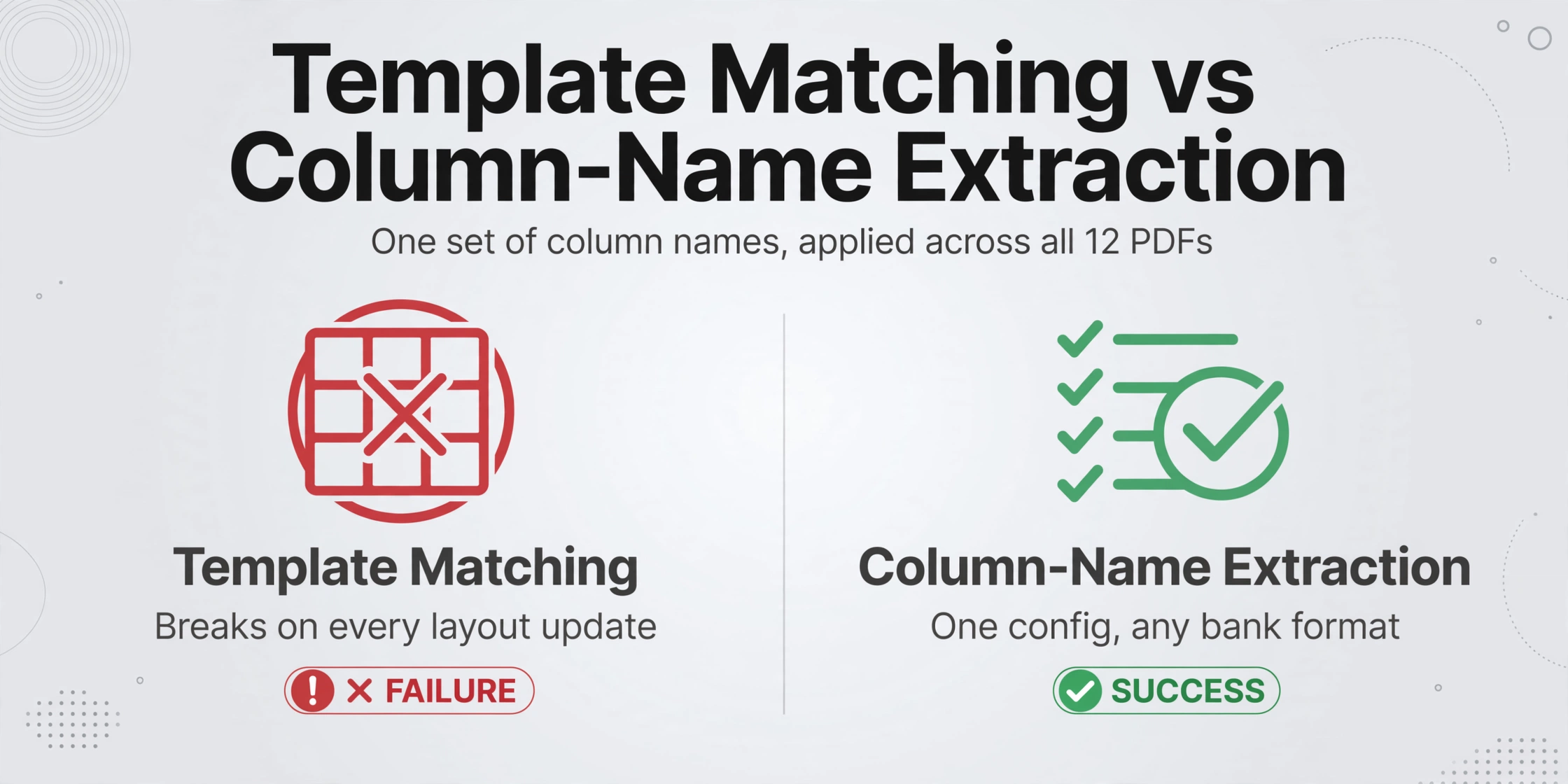
Here's the core problem batch processing solves: a Chase checking PDF puts debits and credits in two separate columns. A Wells Fargo savings PDF uses a single "Amount" column where deposits are positive and withdrawals are negative. A small credit union's PDF uses a fixed-width text format from the 1990s that wraps transaction descriptions across two lines. A template-based OCR tool needs three separate templates — and breaks every time one bank updates its statement layout, which most major banks do at least once a year.
ImageToTable.ai uses column-name extraction — a different mechanism. Instead of defining where data sits on the page (template matching), you define what data you want. You type the column names you need — "Date," "Description," "Debit," "Credit," "Balance" — once. The AI reads each PDF the way a person does: it looks for the date column, recognizes transaction descriptions by their position and context, and pulls amounts into the correct debit or credit column regardless of whether the source uses separate columns or positive/negative notation.
This is the same mechanism we cover in our guide to batch processing invoices — the extraction logic is format-agnostic, which is what makes genuinely batch processing possible. You don't configure three banks. You configure one set of column names, and the AI applies it across all 12 (or 36) PDFs.
Building Your Reconciliation Spreadsheet from 12 PDFs
The workflow has three steps, and the structure of the output is what matters:
Files are processed securely and not stored.
Step 1 — Upload all 12 monthly PDFs at once. Drag every statement into the upload area. PDF, JPG, PNG — all supported. The tool accepts up to 50 files per batch. If you have three accounts, that's 36 PDFs in one upload session.
Step 2 — Define your column names once. The columns you type become the headers of your output table. For reconciliation, the standard set is: Date, Description, Reference/Check Number, Debit, Credit, Balance. You can also add an inferred column — a column the AI fills based on document content rather than extracting an existing field. For example, adding Category (options: Payroll/Office Expense/Vendor Payment/Transfer/Other) lets the AI classify each transaction automatically, giving you a categorized transaction register alongside the raw extraction. Inferred columns apply across all files in the batch — extraction and categorization happen in a single pass.
Step 3 — Export the merged Excel file. The output is a single spreadsheet with all 12 months of transactions in one table, with a source file column that identifies which statement each row came from. This column becomes your audit trail: every transaction in the reconciliation is traceable back to the specific bank PDF and page it originated from. For more on the year-end reconciliation-as-anchored-event approach, see our guide to batch processing a year of receipts into a tax-ready spreadsheet — the time pressure and structural challenges are similar. You can also use the dedicated bank statement to Excel converter for the extraction step.
Three Integrity Checks That Only Matter at Scale
Processing one bank statement, you can spot anomalies by eye. Processing 12, you need systematic checks. These three are specific to batch bank statement reconciliation — they don't apply to single-statement workflows, which is why most extraction tutorials don't mention them.
1. Opening/closing balance continuity. January's ending balance must equal February's opening balance. If it doesn't, either a transaction was missed or a digit was misread. When you extract 12 statements into one merged spreadsheet, a quick column check — =IF(A2=B1,"OK","BREAK") — tells you instantly where the gap is. But this only works if the extraction tool preserved the running balance field accurately in every row. A bank statement converter that drops the balance column or merges it into the amount column breaks this check entirely.
2. Duplicate transaction detection across month boundaries. Some transactions appear on two statements — an end-of-month check dated December 31 that clears January 3, or a recurring ACH that shows up with the same description and amount in consecutive months. With a single merged worksheet, you can sort by amount + date + description to surface duplicates. Without it — working statement by statement — duplicates are invisible.
3. The "missing month" problem. If you manually process 12 statements and the bank only sent you 11 (a common issue when statement dates shift or a download fails), the gap is hard to detect. A batch workflow makes it obvious: if you uploaded 12 files and the output has rows for only 11 months, the source-file column immediately shows which one is absent.
These aren't checks you run because the data is unreliable. They're checks you run because any data pipeline — manual or automated — needs verification, and batch processing makes that verification tractable instead of tedious.
FAQ
Does batch extraction work with scanned paper statements, not just digital PDFs?
Yes. The underlying AI is a vision model that reads what's on the page regardless of whether the PDF originated as a digital export or a physical scan. A photographed paper statement from a kitchen table works the same way as a PDF downloaded from Chase.com — though image quality matters. A clear, well-lit photo will extract accurately. A blurry, shadowed photo will produce more errors, just as it would for a human reader.
Can I import the extracted spreadsheet directly into QuickBooks or Xero?
The output is a standard Excel (XLSX) or CSV file. QuickBooks Online accepts CSV imports via the Banking → Upload from file path. Xero accepts CSV imports under Accounting → Bank Accounts → Import a Statement. Neither platform natively imports PDFs — the conversion step (PDF → structured data) is what the extraction tool handles. For users of our Google Sheets add-on, you can also write extracted data directly into a spreadsheet without downloading and re-uploading.
What if my 12 monthly statements come from different accounts at different banks?
This is the common case, not an edge case. The column-name extraction mechanism is format-agnostic: the same set of column names (Date, Description, Debit, Credit, Balance) works across Chase, Wells Fargo, Bank of America, credit unions, and international banks. The merged output includes a source file column so you can filter or pivot by account. If you want separate tabs per account, process each account's 12 statements as a separate batch.
How accurate is the extraction for numbers — can I trust the amounts?
Printed table data achieves up to 99% recognition accuracy. However, bank reconciliation requires exact matching to the penny, which means you should always verify the ending balance of each statement against the PDF. The tool's automatic balance extraction makes this fast: compare the extracted closing balance in row 1 of each statement's section to the printed balance on the PDF. This takes roughly 30 seconds per statement — the kind of verification that makes sense at any scale.
Does this work for credit card statements too?
Yes. Credit card statements use the same transaction table structure as bank statements — date, description, amount. The same column-name approach extracts both. If you're processing both bank and credit card statements for the same reconciliation period, you can batch them together and use the source-file column to separate them afterward, or run them as separate batches for cleaner per-account organization.
What happens if a statement has transactions that split across two pages?
The AI recognizes that a transaction table continues across page breaks and preserves the row integrity. A single transaction that starts at the bottom of page 2 and continues to page 3 is extracted as one row, not two. This is a common failure mode for generic PDF-to-Excel converters that treat each page as an independent table.
What makes year-end reconciliation different from monthly bookkeeping isn't the accounting — it's the volume. Twelve statements, three banks, one CPA waiting for a consolidated report. Whether you process them in 10 minutes or half a day depends on whether you're reading each page or typing each line. Upload your first batch of PDFs and see what changes.