How to Extract Any Data from Screenshots
— App UIs, Dashboards, Payment Confirmations
Every app has an export button until it doesn't. The banking app that won't let you copy a transaction reference. The legacy ERP your company has used since 2003. The BI dashboard displaying the three numbers you need for your weekly report — with no download option anywhere on the screen. The colleague who responds to your data request with a screenshot instead of a file. In each case, the information exists. It's visible. You're looking right at it. But the only way to get it into a spreadsheet is to type it yourself.
Key Takeaways
- Nearly every screenshot-to-Excel tool assumes you've captured a clean, bordered HTML table. Seven out of nine real-world scenarios that make you need such a tool — payment screens, dashboard KPIs, chat order messages — don't produce a table at all.
- OCR (the character-reading technology behind most extraction tools) sees text positions, not meaning — it registers '$249.00' and 'Amount' as two unrelated pieces of text rather than as a payment value and its label, which is why it works on grids and fails on everything else.
- With ImageToTable.ai you type column names like 'Transaction Amount' and 'Sender Name' once, upload screenshots from Venmo, PayPal, and your bank app all in the same batch, and the AI finds each value regardless of which app's layout it came from — one table, no per-source setup.
When the Only Export Button Is a Screenshot
Screenshots occupy a strange category in our relationship with data. They're not documents — they don't have pages or structure. They're not spreadsheets — you can't filter or sort them. They're not databases — they have no schema. Yet screenshots are the universal fallback: the thing you create when every other path to your data has been blocked.
The scenarios below are not edge cases. They're everyday moments where data exists but won't move to where you need it.
Payment confirmations. Venmo, PayPal, Zelle, Cash App — these platforms show you transaction history on screen but don't provide straightforward spreadsheet exports for personal tracking. Screenshot the confirmation, and you have a record you can't analyze or sum. See our dedicated guides on extracting multi-platform payment screenshots and payment confirmation data.
Personal analytics dashboards. One Reddit user described having 30+ iPhone Screen Time screenshots, one per day, and needed to convert every app's usage time into a clean Excel table. Apple provides no bulk export for Screen Time data — the only path from phone to analysis runs through screenshots.
Colleagues who send screenshots instead of exports. An SAP Community blog post captures the experience exactly: "Having humbly requested information from a co-worker in the unshakable faith one possesses in their colleague's thoughtfulness, envisioning the forthcoming data neatly packaged in copy-paste-ready text. Only to see that faith crumble… upon the realization that they have gallantly sent… a screenshot." The blog then tests multiple AI models to extract material numbers and other data from those screenshots.
Internal legacy systems with no API. Thousands of companies run ERP, CRM, or inventory systems built decades ago. These systems display data on screen — product codes, stock levels, order statuses — but offer no modern export option, no API, and no CSV download. The screen is the only data output they have.
BI dashboards without export. Dashboards are often requested but rarely used as analysis tools — and even when they are, the three KPI numbers a manager needs for their weekly report often have no "download to Excel" button. The data is rendered as visual cards, not exportable rows.
Chat-based orders and inquiries. Small businesses routinely receive orders through WhatsApp, WeChat, Messenger, or SMS. A customer sends: "50 units of product A, delivery to 123 Main St." That's data — quantity, product, address — buried in a chat bubble. There's no API for that conversation, but there is a screenshot.
Excel tables trapped in presentations or PDFs. A Reddit thread with hundreds of upvotes reveals how common this is: someone receives a table inside a PDF or slide deck, the copy-paste destroys the formatting, and the only reliable capture is a screenshot.
Trading and investment logs. Traders on r/FuturesTrading regularly discuss journaling their trades — attaching screenshots of entry/exit confirmations from platforms that don't export clean CSV. Each screenshot contains specific numbers (price, quantity, P&L) that need to be extracted into a tracking spreadsheet.
Banking app transaction details. Mobile banking apps frequently disable copy-paste for security reasons. When they do allow screenshots, that capture is the only record of a transaction until the monthly statement arrives — and statements summarize; individual transaction details live only in the app.
None of these nine scenarios involve a clean, bordered HTML table. Most screenshot-to-Excel tools expect exactly that — and fail on everything else. The tool that works on payment confirmations and dashboard cards and chat messages works on fundamentally different principles than one that assumes tabular input.
What Most Screenshot-to-Excel Tools Assume — and Why It Limits Them
If you search for "screenshot to Excel," virtually every result shows you the same workflow: find a table in your screenshot, let the tool detect its rows and columns, and convert it into spreadsheet cells. Microsoft's "Data from Picture" feature in Excel works this way. Copilot Chat does too. OCR-based converters built by Chrome extension developers do too.
These tools share a core assumption: the screenshot contains a table. If it does, they detect grid lines, map cells to rows and columns, and populate a spreadsheet. The output mirrors the input layout — whatever the table looked like on screen is what you get in Excel.
Here is what that assumption excludes from the nine scenarios above:
| Scenario | Contains a table? | Traditional screenshot-to-Excel tools can handle? |
|---|---|---|
| Payment confirmation | No — label-value pairs | No |
| iPhone Screen Time | Sort of — cards | Unreliably |
| Colleague's SAP screenshot | Sometimes | Format-dependent |
| Legacy ERP screen | Rarely | No |
| BI dashboard KPI | No — single numbers in cards | No |
| Banking app transaction | No — label-value pairs | No |
| Chat order message | No — natural language | No |
| PDF table via screenshot | Yes | Yes (partially) |
| Trading confirmation | No — label-value pairs | No |
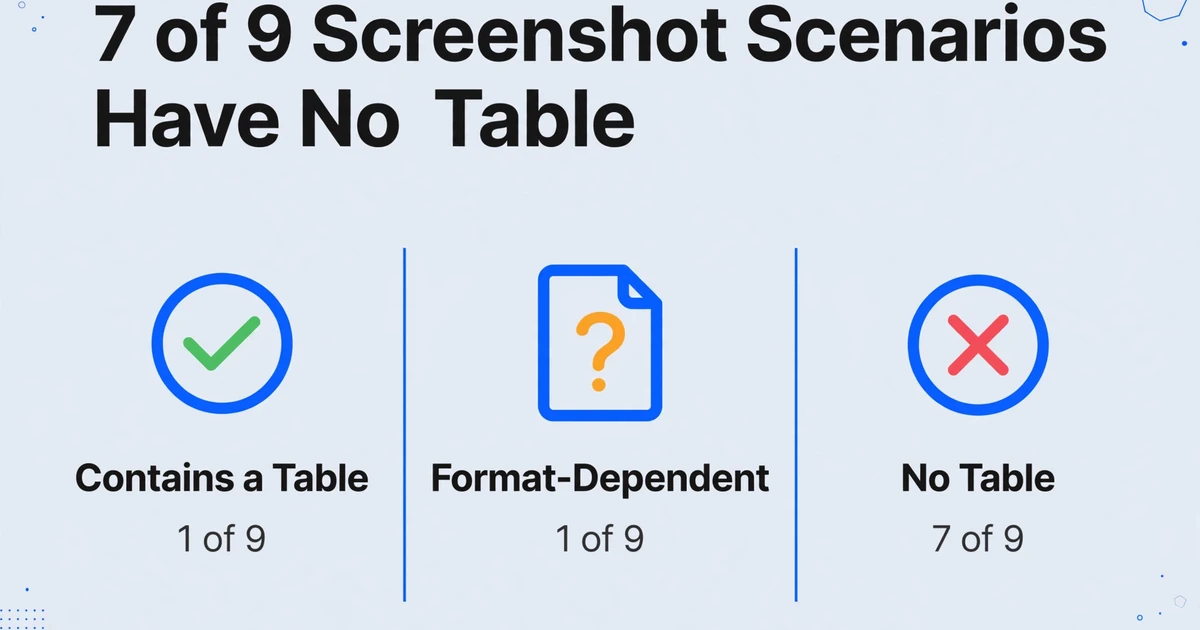
Seven out of nine scenarios don't produce the kind of input that traditional screenshot-to-Excel tools can process. These tools solve the easiest version of the problem — and leave the rest to manual typing.
How AI Reads a Screenshot Differently Than OCR Does

Traditional OCR (Optical Character Recognition) works by detecting character shapes and converting them to text. When applied to a screenshot, OCR outputs a stream of recognized words with approximate positions — it tells you what text appears and roughly where, but not what any of it means. The tool doesn't know that "$249.00" is a dollar amount. It doesn't know that "From: Jane Smith" identifies a sender. It doesn't know that the number next to "Confirmation #" is the field you're trying to extract.
A visual AI model processes the screenshot differently. It reads the entire screen the way a person would — recognizing not just characters but relationships between elements. When it sees "Amount" in bold with "$249.00" below it, it understands those two pieces of text form a label-value pair. When it sees a chat bubble that reads "50 units of Product A — deliver to 123 Main St," it understands that this is an order containing a quantity, a product name, and an address — even though none of those fields are labeled as such.
This is the difference that makes field-level extraction possible on screenshots. Instead of asking the tool to detect a table and guess its structure, you tell it what you're looking for — "Amount," "Confirmation Number," "Sender," "Quantity" — and the AI searches the entire screenshot for each value, understanding the semantic context around it. A payment screenshot from Venmo and a payment screenshot from PayPal look completely different, but both contain the same information categories. The AI finds them by understanding what they mean, not where they sit.
The approach is called column-name extraction: you type the field names you want into the tool's interface, and those names become both the extraction instructions and the output table headers. The AI reads each screenshot, locates the corresponding values, and populates your columns. No templates to build. No pixel coordinates to define. No distinction between "this screenshot has a table" and "this screenshot is a card-based UI" — the AI doesn't care about the layout; it cares about the information.
The Setup: Define What You Want, Not Where It Is
The workflow is the same regardless of what kind of screenshot you're processing. Here's what each step actually involves:
Type the column headers that describe the data you want to extract. These column names serve two purposes simultaneously: they tell the AI what to look for, and they become the headers in your output spreadsheet. The column names you enter are the exact headers of your final table.
The most common mistake here is being too vague. "Info" or "Details" gives the AI nothing to work with. Precise, recognizable field names — the kind that would appear as labels in the source UI — extract reliably. Ambiguous names produce inconsistent results.
What good column names look like vs. what to avoid:
| Vague (avoid) | Specific (use this) | Why it matters |
|---|---|---|
| Amount | Transaction Amount | Disambiguates from fees, taxes, or subtotals that also appear as "Amount" |
| Name | Sender Name / Recipient Name | Payment screens show both parties; the role matters |
| ID | Confirmation Number / Order ID | Many screens show multiple IDs; the label guides the AI to the right one |
| Date | Transaction Date | Distinguishes from posting date, statement date, or due date |
| Value | Metric Value / KPI Value | On dashboards with multiple metrics, role context prevents cross-assignment |
You can also define computed columns directly in the column name. For example, Line Total (Qty × Unit Price) tells the AI to calculate the product as it extracts — you receive the computed result, not just the raw fields. This works without logging in, directly in the demo.
Drop in one file or a batch. Supported formats are PNG, JPG, WebP, AVIF — any format your phone, desktop screenshot tool, or screen recorder produces. PDF files are also supported, so if your screenshots were compiled into a PDF, you can upload that directly.
Mixed-source batches work. You can combine Venmo, PayPal, and bank app screenshots in a single upload. You can mix screenshots from different ERP screens, or dashboard captures from multiple dates. The AI processes each file independently against your column definitions. Every file runs through the same extraction logic, producing consistent output regardless of source app differences.
File size and resolution: Screenshots taken at native resolution work best. Images that have been downscaled by messaging apps (WhatsApp compresses photos by default, for example) may lose fine text detail. If you're forwarding screenshots from a chat app, save them at original quality when possible, or take a fresh screenshot from the source rather than re-sharing a compressed version.
Processing runs as a batch: after upload, the AI handles each file and produces one row per screenshot (or multiple rows if a single screenshot contains a multi-row table). A single-page document typically processes in 5–10 seconds.
After processing, extracted data appears in a table with your specified column names as headers. Each row corresponds to one screenshot (or one logical record from within a screenshot, if the source contained a list or table).
Reviewing for accuracy: The AI flags values it's uncertain about. Scan flagged cells first — these are typically fields where the source image was ambiguous, or where a value was absent from the screenshot entirely (the cell will be empty rather than fabricated). For high-accuracy input like clean desktop screenshots, most fields will extract correctly without manual review.
Export formats: Excel (XLSX), CSV, JSON, and Word are all available as output formats. For spreadsheet work, XLSX is the most useful — it preserves column structure and supports direct import into Google Sheets or Excel without reformatting. JSON output is useful if you're piping the results into a database or another tool.
If you use Google Sheets, the sidebar add-on lets you extract directly into your active spreadsheet — without downloading and re-uploading a file. Connect your API key once, and extracted data appends to your current sheet in one step.
Column Names That Work for Each Screenshot Type
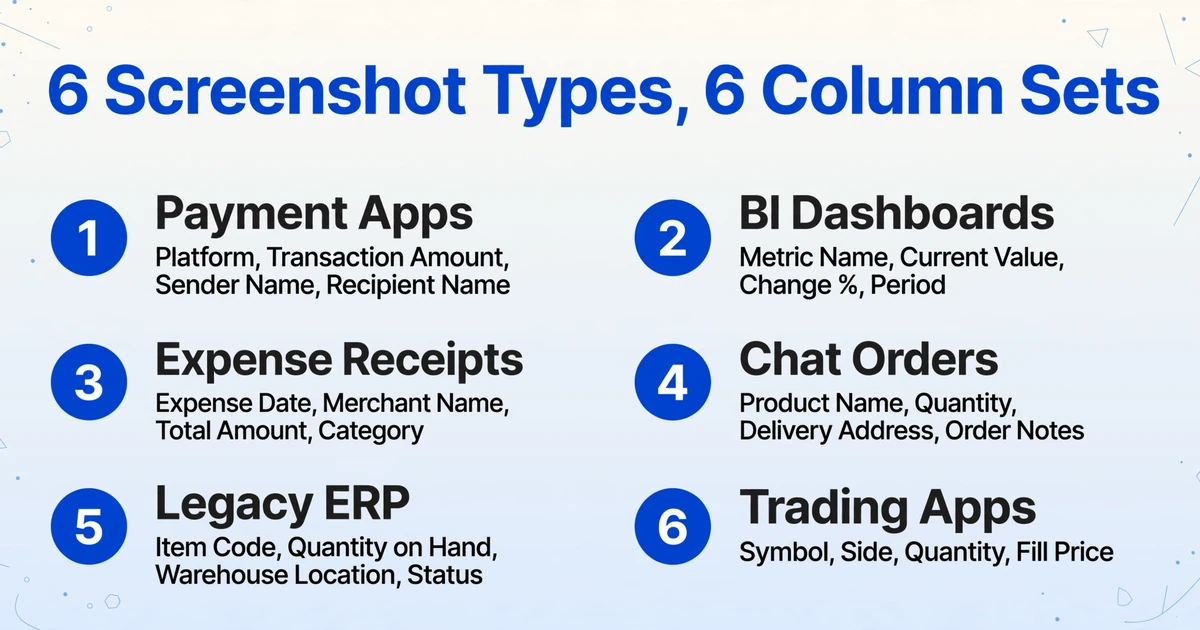
The most common point of friction is knowing what to type into the column name field. The examples below cover the six most frequently processed screenshot types. Use these directly, or adapt them to match the labels you see in your specific source UI — the closer your column names are to the actual field labels on screen, the more consistently the AI will locate the right values.
Payment app confirmations (Venmo, PayPal, Zelle, Cash App)
These screens show label-value pairs for each transaction. Key fields to capture:
Platform | Transaction Date | Transaction Amount | Sender Name | Recipient Name | Confirmation Number | Note / Memo | Payment MethodNotes: "Platform" is useful when batching screenshots from multiple apps into one table. "Note / Memo" captures the transaction description the sender added. "Payment Method" (bank account vs. balance vs. credit card) appears on some platforms and is worth capturing if you're reconciling.
BI dashboard KPI cards
Business dashboard screenshots often show metrics as individual cards — one number per tile, with a label and sometimes a comparison value. Recommended columns:
Metric Name | Current Value | Previous Period Value | Change % | Period | Dashboard NameNotes: "Metric Name" extracts the label from each card (e.g., "Monthly Revenue," "Active Users"). "Period" captures the time range shown on the dashboard — useful when you're batching multiple date-range screenshots together. "Dashboard Name" is worth adding if you're pulling from multiple dashboards in one batch.
Legacy ERP / terminal screens
Green-screen ERP and older enterprise systems typically display data in fixed-width text fields. Column definitions depend on the specific screen type, but for an inventory or order screen:
Item Code | Item Description | Quantity on Hand | Unit of Measure | Warehouse Location | Last Updated Date | Order Number | StatusNotes: Use the exact field labels shown on the ERP screen as your column names whenever possible. Legacy systems often use abbreviated labels ("QTY ON HAND," "WH LOC") — you can either match those abbreviations or use descriptive names; the AI understands both. For screens with many rows, the AI will produce one output row per data row on screen.
Chat-based orders (WhatsApp, WeChat, Messenger)
Chat order screenshots contain natural language — no field labels, just sentences. The AI extracts structured data from unstructured text. Standard order fields:
Customer Name | Product Name | Quantity | Unit Price | Delivery Address | Requested Delivery Date | Order Notes | Contact NumberNotes: If a field isn't mentioned in the chat message (e.g., no delivery date given), the cell will be empty — the AI won't fabricate values. "Order Notes" captures any special instructions or qualifiers the customer included. For screenshots containing multiple separate orders in one chat thread, the AI will produce one row per order.
Trading platform confirmations
Trade confirmation screenshots from brokerage apps typically show label-value pairs for each execution. For a trade journal:
Symbol | Trade Date | Trade Time | Side (Buy/Sell) | Quantity | Fill Price | Commission | Order ID | AccountNotes: "Side (Buy/Sell)" in the column name gives the AI the value range to expect, which improves extraction accuracy for fields that could otherwise be ambiguous. If you want to compute P&L directly, add a computed column: Gross P&L (Qty × Fill Price). Broker documents that go beyond a single fill work the same way — an Indian broker's Zerodha contract note itemizes STT, stamp duty, exchange turnover charges, SEBI fees, and GST alongside the scrip and its weighted average price.
Expense receipts and reimbursement screenshots
Expense screenshots range from retail receipts to restaurant bills to hotel folios. For an expense reimbursement workflow:
Expense Date | Merchant Name | Total Amount | Tax Amount | Category | Payment Method | Receipt Number | Employee NameNotes: "Category" won't appear in most receipts — leave it blank and fill it yourself, or define a computed column with conditional logic if you want the AI to infer categories from merchant names. "Employee Name" is useful when processing a team's expense screenshots in one batch via the Collection Link feature.
Files are processed securely and not stored.
Try it: copy one of the column sets above, paste it into the demo's column name field, upload a matching screenshot, and see what the AI finds.
When Screenshots Are Your Only Data Source
Some screenshots happen because the tool you're using doesn't support data export. Others happen because the person who sent the data chose the wrong format. Both produce the same result — you staring at information you need, with no way to use it without retyping.
The scenarios where column-name extraction from screenshots makes the biggest difference are the ones where no alternative exists at all:
Legacy systems. If your company runs a 20-year-old ERP with a green-on-black terminal interface, you're not getting a REST API. There is no CSV export. The screen is the only output. But the AI doesn't need an API — it needs to see what you see. A screenshot of that terminal screen, processed through the same column definitions you use for modern web UIs, produces the same structured output. The age of the system doesn't matter; the information on the screen does.
Apps that block data access by design. Banking apps restrict copy-paste for security. Healthcare portals disable text selection for HIPAA compliance. Some enterprise dashboards render data as images to prevent scraping. These are reasonable security decisions — but they also mean that the legitimate user who needs their own data for their own spreadsheet has no path to get it. AI extraction from screenshots works within these constraints: you can see the data, so you can capture it; the AI reads the capture.
Multi-source aggregation. When you're collecting payment confirmations from three different platforms, or order details from five different chat apps, or KPI numbers from four different dashboards, the data arrives in five different visual layouts. Template-based tools need five different configurations. Column-name extraction needs one: tell the AI what information you want, and it finds it across every layout variation. This is the same principle that makes multi-format invoice extraction work — applied to screenshots instead of documents.
For teams that need to process expense screenshots at scale, the Collection Link feature adds a distribution layer: generate a shareable upload page, send the link to team members, and their screenshots land directly in your processing queue — no registration required from the submitter.
What Affects Screenshot Extraction Accuracy
Screenshots are the cleanest input format for AI extraction because they're machine-rendered: consistent fonts, sharp contrast, no camera shake, no lighting problems, no page curl. This gives screenshot extraction inherently higher accuracy than photo-based extraction. The SAP Community blog's testing confirmed this: multiple AI models reliably extracted structured data from enterprise screenshots, though performance varied slightly by model.
Accuracy still depends on a few factors:
- Resolution. A full-resolution screenshot captures text at its native pixel density. A screenshot that's been compressed or resized (common in messaging apps that downscale images) may lose fine detail.
- Field clarity. Fields that are unambiguous — dollar amounts preceded by "$", dates in recognizable formats, confirmation numbers with predictable patterns — extract more accurately than free-text fields that could be interpreted multiple ways.
- Information density. A dashboard with three large KPI numbers on a clean background will extract more reliably than a dense table with 50 rows of tightly packed data. The AI can handle either, but the simpler the visual layout, the fewer edge cases.
- Thinking Mode. For screenshots with complex layouts or mixed content types (a chat message containing both casual text and structured order details, for example), enabling Thinking Mode gives the AI additional reasoning steps that improve extraction accuracy on ambiguous fields.
For printed table data extracted from clean screenshots, accuracy reaches up to 99%. The SAP blog author's practical verdict after testing: "The output was quite accurate and required minimal manual correction" — which, compared to retyping everything from scratch, is a meaningful difference.
Frequently Asked Questions
Can I extract data from screenshots taken on my phone?
Yes. iPhone and Android screenshots work the same as desktop screenshots — both produce PNG or JPG files that the AI processes identically. The common workflow: take screenshots on your phone throughout the day, transfer them to your computer (or upload directly from mobile browser), and process them in a batch.
Does this work on screenshots that contain both tables and non-table data?
Yes. The AI doesn't distinguish between "table content" and "non-table content" — it searches the entire image for each field you defined. A dashboard screenshot might have a KPI card at the top (single number), a trend line chart in the middle, and a data table at the bottom. If your columns are "Metric," "Current Value," and "Trend," the AI extracts from the card. If they're "Row Label," "Q1," and "Q2," it extracts from the table. The field definitions determine what gets found.
What about screenshots with personal or sensitive data?
Files uploaded to ImageToTable.ai are processed securely and not stored. For highly sensitive data (medical records, financial account details), verify that the processing terms meet your compliance requirements before uploading. The extraction itself does not retain your data after the session completes.
Can I process screenshots from different apps in the same batch?
Yes. This is one of the strongest use cases. If you're tracking expenses and have payment screenshots from Venmo, PayPal, and your bank app, upload them all in one batch. Define columns like "Date," "Amount," "Vendor/Merchant," and "Category" once — the AI finds each value regardless of which app the screenshot came from. The output is one unified table with all transactions from all sources.
Is screenshot extraction more accurate than photo extraction?
Yes, generally. Screenshots have consistent rendering — machine-generated fonts, uniform contrast, no perspective distortion or lighting variation — which makes them the highest-accuracy input format for AI extraction. A photo of a printed document (taken at an angle, under variable lighting) introduces more variables. If you have the choice between a screenshot and a photo, choose the screenshot every time.
For specific screenshot workflows, see our guides on extracting payment confirmation data, processing expense screenshots, and extracting clinical data from EHR screenshots. If you're working with documents rather than screenshots, start with what AI document extraction actually means.
If you're ready to skip the theory and start extracting, the screenshot to Excel conversion tool lets you define your columns, drop in screenshots from any source, and get a clean spreadsheet in seconds — no templates, no manual entry.
See also: step-by-step guide to converting screenshots to spreadsheets without retyping · input format accuracy comparison: screenshot vs. PDF vs. photo vs. scan