Why Turning a Screenshot into a Spreadsheet
Is Harder Than You Think
Most people assume screenshot-to-spreadsheet is one problem. It's not. It's two. One is reading the text out of an image — that's transcription, and it's been solved for decades. The other is understanding what that text means as structured data — which rows belong together, which values are labels and which are data, where one table ends and another begins. That's extraction, and it's a fundamentally harder problem. The gap between these two explains why the tool that flawlessly converts a clean grid into Excel cells fails completely on a payment confirmation screenshot — and why that failure isn't a bug, but a consequence of the approach.
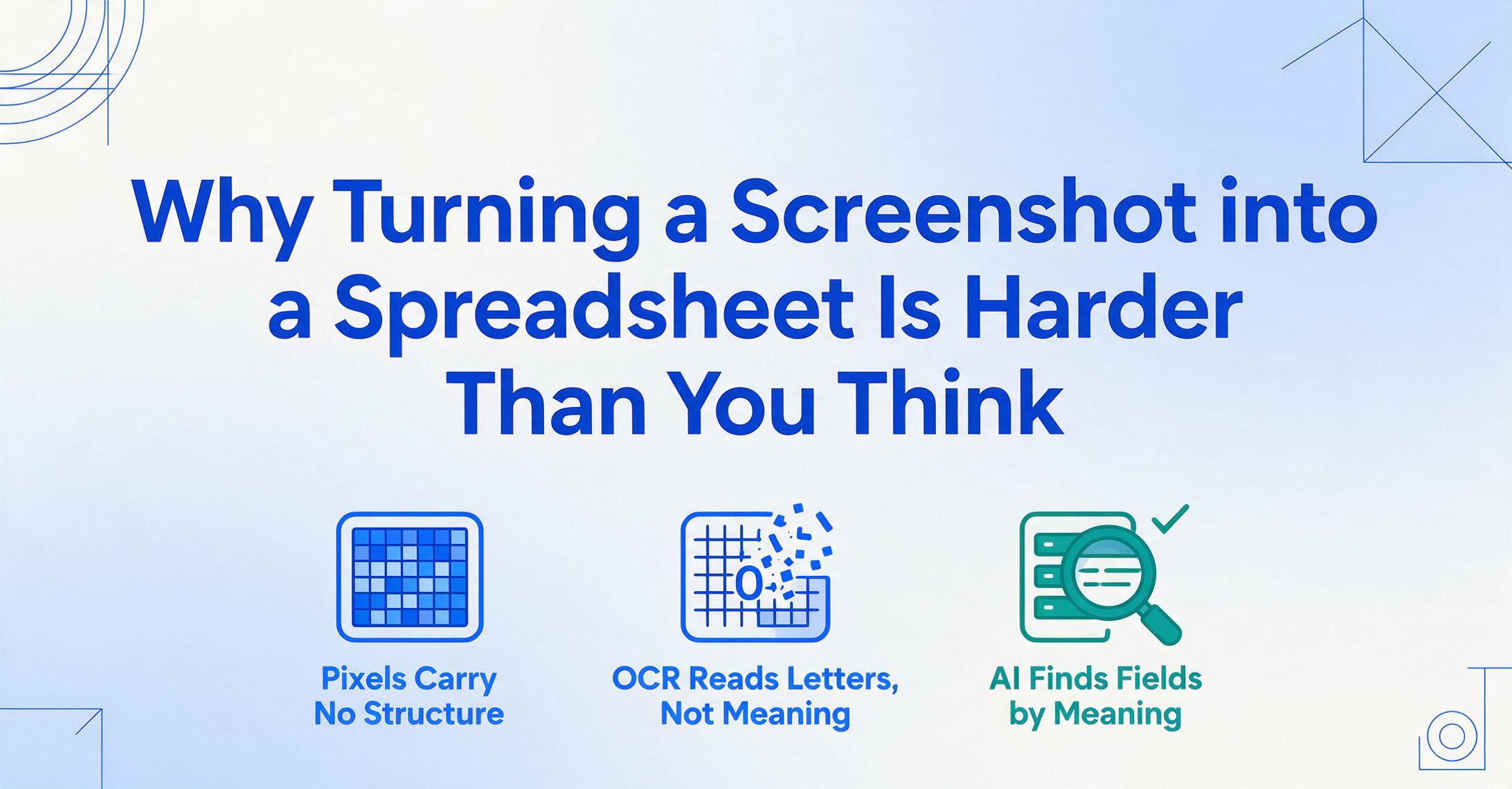
When You Screenshot a Table, What Are You Actually Capturing?
A screenshot is not a document. It has no pages, no parseable structure, no embedded metadata. It's a grid of colored pixels — roughly two million of them for a standard 1080p desktop screen — and nothing in that pixel array intrinsically says "this cluster of dark pixels is a number" or "these four rows belong to the same invoice."
Your brain solves this instantly. You look at a screenshot of a bank statement and immediately see: header row, date column, amount column, individual transactions. You parse the visual grammar — borders, alignment, spacing, font weight — and construct a mental table in under a second.
A computer sees none of that. It sees RGB values at coordinates. To turn those pixels into a spreadsheet, the tool needs to reconstruct the table structure that your brain already inferred. That reconstruction — not the text reading — is where most tools fail.
This is what makes screenshot data extraction uniquely difficult compared to extracting data from a PDF. A PDF often contains embedded text and positional metadata — the computer at least knows where the characters are. A screenshot has none of that. All the structure has to be reverse-engineered from pixels alone.
Table Transcription vs. Data Extraction — Two Different Problems
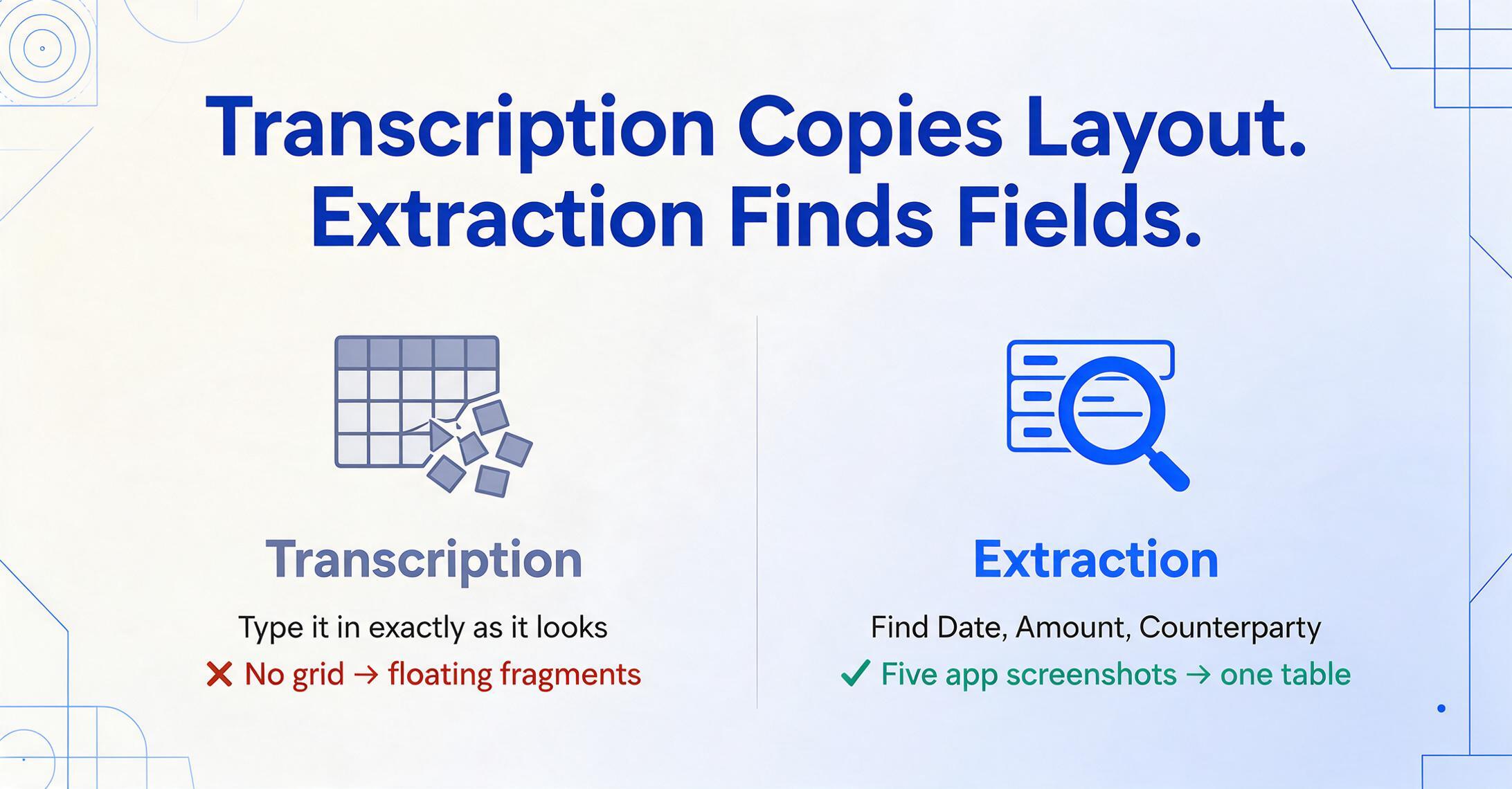
Imagine two tasks. Task one: someone hands you a printed spreadsheet and says "type this into Excel exactly as it looks." Task two: someone hands you five screenshots from different banking apps and says "give me the date, amount, and counterparty for each transaction in one table."
Task one is transcription. You're copying layout — every cell goes where it was. The job is to preserve the original structure. Accuracy means the output looks like the input.
Task two is extraction. You're not copying layout. You're identifying specific fields — date, amount, counterparty — and pulling their values regardless of where they sit on each screen. Accuracy means the right values are in the right columns, even if the source layouts are completely different.
These two tasks require fundamentally different capabilities from software. Transcription needs layout detection — finding grid lines, measuring cell boundaries, mapping visual position to spreadsheet coordinates. Extraction needs semantic understanding — knowing that "$1,249.00" next to "Total Due" is a payment amount, and that the same value labeled "Invoice Total" in a different font on a different app still means the same field.
Most screenshot-to-spreadsheet tools are transcription tools. They excel at copying tables. They fail when there is no table to copy — which is exactly the situation in most real-world screenshots. The tool you need depends entirely on whether your screenshot contains a grid or just contains data.
This distinction — transcription versus extraction — is absent from nearly every tutorial and comparison article on the topic. Yet it's the single most important factor in whether a tool will work on your specific screenshot. A Reddit user on r/techsupport captured the frustration precisely: "I was wondering if it was possible to take a screenshot of data and put it into an Excel sheet. I don't want to put a picture into Excel — I want to be able to take the data of the picture and input it into the Excel without having to retype it." The distinction between "putting a picture into Excel" and "getting the data out of the picture" — that's transcription versus extraction.
The prevalence of this problem isn't anecdotal. According to McKinsey Global Institute research, knowledge workers spend nearly 20% of their workweek searching for and gathering information — much of it trapped in unstructured formats like screenshots, dashboards, and scanned documents. Every screenshot of a dashboard KPI, every app confirmation screen saved for later, is a data point someone will eventually need to retype.
The OCR Approach: Reading Characters, Missing the Structure
Optical Character Recognition (OCR) is the technology behind most screenshot-to-spreadsheet tools. Microsoft Excel's "Data from Picture" feature uses it. Google Drive's built-in OCR uses it. ABBYY FineReader — the industry gold standard for document recognition — uses it. OCR works by scanning an image for shapes that resemble characters, then guessing which character each shape represents.
For a clean table — black text on white background, visible grid lines, consistent column widths — OCR does an impressive job. Excel's Data from Picture can turn a well-formatted table screenshot into editable cells in seconds. Google Docs can open an uploaded screenshot and output recognizable text.
The problem is what happens when the input isn't a clean table. OCR sees text positions but doesn't understand relationships. It can tell you that the characters "$249.00" appear at coordinates (340, 512) and that "Amount" appears at (100, 60), but it doesn't know those two pieces of text are related — that "$249.00" is the value of the "Amount" field. It registers proximity, not meaning.
This is why transcription tools produce garbled output when the layout is irregular. A payment confirmation from Venmo shows the recipient name, amount, and date in a visual layout designed for human readability — not in a grid. OCR will extract the text, but the structure collapses. You get a block of floating text fragments with no column alignment, no row grouping, no field-label relationships.
ABBYY FineReader, despite being the most accurate OCR engine available, shares this fundamental constraint. It's optimized for document fidelity — reproducing a scanned page as faithfully as possible. It excels at preserving the original layout. But if your goal is to extract five specific fields from fifty different-looking screenshots into a single table, layout fidelity is exactly what you don't want. You want layout independence.
The AI Approach: Understanding Meaning, Not Just Layout
Vision-language models (VLMs) — the technology behind ChatGPT's image understanding, Claude's vision capabilities, and dedicated extraction tools — approach the problem from the opposite direction. Instead of scanning for character shapes and then trying to reconstruct structure from positions, they analyze the image the way a human would: by understanding what's in it.
When a VLM looks at a payment confirmation screenshot, it doesn't see pixels arranged as "$249.00" at coordinates (340, 512). It sees a payment confirmation — it recognizes the visual pattern of a transaction receipt. It understands that the number next to "You sent" is the transaction amount, that the name under the recipient icon is the counterparty, and that the timestamp at the top is the date. It's reading meaning, not coordinates.
This semantic approach has a profound implication for extraction: it's format-independent. A VLM can extract transaction details from a Venmo screenshot, a PayPal screenshot, and a Zelle screenshot — three completely different layouts — and output them into the same three columns (Date, Amount, Counterparty). OCR would need a separate configuration for each app's layout. The VLM needs only the field names.
This is the core paradigm shift: from position-based extraction (where the tool is told "the amount is in the third cell of the second row") to semantic-based extraction (where the tool is told "find the amount, wherever it appears on the page").
Position-based extraction breaks when the format changes. Semantic-based extraction doesn't care about the format. That's the difference between transcription and extraction — and between a tool that works on one layout and one that works on any layout.
Both ChatGPT and Claude offer image-to-table capabilities — you can upload a screenshot and ask them to extract specific fields. This works well for one-off extractions. But these general-purpose chatbots weren't designed for batch processing: uploading fifty screenshots one at a time, copying each output into a spreadsheet, and merging the results is a workflow that quickly becomes its own form of tedium.
Real-World Screenshot Types and Which Approach Works
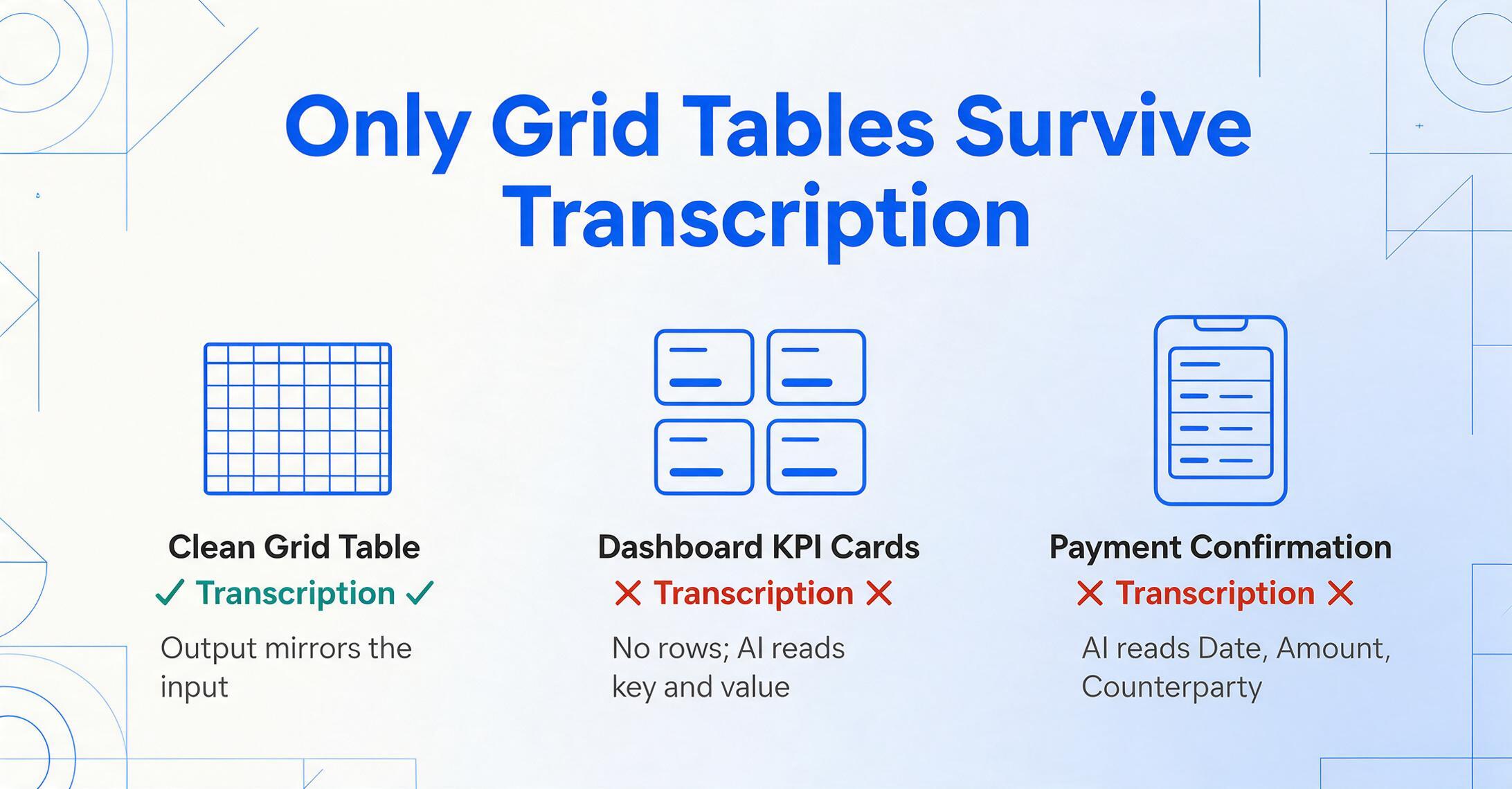
In practice, screenshots containing data fall into roughly four categories — and which approach works depends entirely on which category you're dealing with.
Clean grid tables. A well-formatted HTML table, an Excel sheet screenshot, a PDF table — visible borders, consistent columns, one row per record. These are the ideal input for transcription tools. Excel's Data from Picture, Google Drive OCR, and ABBYY FineReader will all handle these competently. The output mirrors the input structure, and cleanup is minimal. This is the only category where transcription tools are the right choice — and it's the category most tutorial articles assume you're in.
Dashboard cards and KPI tiles. BI dashboards, analytics panels, and reporting screens display data as visual cards — single numbers with labels, often color-coded and arranged in grids of two or three across. These have no table structure at all. Transcription tools produce nothing useful — there are no rows to detect. Extraction tools that understand semantics can read each card as a key-value pair: "Revenue: $1,247,000" → {Metric: "Revenue", Value: "$1,247,000"}.
Payment and transaction confirmations. Venmo receipts, bank transfer confirmations, PayPal transaction screens. These are structured for human reading, not table parsing. A typical Venmo confirmation shows sender, recipient, amount, date, and note — arranged vertically with icons and spacing, not in a grid. Transcription tools fail here. Semantic extraction tools can identify each field by its context — the number after a dollar sign is the amount, the timestamp at the top is the date, the bolded name is the counterparty. See our dedicated guide on extracting data from payment screenshots.
Chat and messaging screenshots. Orders sent via WhatsApp, addresses shared in Messenger, product codes in Slack. These are pure text in a conversation format — no grid, no cards, no key-value pairs. Only semantic extraction works here, and even then the challenge is high: the tool needs to distinguish the order details from surrounding conversation. Our guide on automating screenshot data into Google Sheets covers this workflow in depth.
| Screenshot Type | Transcription Tools | Semantic Extraction | Best Fit |
|---|---|---|---|
| Clean grid tables | Excellent | Works (overkill) | Either |
| Dashboard cards / KPI tiles | Fails | Works | Semantic |
| Payment confirmations | Fails | Works | Semantic |
| Chat messages / orders | Fails | Works | Semantic |
This table explains why the Excel Data from Picture tutorial you found on Google didn't solve your problem: your screenshot wasn't a clean grid. It also explains why a general-purpose AI chatbot worked on a single screenshot but became impractical when you had thirty of them. The right tool is the one that matches both your input format and your volume.
Custom Column Extraction: You Define the Output, the AI Understands the Input
This is where the semantic approach reaches its logical conclusion. Instead of asking the tool "what's in this screenshot?" — which gives you back whatever the AI thinks is important — you tell the tool exactly what you want: "Extract Date, Amount, and Counterparty." The AI doesn't describe the screenshot. It searches it for those specific fields and returns them in a table.
This capability is called Custom Column Extraction: you type the column names you need — "Invoice Number", "Due Date", "Total Amount" — and the AI locates each value anywhere on the page by understanding what the field means, not where it sits. You define the output schema. The AI handles the input variability.
The power of this approach becomes obvious in two scenarios:
Mixed-source screenshots. You have screenshots from your banking app, the PayPal website, and a Venmo notification — three completely different layouts. With a transcription tool, each source needs separate configuration because each has different field positions. With Custom Column Extraction, you define your columns once — Date, Amount, Counterparty — upload all three screenshots together, and the AI finds each field regardless of which app's layout it came from.
Batch processing. If you have ten screenshots, transcription tools process them one at a time and produce ten separate outputs that you then manually merge. Batch-first extraction processes all ten in one operation and delivers a single spreadsheet with all results merged into one table. There's no manual consolidation step because there was no per-file fragmentation to begin with.
This batch-first approach also applies across document types. A team collecting payment confirmations for month-end reconciliation might receive screenshots from a dozen different payment platforms and banking apps. The extraction doesn't care about the source differences — it cares about the column definitions. The output is one unified table, not twelve separate ones that someone has to stitch together. For step-by-step guidance, see our tutorial on batch processing payment screenshots into a Google Sheets ledger.
What makes this possible is that the tool is template-free. There's no per-source configuration to maintain. There's no layout to pre-define, no zones to draw, no sample documents to train on. The same column definitions work on any screenshot, from any source, in any layout — because the AI isn't looking at positions. It's looking at meaning.
Step-by-Step: Converting Screenshots to a Structured Spreadsheet
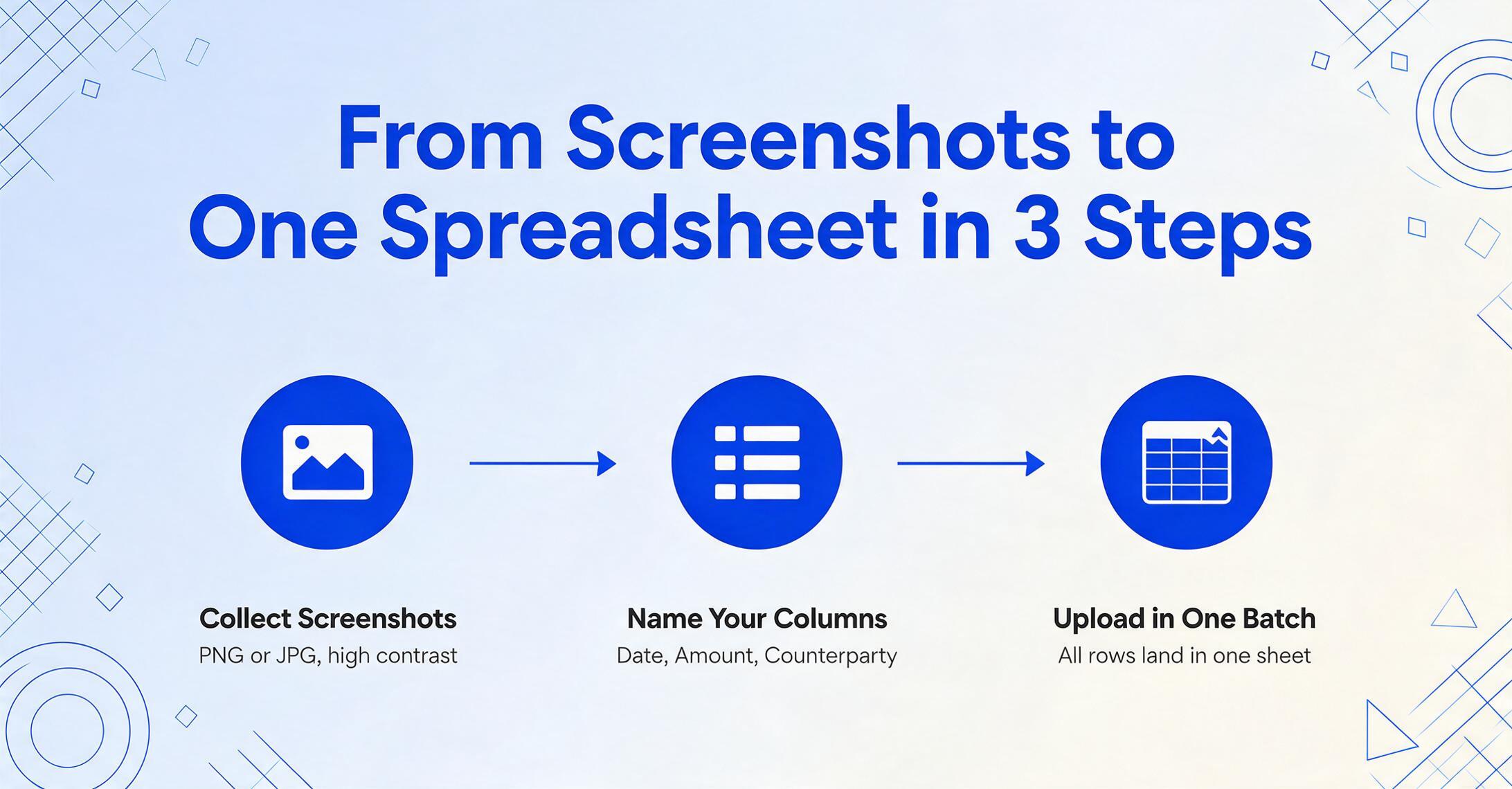
Here is the practical workflow for screenshot-to-spreadsheet extraction using semantic AI — not OCR transcription. This works on any screenshot type, including the three categories where transcription fails.
Files are processed securely and not stored.
This workflow scales from three screenshots to three hundred. The column definitions stay the same. The output stays the same. The only variable is how many rows appear in the final spreadsheet. For scenarios where screenshots arrive continuously — daily transaction confirmations, weekly dashboard exports — this becomes a repeatable pipeline rather than a one-off rescue operation.
When Transcription Is Actually the Right Choice
Despite everything above, transcription tools are not obsolete. They're the wrong tool for most real-world screenshots, but they're the right tool for one specific scenario: when your screenshot contains a clean, bordered data table that you need to reproduce exactly as it appears.
If you're digitizing a printed spreadsheet, capturing a table from a PDF where you need the exact cell layout preserved, or working with a screenshot of an Excel range where the column widths and row groupings matter — use a transcription tool. Excel's Data from Picture exists precisely for this use case. Google Drive's OCR handles it too. These tools optimize for layout fidelity, and when layout fidelity is your goal, they deliver.
The confusion — and the reason so many people end up frustrated — is that tutorials present this narrow use case as the entire problem space. They show you a well-formatted table screenshot and demonstrate how perfectly the tool converts it. They don't show you what happens when you feed in a PayPal confirmation. That failure isn't a bug in the tool. It's a category error in how you were told to use it.
If your screenshot looks like a spreadsheet, use a transcription tool. If it looks like anything else — an app screen, a dashboard card, a message, a receipt — use semantic extraction. The format of your screenshot determines which tool class works, not which brand name.
FAQ
Can I use ChatGPT or Claude to extract data from screenshots?
Yes, for individual screenshots. Upload the image and ask for specific fields — "extract the date, amount, and merchant from this receipt screenshot." Both ChatGPT (with vision) and Claude handle this competently. The limitation is throughput: uploading fifty screenshots one at a time, copying each response into a spreadsheet, and merging the results is a manual workflow that doesn't scale. Dedicated extraction tools automate this entire pipeline — upload once, process all at once, get one merged output.
Why does Excel's "Data from Picture" work on table screenshots but not on app screenshots?
Excel's Data from Picture is an OCR-based transcription tool. It detects grid lines and cell boundaries to map text positions to spreadsheet coordinates. App screenshots — payment confirmations, dashboard cards, chat messages — don't have grid lines or defined cells. Without detectable table structure, the tool has no framework to organize the text it reads, so the output collapses into an unstructured mess. This is a design limitation, not a quality issue — the tool was built for a specific input type and is correctly refusing to fabricate structure that doesn't exist.
What's the difference between OCR and AI extraction?
OCR identifies character shapes and their positions on the page. AI extraction (using vision-language models) identifies the meaning of what's on the page — it recognizes that a payment confirmation is a payment confirmation, that the number next to "Total" is the transaction amount, that the bolded name is the recipient. OCR gives you characters at coordinates. AI extraction gives you field-value pairs regardless of coordinates.
Does AI extraction work on handwriting?
Vision-language models have made significant progress on handwriting recognition, particularly for structured forms where handwriting appears in labeled fields (like a handwritten inspection report with printed field labels). For completely unstructured handwritten notes with no visual anchors to guide field identification, accuracy drops. If your screenshots contain printed text — even in irregular layouts — AI extraction is reliable. For screenshots of handwritten documents, see our guide on AI handwriting recognition versus traditional OCR.
Can batch processing handle screenshots from different apps in the same batch?
Yes — and this is precisely where semantic extraction outperforms transcription. Because the AI identifies fields by meaning rather than position, screenshots from different banking apps, different payment platforms, and different dashboard tools can all be processed together. The only requirement is that each field you want to extract — "Amount", "Date", "Counterparty" — exists somewhere on each screenshot. The AI finds it regardless of which corner of which app layout it sits in.
Is my data secure when I upload screenshots to an extraction tool?
Security practices vary by tool. Before using any extraction service, check their data handling policy: whether screenshots are stored after processing, whether they're used for model training, and what encryption is applied in transit and at rest. Most reputable tools process files in memory and delete them after extraction completes — but this should be verified in the service's privacy policy, not assumed. For sensitive financial or personal data, prefer tools that explicitly state they do not retain uploaded files.