How to Send Screenshot Data from
Any App to Google Sheets (2026 Guide)
You have a screenshot. It's a payment confirmation from Stripe, an order details page from Shopify, or a KPI readout from your team's internal dashboard. The data is on your screen — a transaction amount, a confirmation number, a customer name — but the path from those pixels to a row in your Google Sheet still runs through your keyboard. This tutorial replaces the keyboard with a sidebar.
Key Takeaways
- Screenshots are the data source you collect every day but your spreadsheet cannot read — each one silently adds 3 minutes of retyping to your workflow, and the pile grows faster than you type.
- Table-detection tools fail on app screenshots not because the OCR is bad, but because payment confirmations and dashboard cards contain no grid lines — the tool was built for the wrong shape of data, and every failed upload has been a category error, not a quality problem.
- ImageToTable.ai reads what a field means rather than where it sits on the screen, and a saved column template in the sidebar means tomorrow's screenshots require zero reconfiguration — the extraction step you used to dread becomes the step you don't think about.
App screenshots are a data source, not a document format
Every tutorial about extracting data from images starts with the same assumption: the image contains a table. Google Drive's built-in OCR looks for text and outputs it as a flat block. Excel's "Data from Picture" scans for grid lines, maps cells to coordinates, and reconstructs rows and columns. Third-party add-ons like ExtractTable — 68,000+ installs on the Google Workspace Marketplace — detect bordered tables and apply cell-level OCR.
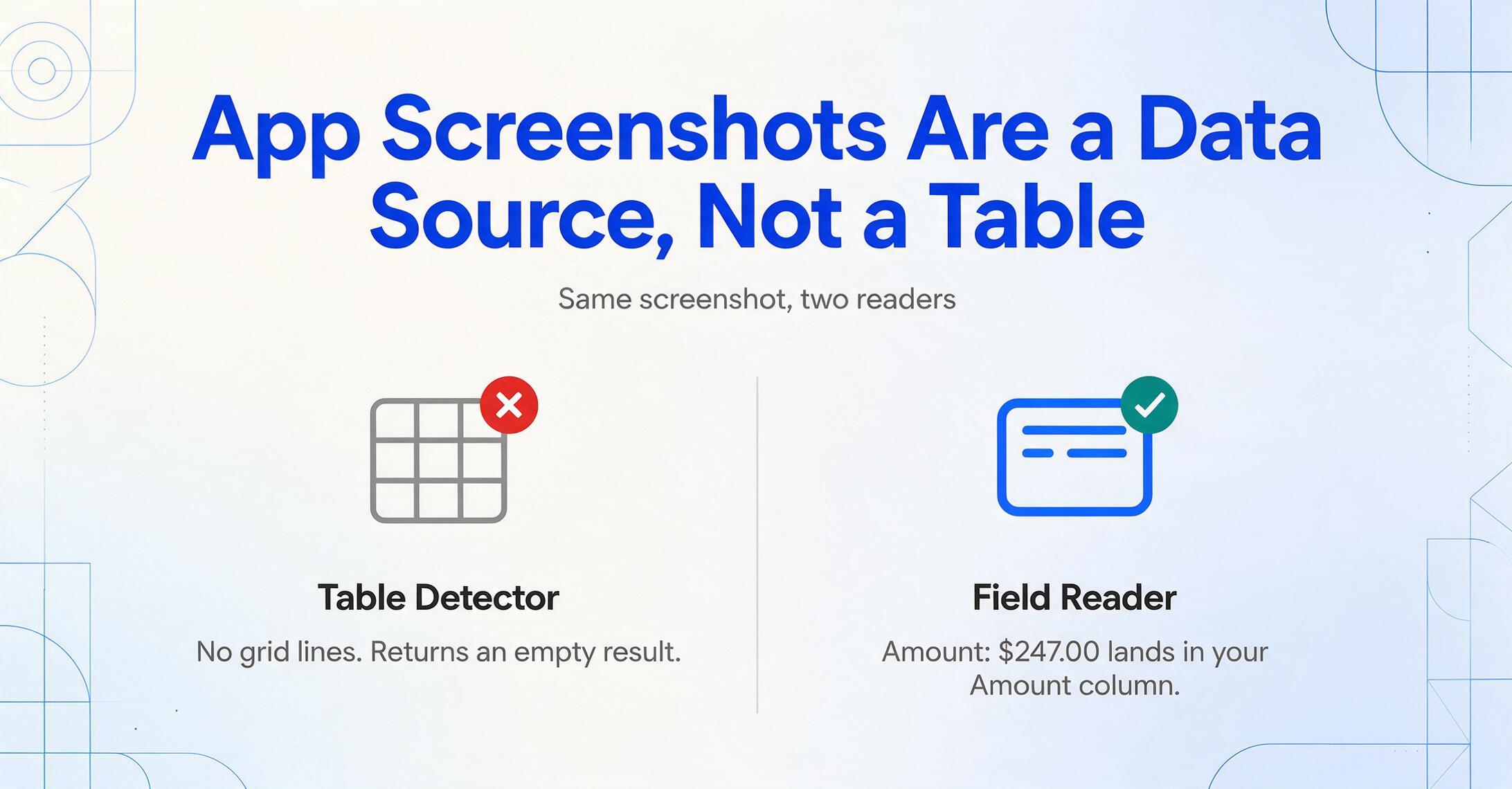
The problem: the screenshots you actually take contain no tables. A Stripe payment confirmation shows "Amount: $247.00" and "Status: Succeeded" as stacked label-value pairs in a card layout. A Shopify order page displays billing address, line items, and fulfillment status across separate panels. An internal dashboard is a mosaic of KPI cards, each holding one number and one label — no grid lines, no cell boundaries, no coordinates to map.
When you feed one of these screenshots to a table-detection tool, it either returns empty (no table found) or dumps every visible word into an unstructured text block. You still end up retyping the four or five values you needed — except now you've also spent time uploading the image and waiting for detection to fail.
What app screenshots need is not a table detector. It's a reader that understands what the text on screen means — not where it sits. A reader that can find "Amount: $247.00" regardless of whether it appears on the left side of a confirmation card in Stripe or the right side of a transaction detail in PayPal. This is the capability gap that most image-to-spreadsheet tools were never built to close.
App screenshots are the data source your spreadsheet cannot read natively — and they accumulate faster than any other because you generate them yourself, every day, across every tool you use.
For a broader look at how the screenshot-to-sheet gap fits into your existing pipeline without breaking anything, the pipeline design article covers the architecture — every formula, chart, and import you've already built stays intact. The walkthrough below is the hands-on version: install, configure, capture.
Installing the add-on that reads app screenshots
ImageToTable.ai provides a Google Sheets add-on — a sidebar panel that lives inside your spreadsheet and runs AI extraction without leaving the sheet. It uses custom column extraction: you type the field names you want (for example, "Transaction Amount, Date, Reference Number, Status"), and the AI locates those values anywhere on the screenshot by understanding what they mean. A transaction amount in the top-left of one screenshot and the bottom-center of another resolves to the same column in your output — because the AI reads semantics, not pixel coordinates. For the full product overview — supported document types, plan requirements, and what the add-on syncs with your web app — see the Google Sheets add-on product page.
Installation takes under a minute, once:
- Open the Google Workspace Marketplace. In any Google Sheet, click Extensions → Add-ons → Get add-ons. Search for "ImageToTable.ai." Click Install and grant the requested permissions — the add-on needs write access to the active spreadsheet solely to append extracted rows. It does not modify existing cells, formulas, or sheet structure.
- Generate an API key. In your ImageToTable.ai web account (sign up free), go to Profile → API Key → Regenerate. Copy the key.
- Bind the key in the sidebar. Back in Sheets, launch the add-on: Extensions → ImageToTable.ai → Open. Paste your API key into the sidebar's Account section. This binds the add-on to your plan — usage counts against your quota, and your saved column templates sync between the web platform and the sidebar. One key, one binding, done.
The add-on is now ready. A panel roughly 300px wide sits on the right side of your spreadsheet. The sheet you were working on stays front and center. No new tab, no new window, no context switch.
Step by step — your first screenshot to spreadsheet data
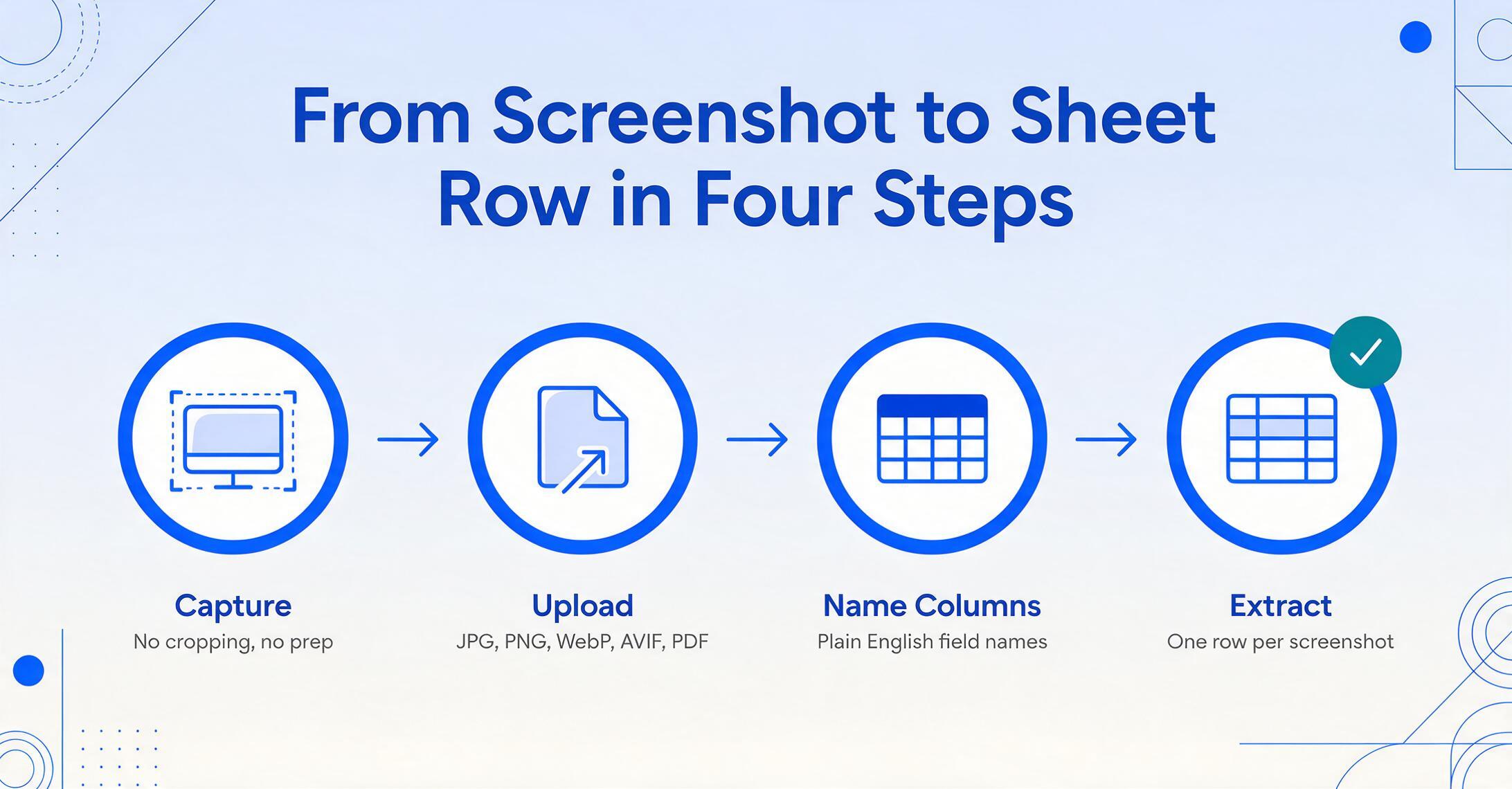
Here is the full loop, from screenshot on your desktop to data row in your sheet. The first time takes about 90 seconds including setup. Every subsequent screenshot from the same source — same payment portal, same dashboard, same app — takes about 15 seconds because your column definitions persist.
Take (or locate) your screenshot.
Any screen capture tool works — Snipping Tool on Windows, Shift+Cmd+4 on Mac, browser extensions. The screenshot can be a Stripe payment confirmation, a Shopify order detail, a bank app transaction screen, or a KPI card from an internal dashboard. JPG and PNG are both supported. No cropping, no preparation needed — the AI reads the full image and finds your fields wherever they appear.
Open the add-on sidebar and upload.
Extensions → ImageToTable.ai → Open. In the sidebar, click Choose File or drag-and-drop your screenshot onto the upload area. The add-on accepts JPG, PNG, WebP, AVIF, and PDF. You can select multiple files at once — each will become one row in your sheet.
Name the columns you want extracted.
Type the data fields that matter — for example: Date, Amount, Transaction ID, Status. You type plain English column names, and the AI finds the corresponding values on the screenshot. This works because the AI reads for meaning — it understands that "Amount: $247.00" maps to the column you named "Amount" regardless of where on the card it appears. For payment screenshots from Stripe, a common column set is: Date | Amount | Customer | Payment Method | Status. The column names you enter become both the extraction instructions and the output headers in your sheet.
Click Extract. Data lands in the next row.
The sidebar processes your screenshot and appends one row to the active sheet — starting from the first empty row. Dates arrive as date-typed cells, amounts as numbers. If you uploaded five screenshots, you get five rows, one per image. Your existing formulas, conditional formatting, and pivot tables reference the new data immediately because the output lands in the same column structure they already expect.
Each screenshot takes about 5–10 seconds to process, compared to roughly 3 minutes to manually read and type the same fields — an 18× speed difference per image. The time savings compound when screenshots arrive in batches. And the column definitions save between sessions: tomorrow's payment confirmations require no reconfiguration — the sidebar already remembers what you named your columns.
Files are processed securely and not stored.
Building a capture routine that sticks
The first screenshot you send through the add-on is a proof of concept. The tenth is a habit. The difference between the two is whether the capture step adds friction to your existing routine — or disappears into it.
Template persistence is the habit enabler. When the add-on is bound to your account via API key, the column names you define for one session carry over to the next. If you process Stripe payment confirmations daily with the columns "Date | Amount | Customer | Payment Method | Status," those five columns are waiting in the sidebar when you open it tomorrow. You don't rename them. You don't reconfigure. You upload the new screenshots and click Extract.
For multiple data sources, create named templates: one for payment confirmations (Stripe/PayPal), one for order tracking (Shopify/WooCommerce admin panel), one for internal KPI snapshots (your team's dashboard). Switching templates in the sidebar takes one click — the columns swap instantly. The template system turns the add-on from a single-purpose extraction tool into a multi-source capture hub.
Three patterns that make the routine stick for most users:
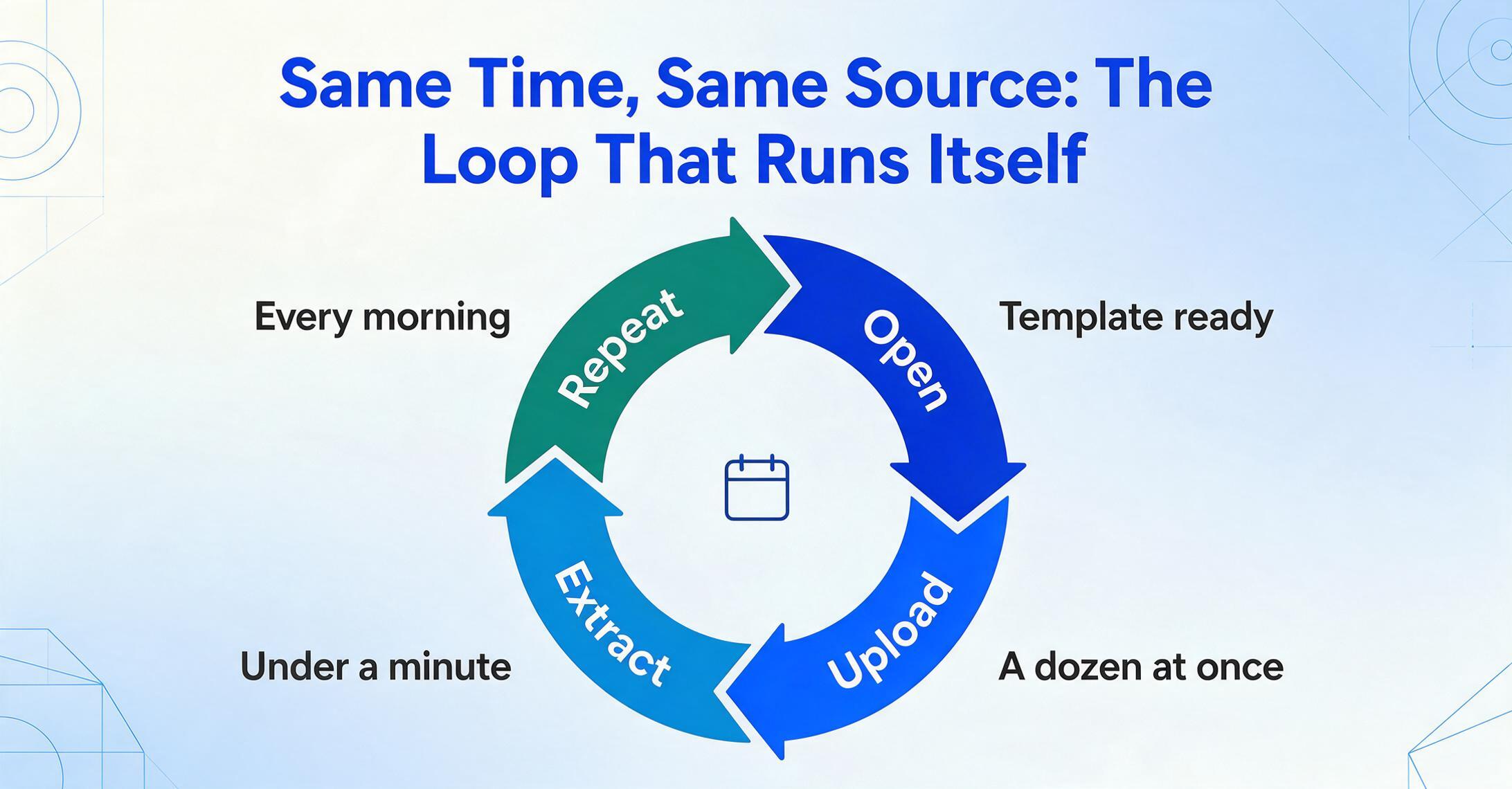
- Same time, same source. Every morning you check yesterday's Stripe payments. Open the sheet, open the sidebar, the "Stripe Payments" template is already selected, upload the new batch of screenshots, extract. The entire session — from opening Sheets to having all data rows populated — takes under a minute for a dozen screenshots.
- Trigger-driven capture. Each time you complete an action that generates a data point — a customer places an order, a payment clears, a KPI updates — you take a screenshot. At the end of the day, open Sheets and batch-process the day's captures. The add-on stores your column definitions between sessions, so the daily batch is a single upload-and-extract cycle.
- Collection-driven capture. If screenshots come from other people — a field technician sending app readings, a team member sharing a dashboard snapshot — pair the add-on with a Collection Link: generate a shareable URL from your ImageToTable.ai account, share it with contributors, and their uploaded screenshots land in your account queue. From there, process them through the sidebar just like your own captures. No registration required on the contributor's side.
The add-on's value is not that it saves time on any one screenshot. It's that the saving repeats — without re-configuration, without context switching — every day you use it. The sidebar at the edge of your spreadsheet becomes as permanent as a formula bar, and the space between screenshot and data row becomes the part of your workflow you no longer think about.
For a deeper comparison of how the sidebar workflow stacks up against the traditional Drive OCR method — including a step-count breakdown of both paths — the side-by-side workflow analysis walks through what each approach actually looks like in practice.
When to use the add-on vs. the web platform
ImageToTable.ai offers two capture surfaces: the Sheets add-on sidebar and the browser-based web platform. They share the same extraction engine, the same account, and the same plan quota. Choosing between them is a question of workflow fit, not capability.
| Scenario | Better choice | Reason |
|---|---|---|
| Daily ad-hoc screenshots throughout the day | Sidebar add-on | No file export/import loop. Each screenshot lands directly in the active sheet as a new row. You stay in Sheets the entire time. |
| Large batch — 50+ screenshots at once | Web platform | The web interface shows a full review table with flagged low-confidence cells before export. Batch processing is the same, but the review UX is roomier. |
| Screenshots mixed with other document types (invoices, receipts) | Web platform | A single upload session can process screenshots, PDFs, and photos together. The sidebar works with mixed formats too, but if the batch is large, the web review table is more practical. |
| Need to share extraction results with collaborators not in Sheets | Web platform | Download output as XLSX, CSV, or JSON — then email, share via Drive, or feed into another system. The sidebar writes exclusively to Sheets. |
| Recurring column sets from the same app interface | Sidebar add-on | Template persistence eliminates reconfiguration. Open sidebar, template is loaded, upload, extract. The web platform has templates too, but the sidebar keeps you in the sheet where the data is supposed to land. |
The two modes coexist inside the same account. Process your daily Stripe confirmations through the sidebar and your weekly invoice batch through the web platform — both count against the same quota, both sync your templates, and the output lands where you decide each time. For add-on extraction workflows targeting specific document types, the guides on receipt extraction and invoice extraction cover the column-naming patterns that produce the cleanest output for each document type.
FAQ
Will the add-on work with screenshots from any app?
Yes — the extraction engine reads the visual content of the screenshot and locates fields by meaning, not by app layout. A payment amount on a Stripe confirmation screen and the same amount on a PayPal receipt both map to the column you named "Amount" because the AI understands the label-value relationship, not the pixel position. The one practical constraint: the screenshot must be legible. If the text on screen is too small to read or the image is heavily compressed, accuracy drops — the same limitation that applies to any AI-based recognition system.
Do I need to crop the screenshot to only show the data I want?
No. The column-name approach means you tell the AI what to extract, not where to look. A full-screen capture of a Shopify order page — with navigation bars, sidebar menus, and unrelated dashboard widgets — is fine. The AI scans the entire image, identifies the fields that correspond to your column names, and ignores everything else. Cropping is unnecessary. In fact, keeping surrounding context sometimes helps the AI disambiguate fields — a number next to "Order Total" in a pricing panel is clearly different from the same number appearing as a SKU in an inventory section.
What about screenshots with sensitive data — payment details, customer PII?
Files are processed through the extraction session and not stored after completion. The add-on communicates with the extraction API over HTTPS. If your screenshots contain PII, payment card data, or protected health information, review the processing terms against your organization's compliance requirements — particularly if subject to HIPAA or GDPR. The tool processes data transiently; your responsibility is to confirm the workflow fits your data handling obligations.
Can I extract data from multiple screenshots at the same time?
Yes. Select multiple files in the upload dialog or drag-and-drop a batch. Each screenshot is processed independently and appends one row to your active sheet. Ten screenshots with the columns "Date | Amount | Customer | Status" produce ten rows — one per screenshot — in the order they were uploaded.
Does this replace my existing IMPORTDATA pipelines or spreadsheet formulas?
No. The add-on appends rows to your sheet — it does not modify existing formulas, imports, or conditional formatting. Your QUERY, VLOOKUP, and SUMIFS formulas reference column headers and ranges that remain unchanged. The add-on fills a gap — screenshots, which no native Sheets function can read — without touching anything that already works.
How does this differ from the built-in Google Drive OCR method?
Google Drive OCR (upload image → open with Docs → copy text → paste into Sheets → split to columns) is a seven-to-nine-step process that outputs raw, unstructured text. It does not understand data relationships — "Amount: $247.00" and "Date: March 15" come out as undifferentiated text you must manually reorganize. The add-on produces typed, column-aligned data that lands directly in your sheet as a completed row. The difference is not extraction quality — it is that the add-on eliminates every intermediate step between "I have a screenshot" and "the data is in my sheet." For a full breakdown of both paths, see the workflow comparison article.
What if the AI extracts the wrong value for a field?
Low-confidence extractions are flagged in the sidebar before data is committed to the sheet — you can review and correct in place. For recurring extraction from the same app interface, accuracy for printed text in clear screenshots reaches up to 99%. The most common source of errors is not the AI misreading text but ambiguity in the column name — if you name a column "Number" and the screenshot contains a transaction ID, a reference number, and a line item count, the AI has three candidates. Descriptive column names ("Transaction ID" vs. "Number") resolve this. The guide to consistent screenshot extraction covers naming and image quality practices that minimize corrections.
Is this the same as Excel's "Data from Picture" feature?
No. Excel's "Data from Picture" is a table reconstruction tool — it detects grid lines in the image, maps cells to coordinates, and applies OCR to each cell. It works on screenshots that contain bordered tables. It fails on the card-and-panel layouts that define most app screenshots. The add-on described here reads the semantic content of the entire image — it extracts named fields from any layout, table or no table.
The screenshots you take every day — payment confirmations, order details, dashboard snapshots — are data you already collected. They sit on your desktop as dead pixels because the gap between screenshot and spreadsheet has always required hands on a keyboard. The gap is closed when you can open a sidebar in the sheet where your data already lives, drop in a screenshot, name the columns you want, and watch a completed row appear. Not because the extraction took 5 seconds instead of 3 minutes — because the step you used to dread is now the step you don't think about.
Install the ImageToTable.ai add-on from the Google Workspace Marketplace, bind your API key from Account Settings, and your next screenshot lands in the sheet — not in a folder of things you'll get to later.