Different Vendor Invoices,
One Consistent Spreadsheet
The hardest part of processing invoices from different vendors isn't reading the data. Modern AI extraction tools handle mixed layouts surprisingly well — a German PDF with "1.250,00 €," a Taiwanese scan with handwritten amounts, a French invoice labeled entirely in French. The AI reads them all correctly. The real bottleneck, the step that keeps AP teams remapping columns long after they've adopted automation, is producing consistent output with the same fields in the same columns across every vendor format. Extraction solved the reading problem. It hasn't solved the spreadsheet problem.
Key Takeaways
- Your 50 vendors send you invoices in 50 different formats and not one of them will ever redesign their layout for your AP workflow.
- At 200 vendors with one layout change every 18 months you are fielding 11 broken templates per month before you even open a single invoice.
- Stop chasing vendor layouts and become an endpoint that absorbs any format — define your columns once and every invoice lands in the same structure forever.
Why Extraction Alone Doesn't Solve the Data Entry Problem
The extraction worked. Every field was captured correctly — Supplier Name reads "ABC Corp," Invoice Date reads "06/15/2026," Total reads "$1,250.00." Then you open the output spreadsheet and your AP tracker expects "Vendor," not "Supplier Name."
This is the moment most automation promises fall apart. Ardent Partners' AP Metrics that Matter in 2025 found that while best-in-class AP teams process invoices in 3.1 days at $2.78 each, the industry average sits at 9.2 days and $9.40 per invoice, with a 22% exception rate that balloons when data doesn't match the destination system's expected format1. APQC's Open Standards Benchmarking data puts the median cost even higher, at $21.40 per invoice for median-performing organizations2.
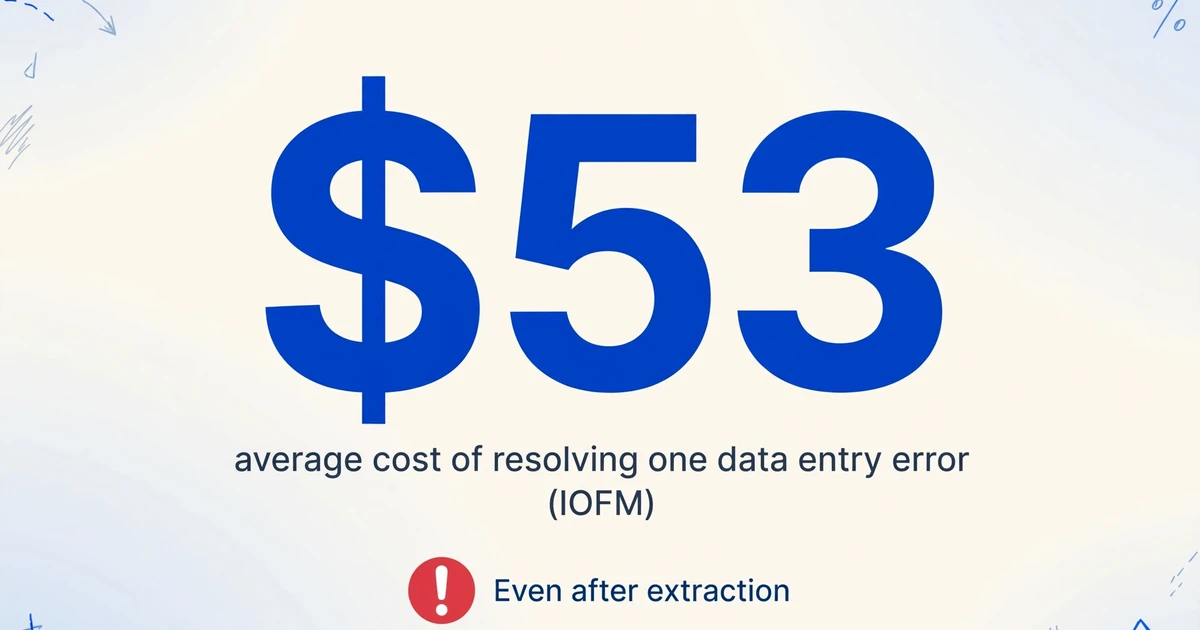
A single misnamed column — "Supplier Name" instead of "Vendor" — doesn't sound catastrophic. But multiply it across 200 invoices from 40 vendors, each arriving monthly, and the remapping effort compounds into hours of spreadsheet work every cycle. The Institute of Finance & Management (IOFM) estimates that resolving a single data entry error costs an average of $53 in staff time3. The extraction tool did its job. The spreadsheet still needs a human to make it usable.
Most teams arrive at this realization the hard way: they invest in an extraction tool, celebrate when the first batch of invoices processes correctly, then discover — month after month — that correct extraction and usable output are two different things. The tool exports what it was designed to export. Your QuickBooks instance imports what it was designed to import. The gap between those two schemas is where AP teams spend their afternoons.
What "Different Vendor Formats" Actually Means
The phrase "different formats" understates the problem. It isn't just that Vendor A puts the invoice number in the top-right corner and Vendor B centers it in the header. The differences run far deeper than field placement — and each one is a potential data consistency issue.
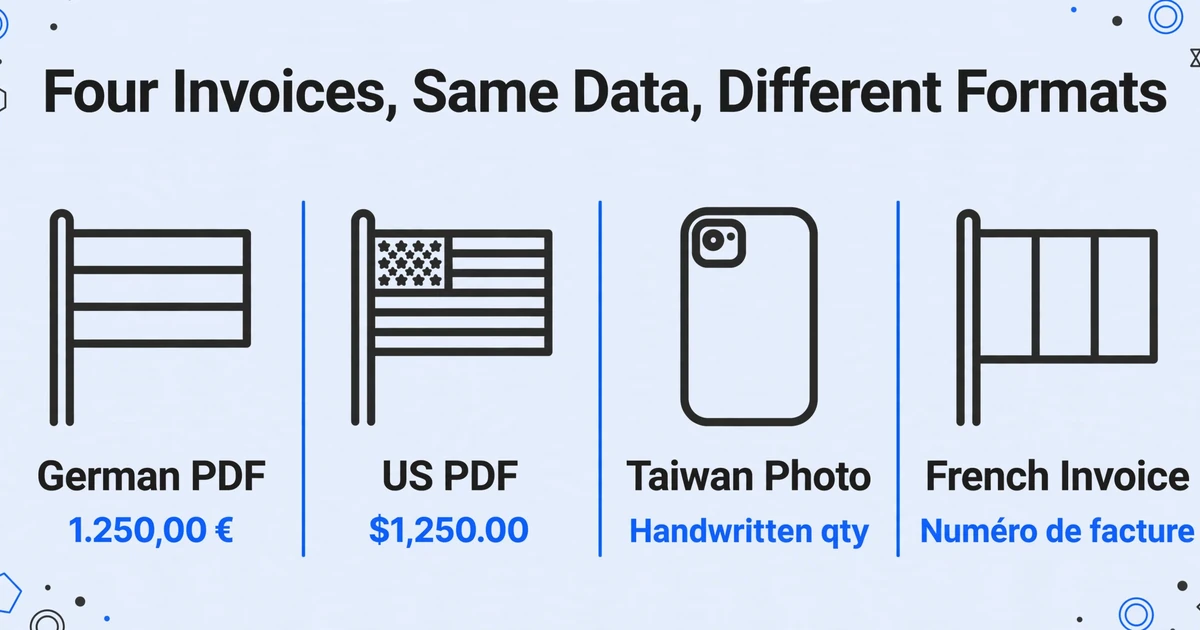
Consider a real AP inbox on any given Tuesday. The German industrial supplier sends a clean PDF with decimal commas and period thousands separators: "1.250,00 €." The US office supply vendor sends a digital PDF with standard dollar formatting: "$1,250.00." The Taiwanese component manufacturer emails a phone photo of a paper invoice with handwritten quantities on a pre-printed form. The French consulting firm sends an invoice entirely in French — "Numéro de facture" instead of "Invoice Number," "TVA" instead of "VAT," "Échéance" instead of "Due Date."
All four invoices contain the same underlying business data. All four need to land in the same spreadsheet, in the same columns, with the same formatting. That's the consistency challenge — and it's the one most extraction tools don't solve.
On Reddit's r/Accounting, one AP professional described the problem bluntly: "We tried the OCR thing built into NetSuite but it chokes on half our invoices because every machine shop and raw materials supplier formats theirs differently."4 This isn't a rare edge case. It's the day-to-day reality of AP in any mid-market business that buys from more than a handful of suppliers. And the problem gets worse as you grow: more vendors, more formats, more variation.
In r/automation, another practitioner confirmed the structural issue: "Template-based extraction breaks on format changes. Tools that look at data in fixed coordinates on a PDF page fail the moment you switch from one layout to another, or when a supplier updates their invoice design."5 Template-based tools — the kind that require you to map "Invoice Number = top-right, 2cm from edge" once per vendor — don't just require upfront configuration. They require ongoing maintenance. A vendor upgrades their accounting software? Your template breaks. You onboard a new supplier? You're building a new template. At 200 vendors averaging one layout change every 18 months, that's roughly 11 broken templates per month — a structural guarantee that positional extraction can never stabilize.
The Column Consistency Problem
If you've used an AI invoice extraction tool, you've likely experienced this sequence: upload a batch of invoices → AI extracts data correctly across all formats → you download the output Excel → and discover the column headers don't match your tracker.
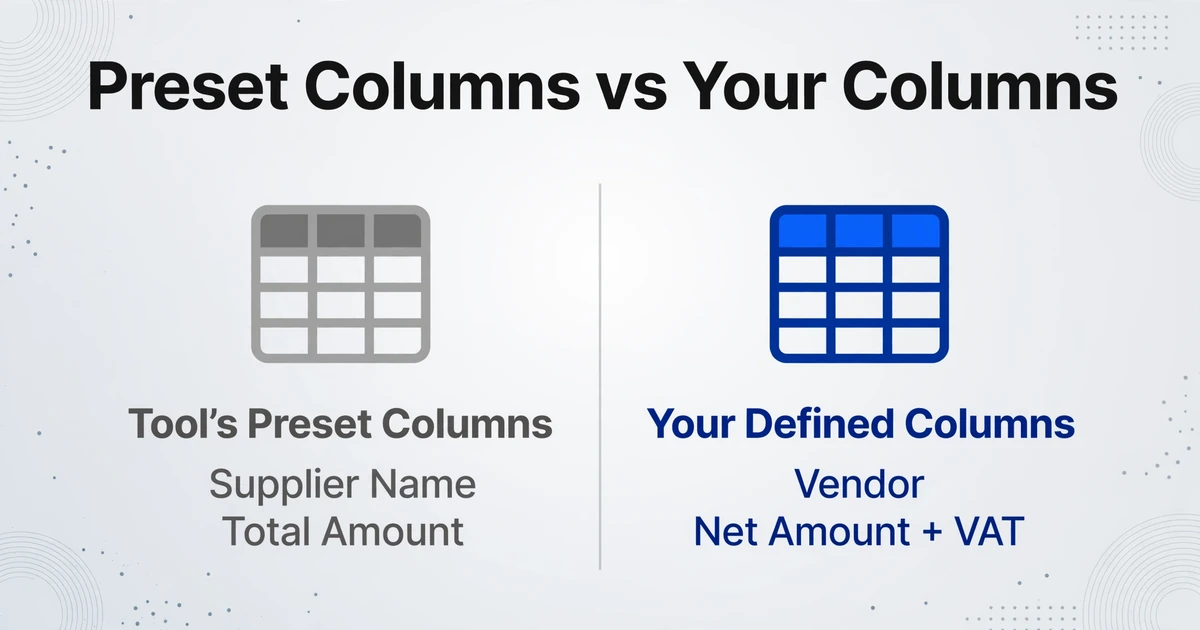
Most AI extraction tools ship with a fixed output schema. The tool decides your columns are called Supplier Name, Invoice Date, Invoice Number, PO Number, and Total Amount. That's the tool's best guess at what finance teams generally want. For many workflows, it's close. But close means you still have to remap: your tracking sheet uses "Vendor" not "Supplier Name." Your approval workflow needs Net Amount and VAT broken out, not a single Total Amount. Payment Terms isn't in the preset field list at all. Each batch ends with a manual column-rename chore — the same columns, renamed every time.
The core issue is that Custom Column Extraction — typing your own column names and having the AI map data to them — is fundamentally different from a tool that predefines columns for you. With preset columns, you're fitting your workflow to the tool's output schema. With user-defined columns, the tool fits its output to your workflow. One direction is friction. The other isn't.
This is where the distinction between "extraction accuracy" and "output usability" becomes concrete. An extraction pipeline can be 99% accurate in reading values — and still produce output that requires 20 minutes of manual spreadsheet work before it can be imported into NetSuite, Xero, or your Excel tracker. The AI solved the hard reading problem. You're still doing a manual step at the end — it's just a different manual step than before.
When an AP team processes invoices from 50+ suppliers through a tool with fixed output headers, every batch arrives with the same mismatch: "Supplier Name" where the ERP expects "Vendor," "Total Amount" where the approval workflow needs "Net" and "Tax" separately. The remapping isn't hard — three column renames and a formula split — but it repeats with every batch, forever. That's not automation. That's assisted manual entry.
How Template-Free Extraction Creates Consistent Output
The shift happens when you move from position-based extraction to semantic-based extraction. Template tools read coordinates: "Invoice Number is at X:200, Y:45." Template-free AI reads intent: "Find the field that means invoice number, wherever it is."
This is the fundamental mechanism behind format-independent extraction. Because the AI understands what each field means rather than just where it sits, it handles the German decimal-comma invoice, the French-language invoice, and the US-style invoice in a single pass — no per-vendor configuration, no template library, no maintenance when a vendor changes their layout. When a supplier you've processed for months suddenly sends an invoice with an entirely unfamiliar design, the AI processes it correctly on the first attempt. It never memorized the old layout, so it has nothing to unlearn.
The column consistency breakthrough comes from a simple inversion: instead of the tool telling you what columns you get, you tell the tool what columns you want.
You type your column names — Vendor, Invoice #, PO Reference, Net Amount, VAT, Due Date — once. The AI extracts matching data from every invoice into those exact columns, regardless of where each vendor places those fields or what labels they use. A French supplier's "Numéro de facture" maps to your "Invoice #" column just as naturally as a US supplier's "Invoice Number." Batch processing — uploading multiple invoices together and receiving a single merged Excel output — becomes the default mode, not an afterthought. Each row is one invoice, each column is the field you specified, and every vendor feeds into the same structure.
Two additional capabilities extend this further. Computed columns let you embed calculations into the extraction process — define a column as "Line Total (Qty × Unit Price)" and the AI performs the arithmetic while extracting, so you receive calculated answers rather than raw values that need post-processing in Excel. Inferred columns let the AI classify or derive information not explicitly written on the document — define a column "Expense Category (options: Office/Logistics/Materials)" and the AI reads the invoice content, determines the correct category, and fills it in, combining extraction and classification into a single step.
Workflow: From Mixed Batch to Unified Spreadsheet
The process that turns a mixed inbox of 40 invoices from 20 vendors into one clean spreadsheet follows four steps. None of them involve templates, training, or configuration per vendor.
Upload your batch
Drop all the invoices together — PDFs, images, scans — regardless of vendor, format, or language. A batch of 40 invoices from 20 different suppliers in three languages works as a single job. No pre-sorting, no separating by vendor, no "this format isn't supported."
Type your column names
Enter the fields you want in the exact headers your spreadsheet or ERP uses: Vendor, Invoice #, PO Reference, Net Amount, VAT, Due Date. These become the output headers across every invoice in the batch. You define the structure — not the tool.
AI matches each field across every invoice
The AI reads each invoice independently, locating your specified fields by meaning rather than position. "Numéro de facture," "Rechnungsnummer," and "Invoice #" all map to your "Invoice #" column. Processing runs at roughly 5–10 seconds per page.
Export one spreadsheet, one row per invoice
Download as Excel (XLSX), CSV, or JSON — a single file, single sheet, with your column headers across the top and one row per invoice. Ready for import into QuickBooks, NetSuite, Xero, or your existing Excel tracker with zero column remapping.
For teams using Google Sheets as their AP tracker, a Google Sheets sidebar add-on eliminates even the download step — extracted data appends directly to the active sheet, with column headers matching your existing layout. This is the logical endpoint of spreadsheet-native extraction: the output lands where you work, in the structure you already use, with no intermediate file handling.
Files are processed securely and not stored.
For scenarios where invoices come from external parties — clients, field teams, remote offices — Collection Link provides a shareable upload page. You generate a unique link, share it with whoever needs to submit invoices, and their files land directly in your processing queue. They don't need an account, don't need to install anything, and don't see your other uploads. The link is protected by a verification code you set, and you can toggle it on or off at any time.
Format Normalization Across Vendors: Dates, Currencies, and Number Formats
Consistent columns are half the equation. The other half is consistent values inside those columns. Five vendors might all supply an invoice date — but they'll express it as "06/15/2026," "15 June 2026," "15.06.2026," and "2026-06-15." Three vendors supply a total amount: "$1,250.00," "1.250,00 €," and "¥125,000." If the extraction tool dumps these raw strings into your spreadsheet, you're still doing formatting cleanup on every batch.
Semantic extraction handles format normalization at the point of extraction, not as a post-processing step. The AI recognizes that "1.250,00 €" and "$1,250.00" represent the same numerical intent and normalizes them into your preferred format — whether that's US-style decimals, ISO dates, or the specific number conventions your ERP expects. Date formats, currency symbols, thousand separators, and decimal conventions are standardized automatically across all vendors.
Tax identification adds another layer. A vendor in the UK labels it "VAT." A French vendor labels it "TVA." A German vendor labels it "MwSt." A Canadian vendor labels it "GST." All four invoices include a tax amount — and all four need to land in your "Tax" or "VAT" column. Because the AI understands the semantic equivalence of these labels rather than matching literal text strings, all four tax amounts flow into the same output column. You defined the column name once. The AI handles the label mapping across every vendor.
For teams that process cross-border invoices, this normalization alone can eliminate hours of manual currency conversion and date reformatting. Ardent Partners reports that the industry-average exception rate of 22% drops to 9% for best-in-class teams — and format-driven exceptions (currency mismatches, date misinterpretations, decimal errors) are among the most common categories that automation eliminates.
Beyond single-batch consistency, batch invoice extraction maintains the same output structure across separate processing jobs — meaning invoices processed this week and invoices processed next month all feed the same tracker with identical column layouts. There is no month-to-month drift in headers because the headers don't come from the tool. They come from you.
Frequently Asked Questions
Can one tool really handle invoices from 50+ different vendors without setting up any templates?
Yes — that's the structural advantage of semantic extraction over template-based OCR. Template tools require a mapping per vendor because they identify fields by screen position. Semantic extraction identifies fields by what they mean, so the 50th vendor's invoice processes through the same pipeline as the first, with no additional configuration. The trade-off is that semantic AI extraction has a per-page cost (credit-based: 1 credit = 1 page, with plans starting from a free tier, then $9/mo Basic, $19/mo Pro, and $59/mo Max) rather than the flat-fee model of template tools. For teams processing invoices from many different vendors, the elimination of template maintenance labor more than offsets the per-page cost.
What if a vendor changes their invoice layout after I've been processing them for months?
Nothing changes. Template-based tools break because the field moved to a different pixel position. Semantic extraction doesn't reference positions — it reads content and context, so a layout change has no effect. The AI processes the new layout exactly as it processed the old one. This is what makes format-independent extraction structurally more reliable at scale: the system doesn't accumulate fragile dependencies on vendor layouts that will inevitably change.
How does the AI know which field is which when every vendor uses different labels?
The AI reads the document holistically — it understands that "Numéro de facture," "Rechnungsnummer," and "Invoice #" all serve the same function on an invoice. This is semantic understanding, not label matching. If a field you requested (e.g., "VAT Rate") doesn't appear anywhere on a particular invoice, the cell is left blank rather than filled with a guess. For fields that require inference — like classifying an expense category based on the vendor and items — you can use inferred columns, where the AI makes a judgment call based on document content and your specified options.
What about line items — can it extract the full product-level detail from every invoice?
Yes. Line-item tables are extracted with each row's description, quantity, unit price, and line total preserved. Because the AI reads table structures semantically (recognizing column relationships from headers and data alignment, not from gridlines), it handles the full range of real-world table formats: bordered grids, borderless spacing-based alignment, multi-page continuations, and mixed column orders. Computed columns can additionally verify line totals during extraction — flagging discrepancies between stated line totals and calculated Qty × Unit Price before the data reaches your spreadsheet.
Can I process PDFs, scanned paper invoices, and phone photos in the same batch?
Yes. Mixed-format batches — combining digital PDFs, scanned paper invoices, and mobile phone photos of printed invoices — are supported natively. The AI processes each file through the same visual understanding pipeline regardless of its origin format. Scanned documents and photos go through the same semantic extraction as clean digital PDFs. For particularly challenging inputs like dot-matrix printouts or low-resolution faxes, results depend on legibility — the AI can't extract what it genuinely can't read — but the vast majority of real-world invoice formats process without issue.
Does the output work with QuickBooks, NetSuite, Xero, or do I need to reformat?
Because you define the output columns, the spreadsheet you export is already in your system's expected format. If your ERP imports "Vendor" and "Amount," you name those columns "Vendor" and "Amount" at extraction time — there's nothing to reformat. The output is a standard XLSX or CSV file compatible with every major accounting system including QuickBooks, NetSuite, Xero, SAP, Microsoft Dynamics, and Coupa. CSV import is the most universal path; XLSX is preferred when your reconciliation process involves additional spreadsheet work before import.
What happens to invoices in languages other than English?
The AI reads invoices in their original language — French, German, Spanish, Japanese, Korean, and others — and extracts data into your English column headers. "Numéro de facture" (French) and "Rechnungsnummer" (German) both map to your "Invoice Number" column. The output is always in the language of your column headers; the input language doesn't affect output structure or formatting. Cross-language support is particularly valuable for companies with international supply chains, where a single batch may contain invoices in 3–4 languages.
The Difference Is in the Output, Not the Extraction
Invoice extraction tools are converging on a similar capability: AI can read any layout, any language, any format. That part is becoming table stakes. Where tools diverge — and where AP teams spend real money in labor hours — is in what happens after extraction.
A tool that extracts data into its own fixed column schema forces your team to bridge the gap between the tool's output and your system's input every single time. A tool that lets you define the output columns removes that gap entirely. The extraction accuracy is the same in both cases. The post-extraction labor is not.
For AP teams evaluating extraction software, the single best question to ask during a trial isn't "does it read my hardest invoice correctly?" — most modern AI tools will. It's "does the output match my existing tracker without any manual remapping?" Test with a real batch, against your real column headers. If the answer involves renaming columns, splitting values, or reordering headers, you're evaluating a reading tool, not an automation tool.
Column consistency isn't a nice-to-have. It's the difference between automation that actually replaces manual work and automation that just moves the manual work to a different step. Test on a batch of your own invoices from multiple vendors. See if your same five columns come out the same way every time — regardless of who sent the invoice, what language it's in, or what the layout looks like.