Your Income Is Spread Across Three Apps.
Here's How to Get It Into One Spreadsheet
You finished a project on Friday, got paid via Zelle. Last week's client used PayPal. The one before that sent money through Venmo. Your regular retainer comes by bank transfer. It's April and you're trying to build an income log — every platform has a different transaction history format, none of them export to the same spreadsheet structure, and your only consistent record is a camera roll full of screenshots. There's a faster way to deal with this.
Key Takeaways
- Screenshots of payment confirmations look like a scattered mess on your camera roll — but they're actually the only record format that works identically across Venmo, PayPal, Zelle, and Cash App, each of which formats transaction history in a completely different layout.
- Zelle won't send the IRS a 1099-K, but the income you received through Zelle is still fully taxable — and with PayPal and Venmo's reporting threshold dropping to just $600 for 2026 tax returns, organizing mixed-platform income is entirely your job, not your payment apps'.
- Forty payment screenshots from four different apps become one income spreadsheet in about five minutes with ImageToTable.ai — you define the columns once (Amount, Date, Sender, Platform, Fee) and the tool reads each screenshot individually, extracting those fields regardless of which app the confirmation came from.
Three Apps, Three Formats, One Spreadsheet You Haven't Made Yet
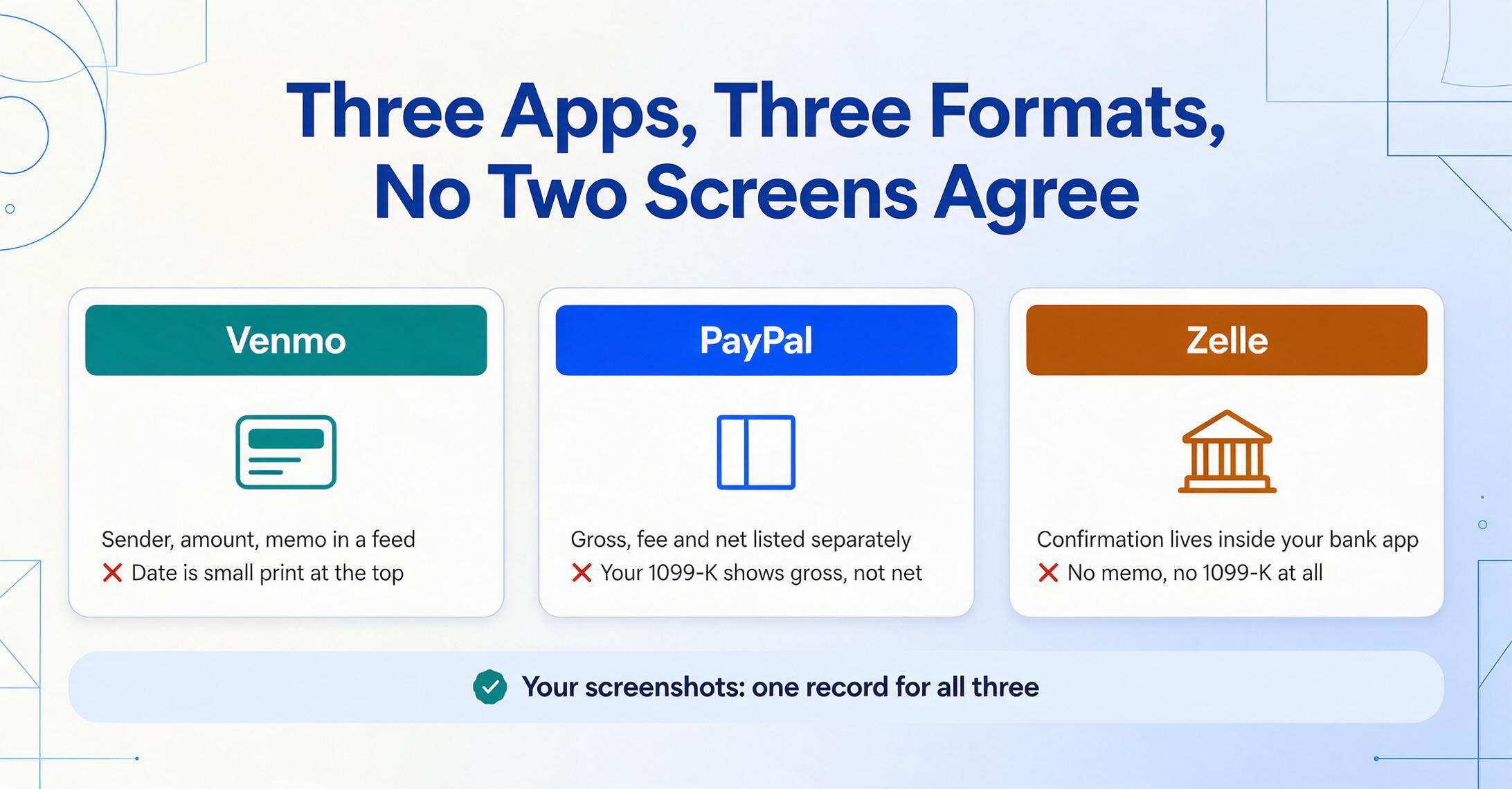
Each payment app is designed to show you your transactions in its own interface. They're not designed to interoperate. When you need a unified view of income across platforms, you're doing that integration work yourself — either by exporting from each platform separately (when export is even available), or by going back through your transaction history manually.
The layouts don't cooperate:
- Venmo shows sender name, amount, and memo in a social feed format — the amount is visually prominent, but the date is in small text near the top
- PayPal shows gross amount, fee, and net separately — and the gross amount is what's on your 1099-K, not the net you actually received (field-by-field breakdown of a PayPal screenshot)
- Zelle is embedded in your bank's interface — Chase, Wells Fargo, and Bank of America each format the confirmation screen differently, with no standard layout
- Cash App uses its own typography and visual hierarchy, with the dollar amount large at the top and the sender buried below context
If you've been screenshotting confirmations as you go — a common practice because it takes two seconds and you have the phone in your hand — you already have your records. The problem is they're 40 images in a folder and turning them into a spreadsheet requires reading each one individually.
The Zelle Exception: No 1099-K, Still Taxable
PayPal and Venmo will send you a 1099-K once your business transactions exceed the reporting threshold — even if the form understates your actual net income (because it reports gross, not net of fees). That form at least reminds you the income exists and needs to be declared.
Zelle works differently. Because Zelle transfers directly between bank accounts rather than holding funds in a payment platform, it's not subject to the same 1099-K reporting requirement. Zelle doesn't issue tax forms. The IRS, however, still expects you to report income you received through Zelle.
This means Zelle income falls entirely on you to track. There's no year-end form to reconcile against. The screenshots you took when payments came in are your records — which makes processing them efficiently more important, not less.
Screenshots as the Only Consistent Record
Every payment app provides transaction history, but in a different format with different export options. PayPal lets you download activity as CSV; Venmo has a limited export; Zelle typically doesn't offer any download at all beyond your bank's statement. A PayPal screenshot taken at payment time sidesteps the export question entirely, because the fields are already visible on the confirmation.
Screenshots are the common denominator — every platform produces them in one tap, they're date-stamped by your phone, and they capture the confirmation state at the moment of transaction (before any disputes or reversals that might alter the history view later).
The limitation is that screenshots are images, not structured data. Processing 40 of them into a spreadsheet manually takes about two hours. Processing them with ImageToTable.ai takes about five minutes.
Column-Based Extraction Across Mixed App Screenshots
You define the columns you need for your income log, and the tool extracts those specific fields from every screenshot — regardless of which app it came from or where on the screen the information appears.
For a freelancer income log, a useful column set:
| Column you enter | What the AI extracts | Notes on specific apps |
|---|---|---|
| Amount | The payment received (gross, as shown) | For PayPal: the gross amount. Add "Net Amount" as a separate column if you need the fee-deducted figure. |
| Date | Transaction date, standardized | Handles "Yesterday," "April 22," and full date formats |
| Sender | Name or username of who paid you | Venmo username, PayPal name, Zelle as listed in bank interface |
| Platform | Which app processed the payment | Readable from the visual UI of the screenshot |
| Memo | Payment description or note | Present on Venmo/Cash App; often absent on Zelle |
| Fee | Platform fee if shown | Visible on PayPal; not shown on Venmo/Zelle/Zelle |
| Transaction ID | Reference number for reconciliation | PayPal and bank Zelle confirmations; absent from Venmo feed view |
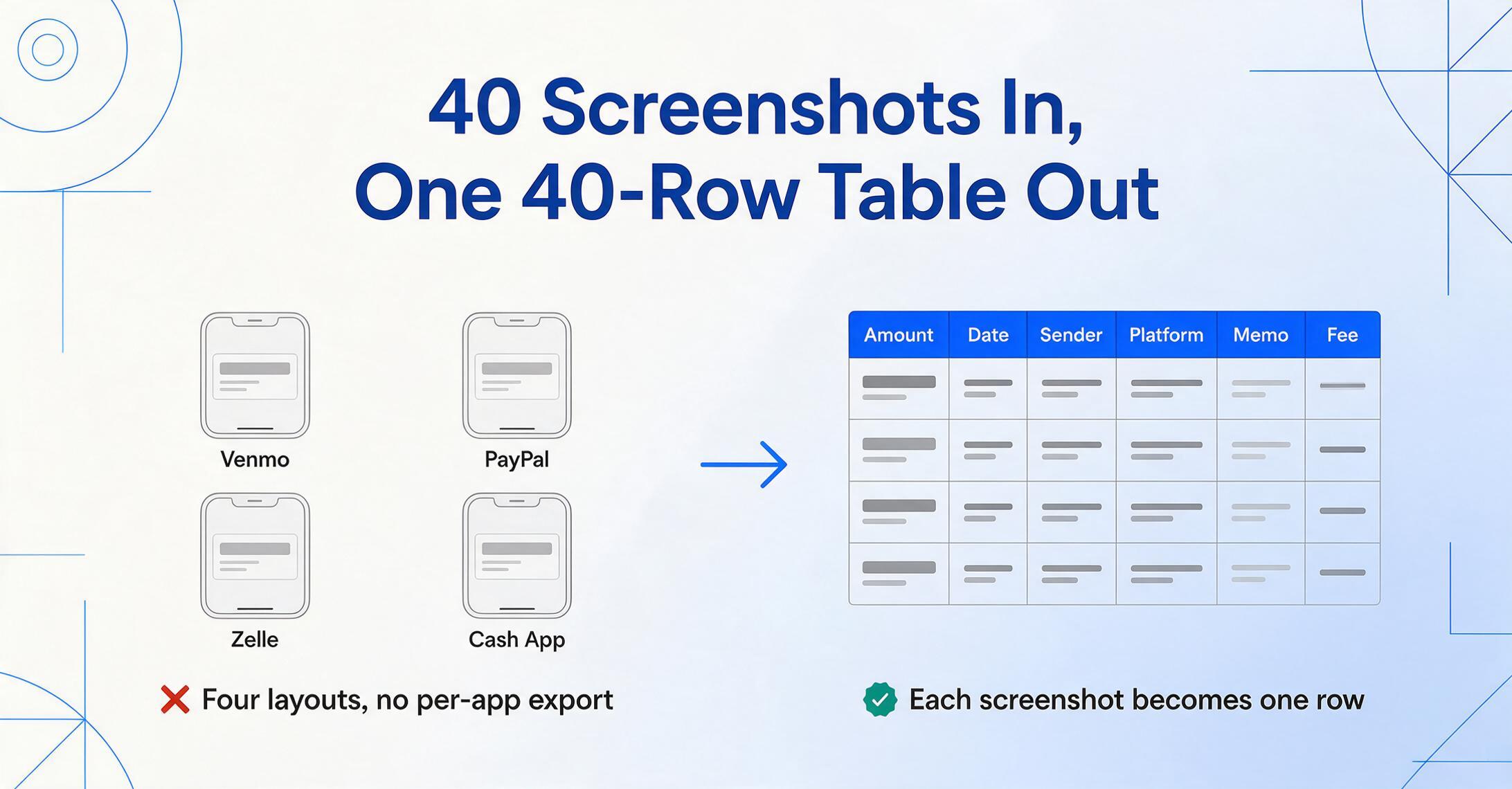
Each screenshot becomes one row. A batch of 40 screenshots from four different apps produces one 40-row table — no format-switching, no per-app export process.
For a step-by-step walkthrough of the extraction workflow across different payment apps — including column setups, accuracy expectations, and practical tips — see our guide to turning payment screenshots into spreadsheets.
Building a Tax-Ready Income Log
For tax prep purposes, the most useful log structure goes beyond just amount and date. Here's a practical monthly column set:
Date | Amount | Platform | Sender | Memo | Client Project | Category | Fee | Net AmountThe first six columns come from extraction. "Client Project" can be added manually if the memo doesn't capture it. "Category" is useful if you have multiple income streams (consulting, product sales, referrals) that need to be reported differently. "Net Amount" can be a formula column: Amount minus Fee.
A few practical habits that make this easier:
- Screenshot at the time of payment, not later. The confirmation view often shows more context (memo, sender details) than the transaction history view you'd find a month later.
- Use consistent column names across months. If you process January through April separately, consistent headers make merging four files a single copy-paste operation.
- Keep the Platform column even when it's obvious. When you're reconciling against a 1099-K from PayPal at year end, filtering your log by Platform = PayPal gives you the comparison view immediately.
- Add a "Reported on 1099-K" flag column. For amounts that appear on a form you receive, mark them — it simplifies the cross-check against what platforms report vs. what you received.
Step-by-Step: From Screenshots to Income Log
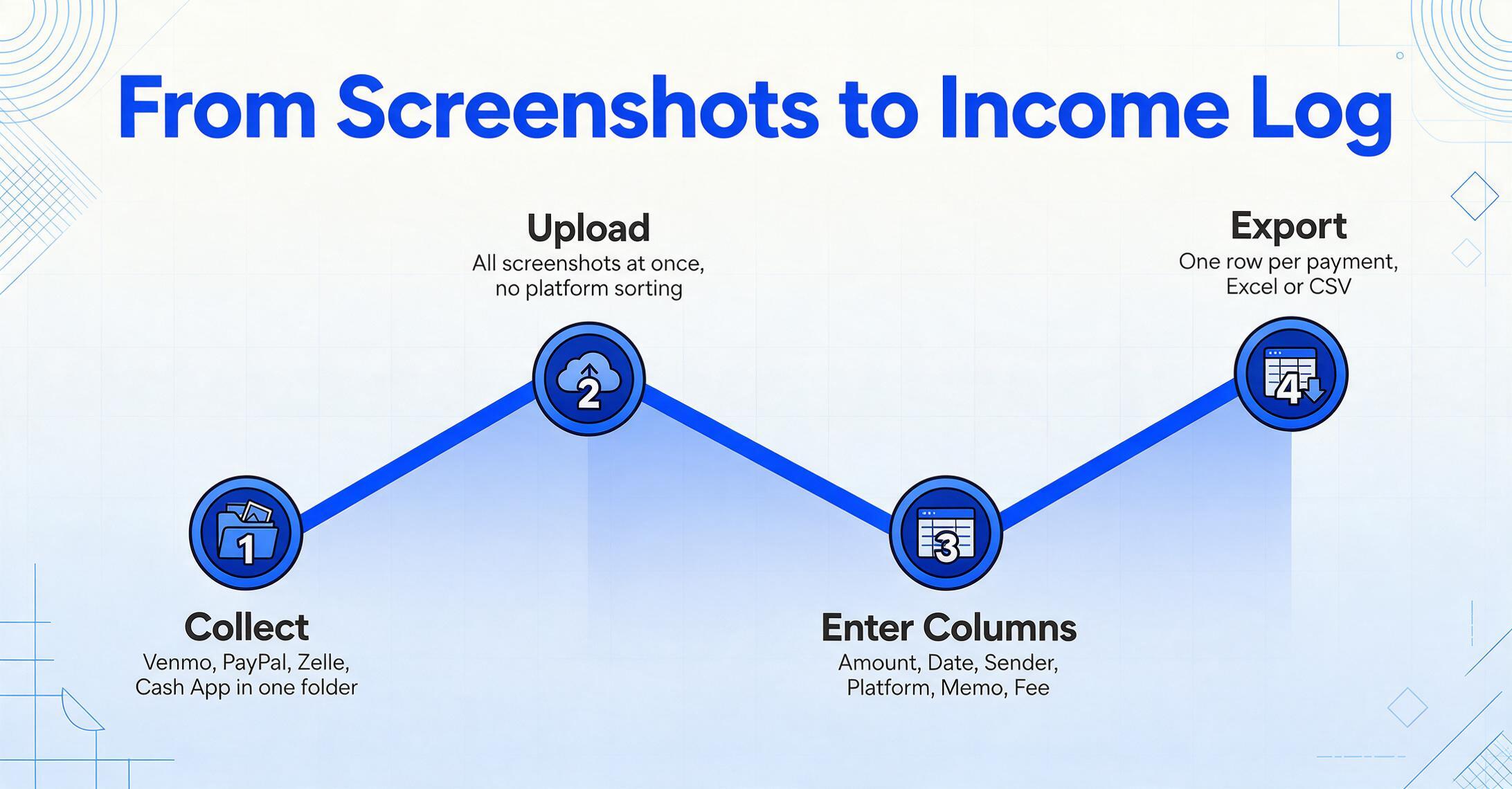
Collect your payment screenshots
Save all payment confirmation screenshots to one folder. Venmo, PayPal, Zelle, Cash App — mix them all together. JPG, PNG, and WebP all work.
Upload in batch
Go to ImageToTable.ai → To Table mode. Select all screenshots and upload at once. No need to separate by platform.
Enter your income log columns
Type: Amount, Date, Sender, Platform, Memo, Fee. These become the exact headers in your output. Add or remove columns to match your accounting setup.
Review, add context, and export
Each screenshot becomes one row. Add a Client or Project column manually if needed. Export to Excel or CSV — ready for your accountant or tax software.
Frequently Asked Questions
Can I mix screenshots from Venmo, PayPal, Zelle, and Cash App in one batch?
Yes. All four platforms can be in the same batch. Each screenshot is processed independently — the tool reads each image and extracts the columns you defined, regardless of which app generated the screenshot or what that app's UI looks like. You'll get one unified table with a row per payment.
Zelle doesn't show a memo on most payment confirmations. What happens to the Memo column?
The Memo cell will be blank for those rows — which is accurate, because Zelle doesn't include a memo field on standard confirmations. Blank is more useful than a fabricated value when you're reconciling income. If you add notes to Zelle transfers through your bank's interface, those notes may appear in bank statement screenshots instead.
PayPal shows a gross amount and a net amount after fees. Which one does it extract?
The column name you enter determines what gets extracted. If you ask for "Amount," the tool extracts the most prominent amount shown — typically the gross. If you want the net, add a "Net Amount" or "Amount After Fee" column. You can have both columns in the same batch — the tool will extract the gross into one and the net into the other for screenshots where both are visible.
I have screenshots going back a year. Can I process them all at once?
Yes — there's no restriction on mixing screenshots from different time periods. Upload your entire archive and the tool will extract the date from each screenshot, so your output table is accurately dated throughout. Processing time is roughly 5–10 seconds per screenshot. A full year of weekly payments (50–100 screenshots) typically finishes in under 15 minutes.
What if a screenshot is just a bank app notification, not a full transaction detail screen?
Short notification banners contain limited information — usually the sender and amount, sometimes a partial memo. The tool will extract what's visible, leaving other columns blank. For complete records, use the full transaction confirmation screen rather than the push notification screenshot. If you only have notifications for some transactions, process them anyway — partial data is better than no data, and the blank cells will clearly mark what's missing.
Try it with a month's worth of payment screenshots — upload the batch, enter your column names, and see the income log come together.
Start Extracting