How to OCR Screenshots
to Text: A Complete Guide (2026)
You take a screenshot of an error message, a settings panel, or a webpage quote. You open an OCR tool. And the result is a mess — missing words, random symbols, half the text gone. The problem isn't your OCR tool. Screenshots and scanned documents are fundamentally different inputs, and most OCR engines were built for one, not the other.
Key Takeaways
- You've been blaming the OCR tool — but your chat-compressed, dark-mode screenshot was unreadable before any engine touched it.
- Six specific screenshot properties each produce a predictable OCR failure you can now diagnose in ten seconds flat.
- AI vision models read meaning directly from screenshots, making dark mode, compression, and gradient backgrounds irrelevant in a single upload.
Why Screenshots Are Different from Scanned Documents
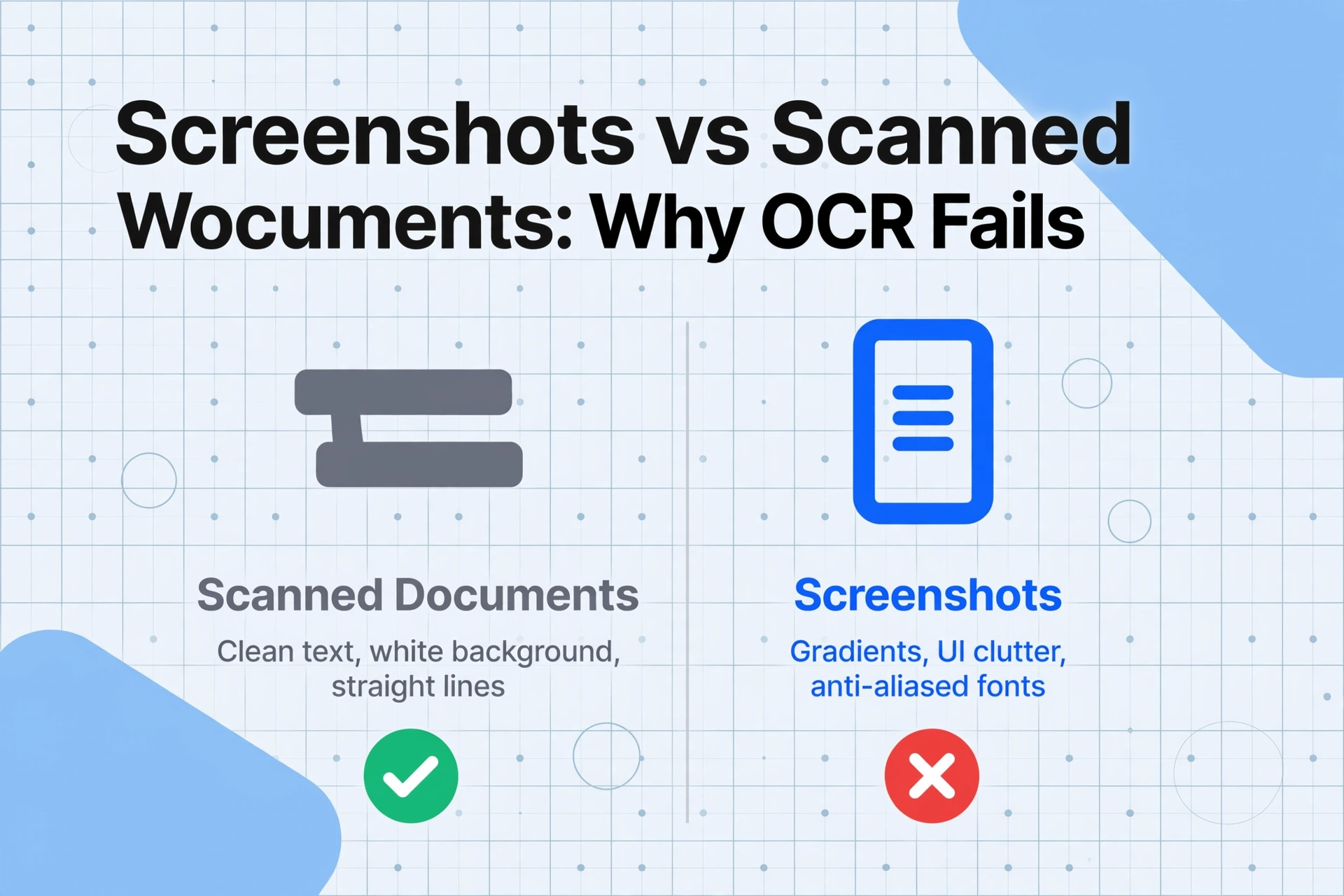
Most OCR engines — including Tesseract, the open-source engine behind dozens of free online tools — were designed for scanned paper documents: black text on white backgrounds, straight horizontal lines, clean character edges. Screenshots break nearly every assumption that traditional OCR relies on.
Here's what makes a screenshot fundamentally different from a scanned document:
| Factor | How It Hurts OCR | Why Screenshots Have It |
|---|---|---|
| JPEG compression artifacts | Noise around character edges → engine misreads O as 0, l as 1 | Messaging apps compress screenshots aggressively. A 2 MB screenshot becomes 200 KB in WhatsApp |
| Anti-aliased / ClearType text | Sub-pixel rendering creates blurry edges at the pixel level → character boundary detection fails | Every modern OS uses sub-pixel font rendering on LCD screens |
| Color gradients and patterned backgrounds | OCR needs clean foreground-background separation. Gradients confuse binarization thresholds | Modern UI design uses splash backgrounds, dark modes, gradient panels — not white paper |
| UI elements overlapping text | Buttons, icons, menu bars, and overlays intersect text regions → engine can't distinguish content from chrome | Every screenshot of a software interface or webpage includes navigation, toolbars, popups |
| Mixed font sizes in tight layouts | One size fits no one — OCR engines set a page-level character height expectation | A dashboard screenshot can have 48 pt headers and 10 pt data labels on the same image |
| Low effective DPI | Screenshots are captured at screen resolution (72–96 DPI equivalent), well below the 300 DPI recommended for OCR | Unlike scanners, you can't set a screenshot to "300 DPI." It captures what the monitor displays |
None of these mean screenshots can't be OCR'd. They mean the approach has to be different. When you understand why a screenshot OCR fails, you can pick the right method — instead of trying five tools and getting the same bad result.
The key insight: Screenshot OCR failures aren't random. They follow predictable patterns. Once you know the pattern — compression, contrast, UI clutter, or font scaling — you can fix it at the source rather than hoping a different tool magically works.
Before You Start: Optimizing the Screenshot Itself
The single most impactful step you can take for screenshot OCR accuracy happens before you even open a tool. Screenshots are the only OCR input you control at creation time — scanned documents are already captured by the time you get them.
These five steps alone can turn a failed screenshot OCR into a clean extraction. But even with perfect capture, some screenshots — complex dashboards, dark-mode interfaces, mixed-layout documents — still trip up traditional OCR. The same is true the moment your source is a phone snapshot rather than a screen grab: a vision-based picture to text tool reads the whole image and handles it. That's where the method matters.
Step 1: Quick Methods — Built-in OS Tools
For simple screenshots — clean text on a solid background, minimal UI clutter — your operating system has you covered. These tools are free, instant, and handle the most common case well.
When these tools work, they're the fastest option. When they don't — and you'll know within seconds — the problem is almost always one of the six factors in the table above. That's when you need a fundamentally different approach.
Step 2: AI-Powered Extraction for Complex Screenshots
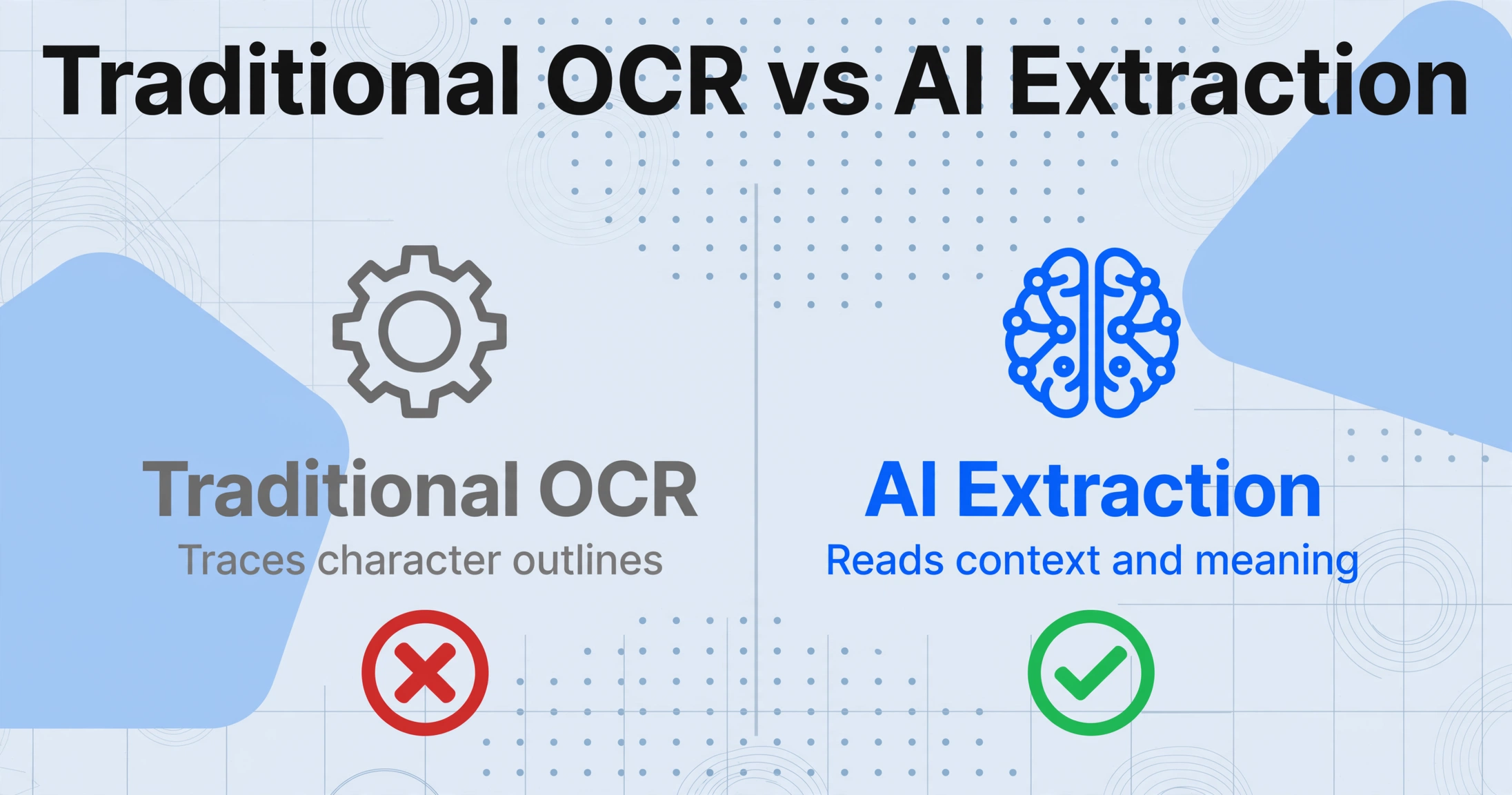
Built-in OCR tools and traditional engines like Tesseract work at the character level: they identify individual letters by their shapes, then assemble them into words. Color backgrounds, UI elements, and compression artifacts all distort those shapes, causing the cascade of errors you see in the output.
AI vision models — the kind that power tools like ImageToTable.ai — work differently. They understand the semantic content of an image. Instead of asking "what shape is this pixel cluster?", the model asks "what text content is in this region, and what does it mean?" This distinction matters enormously for screenshots, because the AI doesn't care whether the text sits on a white background, a dark panel, or a gradient splash screen. It reads the content, not the pixels.
Traditional OCR and AI-based extraction represent two fundamentally different technical approaches. While OCR traces character outlines, AI extraction reads context — which is why it handles the six screenshot challenges without preprocessing.
Here's how to extract text from a complex screenshot using a vision AI tool:
The difference is meaningful: A dashboard screenshot that produces 40% accuracy in Snipping Tool (half the text missing, numbers merged) typically produces 95%+ accuracy from the same file in an AI vision tool — because the AI reads the content, not the character shapes. For a deeper look at what influences extraction quality, see our guide to improving OCR accuracy.
Step 3: Batch Processing Multiple Screenshots
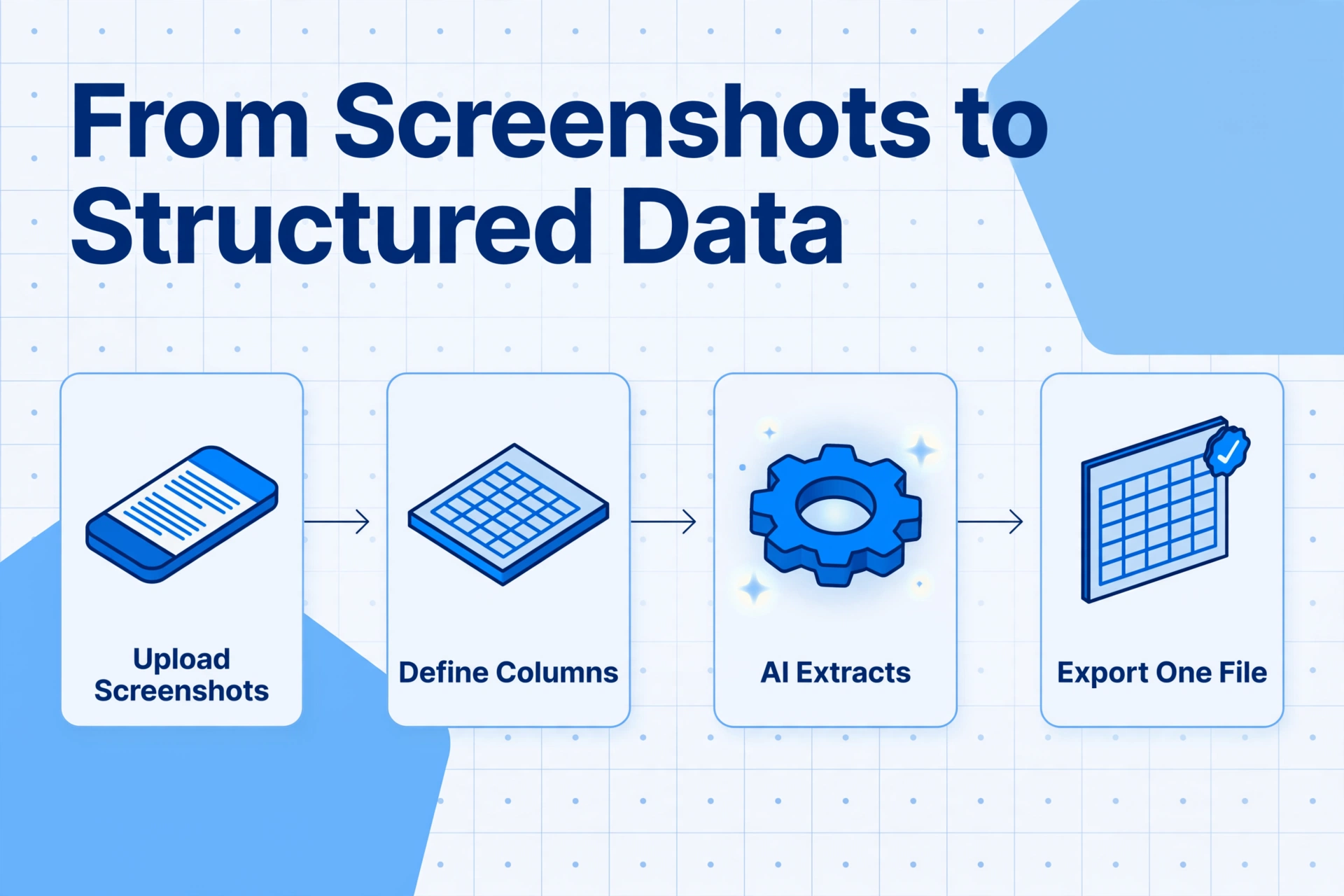
One screenshot is fast. Twenty — from a course slide deck, a software documentation walkthrough, or a batch of error screenshots for an IT ticket — is where manual methods break down completely.
Batch processing means uploading multiple screenshots at once and having them all processed against the same set of columns, then exported as a single structured file. This is where the difference between character-level OCR and AI extraction becomes a question of minutes versus hours.
Real-world example: A technical writer documenting 45 UI screens for a software migration project needed to extract and catalog every error message and button label from the screenshots. Using individual screenshot tools took roughly 8 minutes per screen — over 6 hours total. With batch AI extraction, all 45 screenshots processed in under 4 minutes. The results were exported as a single spreadsheet with columns for "Screen Name," "Error Message," "Button Label," and "Status Value."
Batch processing isn't just about speed — it's about consistency. When every screenshot is processed by the same AI model with the same extraction schema, you get comparable results across the batch. Manual extraction inevitably drifts: the first few screenshots are careful, the tenth is rushed, the twentieth has errors. AI extraction doesn't fatigue.
Troubleshooting: Why Did My Screenshot OCR Fail?
When the output doesn't match what you see on screen, the root cause is almost always identifiable. Here are the six most common failure patterns, what causes them, and how to fix each one.
| Symptom | Likely Cause | Fix |
|---|---|---|
| Text comes out as random symbols "l1ke th1s" or "ÒC R rEsul+" | JPEG compression artifacts around character edges. The OCR engine sees noise pixels as part of the character shape. | Re-capture as PNG. If the file was forwarded through a chat app, get the original screenshot file instead. |
| Some text is completely missing Only 3 of 10 lines appear in the output | Low contrast — text color and background color have similar luminosity values. The binarization step treats the text as background and discards it. | Increase screen brightness before capturing, or use an AI vision tool that doesn't rely on binary thresholding. |
| Numbers are wrong "1,234" reads as "1234" or "12 34" | Font rendering at small sizes. Commas and decimal points in 10‑12 px fonts are only a few pixels wide — too small for character-level OCR to distinguish. | Zoom in before capture so numbers are rendered at a larger pixel size. |
| Text from buttons and labels mixes with main content Navigation menu text appears in the middle of your extracted paragraph | No reading-order detection. Character-level OCR reads left-to-right, top-to-bottom — it doesn't distinguish a sidebar from the main content area. | Crop the screenshot to the relevant region before processing. Or use an AI tool that understands document layout structure. |
| Dark mode screenshots produce garbage output White text on black background extracts as blank or fragmented | Traditional OCR assumes dark text on light background. Inverse polarity (light text, dark background) triggers thresholding failures. | Switch the app to light mode before capture. If that's not possible, use an AI vision model — they don't assume polarity. |
| Tables and columns merge into one blob Column A and Column B values appear as one long string | Tabular layout detection fails. Character-level OCR doesn't understand table structure — it reads text in reading order, not column-by-column. | Use column-based extraction: tell the AI the column names you want. It will locate each value by semantic position, not by pixel coordinates. |
If you're running into these issues regularly, the tool itself may not be the answer — the approach you use for scanned PDFs to Excel applies here too: matching the method to the document type is more important than picking the "best" OCR engine.
FAQ
What is the best image format for screenshot OCR?
PNG. Screenshots captured natively on Windows, macOS, and most Linux distros default to PNG, which is lossless. JPG compression introduces artifacts that reduce OCR accuracy — especially at the quality levels used by messaging apps (typically 70-80% compression). If you receive a screenshot as JPG, try to obtain the original PNG file.
Can I OCR screenshots from dark mode or night mode?
Yes, but not reliably with traditional OCR. Character-level engines like Tesseract and most built-in OS tools assume dark text on a light background. White text on a black background inverts that assumption, causing binarization failures. AI vision models handle dark mode naturally — they don't rely on polarity assumptions. If you must use a traditional OCR tool, switch the app to light mode before capturing the screenshot.
Why does Tesseract struggle with screenshots specifically?
Tesseract was designed for scanned documents — clean black text on white backgrounds, straight alignment, consistent font sizes. Screenshots violate these assumptions: they have colored backgrounds, anti-aliased fonts, UI overlays, and variable DPI. Tesseract also uses a global binarization step that applies a single threshold to the entire image, which fails on screenshots with mixed dark and light regions. Cloud OCR APIs and AI vision models handle screenshots significantly better because they use adaptive preprocessing or skip binarization entirely.
Does OCR work on screenshots of handwriting or PDFs?
Screenshot OCR works best on digitally rendered text — UI labels, website content, code editor output. For screenshots of handwritten notes, standard OCR accuracy drops significantly. Handwriting requires specialized handwriting recognition (HWR) models. For screenshots of PDF content, you'll get better results by extracting the text directly from the PDF or using a dedicated PDF-to-text tool rather than taking a screenshot of the PDF viewer.
How can I extract text from non-selectable content on a webpage?
There are two approaches. First check if the content is rendered as text but locked — in that case, browser DevTools may let you access it. If the content is genuinely image-based (e.g., scanned document embedded in a page, or dynamically generated infographic), take a screenshot of the relevant section and run it through an OCR or AI extraction tool. Google Lens (right-click in Chrome) is the fastest option for one-off web images. For batch or structured extraction, an AI vision tool will give you cleaner results.
Can screenshot OCR handle multiple languages in the same image?
Traditional OCR requires you to specify the language before processing. Mixing languages in the same screenshot — for example, a Japanese UI with English data — often causes one or both to fail. AI vision models automatically detect the language(s) present in each region and handle mixed-language screenshots natively. This is one of the clearest advantages of semantic extraction over character-level OCR.
Screenshot OCR Doesn't Have to Be Frustrating
The reason your last screenshot OCR produced garbled text isn't that OCR technology doesn't work. It's that you were using a tool designed for scanned invoices on a screenshot of a dark-mode dashboard with four different font sizes and a gradient background. The mismatch between the input type and the tool's assumptions is almost always the root cause.
Once you understand that screenshots have their own set of rules — compression, contrast, UI clutter, font scaling — the fixes become straightforward. Optimize the capture, match the tool to the complexity of the screenshot, and when the built-in methods fall short, switch to an AI vision model that reads meaning rather than pixel shapes.
Your next screenshot OCR attempt should be the last one that produces random symbols. You now know exactly what to look for and what to use instead.