Why Is Your OCR Producing
Garbled Text? 3 Root Causes and Fixes
You ran a document through OCR, but instead of clean text you got é, ’, boxes full of question marks, or sequences that look like someone dropped the keyboard down a flight of stairs. This phenomenon — called mojibake (文字化け, Japanese for "character transformation") — has a technical root cause, and once you understand it, fixing it becomes straightforward.
Key Takeaways
- That
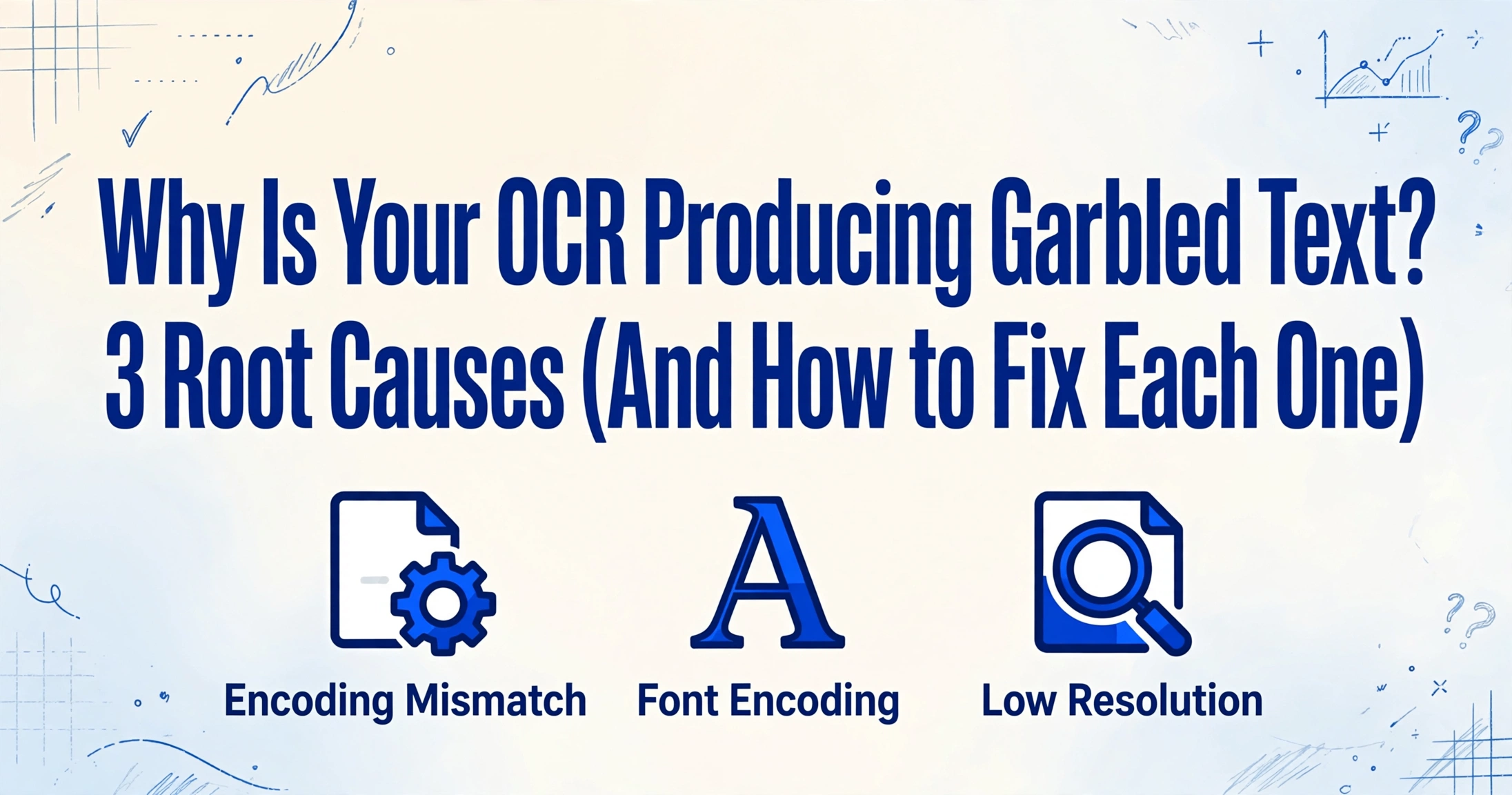
éyou see whereéshould be is not broken data — it is UTF-8 bytes interpreted through a Windows-1252 lens, and switching the reading lens instantly restores every character in the file. - Three distinct causes produce garbled OCR — encoding mismatches, broken font maps, and low-resolution character swaps — and each one leaves a diagnostic fingerprint that tells you which fix to reach for before you even open a tool.
- The most stubborn garbled-text cases happen because your OCR is reading a broken hidden text layer inside the PDF, not the visual image — forcing the OCR to read the rendered page directly makes the garbage disappear.
If you are seeing garbled output, you are in good company. A subreddit community exists purely for people trying to identify what language their mojibake "might be." The Adobe Acrobat community forum has dozens of unresolved threads from users whose Japanese OCR produced strings like 蟷エ莉」繧「繧ク繧「縺ォ縺翫¢繧九げ繝ュ繝シ繝舌Ν蛹悶� instead of readable text. The Python ftfy library — a dedicated tool for fixing mojibake — has been downloaded millions of times because this is a recurring, industry-wide problem.
The good news: garbled OCR text is not random damage. It follows predictable patterns caused by one of three root mechanisms. Once you identify the pattern, the fix is repeatable.
Cause 1 — Encoding Mismatch: The Most Common Culprit
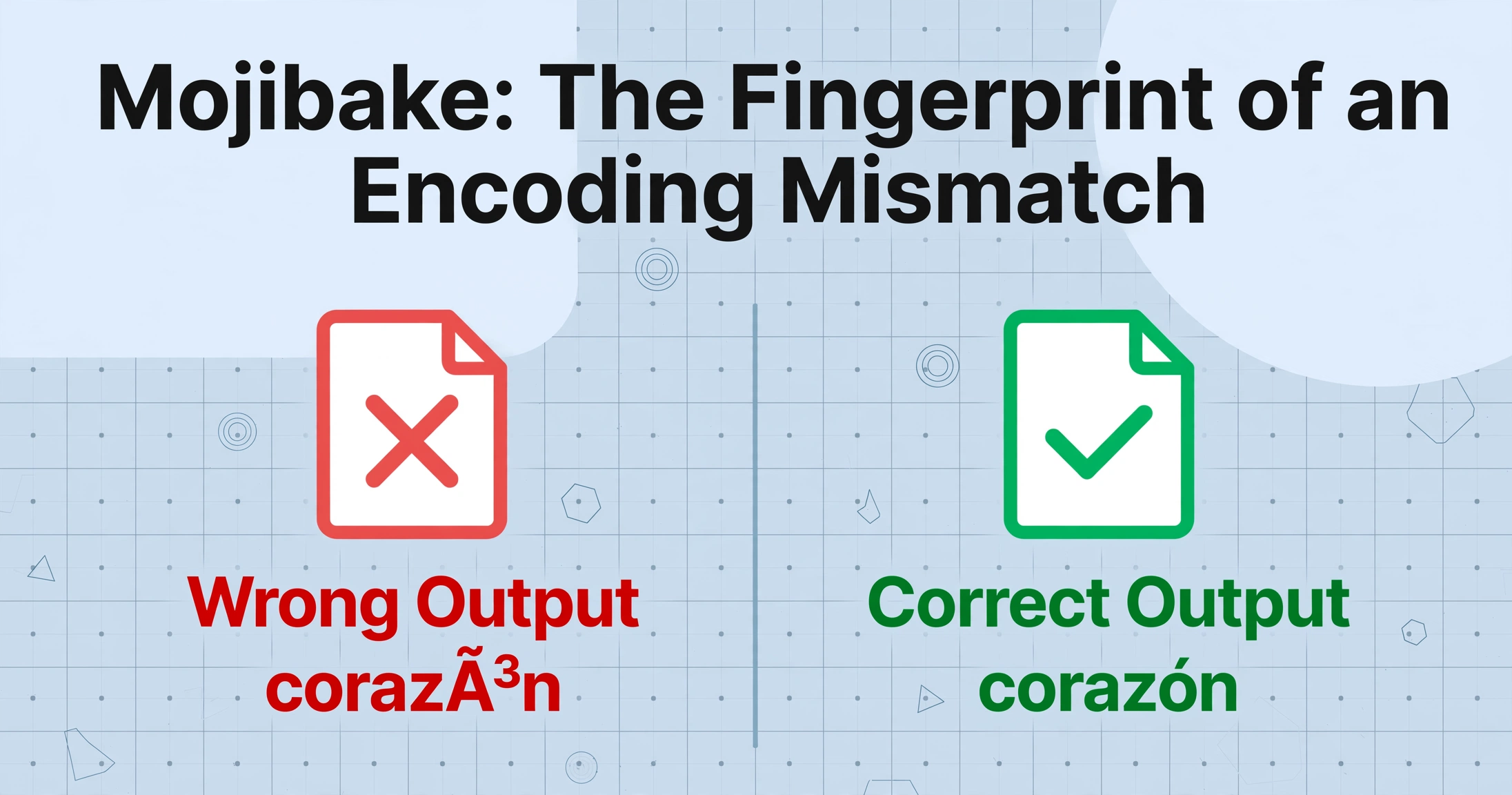
The symptom: Accented characters, currency symbols, and smart quotes turn into multi-character garbage. Spanish corazón becomes corazón. The Euro sign € appears as €. Curly quotes “look like thisâ€. The document is mostly readable, but every non-ASCII character is wrong.
Why it happens: Character encoding is the agreement between a file and a reader about how to map bytes to letters. When the OCR engine reads the file using one encoding (say, UTF-8) but the file was created with another (say, Windows-1252), the same bytes map to completely different characters. The result is systematic corruption — like reading a map drawn in inches as centimeters. Every measurement is off by the same factor, and the pattern of wrongness tells you exactly which conversion was applied.
How to identify which encoding mismatch you are dealing with
Certain mojibake patterns are so distinctive you can diagnose the encoding error just by looking at the output:
| You see this | Original was | Read as |
|---|---|---|
é for é | UTF-8 | Latin-1 / Windows-1252 |
’ for ' | UTF-8 | Windows-1252 |
– for – (en dash) | UTF-8 | Windows-1252 |
日本 for 日本 | Shift-JIS | UTF-8 or Latin-1 |
Boxes ▯▯▯ or ???? | Unicode | System missing font / wrong encoding |
How to fix encoding mismatches
Option 1: Re-save with the correct encoding. Open the source document (or the OCR output) in a text editor like VS Code or Notepad++ that lets you change encoding explicitly. Use Save As → UTF-8. If the file was originally Windows-1252, re-saving as UTF-8 with proper character detection will often resolve it.
Option 2: Use mojibake repair tools. For bulk or automated fixes, the ftfy Python library (pip install ftfy) automatically detects and reverses common encoding errors — including multi-layer corruption where text was decoded with the wrong encoding, then re-encoded, then decoded wrong a second time. A single call to ftfy.fix_text() handles the vast majority of single- and double-encoding mistakes.
Option 3: Force the OCR engine to re-read the image layer instead of the text layer. Many garbled-text problems in PDFs come from the underlying PDF having a broken or custom-encoded text layer while the visual image layer is perfectly fine. If you set your OCR tool to treat the page as an image (rather than extracting from the existing text layer), it will re-recognize all characters from the rendered glyphs — bypassing whatever encoding damage exists. In Adobe Acrobat, this means choosing "ClearScan" or "Searchable Image (Exact)" instead of "Searchable Image (Compact)" in OCR settings.
Key insight: Encoding-mismatch mojibake is the most fixable kind — it is data read with the wrong key, not data lost. Find the right key and every character recovers.
Cause 2 — Font Encoding: When the Glyph Looks Right but the Character Code Is Wrong
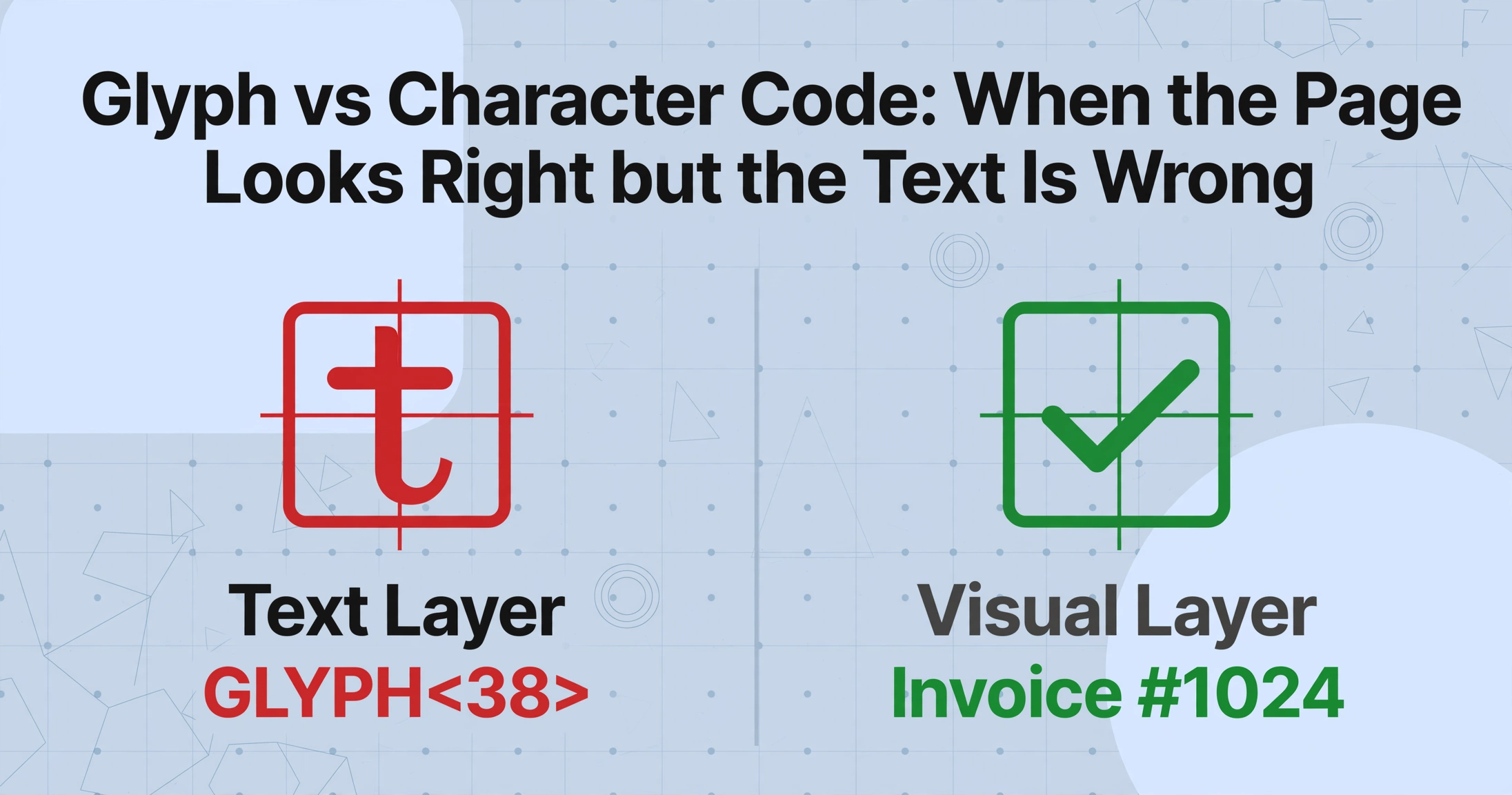
The symptom: The PDF renders perfectly on screen — every character looks correct — but copying text or running OCR produces nonsense: GLYPH<38>, 9%)A:\2A, or repeated meaningless character sequences. The visual page is clean; the text layer is a mess.
Why it happens: A PDF file has two layers of "text": the visual glyphs (what you see rendered on screen) and the character-to-glyph mapping (what a text extractor or OCR engine reads). Normally these two layers agree. But in poorly generated PDFs, the font file may contain custom glyph encoding — the glyph shapes are correct (so the page looks fine), but the character codes they map to are non-standard or missing Unicode mappings entirely.
This situation is surprisingly common. Subset fonts — where only the exact characters used in the document are included — often use non-standard character IDs (CIDs) for internal mapping. When a text extractor tries to interpret those CIDs using a standard encoding table, it gets garbage. A reported issue on the Docling project showed exactly this: a PDF displayed fine, OCR was set to do_ocr=True, and the output was '() +,- .+.. /01 02034567638469:; 4<8:=> — because the font's internal encoding didn't map to standard Unicode.
Scenarios where font-encoding garbage is most likely:
- PDFs generated by specialized software: CAD tools (AutoCAD, Archicad), ERP report generators, or legacy print-to-PDF drivers often embed fonts with custom encoding tables. A community discussion on Adobe forums describes an Archicad user whose PDFs had Segoe UI embedded — and still produced garbled text, because embedding alone does not guarantee standard character mapping.
- PDF/A or digitally signed documents: Compliance-oriented document formats sometimes strip or modify character mapping information during the conversion process.
- Scanned documents that had a hidden text layer added by a previous OCR pass: If the earlier OCR produced incorrect characters and the PDF was saved with that text layer embedded, subsequent extraction reads the cached wrong text instead of running fresh recognition.
- Documents with non-latin scripts: Japanese Shift-JIS fonts, Korean EUC-KR fonts, and Chinese GB-encoded fonts are frequent sources of encoding mismatch when the PDF viewer or OCR engine defaults to a different code page.
How to fix font-encoding garbage
Option 1: Force fresh OCR on the image layer. This is the most reliable fix. Tell your OCR tool to ignore the existing text layer and read directly from the rendered page images. In Acrobat Pro, go to Tools → Scan & OCR → Recognize Text → In This File and ensure the OCR engine treats the document as a scanned image. In ocrmypdf, use the --force-ocr flag to overwrite the existing text layer entirely.
Option 2: Convert to a lossless image format and re-OCR. Export the PDF pages as high-resolution TIFF or PNG files (at least 300 DPI), then run OCR on those images. This strips away all the broken font-encoding metadata and gives the OCR engine a clean visual source. The Adobe Acrobat community thread about Japanese mojibake found that exporting to TIFF and re-OCR'ing resolved the issue where direct PDF OCR had failed.
Option 3: Check font embedding with Preflight. In Adobe Acrobat Pro, use Tools → Print Production → Preflight and run a font-analysis profile. This shows you whether fonts are fully embedded, subset-embedded, or missing, and whether they include Unicode character maps. If a font is subset-embedded without proper /ToUnicode tables, that is your smoking gun.
Cause 3 — Resolution and Character Confusion: When the Image Quality Lets the OCR Down
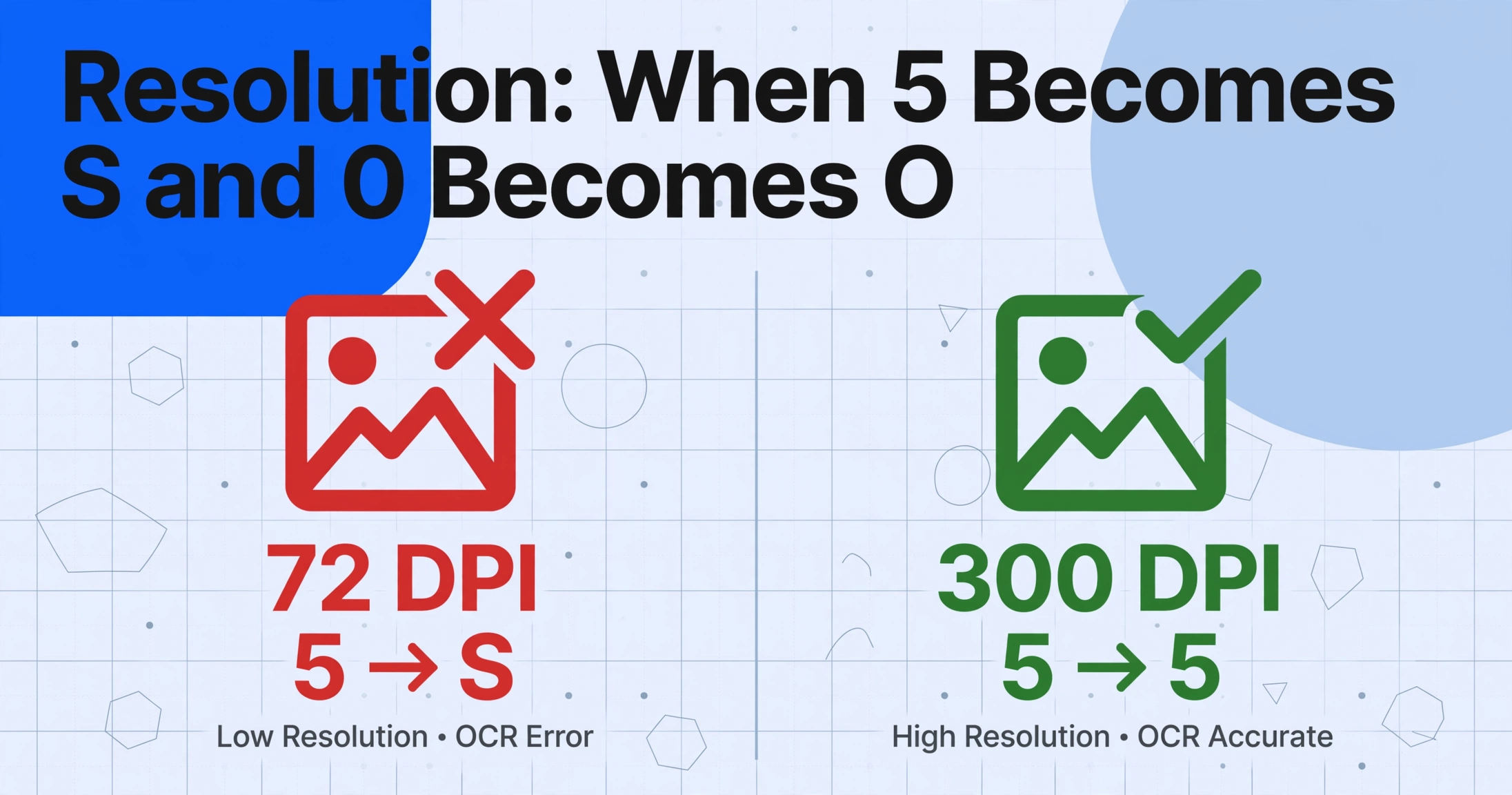
The symptom: Individual characters are wrong in ways that look like reasonable substitutes: 5 becomes S, 0 becomes O, 1 becomes l (lowercase L), rn becomes m. Punctuation vanishes. Thin strokes in characters like e or a are missing, making words look abbreviated. The output is not total garbage — it is subtly, frustratingly wrong.
Why it happens: OCR engines work by matching character shapes against known glyph models. When the input image has insufficient resolution, the pixels available are not enough to distinguish between visually similar characters. A letter S at 72 DPI occupies roughly 10–12 pixels vertically — at that resolution, the serif of a 5 and the curve of an S can look identical. This is not an encoding problem; it is a fundamental information-theory constraint. If the image does not contain enough pixels to represent the distinguishing features of each character, no OCR engine — no matter how advanced — can make a perfect guess every time.
This class of error is especially prevalent in:
- Phone photos of documents taken in low light or at an angle
- Faxed or repeatedly photocopied pages where each generation loses detail
- Old microfilm scans of historical records
- Documents with small font sizes (8-point or below) scanned at 200 DPI or less
How to fix resolution-related garbled text
Option 1: Increase input resolution. The industry standard for OCR is 300 DPI minimum, with 400–600 DPI recommended for small or dense text. If you are working from a phone photo, image preprocessing steps like upscaling, sharpening, and deskewing can help before you send the image to the OCR engine.
Option 2: Use a vision-based extraction tool instead of traditional OCR. This is the structural fix. Traditional OCR engines (Tesseract, ABBYY, Adobe OCR) rely on character-by-character pattern matching — which is why a missing pixel can turn a 5 into an S. Modern vision-language model (VLM) extraction (the approach used by ImageToTable.ai and similar tools) reads entire words and sentences as visual objects, using semantic context to resolve ambiguity. When the engine sees "Order S units" and the surrounding context is an invoice, it understands that S is likely 5 — not because it recognizes the character shape better, but because "Order 5 units" makes sense in a way that "Order S units" does not. For an explanation of how this differs from traditional OCR, read what OCR is and where its limitations come from.
Option 3: Apply image preprocessing before OCR. Even simple preprocessing can dramatically reduce character confusion. Converting to grayscale, applying adaptive thresholding to binarize the text, and removing noise (speckles, background patterns) gives the OCR engine a cleaner signal. See our guide to improving OCR accuracy for field-tested preprocessing workflows.
When to Escalate: What to Do If None of the Fixes Work
If you have verified the encoding, checked the fonts, and preprocessed the image — and the output is still garbled — the tool itself may not be the right fit for the document type. Documents with mixed scripts, decorative fonts, mathematical notation, or heavy stamp overlays push traditional OCR beyond its design limits.
In these cases, the practical solution is to switch to a template-free vision-AI extraction tool that reads documents holistically. Tools like ImageToTable.ai bypass encoding and font issues entirely because they extract meaning from the visual rendering of the page, not from a pre-existing text layer. You upload the document, name the columns you want, and the AI extracts the data by understanding the document's visual and semantic structure — no font-dependent text layer, no encoding tables to worry about.
FAQ
Why does my PDF look fine on screen but produces garbled text when I copy it?
This is almost always a font-encoding issue (Cause 2). The PDF's visual layer uses correctly shaped glyphs, but the underlying character-to-Unicode mapping is broken or non-standard. Your PDF reader renders the glyphs perfectly, but when you copy text — or an OCR engine reads the hidden text layer — it follows the broken map and produces garbage. The fix is to OCR the image layer directly, ignoring the existing text layer.
Can I fix garbled OCR text automatically with software?
Yes, for encoding-mismatch mojibake (Cause 1), tools like ftfy (Python), iconv (Linux/macOS), and the "detect encoding" feature in editors like VS Code can automatically identify and reverse the corruption. For font-encoding and resolution issues, automatic repair is less reliable because the problem is not in the byte-to-character mapping — it is in the source data itself. Those cases require reprocessing with different settings or a different extraction approach.
Does higher DPI always fix garbled OCR?
Higher DPI fixes resolution-related character confusion (Cause 3) but has no effect on encoding mismatches (Cause 1) or font-encoding issues (Cause 2). Scanning a document at 600 DPI will not help if the original file is a PDF with broken /ToUnicode tables — you are just creating a higher-resolution version of the same underlying problem. Diagnose the root cause before investing in re-scanning.
Does ImageToTable.ai handle garbled text better than traditional OCR?
Because ImageToTable.ai uses a vision-language model that reads the visual content of the document — not an intermediate text layer — it sidesteps both the encoding-mismatch and font-encoding causes of garbled text. The AI processes the rendered page image directly, so custom CID mappings, subset fonts, and missing /ToUnicode tables do not interfere. For resolution-related ambiguity, the model's semantic understanding of document context provides an additional layer of correction that character-based OCR lacks. However, if the source image itself is severely degraded (blurry, extremely low resolution, partially illegible), no approach — including vision AI — can recover information that was never captured.
Garbled OCR Text Is Not Random — Here Is What to Do Next
When OCR output looks like someone scrambled the alphabet, it is tempting to blame the software and move on. But the three causes covered here — encoding mismatches, font-encoding problems, and resolution-based character confusion — each have a specific fingerprint and a corresponding fix. Learning to distinguish them turns a frustrating mystery into a repeatable diagnosis.
Start with the symptom: multi-character garbage around accents (like é) → encoding mismatch, fix with re-encoding or ftfy. Perfect on-screen rendering but OCR produces unrelated glyphs → font-encoding issue, fix by forcing image-layer OCR. Individual characters swapped for lookalikes (5→S) → resolution problem, fix with preprocessing or a context-aware tool.
The last option — switching from character-based OCR to vision-based extraction — sidesteps the root causes entirely by reading the document as a human would: understanding meaning rather than matching pixel patterns or traversing encoding tables.
Test on your own garbled documents. See if the problem disappears when the engine no longer depends on a text layer.