How to OCR Handwritten Notes to Text
A 5-Step Guide for 2026
You have a stack of handwritten notes — meeting minutes, lecture notes, field observations, or a notebook full of ideas you need to search, edit, or share. Turning them into digital text is the goal, and the gap between a good result and a garbled mess comes down to five steps: prepare the page, pick the right tool, run the OCR, verify the output, and export. This guide walks through each one with real accuracy numbers and honest limitations so you know what to expect before you start.
Key Takeaways
- 99 percent accuracy on printed text drops to 64 percent the moment you feed the same OCR tool handwriting — template-matching engines need standard letter shapes to lock onto and your cursive loops supply none.
- A curled notebook page shadows the middle third of your text while an angled phone photo distorts every letter shape — two preparation mistakes that silently cost 10 to 20 accuracy points before the tool ever opens the file.
- AI vision models skip template-matching entirely by reading a page the way you read a page — they know a meter reading when they see one regardless of where it sits and that contextual understanding alone buys you 20 to 30 more accuracy points on the same document.
Before You Start: What Affects Handwriting OCR Accuracy
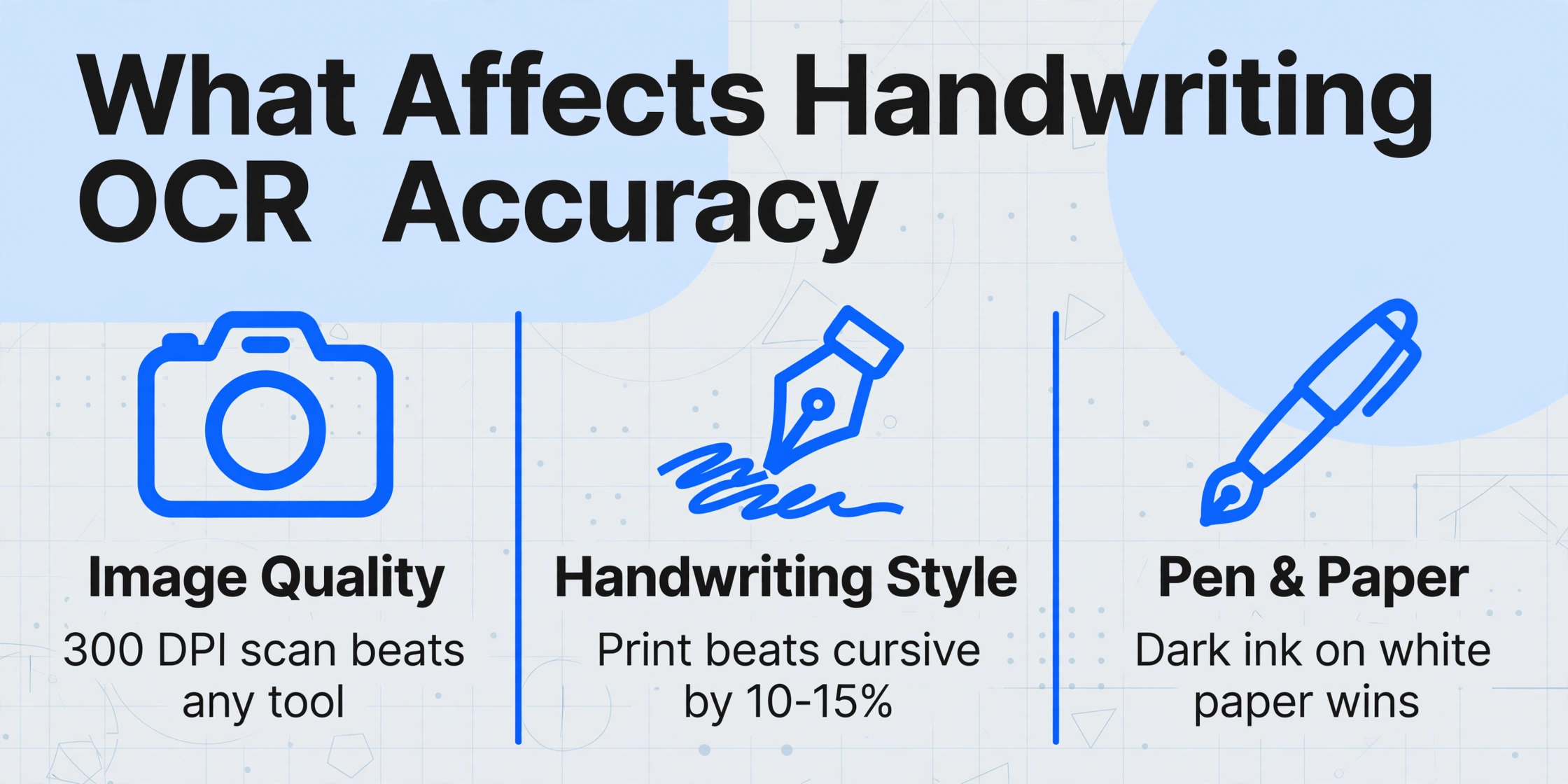
Not all handwritten pages OCR the same way. The accuracy you get depends on three variables you control before you ever click a button.
Image quality is the single biggest factor. AIMultiple's 2026 handwriting benchmark found that AI vision models reach 95% accuracy on clean, well-lit samples but can drop below 70% on a low-light phone photo of a wrinkled page. A 300 DPI scan with even lighting is worth more than any tool upgrade.
Handwriting style matters more than most guides admit. Print-style handwriting achieves 10-15% higher accuracy than cursive across nearly every tool tested. The AIMultiple cursive benchmark showed even the best models struggle with connected letter strokes. If you write in cursive, expect more errors.
Pen type and paper surface are real variables. Dark ballpoint on bright white paper produces the best contrast. Light pencil, pastel gel pens, or thin ink on lined paper reduce the signal that OCR relies on.
Set realistic expectations: average handwriting OCR accuracy across generic tools hovers around 64%, per 2026 industry benchmarks. That number jumps by 20-30 points with the right tool and the right preparation — or drops further with bad input.
Step 1: Prepare the Document
Choose the right lighting
Natural daylight from a window or an overhead lamp positioned to avoid glare on glossy paper. Shadows across the page create inconsistent brightness that OCR reads as noise. If you are photographing with a phone, place the page flat and stand directly above it so the camera lens is parallel to the paper surface — an angled shot distorts letter shapes.
Flatten the page
A page that curls at the spine, has folds, or sits on an uneven surface creates text distortion in the middle third of the image. Press the notebook flat, or place a clean sheet of glass over the page if the binding prevents it from lying open. For loose sheets, a flatbed scanner is ideal — it eliminates the curvature problem entirely.
Check the resolution
For OCR, 300 DPI is the minimum standard. Most phone cameras exceed this easily, but a scanned image saved at 150 DPI or a compressed PDF attachment from an email will lose fine stroke details — especially in cursive letter connections. If you are scanning, set your scanner software to at least 300 DPI in grayscale or color mode. Black-and-white (bitonal) mode can degrade handwriting OCR because it discards the subtle gray-level gradients that help distinguish connected letter strokes.
Remove background clutter
If the page has stains, bleed-through from the other side, or a patterned background (common in spiral notebooks), crop the image to the text area. Some mobile scanning apps like Microsoft Lens include an auto-enhance feature that cleans up the background automatically — this alone can improve OCR accuracy by 10-20% compared to the raw photo.
Step 2: Choose Your Tool — Free vs AI-Powered
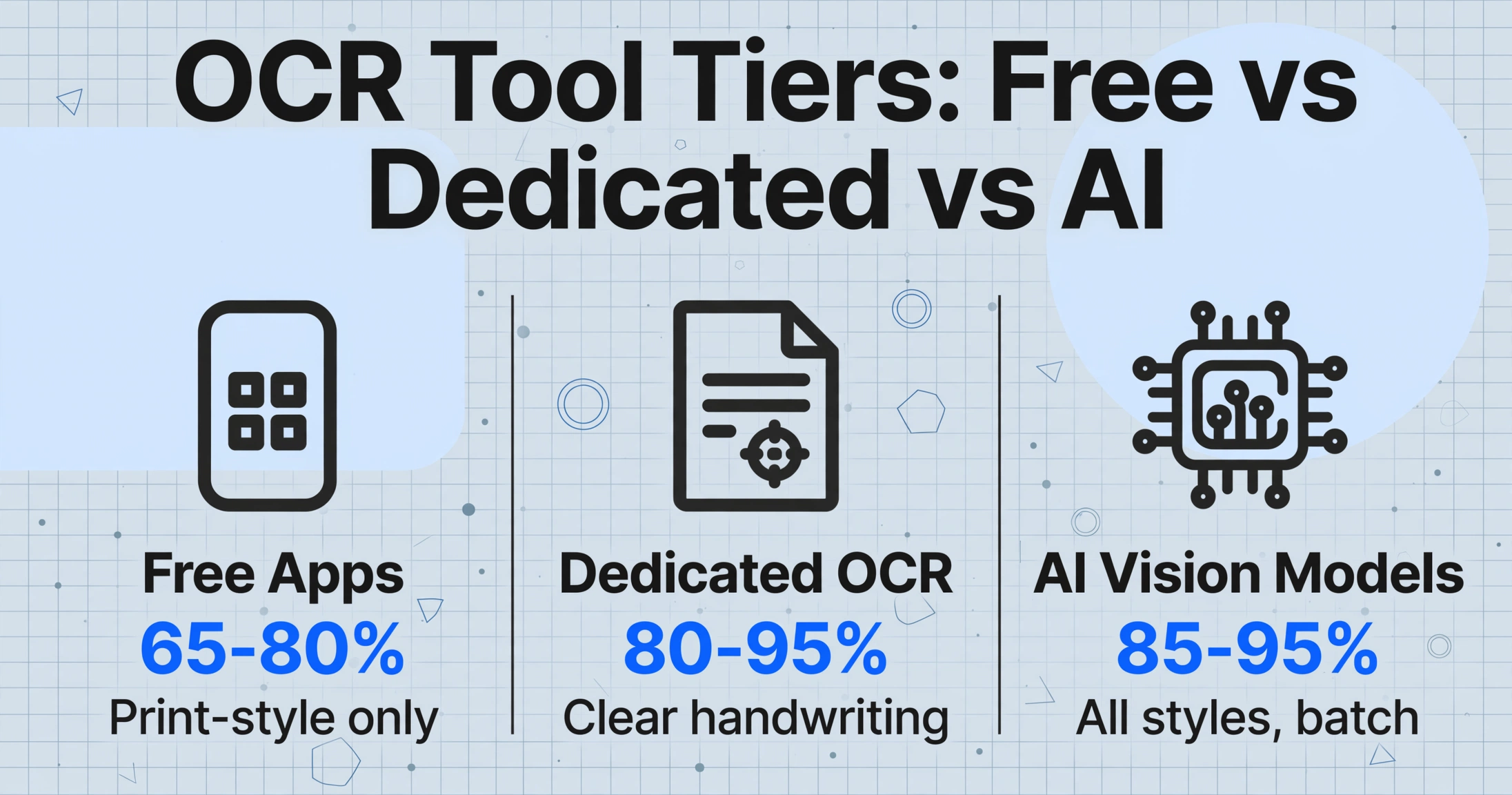
Your choice of OCR tool is the single biggest lever for accuracy. The market splits into three tiers, each with a clear accuracy ceiling.
If you're comparing options beyond these tiers — including which dedicated converter best handles your handwriting type, its pricing, and its limits — our full roundup of the best handwriting to text converters in 2026 reviews eight tools side by side.
| Tier | Examples | Handwriting Accuracy | Best For |
|---|---|---|---|
| Free consumer apps | Google Keep, Microsoft OneNote, Microsoft Lens | 65-80% on print-style; below 50% on cursive | Occasional use, clean print handwriting, single pages |
| Dedicated handwriting OCR | Pen to Print, Transkribus | 80-95% on clear handwriting; degrades significantly on messy | Personal note digitization, historical documents |
| AI vision models / modern extractors | ImageToTable.ai, GPT-5 via API, Google Document AI | 85-95% across handwriting styles in controlled benchmarks | Batch processing, mixed print/handwriting, structured output |
Free apps are fine for occasional use but hit a hard accuracy ceiling. Google Keep's "Grab image text" works well on a clear, print-style note one page at a time. Microsoft OneNote's handwriting-to-text features reach about 70-80% on tablet stylus input. Both are free and require zero setup — useful if you have five pages to convert and your handwriting is neat. But accuracy drops sharply on cursive, poor lighting, or dense pages with mixed content.
Dedicated handwriting OCR apps like Pen to Print and Transkribus are built specifically for this task. Pen to Print claims 98.2% word accuracy on its platform and works as a mobile app that lets you photograph pages and export to Word or TXT. Its "Cursive Reader" feature handles connected script better than general-purpose OCR. The trade-off: it is a consumer app with no API and no structured data extraction — you get text, not a spreadsheet of fields. Transkribus excels on historical handwriting and offers fine-tuned models, but requires more setup.
Modern AI vision models represent a different class of tool. Instead of matching letter shapes against templates, models like those used by ImageToTable.ai analyze the entire page as an image — they understand that a date belongs in a "Date" column because they understand the concept of a date, not because they found a specific character pattern at a specific coordinate. The AIMultiple handwriting benchmark (January 2026) reported GPT-5 at 95% accuracy on cursive handwriting, with Gemini 2.5 Pro at 93%. This contextual understanding is what separates AI-powered extraction from template-based OCR — and it is why modern tools handle mixed handwriting styles better than any traditional OCR engine.
Tools like ImageToTable.ai apply this same technology to handwritten business documents, letting you define Custom Column Extraction — type the field names you want ("Meter Reading", "Date", "Location") and the AI finds each value anywhere on the page by understanding what it means, not where it sits. This is especially useful for handwritten field reports, meter reading logs, and inspection forms where the same data appears in different positions on every page.
See it in action on a real handwritten document:
Files are processed securely and not stored.
No sign-up needed to test. Upload any handwritten page and see what the current generation of AI can extract — and where it still struggles.
Step 3: OCR the Notes
The actual OCR step is the shortest in the process — upload, trigger, wait. The workflow depends on your tool, but the general pattern is the same across all platforms.
Upload the image or PDF
Most tools accept JPG, PNG, and PDF. For multi-page notes, PDF format preserves page order. Some AI tools like ImageToTable.ai let you upload multiple files in a batch — useful if you have an entire notebook to digitize.
Configure extraction (if applicable)
For tools that support structured output, define what you want. In ImageToTable.ai, you type the column names — for a handwritten meter reading log, that might be "Meter ID", "Reading", "Date", "Notes". The AI uses these column names as semantic instructions to locate each value on the page. For plain text conversion (Pen to Print, Google Keep), skip this step — the tool returns everything as flowing text.
Trigger recognition
In Google Keep, tap "Grab image text." In ImageToTable.ai, click "Process." In Pen to Print, tap "Convert." The processing time depends on page count and tool: a single page typically takes 5-30 seconds with modern AI tools, longer with free consumer apps.
Wait for results
AI tools display results as they complete — you do not need to wait for all pages if working in batch. Most platforms show the extracted text side-by-side with the original image so you can compare. This is where you will spot misreads before export.
Realistic timing: One handwritten page takes about 5-10 seconds with an AI tool. A 30-page notebook in batch completes in 2-5 minutes — versus 1.5-2 hours of manual typing. The speed gain is real, but verification and correction become your actual bottleneck, not the OCR itself.
Step 4: Verify & Correct
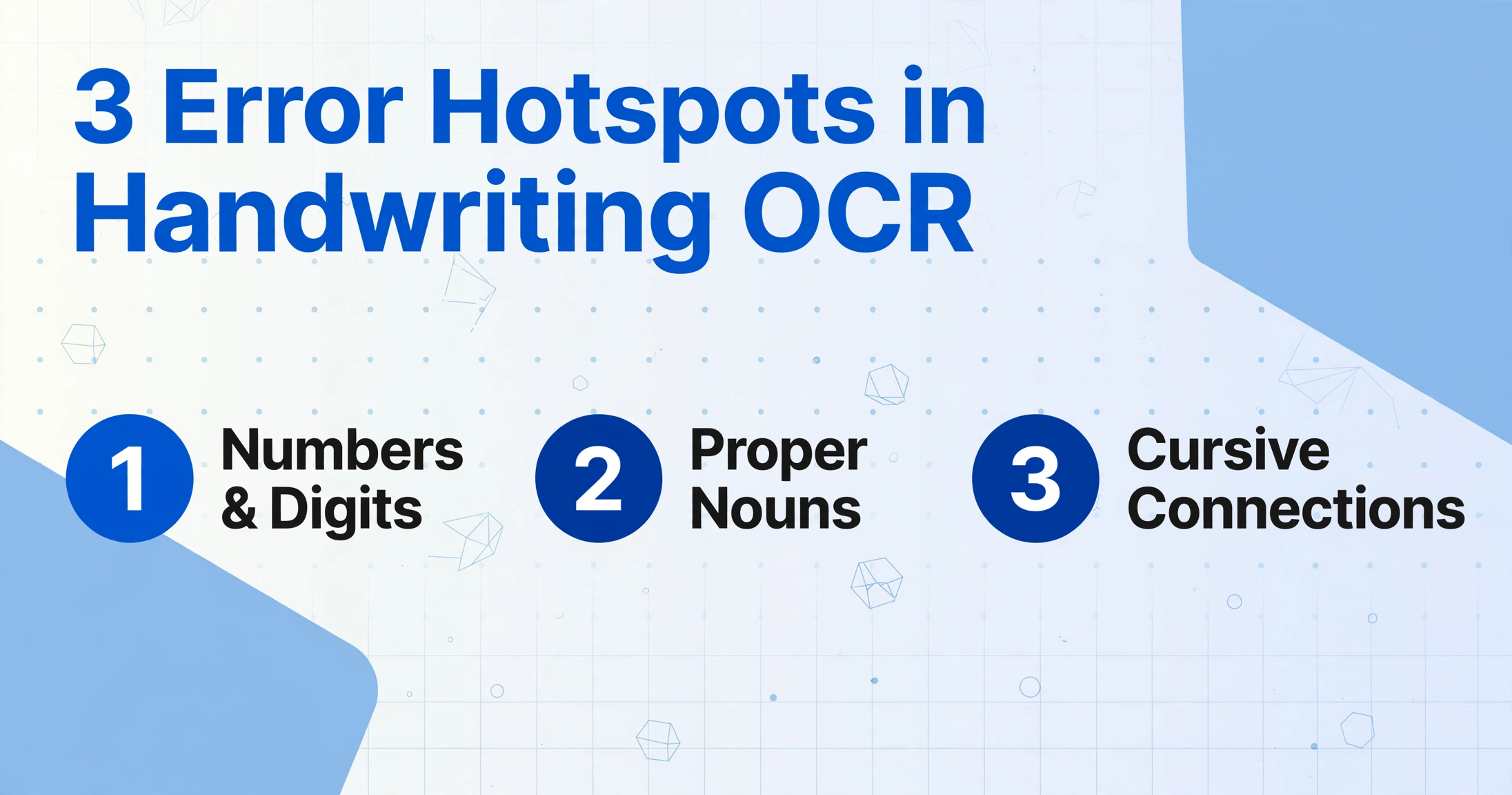
Every handwriting OCR tool makes mistakes — no tool produces a perfect first pass. The question is where the errors concentrate and how much time you need to fix them.
Focus your review on the highest-error categories first:
- Numbers and digits: A "5" that looks like "6", a "7" that reads as "1". Numeric fields are the most common failure point across all OCR systems.
- Proper nouns and domain-specific terms: Names, product codes, and serial numbers the model has not seen before. The AI guesses from letter shapes — often incorrectly.
- Cursive mid-word connections: The model reads "ac" and "ount" correctly but outputs "acount" instead of "account." Subtle because the word still looks plausible.
A practical verification workflow: Read extracted text against the original, line by line. Flag every numeric field. For structured output, verify values landed in the correct columns. Most users spend 5-15 minutes per page initially, dropping to 2-3 minutes once they learn their tool's error patterns. For large batches, spot-check the first 10% to establish the error rate before deciding whether a full review is needed.
Step 5: Export
Once verified, the output format depends on what you plan to do with the text.
| Export Format | When to Use | Available In |
|---|---|---|
| Plain Text (.txt) | Searchable archive, copying into other apps, import into note-taking tools | All OCR tools |
| Word (.docx) | Editable documents for sharing, editing, or formatting | Pen to Print, ImageToTable.ai (To Word mode), Transkribus |
| Excel (.xlsx) | Structured data with columns — meter readings, inspection forms, field logs | ImageToTable.ai, Google Sheets add-on |
| Searchable PDF | Preserving original page layout while making text searchable | Transkribus, ABBYY, Microsoft Lens |
| Google Sheets | Direct-to-spreadsheet for structured handwritten data | ImageToTable.ai Google Sheets Add-on |
For most personal note digitization, plain text or Word is sufficient. For business workflows — handwritten meter readings, inspection checklists, field reports — Excel or Google Sheets output lets you sort, filter, and analyze the data immediately without re-entering it.
Troubleshooting Common Issues
Cursive handwriting produces garbled output
Traditional OCR segments characters by detecting the space between them — cursive has no such spaces. Even AI vision models can confuse letter boundaries in tightly connected script. What helps: Choose a tool with explicit cursive support (Pen to Print's "Cursive Reader" or any modern AI vision model). Increasing stroke contrast during preprocessing can help the model resolve letter transitions. If cursive remains problematic, manual transcription of those sections is often faster than correcting garbled output line by line.
Mixed print and handwriting on the same page
Forms with pre-printed fields and handwritten entries — inspection checklists, timesheets, delivery notes — challenge OCR because the model must handle two visual styles. What helps: AI vision models perform better here than consumer apps because they analyze full page context. With free tools, crop the image to isolate handwritten sections before running OCR.
Low contrast between ink and paper
Light pencil, thin pen on dark paper, or faded ink creates a narrow brightness gap. OCR engines need roughly a 30% brightness difference to distinguish strokes. What helps: Increase contrast by 20-30% in photo editing software before OCR and convert to grayscale. If the original is pencil, tracing over it with a dark pen before scanning is a legitimate workaround.
Accuracy drops on pages 3+ of a multi-page document
A known issue with AI models processing long documents — AIMultiple's benchmark noted GPT-4.1 accuracy dropping from ~85% on page 1 to ~65% by page 3. What helps: Process pages individually rather than as one batch if you notice quality degradation on later pages.
FAQ
Can OCR read handwriting from a photo taken by phone?
Yes. Most mobile cameras today exceed the resolution needed for handwriting OCR. The key factors are even lighting, a flat page, and the camera lens held parallel to the paper surface. A phone photo that meets these conditions will produce results comparable to a flatbed scan. The Microsoft Lens app, which includes auto-enhance preprocessing, was shown in a 2026 mobile OCR benchmark to achieve 12.7% higher accuracy on low-light handwritten notes than comparable mobile scanners.
What is the most accurate handwriting OCR tool in 2026?
The AIMultiple cursive handwriting benchmark (January 2026) ranked GPT-5 first at 95% accuracy, followed by Gemini 2.5 Pro at 93%. Among specialized tools, Pen to Print reports 98.2% word accuracy on their platform. However, "most accurate" depends entirely on your handwriting style, document quality, and whether you need plain text or structured data. For a deeper breakdown, see our comparison of the best handwriting OCR tools in 2026.
How accurate is handwriting OCR compared to printed text OCR?
Printed text OCR consistently achieves over 99% accuracy in high-quality images. Handwriting OCR's average across tools is around 64% — a significant gap. The reasons are structural: printed text uses standardized character shapes with consistent spacing, while handwriting varies between writers, between writing sessions, and sometimes within the same sentence. Our article on handwriting OCR accuracy explains the technical reasons for this gap in detail.
What is the difference between traditional OCR and AI-powered handwriting OCR?
Traditional OCR identifies characters by matching pixel patterns against fixed templates — it works well for printed fonts but breaks on handwriting because there is no standard "handwriting font" to match against. AI-powered OCR (also called vision AI or multimodal LLM OCR) analyzes the entire page as an image and understands content through context. For a full explanation of the technical differences, see our guide on what OCR is and how it works.
How can I improve OCR accuracy for my handwriting?
Start with the document preparation steps covered in this guide: flat page, good lighting, high contrast between ink and paper, minimum 300 DPI. Beyond that, the tool choice matters most — switching from a free general-purpose OCR to a tool built for handwriting can improve accuracy by 20-30 percentage points. For advanced techniques, see our detailed guide on how to improve OCR accuracy.
The honest bottom line: Handwriting OCR in 2026 is good enough to save hours of manual typing — but it is not good enough to skip verification. Plan for a 5-15 minute review per page during your first sessions, expect cursive to be the hardest case, and choose a tool that matches your handwriting style and output format. The technology improves every quarter, but the gap between "OCR that mostly works" and "OCR you can trust without checking" varies by tool, style, and document condition. Test your actual pages — not someone else's benchmark — to know where you stand.
See for yourself on your own handwritten notes. Upload a page — no sign-up needed — and find out what the current generation of AI can read, and where you should plan for manual corrections.