OCR Not Recognizing Tables?
6 Root Causes Keeping Your Columns Misaligned
You open the extracted spreadsheet. The text is there — invoice numbers, dates, totals — but the columns are a mess. Descriptions spilled into the quantity column. The header merged into one blob. You are not alone — this is the most common frustration with OCR table extraction, and the root cause is almost never the image quality.
Key Takeaways
- OCR reads text line by line — it sees a stream of words, not rows and columns, which is why your extracted tables arrive with shifted values and collapsed cells no matter how good the scan is.
- Six document features — merged cells, invisible borders, multi-column layouts, skewed angles, inconsistent headers — each exploit a different blind spot in sequential scanning, and applying three or more manual fixes per batch means the tool itself is the bottleneck.
- The answer is extraction that analyzes the entire page as a visual layout first, understanding table structure the way a human eye does — contextually — rather than guessing column boundaries from whitespace gaps and pixel projections.
The Root Cause: OCR Reads Lines, Not Tables
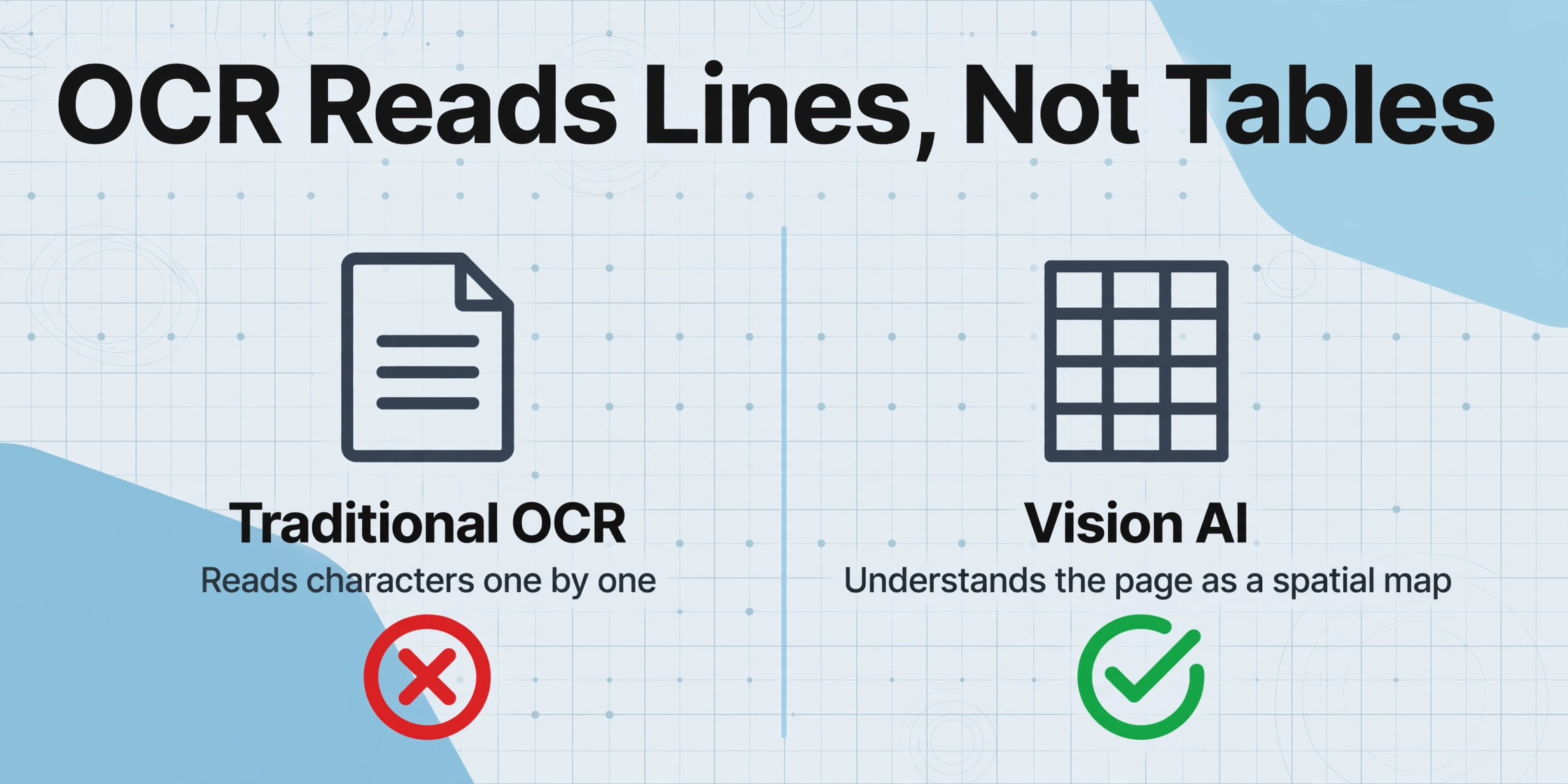
An OCR engine scans a document and identifies individual characters — one letter, one number at a time. It assembles these into words, then lines of text, in reading order. This is fundamentally a linear, line-by-line process designed for paragraphs, not spreadsheets.
A table is a two-dimensional structure. The value "$450.00" means nothing by itself — it only makes sense because it sits under the "Total" column in the row for "Widget B." The relationship between a cell and its column header is spatial, not sequential. OCR reads "$450.00" as text, but it has no mechanism to understand that this number belongs to column 3, row 2. Some tools try to infer table structure from spacing and alignment after OCR finishes — but inference is guesswork that fails when the layout is anything but perfect. The six causes below are the scenarios where that guesswork collapses.
Cause #1 — Line-by-Line Scanning vs. 2D Tables
Symptom: The table is extracted as a single continuous paragraph. "Item Qty Price Widget A 2 100 Widget B 1 200 Total 400" — all in one line with no column breaks.
Root cause: When the engine finishes reading "Item" on the first line, it moves to "Qty," then "Price," then the line break, then "Widget A," "2," "100" — all as a flat sequence. It does not know that "Item," "Widget A," and "Widget B" belong to the same column because it does not see columns at all — just a stream of words interrupted by line breaks.
How to fix it:
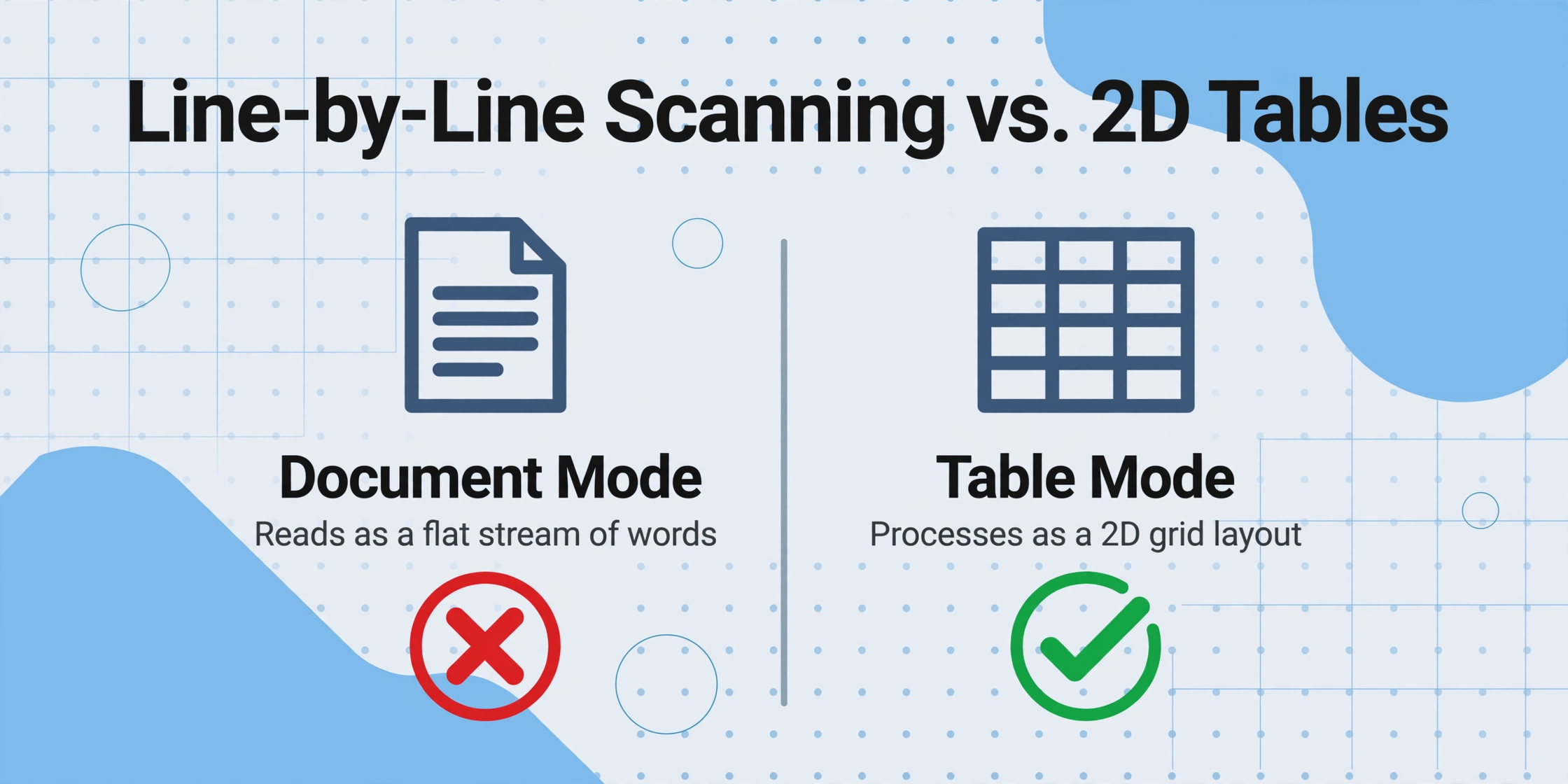
- Check if your tool has a "table" or "spreadsheet" mode. Some OCR engines offer a document-type toggle. Switching from "Document" to "Table" tells the engine to expect a grid layout and changes its internal processing path.
- Use a tool that processes tables as 2D structures. Modern vision-based extraction tools like ImageToTable.ai do not read line by line. They analyze the entire page layout in one pass, identifying columns, rows, and cell boundaries before extracting text. This is the difference between traditional OCR and vision AI: one reads characters sequentially, the other understands the page as a spatial map.
- As a temporary workaround, use zonal OCR. If your tool lets you define rectangular zones for each column, extract them independently — but this breaks as soon as the table layout shifts.
Cause #2 — Merged Cells Lose the Structure
Symptom: A row that should say "Widget A — 10 pcs — $45.99" comes out as "Widget A 10 pcs $45.99" and you cannot tell which value belongs to which column. Or a header cell spanning two columns shifts every subsequent row one column to the right.
Root cause: Merged cells create a gap between visual appearance and underlying data structure. When a cell visually spans three columns, the actual data sits in only one position. The OCR engine reads the merged label once but must decide how to distribute the three columns underneath. Most engines either duplicate the value across all spanned columns, collapse everything left-aligned, or leave the spanned area blank — all of which corrupt the output.
How to fix it:
- Check the output metadata. Some tools return
rowSpanorcolSpanin their raw JSON output. If your tool offers JSON export, inspect these values — they reveal whether the engine detected the merge at all. - Pre-process the document. If you control the source files, convert merged cells into separate cells with repeated labels before running OCR. Some PDF editors offer an "unmerge cells" function.
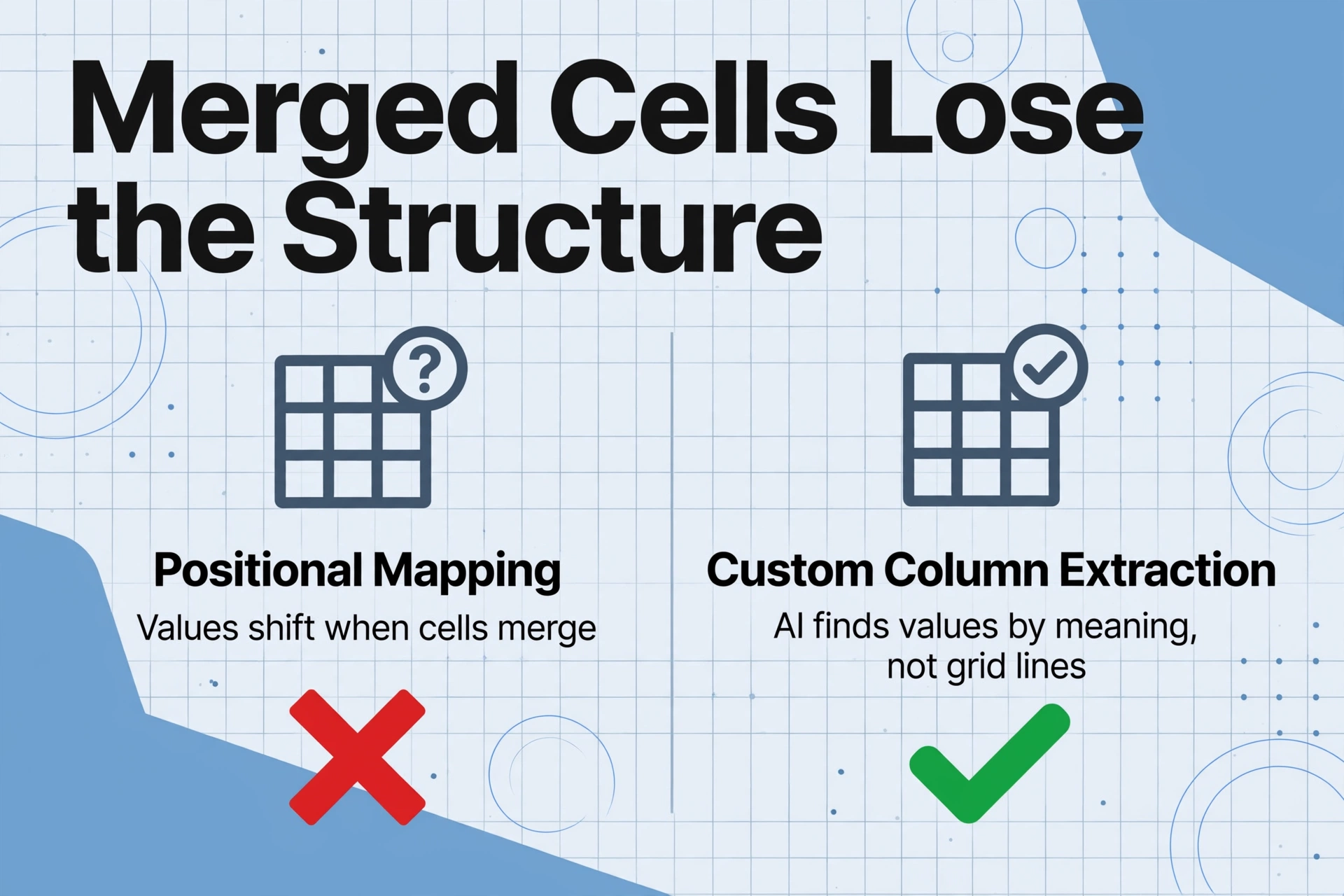
- Switch to semantic extraction. Instead of relying on positional mapping, tools using Custom Column Extraction let you define what you want (e.g., "Item Description," "Quantity," "Unit Price") and the AI locates each value by understanding what it means — merged cells do not confuse this approach because the AI reads content, not grid lines.
Cause #3 — Missing Grid Lines Leave the Engine Guessing
Symptom: The table has no visible borders — just text positioned with whitespace to suggest columns. The OCR output collapses everything into one blob or creates random column breaks where none exist.
Root cause: Many OCR engines use grid lines — visible borders between cells — as anchor points to detect table structure. The algorithm looks for continuous vertical and horizontal lines, defines cell boundaries, and reads text within each region. When those lines are missing — common in modern invoices, financial summaries, and HTML exports — the engine falls back to inferring columns from whitespace patterns. A single space between "Item" and "Description" looks the same as a deliberate column gap to the OCR engine.
How to fix it:
- Scan at 300 DPI minimum. Higher resolution sharpens whitespace boundaries so positional heuristics work slightly better. It does not create grid lines, but it gives the engine more signal.
- Enable "borderless table" mode. Some OCR engines have a dedicated mode for tables without ruling lines, switching from line-detection to alignment-based inference.
- Use layout-aware extraction. Vision models understand spatial relationships semantically — a column of numbers under "Qty" is recognizable by context, not by a vertical line. This is why OCR accuracy varies by document type: traditional OCR relies on visual features not all documents provide.
Cause #4 — Multi-Column Layouts Create False Rows
Symptom: A document has two independent tables side by side, or a main table with a summary panel to its right. The extracted output interleaves rows from both, creating nonsensical data.
Root cause: OCR scans in reading order: left to right, top to bottom. When a page contains multiple content columns — line items on the left, pricing summary on the right — the engine reads the first line of the left column, crosses to the right column, then back to the second left line. It has no concept of "this is a separate table" — only that text exists at various positions.
How to fix it:
- Extract one table at a time with region selection. Define boundaries around each table individually and process as separate uploads or zones.
- Use page-level layout analysis. Vision-based tools analyze the full page first — identifying separate content blocks before extracting text from each independently. This preserves the separation between a main table and its sidebar summary.
- Restrict reading order to a single region. Some engines let you prevent cross-section jumping.
Cause #5 — Rotated or Skewed Tables Break Column Association
Symptom: The table was photographed at a slight angle, or the page was fed crooked. The extracted data has the right text but values are shifted — a number that should be in the "Total" column appears in the "Tax" column instead.
Root cause: OCR engines include a deskew step that straightens the page before reading. But deskew corrects text angle, not column alignment. After deskew, the engine still uses vertical projection profiles (pixel-density histograms) to determine column boundaries. A 3-degree rotation compresses the projection, smearing boundaries together. The engine places "$12,450.00" in column 3 when it belongs in column 4 — and every cell from row 2 onward follows the same misalignment.
How to fix it:
- Pre-process with stronger deskew before OCR. For details on getting source files ready, see our preprocessing guide.
- Use capture apps that guide document framing to reduce camera skew at the source.
- Choose a tool that does not depend on pixel projections. Vision-language models process the entire image holistically — a table photographed at an angle is still understandable to a human eye, and VLM-based extraction works the same way.
Cause #6 — Inconsistent Column Headers Produce Mismapped Data
Symptom: The extracted spreadsheet has the data, but headers are duplicated or mismatched. "Invoice Date" becomes "Date" in one file and "Issued" in another — the merged output scatters dates across two columns.
Root cause: OCR does not understand semantics. It cannot tell that "Invoice Date," "Date Issued," and "Issued On" mean the same thing. It reads each header as a literal string and uses it as the column key. Process documents from multiple vendors and the engine creates a separate column for each wording variation — "Qty" and "Quantity" become two columns instead of one.
How to fix it:
- Normalize headers in advance. If your tool supports it, define a standard column mapping — e.g., "Date," "Description," "Qty," "Unit Price," "Total" — and tell the engine to map whatever it finds to these canonical names.
- Use a tool that extracts by semantic column definition. Instead of reading existing headers, Custom Column Extraction lets you define the output columns you want, and the AI finds the corresponding data regardless of what the document calls each field. This is how AI-powered table extraction to Excel works: you say what you want, and the tool finds it by meaning, not by header text matching.
- Apply a post-processing mapping table. Create a lookup table in Excel or Google Sheets that consolidates header variants into standard names, and apply it to each extraction run.
When to Escalate: Is Your Tool the Problem?
The fixes above can improve results — better preprocessing, higher DPI, region selection. But they are all workarounds for the same limitation: traditional OCR was not built to read tables. If you apply three or more of these on every batch, the tool is the bottleneck.
If your documents contain merged cells, borderless tables, multi-column layouts, or inconsistent headers — which describes most real-world business documents — and you process more than 20-30 per week, manual cleanup will outweigh time saved by OCR. At that point, upgrading to a vision-based extraction tool that treats tables as two-dimensional structures is not a luxury — it is the mathematically cheaper option.
Frequently Asked Questions
Does any traditional OCR handle tables well?
Some handle simple tables — ABBYY FineReader and Tesseract with table extensions can manage basic bordered tables with consistent column widths. But all struggle with merged cells, borderless layouts, multi-page tables, and rotated content. The limitation is architectural: as long as the engine reads characters sequentially, it will always be guessing at two-dimensional structure.
Can I fix table extraction with better scanning?
Better scans help at the margins — 300 DPI, straight feeding, even lighting — but they do not solve the structural problem. A perfectly scanned borderless table still has no grid lines. A perfectly straight merged cell still spans multiple columns. Image quality fixes character errors, not structure errors.
Why does text appear correctly but in the wrong columns?
This is a projection error. The OCR engine assigns each word to a column based on its horizontal position. If the document is skewed or has irregular column widths, the projected boundaries shift. Words are correctly recognized but assigned to the wrong column. This is the most frustrating failure mode because the data looks right until you check the totals.
What is the difference between table OCR and AI table extraction?
Table OCR uses text recognition plus positional heuristics to guess structure after reading characters. AI table extraction (using vision models) analyzes the entire page as a visual scene, understands the table as a layout object, and extracts content within its structural context. The AI does not need to "find" column boundaries — it already knows the table is a table because it sees the visual relationship between cells. These are fundamentally different technical approaches.
Will AI-based extraction be 100% accurate on tables?
No tool is 100% accurate on every document. Very dense tables, heavily deformed scans, and some handwritten entries will still need review. But the error profile differs: traditional OCR makes structural errors (wrong columns, merged data), while AI extraction makes character-level errors on individual cells that are easier to spot and correct. A single column shift in OCR can corrupt every row; a single misread cell in AI extraction is an isolated fix.
Stop Fighting Your Extraction Tool
The six causes above are not flaws in your workflow — they are architectural limits of a technology built for paragraphs, not spreadsheets. ImageToTable.ai treats every table as a two-dimensional visual structure. It does not read line by line. It does not need grid lines. You define the columns you want — "Invoice Number," "Line Items," "Total" — and the AI finds the data by understanding what it means, not where it sits on the page.
Upload a sample invoice, name the columns you need, and see what happens when a tool reads your table the way a human would: by understanding the page, not just the characters.