How to OCR a Scanned PDF to Excel:
A Complete Step-by-Step Guide
After this guide, you will have a clean Excel file from a scanned PDF — not scattered text pasted into cells, but structured data where each column holds the right values. The difference between those two outcomes is not just which tool you pick. It is knowing what kind of PDF you are working with, choosing the right extraction method for it, and understanding exactly what kind of cleanup the output will need before it is usable. If you are not fully sure what OCR is or how it works, our articles on what OCR is and how OCR actually works cover the foundations. This guide assumes you are ready to start converting.
Key Takeaways
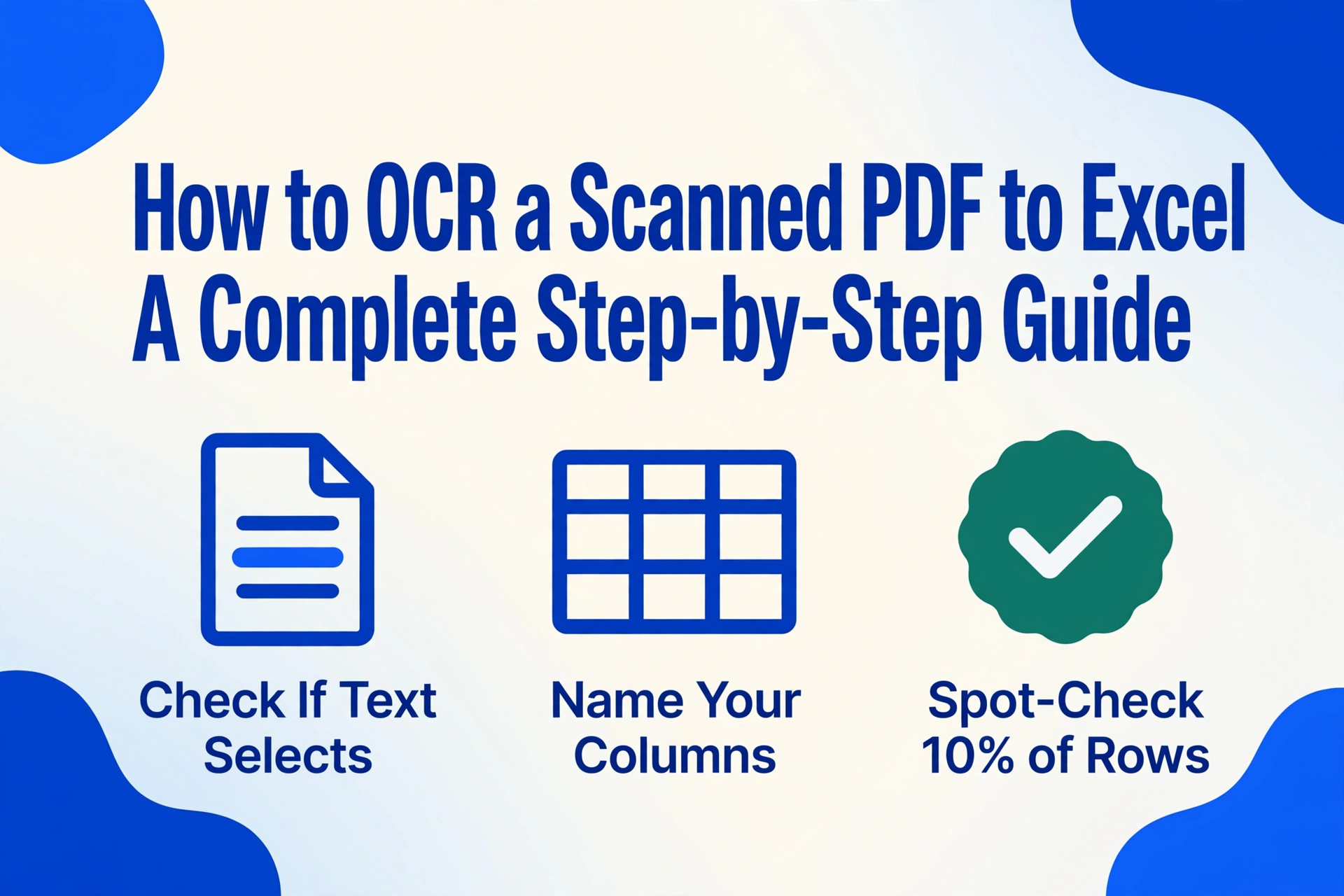
- If your PDF-to-Excel conversion ever produced nothing, you probably tried a native-PDF tool on a scanned file — two fundamentally different problems disguised as one file format.
- Traditional OCR reads characters, but it does not know that $1,250 is the invoice total, not a line item or a page number — and that gap is where all your manual spreadsheet labor lives.
- No tool returns perfect Excel from a scanned PDF — the honest benchmark is under 5% of cells needing fixes with AI extraction versus over 50% with basic OCR, and that difference alone determines whether the process pays for itself.
Before You Start — Why Your PDF Type Determines Everything
The most common reason "PDF to Excel" fails is not the tool. It is that the person trying to convert the file does not realize that not all PDFs are the same. There are two fundamentally different types of PDFs, and they require completely different conversion methods:
| Feature | Native (Digital) PDF | Scanned (Image) PDF |
|---|---|---|
| How it's created | Saved from Word, Excel, or accounting software | Printed then scanned, or saved as an image |
| Contains text? | Yes — selectable, searchable text | No — just a photo of the page |
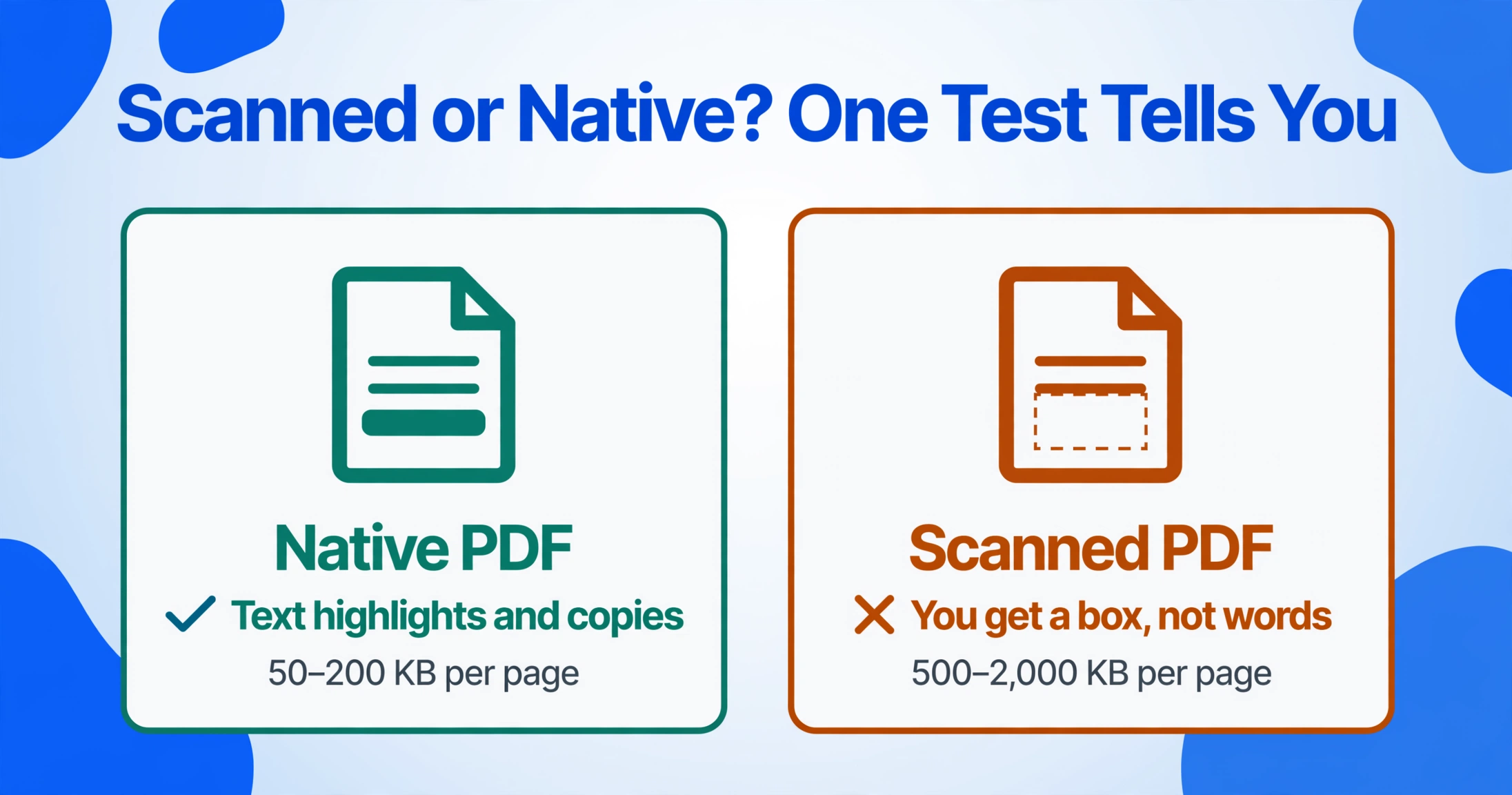
| Can you copy text? | Yes — highlight text and Ctrl+C | No — selecting gives you a box, not words |
| File size (typical) | 50–200 KB per page | 500–2,000 KB per page |
| Best conversion method | Direct parser (no OCR needed) | OCR or AI extraction |
If you try to use a tool that only handles native PDFs on a scanned document — or worse, try to copy-paste from a scanned file — you end up with nothing and assume the tool is broken. In reality, you skipped the diagnostic step. The rest of this guide walks you through a process that works regardless of which type of PDF you have.
Step 1 — Check Your PDF: Scanned or Native?
Try to select text with your mouse
Open the PDF and drag your cursor across a line of text. If text highlights (like it would on a webpage), you have a native PDF. If you can only draw a rectangular box, the PDF is scanned — what you see is an image, not text.
Press Ctrl+F and search for a common word
Try searching for "the", "invoice", or even just "a". If the search finds results, the PDF contains selectable text. If the search returns nothing, the PDF is a scanned image — no text layer exists.
Check the file size
Right-click the file and look at its size. A 5-page native PDF with text is typically under 300 KB. A 5-page scanned PDF with images of those same pages will be 3–10 MB. Scanned files are 10–50 times larger because each page is a compressed image rather than text data.
If your PDF turns out to be a native text PDF, the good news is that Excel can import it directly without OCR. Go to Data > Get Data > From File > From PDF in Excel (365 or 2021+), select your file, choose the table you want, and click Load. That works well for text-based PDFs created by accounting systems or word processors.
If your PDF is a scanned image — and if you are reading this guide, it almost certainly is — you need PDF OCR (Optical Character Recognition) or AI-powered extraction. That is what the rest of this guide covers.
Step 2 — Choose Your Approach: Traditional OCR or AI Extraction?
Once you have confirmed you are working with a scanned PDF, the next question is which method to use. There are three main routes, and the right one depends on what you want the output to look like.
If you just need the text in any format — for reading, searching, or copying into a document — a free online OCR tool like Google Drive OCR or PDF24 works fine. These tools extract the words from the image and return them as plain text or a searchable PDF.
If you need the data in structured columns — invoice numbers in one column, amounts in another, dates in a third — you need an extraction tool that understands document structure. This is the key difference between OCR and AI extraction. The scan to Excel workflow built around naming those columns is the shortest route to that output.
Traditional OCR reads characters. It can tell you that the string "1,250.00" appears on a page. But it does not know whether that string is the invoice total, a line item price, or a page number. An AI extraction tool, by contrast, understands what each piece of data means in context. You tell it what columns you want — "Invoice Number", "Date", "Total" — and it finds those values across all the pages.
For a detailed comparison of free OCR tools across all categories, including open-source options like Tesseract and free tiers from commercial platforms, our best free OCR software 2026 guide covers eleven options with honest accuracy evaluations and practical limits.
Quick Tool Comparison
| Method | Best For | Output Quality | Setup |
|---|---|---|---|
| Adobe Acrobat OCR | Searchable PDFs, single-file edits | Good text recognition, mixed table structure | Desktop app required ($19.99/mo) |
| Google Drive OCR | Quick text extraction, multilingual | Text only, layout destroyed | Free, requires Google account |
| Tesseract + Python | Developers needing local processing | Good text, no table structure | Command-line, technical setup |
| AI Extraction | Structured fields to Excel columns | Clean table output, semantic understanding | Web-based, no installation |
Step 3 — OCR the Scanned PDF with AI Extraction
For this guide, we will use an AI extraction approach because it produces the most usable Excel output from scanned PDFs — especially when the PDF contains structured data like invoices, purchase orders, or bank statements. The key difference from traditional OCR is that AI reads the document semantically rather than character by character. It does not just recognize the text "March 15, 2026"; it understands that this text is a date and places it in the Date column.
You can try the process right here with a sample document. The demo below is pre-configured for invoice extraction. Upload a scanned invoice PDF or image and see what the AI returns in real time:
Files are processed securely and not stored.
The AI Extraction Workflow
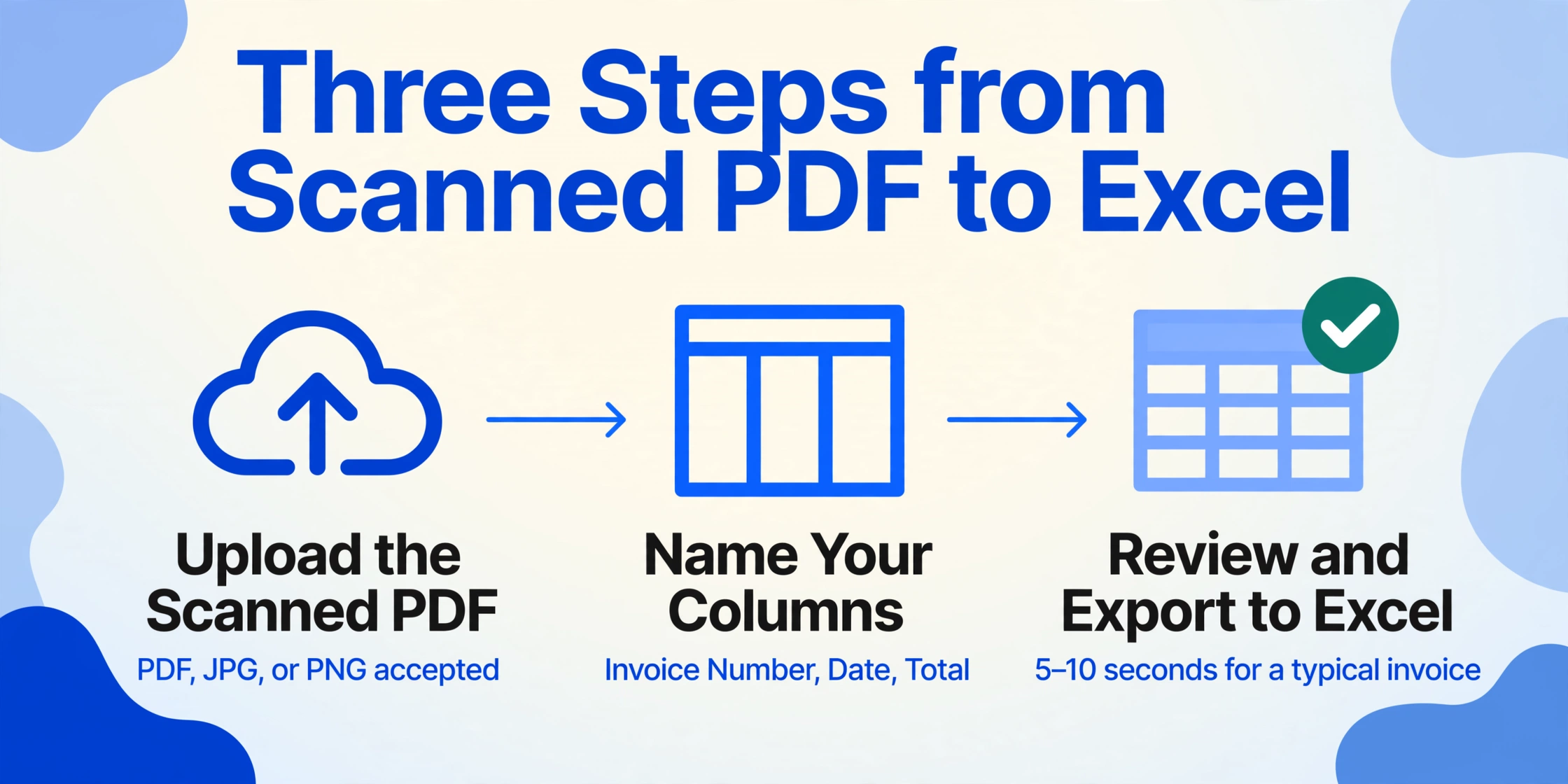
Upload your scanned PDF
Drag and drop the file into the upload area. Most AI tools accept PDF, JPG, and PNG. A scanned invoice of 2–5 pages takes about the same time to process as a single page.
Define your output columns
Enter the column names you want in your Excel output — "Invoice Number", "Date", "Vendor Name", "Total", "Tax". The AI reads every page and pulls matching data into those columns. You can also let the tool auto-detect columns if you prefer.
Review and export
The tool processes all pages and returns the data in a structured table. Review the output, make small corrections if needed, and export to Excel. The entire process takes 5–10 seconds for a typical invoice, compared to roughly 3 minutes per page if entered manually.
Compared to traditional OCR, this approach has one decisive advantage: it keeps data types intact. Your dates come out as dates, your numbers as numbers, and each field lands in its designated column. Traditional OCR outputs everything as a single block of text that you then have to manually separate into cells.
Step 4 — Export to Excel
Once the AI has processed your scanned PDF, exporting to Excel is straightforward. Most extraction tools offer a direct Excel download (XLSX format). Here is what to expect from different approaches:
| Method | Export Path | Excel Readiness |
|---|---|---|
| AI extraction tool | Click "Export to Excel" or download XLSX | High — data in columns, headers preserved, one row per document |
| Adobe Acrobat OCR | Tools > Export PDF > Spreadsheet > Excel | Medium — tables recognized but layout shifts common |
| Google Drive OCR | Open in Google Docs > copy > paste to Excel | Low — all formatting lost, text flows into one column |
| Online OCR service | Download XLSX (if supported) | Variable — accuracy and layout preservation differ by service |
One thing most export methods share: the output needs a review pass before it is truly usable. No tool — including AI extraction — returns perfect results 100% of the time on every scanned document. The question is not whether cleanup is needed, but how much.
Step 5 — Post-Processing Cleanup (Honest Section)
This is the step most guides skip. Here is the reality: OCR output from scanned PDFs — even from good tools — will need cleanup. The amount depends on scan quality, document complexity, and the tool you used. On a clear, well-aligned scan of a simple invoice processed with AI extraction, you may need to fix fewer than 5% of the cells. On a low-resolution scan of a dense purchase order processed through a basic OCR tool, you could be fixing half of them.
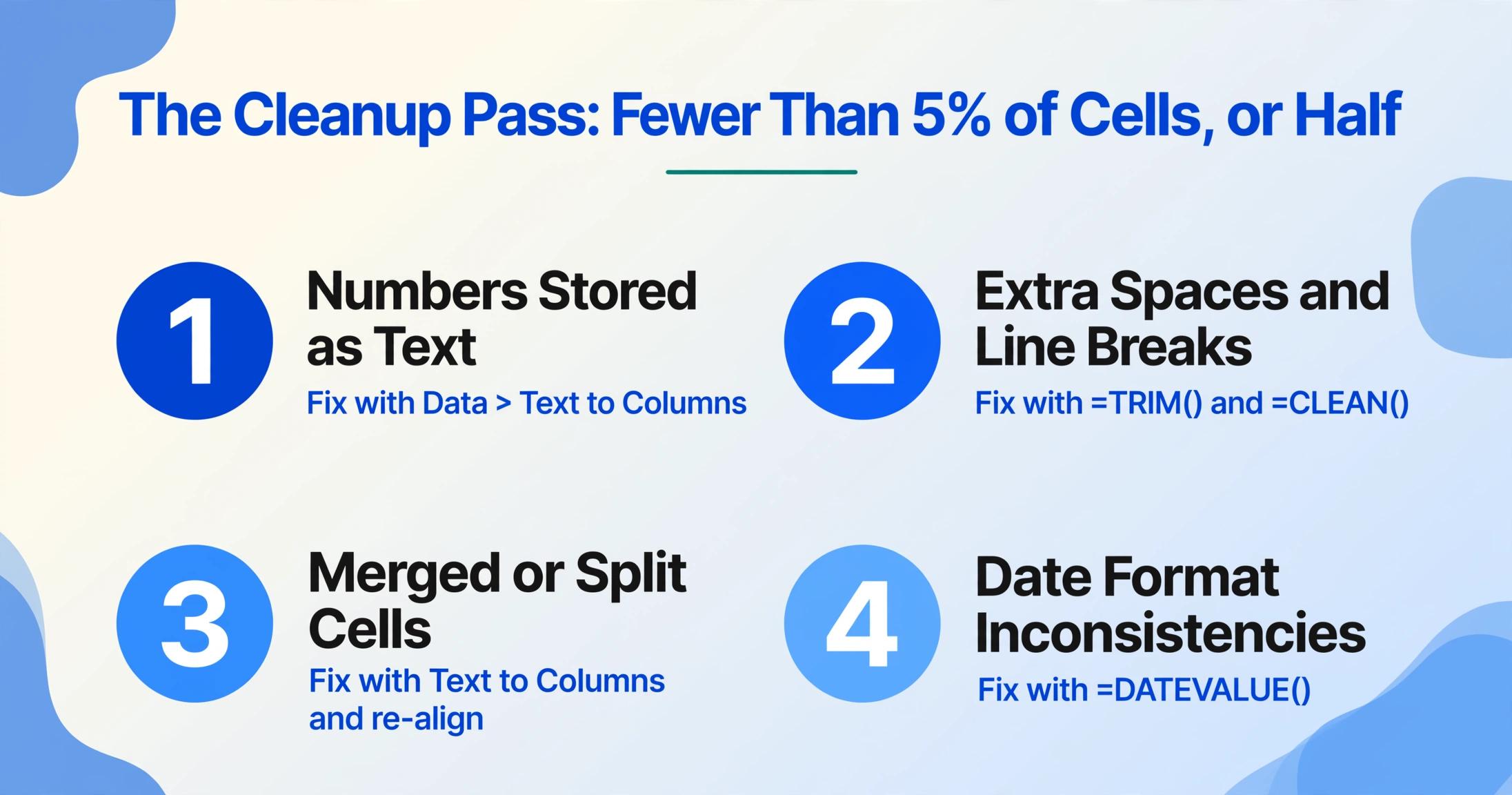
The most common issues and how to fix them:
Numbers stored as text
Excel shows a green triangle in the corner and formulas do not calculate. Select the column, use Data > Text to Columns, and click Finish. Or multiply all cells by 1 using a helper column: enter =A1*1 and copy down.
Extra spaces and line breaks
OCR often inserts spaces between characters or preserves unnecessary line breaks from the scan. Use =TRIM(A1) to remove extra spaces and =CLEAN(A1) to strip non-printable characters. Copy the cleaned column and paste as values over the original.
Merged or split cells from table misdetection
If a row's data spilled into multiple rows or columns were misaligned, check whether the original scan was cropped or skewed. Excel's Text to Columns (delimited by comma, space, or custom character) can separate data that ended up in the wrong cell.
Date format inconsistencies
One column may contain "03/15/2026", "March 15, 2026", and "15-Mar-26" from different pages. Use Excel's DATEVALUE function or apply a consistent date format across the column: right-click > Format Cells > Date > pick your preferred format.
The cleanup effort is directly proportional to how much structure you need. If you just need a column of total amounts from 50 invoices, a quick scan for obvious errors takes 5 minutes. If you need every line item from every invoice to match perfectly into a standardized template, budget 15–30 minutes per batch until you have confidence in your tool's output pattern.
Troubleshooting Common Issues
"Excel's Get Data > From PDF found no tables"
This happens when the PDF is scanned. Excel's native PDF importer only works with digital PDFs that have a selectable text layer. Go back to Step 1 to confirm your PDF type, then use an OCR or AI extraction tool instead.
"The output text has random characters (O instead of 0, l instead of 1)"
OCR character confusion is common in low-resolution scans. Search and replace in Excel for known error patterns. If you process similar documents repeatedly, note the common errors — most AI extraction tools improve with feedback, and you can build a cleanup macro for recurring patterns.
"The PDF is in a language other than English"
Check that your OCR or AI tool supports the language. Most tools default to English and will produce garbled output on non-Latin scripts. Google Drive OCR handles 200+ languages reasonably well. AI extraction tools that use vision models typically handle any language present in the document because they read visually rather than through language-specific character recognition.
"The scan quality is too low — text is blurry or skewed"
Rescan at 300 DPI or higher if you still have the original paper. For files you cannot rescan, try an AI enhancement tool that can deskew and sharpen images before OCR. Some online OCR services include image pre-processing that can partially compensate for poor scan quality.
"I need to process 50+ scanned PDFs — is there a batch option?"
Yes. Most commercial OCR platforms and AI extraction tools support batch processing. You upload all files at once, and the tool processes them together, outputting a single Excel file with one row per document. This is one area where AI extraction tools have a significant advantage over traditional OCR, which typically processes files one at a time.
Frequently Asked Questions
Does Excel have a built-in OCR feature for scanned PDFs?
No. Excel's Data > Get Data > From File > From PDF feature works only with native PDFs that already contain selectable text. For scanned (image-based) PDFs, you need an external OCR tool or AI extraction platform.
Can Google Drive convert a scanned PDF to Excel?
Google Drive OCR extracts the text from the image and puts it into a Google Doc, but the result is plain text with no table structure preserved. You can copy that text into Excel, but you will need to manually separate the data into columns. Google Drive does not have a direct scanned-PDF-to-Excel conversion path.
Is OCR accuracy good enough for accounting data?
It depends on the tool and scan quality. Traditional OCR on a clean scan of a standard invoice can achieve 95–97% character accuracy. AI extraction tools that understand document context tend to be more reliable for structured fields because they look for meaning rather than individual characters. The rule of thumb: always spot-check at least 10% of the rows in any critical financial dataset, regardless of the tool used.
What is the best free tool to OCR a scanned PDF to Excel?
There is no single answer because "free" means different limits for different tools. Google Drive OCR is free but gives you text-only output. Adobe Acrobat Online OCR gives you one free file per day. OCR.space gives developers 25,000 free API requests per month. For a detailed comparison with specific limits and accuracy trade-offs, see our best free OCR software 2026 guide.
How does AI extraction differ from traditional OCR for scanned PDFs?
Traditional OCR reads every character on the page and returns a block of text — it tells you what words exist, but not what they mean. AI extraction uses vision language models to understand document structure: it can distinguish an invoice number from a customer reference, a date from a page number, and a total from a subtotal. It then places each piece of data in the correct output column automatically. This semantic understanding is what makes the Excel output usable without hours of manual reorganization.
Can AI tools handle handwritten scanned PDFs?
Some AI extraction tools can process handwriting, but accuracy is lower than for printed text — roughly 70–85% on clear handwriting versus 95–99% on printed characters. Handwriting OCR is improving rapidly with vision models, but for critical data, plan on a manual review pass. If the handwritten document is a structured form (like a field inspection report or timesheet), the AI can still identify which field is which even if individual characters are uncertain.
The gap between a scanned PDF and a usable Excel file is real, but it is not nearly as wide as manual data entry makes it feel. The right tool reduces the journey from hours to seconds, and the cleanup from tedious to manageable. The first scan you run through an AI extractor will take longer — because you are learning the output pattern and building your review checklist. By the tenth scan, you will have the process down to under a minute per document.
Try it on a scanned PDF you are working with right now. Upload the file, define the columns you need, and see what comes back — the result will tell you more about your specific use case than any generic accuracy statistic.