OCR Low Accuracy on
Scanned Documents? 5 Root Causes and Fixes
You scanned a stack of documents, ran them through OCR, and the output is full of errors — numbers where letters should be, half the lines missing, and text that looks like it was run through a blender. A 5-degree page skew alone can increase word error rate by 15%, and documents scanned below 200 DPI routinely lose 10–20% of character-level accuracy before the OCR engine even starts working. The problem is rarely the engine itself. It is almost always the interaction between a specific image defect and how the engine processes it.
Key Takeaways
- When scanned-document OCR produces garbage it is almost never the engine's fault and five image defects are the real culprit each leaving a diagnostic fingerprint you can learn to read.
- A barely-visible 3-degree page tilt adds 15% word error and a 150 DPI scan silently loses 20% of character accuracy before the OCR engine even touches the file.
- Each defect has a targeted fix in a specific order and when preprocessing hits its limit the answer is a different paradigm that reads documents by meaning rather than fighting damaged pixels one at a time.
A scanned document is fundamentally different from a digital-native PDF. When a document is created digitally, the text exists as clean vector shapes. A scanned document is a photograph of a printed page — every image defect present in that photograph becomes a problem the OCR engine must solve before it can recognize a single letter. What looks like "close enough" to the human eye can be hopelessly ambiguous to an algorithm working at the pixel level.
The good news: low OCR accuracy on scanned documents follows predictable patterns. Each root cause leaves a diagnostic fingerprint, and once you identify which defect you are dealing with, the fix is repeatable.
Cause 1 — Low DPI: The Most Common Accuracy Killer
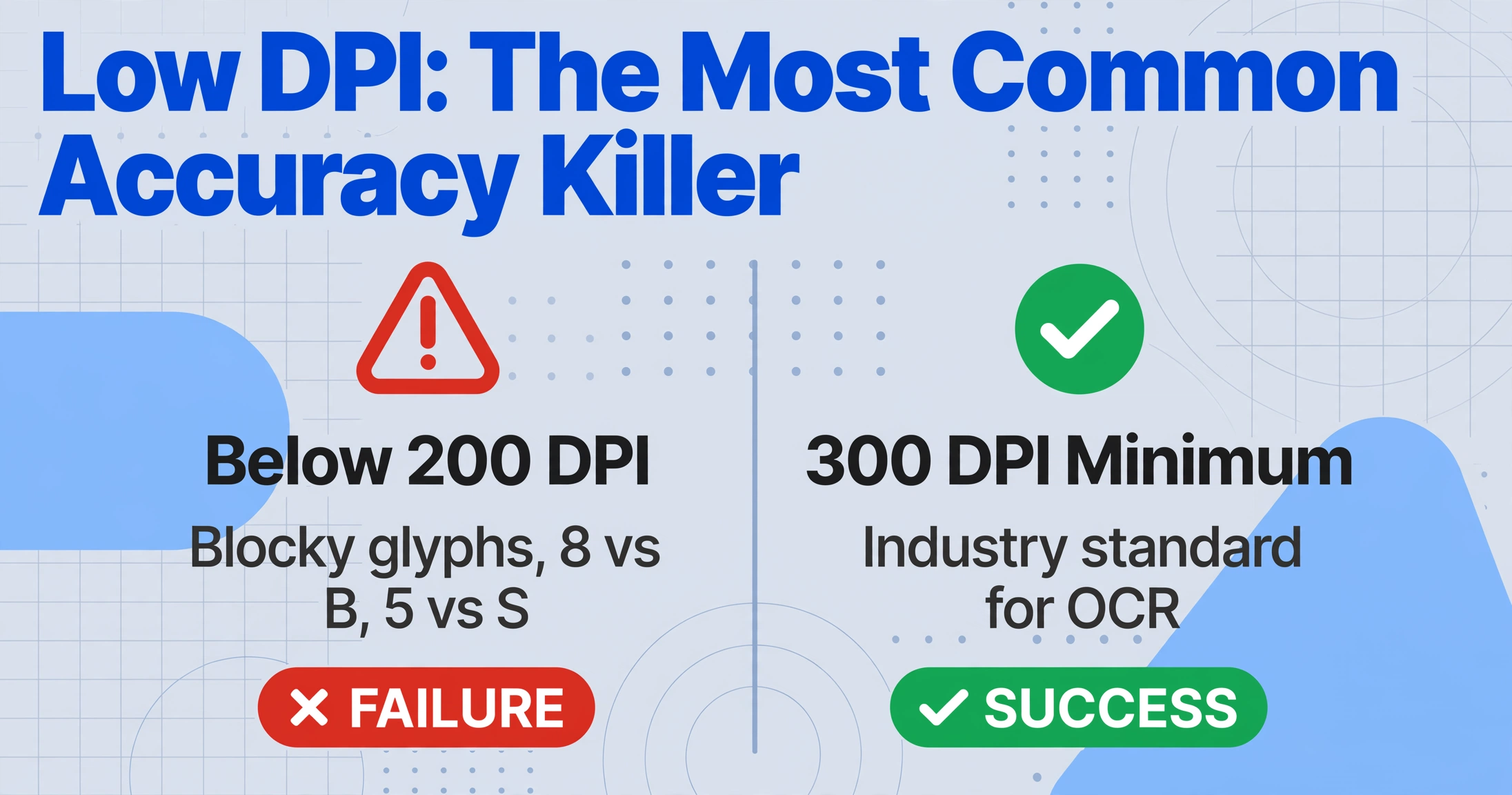
The symptom: Characters look blocky when you zoom in. The OCR confuses similar glyphs — 8 as B, 5 as S. Words break unexpectedly, and punctuation is frequently missed.
Why it happens: DPI (dots per inch) determines how many pixels the scanner captures per inch of the physical page. Below 200 DPI, the pixel count per character becomes so small that distinct glyph shapes start to look identical. A lower-case e and c both become a few-pixel blob. At 150 DPI, character-level accuracy drops below 90% for most engines. At 100 DPI — roughly what a smartphone photo from waist height produces — accuracy becomes unusable for any document with small print.
The fix: Scan at 300 DPI minimum. This is the industry standard for OCR and balances file size against recognition quality. For text below 10-point type, increase to 400–600 DPI. If you cannot rescan, a preprocessing pipeline with super-resolution upscaling can recover measurable accuracy from images that appear too degraded to use.
Quick check: Open your scanned image at 100% zoom. If character edges look smooth, your DPI is adequate. If they look like a staircase or visible square pixels, you are below the threshold.
Cause 2 — Skew and Tilt: When the Page Isn't Straight
The symptom: Text lines angle upward or downward. Some words are detected correctly while adjacent words in the same line are fragmented. Table columns shift, and data that belongs in one column spills into the next.
Why it happens: Traditional OCR assumes text runs in straight horizontal lines. A 3-degree tilt — barely noticeable to the human eye — makes characters miss the baseline the engine expects. Line segmentation algorithms split words across rows, and character recognition fails because the engine is matching glyphs against rotated references. The effect compounds: what starts as a 3-degree tilt at the top left becomes a several-millimeter offset by the bottom right.
The fix: Most preprocessing libraries include automated deskew — an algorithm that detects the dominant text angle and rotates the image to compensate. Apply deskew before binarization; binary images lose the subtle gradient information that angle detection relies on. This is also where vision-based AI extraction separates from traditional OCR — vision models process the page as a whole visual scene and are inherently more tolerant of rotation.
Cause 3 — Noise and Compression Artifacts
The symptom: Extra characters appear in the output — random dots, commas, or fragments that do not exist on the original page. Areas that look like clean white space contain "ghost text" in the extraction result.
Why it happens: Salt-and-pepper noise — black and white specks — is common in faxed documents and scans from dirty scanner glass. JPEG compression artifacts create blocky distortions around character edges, which OCR interprets as part of the glyph. Stamps and seals overlapping printed text confuse character boundary detection — the engine tries to separate stamp ink from printed ink and often gets both wrong.
The fix: A median filter (kernel size 3×3 or 5×5) removes salt-and-pepper noise while preserving character edges better than Gaussian blur. For JPEG artifacts, a bilateral filter smooths compression boundaries without softening text. If stamps are the primary problem, color-based filtering in HSV space can isolate and remove overlapping stamp ink before OCR. For background patterns like watermarks or security printing, use adaptive thresholding (Otsu or Sauvola), which calculates local brightness levels and applies different thresholds to different page regions — achieving both background suppression and character preservation that a single global threshold cannot.
Cause 4 — Fading and Low Contrast: Invisible Text
The symptom: Entire lines of text drop out of the output. What the engine does detect is fragmentary — partial words, missing characters in the middle of recognizable terms. The output looks like randomly sampled pieces of the original.
Why it happens: Faded ink, aged thermal paper, and carbon copies share the same problem: contrast between ink and paper is too low for the OCR to reliably separate them. When the engine binarizes the image, pixels below its brightness threshold are classified as "background" and discarded. If the ink is light enough — or the paper yellowed enough — characters simply vanish. Thermal paper receipts are notorious: the image layer degrades continuously from the moment they are printed, and a receipt readable six months ago may now produce a blank output.
The fix: CLAHE (Contrast Limited Adaptive Histogram Equalization) is the most effective technique — it amplifies local contrast differences without over-amplifying noise in uniform areas. Apply it with a clip limit of 2.0–3.0 and a tile grid size matching your text size. For thermal paper that has darkened uniformly, invert the image before processing — the engine's binarization may perform better on light text against dark background. For uneven fading, adaptive binarization (Sauvola method) handles local variation better than global methods.
Cause 5 — Creases and Physical Damage
The symptom: A dark band cuts through the OCR output, with characters along the band missing or replaced by garbage. Near fold lines, text may appear displaced or duplicated.
Why it happens: A physical fold creates a shadow line when scanned — dark enough that the engine's binarization treats it as a foreground object. Characters intersecting the shadow are obscured or split into fragments. On heavily creased documents, the paper elevation change at the fold pushes the page out of the scanner's depth of field, adding a band of blur to the shadow. The combination creates a worst-case OCR input: high contrast variation, defocused characters, and broken glyph shapes.
The fix: Inpainting — filling damaged regions by interpolating from surrounding pixels — is the most effective remedy. OpenCV's cv2.inpaint() with the Telea algorithm removes crease shadows while preserving underlying text. Start with an inpainting radius of 3–5 pixels. For torn edges where text has been physically removed, morphological dilation (a 2×2 kernel on the binary image) reconnects broken strokes, often turning unrecognizable fragments back into readable glyphs.
Building a Preprocessing Pipeline That Handles Multiple Defects
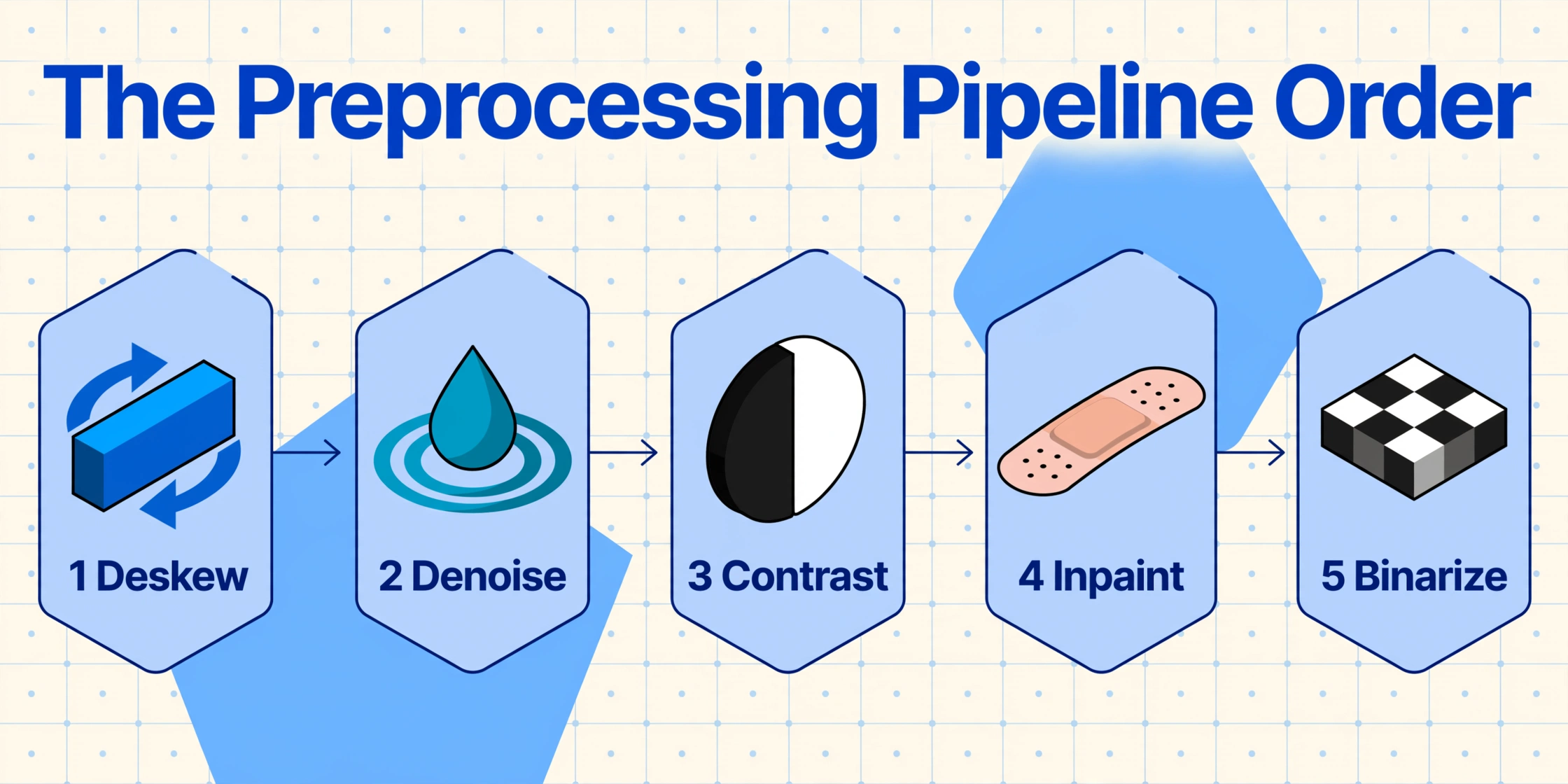
Most real-world scanned documents have more than one defect. A faxed contract may arrive with both low DPI and noise artifacts. An old purchase order could have faded ink and a fold crease. The order in which you apply preprocessing steps matters.
The recommended pipeline order for scanned documents with multiple quality issues:
This pipeline is not theoretical — it has been validated on thousands of degraded document images across multiple OCR benchmarks. A dedicated guide on improving OCR accuracy covers additional post-processing techniques including language-model-based correction, field-level validation, and confidence scoring.
When Preprocessing Is Not Enough
Preprocessing can take a document from "unreadable" to "usable" — but only up to a point. If your source was scanned at 72 DPI on a dirty flatbed, then faxed, then scanned again, there is a limit to what algorithmic cleanup can recover. At some point the question shifts from "how do I fix this image" to "am I using the right extraction approach?"
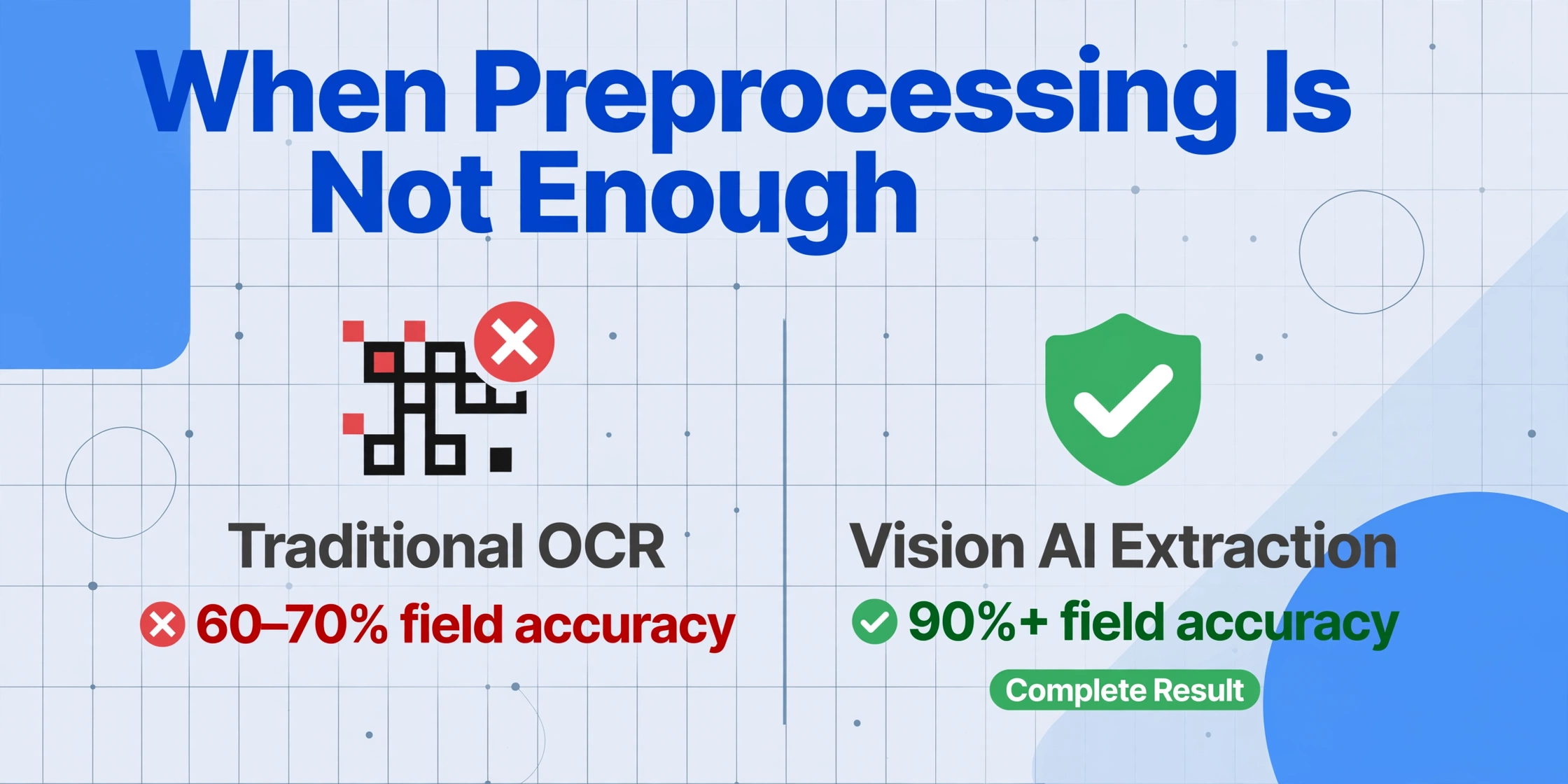
Traditional OCR — Tesseract, ABBYY FineReader, most cloud OCR APIs — works by recognizing individual character shapes. It is fundamentally pixel-level. If the pixels are damaged, the output is damaged. Modern vision-based AI extraction reads the document as a whole visual scene. It understands that a word is a word even when some of its pixels are missing, because it matches against meaning, not against a character shape template.
The difference shows most on documents with multiple defects. A carbon-copy invoice with faint purple print, slight skew from the stapled corner, and a crease across the vendor address — traditional OCR might produce 60–70% field accuracy on this input. A vision AI tool can often achieve 90% or higher because it treats the crease shadow as "not text" and reads around it. Different document types respond differently to accuracy degradation, but the principle is consistent: when the damage is in the pixels, the fix may need to be in the paradigm.
Frequently Asked Questions
What is the minimum DPI for reliable OCR on scanned documents?
300 DPI is the industry standard. Below 200 DPI, character-level accuracy degrades measurably for most OCR engines. Below 150 DPI, accuracy drops below 90% for standard printed text. If your text is smaller than 10-point type, 400–600 DPI is recommended. There is a ceiling effect above 600 DPI — higher resolutions increase file size without meaningful accuracy gains for typical document text.
Can AI extract data from very low-quality scanned documents?
Vision AI models are significantly more tolerant of image defects than traditional OCR because they process the page semantically rather than pixel by pixel. A document that is readable to the human eye — even barely — is usually extractable. The caveat is documents where text is truly invisible (completely faded ink or physically torn away). No technology can recover data that does not exist in the image.
Does deskewing actually improve OCR accuracy by a meaningful amount?
Yes. A 5-degree skew increases word error rate by 10–15% for traditional OCR engines. At 10 degrees, loss can exceed 30%. Deskewing is one of the highest-ROI preprocessing steps — it costs virtually nothing in processing time and produces consistent improvements.
What if my scan has both low DPI and noise — which do I fix first?
Fix noise first, then address resolution. Denoising a low-resolution image is more effective than the reverse — if you upscale first, you amplify the noise along with the text. The pipeline order in this guide follows this principle: denoise before contrast enhancement, and contrast enhancement before any resolution-dependent operations.
Can I use a smartphone photo instead of a flatbed scan?
Smartphone photos introduce perspective distortion, lens blur, and uneven lighting that flatbed scans do not. If a flatbed scanner is available, it will produce more consistent results. If you must use a phone, shoot from directly above the page, use even natural daylight, and capture at maximum resolution — most modern phones exceed 300 DPI equivalent when held close enough.
The Systematic Approach Wins
Low OCR accuracy on scanned documents is not random. It is the result of identifiable image defects, each with a known mechanism and a targeted fix. The mistake most people make is throwing generic "enhance" filters at the problem — adjusting brightness and contrast arbitrarily, hoping something sticks.
The systematic approach is simpler: look at your OCR output, identify the error pattern, trace it to its root cause, and apply the single fix. Low DPI → upscale or rescan. Skew → deskew. Noise → median filter. Fading → CLAHE. Creases → inpainting. When the document has multiple defects, apply fixes in dependency order — noise before resolution, deskew before everything else.
If you have applied the right fixes in the right order and accuracy is still below what your workflow requires, the constraint is not your preprocessing — it is the extraction paradigm. A vision AI tool that reads documents by meaning rather than by pixel shape may be the faster path to usable results. Learn more about field-level validation and accuracy verification methods for when preprocessing alone is not enough.