Can OCR Read Screenshots?
Yes — And They're Easier Than Photos
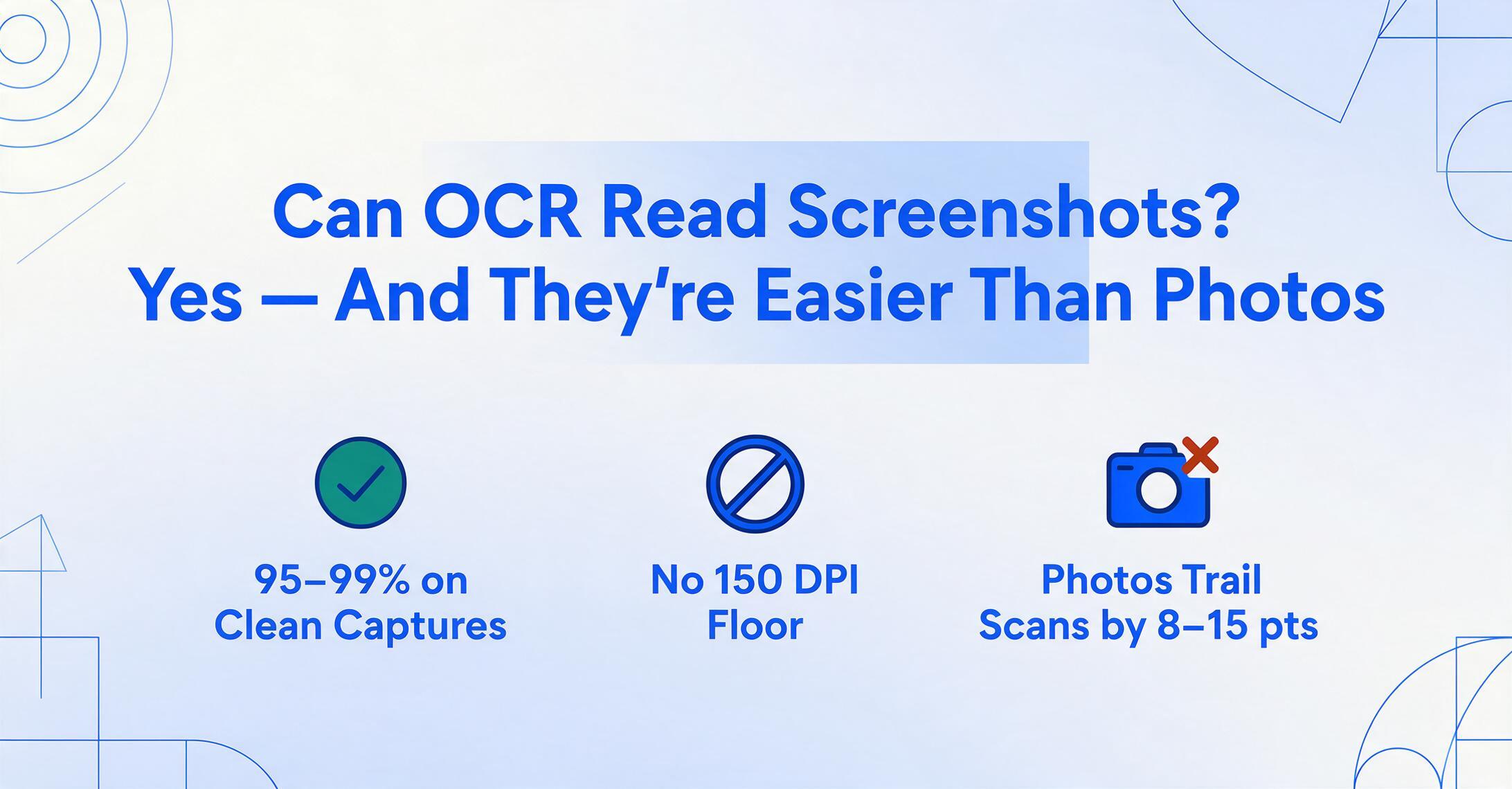
Yes. AI-powered OCR reads screenshots with higher accuracy than it reads photos or scans — and in many cases, the gap is significant. A clean screenshot of a payment confirmation or app dashboard produces near-99% accuracy on printed digital text. That same data captured as a phone photo of a screen? Expect 5–10 percentage points lower. The reason is simple: screenshots have no perspective distortion, no uneven lighting, no motion blur, and consistent pixel-level resolution that digital text was designed for. The challenges are different — compression artifacts from messaging apps, cropped content, and dark mode interfaces — but they're more predictable and easier to work around than the variable physics of a camera shot.
Key Takeaways
- Forward a screenshot through WhatsApp and you silently lose 10 accuracy points — the chat app's compression destroys more data than bad lighting ever will.
- The cleanest input for AI extraction isn't a 300-DPI scan. It's a native screenshot from your device — zero perspective distortion, zero shadows, zero motion blur.
- Three capture habits fix nearly every screenshot failure: share files uncompressed, scroll to capture the full data width, and flip dark mode off before capturing.
How Well AI Reads Screenshots
The numbers depend on screenshot quality — but on a clean, uncompressed screenshot of digital text, modern AI vision models achieve accuracy that approaches printed-document scanning, without needing any of the hardware.
Traditional OCR has a hard minimum: 150 DPI. Below that, character edges blur, segmentation fails, and error rates spike. Screenshots are typically captured at screen resolution — 72 to 96 DPI on standard monitors, 150+ on high-DPI Retina displays. This is why old-school OCR tools struggle with screenshots: they were built for scanned paper at 300 DPI, and a 75 DPI screenshot looks like a low-resolution fax to them. The SuperUser community documented this in a long-running thread where users tested multiple OCR tools on screenshots and consistently hit accuracy walls below the DPI threshold.
Modern AI vision models don't have this DPI floor. They process images the way a human reads a screen — by understanding the whole visual context, not by isolating individual character strokes. A clean, uncompressed screenshot taken directly on a modern laptop or phone (1440p or higher) produces printed-text accuracy above 95%, and often near 99% on standard fonts and predictable layouts. Screenshots from high-DPI displays (Retina, 4K) perform even better because the pixel density gives the AI more signal per character. In an SAP community test comparing multiple extraction methods, standard gallery OCR apps on Android and iOS handled clean screenshots with reasonable accuracy, while LLM-based extraction — GPT-4 with vision — produced near-perfect transcriptions from the same captures.
The drop-off comes from compression. A screenshot shared through WhatsApp, Messenger, or SMS gets recompressed — sometimes aggressively — introducing JPEG artifacts, softened edges, and reduced color depth. On a heavily compressed screenshot, AI accuracy falls to roughly 85–92%. That's still usable for many workflows, but it's not hands-off. The rule of thumb: a direct device screenshot outperforms a forwarded one by 8–12 percentage points on the same content.
Why Screenshots Are Easier for AI Than Photos
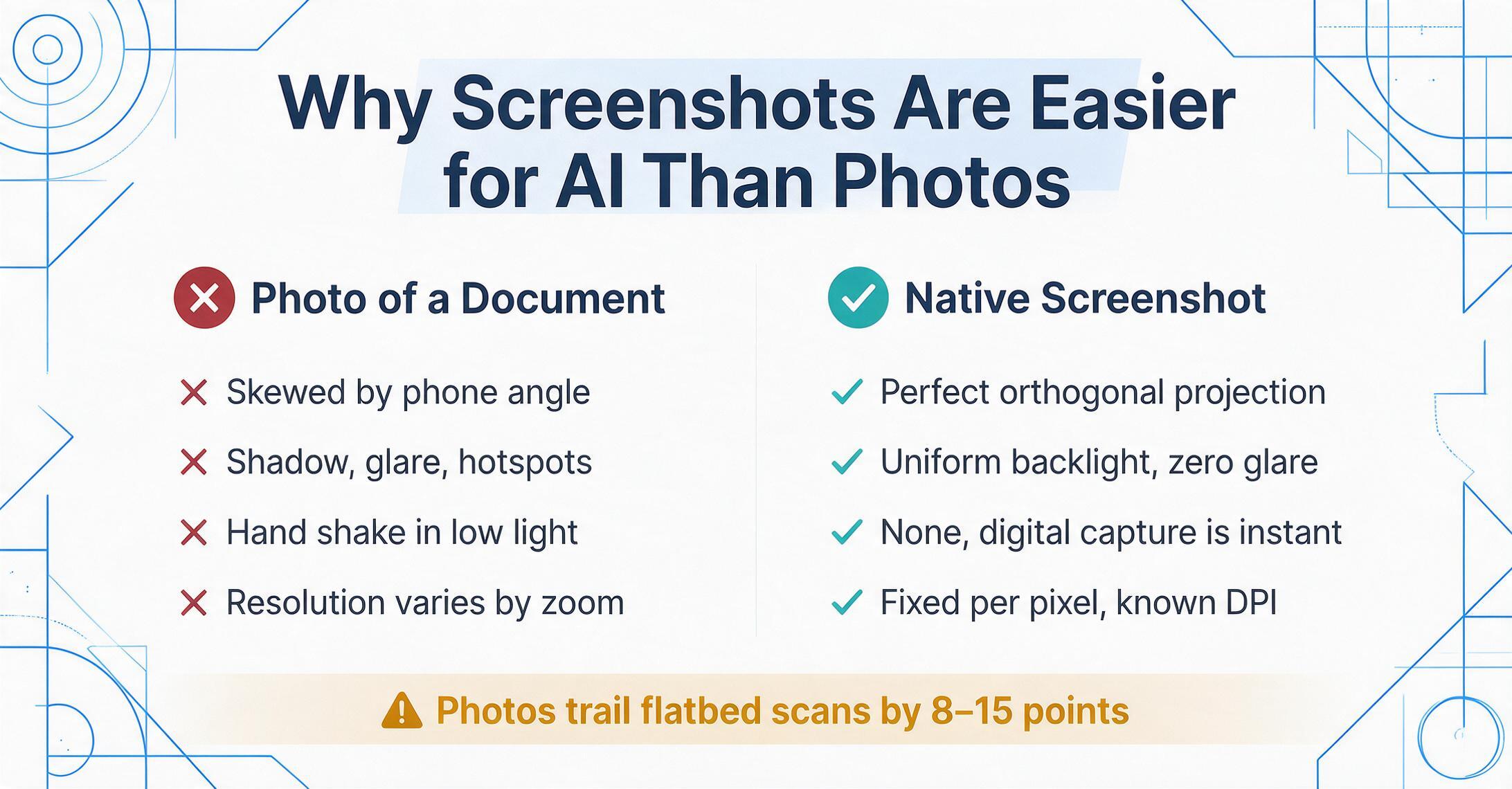
This is the part most people get backwards. A photo captures reality through a lens — and reality is noisy. A screenshot captures a pixel grid that was already designed to be read.
When someone takes a photo of a paper document, the AI has to solve multiple problems before it even starts reading: correct for perspective skew (was the phone held at an angle?), compensate for uneven lighting (is there a shadow across the bottom?), remove motion blur, handle paper curl, and deal with the inherent noise of a camera sensor shooting in imperfect light. Every one of these steps introduces errors that compound through the pipeline. A 2026 independent benchmark from codesota.com showed that document photos consistently underperformed flatbed scans by 8–15 percentage points on character-level accuracy, purely because of these physical variables.
A screenshot eliminates all of them:
| Variable | Photo of Document | Screenshot |
|---|---|---|
| Perspective distortion | Nearly always present — phone angle skews text | None — perfect orthogonal projection |
| Lighting | Uneven shadows, glare, hotspots from flash | Uniform backlight, zero glare |
| Motion blur | Hand shake, especially in low light | None — digital capture is instantaneous |
| Resolution consistency | Varies wildly by distance, lens, zoom | Fixed per pixel, known DPI |
| Text rendering | Paper texture, ink bleed, print quality vary | Anti-aliased font rendering, consistent stroke width |
| Background noise | Desk surface, fingers, shadows, paper texture | Typically a solid-color UI background |
The AI's task on a screenshot is fundamentally simpler: it's reading digital text on a digital canvas. The characters were rendered by a font engine — consistent stroke widths, uniform kerning, predictable shapes. Traditional OCR engines don't exploit this because they treat every input as a photograph. Modern vision-language models do: they recognize that Helvetica on a white app background is a fundamentally different kind of input than 10-point serif on aged paper, and they adjust their reading strategy accordingly. This is the paradigm shift — from treating every image as a degraded photograph to understanding the nature of the source.
The practical implication is straightforward. If you have a choice between photographing a screen with your phone and taking a native screenshot, take the screenshot. It will produce better extraction results every time. For a deeper comparison of how different input types affect accuracy, see our breakdown of screenshot, PDF, photo, and scan extraction accuracy.
What AI Gets Right from Screenshots
AI excels on screenshots where the information follows predictable digital patterns — labeled fields, tabular layouts, and consistent UI conventions. These patterns are everywhere in the apps and dashboards people use daily.
Payment confirmations and transaction screens. Venmo receipts, PayPal confirmations, bank app transfer screens, Stripe dashboards — these all share a common structure: a transaction amount, a date, a sender or recipient, and a reference number. The data is digital text on a clean background, often with high-contrast color coding (green for received, red for sent). AI reads these fields with near-perfect accuracy because the labels are predictable ("Amount," "Date," "From," "Transaction ID") and the values sit in consistent visual relationships to their labels. For teams reconciling dozens of payment screenshots daily — common in e-commerce, property management, and small-business accounting — batch extraction turns a manual cross-referencing task into an automated pipeline. See our guide on extracting data from payment screenshots for a detailed workflow.
App dashboards and analytics screens. Sales dashboards, Google Analytics panels, inventory management views, Stripe revenue summaries — data that lives in an app but doesn't export easily to a spreadsheet. Taking a screenshot and extracting the numbers to Excel is often faster than hunting for an export button that may not exist. The tabular layout of most dashboards — rows of metrics with labeled headers — maps naturally to spreadsheet columns. AI vision models recognize table structures in screenshots and preserve the row-column relationships during extraction, so a "Revenue by Channel" table in a dashboard screenshot becomes a structured "Channel | Revenue" table in your spreadsheet. For batch processing screenshots from multiple dashboards into a single dataset, see batch processing app screenshots into a structured spreadsheet.
Web-based forms and data tables. ERP screens, CRM contact views, shipment tracking pages — enterprise software is full of data trapped behind web interfaces. Taking a screenshot and extracting the fields skips the need for API access, export permissions, or IT involvement. The digital text rendering in web apps is crisp and standardized, and AI reads it at 95–99% accuracy on uncompressed captures. For a practical example of how this works end-to-end, see how to get data from screenshots into Excel without typing.
Clinical data from EHR screens. Electronic Health Record systems are notorious for limited export capabilities. Researchers and clinical data managers often resort to manually transcribing lab results, medication lists, and patient demographics from EHR screens into research datasets. Screenshot-based extraction provides a workaround: capture the screen, extract the structured data, and compile it into a spreadsheet — no EHR vendor API required. The accuracy on clean EHR screenshots with standard fonts is high, though fields with unusual medical abbreviations or proprietary codes may need verification. For teams building clinical datasets from screenshots, our article on extracting clinical data from EHR screenshots covers the workflow and validation steps in detail.
Where Screenshot Extraction Gets Tricky
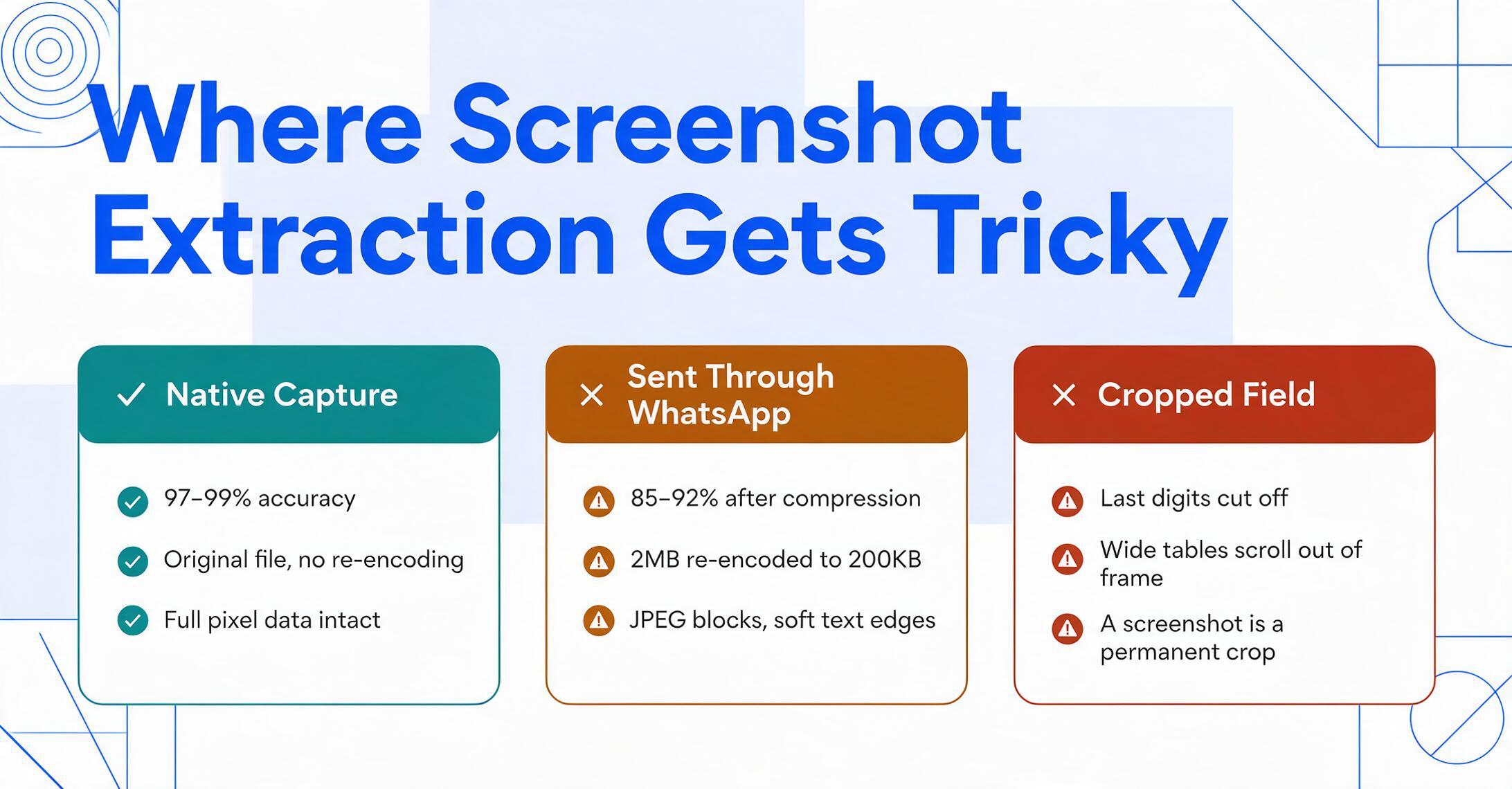
Screenshots remove the physical variables that plague photo OCR — but they introduce their own set of failure modes. Knowing what breaks is how you avoid it.
Heavily compressed screenshots from messaging apps. WhatsApp, Messenger, SMS, and WeChat all compress images before sending. A screenshot that looks crisp on your phone at 2MB gets re-encoded to 200KB before landing in the recipient's chat — introducing JPEG block artifacts, softened text edges, and color banding. On a benchmark of 50 payment screenshots shared through WhatsApp, extraction accuracy dropped to 85–92% compared to 97–99% on the original captures. The AI still outperforms traditional OCR in these conditions — it uses context to fill gaps that a character-matching engine can't — but the error rate is high enough that verification becomes necessary. The fix: if you're receiving screenshots from others, ask them to share via email or cloud storage (Google Drive, Dropbox) rather than chat apps. These channels preserve original quality.
Cropped or incomplete fields. A screenshot that cuts off the last digit of an account number, or crops the right edge of a table, creates an information problem that no AI can solve. Unlike a photo where the camera can be repositioned, a screenshot is a permanent crop — if the data isn't in the frame, it's gone. This is especially common with long transaction IDs, full bank account numbers, and wide dashboard tables that scroll horizontally. The fix: capture the full width of the data area. If content scrolls, take multiple screenshots that overlap slightly — modern AI tools can handle duplicate content across captures better than they can handle missing data.
Dark mode interfaces. Many apps and operating systems now default to dark mode — light text on a dark background. AI vision models are predominantly trained on light-background documents (black text on white paper), and dark mode flips this contrast relationship. While the latest models handle dark mode reasonably well — accuracy typically drops only 2–4 percentage points compared to light mode on the same content — older or less capable OCR engines can fail completely on inverted text. A 2025 Reddit thread in r/computervision documented a user whose extraction pipeline broke entirely when their company switched dashboards to dark mode overnight. The fix: if your extraction tool struggles with dark mode, temporarily switch the app to light mode before capturing, or invert the screenshot colors before processing.
Overlapping UI elements. Notification banners, cursor highlights, tooltips, dropdown menus — screenshots often capture transient UI elements layered on top of the data you actually want. AI models don't always distinguish between "layer on top of the data" and "part of the data." A cursor hovering over a number can be misread as a decimal point. A notification banner can inject unrelated text into your extracted fields. The fix: dismiss notifications, move the cursor away from data areas, and close any popup menus before capturing.
How to Get Clean Extractions from Screenshots
A few seconds of attention before capturing saves minutes of correction after extraction. Here's what moves the needle on screenshot extraction accuracy.
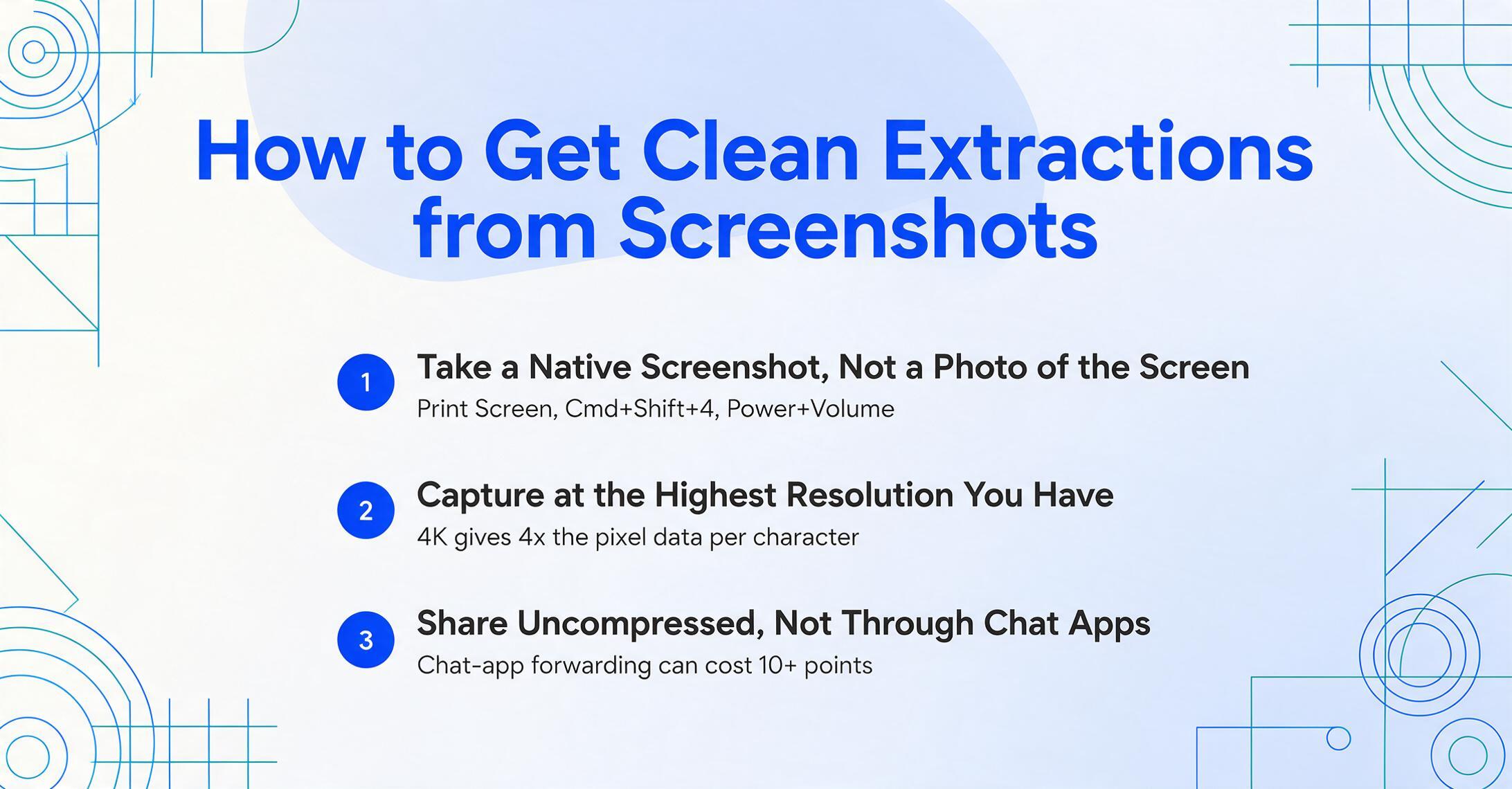
1. Take native screenshots, not photos of screens. This is the single highest-impact rule. Use your device's built-in screenshot function — Print Screen on Windows, Cmd+Shift+4 on Mac, Power+Volume on phones. A native screenshot captures the exact pixel grid the display rendered. A photo of a screen, taken with a camera, reintroduces moiré patterns, glare, and perspective skew — all the problems screenshots were supposed to eliminate.
2. Capture at the highest available resolution. If your display is 1080p, your screenshot is 1080p. If your display is 4K, your screenshot is 4K — and the AI gets four times the pixel data per character. High-DPI displays (Retina, 4K laptops, QHD+ phones) produce screenshots with significantly more detail per glyph, which translates directly to higher extraction accuracy. If you have a choice of which device to capture from, use the highest-resolution one available.
3. Share uncompressed — use email or cloud storage, not chat. WhatsApp, Messenger, and SMS all strip image quality to save bandwidth. Email attachments, Google Drive links, and direct AirDrop transfers preserve the original file. The difference on extraction accuracy between an original screenshot and the same image forwarded through WhatsApp can be 10+ percentage points — enough to turn a hands-off workflow into one requiring manual review.
4. Scroll and capture the full data area. Long tables, multi-section forms, and wide dashboards often don't fit on a single screen. If the data scrolls, take multiple full-screen captures with slight overlap rather than trying to zoom out and capture everything in one tiny, unreadable screenshot. AI extraction tools that support batch processing can consolidate overlapping captures into a single output — but they can't recover data that was never in the frame.
5. Switch off dark mode if your tool struggles. This is a quick fix with immediate results. If you're getting garbled output from a dark-mode screenshot, toggle the app to light mode, recapture, and reprocess. The few seconds it takes to switch themes is orders of magnitude faster than manually correcting a full page of inverted-text errors. As AI models improve, dark mode handling is getting better, but it's not yet universally solved.
Real Screenshot Extraction Examples
These are the scenarios where screenshot extraction replaces hours of manual data entry — not hypotheticals, but the workflows people actually run.
Reconciling payment screenshots to a ledger. A property manager receives rent payments through Venmo, Zelle, PayPal, and bank transfer. Every morning, 20–30 payment confirmation screenshots arrive from tenants. Each screenshot contains the same set of fields — amount, date, sender, reference note — but in different layouts depending on the app. AI extraction reads all of them with one set of column names ("Amount," "Date," "Sender," "Note") and outputs a single spreadsheet for reconciliation against the rent roll. No tenant registration, no app integration, just screenshots to ledger. For teams processing payment screenshots at scale, see our guide on batch payment screenshot ledger reconciliation.
Pulling sales data from app dashboards. A small e-commerce business sells on Shopify, Amazon, and Etsy. Each platform has its own dashboard with revenue, orders, and fees — and none of them export to a common format easily. Taking daily dashboard screenshots and extracting the key metrics into a unified spreadsheet gives the owner a single source of truth without paying for a multi-channel analytics tool. Three screenshots per day, one batch extraction, one consolidated spreadsheet. The workflow takes under two minutes once it's set up. For a step-by-step walkthrough, see building a no-code screenshot data pipeline into Google Sheets.
Building clinical research datasets from EHR screens. A research team conducting a retrospective chart review needs to extract lab values, medication lists, and diagnosis codes from 500 patient records in an EHR system with no bulk export capability. Each record requires 15–20 data points. Manual transcription would take weeks. Screenshot-based extraction — capturing each relevant screen, extracting the target fields, and compiling into a research spreadsheet — reduces the data collection phase from weeks to days. The key is defining consistent column names across all captures so that data from 500 different patient screens lands in the same structured format. For the full methodology, including validation protocols, see extracting clinical data from EHR screenshots for research.
Tracking employee expense screenshots. Field staff submit expense reports by taking screenshots of digital receipts — Uber ride confirmations, meal delivery orders, hotel booking pages — and forwarding them to the finance team. Each screenshot contains a vendor name, amount, date, and category-identifiable content. AI extraction reads these fields into columns and outputs a consolidated expense report, ready for approval. The finance team doesn't retype anything. For a detailed workflow, see processing employee expense screenshots into Excel.
Frequently Asked Questions
Can OCR read text from a screenshot?
Yes — and modern AI-powered OCR reads screenshots more accurately than traditional OCR reads paper scans. A clean, uncompressed screenshot of digital text achieves 95–99% accuracy on standard fonts. Traditional OCR engines that require 150+ DPI input struggle with 72–96 DPI screenshots, but AI vision models don't have this limitation — they read screens the way humans do, by understanding visual context rather than isolating individual character strokes.
Does screenshot quality affect OCR accuracy?
Significantly. An uncompressed screenshot taken directly on a device produces near-perfect results. The same screenshot forwarded through WhatsApp or Messenger gets recompressed, introducing artifacts that can drop accuracy by 8–12 percentage points. Resolution also matters: a 4K screenshot gives the AI four times the pixel data per character compared to a 1080p capture, directly improving accuracy on small text and dense tables.
Can AI extract specific data fields from screenshots, not just transcribe all the text?
Yes — this is where AI extraction separates from basic OCR. Instead of dumping every piece of text from a screenshot into a raw transcript, AI tools with Custom Column Extraction let you define the fields you want — "Amount," "Date," "Transaction ID," "Vendor" — and the AI locates and extracts just those values into structured columns. This means a payment screenshot, an app dashboard, and an EHR screen can all feed into the same spreadsheet columns, even though they look completely different. You define the output; the AI figures out where each value lives on each screenshot.
Can AI read screenshots in dark mode?
Yes, with qualification. Modern AI vision models handle dark mode interfaces at 2–4 percentage points lower accuracy than light mode on the same content. Older or less capable OCR engines may fail entirely on inverted text — they're trained predominantly on dark-text-on-light-background documents. If your tool struggles with dark mode captures, switching the app to light mode before taking the screenshot is the quickest fix.
Can AI batch-process screenshots from different apps into one spreadsheet?
Yes — and this is the core use case. AI extraction works by semantic understanding, not template matching. When you define column names like "Amount," "Date," and "Sender," the AI finds those values on a Venmo screenshot, a PayPal confirmation, and a bank app transfer screen — each with a different layout — and outputs them into the same structured columns. The format doesn't need to match because the AI reads meaning, not position.
Do I need a scanner or special hardware to get good screenshot OCR results?
No — that's the point. Screenshots require zero additional hardware. The built-in screenshot function on any modern device (Print Screen on Windows, Cmd+Shift+4 on Mac, Power+Volume on phones) produces input quality that matches or exceeds a flatbed scan of a printed document, because there's no optical step to degrade the signal. A screenshot captures the exact pixel grid the display rendered — no lens, no sensor noise, no focus issues.
What's the difference between traditional OCR and AI for reading screenshots?
Traditional OCR works by segmenting an image into individual characters, matching each shape to a known pattern, and assembling the output. At 72–96 DPI — typical screenshot resolution — character edges blur and segmentation fails. AI vision models work differently: they process the entire screenshot at once, using context (surrounding text, field labels, layout patterns) to resolve what each piece of text says. This is why AI reads a compressed WhatsApp screenshot at 85% accuracy while Tesseract returns mostly gibberish. For a deeper comparison of the two approaches, see our article on AI data extraction vs traditional OCR.
Screenshots are the cleanest input format AI extraction tools can receive — consistent resolution, no perspective distortion, clear digital text, and predictable layouts. The challenges that exist — compression, dark mode, cropped content — are real but manageable with a few simple capture habits. If you're still photographing screens with your phone or manually typing data from app to spreadsheet, a direct screenshot pipeline will give you better accuracy with less effort. The only way to know how well it works on your specific screenshots is to try it on a real one.
For the broader picture of what AI extraction can and can't do, start with what AI document extraction is and how it works. If you're already capturing screenshots and want to set up an automated pipeline, see our guide on extracting data from screenshots to Excel. And if you're evaluating whether your screenshots are clean enough for reliable extraction, the comparison in screenshot vs PDF vs photo vs scan extraction will help you decide.