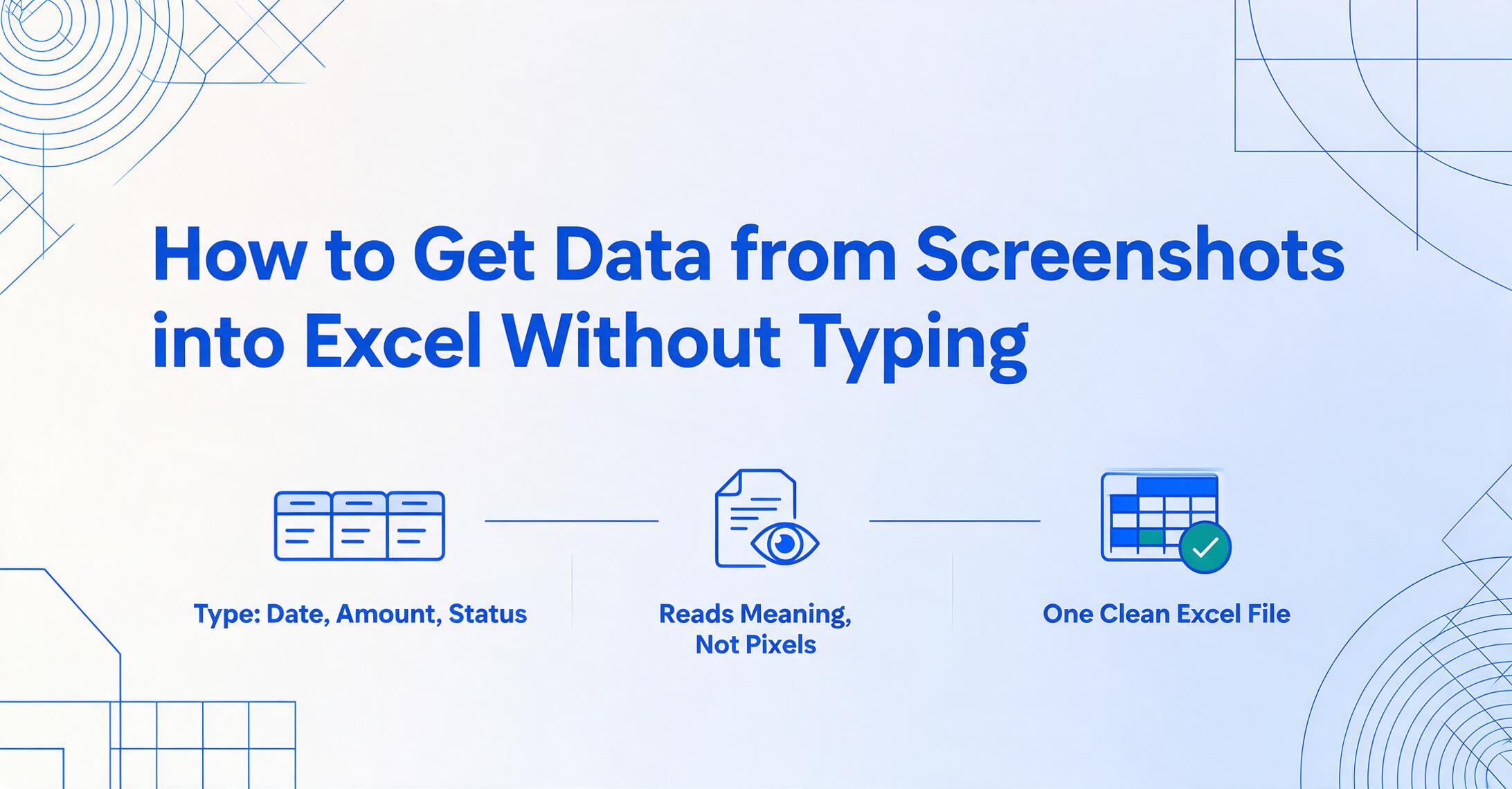
How to Get Data from Screenshots
into Excel Without Typing
Professional data entry operators — people whose only job is typing data into systems — make between 1 and 4 errors per 100 fields entered, according to behavioral research published across decades of studies (Barchard & Pace, 2011, Behavior Research Methods). A screenshot of a payment confirmation contains maybe 6 to 10 data points worth retyping. The math is unforgiving: after roughly 10 to 25 screenshots, at least one field somewhere in your spreadsheet is wrong. Not "might be" — is. And the quiet truth nobody budgets for: finding and fixing that error after the data has already entered the spreadsheet costs more time than the original typing did. This is the invisible tax on manual screenshot transcription. It's not the keystrokes that hurt. It's the corrections.
Why copy-paste doesn't work — and why OCR alone isn't the answer
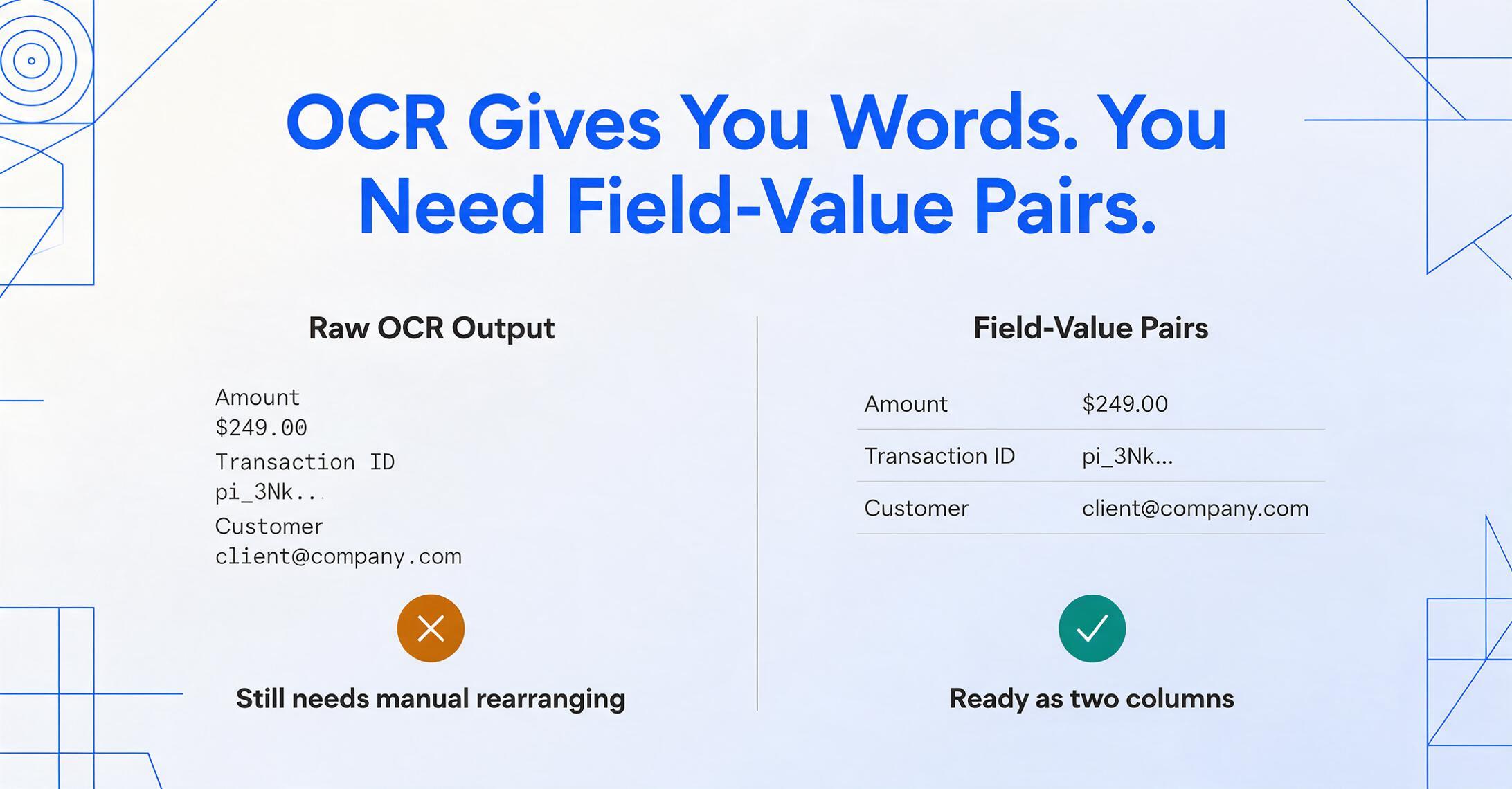
A screenshot is a grid of pixels, not a container of text. That single fact is why Ctrl+C on an image and Ctrl+V into Excel produces nothing useful — and why even optical character recognition, by itself, rarely solves the problem cleanly.
The reason isn't that OCR is bad at reading characters. It's that most screenshots people actually work with — payment confirmations, CRM dashboard views, internal reporting tools — don't look like spreadsheets. A Stripe dashboard confirmation puts "Amount: $249.00" in one panel, the transaction ID in another, and the customer email in a third — all at different positions, with no grid lines between them. Traditional OCR reads this as a flat sequence of text fragments: "Amount", "$249.00", "Transaction ID", "pi_3Nk...", "Customer", "[email protected]". What you wanted was two columns — Field and Value — with each label paired to its number. What you got was a pile of text that now needs to be manually rearranged.
This is the gap between "recognizing characters" and "understanding data." OCR can read the pixels. It cannot understand that "$249.00" is the answer to "Amount." That distinction is why a growing number of people attempting screenshot-to-Excel workflows find themselves stuck — the tool gave them something, but the cleanup is comparable to typing from scratch.
What Excel's built-in tool can do... and where it stops
Excel's "Data from Picture" feature — introduced in Microsoft 365 and accessible under Data > From Picture > Picture From File or Picture From Clipboard — reads structured data from an image and places it into your spreadsheet. For a clean screenshot of a bordered table, it works reasonably well. Excel identifies rows, columns, and cell boundaries, then lets you review and correct flagged cells before inserting the data.
The feature assumes exactly what its marketing materials imply: that your screenshot contains something shaped like a spreadsheet. When it does — a well-lit photo of a printed invoice table, a crisp screenshot of a web-based data grid — the results are usable. But this assumption breaks in practice for three reasons that the tutorials rarely mention:
1. Real-world screenshots aren't tables. Most dashboard captures, payment confirmations, and internal system screens display data as label-value pairs scattered across panels — not as rows and columns inside visible borders. Microsoft's own documentation recommends cropping your image to include "only the data you want to import," which assumes the data is already organized as a table. When it isn't, Excel either misses fields entirely or merges unrelated values into single cells.
2. The cloud service has availability problems. As documented across multiple threads on Microsoft Q&A, the Data from Picture feature has experienced extended outages where analysis gets stuck at 20% and never completes. Community moderators confirmed this is a "server-side issue" with "no workaround." When this happens — and it has happened across multiple users, environments, and even Excel for the web — the built-in tool is simply unavailable.
3. It doesn't scale past one screenshot at a time. Data from Picture processes images individually. If you have 50 payment screenshots to process, you're doing the screenshot→analyze→review→insert loop 50 times. There is no batch mode. There is no merge-into-one-sheet output. The feature was designed for occasional use, not recurring operational volume.
The built-in Excel tool is worth knowing about — and for isolated cases where your screenshots happen to contain clean, bordered tables, it's the fastest free option. The problem is that most real-world screenshot-to-Excel workflows don't meet those conditions. For a detailed breakdown comparing the built-in tool, OCR converters, and AI extraction across more dimensions, see our screenshot-to-spreadsheet comparison guide. If you're still deciding which approach fits your situation, our roundup of the best screenshot-to-Excel tools compares the built-in feature, chatbots, and dedicated extractors side by side — this article is the how-to that follows that choice.
Column-name extraction: tell the AI what you want, not where it is
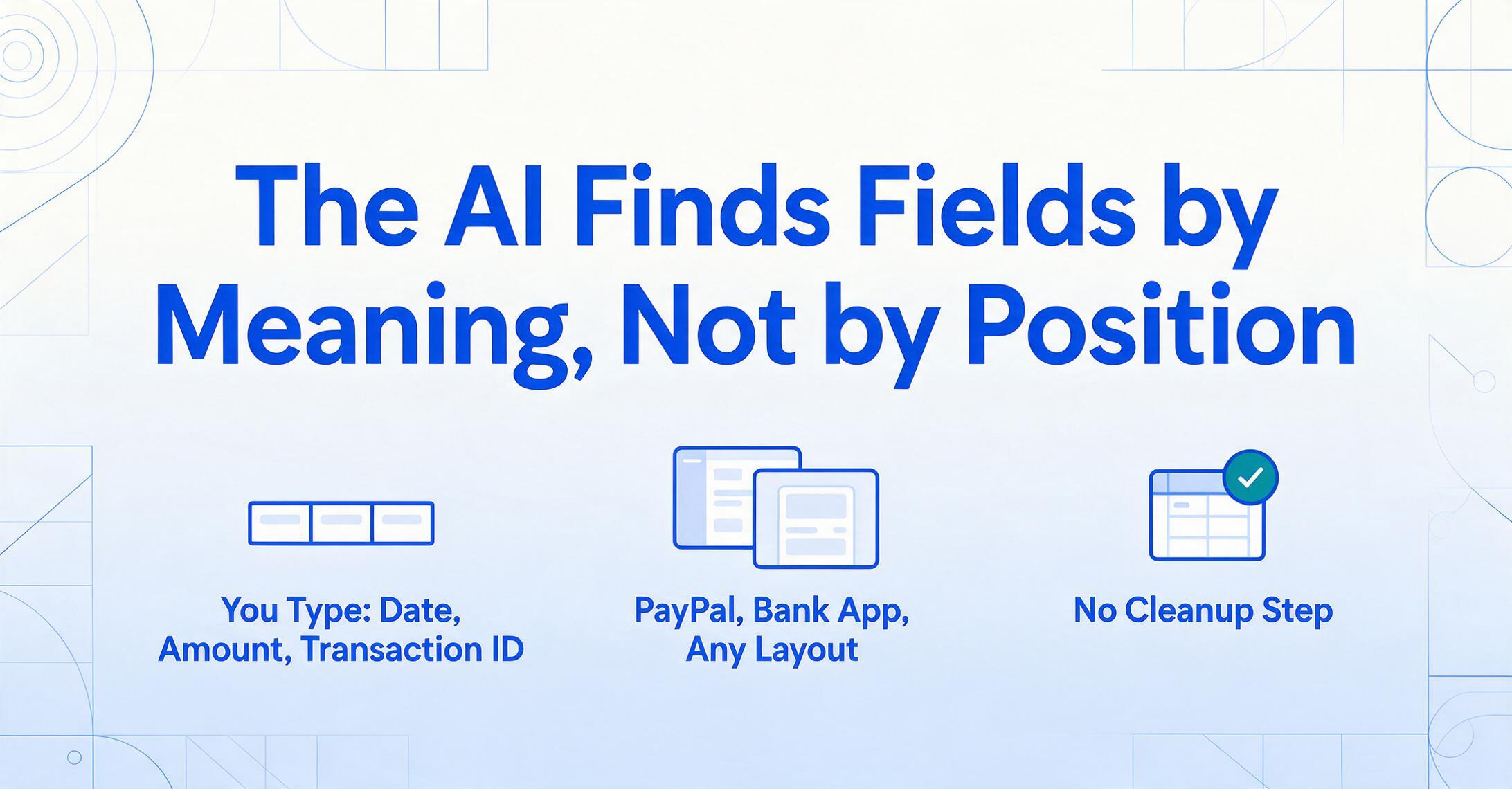
Column-name extraction inverts the workflow. Instead of extracting everything from a screenshot and cleaning up afterward, you start by telling the AI what columns you want — Date, Amount, Transaction ID, Payment Method — and it finds only those values on each screenshot, regardless of which app generated it.
This works because of the mechanism underneath: a vision language model. Unlike traditional OCR, which scans pixels for character shapes and guesses at their arrangement, a visual AI reads a screenshot the way a person does — by understanding what each piece of information means. It sees "Order Total" next to "$149.99" and recognizes that the number is a monetary amount associated with that label. It sees "2026-05-14" and recognizes a date, even if it appears in a different position on every screenshot in the batch.
This is the fundamental difference from template-based tools. Template OCR requires you to draw boxes around each field on a reference image — and breaks when the next screenshot comes from a different app with different layout. Column-name extraction doesn't care about position. It cares about meaning. A PayPal confirmation and a bank app screenshot can both be processed with the same column definition — "Date," "Amount," "Transaction ID" — because the AI identifies each field by what it represents, not by where it sits.
When you only need certain fields — which is almost always the case — column-name extraction eliminates the cleanup step entirely. You get a spreadsheet with exactly the columns you asked for, not 40 cells of OCR output that you then need to trim and realign. For a deeper dive into this approach, including how to name fields for the cleanest results, read how to extract only the specific fields you want from screenshots.
Step by step: screenshot to structured Excel in under a minute
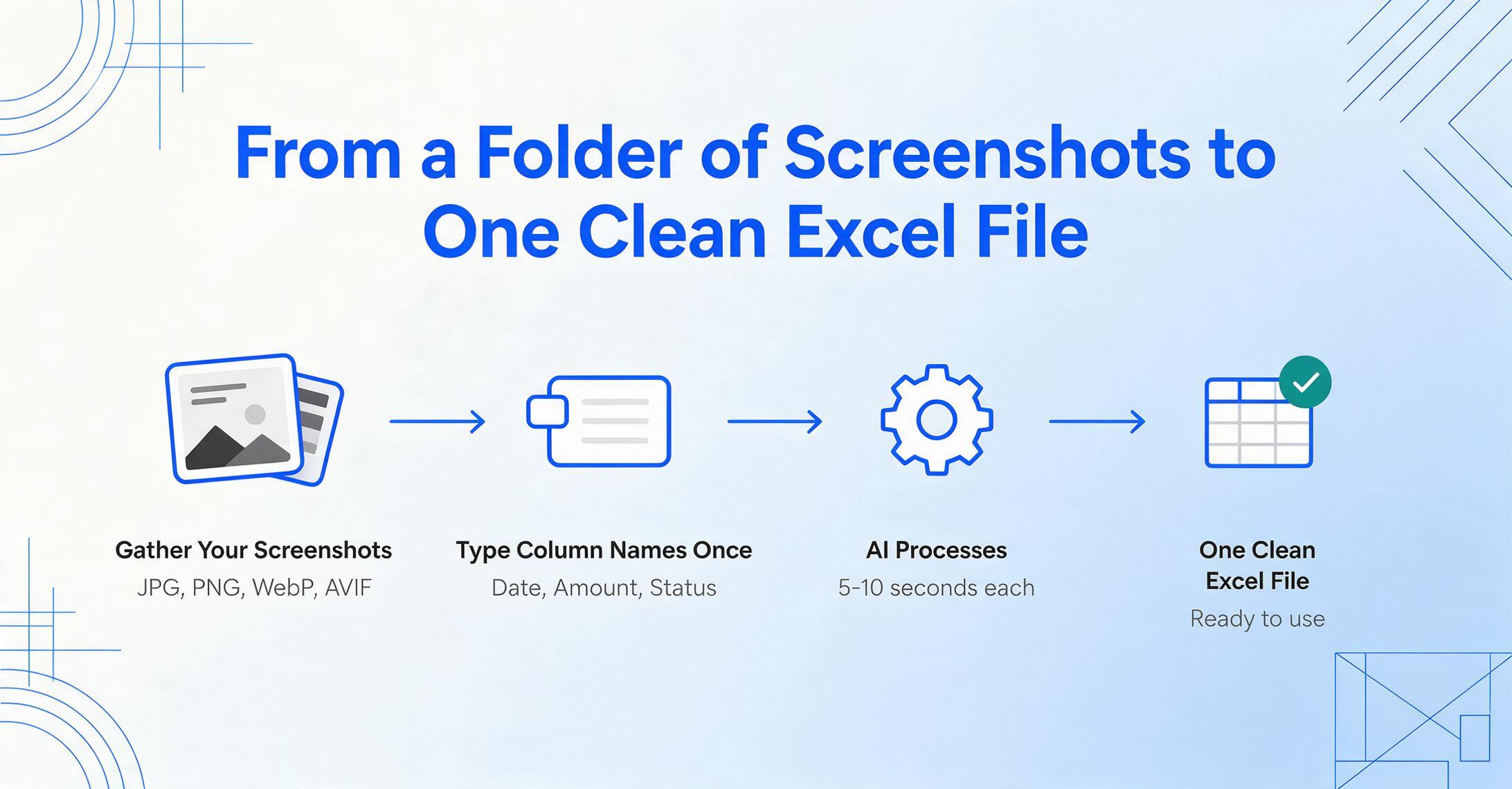
The column-name approach turns what used to be a 3-minute-per-screenshot manual task into a 5-10 second AI processing step. Here is the exact workflow, from a folder of screenshots on your desktop to one clean Excel file.
Files are processed securely and not stored.
1. Gather your screenshots. These can be captures from anywhere — a banking app, a Stripe confirmation, a Salesforce dashboard, an internal reporting tool. Format doesn't matter: JPG, PNG, WebP, even AVIF screenshots all work. No pre-processing or cropping needed — the AI handles whatever resolution and orientation the screenshot was taken at.
2. Type your column names once. This is where column-name extraction diverges from everything else. You don't upload a template. You don't draw boxes. You simply type the field names you want — Date, Amount, Transaction ID, Payment Method, Status. These column names become the headers of your output table. The AI uses them as its search instructions: find anything on each screenshot that looks like a date, an amount, a transaction ID, and so on.
3. Let the AI process. Processing takes roughly 5-10 seconds per screenshot. For a single capture, it's nearly instant. For a batch of 20, you'll wait a couple of minutes — far less time than manually retyping even two of them. An average manual entry takes roughly 3 minutes per screenshot when you account for switching windows, checking each value, and verifying the result. At 5-10 seconds per image, AI extraction is roughly 18x faster.
4. Download one structured spreadsheet. The output is a single XLSX or CSV file where each row represents one screenshot, and each column is exactly the field you specified. Stripe, bank app, internal dashboard — all merged into one table with consistent headers. No orphan text to delete, no misaligned columns to fix, no manual cleanup. If you want to explore the full capabilities, visit the screenshot-to-Excel extraction guide.
When you have more than one screenshot
The single-screenshot workflow covers most spontaneous needs — one payment confirmation, one dashboard snapshot. But the real efficiency gain appears when you process screenshots in batches: 10, 50, or 200 captures from different apps, merged into one spreadsheet with consistent column headers.
Batch processing works because column-name extraction operates on meaning, not position. Every screenshot in the batch is processed with the same column definitions. A PayPal screenshot from one batch and a Stripe screenshot from the next produce rows with matching columns — Date, Amount, Status — in the same output file. You don't need to align data across files afterward, because the alignment happened at extraction time.
There are two scenarios where batch makes the most difference:
End-of-period reconciliation. Monthly or quarterly, you need transaction records from multiple payment platforms, internal systems, and possibly emailed confirmations — all consolidated into one spreadsheet. Upload the folder of screenshots, define your columns once, download the merged result.
Recurring data collection. If you process screenshots on a regular cadence — weekly, monthly, per project — the column definitions stay the same. You reuse the same column names every time, so each batch's output is directly comparable to the last one. If this describes your workflow and you use Google Sheets, the no-code screenshot-to-Google-Sheets pipeline guide covers how to make extraction part of your daily routine without switching tools.
Frequently Asked Questions
Does this work if each screenshot is from a completely different app — PayPal, bank app, internal CRM?
Yes, and that is the core advantage of the visual-AI approach. The AI reads field values by their meaning — it understands that "$249.00" next to "Amount" is a payment amount, regardless of whether it appears on a Stripe dashboard, a bank app notification, or a vendor portal. One set of column definitions processes all screenshots in the same batch, even when they come from different apps with completely different layouts.
What about screenshots that aren't tables — just text scattered around the screen?
That is the most common type of screenshot people actually work with. Most app UIs display data as label-value pairs ("Order Total: $149.99," "Shipping Status: In Transit") positioned across cards, panels, and sections — not as bordered cells in a grid. The AI reads these as key-value pairs by understanding the relationship between a label and the value near it. You don't need your screenshots to be tables to extract structured data from them.
Can this handle screenshots from WhatsApp or other compressed chat images?
Compressed images from messaging apps are the hardest input type. WhatsApp, Messenger, and similar platforms aggressively compress images, which degrades character clarity. While the visual AI still outperforms traditional OCR on compressed images — because it uses surrounding context to interpret what it sees — accuracy will be lower than with direct device screenshots. For best results, capture screenshots directly on your device rather than forwarding them through chat apps.
Is there a free way to do this?
For occasional use with clean, bordered tables, Excel's built-in "Data from Picture" tool (included in Microsoft 365) works without additional cost. It is limited to one image at a time and requires Windows 11 or Windows 10 version 1903 or later with Edge WebView2 Runtime installed. For screenshots that aren't bordered tables — or when you need to batch-process multiple captures from different sources — the free tier of an AI extraction tool will cover a handful of screenshots so you can test whether the workflow fits your needs before committing to anything.
How does this compare to just typing it manually?
At low volume — one screenshot every few weeks — manual typing is fine. The comparison becomes relevant when screenshot transcription is a recurring task. An average manual entry takes roughly 3 minutes per screenshot, including time spent switching between the image viewer and Excel, cross-checking values, and correcting typos discovered later. AI extraction processes the same screenshot in 5-10 seconds. Over 50 screenshots, that's roughly 2.5 hours of manual work versus 5-8 minutes of AI processing time. The time savings compound, but the real difference is in error elimination: AI extraction removes the transcription step where keystroke errors enter. The cost of one undetected transcription error — a wrong invoice amount, a mistyped customer name — tends to exceed any tool subscription cost.
What if I need to extract hundreds of screenshots?
Batch processing handles this directly. Upload all screenshots at once — they can come from different apps with different layouts — define your column names once, and the AI processes them sequentially, outputting one merged spreadsheet. The column definitions stay consistent across screenshots, so the output is directly usable without manual alignment. For recurring high-volume workflows, the Google Sheets pipeline approach automates the entire process so incoming screenshots flow directly into your spreadsheet without reaching for any separate tool each time.
Do I need to know anything about AI or programming to use this?
No. The workflow uses the same interface you'd use for any web tool: upload files, type what you want extracted, download the result. The AI handles the complexity of reading and understanding each screenshot. You don't need to configure models, write prompts, or understand how visual language models work. If you know how to drag files into a browser window and type labels into a text field, you know everything required.
The cost people underestimate in screenshot-to-Excel workflows isn't the typing time — it's the invisible downstream cost of errors that outrun human review. A mistyped digit in an invoice total can travel through three spreadsheets before anyone catches it. Column-name extraction removes the transcription step entirely, which is where those errors enter. Not because AI is perfect — but because it eliminates the keystrokes where the 1-in-100 mistakes happen.