PayPal Screenshots: Get the
Amount, Transaction ID, and Sender
You received a PayPal payment, took a screenshot of the confirmation, and now you need three things off it: how much, who sent it, and a reference number that proves it happened. The amount is the biggest number on the screen — easy. But PayPal runs two fundamentally different payment types under the same interface, and which one you're looking at changes what that number actually means. The name on screen belongs to one of three identities PayPal keeps per person, and the one you'd put on a receipt probably isn't visible. The Transaction ID is the one field that works the same way regardless — 17 characters, unique to this payment, and the thing PayPal support will ask for if anything goes wrong. If you're logging PayPal transactions from screenshots — for a monthly income record, a client payment log you reconcile quarterly, or a batch of eBay payouts to bookkeep — here's how to read each field, what each one actually means, and how to get them into a spreadsheet without retyping the same three numbers thirty times.
Where PayPal Puts the Three Fields
On a PayPal transaction detail page — the screen you reach by tapping into a single payment from your Activity list — the three fields you need sit in a vertical stack. The amount is the undeniable headliner: a large dollar figure at the top of the confirmation card, often in bold type, impossible to miss. Directly beneath it, PayPal shows the payment type label — "Goods and Services payment" or "Friends and Family payment" — in a smaller font, and this two-word label changes everything about what the number above it actually means. Below the type label, the sender or recipient name appears as a line of text with a profile icon or avatar beside it. Further down, past the transaction status ("Completed," "Pending," "Refunded"), sits the Transaction ID — a 17-character alphanumeric string, often in a smaller or secondary typeface, sometimes tucked into a collapsible "Transaction Details" section.
The Activity list — the scrolling timeline you see when you open the PayPal app or log into paypal.com — is a compressed view. It shows an amount, a name, and a relative timestamp like "2 hours ago" or "Yesterday." The absolute calendar date, the full Transaction ID, and the payment type label (G&S or F&F) only appear when you tap or click through to the individual transaction screen. If your screenshot came from the Activity list, you captured a preview — not the record. Every field that makes a payment traceable sits one tap deeper.
The layout described above is for the standard PayPal mobile app and the paypal.com desktop interface. Both platforms display the same four data points — amount, payment type, counterparty name, Transaction ID — in a single-column confirmation card, though the spacing and font sizes shift between mobile and desktop. PayPal's Activity and transaction detail screens were redesigned in 2024 with a cleaner card-based layout, but the relative field order hasn't changed.
The 17-Character Transaction ID — What It Is and Where to Find It
The Transaction ID on a PayPal confirmation screen is a 17-character alphanumeric string — letters and digits only, no hyphens or spaces, format \b[\dA-Z]{17}\b. It looks random but it isn't: every PayPal transaction, regardless of payment type, currency, or account country, gets exactly one Transaction ID. It is generated by PayPal at the moment the payment is initiated and cannot be changed, regenerated, or reassigned.
Most people treat the Transaction ID as "the thing customer support asks for" and never think about it otherwise. But in a record-keeping workflow, it serves three functions that nothing else on the screenshot can. First, it's the only field that survives a name change — if the sender edits their PayPal business name from "Jane's Crafts" to "Jane's Creations" next week, your screenshot still says the old name, but the Transaction ID still points to the same payment. Second, across currencies and borders, the Transaction ID is the stable international reference — PayPal's own Transaction Detail Report uses it as the primary lookup key when you export your full account activity. Third, if you ever need to match a screenshot to a bank statement line or a QuickBooks entry, the Transaction ID is the cross-reference that lets you confirm which $49.99 payment you're looking at, without relying on a date that might have shifted by a day due to settlement timing.
One subtlety worth knowing: in PayPal's internal reporting system, a single Transaction ID can appear twice — once for the balance-affecting record (money moved) and once for a non-balance-affecting record (a fee adjustment, a currency conversion detail). This duplication is an internal accounting artifact and doesn't affect what you see on a standard transaction confirmation screen. The Transaction ID you capture from a screenshot is the primary payment identifier, and it's the one PayPal support and automated export tools use.
Where to find it on the screenshot: on the mobile app, scroll past the amount and sender name — the Transaction ID appears under the transaction status, often labeled "Transaction ID" in a smaller font. On the desktop interface, it sits in the "Transaction Details" section below the payment summary card, alongside the payment date and funding source. If you don't see it, look for a "More details" or expandable arrow — PayPal sometimes collapses it behind an extra tap or click to keep the main confirmation screen uncluttered.
The Amount on Screen vs. the Amount That Hits Your Account
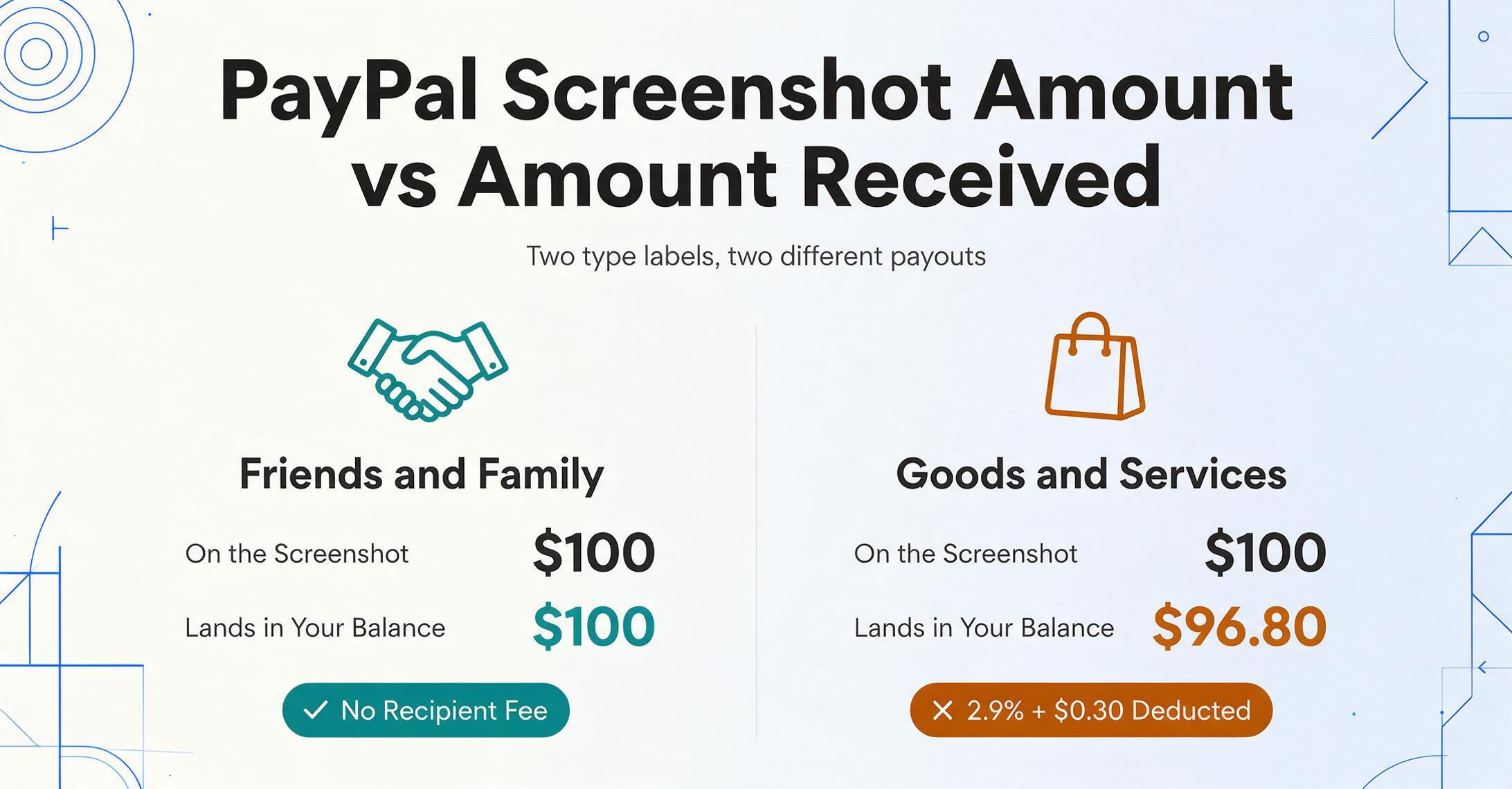
The dollar figure at the top of a PayPal confirmation screenshot is the gross payment — the total the sender authorized. Whether that number matches what actually lands in your PayPal balance depends entirely on one two-word label sitting directly beneath it.
If the label says "Friends and Family": what you see is what you get. PayPal charges no recipient fee on domestic F&F payments funded by a bank account or PayPal balance. The gross amount on the screenshot equals your net. If the sender used a credit or debit card to fund an F&F payment, PayPal charges the sender a fee (2.9% + a fixed fee that varies by country) — but that fee is deducted from the sender's side, not yours. Your screenshot amount and your received amount are the same.
If the label says "Goods and Services": what you see is not what you get. PayPal deducts a standard seller fee — 2.9% plus $0.30 for U.S. domestic transactions — from the gross amount before the money reaches your balance. A $100 G&S payment generates a screenshot that says $100. Your PayPal balance increases by $96.80. The fee deduction leaves no visible trace on the transaction detail page: the screenshot shows the gross, and the net loss only becomes apparent when you check your balance before and after, or when you log into the PayPal account and compare the received amount line item in the transaction breakdown.
This gap between what the screenshot shows and what you actually get has two practical implications. For income records and tax reporting: if you receive payments through G&S, the gross amount on the screenshot should go into your gross receipts column, and the fee should be logged separately as a transaction cost — otherwise your spreadsheet totals won't match what your bank sees when you transfer the PayPal balance out. PayPal issues a 1099-K for G&S receipts exceeding $600 per year, and the reported figure is the gross, not the net. For reconciliation: when you match a month's worth of PayPal screenshots against bank deposits, a different amount on each side doesn't necessarily mean you missed a transaction — it might just be the fee gap, and the Transaction ID is what confirms it.
One more thing about the label: it's not always where you expect it. On the mobile app, "Goods and Services" or "Friends and Family" appears directly below the amount. On the desktop confirmation page, the label may sit to the right of the amount or below the counterparty name instead. On a payment request confirmation — the screen you see after someone pays a money request you sent — the label sometimes appears only in the transaction details section, not next to the amount. If you can't immediately see the payment type on the screenshot, scroll down. It's there.
The Name Problem — Merchant Name, Account Name, and Who Actually Sent It
PayPal carries three separate identities for every account holder, and a standard transaction confirmation screenshot captures at most two of them — and neither is the one you'd put on a receipt.
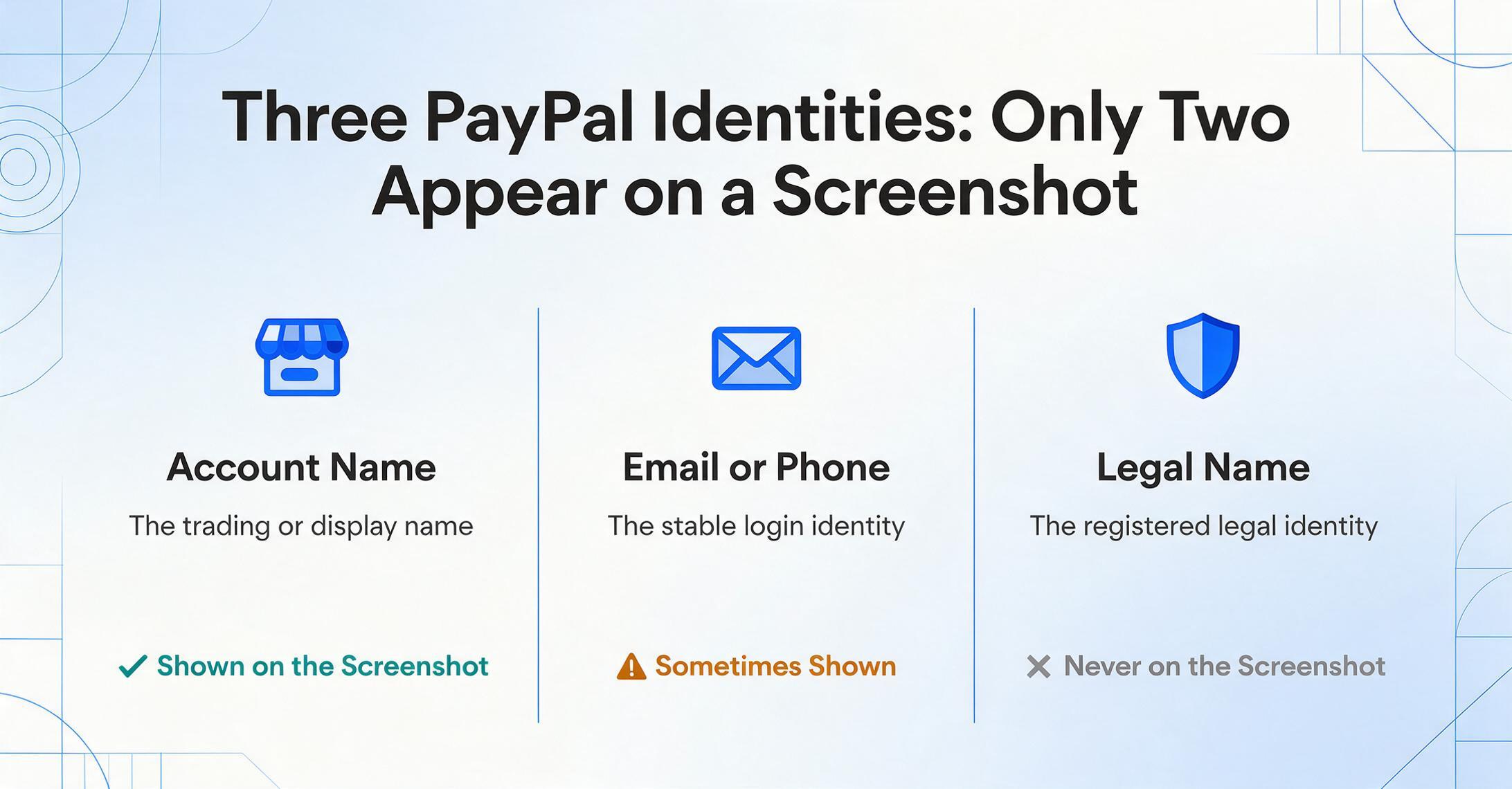
There's the business/account name — for a PayPal Business account, this is the trading name the account holder registered (like "Rivera Design Studio" or "JLT Consulting LLC"). For a Personal account, it's the account holder's first and last name as entered in their profile. This is the name that appears on your transaction confirmation screen and it's the one most people assume is "who paid me."
There's the email address or phone number — the unique identifier the sender uses to log in and the recipient uses to receive payments. This is the actual stable identity inside PayPal's system: an account can exist with one verified email and multiple secondary emails, but the primary email is the one PayPal associates with all transactions. This identifier might or might not appear on the confirmation screenshot — PayPal sometimes shows it in the transaction details section, sometimes doesn't.
And there's the legal/business registration name — the verified identity PayPal collected at account creation for regulatory compliance, tied to a tax ID or Social Security Number. This name does not appear on a standard transaction confirmation screen at all. A Business account registered as "JLT Enterprises Inc." can set its display name to "JLT Consulting" — and the screenshot shows "JLT Consulting," which is neither the legal entity name nor the login identifier.
The practical consequence: the name you see on a PayPal screenshot is what the sender chose to display, not what PayPal verified. For an informal personal log among people you know, "Sarah's Shop" is enough. For a client payment log, a tax-season reconciliation, or matching a payment to a specific customer in your books, it isn't. A Business account holder can change their display name in account settings at any time — "Sarah's Shop" becomes "Sarah's Boutique" becomes "Sarah B. Designs" — and old screenshots retain the name that was active at the time of the transaction, but the live transaction inside PayPal now shows the current name. The Transaction ID is the only field on the screenshot that permanently ties the payment to one specific account.
What should you actually record? If the sender has a Business account, record the business name as shown on the screenshot plus the Transaction ID — the name helps you identify the payment at a glance, and the Transaction ID is the fallback when the name changes. If the sender used a Personal account, the first and last name is what PayPal verified at sign-up, but it might be abbreviated or formatted differently than their legal name. If you need the legal entity name for a receipt you're issuing or a formal tax record, ask the sender — the screenshot won't contain it.
From Screenshot to Spreadsheet — Without Retyping Each Field
Once you know which values to extract and what each one actually means, the mechanical step — reading three fields off a screenshot and typing them into a spreadsheet — is the friction you're trying to eliminate. One PayPal screenshot takes thirty seconds to transcribe. A month of client payouts — thirty eBay sales, fifteen freelance invoices, a handful of direct payments — takes a concentrated hour with a typo hiding in row 23.
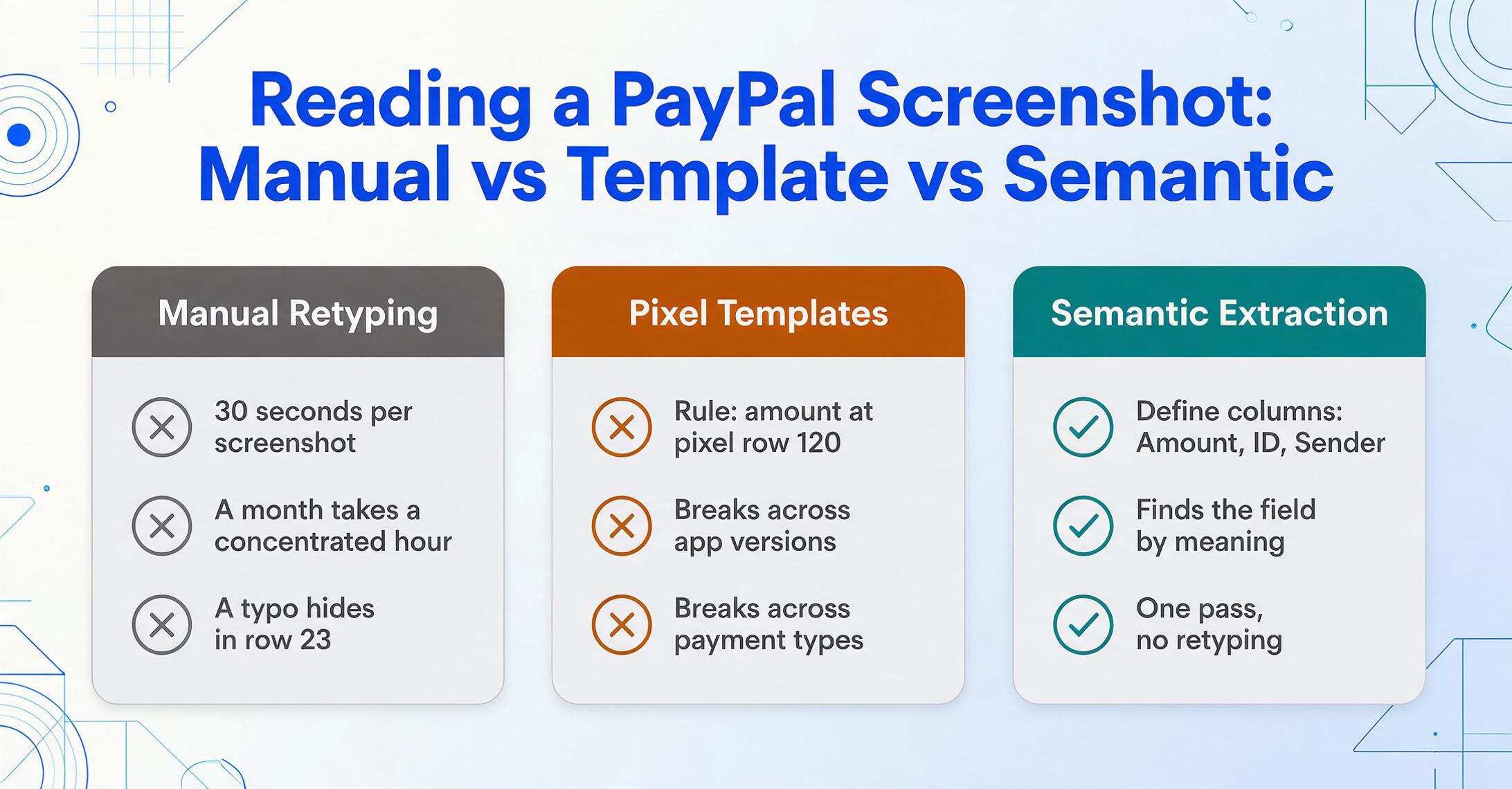
The mechanism that turns this into a single pass is Custom Column Extraction: you define the columns you want — Amount, Transaction ID, Sender Name — and the extraction reads each value off the screenshot by understanding what the field represents semantically, not by locating it at fixed pixel coordinates. This distinction matters because a PayPal transaction confirmation from the 2024-redesigned mobile app puts the Transaction ID in a different vertical position than the pre-redesign version. A confirmation from paypal.com arranges the same fields in slightly different spacing than the mobile app. A confirmation for a G&S payment includes a "Purchase details" expandable section that a F&F confirmation doesn't, which pushes the Transaction ID further down the page.
A template-based approach — "the amount is always at pixel row 120" — breaks across app versions, screen sizes, and payment types. Semantic extraction doesn't care about layout: it finds "the 17-character alphanumeric string that identifies this transaction" wherever PayPal places it on this particular screen version.
The same column definitions work across different payment platforms because you're telling the extractor what to find, not where. Drop in PayPal screenshots alongside Venmo confirmations, Zelle payment screens, and Cash App receipts in one batch, and the output is a single spreadsheet with a row per transaction, columns matched across platforms. For a freelancer or small business that receives money through whichever app the client prefers, this replaces four separate manual logging workflows with one. For the full multi-platform workflow — one column set, one batch, one spreadsheet across every payment app — see the payment screenshot extraction tool.
Files are processed securely and not stored.
The downstream workflow is the same whether you're processing PayPal screenshots alone or mixed with other payment apps. The three extracted columns — Amount, Transaction ID, Sender Name — give you a ledger row per payment. If any of the payments were G&S, add a fourth column for the fee so your net totals match your bank. If the sender is a regular client with a PayPal Business account whose display name keeps changing, the Transaction ID column becomes the stable join key across multiple months of records. The screenshots stay as your original documentation; the spreadsheet becomes your working copy — searchable, sortable, and importable into whatever accounting tool you use next.
FAQ
Why is the Transaction ID 17 characters — and does the format ever change?
PayPal Transaction IDs are consistently 17 alphanumeric characters — uppercase letters and digits — regardless of payment type, currency, or account region. The format has remained stable across years of platform updates. If you encounter a PayPal reference number that's shorter or in a different format, it's likely an invoice ID, a billing agreement ID, or a dispute case number — not the Transaction ID. The Transaction ID is always labeled "Transaction ID" on the detail screen, never "Reference" or "Order ID," and it's the identifier PayPal's support team and automated export tools use as the primary lookup key.
Can I tell from a screenshot alone whether the payment was G&S or F&F?
Yes — on the transaction detail screen. The payment type label ("Goods and Services payment" or "Friends and Family payment") appears directly below the amount on the mobile app and alongside it on the desktop interface. This label is the only on-screen indicator that distinguishes the two payment types. If the label is missing — which can happen on older screenshots or on some regional versions of the PayPal app where the label placement varies — check whether a fee was deducted by comparing the amount shown to the "Received" line item in the same transaction detail. A difference between the two confirms G&S. No difference confirms F&F.
Does the PayPal screenshot show the actual calendar date, or just "2 hours ago"?
The transaction detail page shows an absolute calendar date and time — e.g., "June 15, 2026 at 2:34 PM PDT." The Activity list summary shows a relative timestamp ("2 hours ago," "Yesterday") that becomes useless once its context expires. Always screenshot the individual transaction detail page, not the Activity list, if you need the date for your records. For payments that are still pending — typically bank-funded payments that take 3-5 business days to clear — the transaction detail shows a "Pending" status with an estimated completion date, not a settled date. Wait until the status flips to "Completed" before you capture the screenshot if you need the final settlement date.