How to Distinguish Fee, Rate, and
Amount on a Wise Transfer Screenshot
A Wise transfer confirmation is deliberately dense. It shows you the amount you sent in your source currency, the mid-market exchange rate applied to the conversion, the Wise fee deducted from the transfer, and the amount the recipient receives in their target currency — four numbers, four distinct meanings, and they can all be denominated in different currencies. If you are saving screenshots of these confirmations for an income record, a month-end spreadsheet, or a folder of cross-border payments to reconcile against your bank statement, the screen rewards a reader who knows which line is which — and punishes anyone who treats all four numbers as interchangeable.
Four Numbers, One Screen
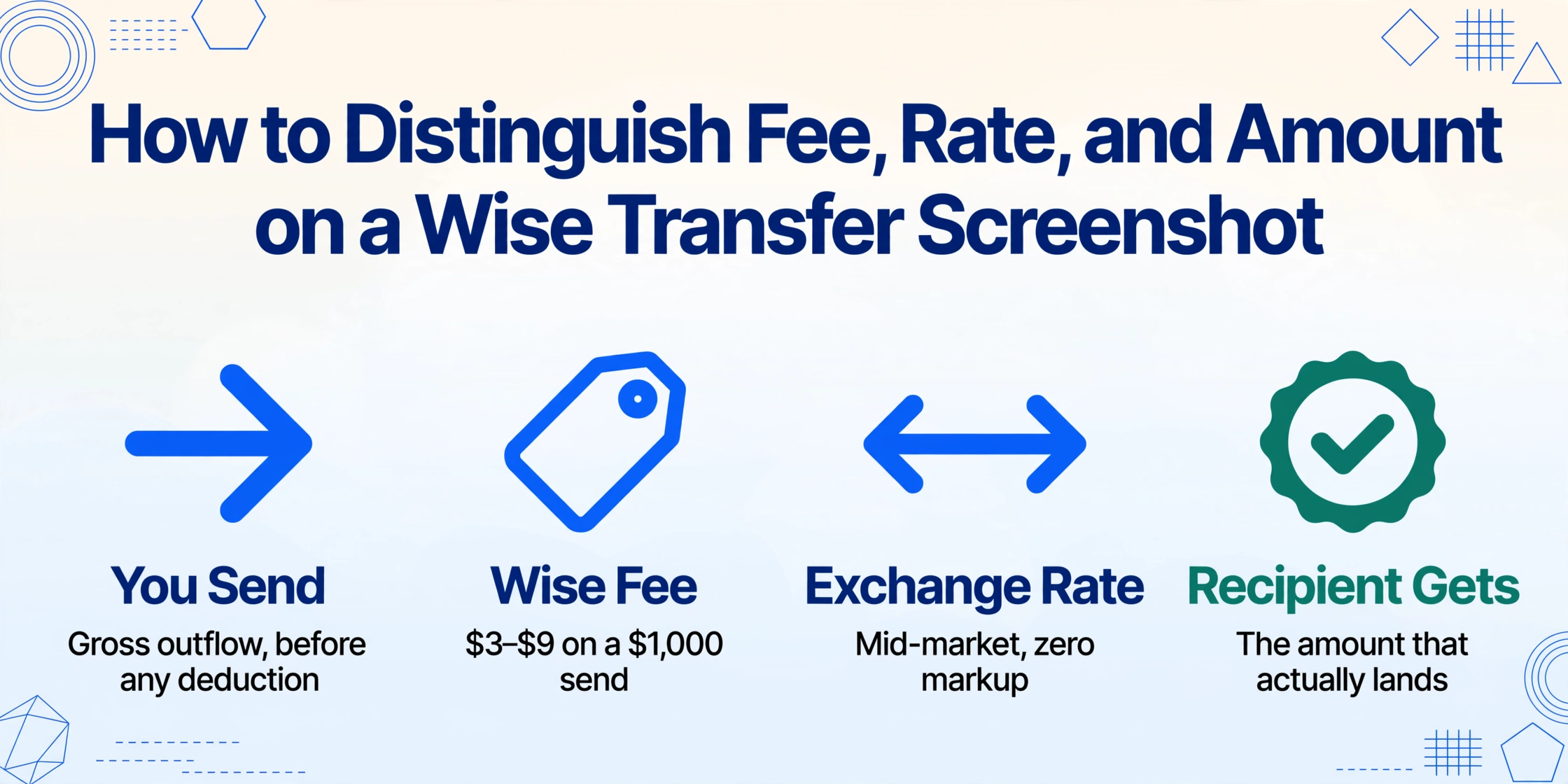
The breakdown on a Wise transfer confirmation follows a consistent structure. Four lines, always present:
You send — the amount in your source currency, before any deduction. If you funded the transfer from a USD-denominated account and sent $1,000, this line reads $1,000.00. This is the gross outflow — not what reaches Wise, and certainly not what reaches the recipient.
Wise fee — the visible charge, listed as a separate line item. For most currency pairs the variable fee starts at 0.33% of the transfer amount, with a small minimum for very low amounts. A $1,000 USD-to-EUR transfer typically carries a fee in the $3–$9 range, depending on the funding method. Bank transfer funding is cheapest; card payments and wire transfers add a surcharge.
Exchange rate — the mid-market rate applied to the conversion, shown to four to six decimal places. Wise uses the same interbank rate that appears on Reuters and XE — the rate banks trade among themselves — with zero markup. This is the number that separates Wise from a bank wire: a bank would quote a rate 2–4% weaker and bury the difference in the "total," making the fee invisible. On a Wise confirmation, the rate and the fee are independently legible. The rate is often guaranteed for a window of several hours to two days, depending on the currency pair — the confirmation screen will state the guarantee expiry time.
Recipient gets — the final amount in the target currency, after the fee has been subtracted and the rate applied. If you sent $1,000, paid a $7.50 fee, and the rate was 0.9142, the recipient gets approximately €907.04. This is the only number the recipient sees on their end — they receive a notification showing the amount that arrived in their account along with the sender's name and the payment reference. They never see your fee or your side of the exchange rate.
The fees page on Wise displays a comparison table that makes this four-number structure explicit: one row for the amount you send, one for the transfer fee, one for the exchange rate with zero markup, and one for what the recipient receives. The confirmation screen mirrors this — just with your actual numbers filled in.
Why Three of Those Numbers Look the Same to Traditional OCR
On a Revolut multi-currency screenshot, you have two numbers — source and destination — and the extraction challenge is picking the right one. Wise takes that same problem and adds a third layer: the fee slides in between the source amount and the recipient amount, and the exchange rate sits alongside all three as yet another numeric value with its own semantic identity. Four numbers. All of them can be correct. Only one answers the question "how much did my client actually receive?"
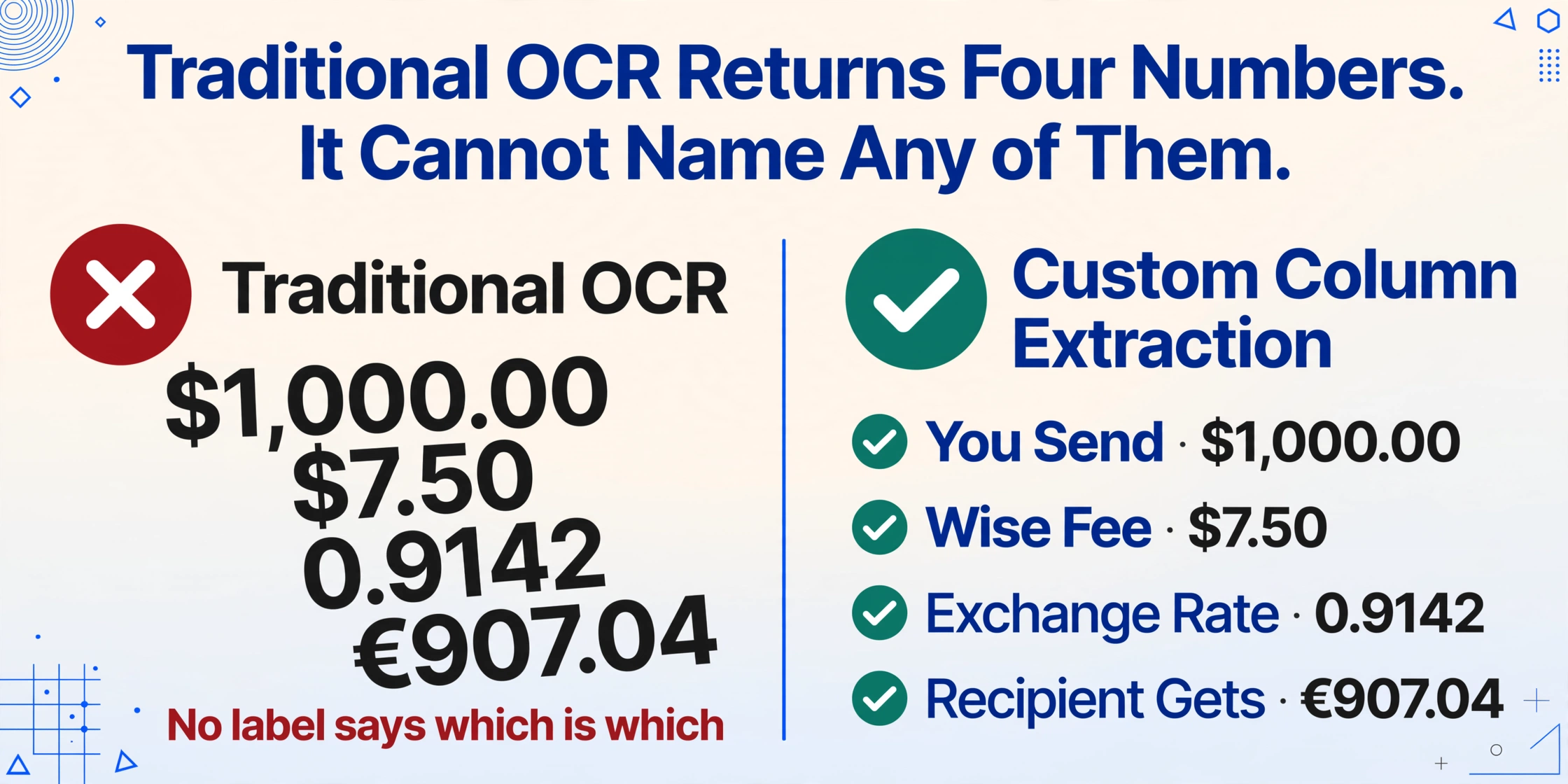
Traditional OCR reads every character on a screen and outputs it as text. On a Wise confirmation page, OCR would capture $1,000.00, $7.50, 0.9142, and €907.04 as four separate strings. It can't tell you which one is the fee and which one is the recipient amount because it doesn't understand what the label next to each number says. To OCR, "Fee $7.50" and "Recipient gets €907.04" are just text — the word "Fee" has no more significance than the word "Recipient." The output is a pile of numbers without attribution.
The extraction problem on a Wise screenshot isn't about finding numbers — it's about assigning each number to the correct meaning. The fee and the recipient amount are both dollar figures (or euro figures, or pound figures). The exchange rate is a decimal that looks nothing like a dollar amount but sits in the same visual flow. Without semantic understanding, all four values are equally valid — and equally useless — as data points.
This is where Custom Column Extraction separates itself from OCR. You define the output columns — Source Amount, Fee, Exchange Rate, Recipient Amount — and the extraction reads the confirmation screen the way a human does: it sees "Fee $7.50" and knows the $7.50 belongs in the Fee column, because it understands the label "Fee" has a specific meaning that matches your column name. It sees "0.9142" next to "Exchange rate" and places it in the Exchange Rate column, not in the Amount column, because it recognizes that 0.9142 is a ratio, not a monetary value.
The same column definitions work across every currency pair. A USD→EUR confirmation fills the same columns as a GBP→INR transfer. The layout is consistent — Wise's confirmation template uses the same four-line structure regardless of which currencies are involved — but even minor UI variations between the mobile app and the desktop website don't break the extraction, because the AI is following the meaning of each label, not its pixel position.
Getting the Numbers into a Spreadsheet
Once the four values land in a spreadsheet row, the downstream uses fall into patterns that aren't tied to a specific profession. What matters isn't whether the person is a freelancer, a business owner, or someone sending money to family — it's that the same four numbers serve the same four purposes regardless.
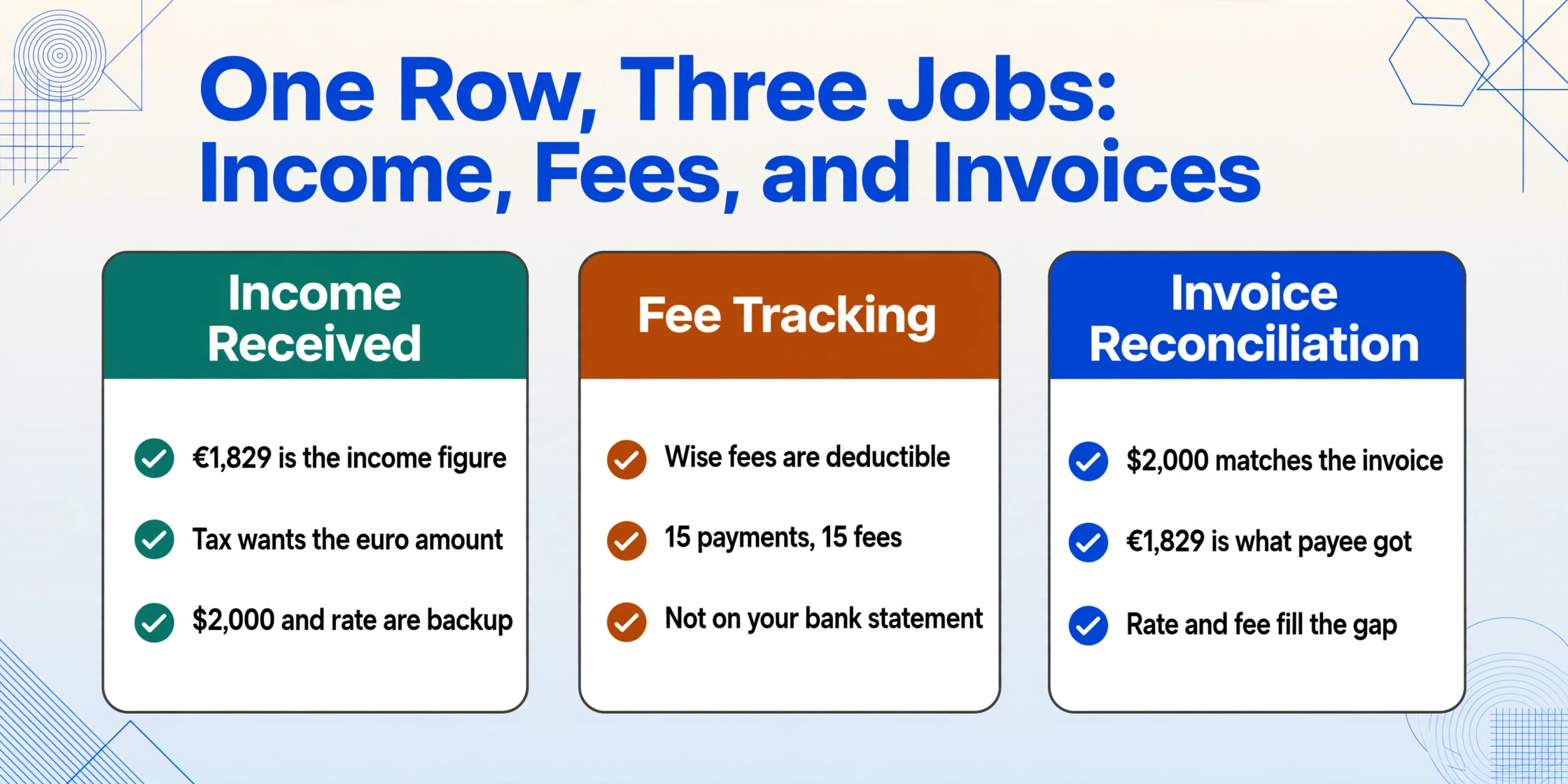
Recording income received. If a client paid you $2,000 via Wise and €1,829 landed in your euro account, the recipient amount is what you record as income. The source amount and the fee are supporting documentation — they explain why your bank statement shows €1,829 and not $2,000 equivalent. For tax reporting in a euro-denominated jurisdiction, the euro figure that actually arrived is the one that matters. The dollar figure and the rate are backup — useful if a tax authority questions the conversion.
Tracking expenses and fees. The Wise fee is a deductible business expense in most jurisdictions. If you're sending 15 payments a month to overseas contractors, each one carries a fee that sits on the confirmation screen but not on your bank statement. Capturing the fee as its own column lets you aggregate it at year-end rather than searching back through 15 screenshots.
Reconciling against invoices. An invoice says $2,000. Your Wise confirmation says you sent $2,000 and the recipient got €1,829. The source amount matches the invoice. The recipient amount matches what the payee confirms receiving. The exchange rate and fee fill the gap between the two. Having all four in one row means the reconciliation is self-contained — you don't need to flip between the confirmation screenshot and a separate currency converter to verify the math.
Files are processed securely and not stored.
The same workflow applies to any payment platform screenshot — Venmo, PayPal, or Zelle — but Wise adds the most layers: four data points with four distinct meanings, potentially across two or three currencies. A batch of screenshots from different platforms lands in one spreadsheet with the same column headers, because the extraction is asking "what does this field mean," not "which app generated this."
FAQ
Doesn't Wise let you download a PDF confirmation already?
Yes — Wise generates a PDF transfer confirmation with the same four-line breakdown (source amount, fee, rate, recipient amount) for any completed transfer, downloadable from the transaction list under "Get transfer confirmation." That PDF is good for record-keeping, but if you need the data in a structured format — rows in a spreadsheet, not a flat document — the PDF doesn't solve the data entry problem. The confirmation tells you the numbers. It doesn't put them into columns for you.
What if I took the screenshot before the transfer completed?
Wise confirms the rate and fee at the moment you initiate the transfer, but the transfer itself may take hours or days to complete depending on the payment method and currencies. The rate on an in-progress transfer screenshot is the rate you got — it's locked at confirmation. What may change is the delivery date if there are delays on the banking side. The numbers are final; the timing isn't. If you need the definitive record, wait until the status reads "Completed" and download the confirmation PDF or take a fresh screenshot.
Does the fee ever change after the screenshot is taken?
No. Wise shows the total fee upfront before you confirm the transfer, and that fee is final. There are no intermediary bank fees on Wise's side — the fee you see is the fee you pay. The recipient also pays nothing to receive a Wise transfer, because Wise deposits locally through its own banking partners rather than routing through a chain of correspondent banks that each deduct a cut.